Microsoft Entra ID Auth Module
The Microsoft Entra ID authentication module lets users log in to Hub with their Microsoft Entra ID accounts.
When setting up Microsoft Entra ID authentication, you can configure custom or common tenants. With a custom tenant, you define a specific tenant ID, limiting logins to users in your Microsoft Entra ID instance. Without a specified tenant ID, the authentication module allows logins from any Microsoft Entra ID tenant, regardless of organization membership.
To learn how to set up a new tenant, please refer to the Microsoft Entra ID documentation.
To create the Microsoft Entra ID module:
From the main navigation menu, select Auth Modules.
Click the New module button.
The Select an identity provider dialog opens.
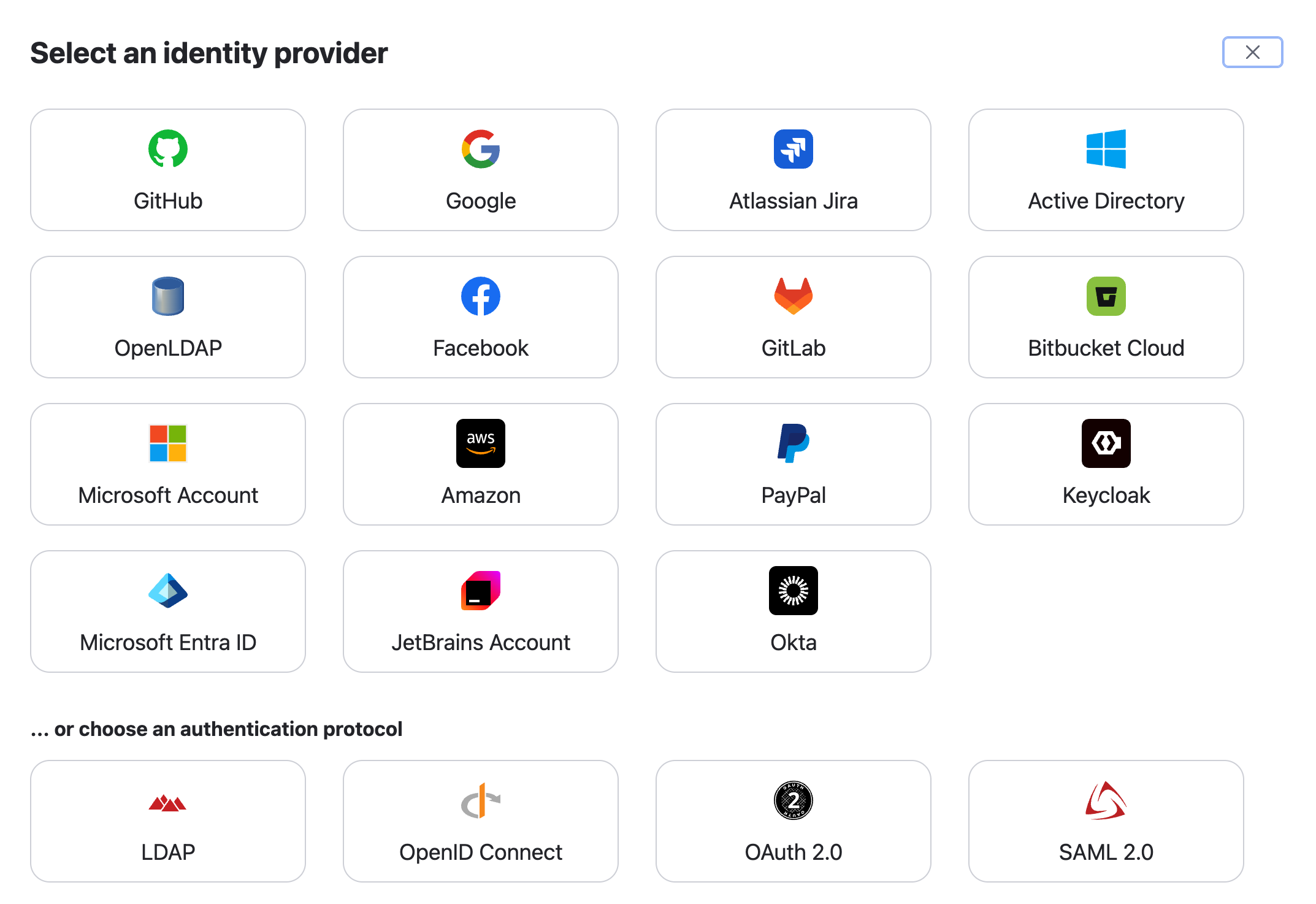
In the Select an identity provider dialog, select Microsoft Entra ID.
The Configure Login with Microsoft Entra ID wizard opens.
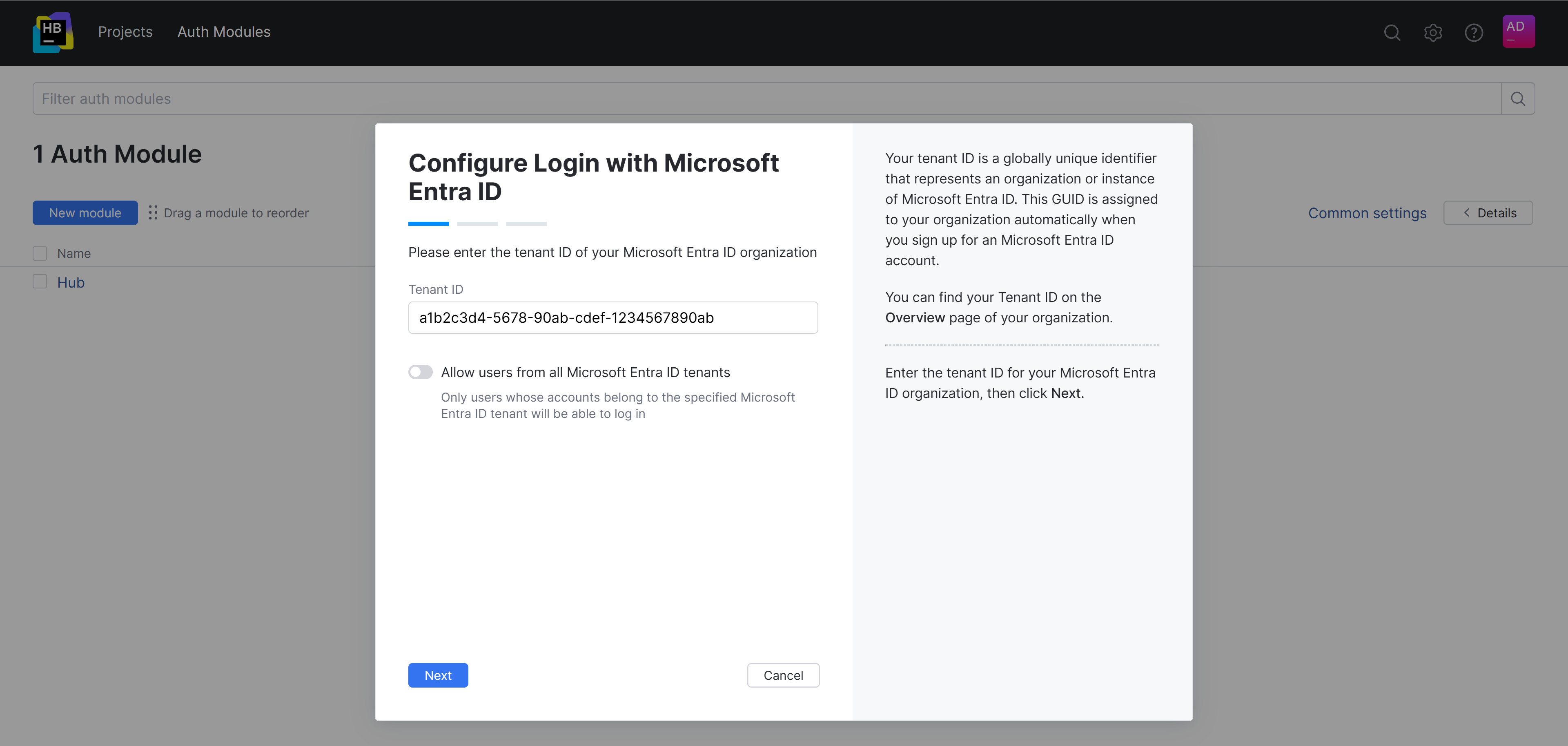
To continue with a custom tenant setup, specify the value from the Tenant ID field in Microsoft Entra ID.
To continue with a common tenant setup, leave the Tenant ID field empty.
Click Next.
Copy the generated redirect URI.
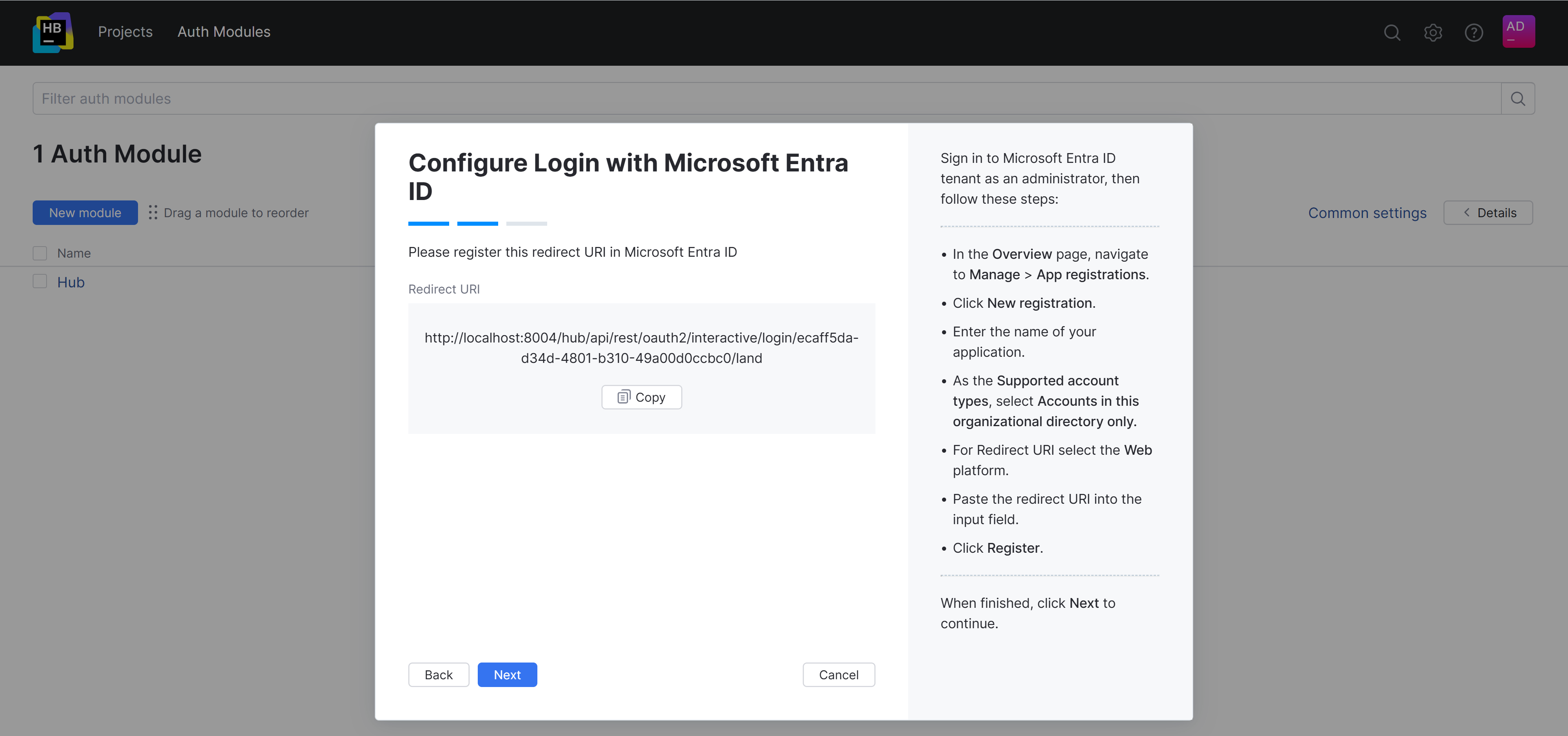
Follow the instructions provided in the wizard to register the Hub app in Microsoft Entra ID and configure the redirect URI. This gives you access to the client ID and secret that you need to enable the Microsoft Entra ID authentication module.
Copy the Application (client) ID and Client secret from Microsoft Entra ID and paste them into the Client ID and Client Secret fields in Hub correspondingly.
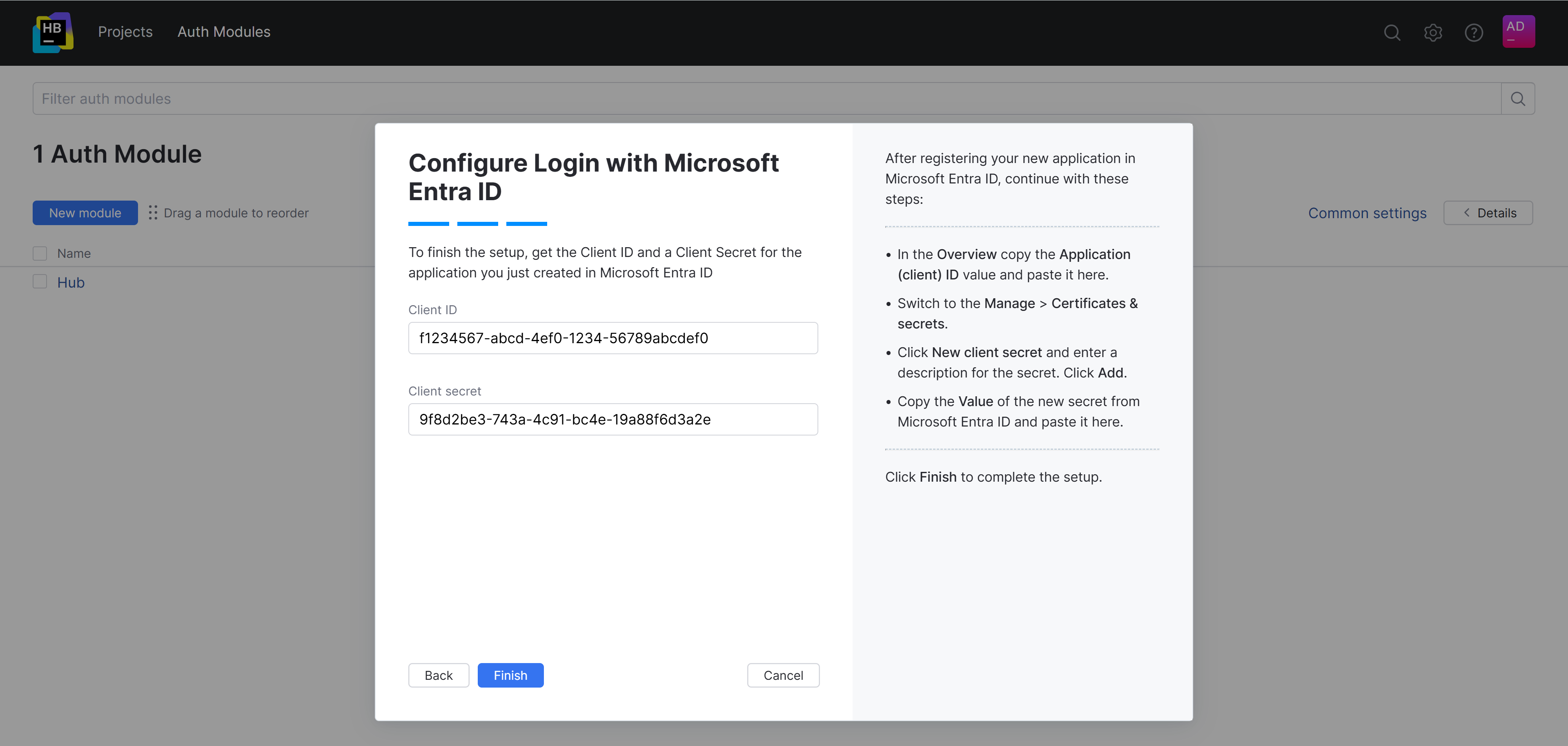
Click Finish.
The Auth Modules page displays the settings for a new Microsoft Entra ID authentication module.
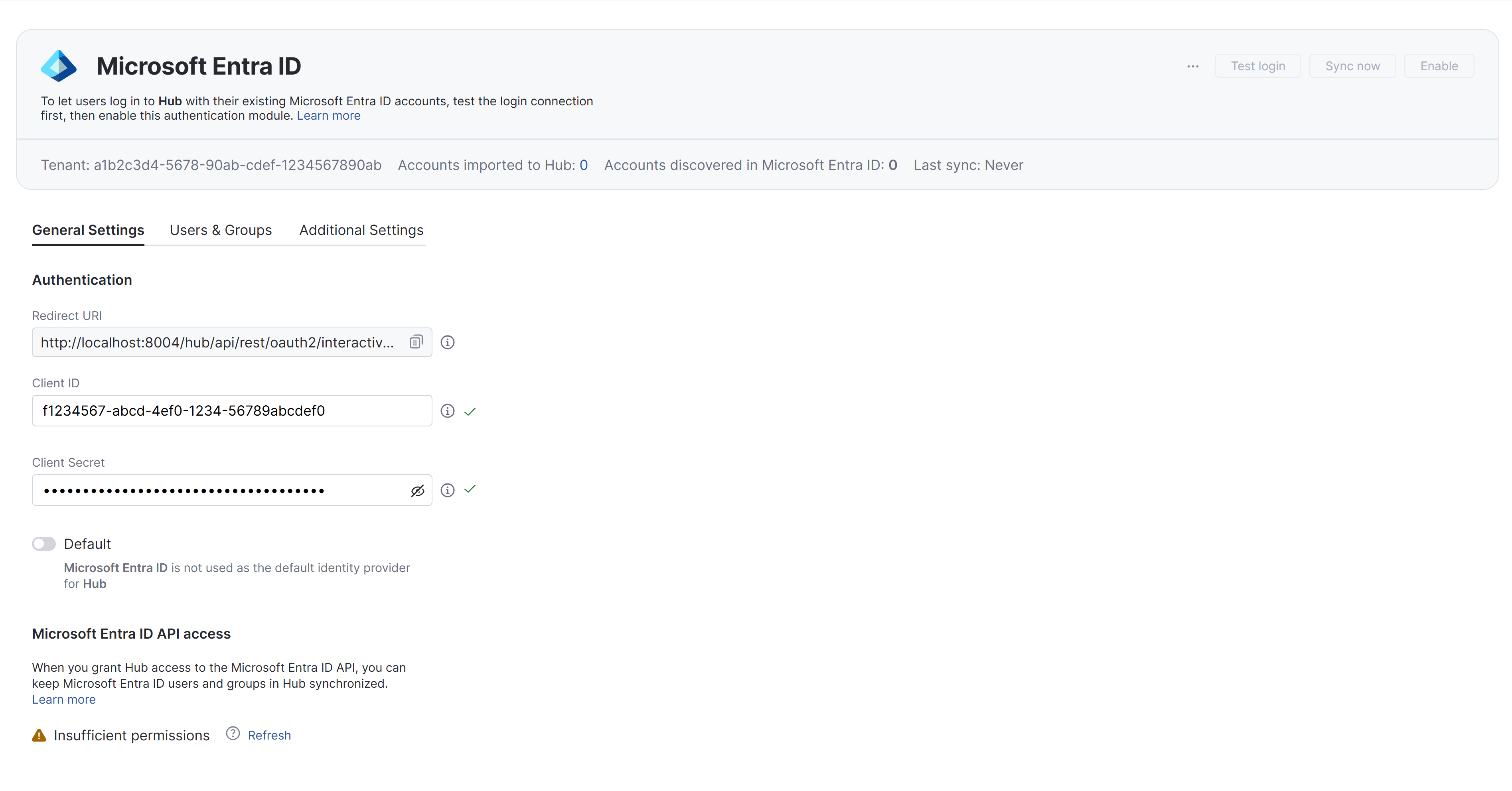
To learn how to register Hub in Microsoft Entra ID, please follow the instructions in the product documentation for Microsoft Entra ID.
The following table lists the key configuration options in Microsoft Entra ID that are required for this authentication module:
Setting | Description |
|---|---|
Supported account types | This determines who can use the application, sometimes called its sign-in audience. For this setup, choose the Accounts in this organizational directory only (Single tenant) option. |
Redirect URI | Paste the redirect URI from Hub into the input field. For the type, select the Web option. |
Application (client) ID | This value is automatically generated when you register the application in Microsoft Entra ID. Use the value from this field as the Client ID setting in Hub. |
Client secret | Value | This value is generated in the Certificates & secrets section of the App registration experience. Once you have added a client secret for the application, use the value for the client secret as the Client secret in Hub. |
API permissions | To map existing group memberships from the Microsoft Entra ID service to groups in Hub, grant the application the following Delegated type permissions for working with the Microsoft Graph API:
If you want to set up synchronization between Microsoft Entra ID and Hub, the following Application type permissions are required as well:
The complete list of permissions that are currently available to your app is listed on the API permissions page. |
Once you have the values that are required to connect with the authorization service, you can enable the Microsoft Entra ID auth module.
To enable the Microsoft Entra ID auth module:
If necessary, configure the optional settings for the authentication module. For more information, see Additional Settings.
Click the Save button at the bottom of the page.
Click the Enable button in the header.
The Microsoft Entra ID authentication module is enabled.
The Microsoft Entra ID icon is added to the login dialog window. Users can click this icon to log in to Hub with their Microsoft accounts.
Settings
In the header of the settings page, you can find the general information about the authentication module, including its name and tenant ID.
Setting | Description |
|---|---|
Name | Stores the name of the authentication module. Use this setting to distinguish this module from other authentication modules in the Auth Modules list. You can change the name of the authentication module using the Rename action. For more details, refer to Actions. |
Tenant | Stores the ID of the custom tenant in the Microsoft Entra ID service. For auth modules that are connected to a common tenant, this field is empty. |
Accounts imported to Hub | Displays the number of users in Microsoft Entra ID that have been imported to your Hub installation. |
User accounts found in Entra ID | Displays the number of user accounts that Hub has found in Microsoft Entra ID. |
Last sync | Displays the last time when Hub synchronized user accounts and groups between Hub and Microsoft Entra ID. |
On the General Settings tab, you find the general settings for the authentication module. This includes the redirect URI that you used to register Hub in the authorization service and the input fields that store the Client ID and Client Secret.
Setting | Description |
|---|---|
Redirect URI | Displays the authorized redirect URI used to register the connection to Hub in the authorization service. |
Client ID | Stores the identifier that the authorization service uses to validate a login request. You generate this value in the authorization service when you configure the authorization settings for a web application and enter an authorized redirect URI. |
Client secret | Stores the secret or password used to validate the client ID. You generate this value in the authorization service together with the client ID. |
Default | Sets the current authentication module as the default. |
Users & Groups
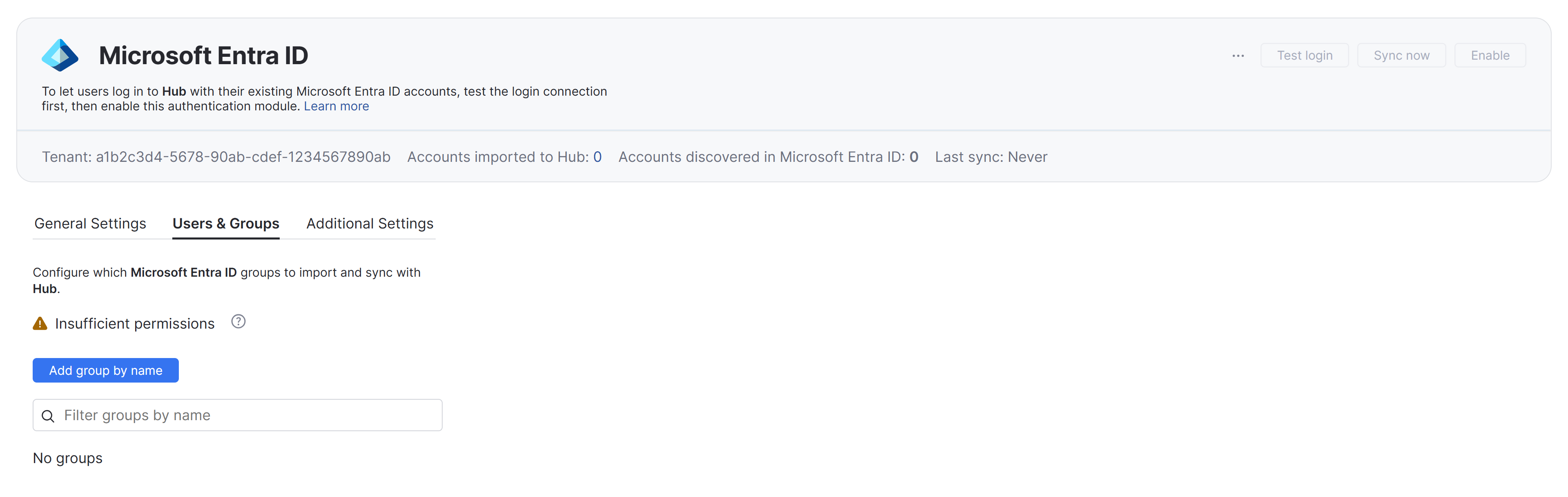
The settings on the Users & Groups tab let you set up synchronization of user account and group data between Hub and Microsoft Entra ID.
When synchronization is enabled, changes applied to Microsoft Entra ID profiles are synchronized with Hub. This synchronization is performed in addition to the synchronization requests that are automatically sent when users log in to Hub using their Microsoft account credentials.
Setting | Description |
|---|---|
Scheduled sync | Determines the frequency with which user attributes and group memberships are synchronized with Microsoft Entra ID. If the setting is enabled, you can choose from one of three predefined intervals:
You can also launch the synchronization manually at any time by clicking the Sync users and groups now button in the header. If the setting is switched off, group memberships are still synchronized on a per-user basis during login. The synchronization feature is only active when the authentication module is Enabled. |
User and Group Creation
When synchronization is enabled, users and groups that are added to your Microsoft Entra ID directory service are automatically created in Hub. This means you don't need to create and manage these groups and user accounts manually. However, you may need to consider whether users who are imported automatically are allocated licenses to work with specific applications. For example, when your Hub service is connected to a YouTrack installation, each user account imported from Microsoft Entra ID is allocated a license in YouTrack.
To make sure you're not importing unwanted user accounts from the linked directory service, use one of these approaches:
Only add mappings for the groups that contain users you want to import and sync with Hub. For specific instructions, see Group Mappings.
Deactivate the Scheduled sync option on the Users & Groups tab for the authentication module. When this setting is switched off, group memberships are still synchronized on a per-user basis during login. In this case, you would only provide instructions for accessing Hub or connected applications to the people who you want to be granted licenses to work with these applications.
This is also relevant when you have set up SCIM provisioning. Since SCIM provisioning is also used for synchronization, users and groups that are added to Microsoft Entra ID are also created in Hub when this feature is active. To avoid unwanted allocation of user licenses when working with SCIM, make sure that you only set up provisioning for users and groups where you want them to be allocated licenses for connected service applications.
Group Mappings
In case the necessary API permissions are not granted in Entra ID, you can provide the names of Entra ID groups to use in Hub manually.
The Microsoft Entra ID module automatically maps the attribute that stores Microsoft Entra ID group memberships to the field that stores membership records in the Hub database. All you need to do is map the groups in the Microsoft Entra ID service to their counterparts in Hub.
When group mappings are configured, Hub checks for Microsoft Entra ID group memberships when users log in with accounts that are managed in the directory service. Hub performs the following operations for each Microsoft Entra ID group that is mapped to a Hub group:
Users who are members of a mapped Microsoft Entra ID group and are not members of the mapped Hub group are added to the group in Hub.
Users who are not members of a mapped Microsoft Entra ID group and are members of the mapped Hub group are removed from the group in Hub.
Changes to group memberships in the authorization service are only applied in Hub when users log in using their Microsoft Entra ID accounts.
To map a group from Microsoft Entra ID to a group in Hub:
Open your Microsoft Entra ID auth module.
Select the Users & Groups tab.
Click the Add group by name button.
Enter the name of the Microsoft Entra ID group in the designated field.
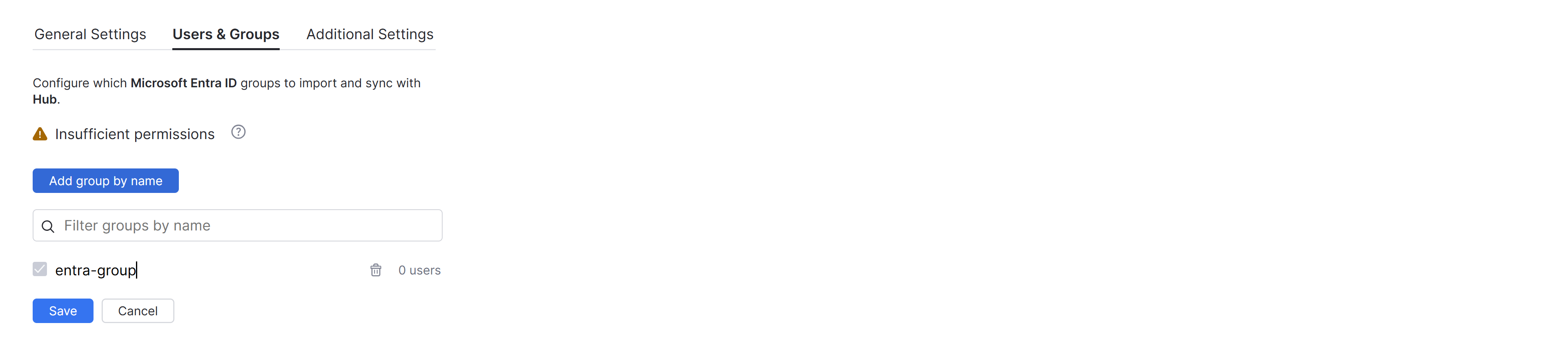
Click the Save button.
The specified group is added to Hub.
Clicking the group name redirects you to the page
Repeat steps 3 through 5 until you have mapped all the desired groups.
Synchronizing Access for Guests
Microsoft Entra ID supports the concept of guest users who are invited from other tenants. These guest accounts are commonly used to allow access to resources across organizations in a secure, managed way.
Microsoft Entra ID supports the following guest user access restriction levels:
Guest users have the same access as members (most inclusive)
Guest users have limited access to properties and memberships of directory objects
Guest user access is restricted to properties and memberships of their own directory objects (most restrictive)
When guest user access is restricted to properties and memberships of their own directory objects, Hub is unable to request group membership information for guest accounts. This means that guest users can lose their group assignments during synchronization.
If you are using group memberships to grant specific access to the guest user account in Hub, make sure to select the first or second option for guest user access. For specific instructions, please refer to the official Microsoft Entra documentation.
SCIM Provisioning
Hub supports SCIM 2.0 provisioning through Microsoft Entra ID, allowing you to synchronize users and groups from your directory to Hub. However, Microsoft Entra only supports SCIM provisioning for certain applications listed in the Azure AD Gallery. To determine whether your app supports SCIM provisioning, look for the Provisioning menu option in the settings for your app.
Enable SCIM provisioning in Hub
Open your Microsoft Entra ID auth module.
Select the SCIM 2.0 tab.
Enable the Enable SCIM 2.0 provisioning option.
Hub generates a SCIM 2.0 base URI for this authentication module.
Create a SCIM 2.0 token and copy its value.
Specify both the SCIM 2.0 base URI and SCIM 2.0 token generated in Hub when configuring SCIM provisioning in your identity provider. The base URI identifies the provisioning endpoint, while the token authenticates provisioning requests sent by the identity provider.
Create a SCIM 2.0 Token
In the SCIM 2.0 Tokens section, click New Token.
In the New SCIM 2.0 Token dialog, enter a name for the token.
Click Create.
Hub generates the token and displays its value in the SCIM 2.0 Token Created dialog.
Copy the token value and store it in a secure location before closing the dialog. The token value cannot be viewed again after the dialog is closed.
Delete a SCIM 2.0 Token
Select one or more tokens in the SCIM 2.0 Tokens table.
Click Delete and confirm the action in the Delete SCIM 2.0 token dialog.
Enable SCIM provisioning in Microsoft Entra
Go to the Microsoft Entra Admin Center.
Navigate to .
For the sign-in method, select SAML 2.0.
Name the application and proceed with any placeholder SAML settings (they will not be used), then create the app.
After creating the app, switch to the Provisioning tab.
In the Admin Credentials section, enter SCIM 2.0 base URI to the Tenant URL field and SCIM 2.0 token the Secret Token field.
Click the Test Connection button to confirm the setup.
Make sure the Provisioning Status toggle is set to On, then click the Save button.
If your Entra app doesn't support provisioning and you still want to use this feature, you can gain access to these settings by launching another app. To learn more, please refer to the official documentation for Microsoft Entra.
Additional Settings
The settings on the Additional settings tab let you manage account creation and group membership and reduce the loss of processing resources consumed by idle connections.
Option | Description |
|---|---|
ID token | Determines whether Hub requests an ID token along with the authentication code. The ID token is not required, but can be used to enforce multi-factor authentication in Microsoft Entra ID. To ensure that this works properly, you must enable ID tokens for the Entra ID app before activating this feature. The option to issue ID tokens is available in the Implicit grant and hybrid flows section of the Authentication settings for your Entra ID app. For detailed instructions, please refer to the official Microsoft Entra documentation . |
Account status | Determines whether accounts are banned in Hub when an account with corresponding credentials is deleted or deactivated in the Microsoft identity platform.
|
User creation | Enables creation of Hub accounts for unregistered users who log in with an account that is stored in the connected authorization service. Hub uses the email address to determine whether the user has an existing account. |
Auto-join groups | Adds users to a group when they log in with an account that is stored in the connected authentication service. You can select one or more groups. New users that auto-join a group inherit all the permissions assigned to this group. We recommend that you add users to at least one group. Otherwise, a new user is only granted the permissions that are currently assigned to the All Users group. |
Connection timeout | Sets the period of time to wait to establish a connection to the authorization service. The default setting is 5000 milliseconds (5 seconds). |
Read timeout | Sets the period of time to wait to read and retrieve user profile data from the authorization service. The default setting is 5000 milliseconds (5 seconds). |
Changes made to Entra ID | Links to the Audit Events page in Hub. There, you can view a list of changes that were applied to this authentication module. |
Field Mapping
If you've added custom attributes to user profiles, these attributes can also be mapped to attributes that are stored in the authorization service. Each custom attribute is listed by name with an input field for storing the name of the corresponding field in the authorization service.
Attribute names are case-sensitive. If the Microsoft attribute synced is written in camelCase, the attribute field name entered in Hub must match.
Custom attributes in Hub are created with a specific type. The corresponding value from the Azure field must match the field type specified in Hub.
Hub supports attributes retrievable directly from the authentication service user accounts. Attributes like Manager or Sponsors that require querying a separate resource are not supported.
To learn more about custom attributes in user profiles, refer to Manage Custom Attributes.
When Microsoft Entra ID returns a user profile as a response object, values from the specified field paths are copied to the user profile in Hub. Use the following settings to define the endpoint that locates profile data for the authenticated user and map fields that are stored in the authorization service user profiles to the corresponding user accounts in Hub.
To specify paths to fields inside nested objects, enter a sequence of segments separated by the slash character (
/).To reference values that may be stored in more than one location, use the "Elvis operator" (
?:) as a delimiter for multiple paths. With this option, Hub uses the first non-empty value it encounters in the specified field.
Actions
The following actions are available in the header:
Action | Description |
|---|---|
Test login | Lets you enter a username and password to test the connection with the authentication service. |
Sync now | Launches the synchronization of users and groups between Microsoft Entra ID and Hub. You can configure which Entra ID groups to use in Hub on the Users & Groups tab. |
Enable | Enables the authentication module. This option is only shown when the authentication module is currently disabled. |
Disable | Disables the authentication module. This option is only shown when the authentication module is currently enabled. |
Rename | Lets you update the existing authentication module name and change its default icon. You can find this action in the More options (...) menu. |
Delete | Removes the authentication module from Hub. Use only when you have configured additional authentication modules that let users log into your Hub installation. You can find this action in the More options (...) menu. |
Migration from the Azure AD 2.0 Auth Module
The Azure AD authentication module included in Hub versions earlier than 2022.2 doesn't support the ability to map and sync memberships between groups in the Microsoft Entra ID service and groups in Hub. If you want to use this feature, you need to migrate to the updated version of the authentication module.
To perform this migration:
Delete the existing Azure AD 2.0 authentication module. You can distinguish the older module because it is assigned the OAuth 2.0 type in the list.
Set up a new Microsoft Entra ID authentication module as described on this page.