Cypress Custom Commands
Custom Commands provide a way to reuse certain methods or functions across the Cypress test suite. For example, you can write a command to log in the user and reuse it within your project whenever applicable.
GoLand supports Custom Commands, meaning that all coding assistance features, such as renaming, navigation, code completion, and inspections are available right away.
Custom Commands coding assistance
Cypress-specific inspections
Cypress utilizes a chaining mechanism that allows you to write a sequence of commands where information is passed from one command to the next until the chain ends or an error occurs.
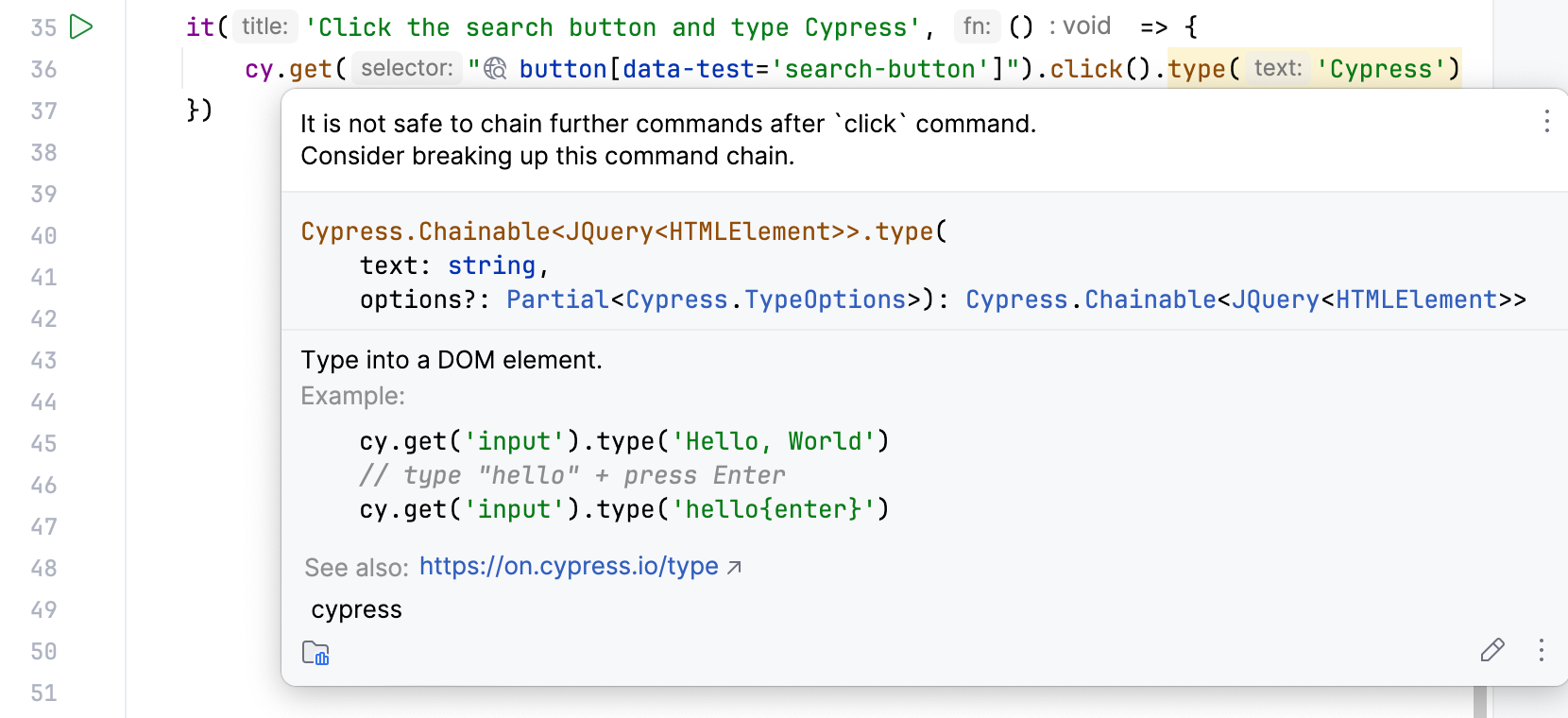
After an action command such as click(), the element passed to the next command can become outdated. GoLand warns about unsafe command chains. Start a new chain to find the element again.
This chain passes the clicked button to type() instead of finding the input field.
Start a new chain to find the input field after clicking the button:
The command-chain inspection also warns when a command receives an incompatible element or value.
Function-specific inspections
GoLand performs function-specific code inspections that detect and correct abnormal code in your project.
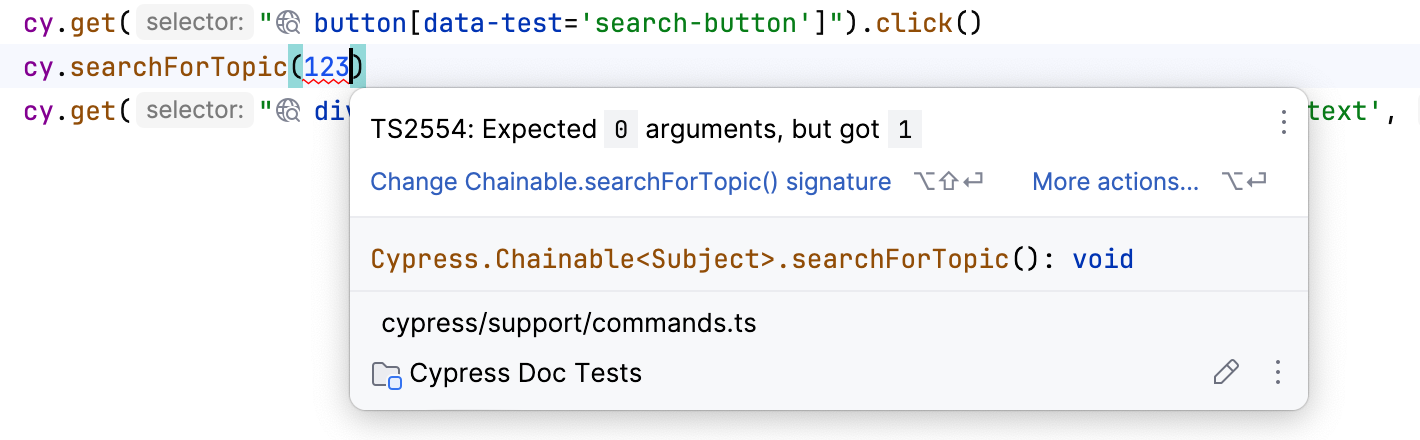
For example, if you provide an incorrect number or type of arguments for the command, the erroneous code gets highlighted. You can hover the mouse over the highlighted code to see the description of the error.
For more information, refer to Code inspections.
Renaming
If you need to rename the command, you can use the Rename refactoring. To do this:
Highlight the command that you want to rename.

Press Shift+F6 and provide a new name for the command.
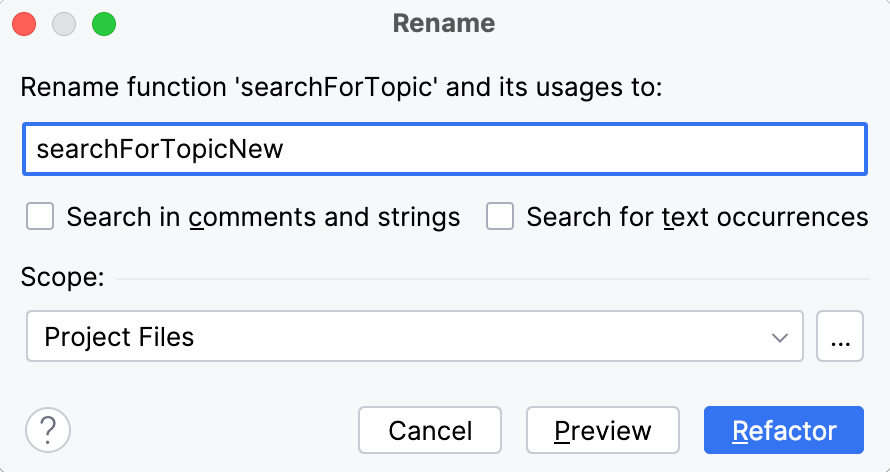
(Optional) Configure additional search options and define scope.
Click Refactor.
For more information, refer to Rename refactorings.
Creating a Custom Command
To create a Custom Command, you have to first write the command, and then create a TypeScript declaration for it. To do this:
Write your command in the code editor.
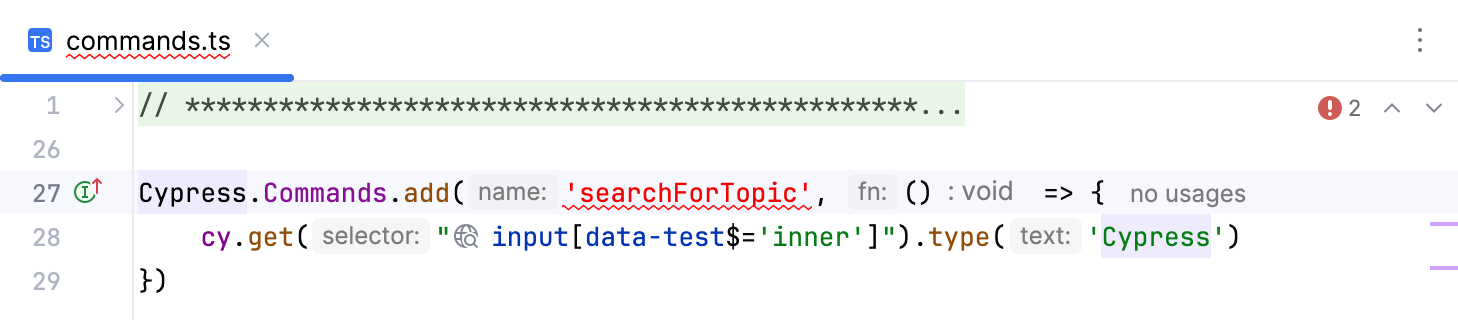
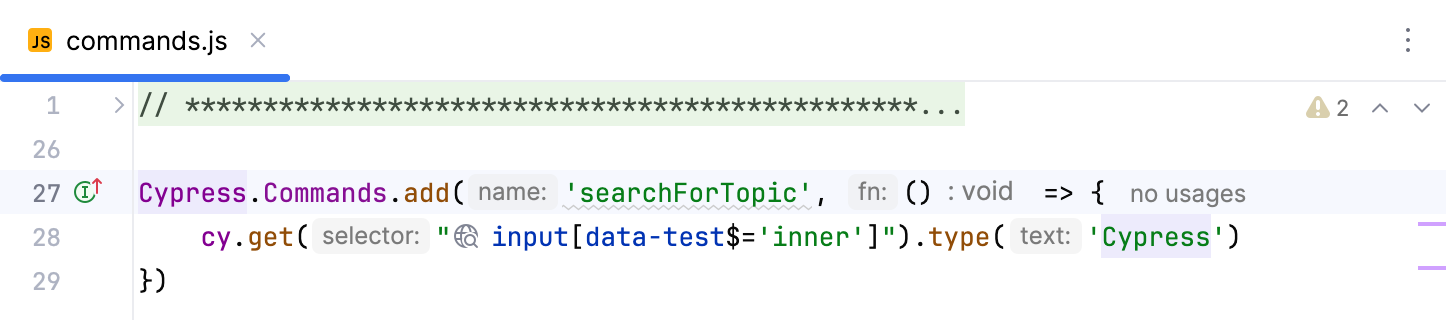
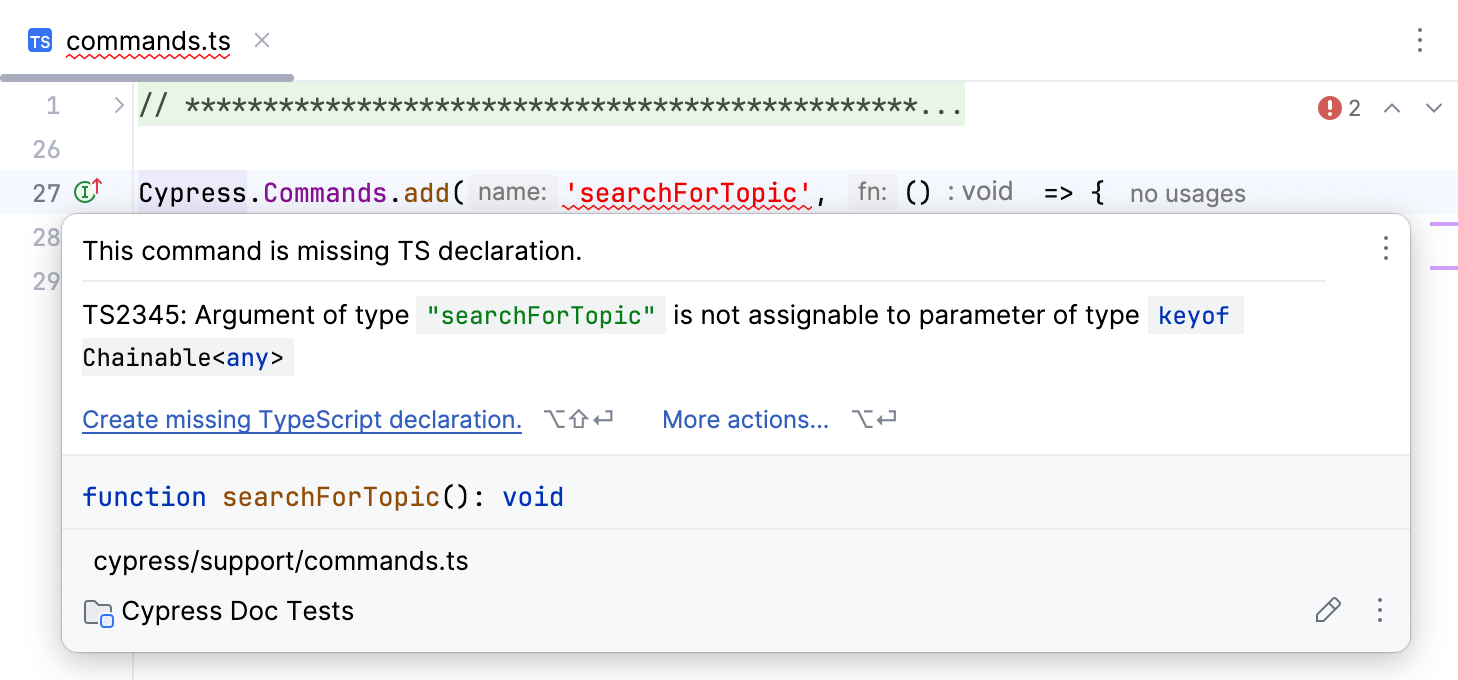
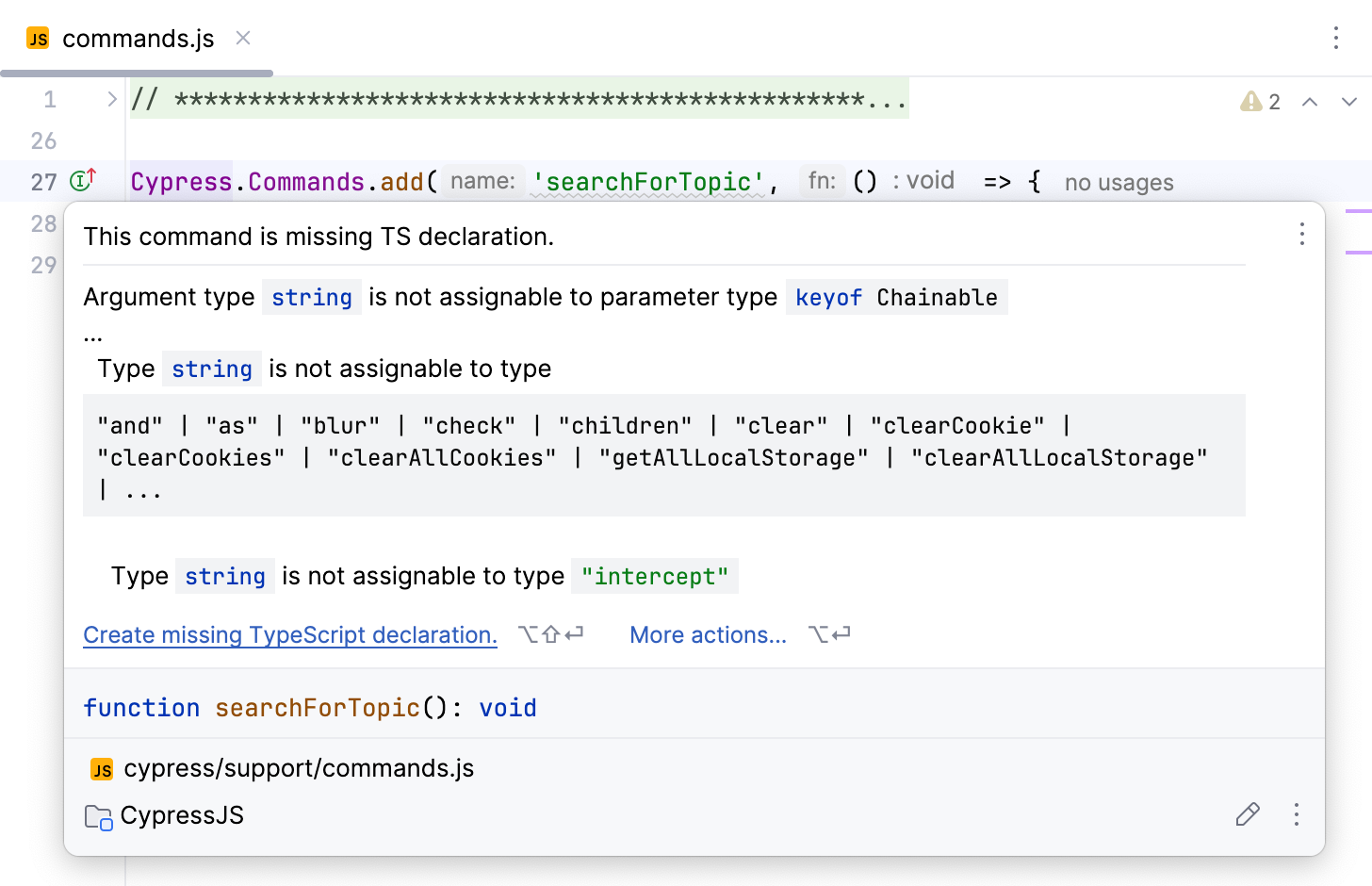
Hover the mouse over the highlighted code and click Create missing TypeScript declaration.
Alternatively, place the caret at the highlighted code, press Alt+Enter, and select Create missing TypeScript declaration.
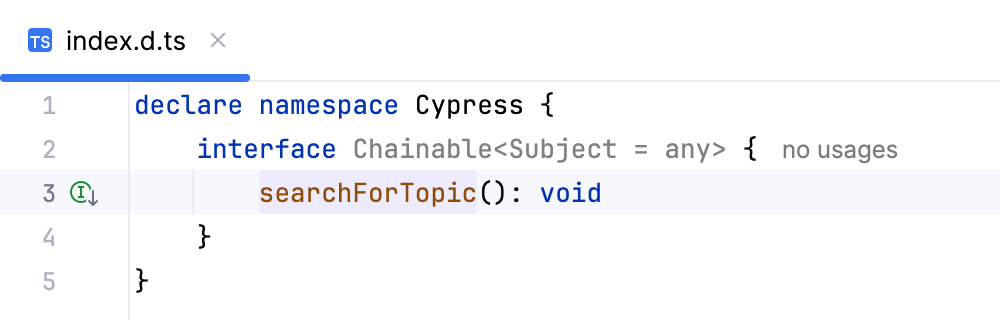
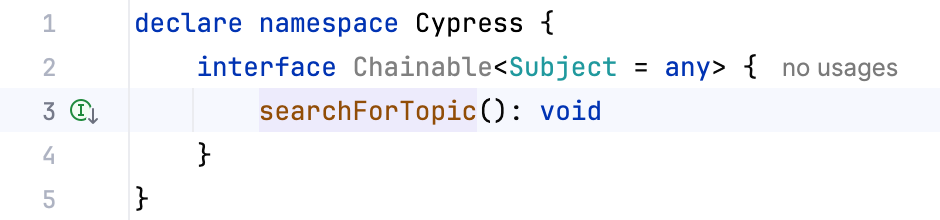
As a result, the TypeScript declaration is generated and added to the cypress/support/index.d.ts file.
Navigating to a TypeScript declaration
You might want to navigate between the command implementation and the corresponding TypeScript declaration:
To navigate to the TypeScript declaration, click
 in the gutter near the command implementation.

To navigate back to the command implementation, click
 in the gutter near the TypeScript declaration.
Using Custom Commands
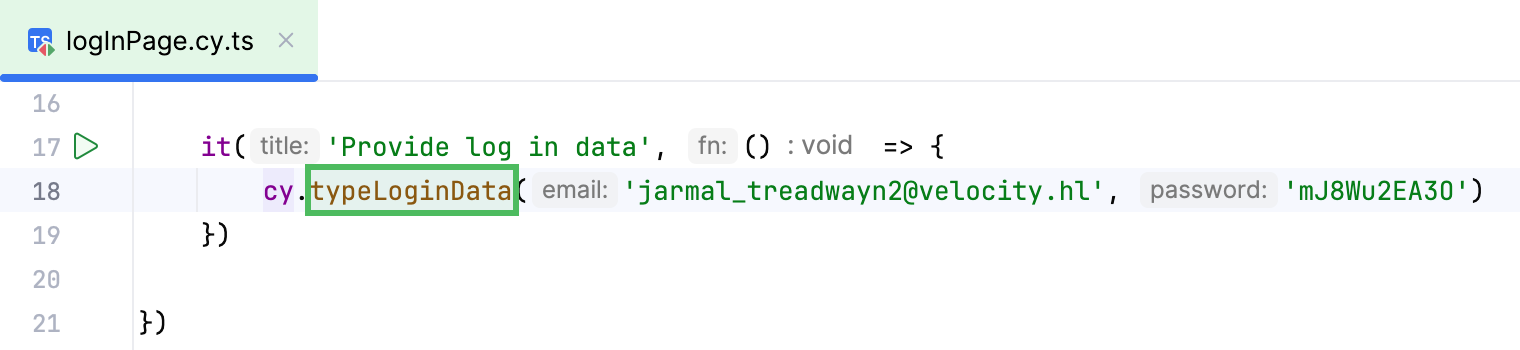
Once you have created a custom command, you can use it in your code. To do this:
In your test, type
cy.followed by the name of the custom command.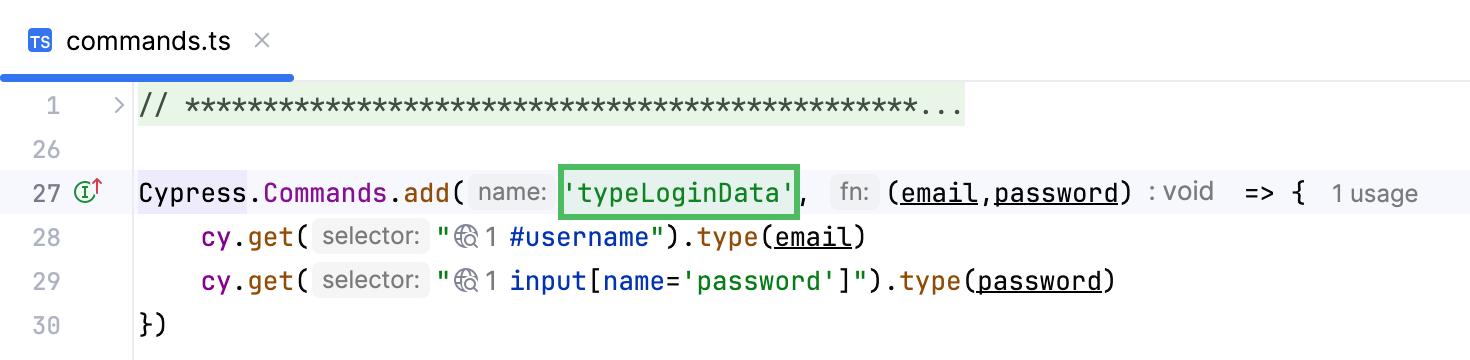
Changing the location of the command file
By default, the file that contains the generated TypeScript declaration is located at cypress/support/index.d.ts. If you want to change the location:
Press Ctrl+Alt+S to open settings and then select .
In the TypeScript file to store TS declarations of custom commands field, specify a new path.
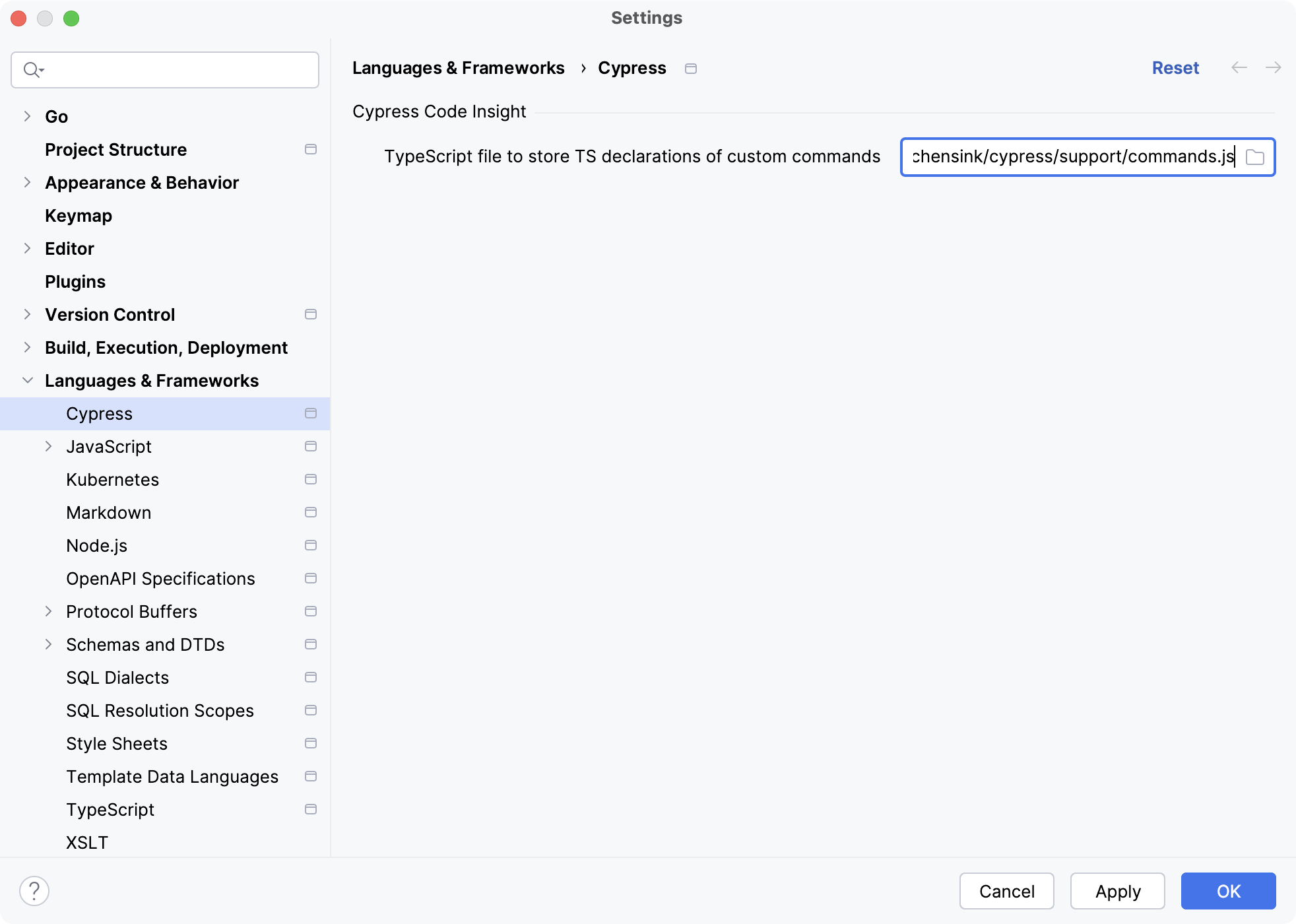
Apply the changes and close the dialog.