Start Coverage Analysis for External Applications
dotCover lets you run coverage analysis for .NET applications and processes that have PDB information. You can analyze coverage for the following types of applications and processes:
Configuring process filters
If the profiled application creates a number of processes, use the Process filters setting to specify what processes you want to profile. You can either select a predefined filter or create a new one.
Note that process filters work differently depending on the application type specified in the selected run configuration.
App type | Description |
|---|---|
dotCover will run analysis only for the processes that match the specified filter. The filter is applied to the entire process tree of the analyzed process (including child processes). For example, you have a managed process that creates a number of child processes. You want to analyze not only the main process but also child processes with | |
Process filters aren't applied. |
To select a process filter
Under Specify coverage options, open the Process filters list.
Select the required filter.
dotCover provides two predefined filters:
Default: process filter is not applied.
Entire process tree: dotCover will analyze the entire process tree including child processes.
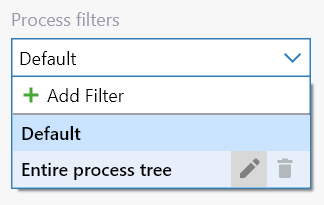
To create a process filter
Under Specify coverage options, open the Process filters list.
Choose Add Filter.
Specify filter settings:
Name: filter name.
Profile entire process tree: if selected, dotCover will analyze the entire process tree including child processes.
Include filter masks, Exclude filter masks: include and exclude filter masks correspondingly. The masks are applied according to the following rules:
The default policy is 'analyze all'.
Include masks are applied first. Exclude masks are applied to the processes filtered by the include masks.
You can use asterisk
*wildcards.
For example, to analyze all child processes with
Servicein their name excludingMyService, add the*Service*include mask and theMyServiceexclude mask.
Click Save.
Finding symbol files (PDB)
Locating symbol files (PDB) for the target binaries is vital for calculating coverage. If you cover unit tests or cover the startup project, dotCover easily locates symbol files using the structure of the current solution.
By default, dotCover search symbol files in the following places:
in the same directory where the binary file resides,
in the debug directory specified inside the binary file,
in all directories specified in the
_NT_SYMBOL_PATHenvironment variable and in the registry.
If necessary, you can specify other places to look for symbol files. To do so, in the Coverage Configuration dialog, click Edit Symbol Search Policy.
In the Symbol Search Policy dialog that opens, you can add the following ways to search for symbol files:
In the Search path field, provide a semicolon-separated list of paths to search for symbol files. Each path can be either a directory path or a symbol server path (for example, srv*C:\LocalSymbols*http://symbolserver:33417/).
Select the Access symbol server to allow dotCover access symbol servers specified either in the Search path field, or in
_NT_SYMBOL_PATHenvironment variable.
You can also disable some of the default ways to search for symbol files.