Customize the editor
Use the Editor settings panel to configure how code, text, and Markdown cells look and behave. Use the menu to change the layout of the notebook editor.
Change the editor settings
Open the Editor settings panel in one of the following ways:
At the bottom left of the editor, click
 (More) and select Editor settings.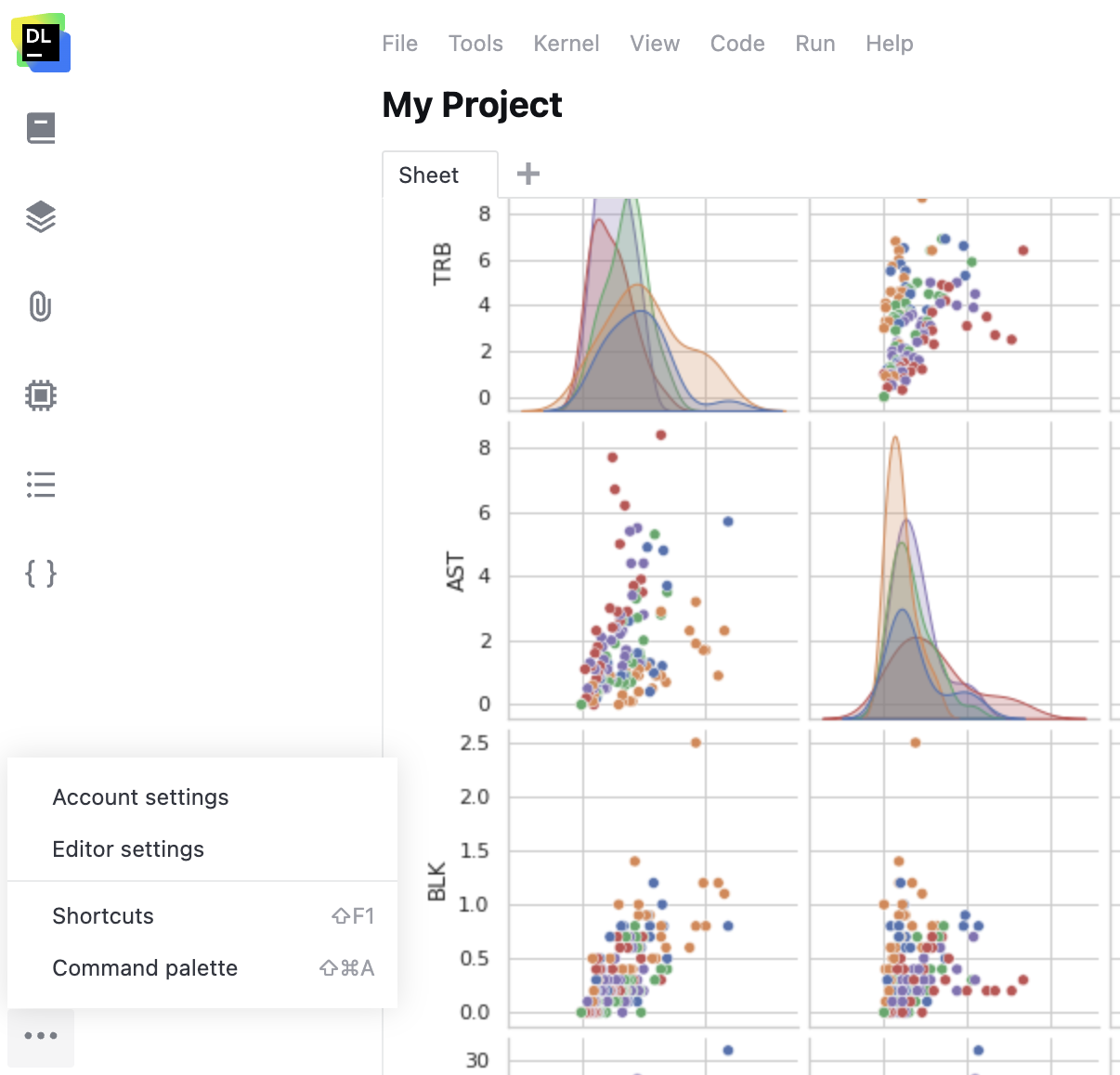
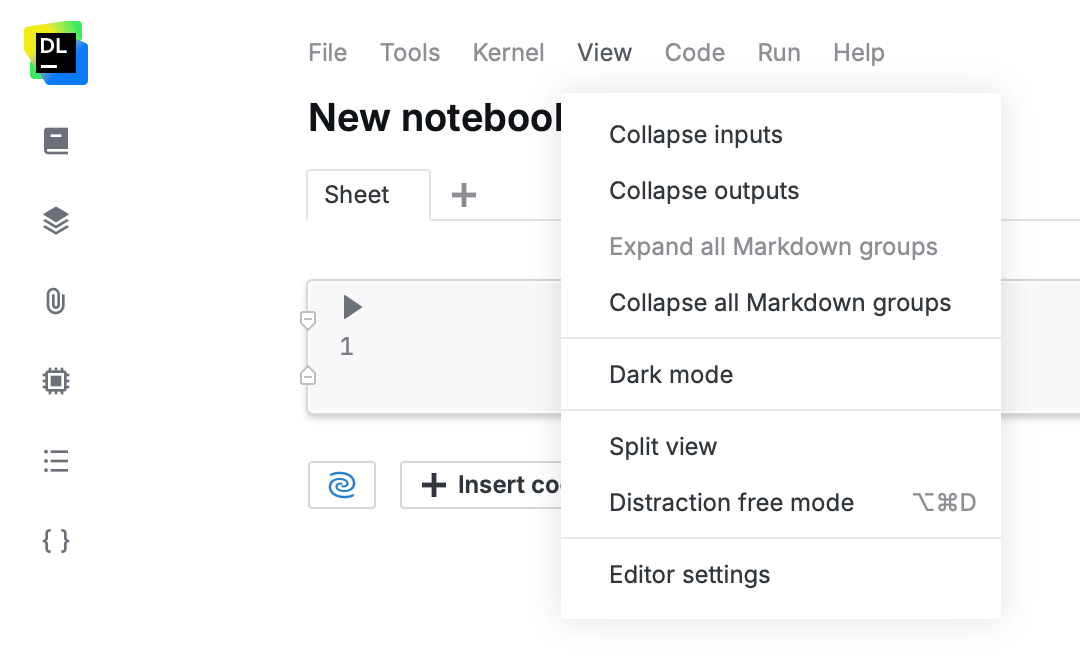
In the main menu, select .
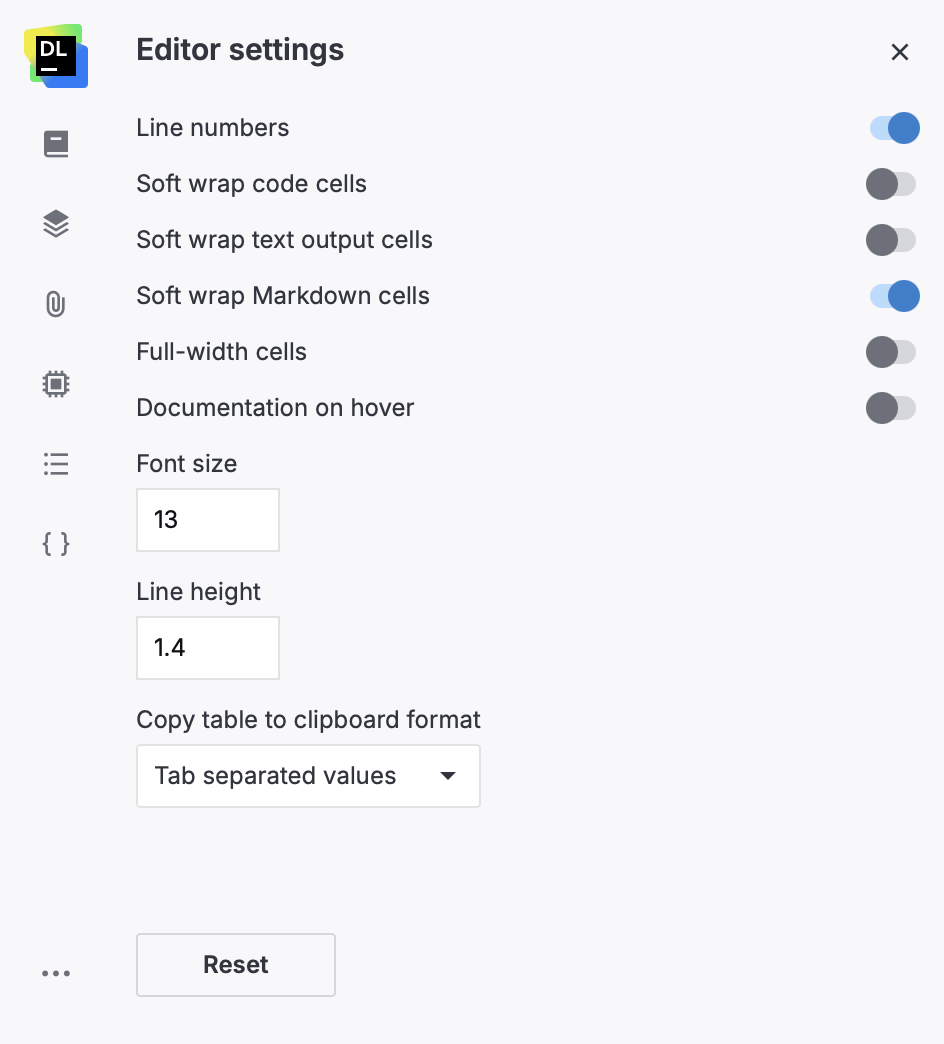
In the Editor settings panel, adjust the settings as needed:
- Available editor settings
Line numbers: Shows line numbers for code and text cells.
Soft wrap code cells: Wraps long code lines in code cells when you resize them. When this option is off, code cells are horizontally scrollable instead.
Soft wrap text output cells: Wraps long lines in text output cells. When this option is off, text output is horizontally scrollable instead.
Soft wrap Markdown cells: Wraps Markdown lines when resizing cells. When this option is off, Markdown cells are horizontally scrollable instead.
Full-width cells: Shows all cells in full-width view.
Documentation on hover: Shows documentation popups when you show over code.
Font size: Sets the font size.
Line height: Sets the line height.
Copy table to clipboard format: Specifies whether tables are copied as Tab-separated values (TSV) or Comma-separated values (CSV).
Change view options
To change the editor view, select in the main menu and then choose the desired option.
- Available view options
Collapse inputs: Hides inputs for all cells in the notebook.
Collapse outputs: Hides outputs for all cells in the notebook.
Expand all Markdown groups: Unfolds all collapsible sections.
Collapse all Markdown groups: Folds all collapsible sections, hiding the cells under each Markdown heading and making the notebook easier to navigate.
Dark mode: Toggles dark mode in the editor. Also configurable in Account settings.
Distraction-free mode: Hides everything except the editor. The hidden interface elements reappear when you move the pointer over them. Shortcut: Ctrl+Alt+D.
Split view: Divides the editor field into two panes to provide a real-time preview of your outputs.
Editor settings: Opens the Editor settings panel with editor settings.