Add notebook files
The procedures in this article explain how to attach files to a notebook. For example, you're working on a specific notebook in the editor, and there are several files you want to use in the code.
These files will be available through the Attached data tool in the Notebook files category.
To use such files in your code, it is enough to specify their file name.
When added to the notebook, these files are not added to the resources of the respective workspace and not available for the other notebooks this workspace has. To make them available for other notebooks, move or copy them to the respective workspace.
Procedures
Upload files as notebook attachments
The procedure adds files from your local file system or a URL to the attached data of a selected notebook.
In the sidebar, select
 (Attached data).
On the Files tab, click
 (More) next to Notebook files.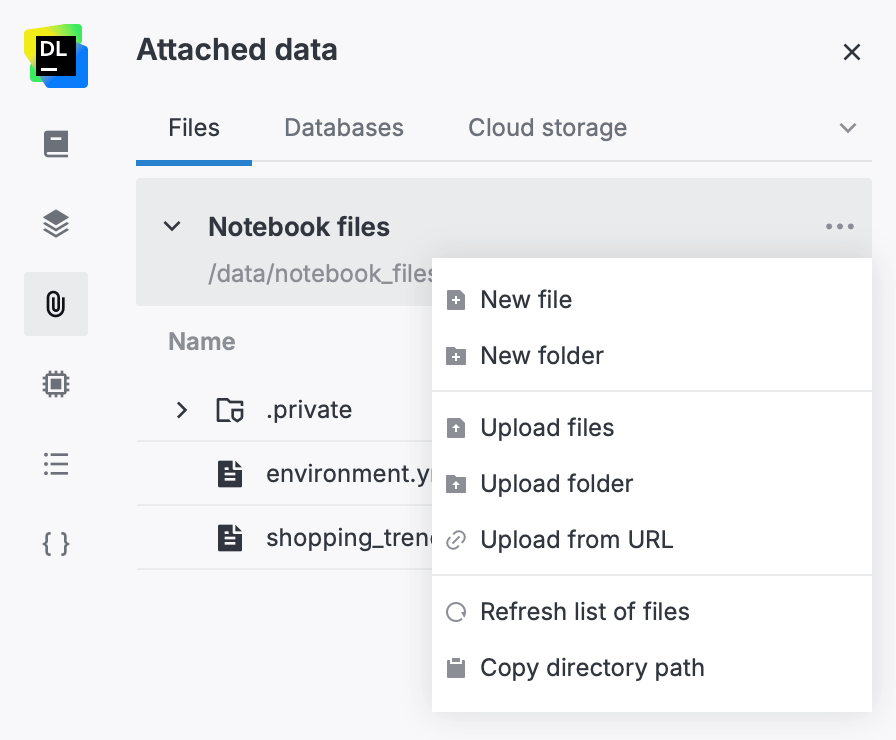
Select Upload files or Upload folder.
Choose the files or folder you want to upload in your operating system dialog and follow the prompts.
Quick file upload
The quickest way to add a file to your notebook and start using it in the code is to drag it from your file system and drop it anywhere in the editor.
This will automatically add the file to the notebook files that you can find in the Attached data tool.
Create files
Create files for notebook attachments
The procedure creates text-based files (CSV, TSV, and other formats) as source files for your notebook.
In the sidebar, select
(Attached data).On the Files tab, click
(More) next to Notebook files.Select New file.
Provide a name for the new file and specify its extension. You can create any text-based file (CSV, TSV, and other formats).
To open and edit the file in the text editor, double-click it. The changes that you make are saved automatically every ten seconds or when you press Ctrl+S.
Results and further actions
The added files are automatically attached to the notebook and can be used in its code. Refer to this topic to learn how to view and use files attached to a notebook.
To manage files attached to a notebook, refer to this topic.
Keywords
upload files, attach files, add files, data sources, data, data files, notebook attachments