Add files to a cloud storage bucket or directory
The article explains how to add files from your local file system or a URL to a cloud storage provider attached to the notebook.
Upload files or folders
In the sidebar, select
 (Attached data) and switch to the Cloud storage tab.
If you have not already, attach the cloud storage connection to the notebook by enabling the corresponding toggle.
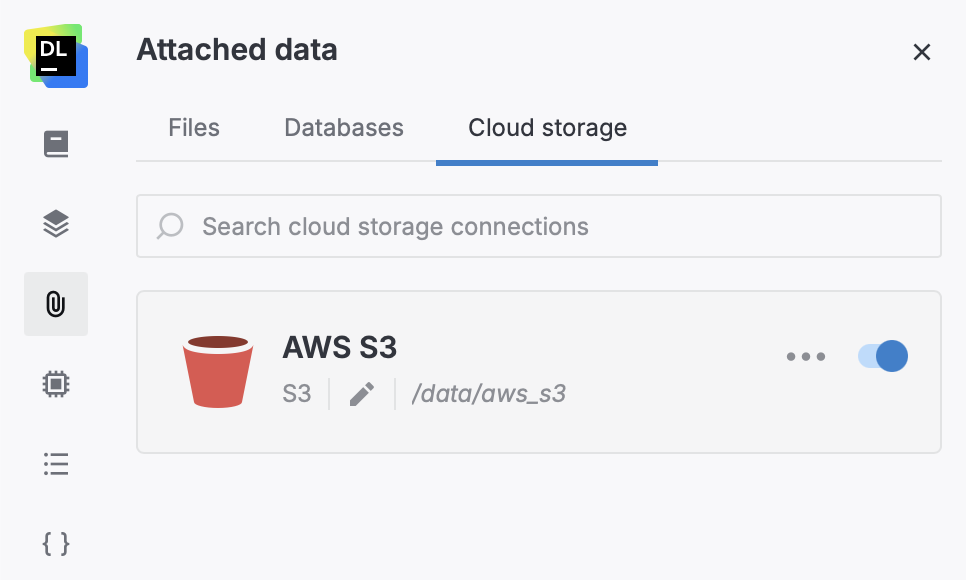
Click
 (More) in the connection and select Upload files or Upload folder.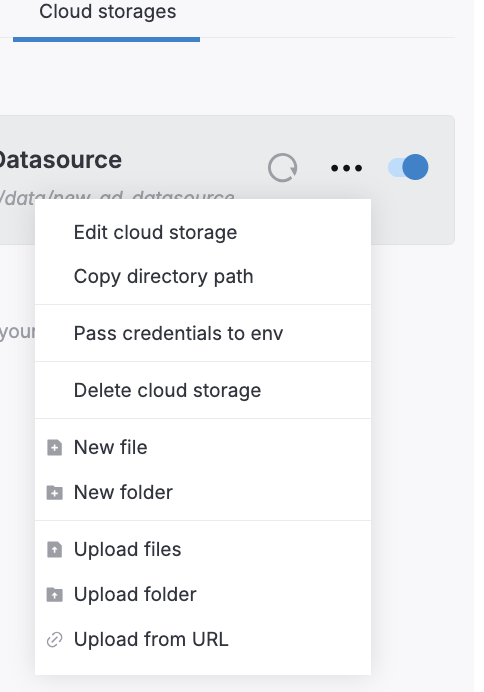
Choose the files or folder you want to upload in your operating system dialog and follow the prompts.
Create files
To create a text-based file (CSV, TSV, and other formats) in one of the cloud storage providers attached to your notebook, take the following steps:
In the sidebar, select
(Attached data) and switch to the Cloud storage tab.If you have not already, attach the cloud storage connection to the notebook by enabling the corresponding toggle.
Click
(More) in the connection and select New file. Enter a file name with an extension.
You can create text files in various formats, including .csv, .tsv, .json, .py, and more.
To open and edit the file in the built-in text editor, double-click the file name.
The changes you make are saved automatically every ten seconds or when you press Ctrl+S.
Files and folders added to a cloud storage bucket or directory will be available from any other notebook connected to the same cloud storage.
Next steps
Learn how to manage and delete files and directories in Manage files.
Learn how to view and use workspace files from a notebook.