Step filter
Step filter lets you skip selected functions while stepping through C and C++ code with the debugger. When Step Into would normally enter a function that matches a filter, CLion steps over it instead. You can still enter the function with Force Step Into.
Step filter works with the LLDB and GDB debugger backends and applies to Step Into only. Step Over and Step Out are unaffected.
Step filter draws rules from three sources, which are checked in this order:
.natstepfilter and .natjmc files that belong to the open project.
.natstepfilter and .natjmc files in the system-wide and per-user Visual Studio Visualizers directories (Windows only).
Regular-expression patterns that you maintain in the IDE settings, including a built-in set for the C++ standard library.
Within each source, the first matching rule wins. A StepInto rule in a .natstepfilter file therefore overrides any NoStepInto rule that comes later in the same file, and a project file always beats a regex pattern from the IDE settings.
Before a rule is matched, CLion normalizes the function name reported by the debugger: cv-qualifiers and reference qualifiers are removed, the return type is stripped, anonymous namespaces are hidden, and parameter lists are removed. Patterns should therefore match the bare qualified name, for example std::vector<.*>::push_back, not the parameter signature.
CLion ships with a built-in set of regex patterns that skip common C++ standard-library helpers, smart-pointer accessors, libstdc++ internals, and a few others. You can extend or replace this list per project.
Configure step filter in the IDE
Open .
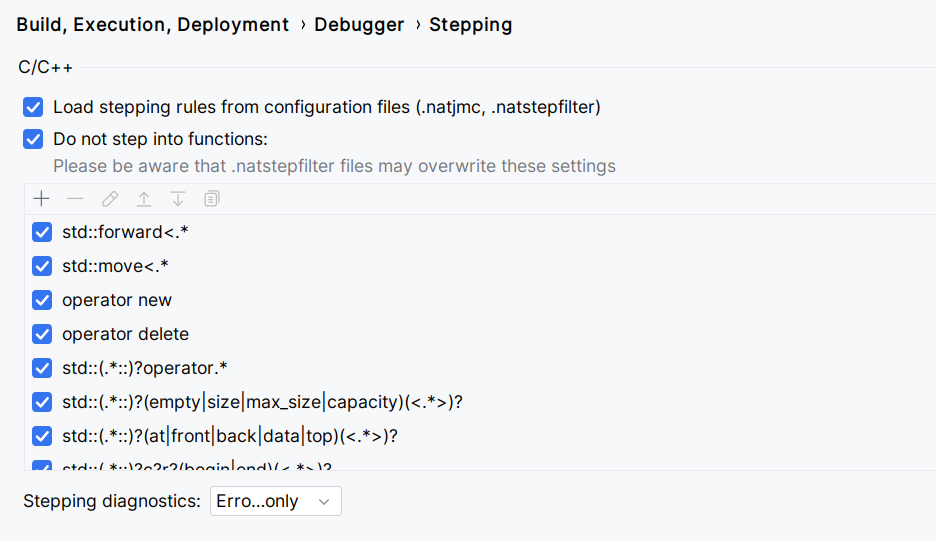
The page has the following options:
Option | Description |
|---|---|
Load stepping rules from configuration files | When enabled, the debugger reads every .natstepfilter and .natjmc file that belongs to the open project, and on Windows also reads files placed in the Visual Studio Visualizers directories. Disable the checkbox to ignore both project-bundled files and Visual Studio-provided files for the next debug session. |
Do not step into functions | When enabled, the debugger applies the regex patterns listed below the checkbox. Each row matches a function by its fully qualified name. Parameter lists and return types are removed before matching, so a pattern such as Patterns coming from .natstepfilter files take precedence over the patterns configured here, so a setting changed on this page may have no effect if the same function is also covered by a file-based rule. |
Stepping diagnostics | Controls how step filter activity is reported in the Debugger Console:
|
Click Apply to save changes. New settings affect the next debug session. Running sessions keep the rules they were started with.
Configure step filter with project files
You can keep step filter rules under version control by adding .natstepfilter or .natjmc files to the project. CLion picks them up automatically as long as Load stepping rules from configuration files is enabled.
.natstepfilter
.natstepfilter files use the Visual Studio step-filter XML schema. Each <Function> element contains a <Name> regular expression, an <Action>, and an optional <Module> regular expression that limits the rule to a specific library. CLion supports two actions:
NoStepInto— skip the function on Step Into.StepInto— force Step Into to enter the function even when another rule would skip it. Useful for opening exceptions in code that an earlierNoStepIntorule covers with a broad pattern.
The Visual Studio NonUserCode action will be rejected with an error in the debugger. Use a .natjmc file to mark code as non-user.
Place the file inside the project so that the IDE indexes it. Files outside the project scope are not loaded automatically.
.natjmc
.natjmc files use the Visual Studio Just My Code schema. CLion reads them as additional step-filter sources and treats the contained modules, files, and functions as external code:
Attributes are matched as follows:
<Module Name="...">and<File Name="...">accept glob patterns. Use*and?as in Visual Studio.<Function Name="...">is a regular expression that is matched against the normalized function name.<Function Module="...">is a literal, case-insensitive module name — it is not a glob and not a regex. Specify the exact loaded module name (for example,libboost_system.so.1.83.0orMyApp.exe).<Module Company="...">is currently honored as a filter: a<Module>rule that carries aCompanyattribute is ignored, because CLion does not read the company metadata embedded in binaries. Omit the attribute if you want the rule to take effect.
Visual Studio Visualizers directories (Windows)
On Windows, CLion additionally scans the same directories that Visual Studio uses for .natvis, .natstepfilter, and .natjmc files:
%VSINSTALLDIR%\Common7\Packages\Debugger\Visualizers — system visualizers, including those shipped by third-party SDKs such as the Unreal Engine integration.
%USERPROFILE%\Documents\Visual Studio <version>\Visualizers — user visualizers.
The folders are scanned only when a Visual Studio installation is detected on the machine.
Diagnose unexpected stepping behavior
If a step-into call does not skip a function you expected to be filtered, switch Stepping diagnostics to Verbose and rerun the debug session. The debugger console then prints which configuration files were loaded, which patterns matched, and which function names were normalized for matching. Common causes of unexpected behavior are:
A typo in a regular expression. The IDE highlights regex errors when you edit a pattern in the table.
A
StepIntorule earlier in a .natstepfilter file that overrides a laterNoStepIntorule. Reorder the rules so the more specific one comes first.A .natstepfilter file in the project that overrides a pattern from the IDE settings. The verbose log shows the path of the file that contributed the matching rule.
A function name that differs between debuggers. CLion normalizes most differences (qualifiers, return type, parameter lists, anonymous namespaces) before matching, but older LLDB builds on Linux and macOS occasionally produce names that still include the return type – write the pattern to match the bare qualified name, for example
std::max<.*rather thanint std::max<.*>.