Use third-party and local models
In addition to the models provided by JetBrains AI, AI Assistant can use models from third-party AI providers and models that run locally on your machine:
Third-party AI providers – cloud models that you access with your own API key. Supported providers are Anthropic, Google (Gemini API or Vertex AI), OpenAI, and any endpoint that is compatible with the OpenAI API (for example, LiteLLM).
Local models – models that run on your machine through Ollama or LM Studio.
After you connect your own models, you can use them in the following ways:
AI Chat – select your models in the model selector.
AI Assistant features – use your models for features such as code generation.
Agents – select your models in the model selector of compatible agents.
Connect a third-party AI provider
To use models from a third-party provider, enter your API key for that provider in the AI Assistant settings. Some providers require additional parameters.
Navigate to .
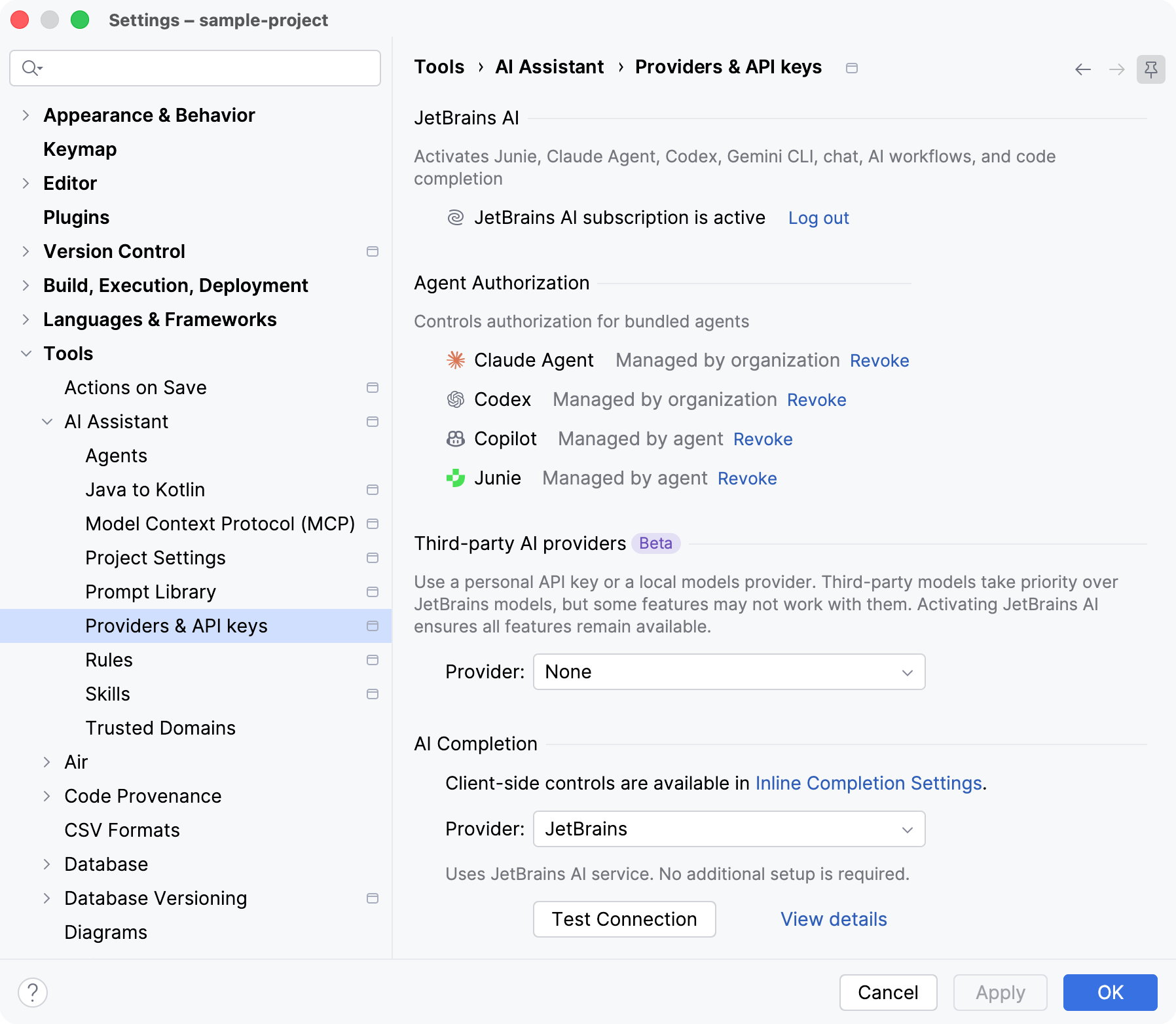
In the Third-party AI providers section, select the Provider.
Configure the connection. The required parameters depend on the provider:
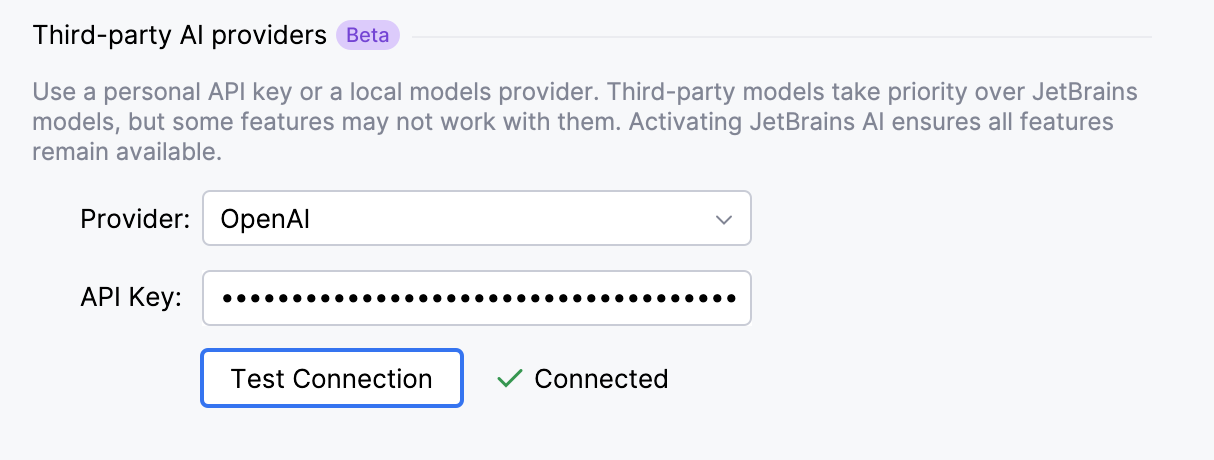
Enter the API Key and click Test Connection.
Select the authentication Method:
API key – use an API key for Vertex AI in express mode.
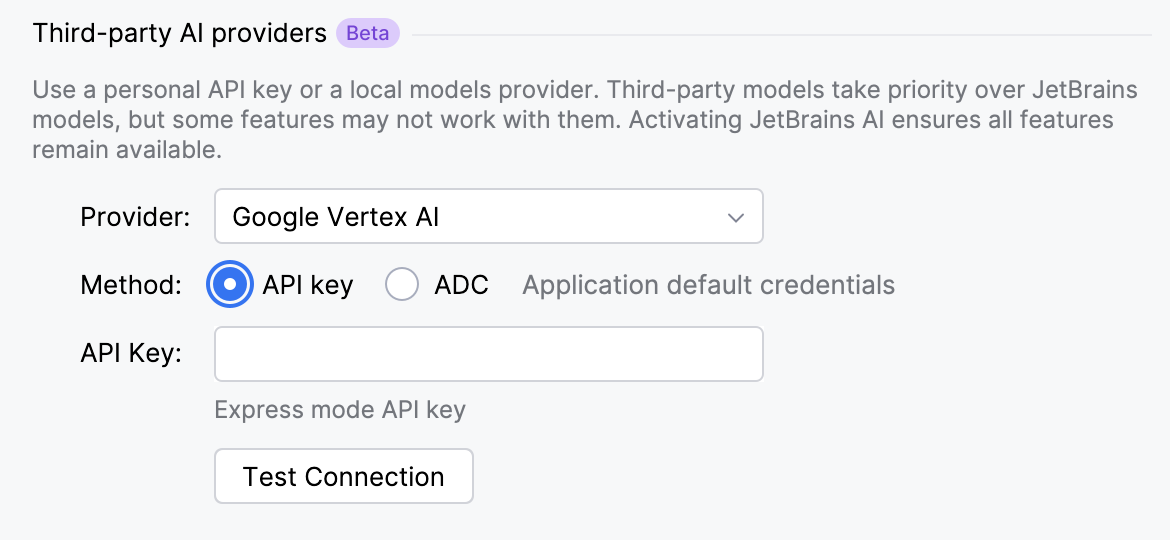
ADC (Application Default Credentials) – use the Google Cloud credentials already configured in your environment, for example, by your local Google Cloud setup or a service account. Also specify the Project ID and Location.
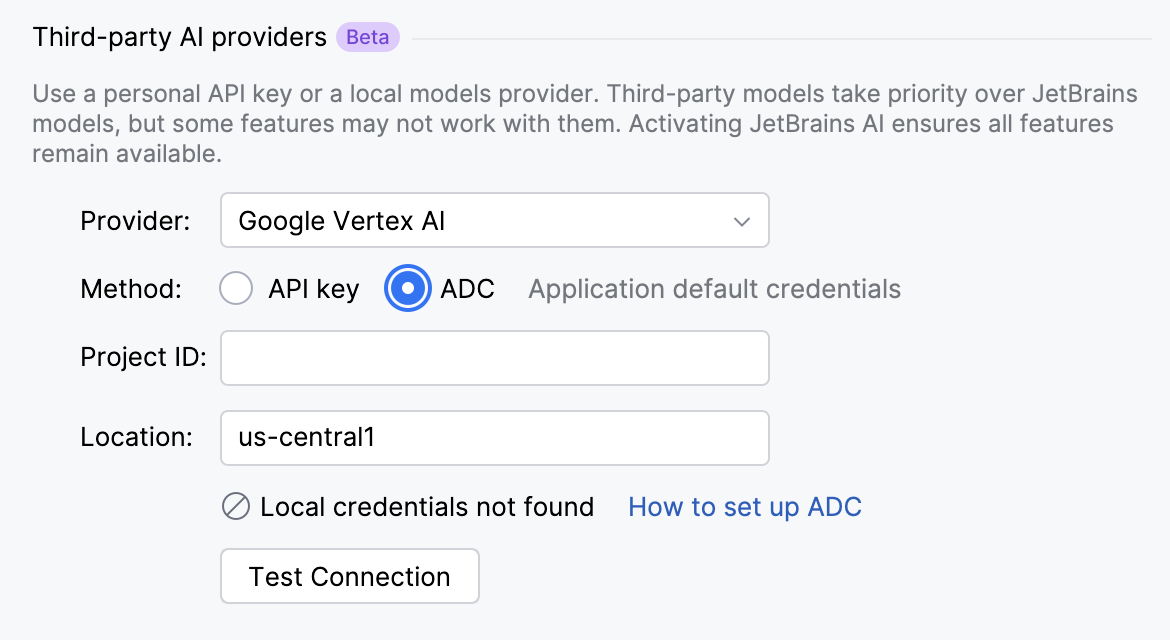
Click Test Connection.
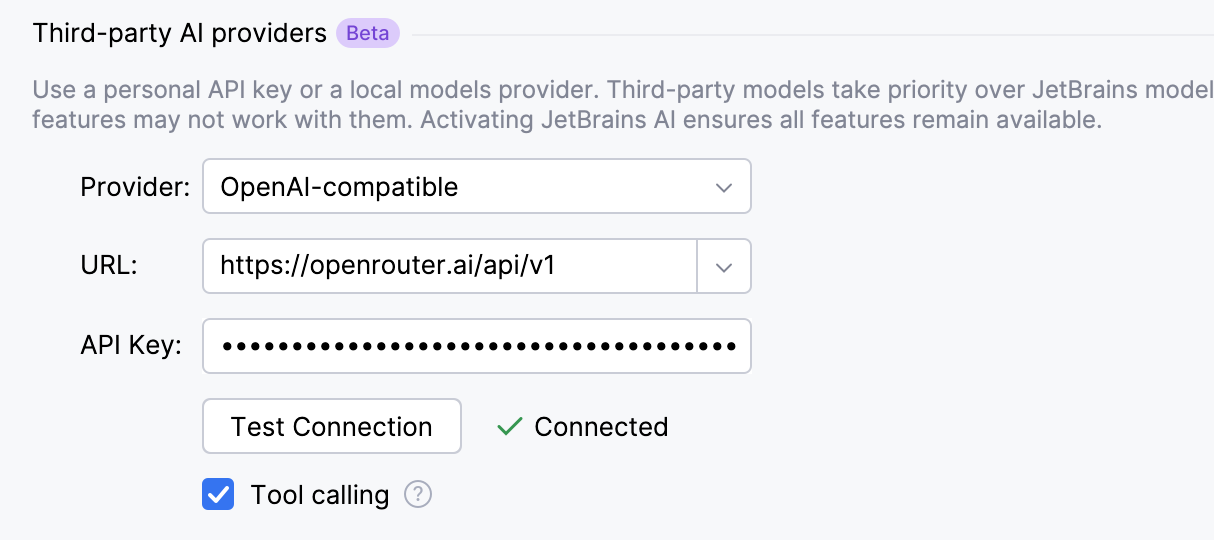
In the URL field, specify the address of the provider's API endpoint.
Enter your API Key.
If the model can call tools from MCP servers, enable Tool calling.
Click Test Connection.
Click Apply to save changes.
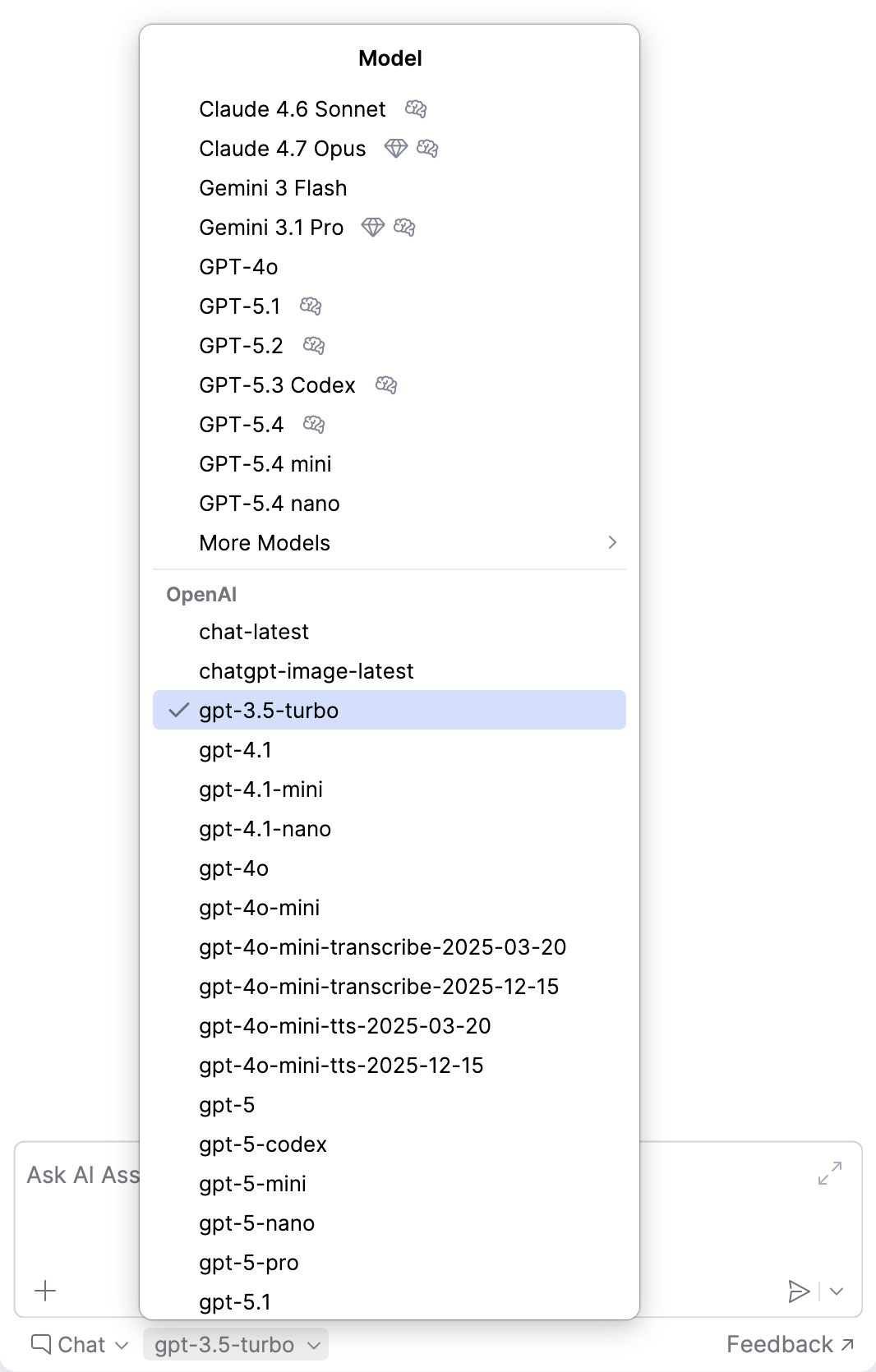
To check the result, open AI Chat and click the model selector. The provider's models appear in a separate section. They also appear in the model selector of compatible agents.
Connect local models
Ollama and LM Studio run models on your machine. After you connect AI Assistant to one of them, you can use its models in AI Chat and other AI Assistant features.
Before you start, install Ollama or LM Studio, make sure it is running, and download at least one model.
Navigate to .
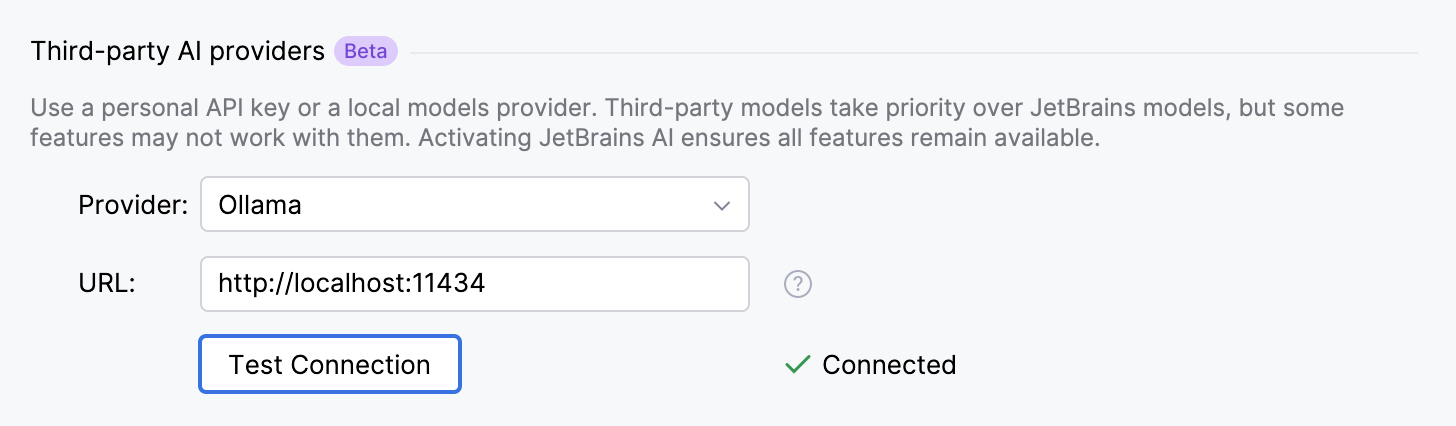
In the Third-party AI providers section, select Ollama or LM Studio as the Provider.
In the URL field, specify the address of the local server and click Test Connection.
In the Models Assignment section, select the local models to use for AI Assistant features. Without this step, local models are available only in AI Chat. For details, refer to Assign models manually.
Click Apply to save changes.
Choose models for AI Assistant features
By default, AI Assistant features use cloud-based models provided through the JetBrains AI service, so all features are available. When you connect your own models, the way they are assigned to features depends on where the models come from:
Model source | How models are assigned to features |
|---|---|
Anthropic, Google, OpenAI | Automatically. Each feature uses a model from its predefined list. If none of the provider's models is on the list, the feature is unavailable. For details, refer to How automatic assignment works. |
OpenAI-compatible endpoints and local models | Manually. Until you assign models, these models are available only in AI Chat. |
Assign models manually
To assign models from an OpenAI-compatible endpoint or local models to AI Assistant features:
Navigate to .
In the Models Assignment section, configure the following settings:
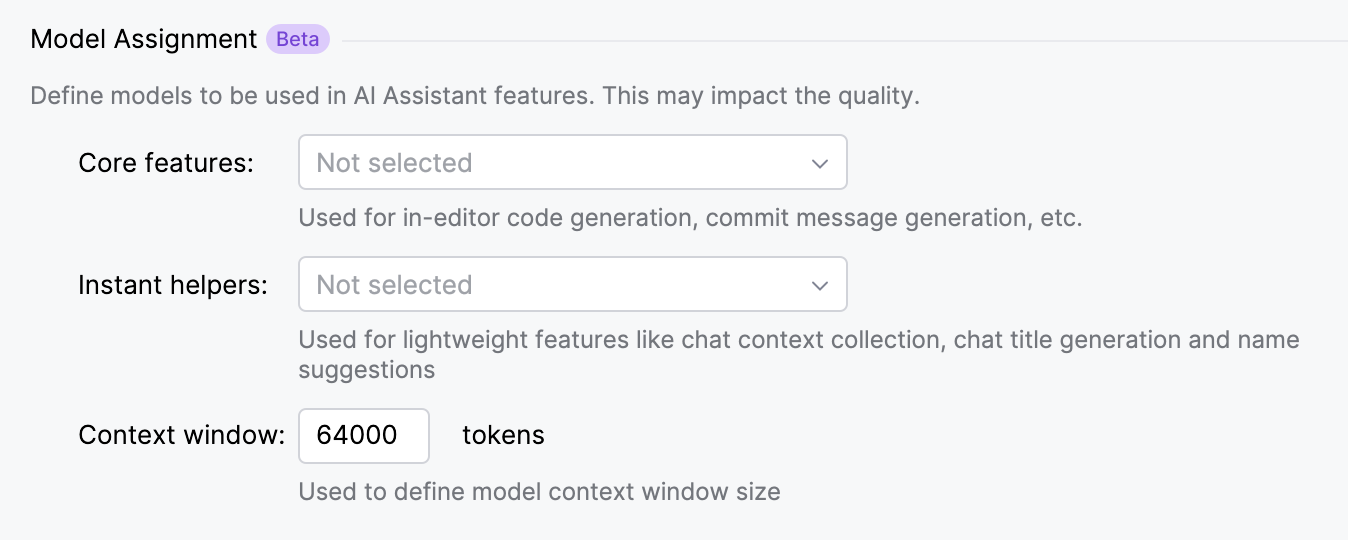
Core features – the model for in-editor code generation, commit message generation, and other core features. It is also the default model in AI Chat.
Instant helpers – the model for lightweight features, such as chat context collection, chat title generation, and name suggestions.
Context window – the size of the model context window for local models, in tokens. A larger window lets the model process more context in a single request. A smaller window uses less memory and can improve performance. The default value is 64 000 tokens.
Click Apply to save changes.
AI Assistant now uses the assigned models when you trigger the corresponding features.
How automatic assignment works
Each AI Assistant feature has a list of assigned models. Some features also have a list of fallback models. When you trigger a feature, AI Assistant selects a model as follows:
If one of your available models is on the feature's list of assigned models, AI Assistant uses it.
Otherwise, if the feature has fallback models, AI Assistant looks for one of your available models on the fallback list.
If neither list contains an available model, the feature is unavailable.
List of assigned and fallback models
This section lists AI Assistant features and the models they require, helping you assess compatibility with models from third-party providers.
Core features
Feature | Application area | Used model(s) |
|---|---|---|
Editor |
| |
Editor |
| |
Editor |
| |
Fix with AI (only in RustRover) | Editor |
|
VCS |
| |
VCS |
|
Instant helpers
Feature | Application area | Used model(s) |
|---|---|---|
AI Chat |
| |
File name generation | AI Chat |
|
Chat context collection | AI Chat |
|
Chat title generation | AI Chat |
|
Editor |
|
Completion model
Feature | Where the feature is invoked | Used model(s) |
|---|---|---|
Editor, AI Chat, Commit message |
| |
Code completion (for AI Enterprise, if opted to use a different AI provider) | Editor, AI Chat, Commit message |
|
Fallback models
For features that support fallback, this list is compared with the models available to you. If no matching model is found, the feature is unavailable.
The following models are defined as fallback models:
Anthropic models: Claude 4.5 Sonnet, Claude 4 Sonnet, Claude 3.7 Sonnet, Claude 3.5 Sonnet, Claude 4.5 Haiku, Claude 3.5 Haiku
Google models: Gemini 2.5 Pro, Gemini 2.5 Flash, Gemini 2.0 Flash
OpenAI models: GPT-4o, GPT-4o mini
Use a custom model for AI completion
AI completion features, such as inline code completion and next edit suggestions, use JetBrains models by default. You can replace them with a model served through an OpenAI-compatible endpoint.
You configure this provider separately. It does not reuse or change the third-party AI provider that you use for AI Chat and other features.
The model needs to be built for code completion. General-purpose chat models are usually not suitable. The available features depend on the type of model:
Model type | Available features |
|---|---|
Code completion model | Inline code completion |
Next edit prediction model | Inline code completion, next edit suggestions |
A code completion model supports Fill-in-the-Middle (FIM), so it can take into account the code after the caret. A next edit prediction model supports FIM and also predicts edits to existing code, not only insertions.
To configure a model for AI completion:
Navigate to .
In the AI Completion section, select OpenAI Compatible as the Provider. To return to the default models, select JetBrains.
Specify the provider parameters:
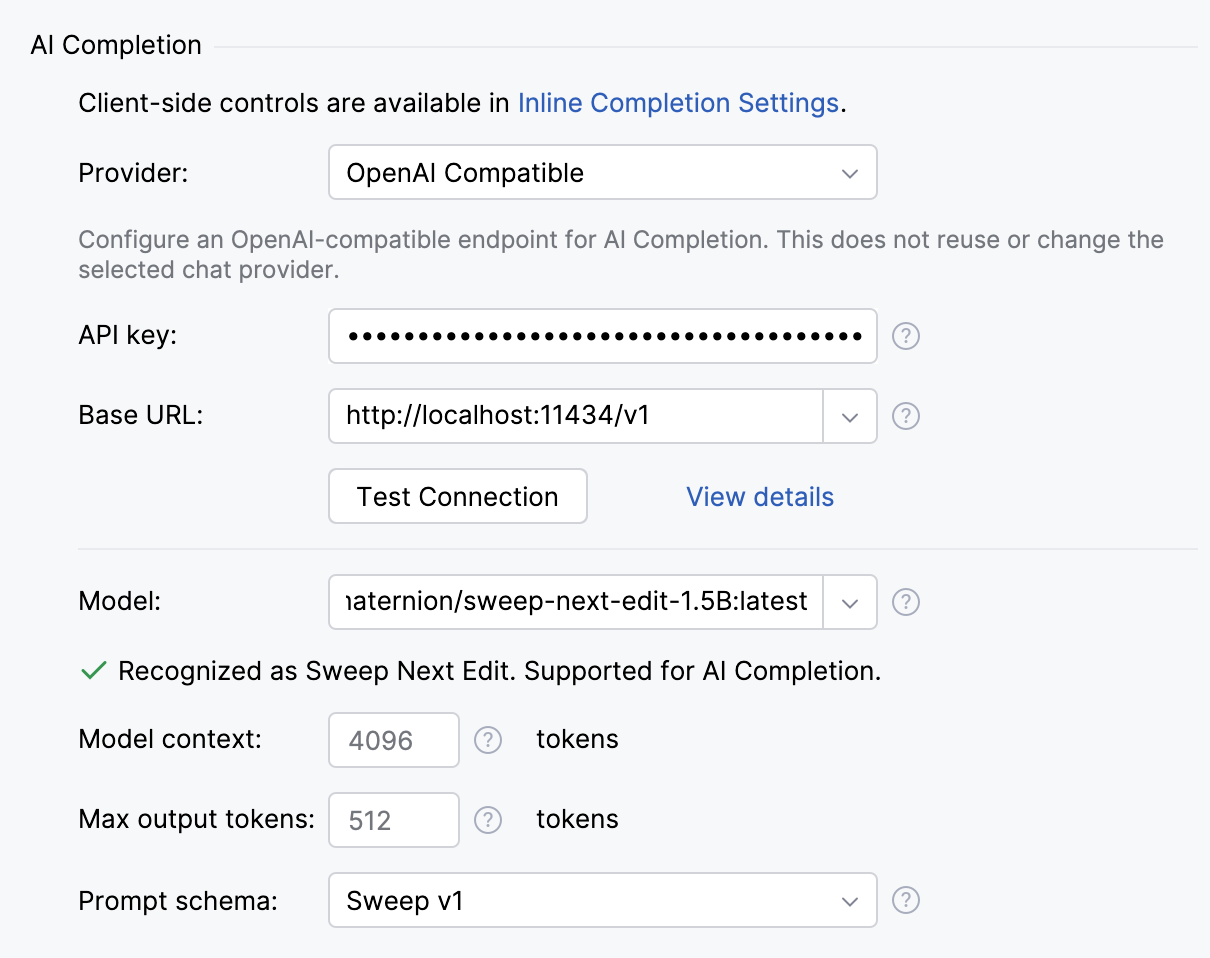
API key – the API key for the endpoint.
Base URL – the URL of the endpoint. Click Test Connection to check that AI Assistant can reach the endpoint with this API key.
Model – the model to use for AI completion. The endpoint specified in Base URL needs to serve this model. Test Connection does not check this. AI Assistant shows whether it recognizes the model and supports it for AI completion.
Model context – the size of the model context window, in tokens.
Max output tokens – the maximum number of tokens the model can return in a single completion.
Prompt schema – the template that formats completion requests in the structure that the model expects. If AI Assistant recognizes the model, it selects the matching schema automatically.
Click Apply to save changes.
Enable JetBrains AI alongside custom models
Some features may be unavailable with models from third-party AI providers. To ensure that all features are available and work as expected, you can activate a JetBrains AI service subscription.
To enable your JetBrains AI subscription:
Navigate to .
In the JetBrains AI section, click Activate JetBrains AI.

Click Log in to JetBrains Account, enter your credentials, and wait for the login process to complete.
After you log in to a JetBrains Account that has an active JetBrains AI subscription, you can start using AI Assistant with full functionality.