Quick start
The current version of Qodana (2026.2) lets you analyze software that uses various programming languages and technologies. You can also extend the default Qodana configuration using available features.
As an example, this section explains how you can quickly start working with Qodana using:
Prerequisites
Set up your project in Qodana Cloud
Before running Qodana, you need to create a new organization and project in Qodana Cloud. This setup process will guide you through configuring your project for various CI/CD pipelines and local execution using Qodana CLI or JetBrains IDEs, and will generate a project token required by Qodana linters. Additionally, Qodana requires a connection to your repositories to track active contributors, as specified by our license agreement.
The project setup uses information from your JetBrains account, which includes licenses and companies.
GitHub Actions
While setting up your project in Qodana Cloud, after you choose GitHub Actions you will be redirected to the GitHub sign in page.
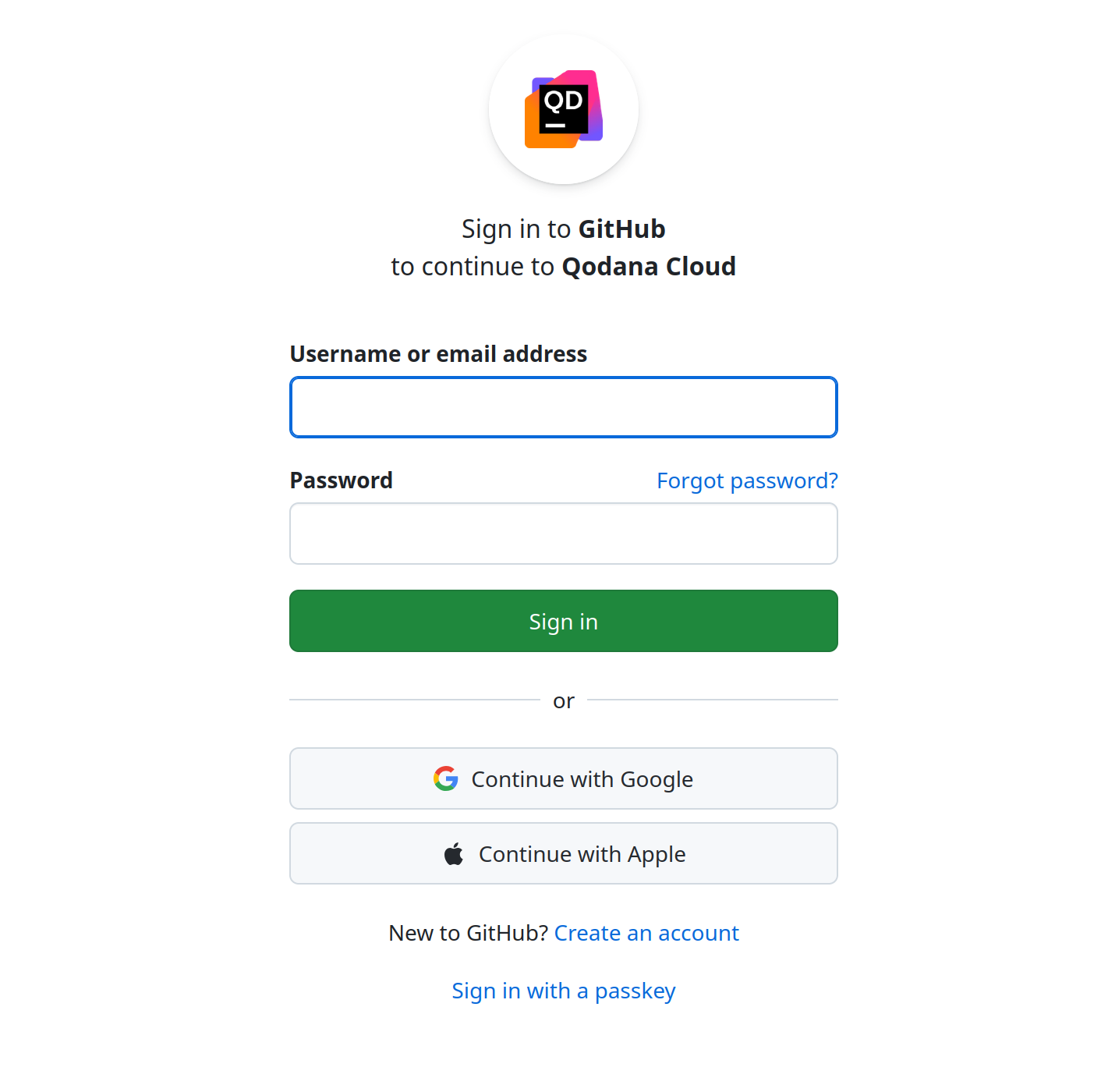
You should sign in to GitHub, which will then redirect you to the Qodana Cloud GitHub App installation page. This application integrates GitHub with Qodana Cloud. Here, you should choose a GitHub account or organization that the Qodana Cloud GitHub App should be integrated with.
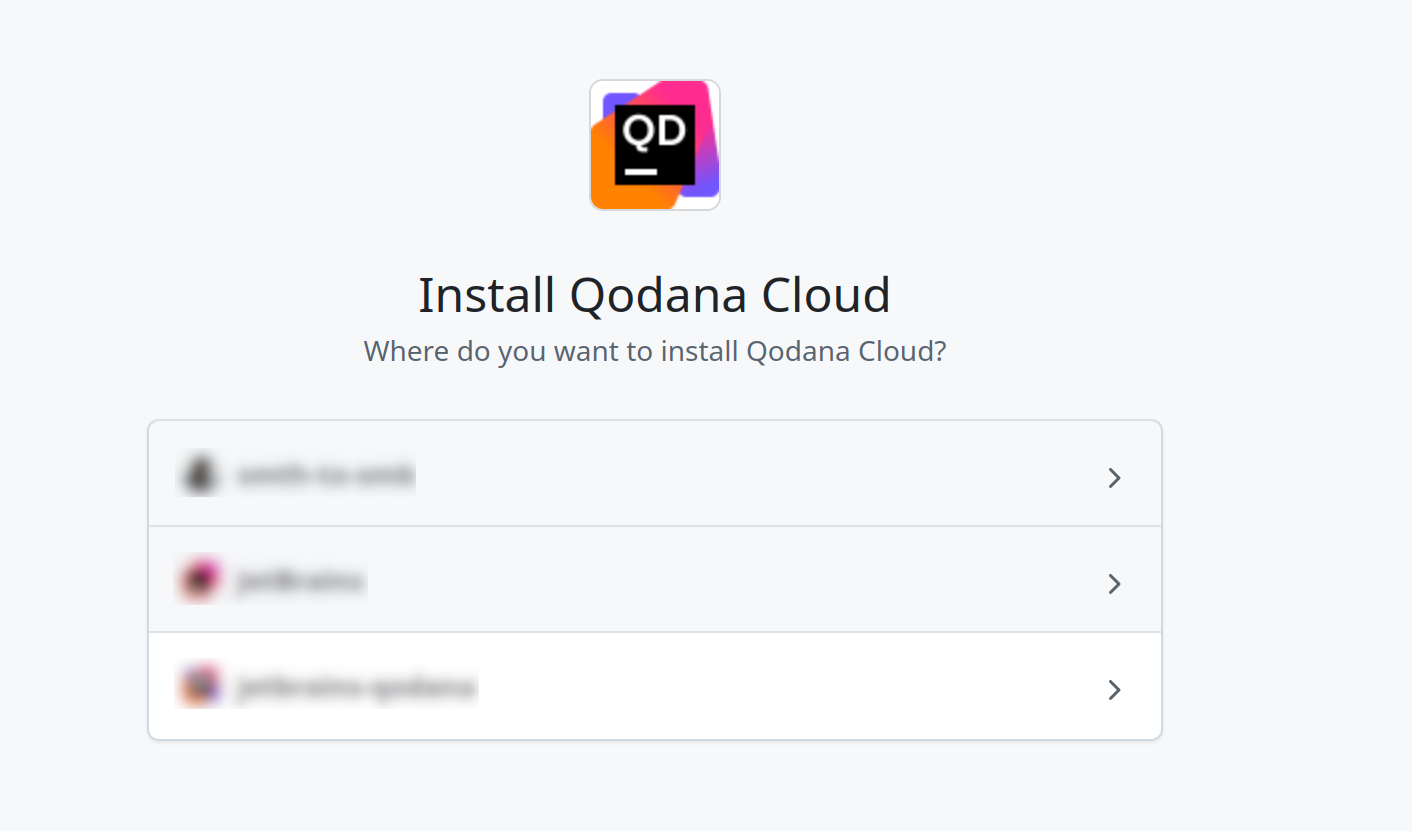
As a next step, you have to configure access to all repositories of the selected account or organization, or select a specific one. Once the Qodana Cloud GitHub App installation is complete, it will list the available repositories. Here, select the repository that will be linked, and the Qodana Cloud GitHub App will submit the following artifacts to the selected repository:
GitHub Actions configuration file
YAML configuration file
The
QODANA_TOKENproject token saved as a secret
Once done, your GitHub user is authorized as part of the installation. Other members of the same organization who did not perform the installation are prompted to authenticate access to GitHub the first time when they use the integration.
If you do not have access to the repository that you intend to analyze, request the necessary access and wait for approval before proceeding. In other cases, you will receive instructions and configuration snippets that will help you start Qodana in your project.
Global configurations
During the project setup stage, you can choose a global configuration that will be used while analyzing your code.
Native mode
Native mode is incompatible with Docker containers of Qodana, which means that you can run Qodana either as a Docker container or in native mode.
If you wish to run Qodana in native mode using a command line, then deploy Qodana CLI on the machine where you will run it.
This is the list of technologies that you can use for configuring Qodana for native mode:
Language | Linter name(s) |
|---|---|
| |
| |
| |
| |
| |
|
.NET in native mode
Make sure that you have a proper version of the .NET SDK and all required dependencies installed on your machine.
Build the project before inspecting it using Qodana. You can do it by using the bootstrap key of the qodana.yaml file. The project building and artifact packaging stages should occur before Qodana or simultaneously with it. Because running Qodana may affect the project state and its files, it is advised to avoid reusing the same directory in your build pipelines any further.
You can also provide Qodana a pre-built project, or specify the build steps in your CI/CD pipeline. To remove warnings related to project building, in your repository create the empty qodana.yaml file.
It is also advised that you run the qodana-dotnet linter on the same machine where you build a project because this can guarantee that Qodana has access to private NuGet feeds.
Docker mode
The Docker mode assumes that you have the Docker application deployed on your machine.
Pull the image from Docker Hub (only necessary to get the latest version):
Here, image denotes the Docker image name from this table:
Linter | Docker image |
|---|---|
| |
| |
| |
| |
| |
| |
| |
| |
| |
| |
| |
| |
| |
| |
|
The table contains optional tags to let you pull pre-configured Qodana images:
The
-clangXXtag configures the Clang-Tidy version from 15 to 18.The
-ruby3.Xtag configures the Ruby version from 3.1 to 3.4. If not specified, version 3.4 will be used.The
-privilegedtag lets you run Qodana in the privileged mode to execute commands that require root access. In this case, Qodana comes with a defaultqodanauser that possesses root privileges and does not require a password. Where applicable, this tag requires the-clangXXand-ruby3.Xtags to be configured.
Qodana CLI
Qodana CLI is the easiest way for running Qodana when using the command-line interface suitable for both native and container modes.
To run Qodana CLI in the default mode, you must have Docker or Podman installed and running locally. If you are using Linux, you should be able to run Docker under your current non-root user.
Deploy Qodana CLI on your machine using available options:
Deploy with Homebrew (recommended):
Alternatively, you can deploy Qodana CLI using our installer:
You can deploy a nightly or any other version the following way:
On Linux, you can also deploy Qodana using Go:
Install with Windows Package Manager (recommended):
Install with Chocolatey:
Install with Scoop:
To update Qodana CLI to a newer version, run the following commands on your machine:
Update with Homebrew:
Update Qodana CLI to a specific version using our installer:
On Linux, you can also deploy Qodana using Go:
Update with Windows Package Manager:
Update with Chocolatey:
Update with Scoop:
Different Docker contexts or Podman
Qodana uses Docker CLI to communicate with the container engine and employs a Docker context enabled at the time of execution. For example, to use Podman as your container engine, you will need to either:
In Podman Desktop, enable Docker compatability mode and disable Docker so that Podman listens on
/var/run/docker.sock, orUse the Podman socket to create a Docker context. If you are using Podman Desktop, you can find the socket path under Settings > Resources
You can confirm which engine is activated by running the docker version command.
Run Qodana in JetBrains IDEs
Qodana is available in several IDEs by JetBrains, such as IntelliJ IDEA, PhpStorm, WebStorm, GoLand, PyCharm, Rider, and CLion.
Here is a short animation showing how you can run Qodana in your IDE.
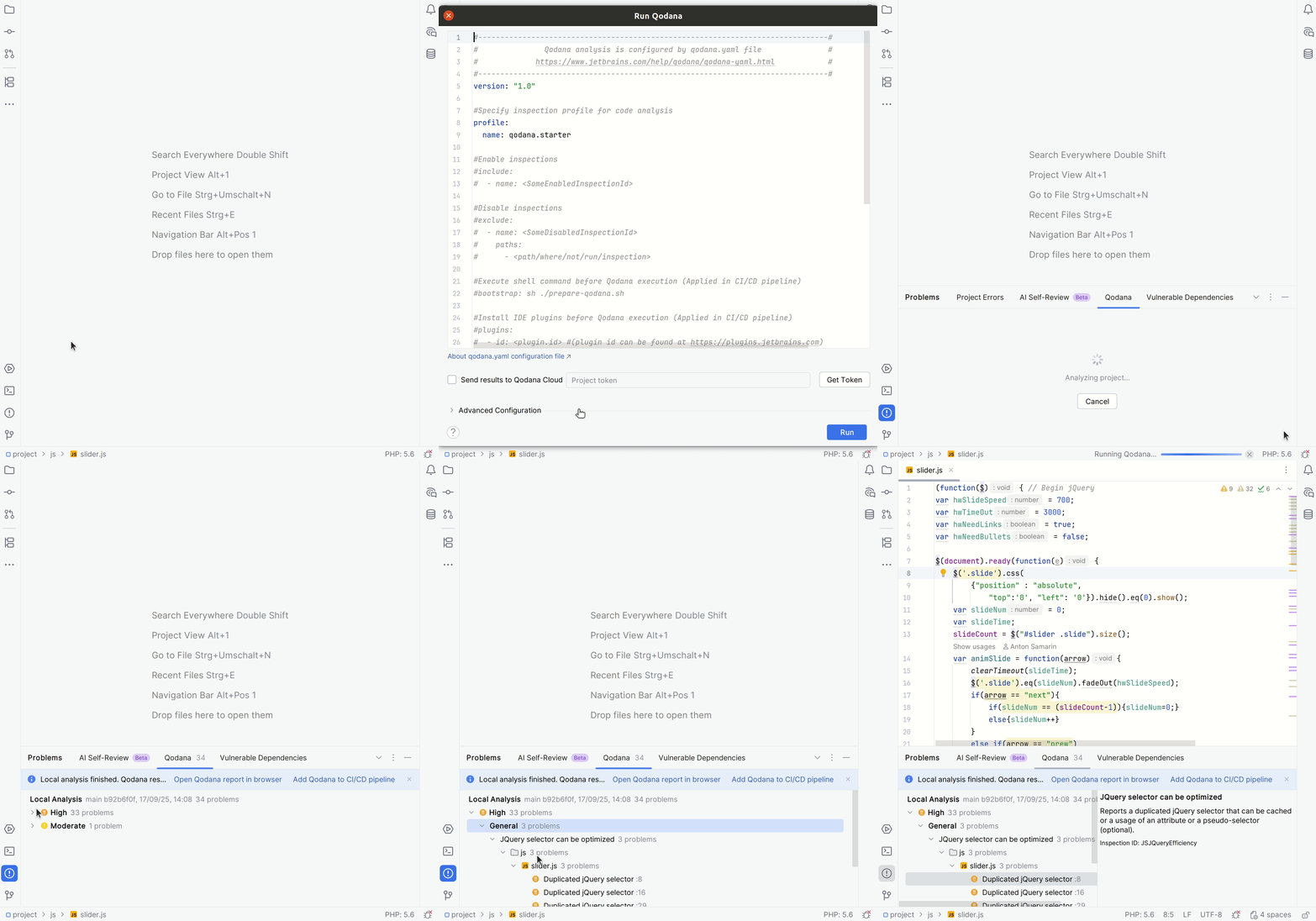
Here is the description of all steps shown in this animation:
In your IDE, navigate to the tool window.
In the tool window, click the tab.
On the tab, click the button to start Qodana.
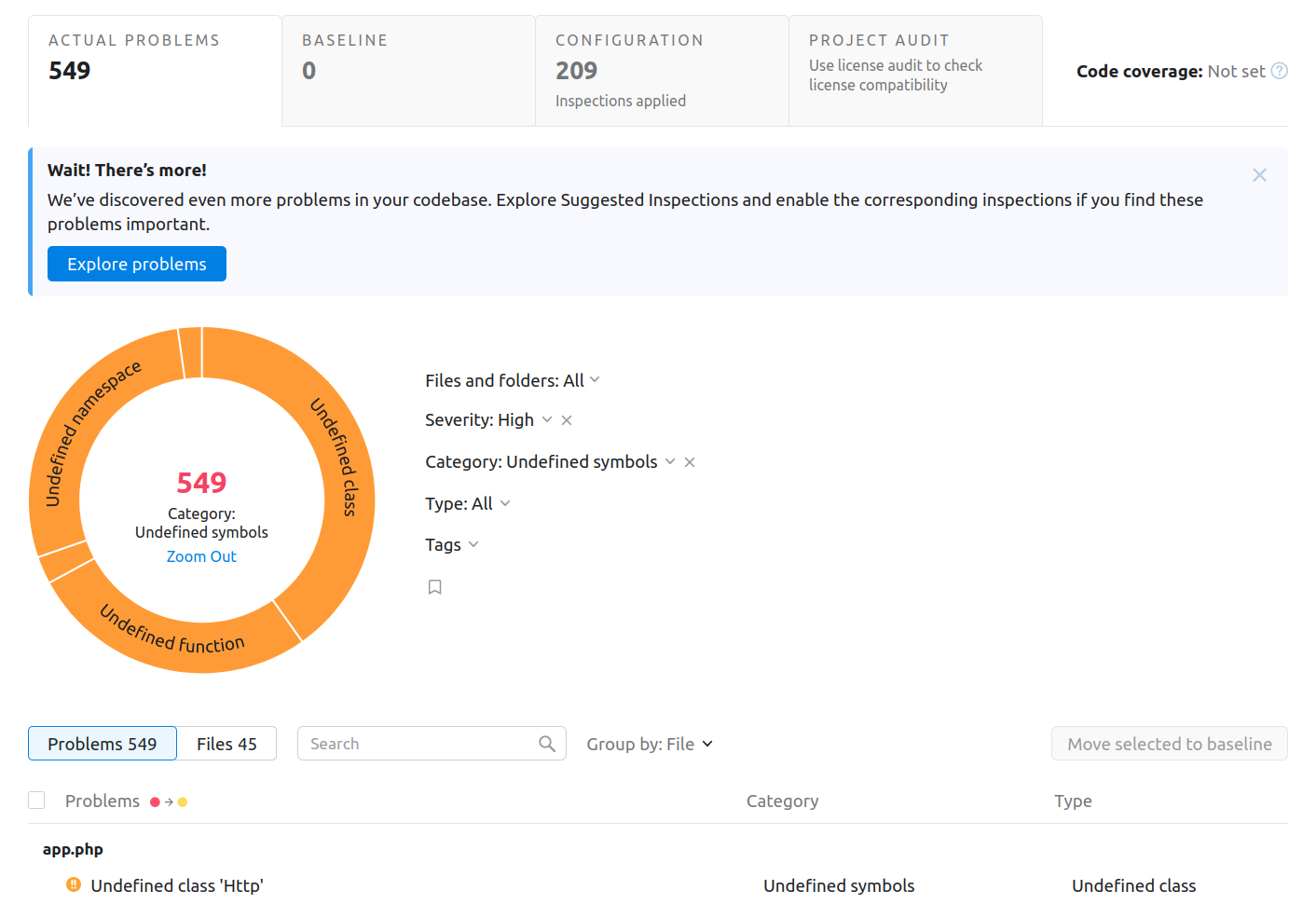
On the tab, you can view an analysis report. It also contains two links in the upper part of the tab.
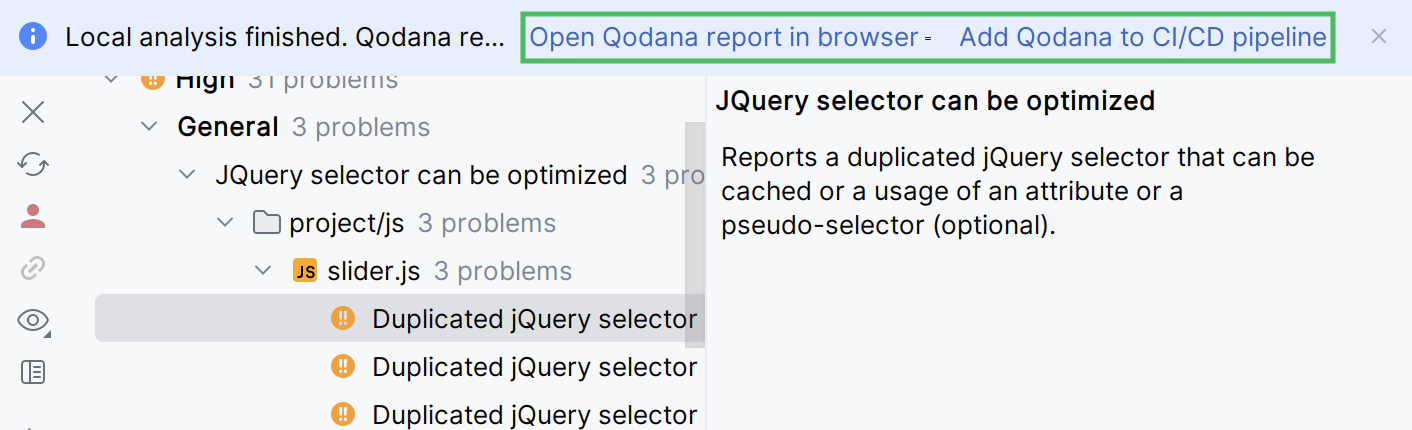
Open the analysis report in your browser.
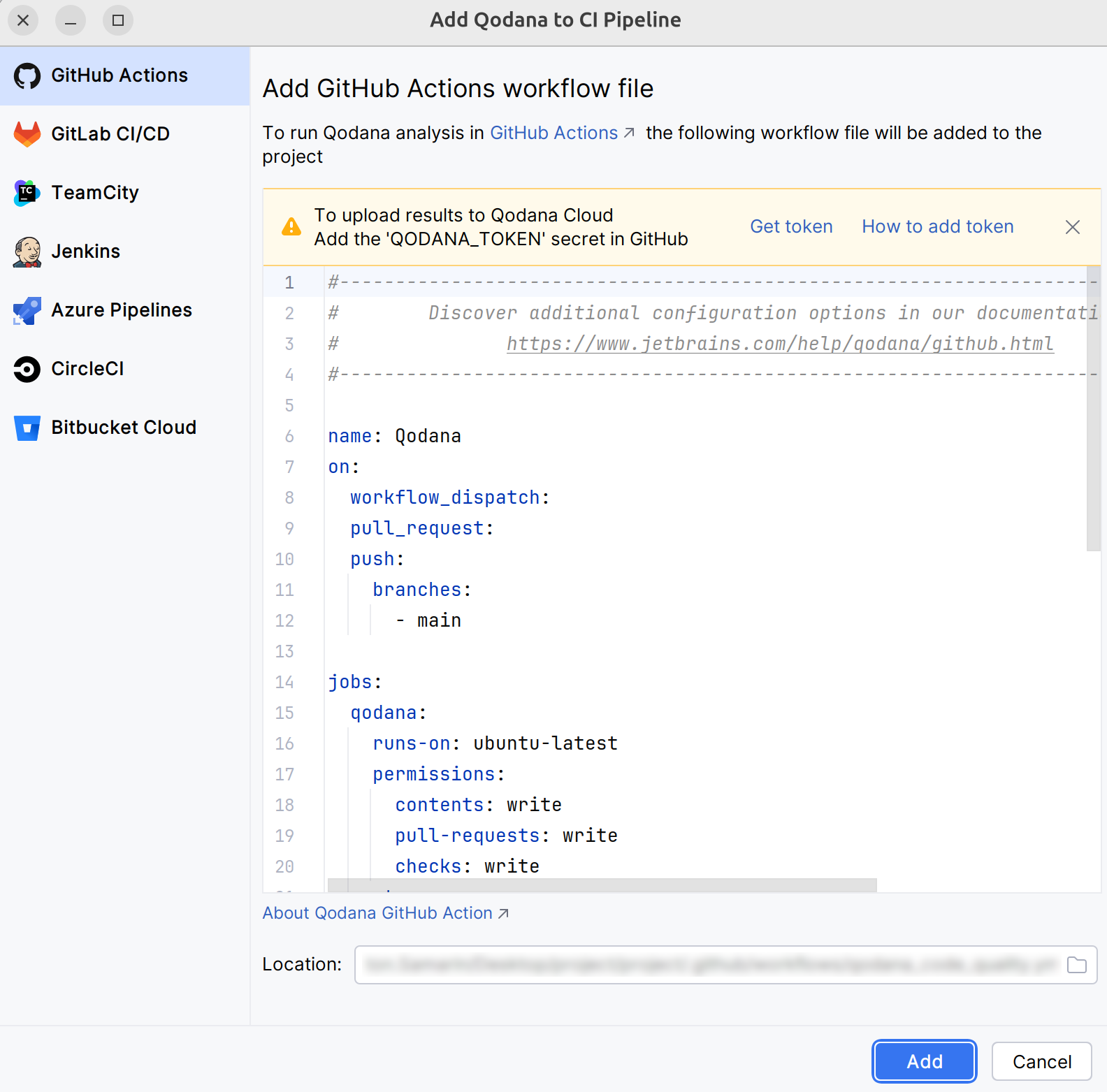
Open the configuration wizard to use Qodana in CI/CD pipelines.
To learn more about Qodana and CI/CD pipelines, see the Overview of CI/CD support section.
You can also learn how to install Qodana using the recommendations from the Visual Studio and Visual Studio Code sections.
Run Qodana using CLI
This section assumes that you have completed the steps from the Prerequisites chapter.
In the project root directory, declare the
QODANA_TOKENvariable containing the project token described in the prerequisites:QODANA_TOKEN=<cloud-project-token>set QODANA_TOKEN=<cloud-project-token>To run Qodana in native mode, use this command:
qodana scan \ --linter <linter-name> \ --within-docker falseqodana scan ^ --linter <linter-name> ^ --within-docker falseIn this command, the
--linteroption instructs Qodana about a linter that should be invoked. The--within-docker falseoption instructs Qodana to enable native mode. These options tell Qodana to download and employ the required JetBrains IDE binary file while running a Qodana linter.To run Qodana in Docker mode, use the following command:
qodana scanqodana scan
This section assumes that you have used the recommendations from the Prerequisites chapter.
Run this command to analyze your codebase:
docker run \ -v <source-directory>/:/data/project/ \ -e QODANA_TOKEN="<cloud-project-token>" \ jetbrains/qodana-<image>Here,
<source-directory>points to the root of your project, and theQODANA_TOKENvariable contains the project token described in the prerequisites.Navigate to your Qodana Cloud account to see an analysis report.
Run Qodana using CI/CD
For Azure Pipelines, CircleCI, GitHub Actions, GitLab CI/CD, and TeamCity, Qodana provides native solutions. To run Qodana using Bitbucket Cloud, and Jenkins, you can use Docker images.
Here is a short animation showing how you can configure and run Qodana using GitHub Actions.
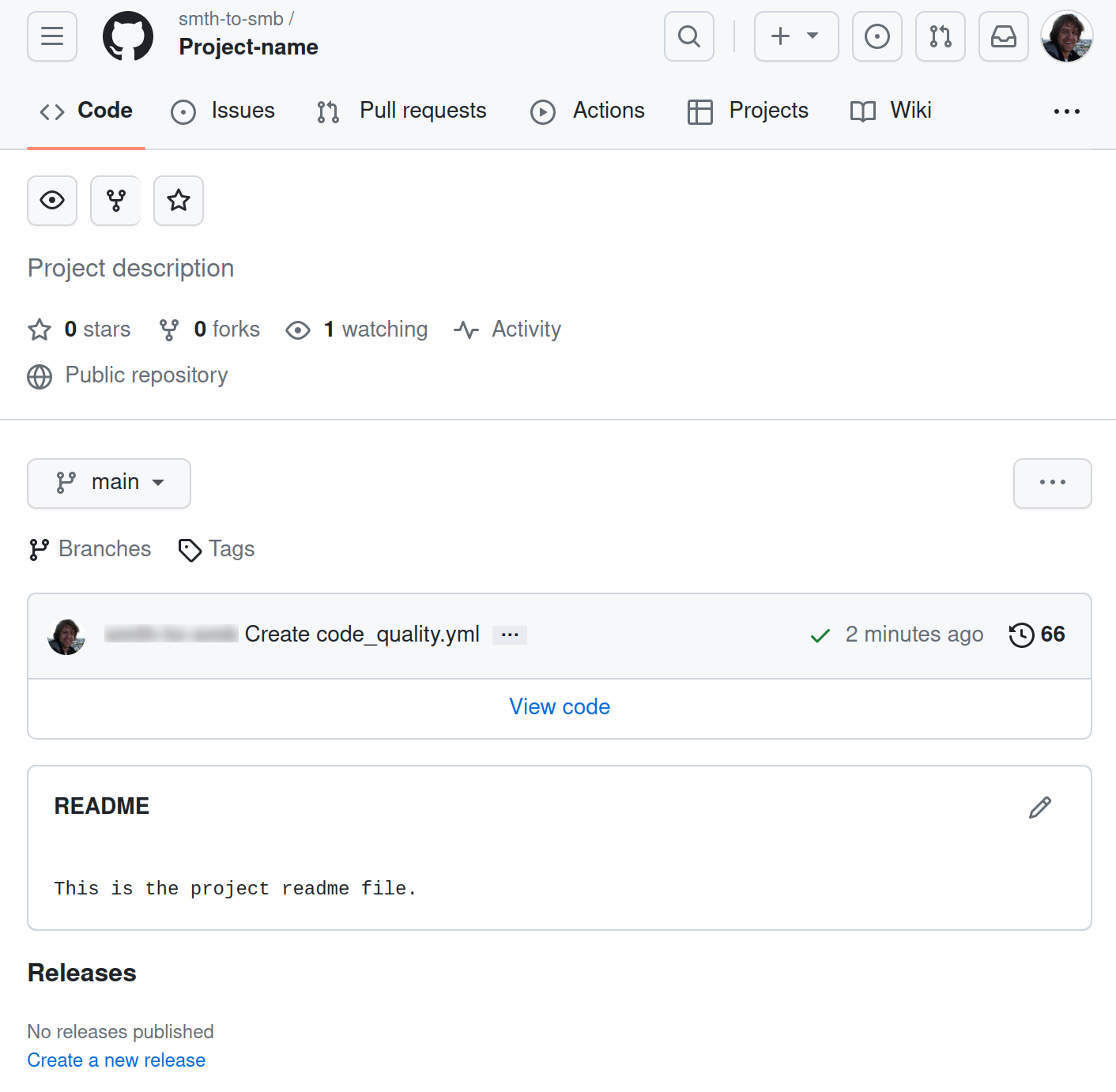
Assuming that you already generated a project token as described in the Prerequisites chapter, follow these steps to configure Qodana for running in native mode:
On the tab of the GitHub UI, create the
QODANA_TOKENencrypted secret and save the project token as its value. If you are using a Qodana Cloud instance other thanhttps://qodana.cloud/, override it by declaring theQODANA_ENDPOINTenvironment variable.On the tab of the GitHub UI, set up a new workflow and create the
.github/workflows/code_quality.ymlfile.To analyze the
mainandmasterbranches, as well as release branches and the pull requests coming to your repository, save this workflow configuration to the.github/workflows/code_quality.ymlfile:name: Qodana on: workflow_dispatch: pull_request: push: branches: # Specify your branches here - main # The 'main' branch - master # The 'master' branch - 'releases/*' # The release branches jobs: qodana: runs-on: ubuntu-latest permissions: contents: write pull-requests: write checks: write steps: - uses: actions/checkout@v3 with: ref: ${{ github.event.pull_request.head.sha }} # to check out the actual pull request commit, not the merge commit fetch-depth: 0 # a full history is required for pull request analysis - name: 'Qodana Scan' uses: JetBrains/qodana-action@v2026.2 with: args:| --linter <linter-name> --within-docker false env: QODANA_TOKEN: ${{ secrets.QODANA_TOKEN }}In the
argsblock, the--linteroption instructs Qodana about a linter that should be invoked. The--within-docker falseoption instructs Qodana to enable native mode. These options tell Qodana to download and employ the required JetBrains IDE binary file while running a Qodana linter.name: Qodana on: workflow_dispatch: pull_request: push: branches: # Specify your branches here - main # The 'main' branch - master # The 'master' branch - 'releases/*' # The release branches jobs: qodana: runs-on: ubuntu-latest permissions: contents: write pull-requests: write checks: write steps: - uses: actions/checkout@v3 with: ref: ${{ github.event.pull_request.head.sha }} # to check out the actual pull request commit, not the merge commit fetch-depth: 0 # a full history is required for pull request analysis - name: 'Qodana Scan' uses: JetBrains/qodana-action@v2026.2 env: QODANA_TOKEN: ${{ secrets.QODANA_TOKEN }}
Run Qodana as a Gradle plugin
The Gradle Qodana plugin provides the Gradle interface for running code inspections provided by Qodana. To start, apply the Gradle plugin org.jetbrains.qodana in the Gradle configuration file.
Add the following to the build.gradle configuration file.
Add the following to the build.gradle.kts configuration file:
qodana { } extension configuration
Properties available for configuration in the qodana { } top-level configuration closure:
Name | Description | Type | Default Value |
|---|---|---|---|
| Path to the project directory to analyze. |
|
|
| Path to the directory to store task results. |
|
|
| Path to the directory to store the generated report. |
|
|
Gradle Qodana Tasks
qodanaScan
Start Qodana in the project directory.
The task relies on the qodana { } extension configuration. However, it is also controlled by provided arguments.
Example
Add this to your Gradle configuration file:
Groovy –
build.gradleplugins { // applies Gradle Qodana plugin to use it in project id "org.jetbrains.qodana" version "..." } qodana { // by default result path is $projectPath/build/results resultsPath = "some/output/path" } qodanaScan { arguments = ["--fail-threshold", "0"] }Kotlin –
build.gradle.ktsplugins { // applies Gradle Qodana plugin to use it in a project id("org.jetbrains.qodana") version "..." } qodana { // by default, the result path is $projectPath/build/results resultsPath.set("some/output/path") } qodanaScan { resultsPath.set("some/output/path") arguments.set(listOf("--fail-threshold", "0")) }
Now you can run analyses using the qodanaScan Gradle task:
A complete guide for options and configuration of arguments parameters can be found on Qodana CLI docs page.