Inspection profiles
An inspection profile is a set of pre-configured inspections, including their state, configuration options, scopes of their analyses, and severities.
Qodana inspection profiles configure the inspections that you are going to use. If you enable too few inspections, you may miss critical problems, which will affect your project overall. On the other hand, enabling too many inspections can negatively affect inspection performance and can result in using inspections that are irrelevant to your project.
This section explains how you can use existing Qodana profiles, create your own profiles, and set up profiles for analyzing your projects using Qodana.
Existing Qodana profiles
Out of the box, you can use the following Qodana profiles:
Profile name | Description |
|---|---|
| The subset of the |
| Provides the most usable inspections and implements default profiles of JetBrains IDEs like IntelliJ IDEA with the following exceptions:
|
| This profile is enabled by default to analyze whether a project is configured properly. If To learn how disable inspections of this profile, see the Disable sanity inspections section. |
These profiles are hosted on GitHub, so you can learn them in detail.
Set up an existing profile
A YAML configuration serves as a universal Qodana configuration method. This means that you can configure Qodana using the qodana.yaml file once and then reuse it for running Qodana with Docker, GitHub, JetBrains IDEs, or any other software currently supported by Qodana. The settings will remain consistent across all these platforms.
To set up the qodana.recommended profile, in the project root save the qodana.yaml file containing the following configuration:
In your IDE, navigate to .
On the
profilesection of the dialog, paste the profile configuration:profile: name: qodana.recommended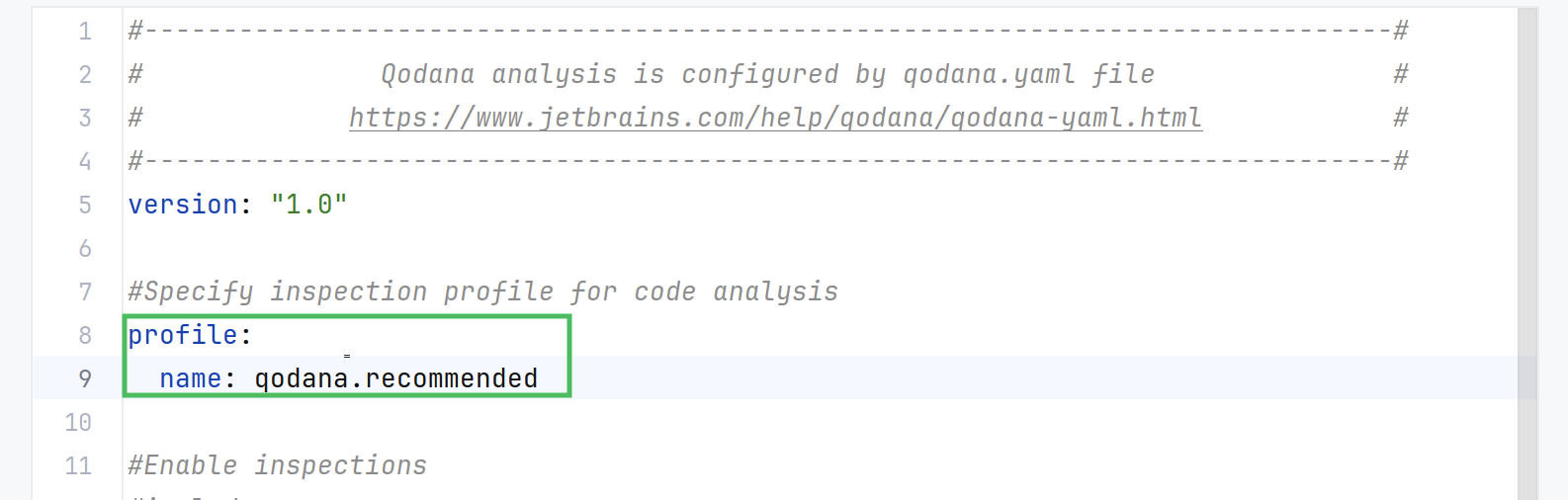
On the dialog, check the option.
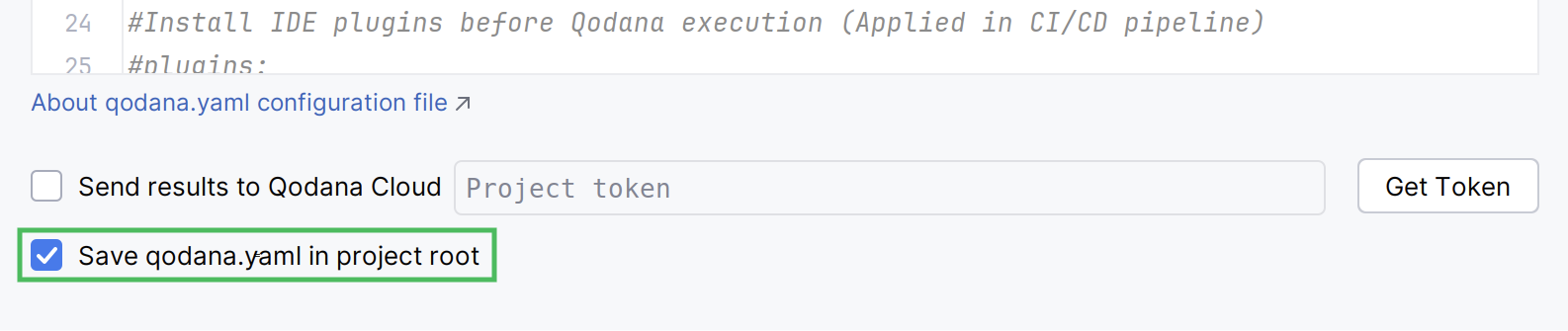
Click to start analyzing your code.
On the tab of the GitHub UI, create the
QODANA_TOKENencrypted secret and save the project token as its value.On the tab of the GitHub UI, set up a new workflow and create the
.github/workflows/code_quality.ymlfile.To analyze the
mainbranch, release branches and the pull requests coming to your repository, save the workflow configuration to the.github/workflows/code_quality.ymlfile:name: Qodana on: workflow_dispatch: pull_request: push: branches: # Specify your branches here - main # The 'main' branch - 'releases/*' # The release branches jobs: qodana: runs-on: ubuntu-latest permissions: contents: write pull-requests: write checks: write steps: - uses: actions/checkout@v3 with: ref: ${{ github.event.pull_request.head.sha }} # to check out the actual pull request commit, not the merge commit fetch-depth: 0 # a full history is required for pull request analysis - name: 'Qodana Scan' uses: JetBrains/qodana-action@v2026.2 with: args: --profile-name qodana.recommended env: QODANA_TOKEN: ${{ secrets.QODANA_TOKEN }}Here, the
--profile-nameoption specifies theqodana.recommendedprofile.
You can set up the qodana.recommended profile using the --profile-name option:
Custom profiles
You can create custom profiles using the following formats:
YAML is the preferred format
XML can be used as an alternative to YAML
Custom profiles can either override existing profiles or be created from scratch.
This snippet demonstrates how you can fine-tune Qodana to fit your needs using the YAML format:
This snippet contains the following keys:
Node name | Description |
|---|---|
The main node for profile configuration | |
The list of relative paths to imported profiles |
profile
The profile key consists of the following elements:
Section | Description |
|---|---|
The profile that will serve as a basis for your profile configuration | |
Name of the inspection profile, overlaps with | |
Inspection groups that need to included or excluded in your profile | |
List of changes applied for |
base
The base node lets you specify the profile that will serve as a basis for your profile configuration. You can use either a file path or a name:
The name key supports the following values:
| Description |
|---|---|
| The default profile taken from the JetBrains IDE |
| The profile is basically similar to |
| Any name of an XML or YAML profile contained in the |
| The default Qodana profile, a subset of the |
| The default Qodana profile implementing the default profiles of JetBrains IDEs |
| Severities and parameters of inspections are taken from |
If the name declaration is missing, Qodana will employ the Project Default profile, so all settings applied in your custom profile will override such settings contained in Project Default.
name
Name of a profile from the .idea/inspectionProfiles directory which settings you would like to use as a base.
This key overlaps with the base.name setting and cannot be used together with it.
groups
The groups node is a list of user-defined groups. Here, you can combine inspection categories and single inspections, and then configure their usage in the inspections node.
Each group definition can include or exclude other groups or single inspections.
You can use the exclamation mark character (!) to negate a group or a category. For example, you can exclude a specific category usage in a group that will be included.
Here is the sample containing the EnabledInspections group defined by a user:
This sample contains the following elements:
Property | Description |
|---|---|
ID of the group | |
List of included and excluded inspections in this group | |
List of included and excluded groups in this group |
groups.groupId
Unique group identifier.
In case two groups are defined under the same groupId, the latest group met in the file will be employed. This rule also works for all included files because the settings contained in the included files are considered prior to the settings laid out in the current file.
groups.inspections
The list of inspections included in the group.
groups.groups
The list of group IDs with possible exclamation mark character (!):
Here, groups accepts several values:
| Description |
|---|---|
| Include all inspections. Besides that, you can also use |
| Name of the inspection category in the |
| Name of the existing user-defined group, or a group from an included profile |
| Negate the existing |
| Include or exclude inspections by a certain severity level. Because the severity value is taken from the |
By default, Qodana uses severity levels inherited from the JetBrains IDEs shown in this table:
IDE severity | SARIF severity | Qodana report severity | Code Climate severity | Bitbucket severity |
|---|---|---|---|---|
ERROR | ERROR | Critical | Blocker | High |
WARNING | WARNING | High | Critical | High |
WEAK WARNING | NOTE | Moderate | Major | Medium |
TYPO | NOTE | Low | Minor | Low |
INFORMATION | NOTE | Info | Info | Info |
OTHER | NOTE | Info | Info | Info |
inspections
Using inspections, you can:
Enable or disable a specific group or an inspection,
Define the order of applying these settings,
Define the paths or scopes to be ignored by the specific group or the inspection,
Customise severity for specific inspections or inspection groups,
Configure inspection options.
This sample contains several elements:
Property | Description |
|---|---|
| The ID of the group from the |
| The ID of the inspection |
| Severity level that will be assigned to a group of inspections or a single inspection. For example, you can specify |
| List of paths using the glob patterns and scopes that will be ignored during inspection |
| Specify whether the group or the inspection is enabled in the profile. Accepts either |
| List of options that you can configure for a specific inspection |
imports
Configure the list of imported profiles relative to the project root. This feature is useful when you need to merge specific profile configurations and then adjust the result to meet your requirements, As an example, see the Merging configurations section.
The imports node is not related to base. If base contains no values, it is set to Default.
To view the default profile, in the JetBrains IDE navigate to Settings | Editor | Inspections and select the Default profile in the Profile drop-down selector.
File contents are included in the order of appearance, thus becoming part of your profile. This means that the settings of the included files are used prior to the settings specified in your custom profile.
Example of import
Suppose, you have the foo.yaml and bar.yaml profiles.
The foo.yaml profile enables the Inspection1, Inspection2 and Inspection3 inspections:
The bar.yaml profile disables the Inspection1 inspection:
You can include these two files in the custom profile and disable Inspection2:
In this case, the effective profile configuration read by Qodana will look like this:
Configuration examples
Here you can find several examples of profile configuration.
Exclude inspection
This lets you exclude the PhpDeprecationInspection inspection available in the Qodana for PHP linter:
Alternatively, you can exclude the PhpDeprecationInspection inspection using groups:
Ignore paths
The ignore key lets you ignore specific scopes and paths that match globe patterns.
Create profile
Using base, this configuration defines the empty profile, and then it includes only the Java/Data flow inspection group from the Qodana for JVM linter.
As an alternative to base, you can use ALL in the groups property:
Override profile
You can exclude inspection categories from the qodana.starter profile that are not related to the Qodana for .NET linter.
Filter by severity
This sample includes all inspections with the WEAK WARNING severity level while inspecting Java code:
Override severity
You can override the severity levels for existing inspections. Here’s how you can assign the WARNING severity level to the JavadocReference inspection:
Override options
Specific inspections offer configurable options. For example, the JvmCoverageInspection inspection offers the classThreshold, methodThreshold, and warnMissingCoverage options.
To discover this, configure this inspection in IntelliJ IDEA and then export the profile. Here is a profile example for the JvmCoverageInspection inspection:
This sample demonstrates how you can configure the inspection options in your custom profile:
Custom XML profiles
You can create XML-formatted inspection profiles using your IDE. For example, for IntelliJ IDEA this is explained on the Configure profiles page. After you create a profile, you can export it to a file.
To run Qodana with the custom profile, you can follow the recommendations from the Set up an existing profile section. In this case, the profile name does not necessarily match the name of the containing file. The actual name is stored as the %profileName% value in the profile file.
Specify SQL dialect
To analyze SQL code, enabling SQL-related inspections is not enough. In this case, you also have to specify an SQL dialect that you would like to analyze. To do this, in your project root save the .idea/sqldialects.xml containing the following contents:
To find a name of a concrete SQL dialect for this snippet, in your IDE navigate to . In the upper part of the , expand either the or dropdown list.
Use your profile
A YAML configuration serves as a universal Qodana configuration method. This means that you can configure Qodana using the qodana.yaml file once and then reuse it for running Qodana with Docker, GitHub, JetBrains IDEs, or any other software currently supported by Qodana. In this case, no additional configuration is required, and all settings will remain consistent across all these platforms, see the example below:
The following examples show how you can invoke your custom profiles using the --profile-path option:
On the tab of the GitHub UI, create the
QODANA_TOKENencrypted secret and save the project token as its value.On the tab of the GitHub UI, set up a new workflow and create the
.github/workflows/code_quality.ymlfile.To analyze the
mainbranch, release branches and the pull requests coming to your repository, save the workflow configuration to the.github/workflows/code_quality.ymlfile:name: Qodana on: workflow_dispatch: pull_request: push: branches: # Specify your branches here - main # The 'main' branch - 'releases/*' # The release branches jobs: qodana: runs-on: ubuntu-latest permissions: contents: write pull-requests: write checks: write steps: - uses: actions/checkout@v3 with: ref: ${{ github.event.pull_request.head.sha }} # to check out the actual pull request commit, not the merge commit fetch-depth: 0 # a full history is required for pull request analysis - name: 'Qodana Scan' uses: JetBrains/qodana-action@v2026.2 with: args: --profile-path .qodana/profiles/<custom-profile.yaml> env: QODANA_TOKEN: ${{ secrets.QODANA_TOKEN }}
You can set up your custom profile using the --profile-path option:
Order of resolving a profile
Qodana checks the configuration parameters for resolving the inspection profile in this order:
Profile with the name
%name%from the command-line option--profile-name %name%Profile by the path
%path%from the command-line option--profile-path %path%Profile with the name
%name%fromqodana.yamlProfile by the path
%path%fromqodana.yamlProfile mounted to
/data/profile.xmlFall back to using the default
qodana.recommendedprofile.