Baseline
The baseline is a snapshot of the codebase problems taken at a specific Qodana analysis.
Using the baseline feature, you can compare your current code to its baseline state and see new, unchanged, and resolved problems. For example, you can configure and update the baseline for the main branch to monitor changes after merging pull or merge requests.
The baseline is supported by all linters and available under Community, Ultimate, and Ultimate Plus licenses and their trial versions. To learn more details about licenses, visit the Subscription Options and Pricing page. You can also request a demo.
How the baseline works
The baseline is enabled by default and does not require any additional setup. Information about your project baseline is stored and updated in Qodana Cloud.
During the first analysis of your project, Qodana collects all found problems, moves them to the baseline, and makes the baseline available for review and later Qodana analyses. You can add and remove problems from the baseline.
Generally, the baseline feature divides problems into these groups:
Unchanged – problems added to a baseline during the first analysis and remaining unchanged since then.
New – problems that could not be matched to any problem in the baseline. These are usually problems introduced by recent changes. However, existing problems can also be reported as new if Qodana cannot recognize them after refactorings or file updates.
Absent – problems that were resolved since the baseline was created.
This diagram explains how these groups work.

For example, the first Qodana analysis detected two problems that were added to the baseline.
The second Qodana analysis detected three problems. Fortunately, this time Qodana marks one of them as new. The other two are the unchanged problems; they are already reflected in the baseline report.
After one baseline problem had been resolved, the project was analyzed again. This time, the report will contain three problems. The new problem is the problem that was detected in Step 2 and still remains new. There is also one unchanged problem that has not changed since Step 1. Finally, one baseline problem was resolved and may now be marked as absent.
As you can see, new problems do not automatically change their status across Qodana analyses. To transform them to unchanged, you need to add such problems to your baseline and then analyze your project again.
The new problem was moved to the unchanged group by adding that problem to the baseline.
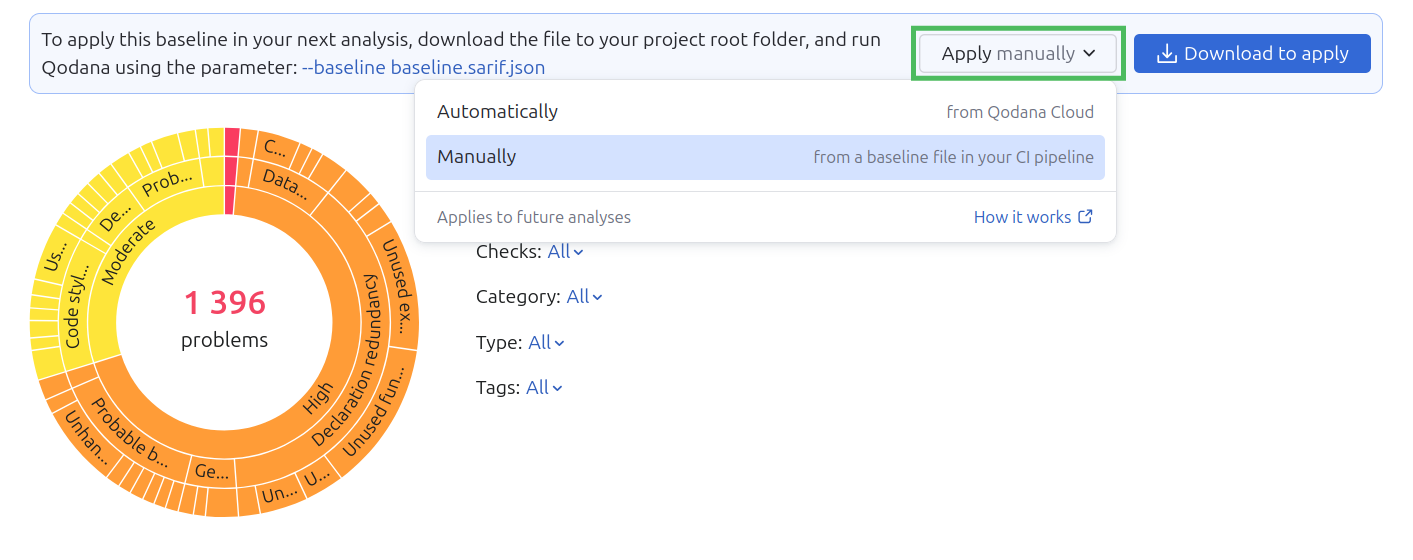
If you are a user of the Editor or Admin roles in Qodana Cloud, you can configure the baseline by using the dropdown list of the tab.
Explore analysis results
The baseline is available for review on the tab.

On the tab, you can view the baseline used for later analyses.
You can update the baseline by promoting or demoting problems as explained in the Analysis reports section.
If you are a user of the Editor or Admin roles in Qodana Cloud, you can configure the baseline by using the dropdown list of the tab.
File baseline
If you require baseline governance and version control, you can manage a project’s baseline in a file, stored in a version control system. If you provide a baseline file when you run code analysis, it overrides the project’s existing baseline.
To start with a file baseline, navigate to the tab of Qodana Cloud UI, and then download the baseline saved in the qodana.sarif.json file. Configure the file baseline by setting the --baseline option as shown below.
Here, the QODANA_TOKEN variable refers to the project token required by the Ultimate and Ultimate Plus linters.
In this snippet, the --baseline option specifies the path to the baseline file from the Docker filesystem. The QODANA_TOKEN variable refers to the project token required by the Ultimate and Ultimate Plus linters.
In this snippet, the --baseline option specifies the path to the baseline.sarif.json file containing the baseline.
In this snippet, the --baseline option specifies the path to the baseline.sarif.json file containing a baseline.
In this snippet, the --baseline option specifies the path to the baseline.sarif.json file containing a baseline.
In the runner configuration, find the field and specify the path to the baseline.sarif.json file containing a baseline:
The list of the IDEs supporting this feature is available in the JetBrains IDEs section.
This animation shows how you can analyze your code using baseline.

Here is the description of each step from the animation:
In your IDE, navigate to the tool window.
In the tool window, click the tab.
On the tab, click the button.
On the dialog that opens, expand the section, select the baseline file, and then click .
Including absent problems in reports
To include absent problems in reports, you need to run Qodana with the --baseline-include-absent option:
In the runner configuration, find the field and add the --baseline-include-absent option:
Customizing the baseline path
By default, Qodana expects the baseline file to be located at .qodana/baseline.sarif.json in your project root. You can override this as follows:
If you store the baseline file in a different path within the project directory, use the
--baselineoption to specify its location relative to the project root, e.g.,--baseline path/to/your/baseline.sarif.json.If your baseline file is located outside the project directory, you need to mount it into the container (for Docker-based runs) and then reference it using the mounted path with the
--baselineoption.
Requiring a file-based baseline
If you are a user of the Editor or Admin roles in Qodana Cloud, you can configure your project to use only a file baseline.
In the Qodana Cloud UI, on the tab download the
baseline.sarif.jsonfile containing the baseline.In the Qodana Cloud UI, on the tab, disable the dropdown list.
Configure the file baseline using the recommendations from the File baseline chapter.
Run Qodana.
On the tab of the Qodana Cloud UI, enable the dropdown list.
In your Qodana configuration, configure the
--baselineoption.Run Qodana with the
--baselineoption, to update the default baseline.