Create your Compose Multiplatform app
Here, you'll learn how to create and run your first Compose Multiplatform application using IntelliJ IDEA.
With the Compose Multiplatform UI framework, you can push the code-sharing capabilities of Kotlin Multiplatform beyond application logic. You can implement the user interface once and then use it for all the platforms supported by Compose Multiplatform.
In this tutorial, you will build a sample application that runs on Android, iOS, desktop, and web. To create a user interface, you will use the Compose Multiplatform framework and learn about its basics: composable functions, themes, layouts, events, and modifiers.
Things to keep in mind for this tutorial:
No previous experience with Compose Multiplatform, Android, or iOS is required. We do recommend that you become familiar with the fundamentals of Kotlin before starting.
To complete this tutorial, you'll only need IntelliJ IDEA. It allows you to try multiplatform development on Android and desktop. For iOS, you'll need a macOS machine with Xcode installed. This is a general limitation of iOS development.
If you wish, you can limit your choice to the specific platforms you're interested in and omit the others.
Create a project
In the quickstart, complete the instructions to set up your environment for Kotlin Multiplatform development.
In IntelliJ IDEA, select File | New | Project.
In the panel on the left, select Kotlin Multiplatform.
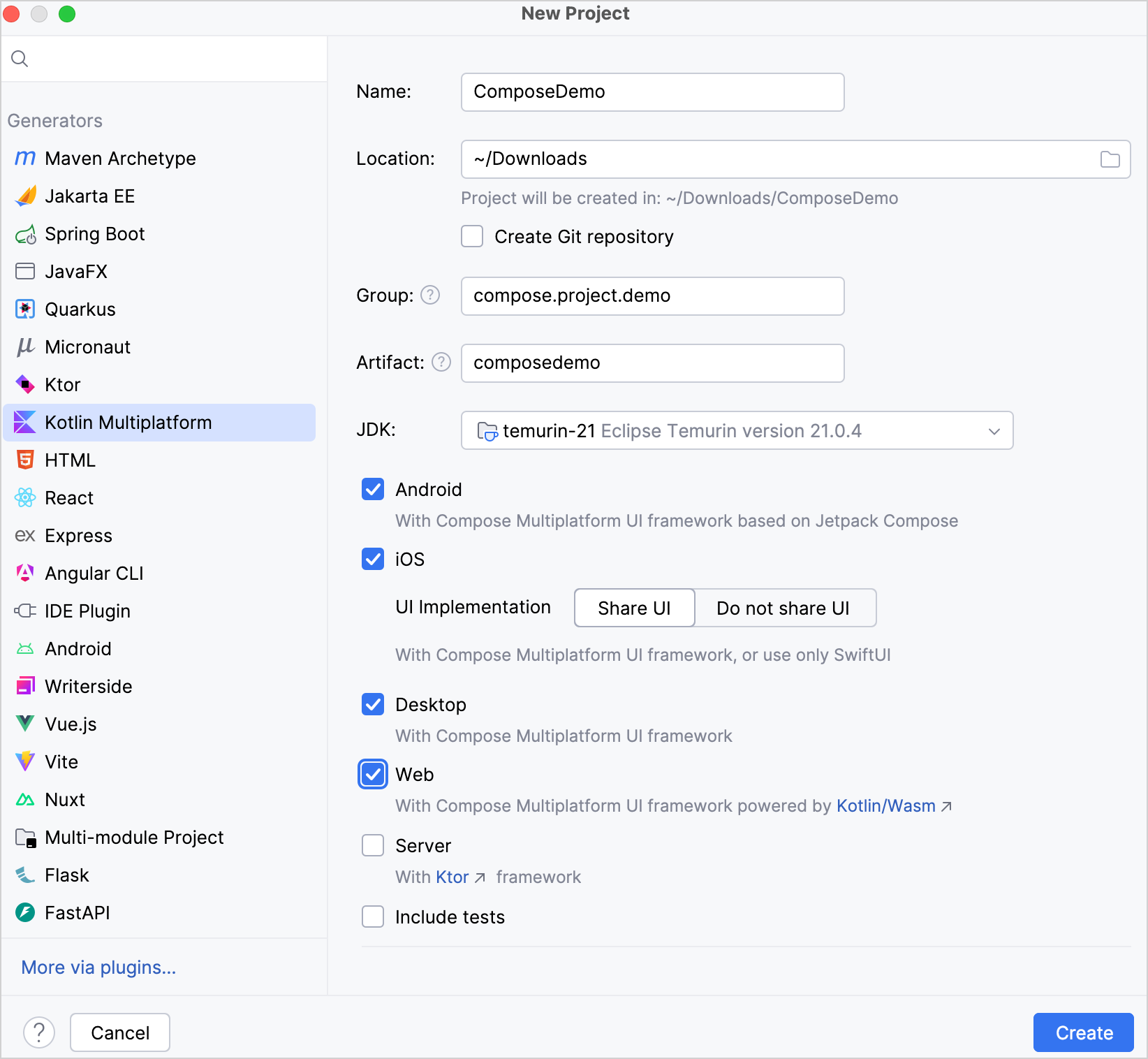
Specify the following fields in the New Project window:
Name: ComposeDemo
Project ID (used as the package name): compose.project.demo
Select the Android, iOS, Desktop, and Web targets. Make sure that the Share UI option is selected for iOS and web.
Once you've specified all the fields and targets, click Create (Download in the web wizard).
Examine the project structure
In IntelliJ IDEA, navigate to the ComposeDemo folder. If you didn't select iOS in the wizard, you won't have the folders whose names begin with "ios" or "apple".
The project contains the following modules:
shared is a Kotlin Multiplatform module that contains the logic shared among the Android, desktop, iOS, and web applications – the code you use for all the platforms. It uses Gradle as the build system that helps you automate your build process.
androidApp is the module that builds into an Android application.
iosApp is an Xcode project that builds into an iOS application. It depends on and uses the shared module as an iOS framework.
desktopApp is the module that builds into a desktop JVM application. It depends on the
sharedmodule.webApp is the module that builds into web applications, both Kotlin/JS and Kotlin/Wasm.

The shared module contains the following source sets: androidMain, commonMain, iosMain, jsMain, jvmMain, and wasmJsMain (with -Test companion source sets if you chose to include tests).
A source set is a Gradle concept for a number of files logically grouped together, where each group has its own dependencies. In Kotlin Multiplatform, different source sets usually target different platforms.
The commonMain source set uses the common Kotlin code, and platform source sets use Kotlin code specific to each target:
jvmMaincontains source files for the desktop target, which uses Kotlin/JVM.androidMaincontains Android source files and targets Kotlin/JVM.iosMaincontains Kotlin code for iOS and targets Kotlin/Native.jsMaincontains JavaScript-specific Kotlin code and targets Kotlin/JS.wasmJsMaincontains Wasm-specific Kotlin code and targets Kotlin/Wasm.
This way, when the shared module is built into an Android library, common Kotlin code gets treated as Kotlin/JVM, and when it is built into an iOS framework, common Kotlin code gets treated as Kotlin/Native. When the shared module is built into a web app, common Kotlin code can be treated as Kotlin/Wasm or Kotlin/JS as necessary.
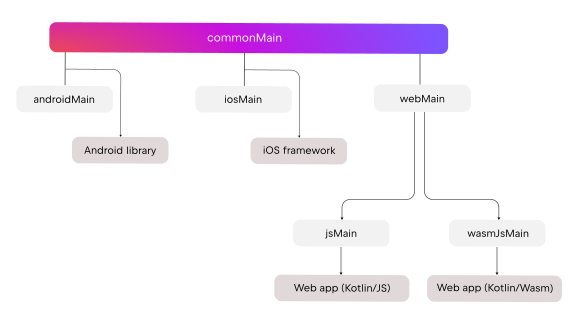
In general, write your implementation as common code whenever possible, to take advantage of implementing only once the functionality that should work the same across platforms. Platform-specific source sets ideally contain only platform-specific API calls and UX flows.
In the shared/src/commonMain/kotlin directory, open the App.kt file. It contains the App() function, which implements a minimalistic but complete Compose Multiplatform UI:
Let's run the application on all supported platforms.
Run your application
You can run the application on Android, iOS, desktop, and web. You don't have to run the applications in any particular order, so start with whichever platform you are most familiar with.
Run your application on Android
In the list of run configurations, select androidApp.
Choose your Android virtual device and then click Run: Your IDE starts the selected virtual device if it is powered down and runs the app.


Run on a different Android simulated device
Run on a real Android device
Run your application on iOS
If you haven't launched Xcode as part of the initial setup, do that before running the iOS app.
In IntelliJ IDEA, select iosApp in the list of run configurations, select a simulated device next to the run configuration, and click Run.


Run on a real iOS device
You can run your multiplatform application on a real iOS device. Before you start, you'll need to set the Team ID associated with your Apple ID.
Set your Team ID
To set new Team ID for your project for the first time, open the project in Xcode (File | Open Project in Xcode):
In the Project navigator on the left-hand side, select iosApp.
Select iosApp under Targets and switch to the Signing & Capabilities tab.
In the Team list, select your team.
If you haven't set up your team yet, use the Add an Account option in the Team list and follow Xcode instructions.
Make sure that the Bundle Identifier is unique and a Signing Certificate is successfully assigned.
After you set up a team in Xcode, you can set or change the team in IntelliJ IDEA:
Edit the run configuration for iosApp:

Switch to the Options tab and make the necessary changes in the Development team dropdown, then click OK.
Run the app
Connect your iPhone with a cable. If you already have the device registered in Xcode, IntelliJ IDEA should show it in the list of run configurations. Run the corresponding iosApp configuration.
If you haven't registered your iPhone in Xcode yet, follow Apple recommendations. In short, you should:
Connect your iPhone with a cable.
On your iPhone, enable the developer mode in Settings | Privacy & Security.
In Xcode, go to the top menu and choose Window | Devices and Simulators.
If your iPhone is not shown as connected, click the plus sign at the bottom left and select it.
Follow the on-screen instructions to complete the pairing process.
Once you've registered your iPhone in Xcode, it will become available in the list of available devices in IntelliJ IDEA when you select the iosApp run configuration.
Run your application on desktop
Select desktopApp [hot] 🔥 in the list of run configurations and click Run. By default, the run configuration starts a desktop app in its own OS window with Compose Hot Reload running:


Run your web application
In the list of run configurations, select:
webApp[js]: To run your Kotlin/JS application.
webApp[wasmJs]: To run your Kotlin/Wasm application.
Click Run.
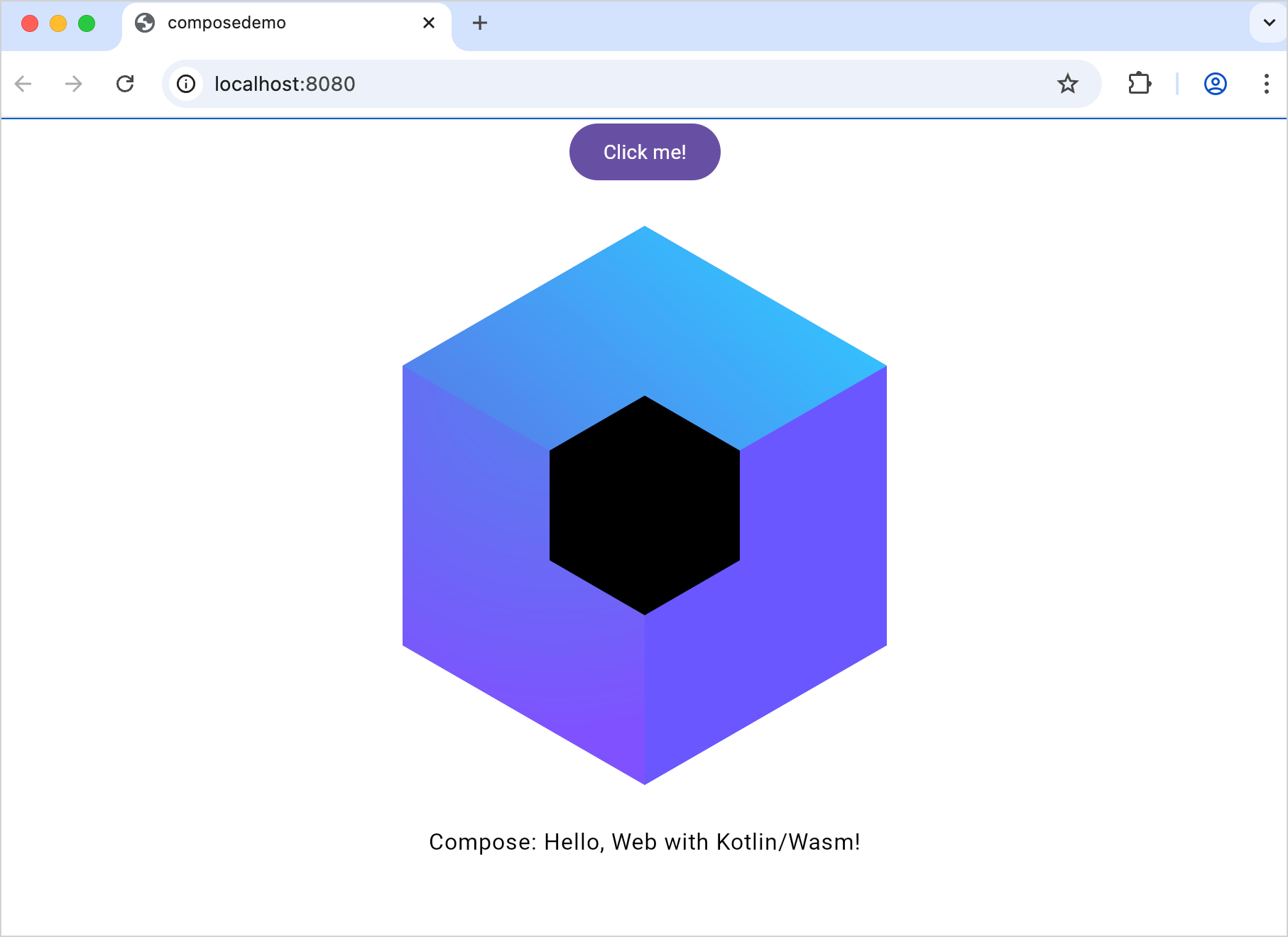
The web application opens automatically in your default browser and is available by default at http://localhost:8080/.
Compatibility mode for web targets
You can enable compatibility mode for your web application to ensure it works on all browsers out of the box. In this mode, modern browsers use the Wasm version, while older ones fall back to the JS version. This mode is achieved through cross-compilation for both the js and wasmJs targets.
To enable compatibility mode for your web application:
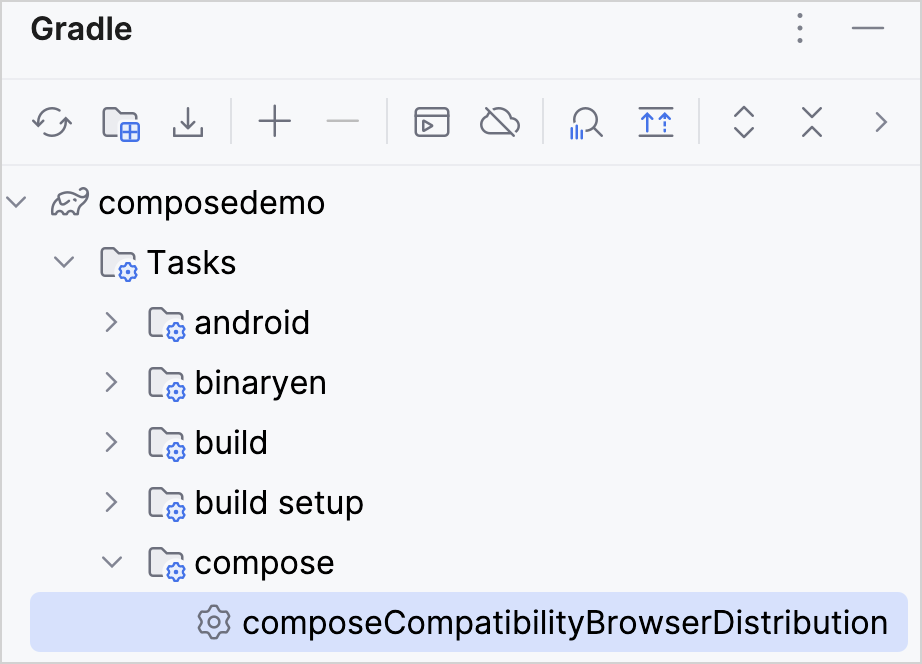
Open the Gradle tool window by selecting View | Tool Windows | Gradle.
In ComposeDemo | Tasks | compose, select and run the composeCompatibilityBrowserDistribution task.
Alternatively, you can run the following command in the terminal from the
ComposeDemoroot directory:./gradlew composeCompatibilityBrowserDistribution
Once the Gradle task completes, compatible artifacts are generated in the composeApp/build/dist/composeWebCompatibility/productionExecutable directory. You can use these artifacts to publish your application working on both the js and wasmJs targets.
Next step
In the next part of the tutorial, you'll learn how to implement composable functions and launch your application on each platform.
Get help
Kotlin Slack. Get an invite and join the #multiplatform channel.
Kotlin issue tracker. Report a new issue.