教程:创建您的第一个 Spring 应用程序
本教程介绍如何在 IntelliJ IDEA 中创建和运行 Spring 应用程序。 这是一个由 Spring Boot Maven 项目,由 Spring Initializr生成。 这是创建 Spring 应用程序的最快方式,IntelliJ IDEA 提供了专门的项目向导。
在本教程中,将学习如何创建返回问候的 GET 端点,并在浏览器中测试该端点。 还将学习如何为 Spring 应用程序添加静态 HTML 首页。
本教程使用 Java 25 语法。
创建一个新的 Spring Boot 项目
启动 IntelliJ IDEA。
如果打开欢迎屏幕,请点击 新建项目。 否则,请在主菜单中转到 。
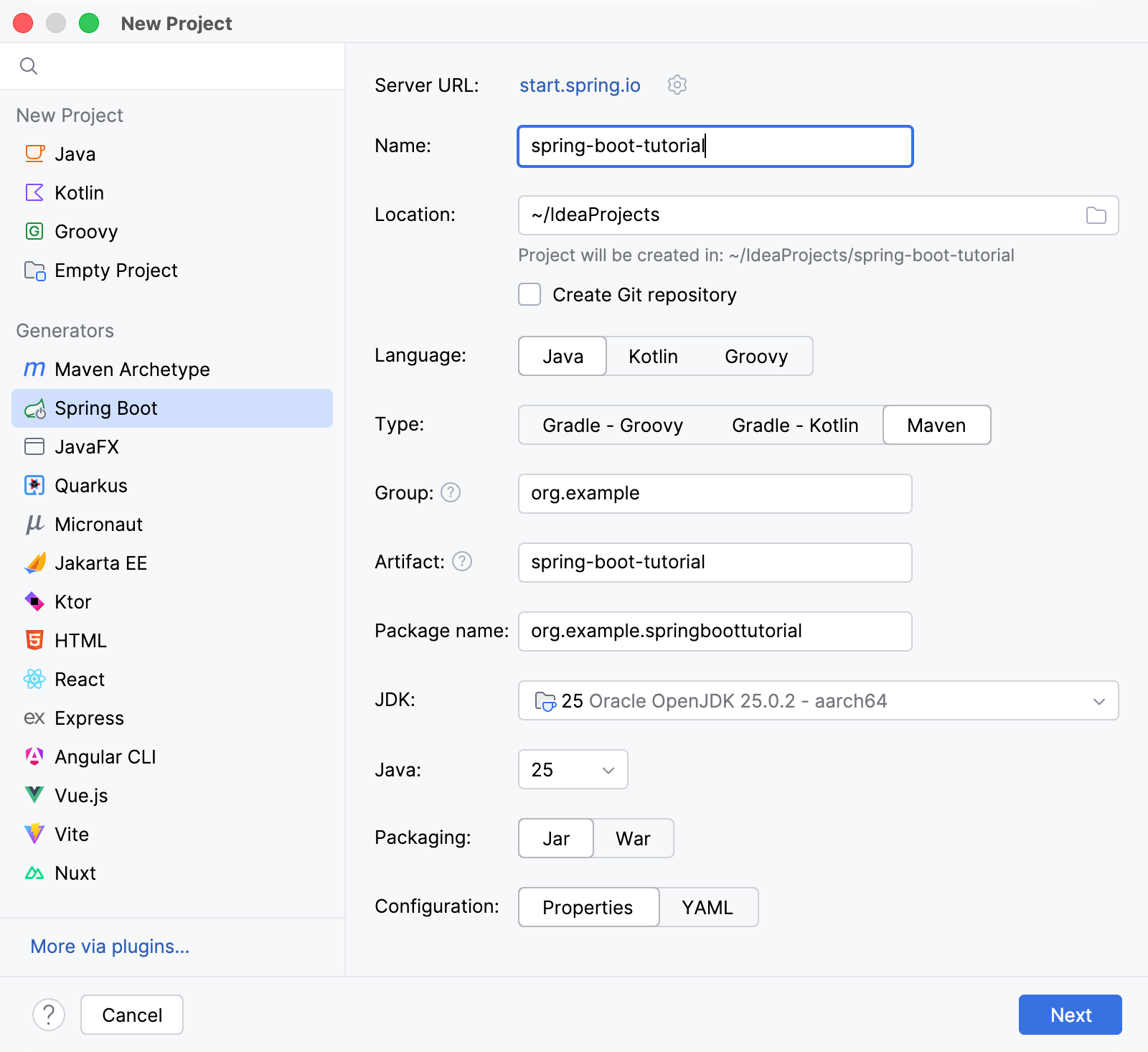
在 新建项目 向导中,从 生成器 列表中选择 Spring Boot。
为项目命名(例如
spring-boot-tutorial),必要时更改默认路径。选择 Java 作为 语言, Maven 作为 类型。
在 JDK 列表中,选择最新可用的 Oracle OpenJDK 版本。
如果 JDK 已安装在您的计算机上,但未在 IDE 中定义,请选择 添加 JDK 并指定 JDK 主目录的路径。
如果您的计算机上没有所需的 JDK,请选择 下载 JDK。
从 Java 列表中选择最新版本。
在 其他字段中保留默认值。 点击 下一步 继续。
在下一个界面中,于 Web 节点下选择 Spring Web 依赖项。 任何使用 Spring MVC 的 web 应用程序都需要此依赖项。
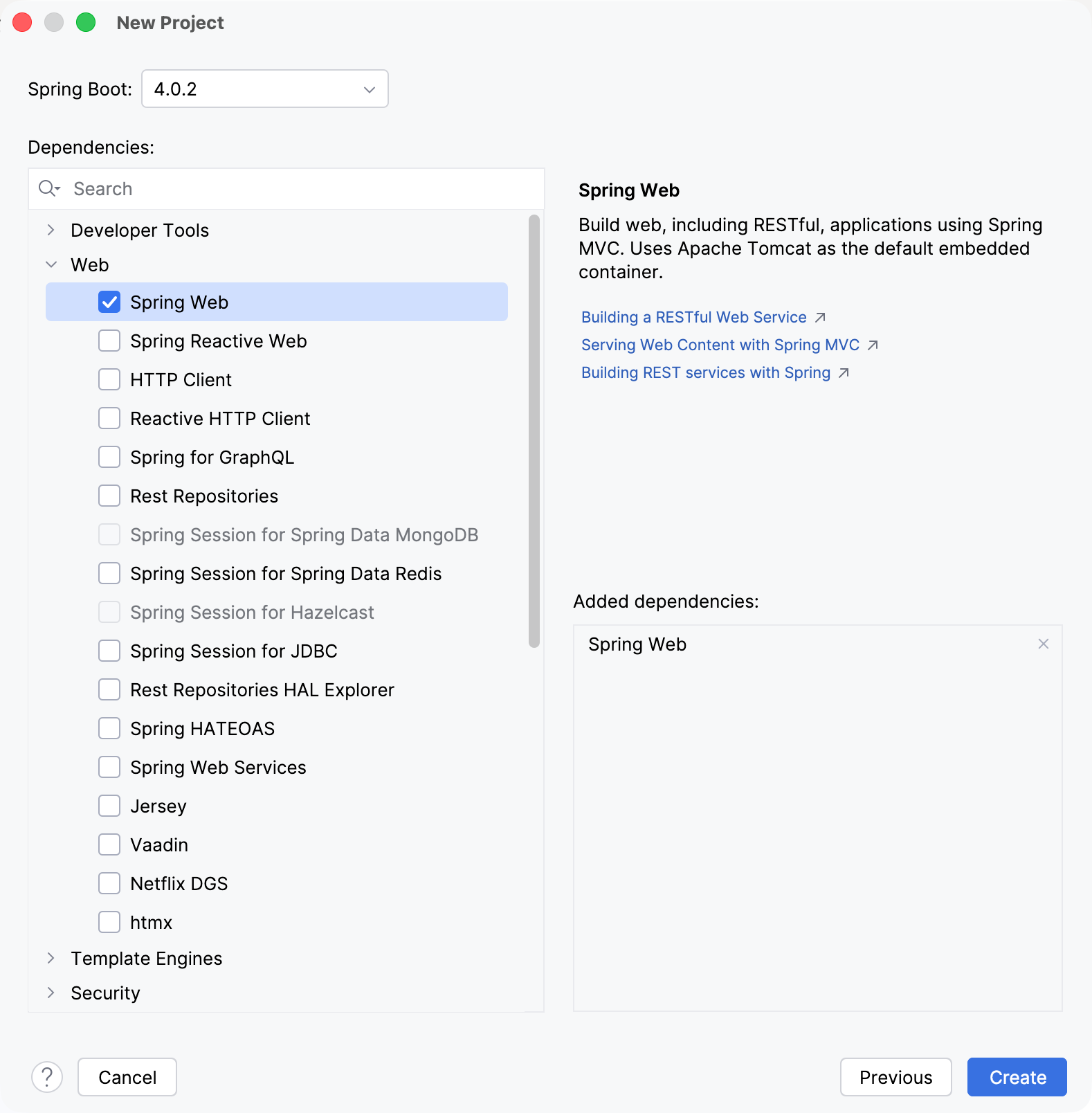
点击 创建。 IntelliJ IDEA 将生成并设置项目。
添加一个发送问候的方法
Spring Initializr 创建一个包含 main() 方法的类,以引导您的 Spring 应用程序。 在本教程中,将直接向该类添加一个 sayHello() 方法。
在 src/main/java/org/example/springboottutorial 包中,打开 SpringBootTutorialApplication.java 文件。
添加用于发送问候的
sayHello()方法。 为此,请在代码中添加所有必要的导入和注解,并在现有SpringBootTutorialApplication类中新增一个sayHello ()方法,使文件如下所示:package org.example.springboottutorial; import org.springframework.boot.SpringApplication; import org.springframework.boot.autoconfigure.SpringBootApplication; import org.springframework.web.bind.annotation.GetMapping; import org.springframework.web.bind.annotation.RequestParam; import org.springframework.web.bind.annotation.RestController; @SpringBootApplication @RestController public class SpringBootTutorialApplication { static void main(String[] args) { SpringApplication.run(SpringBootTutorialApplication.class, args); } @GetMapping("/hello") public String sayHello(@RequestParam(value = "myName", defaultValue = "World") String name) { return String.format("Hello %s!", name); } }sayHello()方法接受name参数,并返回与参数值组合的词Hello。 所有其他事务都通过添加 Spring 注释来处理:@RestController注解将SpringBootTutorialApplication类标记为请求处理程序(REST 控制器)。@GetMapping("/hello")注解将sayHello()方法映射到针对/hello的 GET 请求。@RequestParam注解将name方法参数映射到myNameWeb 请求参数。 如果网络请求中未提供myName参数,则默认为World。
运行您的 Spring 应用程序
IntelliJ IDEA 会创建一个 Spring Boot 运行配置,您可以用它运行您的新 Spring 应用。
在主工具栏的 运行微件中,选择
SpringBootTutorialApplication并点击 运行 ,或按 Shift+F10。 还可以在类声明旁的装订区域或
 main()方法声明旁,使用 运行 图标。
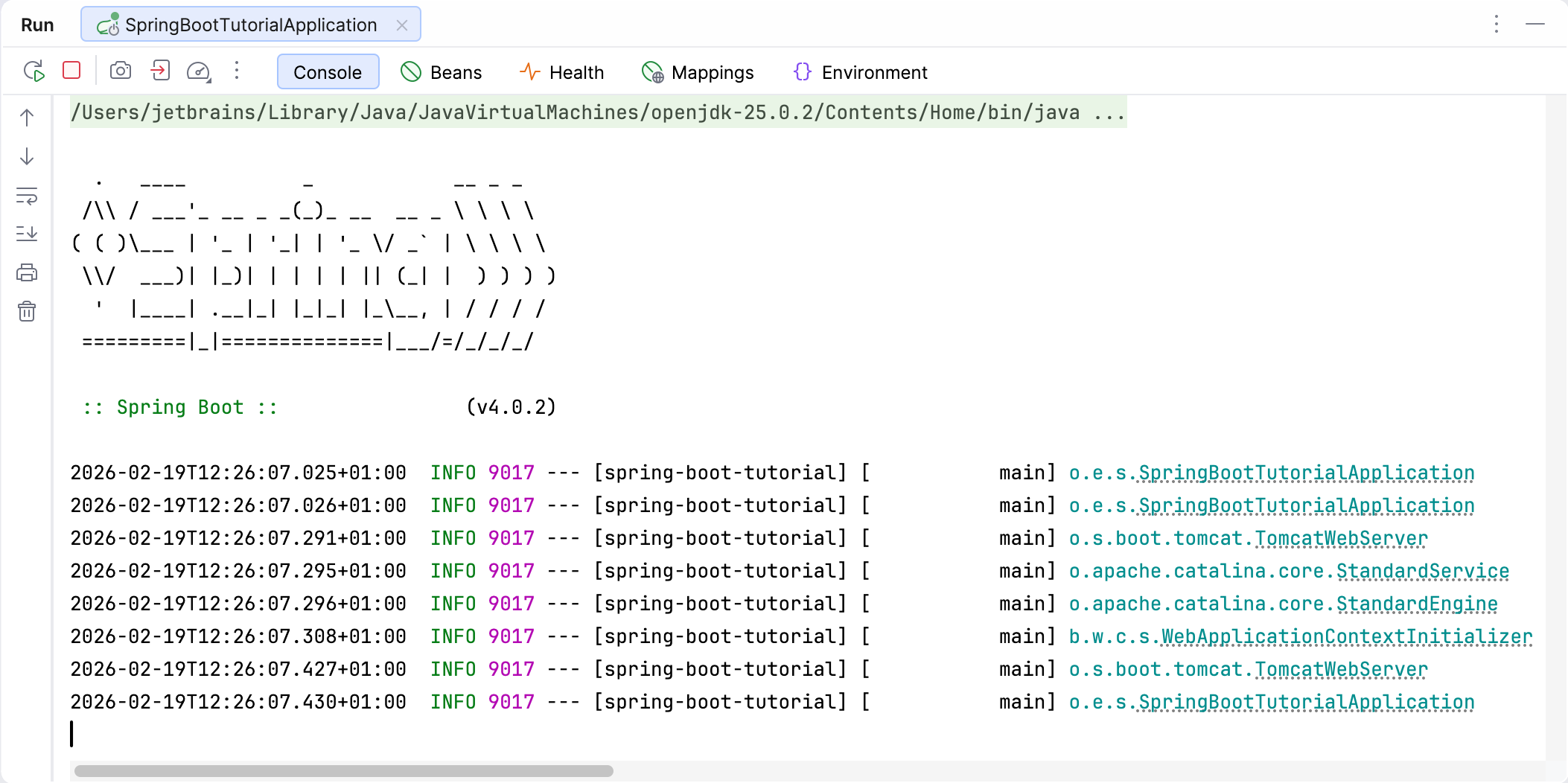
IntelliJ IDEA 会在 运行工具窗口 中显示 Spring Boot 应用程序的运行情况。 控制台 选项卡显示 Spring 日志消息的输出。
打开您的网页浏览器。 默认情况下,内置 Apache Tomcat 服务器监听 8080 端口,因此请转到 http://localhost:8080/hello。 如果操作正确,您应该会看到应用程序响应
Hello World!。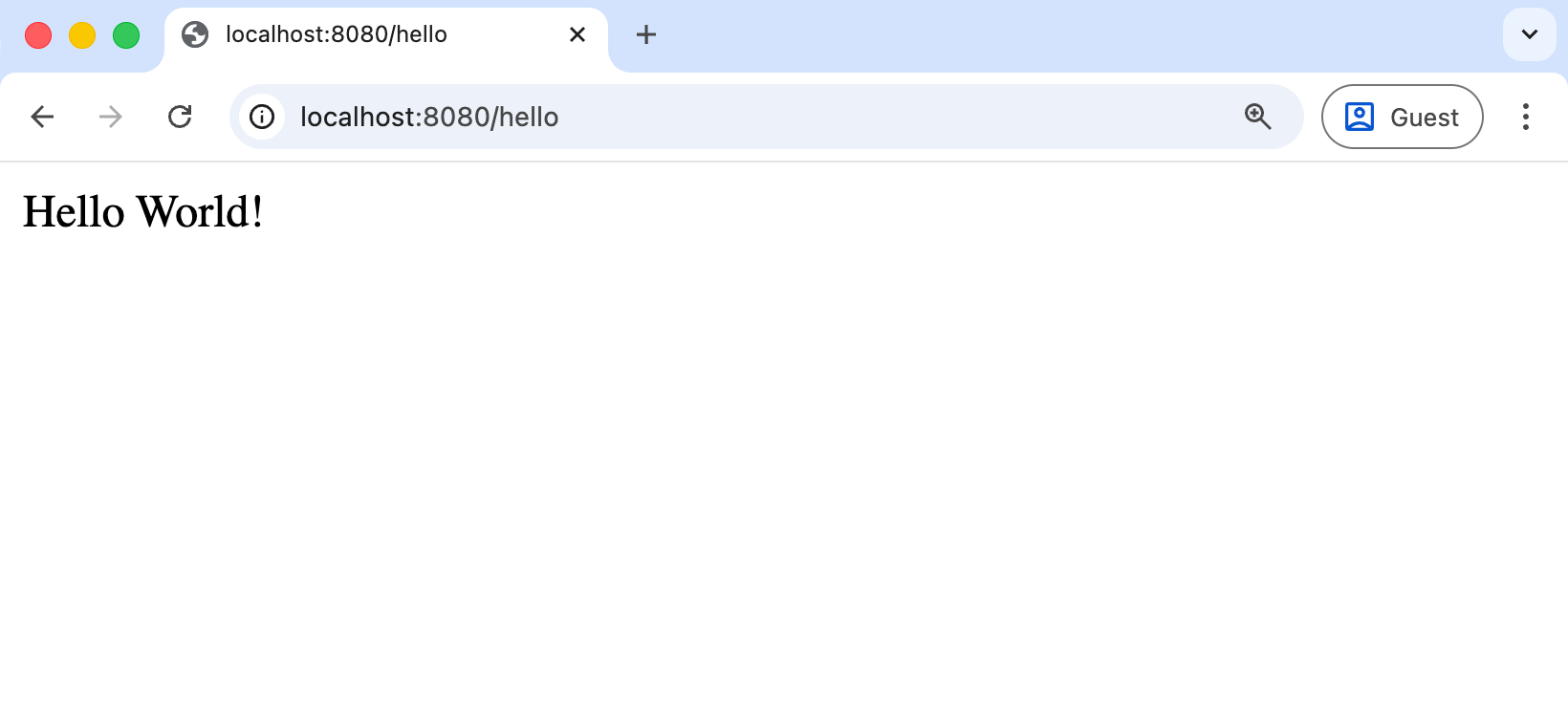
Hello World!是默认的通用响应。 您可以在网络请求中提供一个参数,以便应用程序正确地向您问候。 例如,尝试 http://localhost:8080/hello?myName=Human。
添加主页
创建的 Spring Boot 应用程序在 /hello 上有一个可用的端点。 但是,如果您在 http://localhost:8080/ 打开应用程序的根上下文,您将会遇到错误,因为没有定义根资源。 让我们添加一个包含指向您 endpoint 的链接的静态 HTML 主页。
在 项目 工具窗口中,右键点击 /src/main/resources/static/ 目录,选择 新建 | HTML 文件 ,指定名称 index.html ,然后按 Enter。
请修改默认模板或将其替换为以下 HTML 代码:
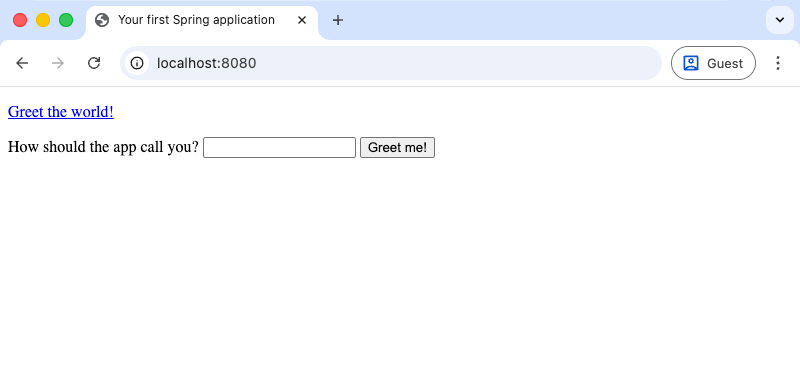
<!DOCTYPE HTML> <html> <head> <title>Your first Spring application</title> <meta http-equiv="Content-Type" content="text/html; charset=UTF-8" /> </head> <body> <p><a href="/hello">Greet the world!</a></p> <form action="/hello" method="GET" id="nameForm"> <div> <label for="nameField">How should the app call you?</label> <input name="myName" id="nameField"> <button>Greet me!</button> </div> </form> </body> </html>在 运行 工具窗口中,点击
 或按 Shift+F10 重新启动您的 Spring 应用程序。
现在,您的应用将 index.html 作为根资源提供服务,位于 http://localhost:8080/。
总结
通过本教程,您已经学会了如何:
在 IntelliJ IDEA 中 创建一个新的 Spring Boot 项目
使用 Spring 注解 创建一个 HTTP GET 请求
为 Spring 应用程序 添加静态 HTML 首页
后续步骤
本教程中创建的简单应用程序演示了如何开始使用 Spring。 要了解 IntelliJ IDEA 如何帮助您编写代码并在运行时管理应用程序,请参阅 下一个教程 ,其中重点介绍更高级的 Spring 支持功能。
完整教程列表请参阅 IntelliJ IDEA 教程。