测试 TypeScript
Starting with version 20, Node.js comes shipped with a stable version of the built-in Node.js test runner. GoLand 支持与内置测试运行器集成,您可以在无需安装和配置任何第三方框架的情况下运行测试。
GoLand provides out-of-the-box configuration for the ts-node and tsx loaders, so you can run and debug your TypeScript tests without previously compiling them into JavaScript. Alternatively, you can install a custom loader and configure it as described in Create a Node.js Test Runner run/debug configuration.
您可以直接在编辑器中运行和调试测试,或启动类型为 Node.js 测试运行器 的运行/调试配置。
开始之前
Make sure you have Node.js version 20 or later installed on your computer and configured as a local Node.js interpreter.
安装加载器。 在集成的 终端 (Alt+F12 )中,键入:
npm install --save-dev ts-node安装ts-nodenpm install --save-dev tsx安装tsx
从编辑器运行测试
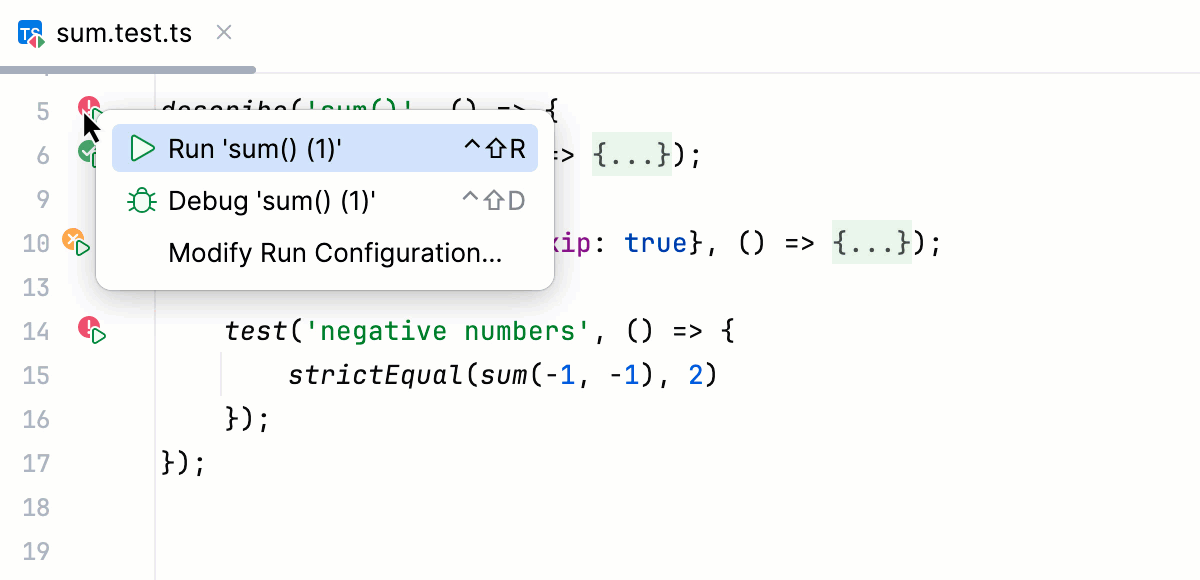
要运行测试,请单击其边距旁的
 ,然后从列表中选择 运行 '<测试名称>'。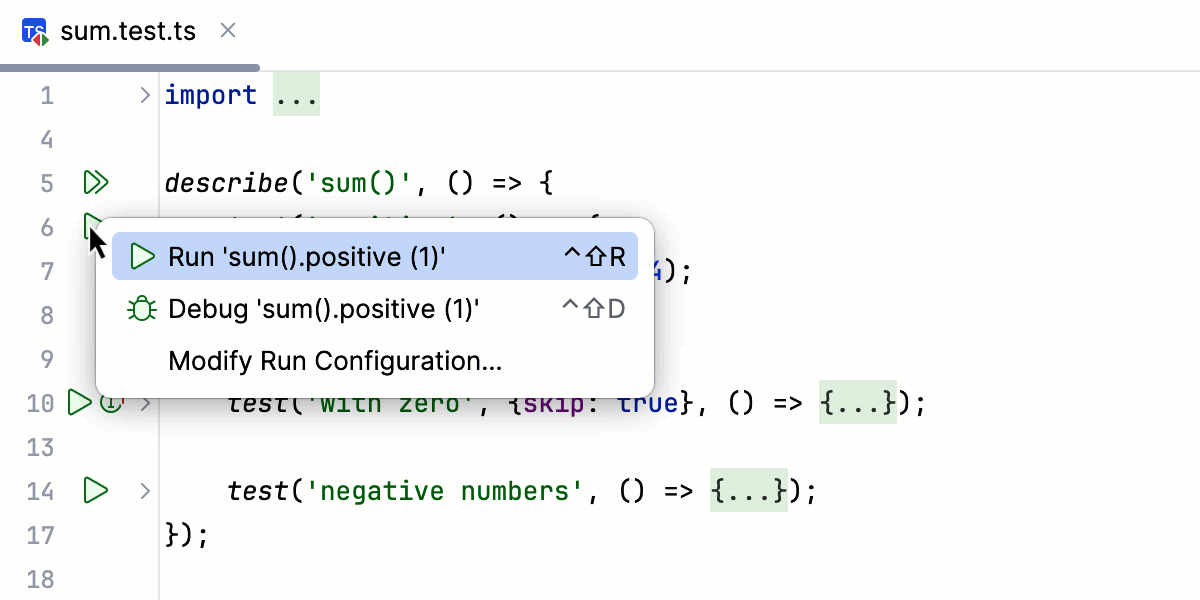
要运行套件中的所有测试,请单击其边距旁的
 ,然后从列表中选择 运行 '<套件名称>'。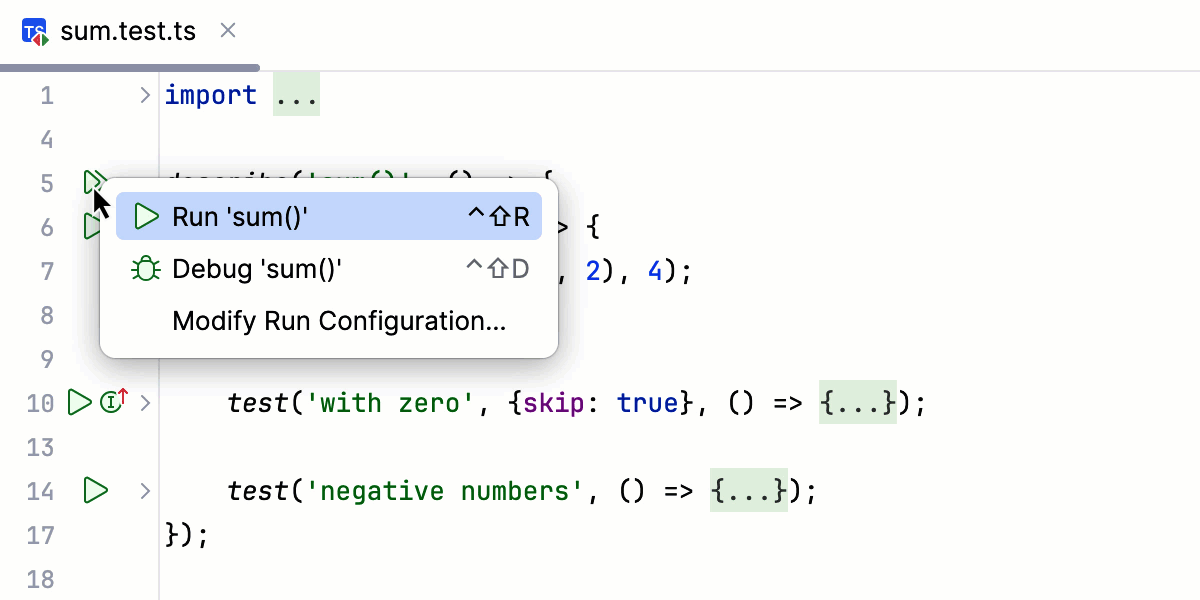
通过运行配置运行测试
通过运行/调试配置运行测试在需要从多个测试文件运行测试时非常有用。 使用运行/调试配置的另一个好处是可以配置自定义加载器。
You can create a run/debug configuration yourself or save, edit, and reuse a temporary run/debug configuration of the type Node.js 测试运行器 that GoLand creates when you run a test or a suite from the editor.
转至 。 或者,在工具栏的 运行 小组件中选择 编辑配置。

或者,选择先前生成的临时运行/调试配置。
在打开的 编辑配置 对话框中,单击工具栏上的 添加 按钮(
 ),然后从列表中选择 Node.js 测试运行器。
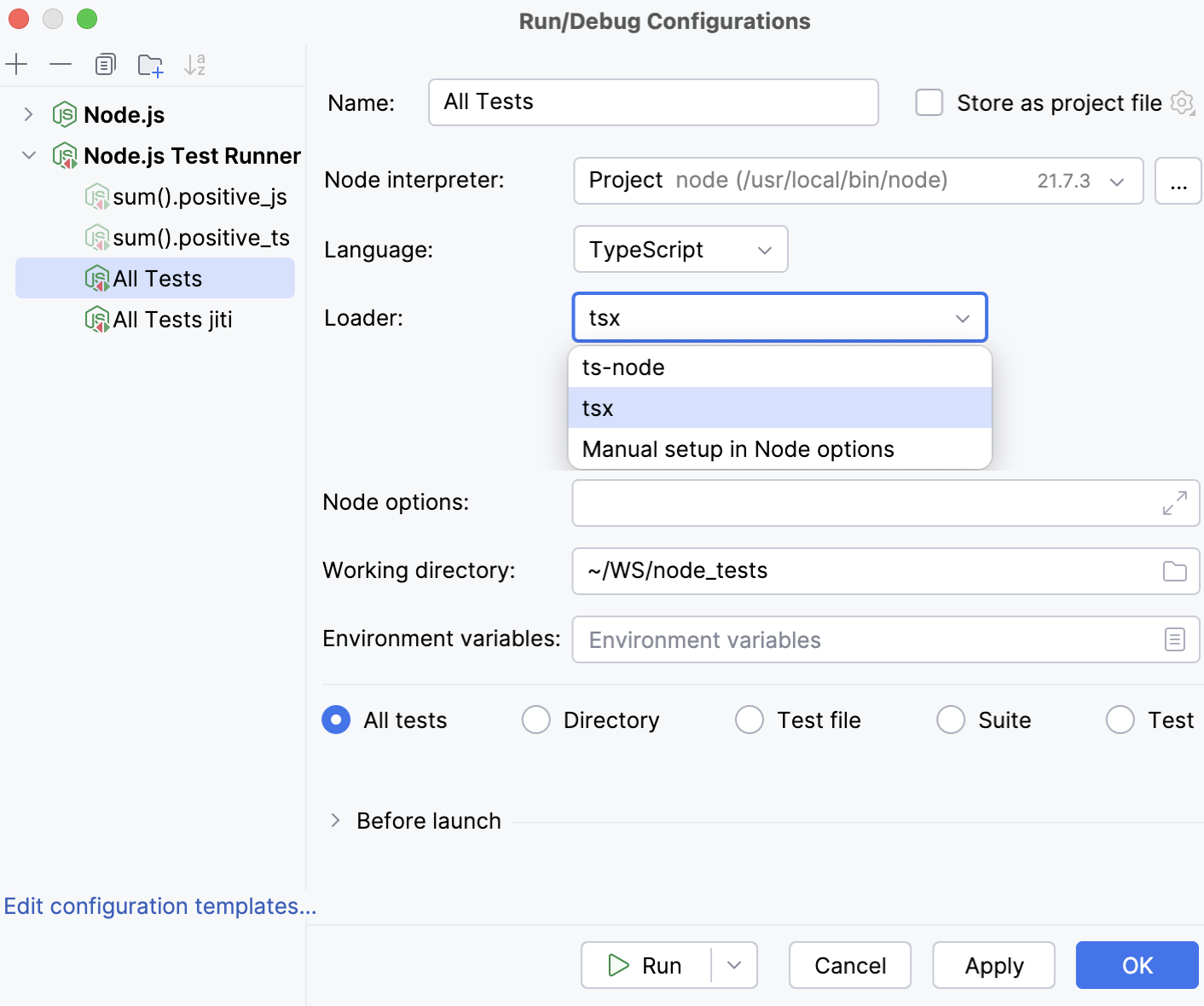
将打开 运行/调试配置:Node.js 测试运行器 对话框。
指定要使用的 Node.js 解释器、工作目录,并选择要运行的测试范围。
在 语言 列表中选择 TypeScript。
在 加载器 列表中选择要使用的加载器。 By default, integration with tsx and ts -node is provided out-of-the-box.
或者,安装并配置自定义加载器。 For example, install jiti and type
-r jiti/registerin the Node 选项 field.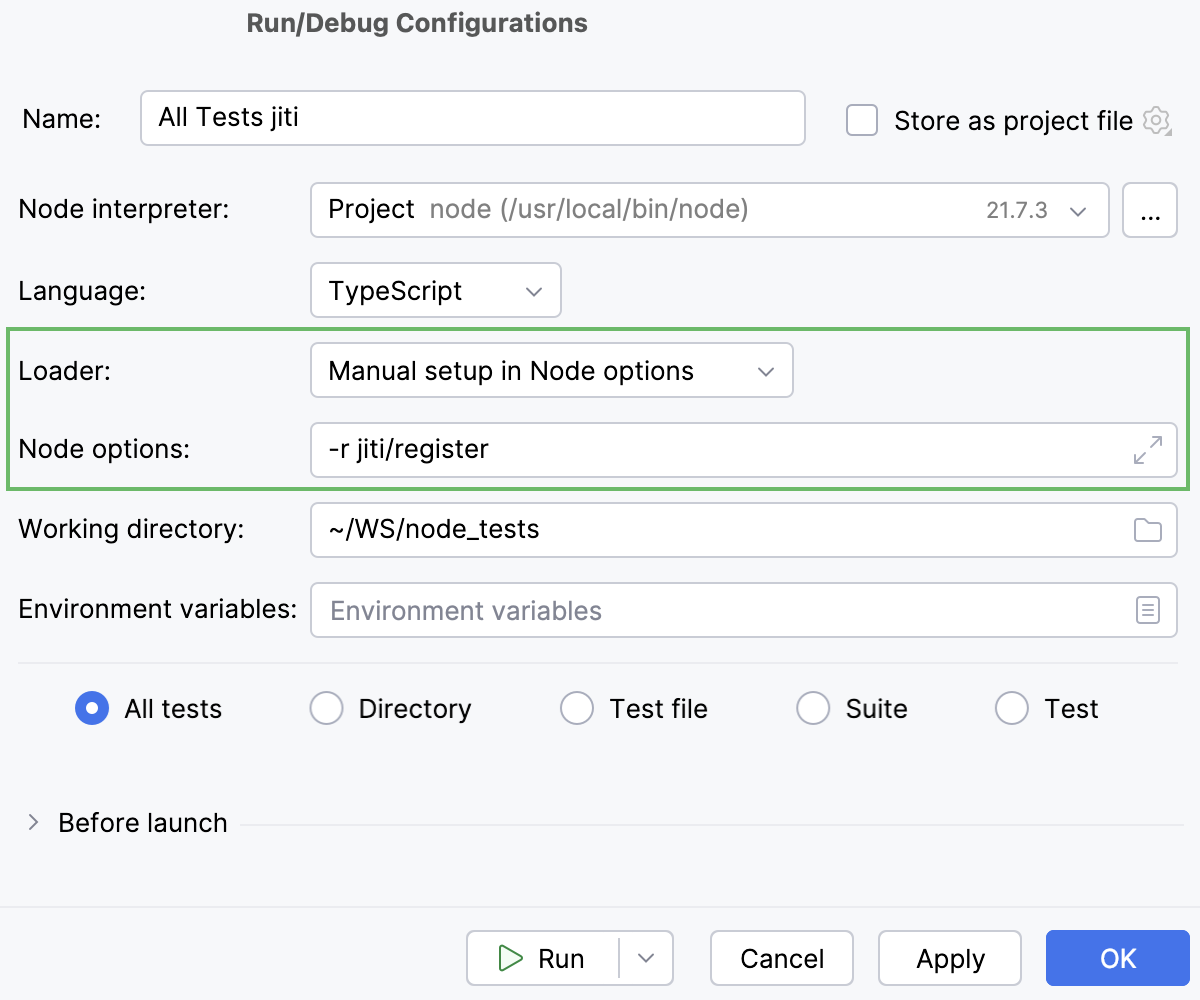
单击 运行。
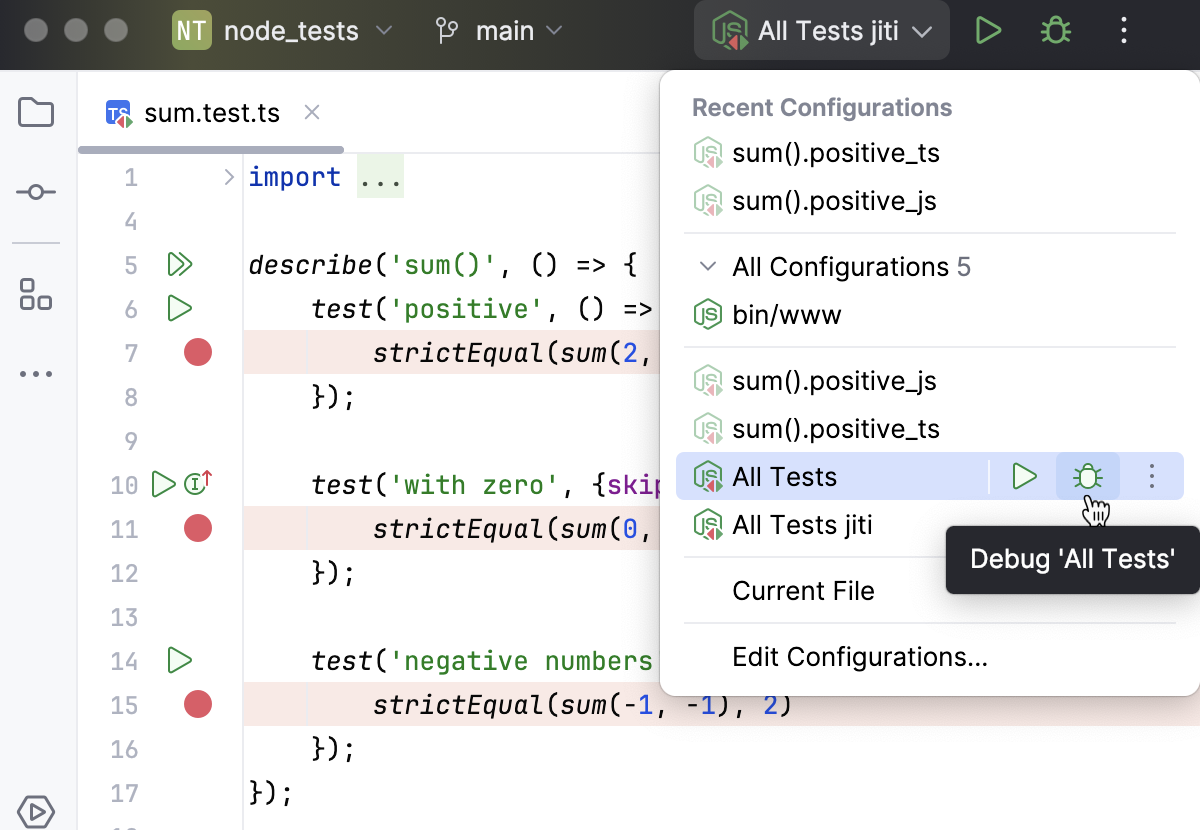
或者,在 运行 小组件中选择一个已有的运行/调试配置,并单击其旁边的
 。
。
查看测试结果
测试结果将显示在 运行 工具窗口中。
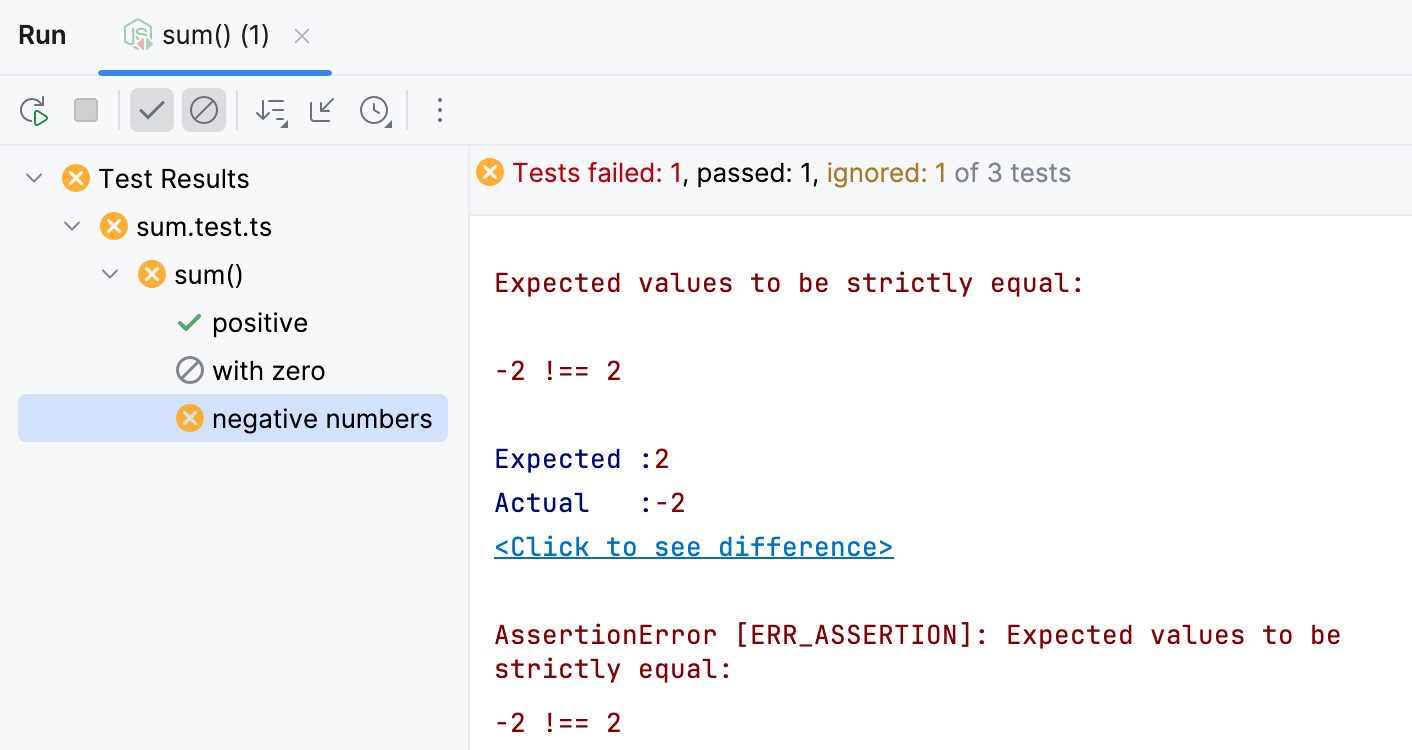
Learn more from Explore test results.
重新运行测试
若要重新运行单个测试,请在 运行 工具窗口中选择该测试,然后从其上下文菜单中选择 运行 '<测试名称>' ,或按 Alt+Shift+R。
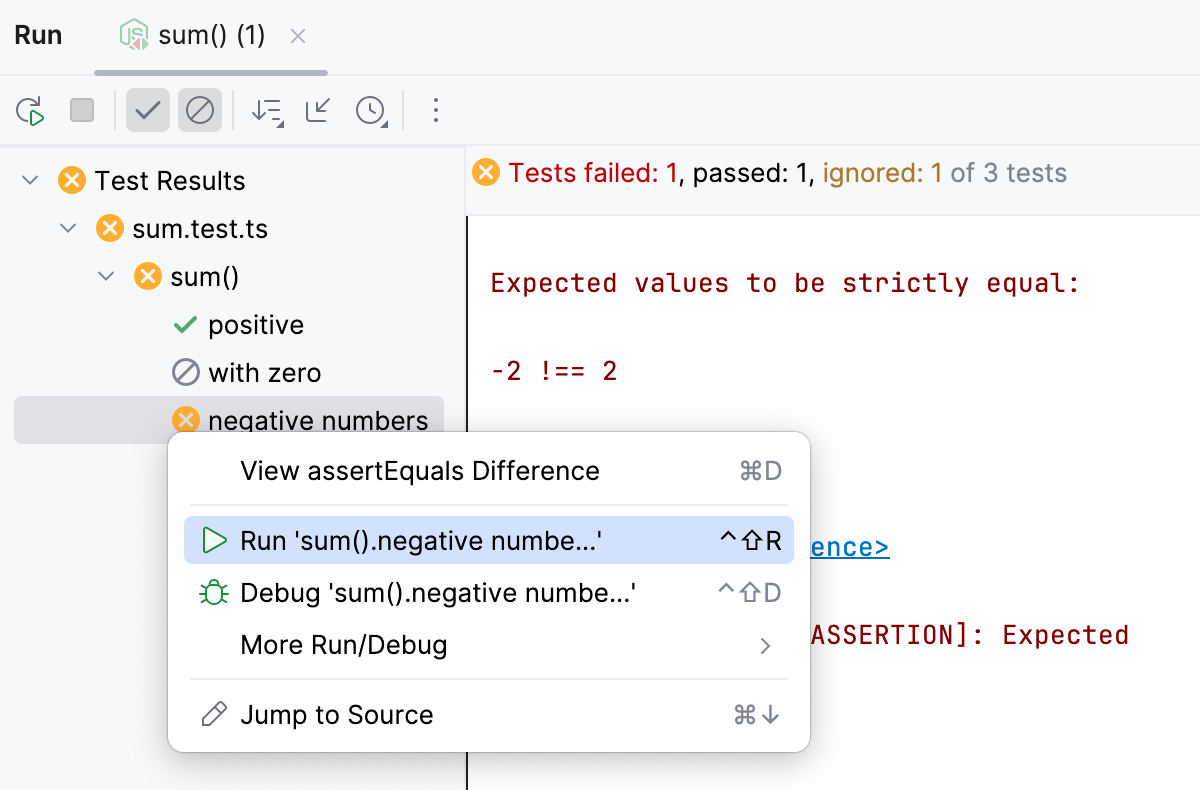
或者,使用测试旁边的边距图标进行重新运行。 单击
 、
、  或
或  以重新运行已忽略、失败或成功的测试,并从列表中选择 运行 '<测试名称>'。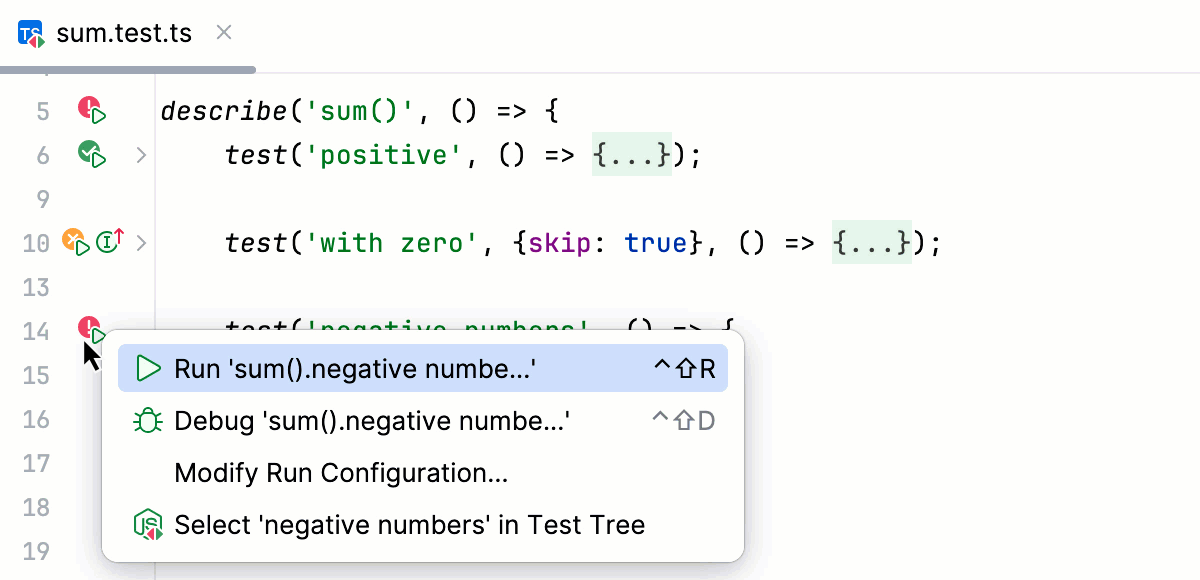
要重新运行整个套件,请单击套件旁边的标记图标,并从列表中选择 运行 '<套件名称>'。
要重新运行上一会话中的所有测试,请单击
 ,该按钮位于 运行 工具窗口的工具栏上。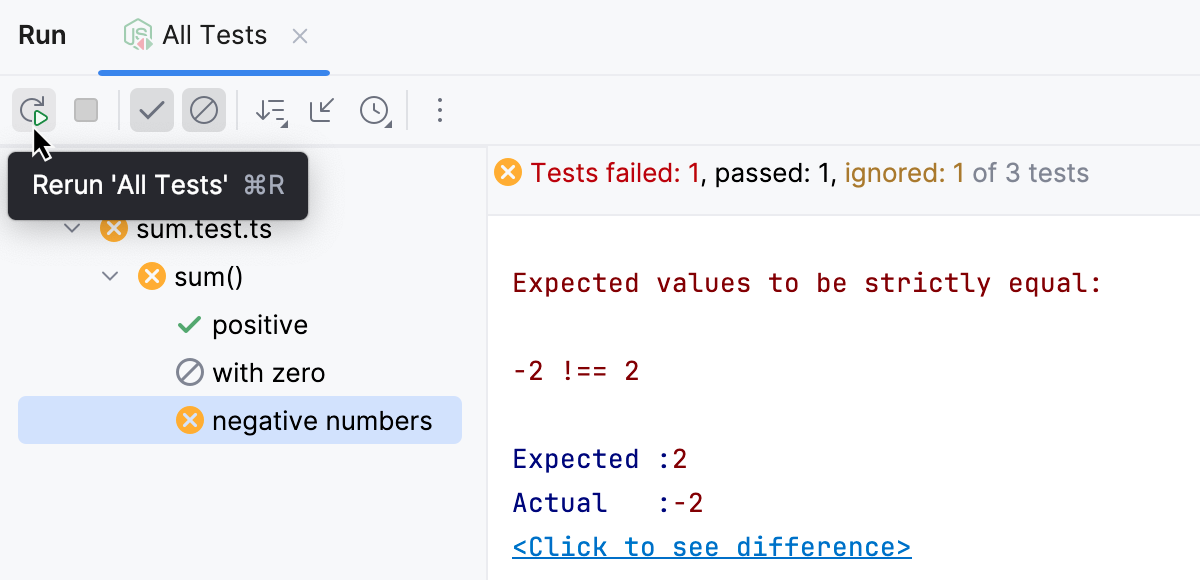
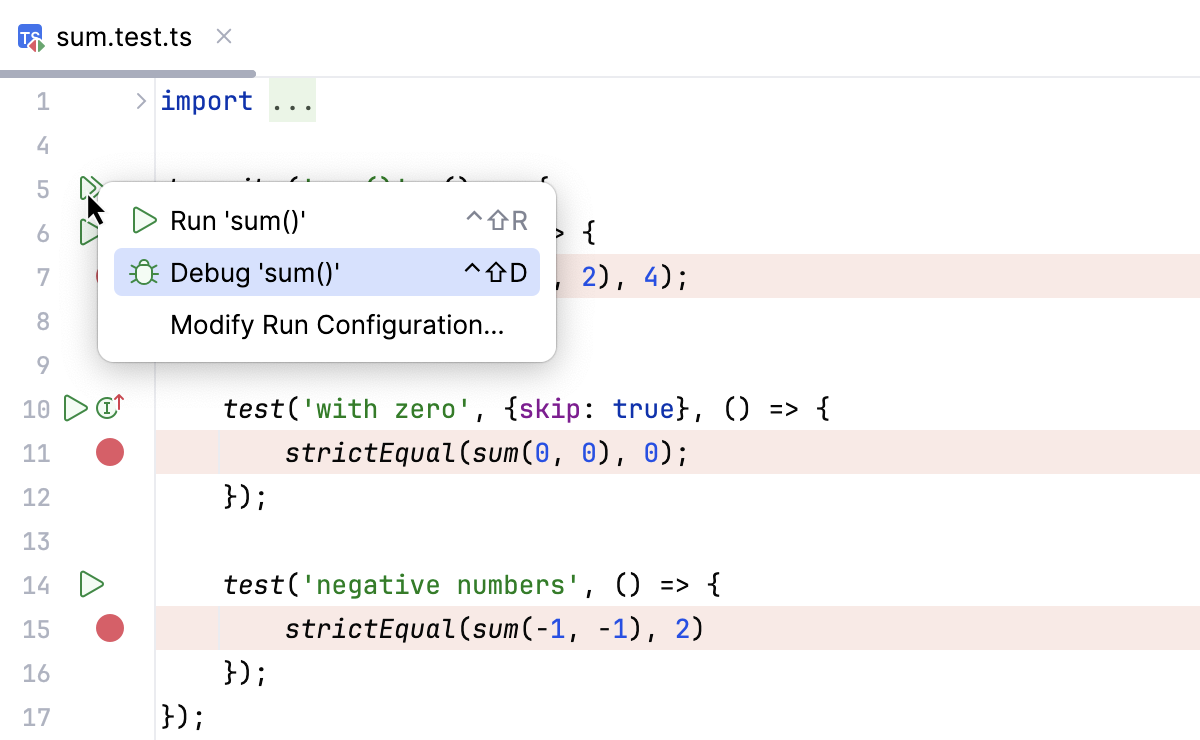
 。
。