Webhook Triggers App
The Webhook Triggers app sends HTTP POST requests to external services when events occur in a YouTrack project. This app enables integrations with third-party systems, internal services, and automation pipelines.
Use this app to react to changes in issues, comments, work items, and attachments in near real time.
Use Cases
You can use the Webhook Triggers app to:
Trigger external workflows when issues change.
Synchronize YouTrack data with other systems.
Collect events for logging or auditing.
Integrate YouTrack with internal tools.
Supported Events
The app sends webhooks for the following event types.
Event Type | Description |
|---|---|
Issue events |
|
Comment events |
|
Work item events |
|
Attachment events |
|
Multiple and Catch-All Webhooks
Configure multiple webhooks for the same event and use catch-all webhooks to receive every event.
Multiple Webhooks
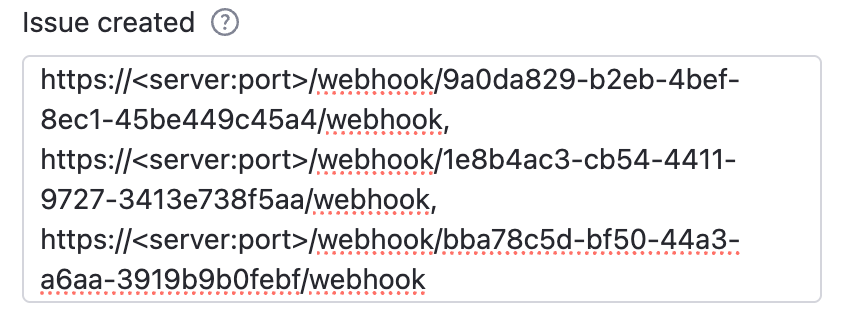
For each event type, you can configure one or more webhook URLs.
Enter multiple URLs as a comma-separated or newline-separated list. Using multiple webhooks for a single event allows YouTrack and the integrated system to react independently, improving flexibility, error isolation, and scalability.
Catch-all Webhooks
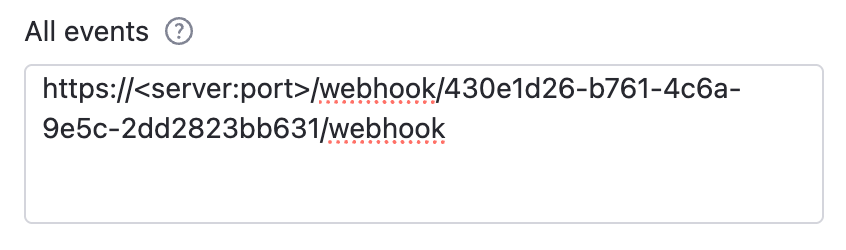
Catch-all webhooks receive all events regardless of type. They are useful for centralized logging, auditing, analytics, or dynamic logic handling.
Installation
The Webhook Triggers app is installed and managed through YouTrack administration.
Requirements
You must have administrative access to YouTrack to install the Webhook Triggers app.
Low-level Admin Write permission is required to install the Webhook Triggers app in YouTrack.
You must have permission to manage apps for the project where the Webhook Triggers app is attached.
Update Project permission is required to configure the Webhook Triggers app within a YouTrack project.
Enable the App for a Project
Before webhooks can be configured in the app, the app first needs to be attached to one or more YouTrack projects.
To enable the Webhook Triggers app for a project:
From the main navigation menu in YouTrack, select
 .
.Open Webhook Triggers.
Select the Projects tab and click Manage projects.
Select the target projects and click Save.
Configuration
You can configure the Webhook Triggers app after you attach it to one or more YouTrack projects.
Generate a Webhook Token
The systems authenticate webhook requests using a shared webhook token.
The minimum webhook token length is 32 characters.
JetBrains recommends a 64-character hexadecimal value.
Any 32 character string can be a webhook token. The terminal command below generates a secure, random string to use as a token.
Store this value securely. The receiving service must use the same value to verify requests.
Configure Project Settings
The external service (not YouTrack) exposes webhook URLs as endpoints that process incoming HTTP POST requests. Find webhook URLs from the system that will receive the YouTrack events.
To configure the Webhook Triggers project settings:
From the main navigation menu, select
 Projects.
From the project list, select a project.
From the project navigation menu, select Settings.
In the project settings side panel, select Apps.
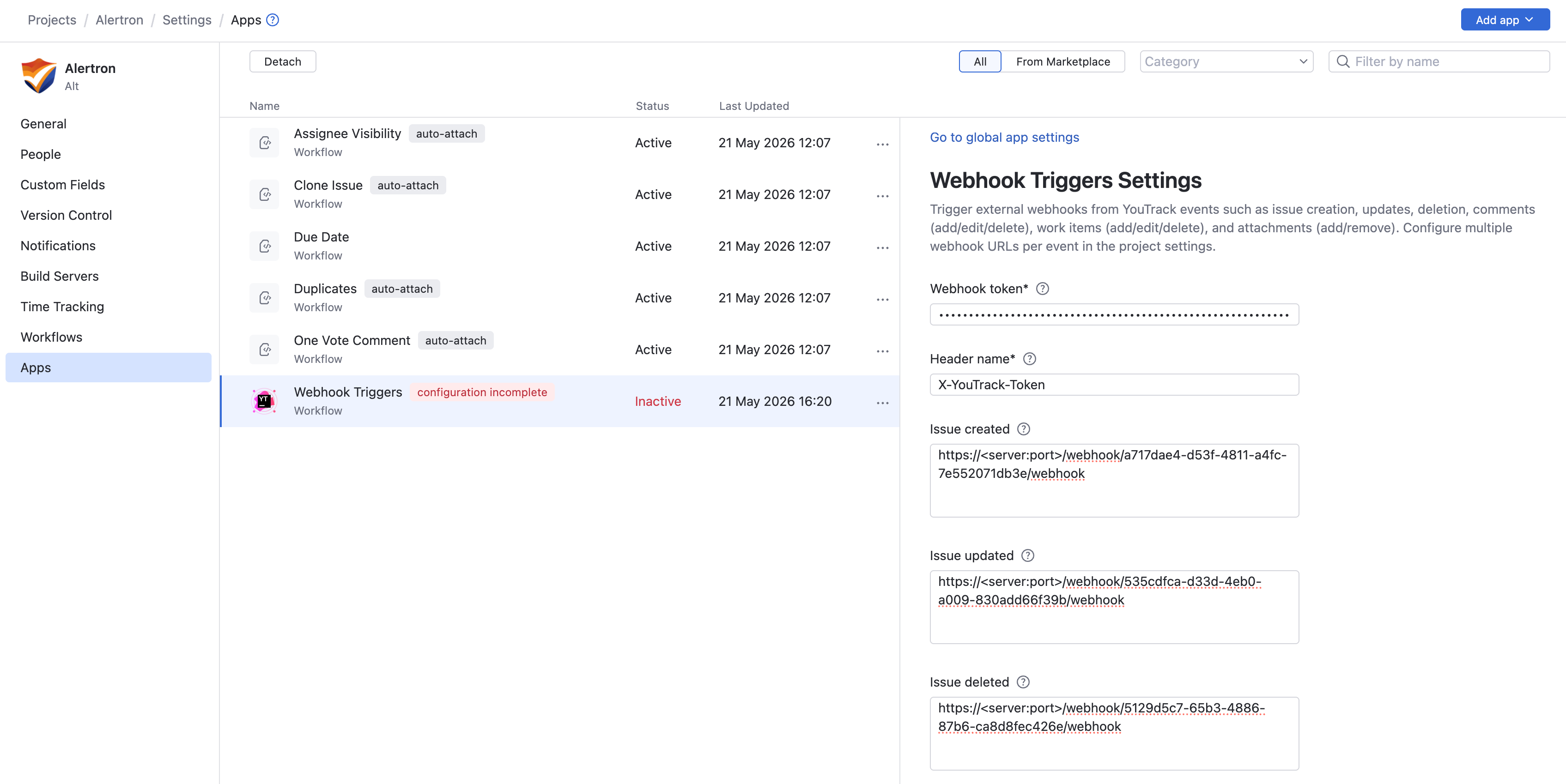
Select the Webhook Triggers app and open the details sidebar and select the Settings tab.
If the Webhook Triggers app is not available, add it to the project first. See Enable the App for a Project.
Enter the webhook token created above. See Generate a Webhook Token.
This value is required, and the receiving service must validate it.
Enter an HTTP header name that carries the webhook token in outgoing requests.
You can configure the header name (default X-YouTrack-Token). The receiving service must verify the header value.
For each supported event, specify one or more webhook URLs.
URLs can be separated by commas or line breaks.
Each configured URL receives a POST request when the event occurs.
Optionally, at the bottom of the app settings, configure webhook URLs that receive All Events.
Use this option for centralized logging, auditing, analytics, or dynamic logic handling.
Webhook Delivery
All webhooks are delivered as HTTP POST requests.
Method: POST
Content-Type:
application/jsonAuthentication: shared webhook token in a request header
The header name is configurable (default X-YouTrack-Token). The receiving service must verify the header value.
Webhook Payload Structure
All webhook payloads include a common base structure. Additional fields are included depending on the event type.
Base Payload
User Object
When a user is included, the payload contains the following fields.
Issue Created
Issue Updated
When updated manually via the UI, each webhook typically contains one item in changedFields representing a single field change.
Issue Deleted
Comment Added / Updated / Deleted
Event types: commentAdded, commentUpdated, commentDeleted
Work Item Added / Updated / Deleted
Event types: workItemAdded, workItemUpdated, workItemDeleted
Attachment Added / Deleted
Event types: issueAttachmentAdded, issueAttachmentDeleted
Security Considerations
The webhook token is a project-wide shared secret. The system sends the same token to every configured webhook URL. Recommended practices help protect webhook endpoints from unauthorized access, data exposure, and abuse.
Use HTTPS for all webhook URLs.
Without HTTPS, attackers can intercept webhook payloads or tokens and read or modify sensitive data in transit.
Only add webhook URLs for services you fully trust.
Keep tokens private and rotate them periodically.
Exposed or long-lived tokens can be reused by attackers to send forged requests or gain ongoing unauthorized access.
If you decommission a receiving service or suspect a security breach, rotate the token immediately and update the credentials across all remaining active receivers.
Optionally restrict inbound traffic at the network level.
Without network restrictions, any external source can attempt to flood, probe, or abuse the webhook endpoint.
For a higher level of security, route your webhooks through a single trusted relay service. This service forwards the data to downstream systems using independent credentials.
Troubleshooting
If you experience problems using the Webhook Triggers app, see if any of the following conditions apply.
Condition — 401/403 unauthorized or refused authentication error.
Cause | Solution |
|---|---|
YouTrack is unable to authenticate because either the header name or the webhook token is incorrect. |
|
Condition — A webhook is not triggering.
Cause | Solution |
|---|---|
The webhook request is not sent when the configured event occurs in YouTrack. |
|
Condition — Multiple webhook URLs are not firing.
Cause | Solution |
|---|---|
One or more webhook URLs that have been entered in the Webhook Triggers app are incorrect or formatted incorrectly. |
|