SAML 2.0 Auth Module
A SAML 2.0 authentication module lets you configure YouTrack as a SAML Service Provider (SAML SP). SAML supports single sign-on (SSO) across multiple domains.
When you enable a SAML 2.0 authentication module in YouTrack:
Your users log in to YouTrack with the credentials that are managed in a specified third-party identity provider (SAML IdP).
Your YouTrack users have fewer accounts and passwords to remember.
New users with accounts in the connected service can create their own accounts in YouTrack.
YouTrack can also be set up as a SAML IdP. However, the instructions for the identity provider setup are not described here. To learn how to use YouTrack as a SAML IdP, see SAML 2.0.
IdP-initiated SSO
The SAML 2.0 authentication module supports both service-provider (SP) and identity-provider (IdP) initiation for single sign-on (SSO). The login request is based on how the user signs in to YouTrack.
If the user signs in through an external login portal or access management provider (for example, OneLogin), the request is initiated by the IdP.
If the user signs in by clicking the button for the IdP on the YouTrack login page, YouTrack initiates the request as SP.
To support this behavior, the RelayState parameter for your SAML IdP can either be empty or a URL with the same hostname as the hostname of the service's home URL. If you set another value for this parameter in the configuration for your IdP, the redirection to the internal YouTrack service results in a Can't restore state error.
Enable SAML 2.0 Authentication
To let users with accounts managed in a SAML identity provider log in to YouTrack, create and configure a SAML 2.0 authentication module.
To create a SAML 2.0 auth module:
From the main navigation menu, select
 .
.Click the New module button.
The Select an identity provider dialog opens.
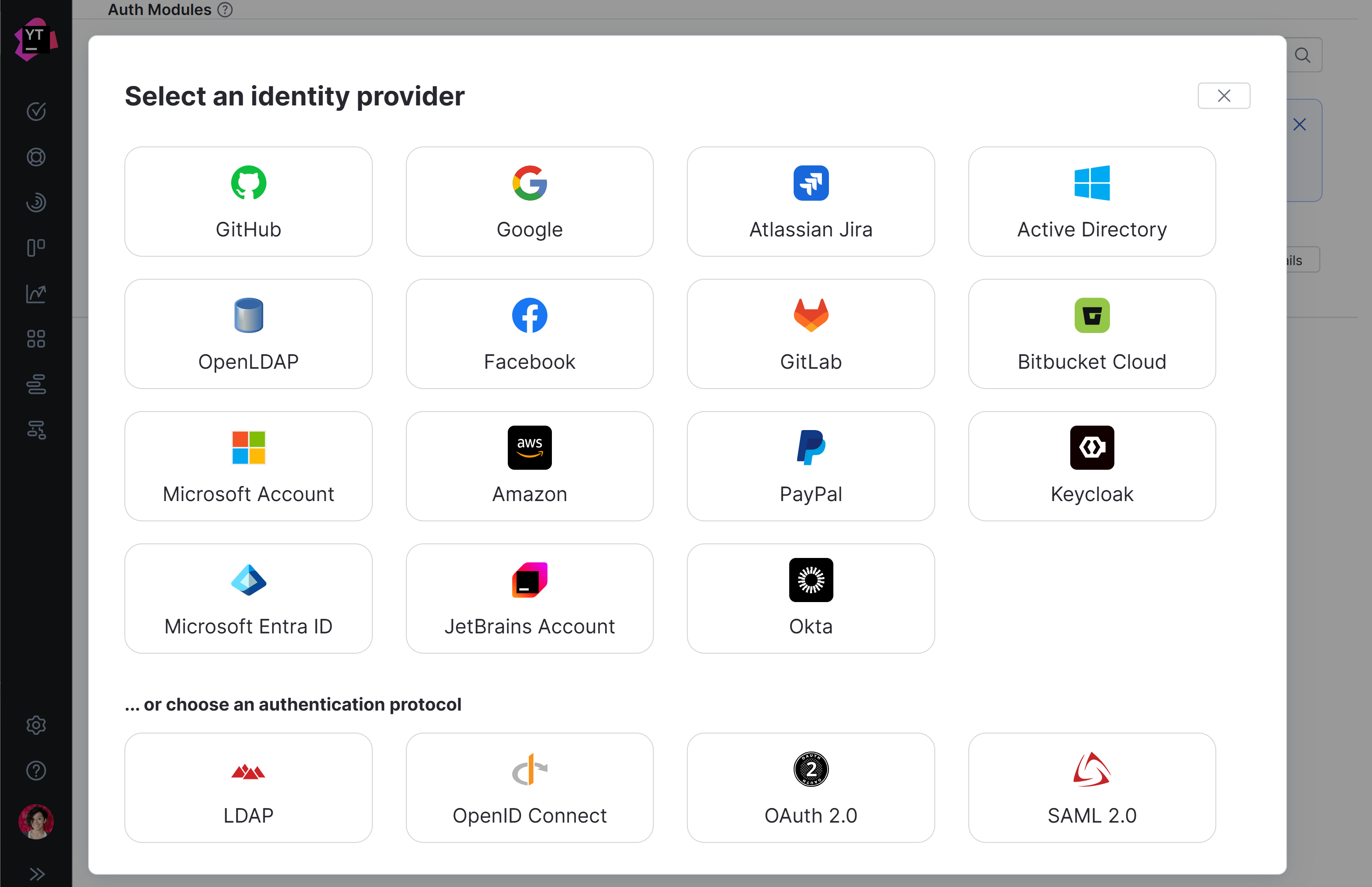
In the Select an identity provider dialog, select SAML 2.0.
The Configure Login with SAML 2.0 wizard opens.
Specify the module name and metadata URL for your identity provider, then click Next.
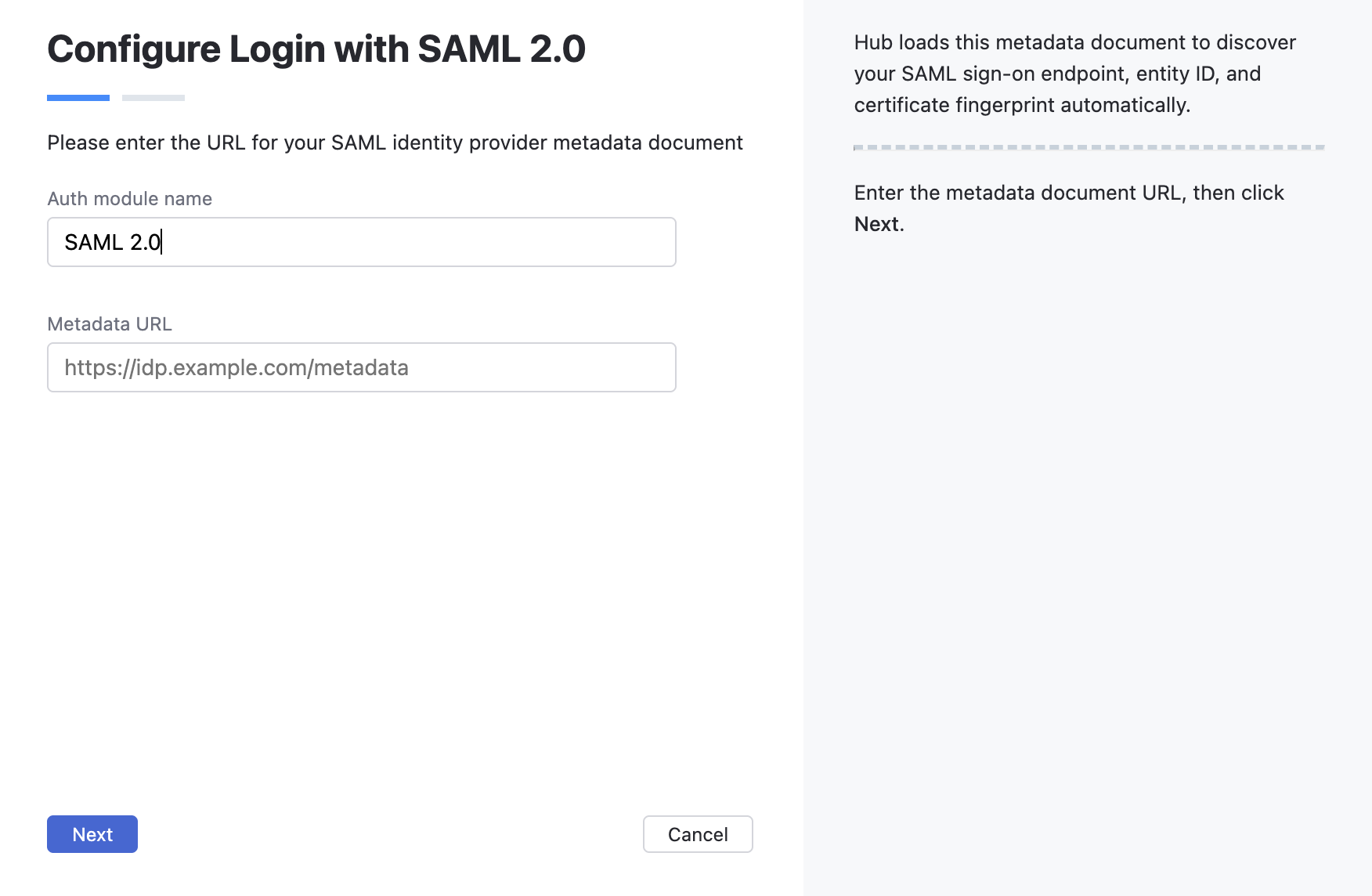
If discovery fails, you can fill in the required information manually after the module is created. To proceed, select I will provide the configuration manually and click Next.
Enter the SAML SSO URL, IdP entity ID, certificate fingerprint, and SP entity ID.
If the IdP service does not provide a fingerprint for its certificate, generate a SHA-256 fingerprint from the IdP certificate. For example, you can use SAML Tool.
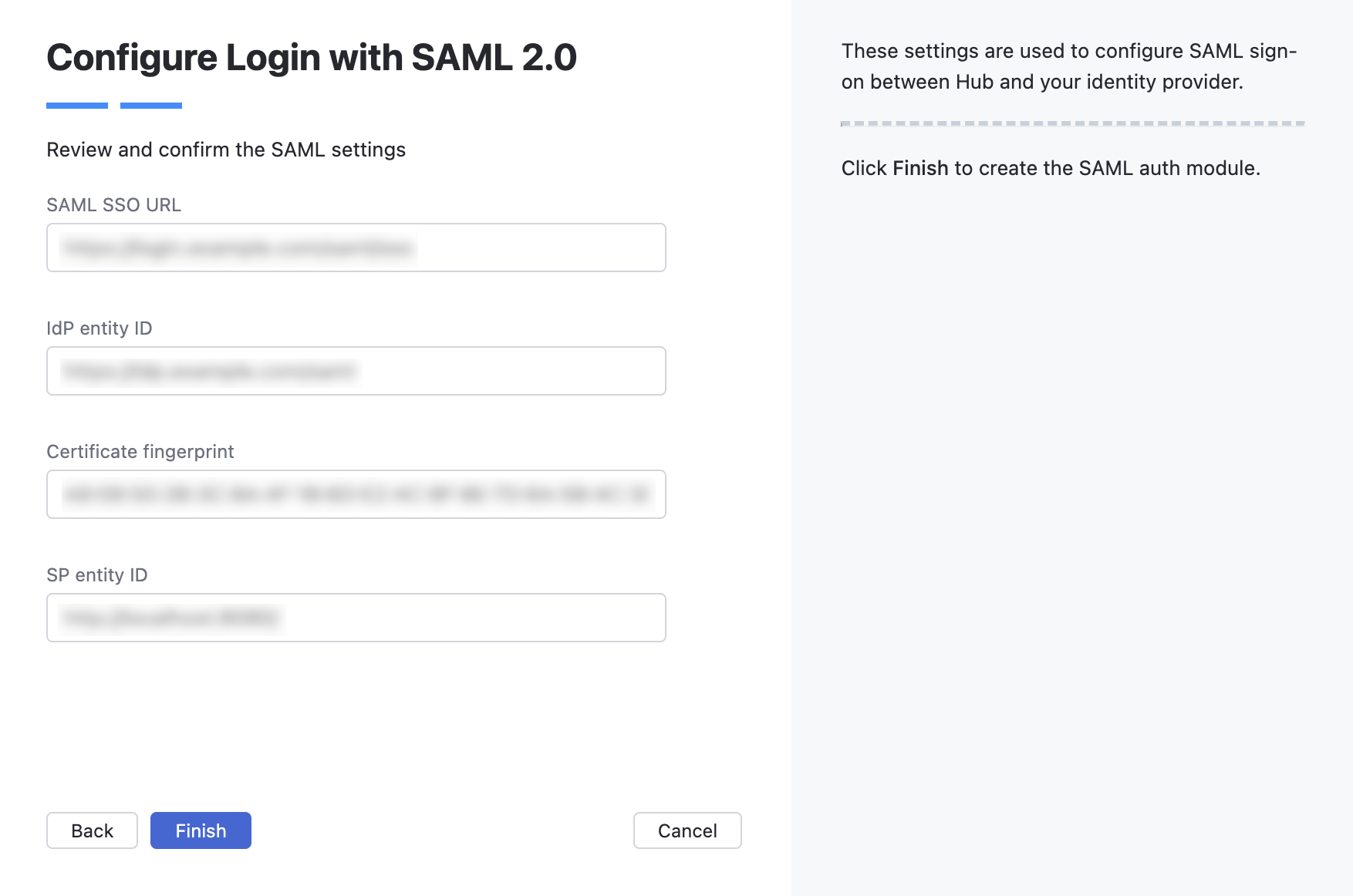
Click Finish.
The SAML 2.0 authentication module is created and its configuration page opens.
To enable the SAML 2.0 auth module
Configure the optional settings for the authentication module. For more information, see Additional Settings.
Click Save to apply the settings.
Click Enable.
The SAML 2.0 authentication module is enabled.
The auth module icon is added to the login dialog window. Users can click this icon to log in to YouTrack with their credentials.
To verify that the authentication module is configured correctly, click Test login.
YouTrack opens the authentication flow with the configured identity provider.
If you are authenticated successfully, the configuration is correct.
General Information
In the header of the page, you can find the general information about the authentication module.
Setting | Description |
|---|---|
Name | Stores the name of the authentication module. Use this setting to distinguish this module from other authentication modules in the Auth Modules list. You can change the name and icon of the authentication module using the Rename action. For more details, see Actions. |
Accounts imported to YouTrack | Displays the number of users that have been imported to YouTrack. |
Actions
The following actions are available in the header:
Action | Description |
|---|---|
Enable | Enables the authentication module. This option is only shown when the authentication module is currently disabled. |
Disable | Disables the authentication module. This option is only shown when the authentication module is currently enabled. |
Rename | Lets you update the existing authentication module name and change its default icon. You can find this action in the |
Delete | Removes the authentication module from YouTrack. Use only when you have configured additional authentication modules that let users log into your YouTrack installation. You can find this action in the |

General Settings
The General Settings tab contains the base configuration required to establish a secure single sign-on (SSO) connection between YouTrack and your SAML 2.0 identity provider.
Setting | Description |
|---|---|
Default | Marks this module as the default authentication provider. |
Identity Provider Settings
The settings in this section define the external authentication environment that YouTrack trusts to verify user identities.
Setting | Description |
|---|---|
SAML SSO URL | The URL that YouTrack uses to redirect to the external identity provider. YouTrack only supports HTTP-redirect binding for sign-on. |
IdP entity ID | The entity ID of the external identity provider. |
Certificate fingerprint | The SHA-256 fingerprint of the identity provider SAML certificate. Use the SAML XML Metadata from your identity provider to generate the fingerprint. |
Service Provider Settings
The settings in this section outline how YouTrack identifies itself to your external identity provider when acting as the Service Provider (SP).
Setting | Description |
|---|---|
SP entity ID | The URL that identifies YouTrack as a service provider. |
SSL key | Selects an SSL key that can be used to verify the identity of YouTrack to the authentication service. When used, all requests that are sent to the identity provider from YouTrack are signed using the corresponding SSL certificate. This list displays only keystores that have been imported into YouTrack. For more information, see SSL Keys. |
ACS URL | The assertion consumer service URL used by YouTrack as a service provider. |
SP metadata | The URL that YouTrack uses to provide metadata to the external identity provider. |
Contact user | The user who is responsible for the SAML 2.0 service provider configuration. The email address associated with this user account must be verified in YouTrack. |
Attribute Mapping
Settings in the Attributes section of the page let you map attributes for user accounts in the SAML service to fields that are stored in YouTrack accounts.
Option | Description |
|---|---|
Username | The name of the SAML attribute that stores the username. |
The name of the SAML attribute that stores the email address. | |
First name | The name of the SAML attribute that stores the first name of the user. |
Last name | The name of the SAML attribute that stores the last name of the user. |
Full name | The name of the SAML attribute that stores the full name of the user. |
Groups | Maps to the attribute that stores group membership assignments in the connected authorization service. When this value is specified, you can map and sync group memberships in the authorization service with corresponding groups in YouTrack. For details, see Group Mapping. |
Field Mapping
If you have added custom attributes to user profiles in YouTrack, you can map these custom attributes to attributes that are stored in the SAML identity provider.
Each custom attribute is listed by name with an input field for storing the name of the corresponding SAML attribute. When the identity provider returns a SAML assertion for an authenticated user, YouTrack copies the values from the mapped attributes to the matching custom attributes in the YouTrack user profile.
To learn more about custom attributes in user profiles, refer to Manage Custom Attributes.
To specify paths to fields inside nested objects, enter a sequence of segments separated by the slash character (
/).To reference values that may be stored in more than one location, use the "Elvis operator" (
?:) as a delimiter for multiple paths. With this option, YouTrack uses the first non-empty value it encounters in the specified field.
Group Mapping
On the Group Mapping tab, you can map existing groups in the SAML service to the groups in YouTrack.
If you want to map groups in the SAML service to groups in YouTrack, you need to specify the Groups attribute that stores SAML group memberships in the Attributes section of the settings for this auth module.
When group mappings are configured, YouTrack checks for group memberships when users log in with accounts that are managed in the SAML service. YouTrack performs the following operations for each group from the SAML service that is mapped to a YouTrack group:
Users who are members of a mapped SAML group and are not members of the mapped YouTrack group are added to the group in YouTrack.
Users who are not members of a mapped SAML group and are members of the mapped YouTrack group are removed from the group in YouTrack.
Changes to group memberships in the authorization service are only applied in YouTrack when users log in using their accounts from the SAML service.
You can map multiple groups from the SAML service to a single target group in YouTrack. You can't map groups from the SAML service to more than one YouTrack group.
To map a group from the SAML service to a group in YouTrack:
Open your SAML auth module.
Select the Group Mapping tab.
Click the Add mapping button.
The Add Mapping dialog opens.
Enter the name of the SAML group in the SAML group name field.
Select a group from the Target group list.
Click the Add button.
The mapping is added to the list.
SCIM 2.0
The tab lets you enable System for Cross-domain Identity Management (SCIM) provisioning for the SAML 2.0 authentication module. When SCIM provisioning is enabled, an external identity provider can create, update, and deactivate Hub user accounts using the SCIM 2.0 protocol.
The SAML 2.0 authentication module synchronizes user data only during login. When a user signs in, YouTrack reads the user attributes and group memberships returned by the identity provider.
Changes made in the identity provider are not synchronized automatically while the user is inactive. For example, updates to user attributes or group memberships are applied only after the user signs in again.
To keep user accounts and groups synchronized automatically, enable SCIM 2.0 provisioning and create a SCIM 2.0 token for the authentication module.
Enable SCIM 2.0 provisioning
To allow an external identity provider to provision users through SCIM:
Open your SAML 2.0 auth module.
Select the SCIM 2.0 tab.
Enable the Enable SCIM 2.0 provisioning option.
YouTrack generates a SCIM 2.0 base URI for this authentication module.
Create a SCIM 2.0 token and copy its value.
Specify both the SCIM 2.0 base URI and SCIM 2.0 token generated in YouTrack when configuring SCIM provisioning in your identity provider. The base URI identifies the provisioning endpoint, while the token authenticates provisioning requests sent by the identity provider.
Create a SCIM 2.0 Token
In the SCIM 2.0 Tokens section, click New Token.
In the New SCIM 2.0 Token dialog, enter a name for the token.
Click Create.
Hub generates the token and displays its value in the SCIM 2.0 Token Created dialog.
Copy the token value and store it in a secure location before closing the dialog. The token value cannot be viewed again after the dialog is closed.
Delete a SCIM 2.0 Token
Select one or more tokens in the SCIM 2.0 Tokens table.
Click Delete and confirm the action in the Delete SCIM 2.0 token dialog.
When SCIM provisioning is enabled, users and groups that are added to your directory service are automatically created in YouTrack. This means you don't need to create and manage these groups and user accounts manually. However, you may need to consider whether users who are imported automatically are allocated licenses to work with specific applications. For example, when your YouTrack service is connected to a YouTrack installation, each user account imported from the directory service is allocated a license in YouTrack.
To avoid unwanted allocation of user licenses when working with SCIM, make sure that you only set up provisioning for users and groups where you want them to be allocated licenses for connected service applications.
Additional Settings
The settings on the Additional settings tab let you manage account creation and group membership and reduce the loss of processing resources consumed by idle connections.
Option | Description |
|---|---|
User creation | Enables creation of YouTrack accounts for unregistered users who log in with an account that is stored in the connected authorization service. YouTrack uses the email address to determine whether the user has an existing account. |
Email auto-verification | Determines how YouTrack sets the verification status of an email address when the authentication service does not return a value for this attribute. |
Auto-join groups | Adds users to a group when they log in with an account that is stored in the connected authorization service. You can select one or more groups. New users that auto-join a group inherit all the permissions assigned to this group. We recommend that you add users to at least one group. Otherwise, a new user is only granted the permissions that are currently assigned to the All Users group. |
Connection timeout | Sets the period of time to wait to establish a connection to the authorization service. The default setting is 5000 milliseconds (5 seconds). |
Read timeout | Sets the period of time to wait to read and retrieve user profile data from the authorization service. The default setting is 5000 milliseconds (5 seconds). |
Changes made to SAML 2.0 | Links to the Audit Events page in YouTrack. There, you can view a list of changes that were applied to this authentication module. |
Sample Configurations
The following sample configurations show you how to use the SAML 2.0 authentication module to support different user management scenarios.
Okta as SAML Identity Provider for YouTrack
Due to a "URL Loop" in both applications' setup processes, a non-straightforward process is required to configure Okta as a SAML IdP in YouTrack. Setting up an Auth Module in YouTrack requires a unique URL from the IdP, and creating an IdP URL in Okta requires a unique URL from the SAML SP, YouTrack. You must create an application in Okta with a fake URL for YouTrack to generate the IdP URL, then you create an auth module in YouTrack to generate the SP URL that can be used in the Okta application.
Okta supports two protocols for handling federated single sign-on, both of which are supported for authentication with YouTrack.
The setup described here uses the SAML protocol. The settings for this module are preconfigured for generic connections with various SAML providers. Additional configuration for SAML authentication with Okta is required.
The Okta Auth Module supports the OpenID Connect (OIDC) protocol. The settings for this module are preconfigured to support direct connections with the Okta service. With this module, you need to register YouTrack as a client application in Okta, but everything else is relatively easy to set up.
Your choice of protocol depends mainly on your use case, but OIDC is generally recommended for new integrations.
To use Okta as IdP for YouTrack:
In Okta, create a new application for YouTrack service. Use any URLs for YouTrack as the SP. You need to correct it later. See the Okta documentation for setting up SAML application.
When you create the application, click the View Setup Instructions button to open a page with the parameters of your Okta IdP:
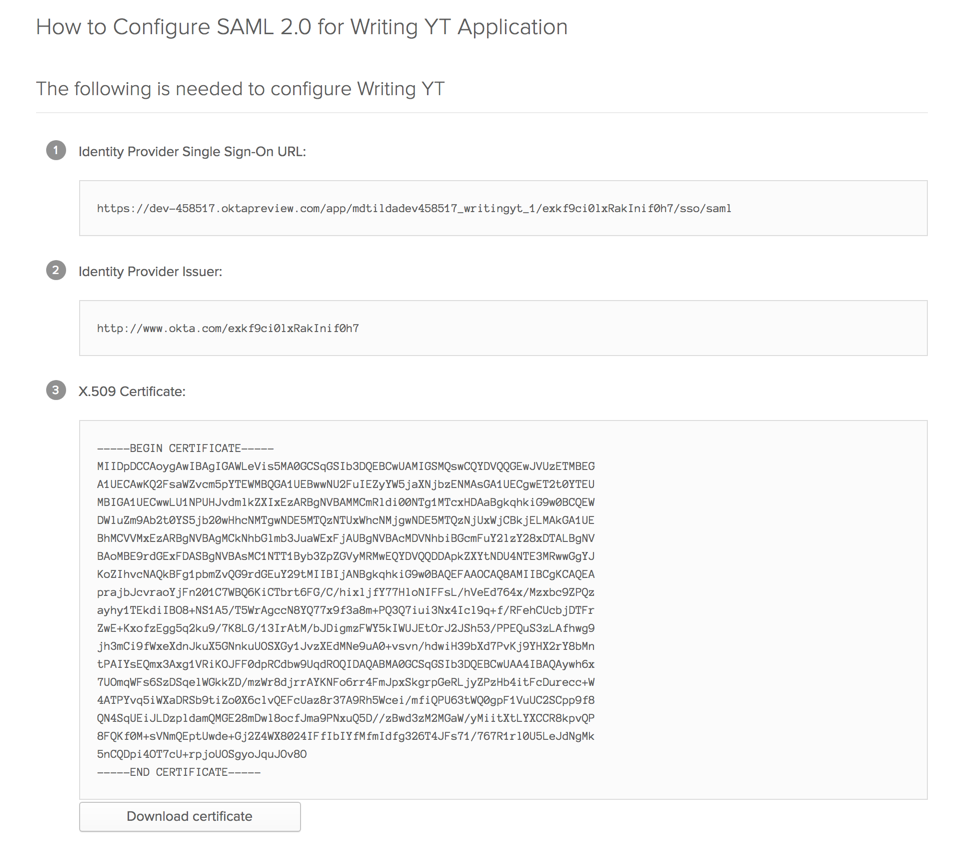
Download the certificate of your Okta IdP.
Create a fingerprint for the Okta certificate applying SHA256. For example, you can use SAML Developer Tools.
From the main navigation menu, select
.Click the New module button.
The Select an identity provider dialog opens.
In the Select an identity provider dialog, select SAML 2.0.
The Configure Login with SAML 2.0 wizard opens.
Specify the module name and metadata URL for your Okta IdP, then click Next.
Enter the SAML SSO URL, IdP entity ID, certificate fingerprint, and SP entity ID.
If the IdP service does not provide a fingerprint of their certificate, create it applying SHA256. For example, you can use SAML Tool.
Click Finish.
Switch back to Okta. Edit the YouTrack application by storing the URLs that are generated during the creation of the authentication module. The settings in Okta should be configured as follows:
Setting
Description
Single Sign On Url
Enter the ACS URL from the authentication module in YouTrack.
Use this for recipient and destination URL
Enable this option.
Audience URI
Enter the SP entity ID from the authentication module in YouTrack.
Assign the YouTrack application to groups and users that should be able to log in to YouTrack with Okta credentials.
Now the users can log in to YouTrack and connected services with their Okta credentials.
YouTrack as SAML Identity Provider for Another YouTrack Service
If you have two YouTrack services, you can use one of them as a SAML Identity Provider and another one as the service provider.
In the YouTrack installation that you use as the SAML IdP, open the page.
For details about YouTrack as a SAML 2.0 Identity Provider, see Parameters of YouTrack as SAML 2.0 Identity Provider.
In the YouTrack installation that you use as the SAML service provider, open the Auth Modules page and create a new SAML 2.0 auth module.
In the YouTrack service that you are using as IdP, open the SAML 2.0 page from the Access Management section of the Administration menu, select the Registered Service Providers tab, then click the New service provider button.
Register the second YouTrack service as the SAML service provider.
To register the service provider, enter the same values that are currently stored in the settings for the SAML 2.0 authentication module. For more details, see Register a Service Provider.