Project Overviews
Each project in YouTrack has its own Project Overview page. To access this page, click Projects in the main navigation menu, then select a project from the list.
The main purpose of this page is to give you and your team a more convenient way to view project-related information. It also serves as a landing page or "home base" for each project.
This page displays the project description and provides quick access to agile boards and project administration pages. It also provides a dashboard-like interface where you can add widgets that let you monitor the activity in your project.
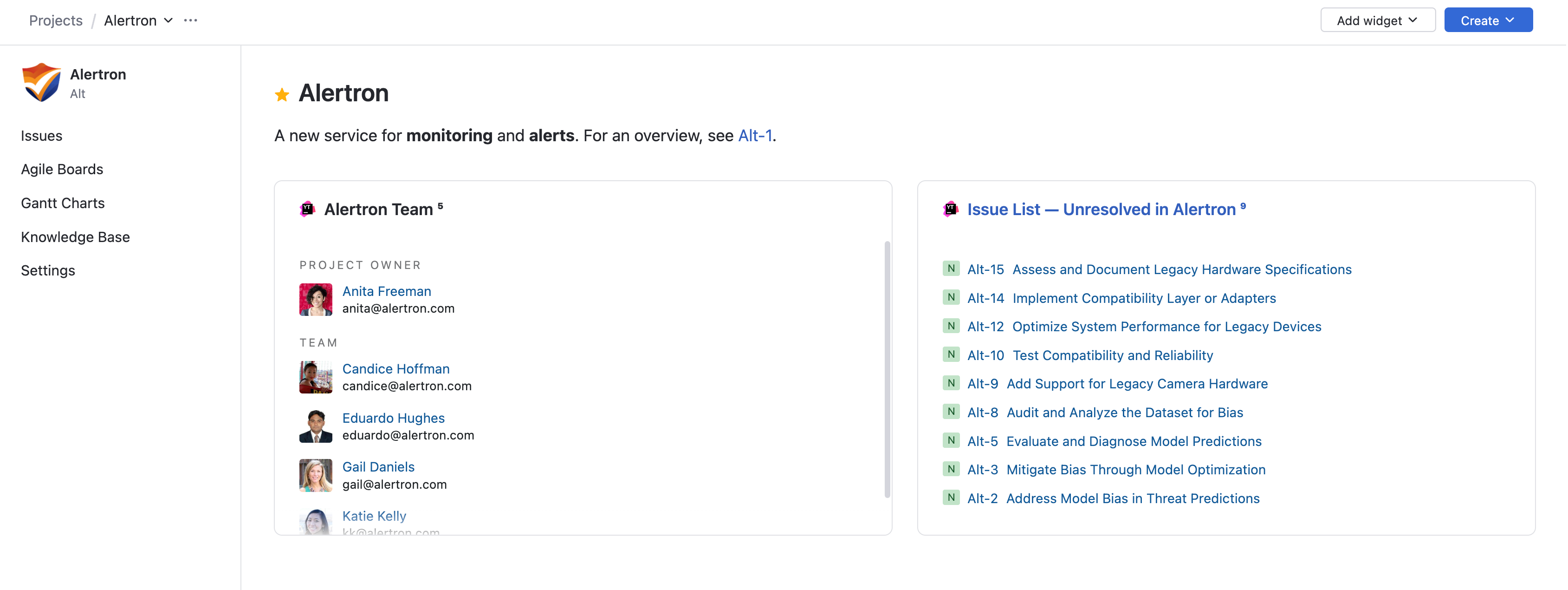
Project Name and Description
At the top of the page, you see the project name and description. This information is configured when the project is created and can be updated on the General tab in project settings. For more information, see General Project Settings.
To the left of the project name, you can add the project to your list of favorites. This pins the project to the top of the project list. Favorite projects are marked with a  star.
star.
Use this option to keep the projects you work with most often visible at the top of the list. Removing a project from your favorites only unpins it from these shortcuts. You can still find it from the project list or by using search.
A description of the project can be found under the project name.
Widgets
The content area of the project overview page contains a dashboard-like interface for displaying widgets. Here, you can install widgets that let you monitor the activity in your project.
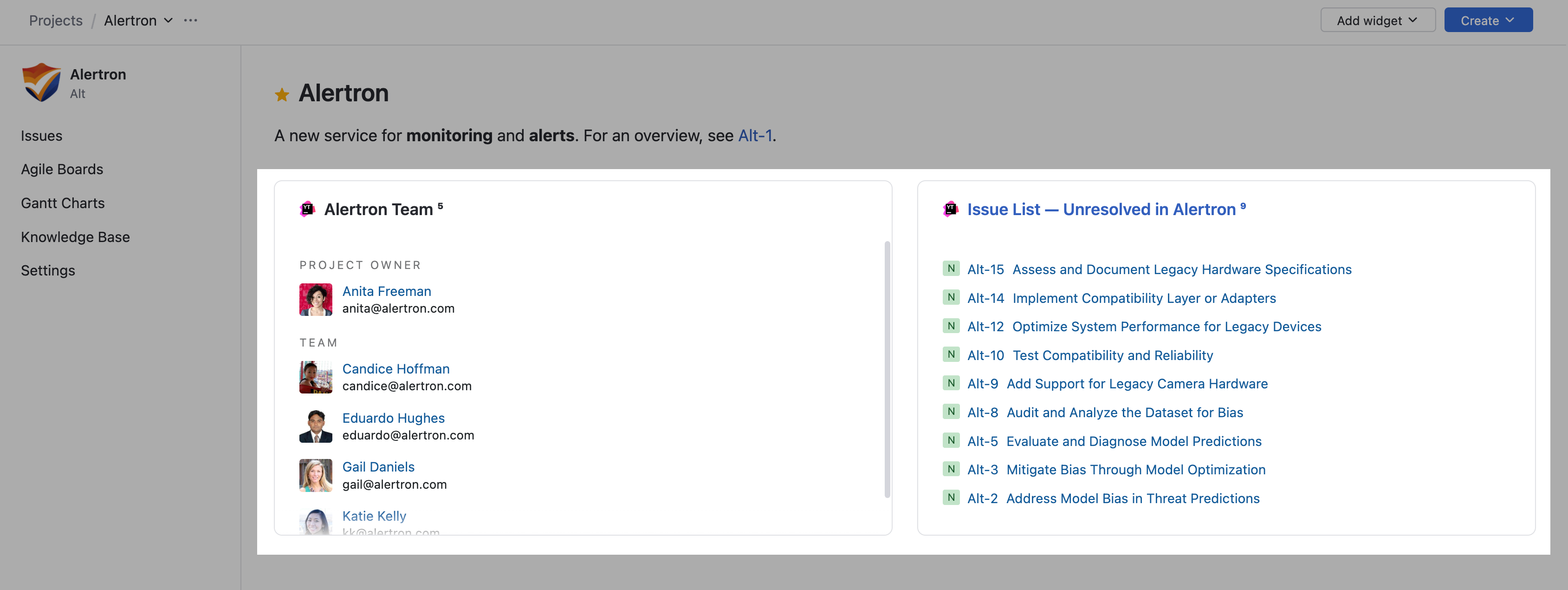
The project overview page supports all the widgets that are available on a dashboard, including custom widgets that have been installed in YouTrack.
To add a new widget to the project overview:
From the main navigation menu, select
 Projects.
Click the name of the project you want to configure.
Click the Add widget button.
Select the widget you want to add to the project overview page.
Configure the widget settings.
Click the Save button.
The widget is added to the project overview page.
If you have Low-level Administration permission, the Add widget menu includes the Browse JetBrains Marketplace option. Click this link to access the JetBrains Marketplace and browse for additional widgets. For more information, see JetBrains Marketplace.
Project Navigation Menu
The project overview displays a collection of navigation links in a sidebar to the left of the main content area. This sidebar is always visible. However, the link to project settings is only visible to users who have Update Project permission.
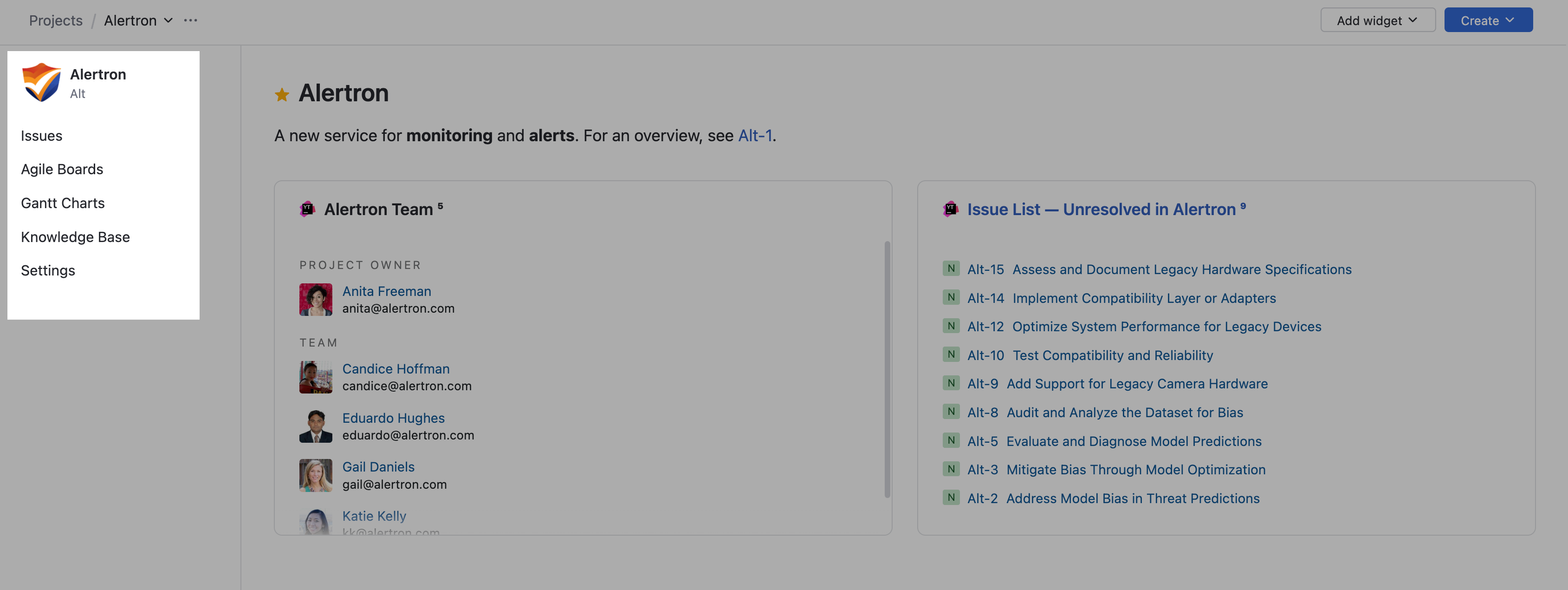
The sidebar is divided into the following sections:
Section | Description |
|---|---|
Project Logo | The project logo is displayed at the top of the sidebar. The logo can be configured on the General tab in project settings. For more information, see General Project Settings. |
Issues | This menu item links to a list of issues that belong to this project. When navigating to the list of issues with this link, the content is filtered to hide issues from other projects in the system. |
Agile Boards | This menu item navigates to the agile board used to manage issues in the related project. |
Gantt Charts | This menu item links to the Gantt charts that belong to this project. |
Knowledge Base | This menu item links to a list of articles that belong to this project. When navigating to the list of issues with this link, the content is filtered to hide articles from other projects in the system. |
Settings | This menu item opens the project settings page. From there, use the side panel to jump to the page that contains the settings you want to update. This link is only visible to users who have the Update Project permission in the project. |
Project-centric Navigation
YouTrack's project-centric navigation helps you focus on a specific context for your work, minimizing distractions from unrelated content.
When you select a project from the Projects page, it opens the overview page for the selected project. This also happens when you click the name of a project in the breadcrumb navigation.
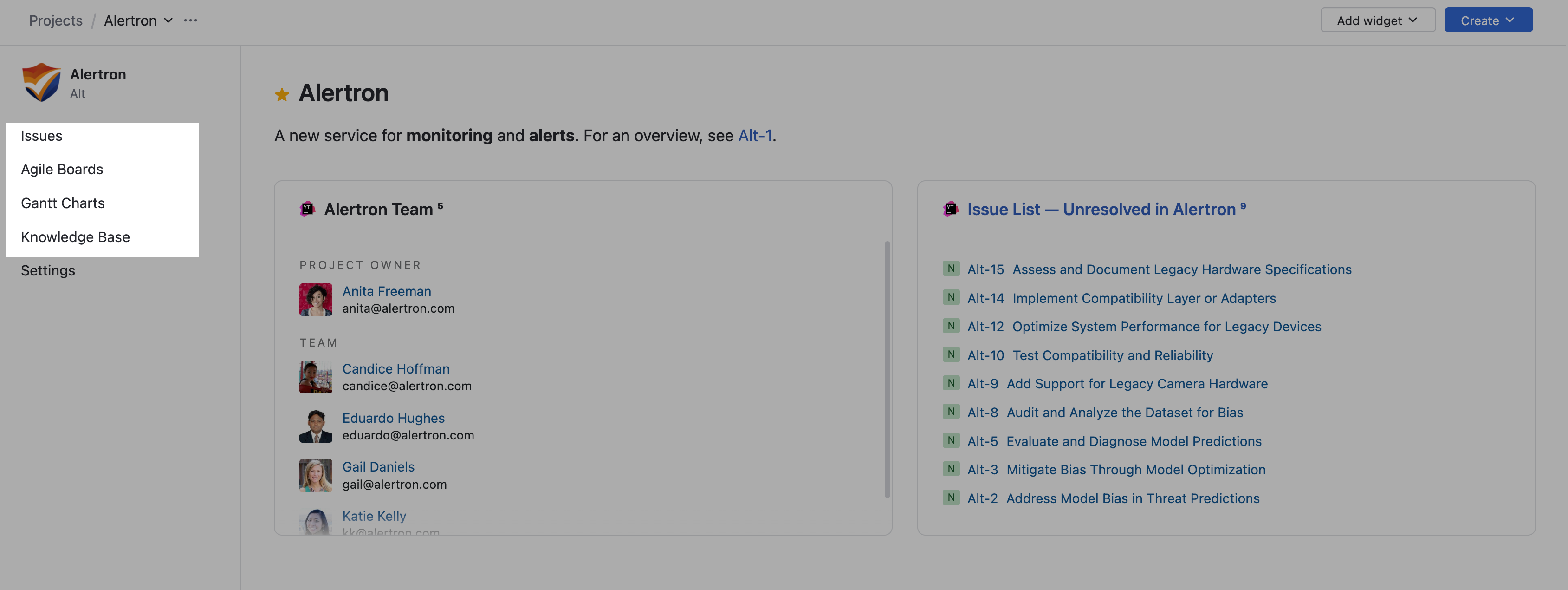
From here, use the Issues, Agile Boards, Gantt Charts, and Knowledge Base links to locate information stored in this project.
This navigation scheme is also available from these entry points:
By clicking the Issues link in the breadcrumb navigation when viewing a single issue. This opens a list of issues in the project where the issue you were viewing was created and sets the project as the search context.

This means you can quickly browse through other issues in the project.
If you're working with a helpdesk project, you can experience something similar by clicking the Tickets link in the header of a helpdesk ticket.

This opens the list of tickets and sets the helpdesk project as the search context.
Use this feature to locate tickets for related cases or see how similar problems were resolved.
If you're viewing an article in the knowledge base, clicking the Knowledge Base link in the header opens a list of articles in the current project.

Click the project name in the header to return to the project overview.