Link Issues in VCS Commits
Software development teams often apply changes to the application code in response to an issue. These updates are usually applied in a version control system, or VCS. When you commit code to a VCS repository, you can write a commit message that explains what you changed and why.
When YouTrack is integrated with a VCS repository, you can reference issues in your commit messages or in the branch names. These references are transformed into links that point from the repository, build, or commit to the issue in YouTrack. This feature is supported by the following integrations:
Build Server Integrations (TeamCity, Jenkins)
VCS Integrations (Bitbucket, GitHub, GitLab, JetBrains Space, among others)
References to issues can be added in the following ways:
Reference Location | Details |
|---|---|
Commit message | You can reference an issue ID in a commit message in two ways:
|
Branch name | When YouTrack doesn't find any issue references in the commit message, it checks the name of the branch for an issue ID. If the branch name contains an issue ID, the commit gets attached to this issue. Any commands in the commit message are ignored in this case. To enable referencing issues by branch names, enable the Check branch names for issue references feature in the VCS integration settings. For details, see VCS Integration. |
Pull request title and description | YouTrack checks the title and the description of the pull request for an issue ID and attaches the pull request to the mentioned issue. Any commands in the title and description of the pull request are ignored. For more details on handling pull requests, see Pull Requests. |
Build Server Integrations
When YouTrack is integrated with a build server or CI/CD tool, you can reference issues when you commit changes to the version control system that is attached to your build server. To reference an issue, simply mention the issue ID in your comment. For example, fixed YP-2046.
In integrations with JetBrains TeamCity, a reference to an issue ID is transformed into a link to the corresponding YouTrack issue. When you move the pointer over the down arrow icon after the issue ID, a tooltip displays the issue summary and key fields:
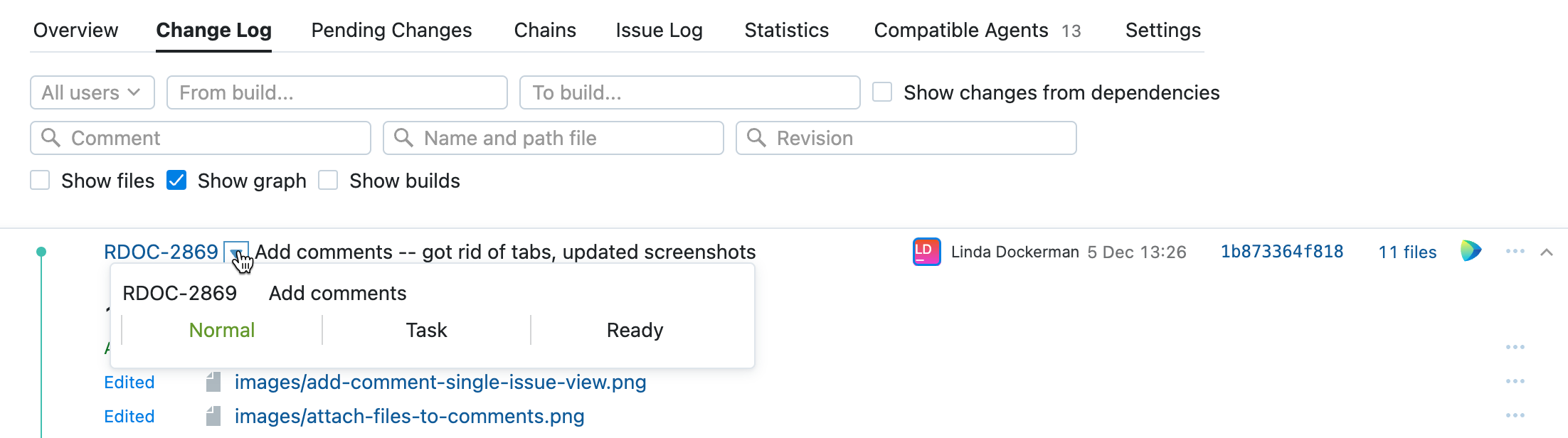
When a commit message doesn't contain any issue references, but the branch name contains an issue ID, all commits to this branch automatically get linked to this issue.
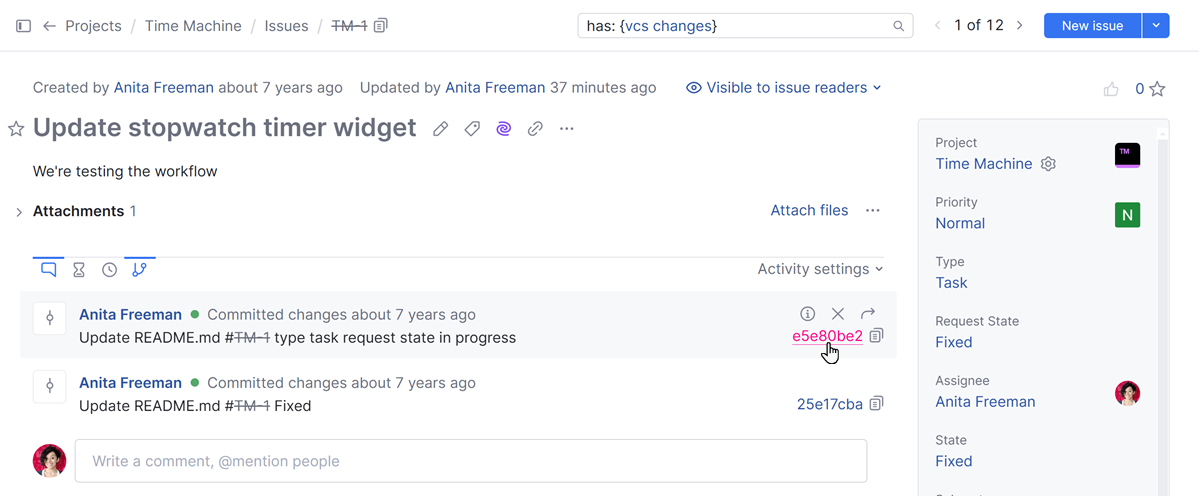
In YouTrack, a link to the Change details page in TeamCity is added to the issue. All related commits are displayed in the issue activity stream.
VCS Integrations
A direct integration with a version control system lets you create links in the following ways:
Reference YouTrack issues in your commit messages to create links from the VCS to YouTrack.
Commit changes to branches containing issue IDs in their names to create links from the VCS to YouTrack.
For example:
Commit message | Commit message displayed in VCS |
|---|---|
In RDOC-2920, the procedures to pin and unpin comments on helpdesk tickets were added. | In RDOC-2920, the procedures to pin and unpin comments on helpdesk tickets were added. |
Matching VCS Change Authors and YouTrack Users
To link VCS changes and process commands in commit messages, YouTrack has to find a user account that matches the author of the commit message. If a command is specified in the commit message, it is applied based on the access permissions that are granted to the user account in YouTrack. The user account is identified in different ways based on the type of connection to the version control system.
Connection Type | Description |
|---|---|
TeamCity Integration | YouTrack checks the email address that is stored in the TeamCity user profile of the user who committed changes to the VCS. To recognize the TeamCity user who committed the change, the VCS username should be associated with the user profile in TeamCity. |
VCS Integrations | For VCS integrations, the ability to apply commands to issues is limited to users who are members of the Committers group in the VCS integration settings.
|
If the author of the commit message cannot be found in YouTrack, the command is not applied. The username is shown in red text on the VCS changes tab. The warning tooltip provides information that you can use to fix the problem.

There are basically two things that users can do to fix this problem:
Use the same email address for their accounts in YouTrack and the integrated VCS.
Add their name (or nickname for Bitbucket) to the list of VCS usernames in their Hub accounts.