Manage Visibility
As a project administrator, you can set the default visibility and the recommended visibility for which teams and groups can view new items in the project.
The following options are available in the Visibility section on the General tab in the Project Settings:
Setting | Description |
|---|---|
Default visibility | A group or team that is set automatically as the initial default for the Visible to group in new issues and articles in this project. When configured, the default is only applied to new issues and articles. The visibility setting for existing issues and articles is not affected. |
Recommended visibility options | A list of groups and teams that are displayed in the Recommended visibility options drop-down for issues and articles in the project. Use this setting to help users discover groups that are set up specifically to handle issues in your project. This setting can reduce the available options for restricting visibility of issues and articles to the selected groups and teams. |
The visibility default values are None, and all new project items will be visible to any user who has been granted the Read Issue or Read Article permissions in the project. In an item that doesn't have restricted visibility, the item is visible to all issue or article readers.
To configure default visibility settings for a project:
From the main navigation menu, select
 Projects.
From the project list, select a project.
From the project navigation menu, select Settings.
On the General tab, locate the Visibility section.
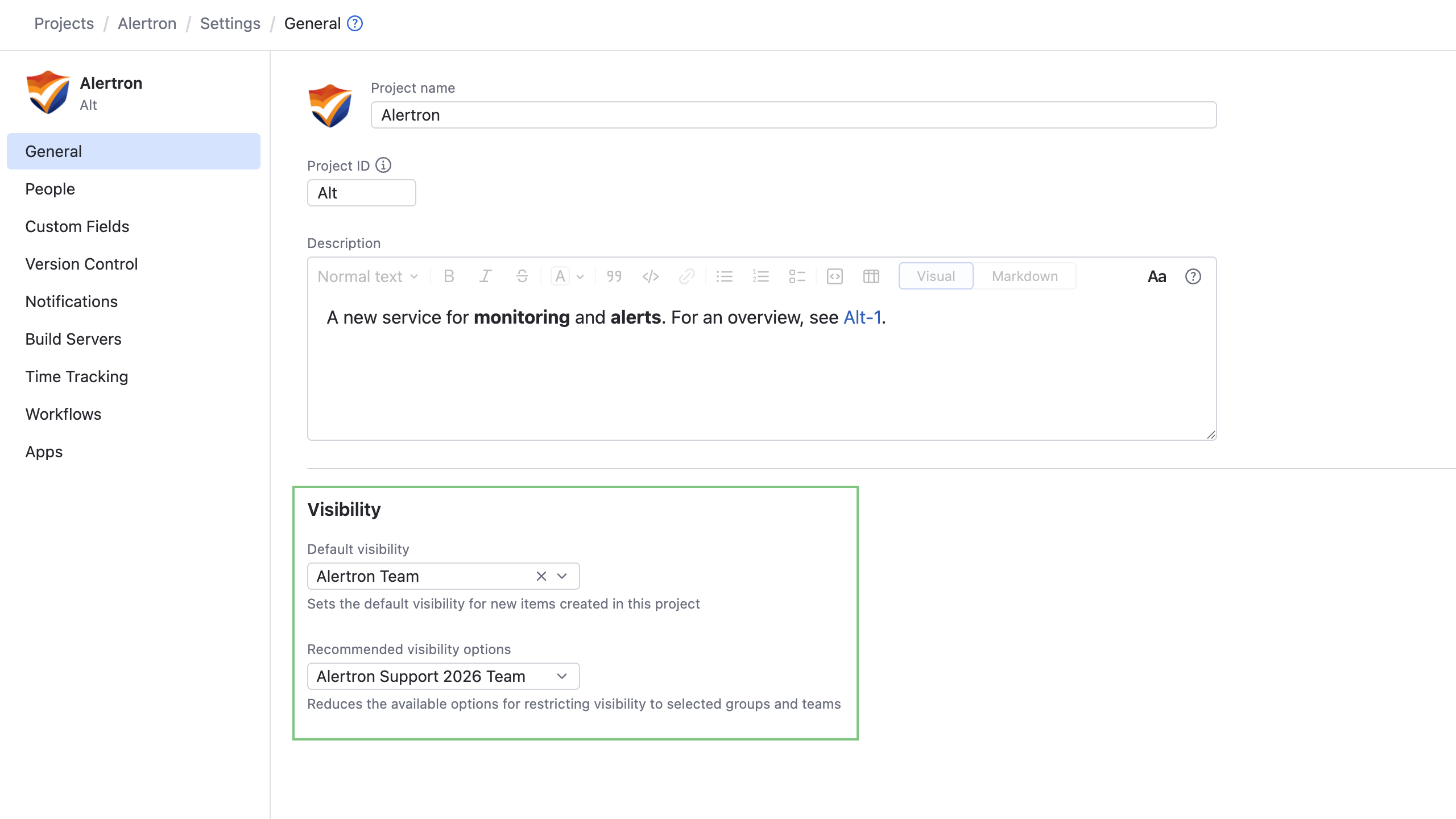
Use the drop-down menus to select the default and allowed groups or teams that can view project items.
For more information about setting the visibility in issues, see Issue Visibility.
For more information about setting the visibility in articles, see Article Visibility.