LDAP Auth Module
An LDAP authentication module lets users log in to YouTrack and any connected services with credentials that are stored in a directory service. This authentication module is pre-configured for LDAP. You can configure a module to use the standard LDAP scheme or LDAPS over SSL.
The LDAP authentication module does not import all the user accounts from the directory service. YouTrack only creates a user account when an unregistered user first logs in to YouTrack or a connected service.
When LDAP authentication is enabled, YouTrack checks the directory service for each login attempt. Users who have been removed from the directory service cannot log in to YouTrack.
Prerequisites
If you want to connect to the directory service over SSL, import the trusted SSL certificate for your LDAPS server before you enable the authentication module. If there are any intermediate certificates that sit between the SSL certificate and the root CA certificate, you need to upload a file that contains the full certificate chain.
The option to import a trusted SSL certificate is not supported in the settings for the LDAP authentication module. Instead, you need to access the Trusted SSL Certificates page and import it there. For more information, see SSL Certificates.
Enable LDAP Authentication
To let users log in to YouTrack with credentials stored in an LDAP directory service, create and enable the LDAP authentication module.
To create an LDAP authentication module:
From the main navigation menu, select
 .
.Click the New module button.
The Select an identity provider dialog opens.
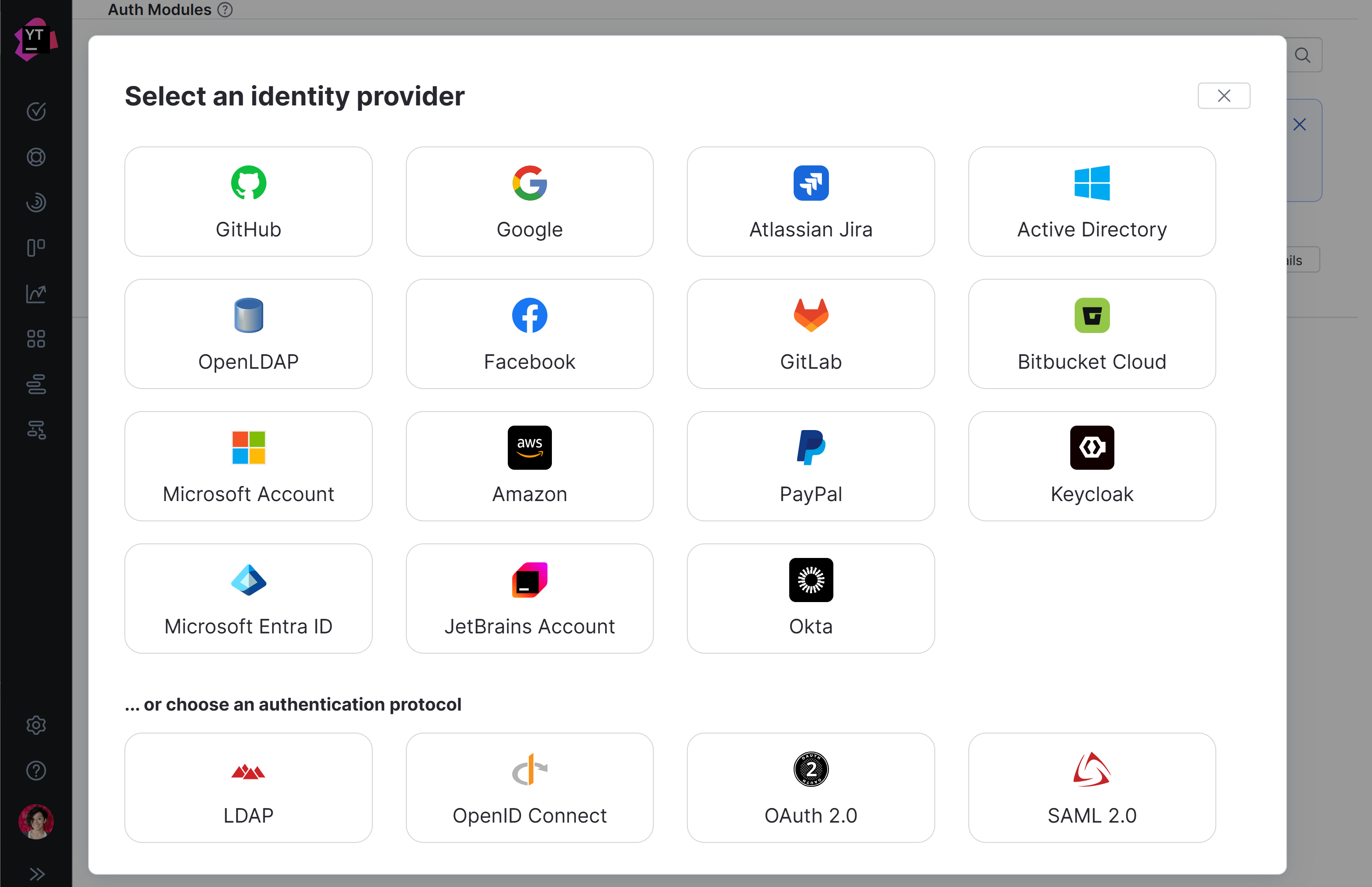
In the Select an identity provider dialog, select LDAP.
The Configure Login with LDAP wizard opens.
Fill in the fields, then click Next.
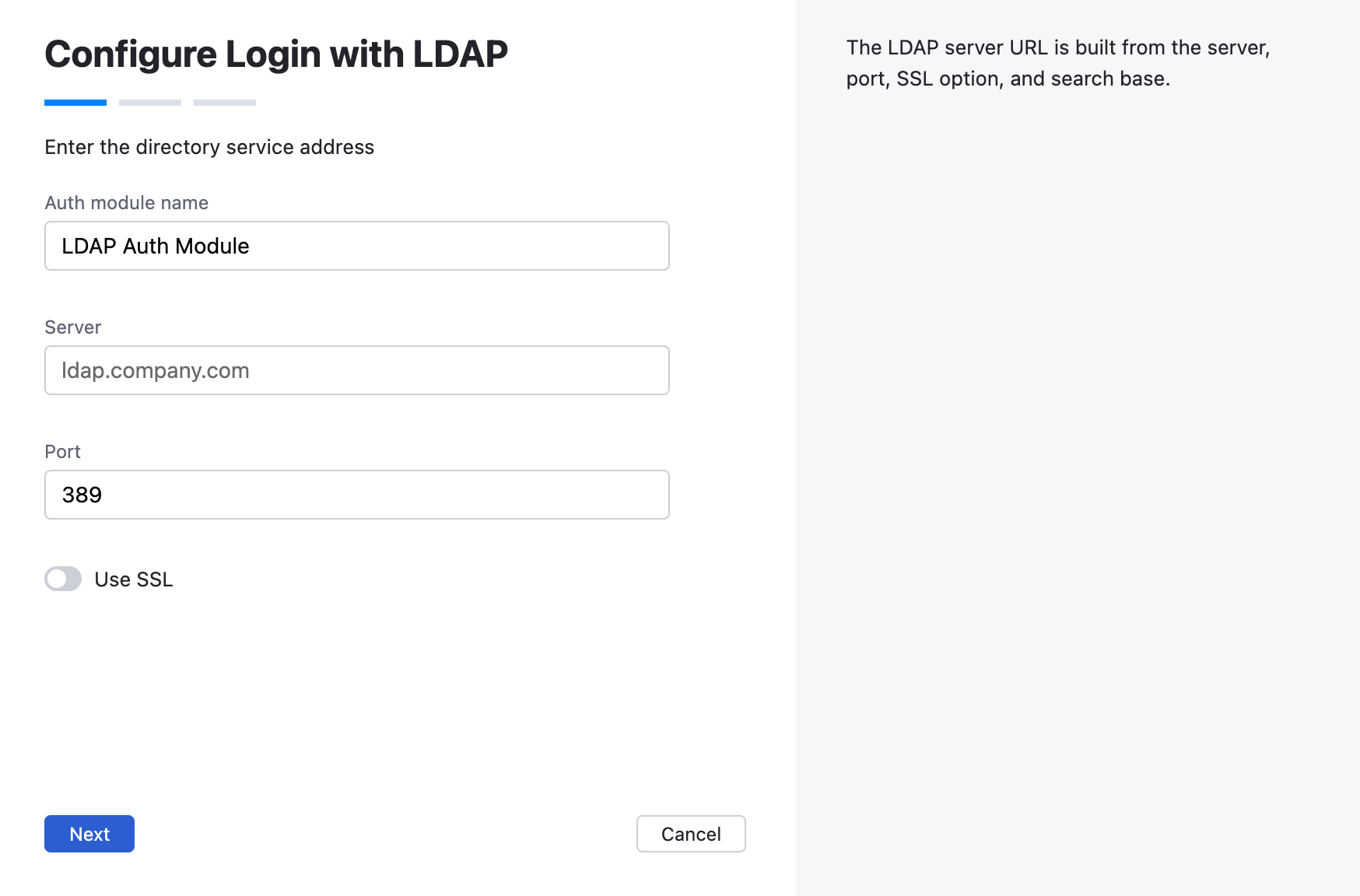
In the Auth module name field, enter a name for the authentication module.
In the Server field, enter the server address of the directory service. For a connection over SSL, change the protocol part of the address to
ldaps.In the Port field, enter the port used to connect to the directory service.
The default port for standard LDAP is 389.
The default port for LDAPS is 636.
To connect over SSL, enable the Use SSL option. Before you can establish a secure connection, you need to import the trusted SSL certificate for your LDAPS server. For instructions, see SSL Certificates.
Define the search base and filter, then click Next.
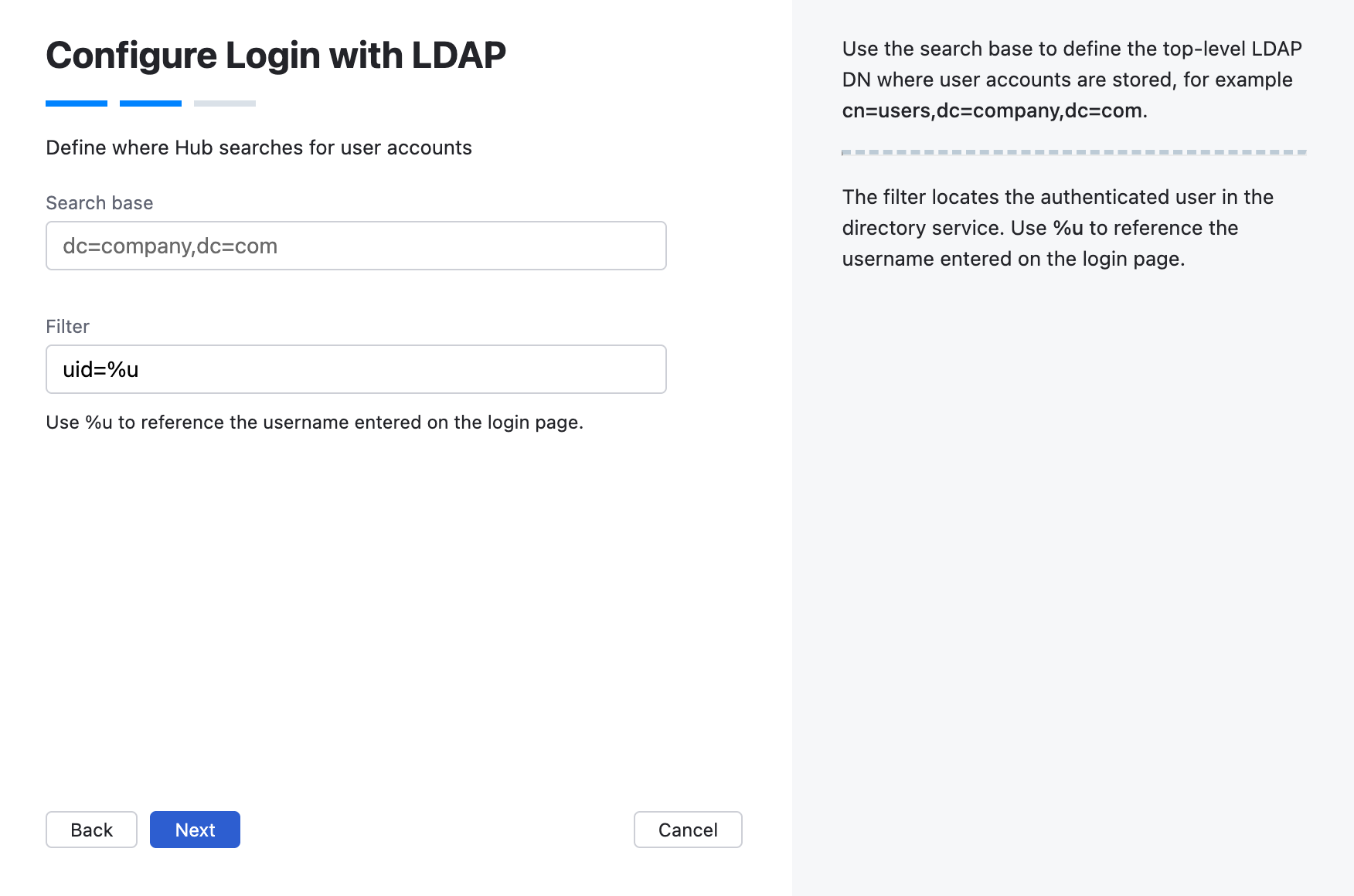
In the Search base field, enter the top-level LDAP DN where user accounts are stored. For example, if your company uses the domain
mycompany.com, enter the top-level LDAP DNdc=mycompany,dc=com.The value stored in this field is added to the LDAP URL and cannot contain unsafe characters.
If you use organizational units to manage users, create separate auth modules for each organization. Include the organizational unit in the search base to create a unique LDAP URL for each module. LDAP authentication modules do not support recursive search in the LDAP tree.
In the Filter field, enter the expression that locates the authenticated user in the directory service. Use
%uto reference the username entered on the login page.
Choose how YouTrack binds to the directory service during authentication.
Select Fixed when YouTrack needs a dedicated bind account to query users and groups for synchronization.
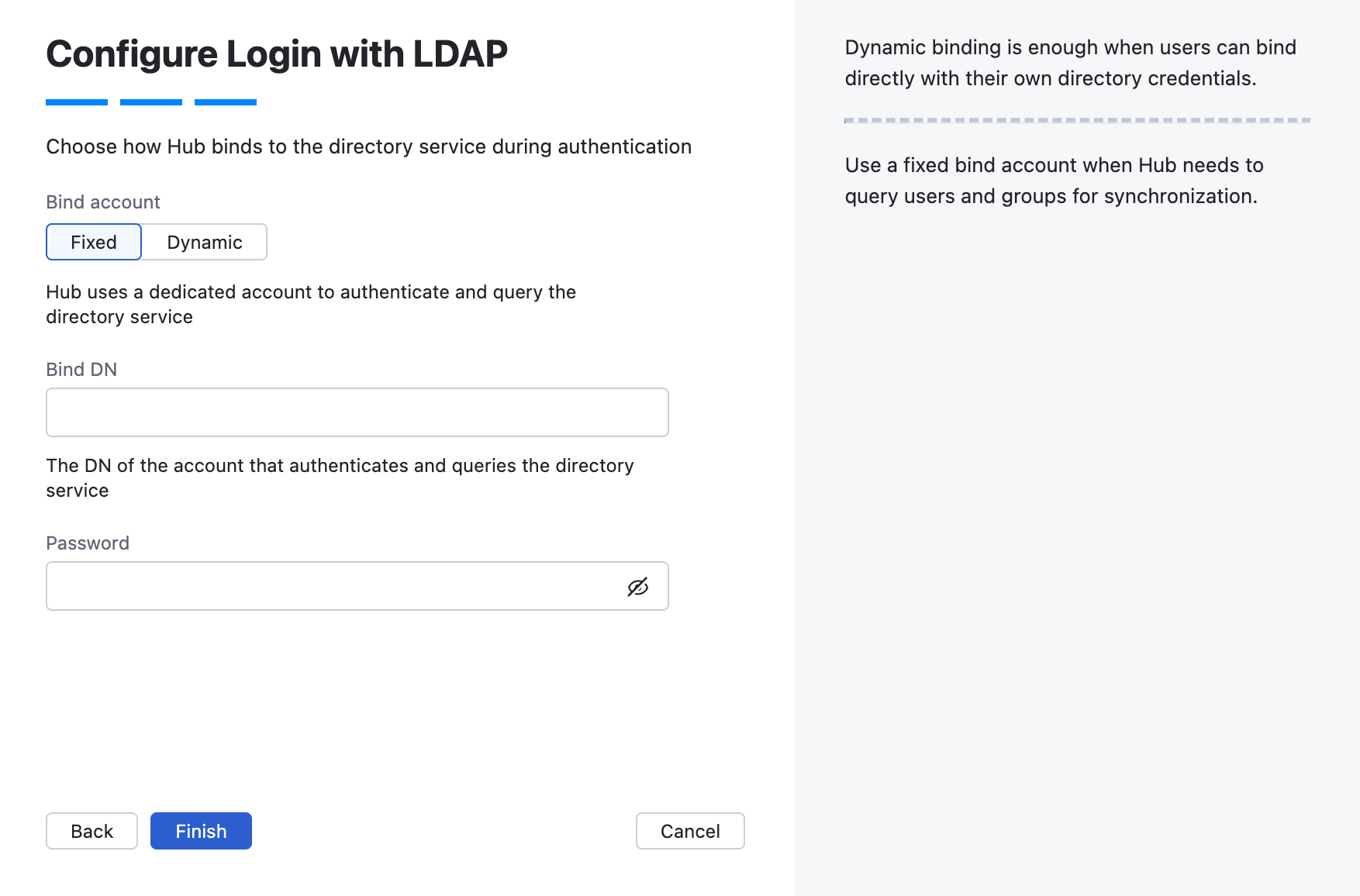
In the Bind DN field, enter the distinguished name (DN) of the account that YouTrack uses to authenticate to the directory service and query user information.
In the Password field, enter the password for the bind account.
Select Dynamic when users can bind directly with their own directory credentials.
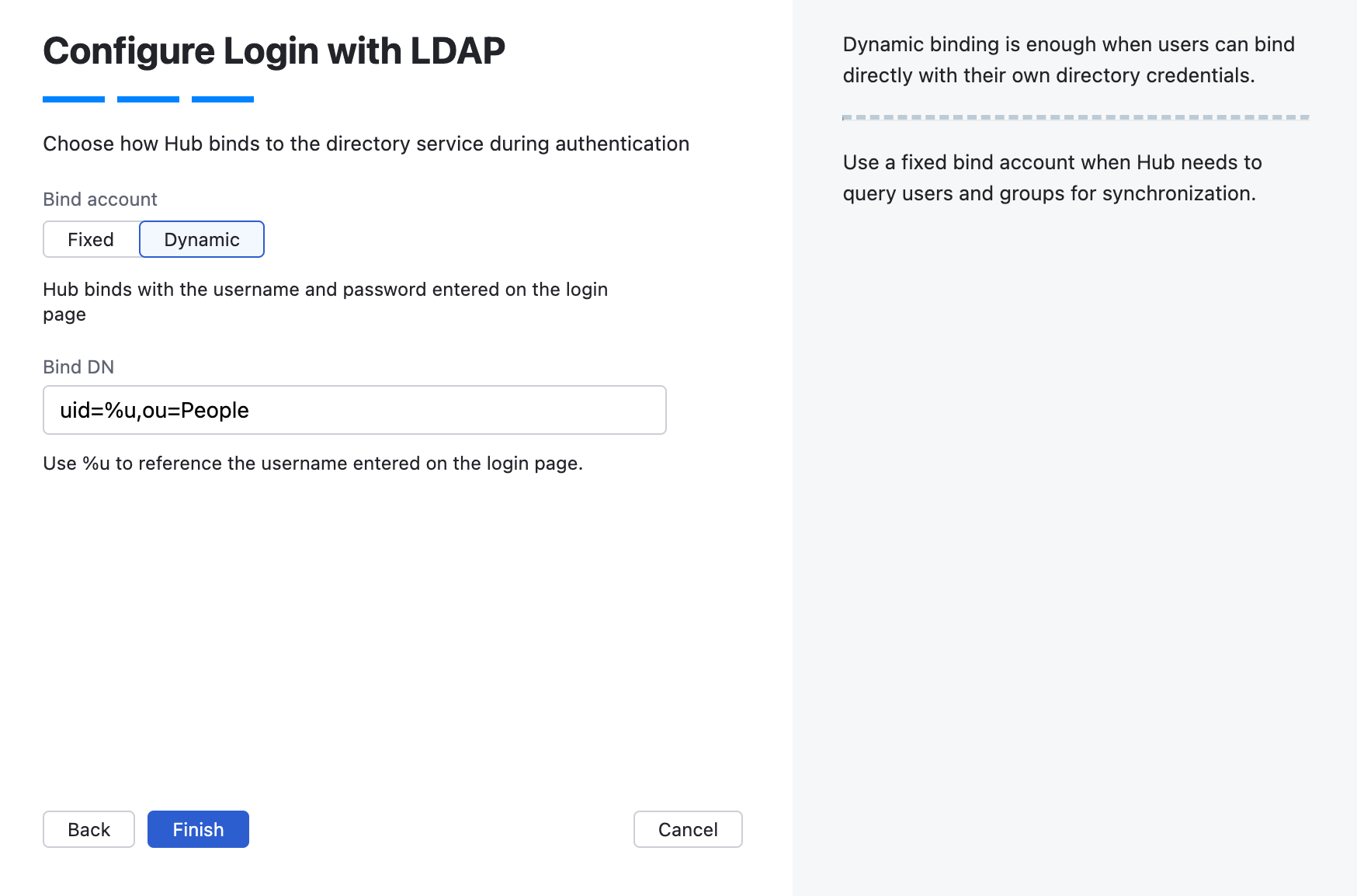
In the Bind DN field, enter the pattern that YouTrack uses to construct the user's distinguished name (DN). Use
%uto reference the username entered on the login page. For example,uid=%u,dc=company.
Click Finish.
The LDAP authentication module is created and its configuration page opens.
To enable the LDAP auth module:
Review and configure optional settings for the authentication module. For more information, see General Settings.
Click Save to apply the settings.
Click Enable.
The LDAP authentication module is enabled.
Users can log in to YouTrack with their LDAP credentials.
To verify that the authentication module is configured correctly, click the Test login button.
YouTrack opens the authentication flow with the configured identity provider.
If you are authenticated successfully, the configuration is correct.
General Information
In the header of the settings page, you can find the general information about the authentication module.
Setting | Description |
|---|---|
Name | Stores the name of the authentication module. Use this setting to distinguish this module from other authentication modules in the Auth Modules list. You can change the name and icon of the authentication module using the Rename action. For more details, see Actions. |
Type | Displays the type of authorization service that is enabled for third-party authentication in YouTrack. |
Accounts imported to YouTrack | Displays the number of users that have been imported to YouTrack. |
Accounts discovered in LDAP | Shows the number of user accounts found in the connected LDAP directory service. |
Groups discovered in LDAP | Shows the number of groups found in the connected LDAP directory service. |
Actions
The following actions are available in the header:
Action | Description |
|---|---|
Test login | Lets you enter a username and password to test the connection with the authentication service. |
Sync now | Launches the synchronization of users and groups between the connected service and YouTrack. You can configure which groups to use in YouTrack on the Group Mapping tab. |
Enable | Enables the authentication module. This option is only shown when the authentication module is currently disabled. |
Disable | Disables the authentication module. This option is only shown when the authentication module is currently enabled. |
Rename | Lets you update the existing authentication module name and change its default icon. You can find this action in the |
Delete | Removes the authentication module from YouTrack. Use only when you have configured additional authentication modules that let users log into your YouTrack installation. You can find this action in the |

General Settings
On the General Settings tab, you configure the connection to the LDAP directory service, define how authenticated users are located in the directory, and manage synchronization settings.
Field | Description |
|---|---|
Default | Designates the authentication module as the default for your installation. Only one authentication module can be set as the default at any time. If another module is currently set as the default, that state is cleared. If none of the available authentication modules are designated as the default, unauthenticated users are always directed to the YouTrack login page. |
Connection
The Connection settings establish the primary communication channel between YouTrack and your organization's directory service. By defining the authoritative network location and access parameters, this configuration allows YouTrack to securely query your LDAP server.
Field | Description |
|---|---|
Server URL | Stores the LDAP URL of the directory service used to authenticate a login request in YouTrack. The LDAP URL uses the format |
SSL key | Selects an SSL key that can be used to verify the identity of your YouTrack installation to the LDAP service. You should only need to use this setting when your LDAP service requires client SSL authentication. This list displays only keystores that have been imported into YouTrack. For more information, see SSL Keys. |
Filter | Stores an expression that locates the record for a specific user in the LDAP service. The substitution variable in the expression is replaced with the value entered as the username or email on the login page. If left empty, YouTrack falls back to the value <login>=%u where |
Synchronization
The Synchronization settings allow you to automate user management by periodically aligning YouTrack’s user directory with your LDAP server. By configuring a dedicated, fixed service account (bind DN) with read permissions, YouTrack can run scheduled background updates. This process ensures that user profiles, group memberships, and account statuses within YouTrack remain continuously up-to-date with any changes made on the central identity provider.
Field | Description |
|---|---|
Synchronization | Determines the frequency with which user account credentials and group memberships are synchronized with the directory service. You can choose from one of three predefined intervals:
|
You can also manually synchronize the YouTrack database with the directory service at any time by clicking the Sync now button.
Values for the Full Name, Username, and Email that are stored in the YouTrack profile are populated when the user account is first created, which is usually when a new user logs in to YouTrack using their LDAP account. Later changes to these attributes in LDAP profiles are not synced with the YouTrack profile. These changes are synced with the corresponding attributes that are associated with their LDAP credentials. This information is displayed in the Credentials section of the Account Security tab in the YouTrack profile.
This synchronization applies to the attributes that are configured in the Attribute Mapping settings and group memberships as configured on the Group Mapping tab. For details, see Attribute Mapping and Group Mapping.
When synchronization is Off, group memberships and account statuses are still synchronized on a per-user basis during login. To learn more about this feature, see Group Mapping.
The Synchronization option is only available when the Bind account setting is Fixed. This allows YouTrack to search the directory service on behalf of the bind account owner.
The synchronization feature is only active when the authentication module is Enabled.
Bind
You can configure the module to perform the bind request with the LDAP service in one of two ways. The method used is determined by the option selected for the Bind account setting.
The value that you use for the Bind DN setting depends on the option that you select for the Bind account setting. Use the following guidelines to set the value for the Bind DN setting:
Option | Description | Guideline for Bind DN Setting |
|---|---|---|
Fixed | Uses a fixed account to bind to the LDAP service and searches for the user you want to authenticate on behalf of the bind user. With this option, you can set up an LDAP authentication module and still use logins that are not part of the Distinguished Name (DN), like an email address or token. This method is also commonly called search + bind or two-step authentication. To use this method, you need a special account on the directory server that has permission to look up other user accounts in the directory service. | Enter the full DN of the user account that you want to use for the LDAP bind request. This account must have permission to look up other user accounts in the directory service. Use the Change password control to store the password for this account in YouTrack. The password for the bind user is stored as a salted hash of the plain-text value. |
Dynamic | Derives the user DN from the login and attempts to bind to the LDAP service as the user directly. This method is also commonly called direct bind. | Use a query to bind with the directory service. This query looks up the distinguished name of the user to be authenticated. Reference the username with an expression. The expression maps a substitution variable to the attribute that stores the username in the directory service. The attribute you select determines which query is used in the filter string. The value entered as the username on the login page is trimmed before it replaces the substitution variable. If the user specifies a domain, it is discarded. For example, a username with the value |
Attribute Mapping
When YouTrack finds a record in the LDAP service that matches a filter, it fetches values from the LDAP attributes that are specified for each field and copies them to the user profile in YouTrack. Use the following settings to define the filter criteria and map attributes that are stored in your directory service to user accounts in YouTrack.
User Attributes
The User Attributes configuration defines how data fields from your LDAP directory translate into distinct profile properties within YouTrack. By mapping standard LDAP keys like uid for unique usernames, cn for full names, and mail for email addresses, YouTrack can accurately populate and maintain personal user profiles upon successful authentication, ensuring identity consistency across both platforms.
Setting | Description |
|---|---|
Username | Required. Maps to the LDAP attribute that stores the value to copy to the Username field in the YouTrack profile. For LDAP, the default value is |
Full name | Maps to the LDAP attribute that stores the value to copy to the Full name field in the YouTrack profile. |
Maps to the LDAP attribute that stores the value to copy to the Email field in the YouTrack profile. |
Group Attributes
The Group Attributes settings establish the relationship between LDAP directory groups and YouTrack user groups to automate access control. By specifying attributes like memberOf (which identifies the groups a specific user belongs to) or member/uniqueMember (which lists the members within a group object), YouTrack can seamlessly synchronize team hierarchies and assign appropriate roles and permissions based on your central directory's structure.
Setting | Description |
|---|---|
User groups | Maps to the attribute on user objects in LDAP that lists the distinguished names of groups the user belongs to. You must specify either Group members or User groups. |
Group members | Maps to the attribute on group objects in LDAP that lists the distinguished names of its members. You must specify either Group members or User groups. Separate multiple values with commas. |
LDAP Account Status
The LDAP Account Status setting dictates how YouTrack responds when an external user account is disabled or deleted within your central directory service. By configuring this policy to either ignore changes or actively forward account bans to the Hub service, administrators can ensure that revoked credentials instantly cut off access to YouTrack, maintaining a secure and accurate user lifecycle.
Option | Description |
|---|---|
Ignore | When this option is selected, YouTrack effectively disregards account deletion or suspension events originating from your LDAP directory service. If a user's credentials are removed or deactivated on the LDAP server, YouTrack will not automatically ban, disable, or modify that user's corresponding account status in YouTrack. This setting is typically used when you prefer to manage user lifecycles and offboarding workflows manually within YouTrack, or when your directory service contains temporary account states that shouldn't immediately disrupt application access. |
Forward | When this option is selected, YouTrack actively synchronizes account terminations with your central directory service. If a user's account is deleted or their credentials are removed from the linked LDAP directory, YouTrack forwards this status update, automatically banning the corresponding user account. This ensures tight security alignment and automated offboarding, guaranteeing that revoked access at the directory level instantly revokes access to YouTrack. |
Group Mapping
On the Group Mapping tab, you can map existing groups in the LDAP service to the groups in YouTrack.
If you want to map LDAP groups to YouTrack groups, you need to specify the Groups attribute that stores LDAP group memberships in the Attribute Mapping section of the settings for this auth module.
When group mappings are configured, YouTrack checks for LDAP group memberships when users log in with accounts that are managed in the directory service. YouTrack performs the following operations for each LDAP group that is mapped to a YouTrack group:
Users who are members of a mapped LDAP group and are not members of the mapped YouTrack group are added to the group in YouTrack.
Users who are not members of a mapped LDAP group and are members of the mapped YouTrack group are removed from the group in YouTrack.
This behavior is based on the current value for the Synchronization setting.
When the Synchronization setting is On, these operations are performed on a set schedule.
When Off changes to group memberships in the directory service are only applied in YouTrack when users log in using the LDAP auth module.
Scheduled synchronization is only available when the Bind account option is Fixed. If the Bind account option is Dynamic, group memberships are synchronized only on user login.
You can map multiple LDAP groups to a single target group in YouTrack. You can't map LDAP groups to more than one YouTrack group.
To map an LDAP group to a group in YouTrack:
Open your LDAP auth module.
Select the Group Mapping tab.
Click Add mapping.
The Add Mapping dialog opens.
Enter the name of the LDAP group in the LDAP group name field.
If the Bind account option is set to Fixed, the auth module uses the bind account to look up groups in the directory service. Available groups are shown in the LDAP group name list.
If the Bind account option is set to Dynamic, the list of groups in the directory service is not available to the bind account. To map a group successfully, you need to enter the full DN of the group exactly as it appears in the directory service.
Select a group from the Target group list.
Click Add.
The mapping is added to the list.
Click Save.
SCIM 2.0
The tab lets you enable System for Cross-domain Identity Management (SCIM) provisioning for the LDAP authentication module. When SCIM provisioning is enabled, an external identity provider can create, update, and deactivate Hub user accounts using the SCIM 2.0 protocol.
The LDAP authentication module synchronizes user data only during login. When a user signs in, YouTrack reads the user attributes and group memberships returned by the identity provider.
Changes made in the identity provider are not synchronized automatically while the user is inactive. For example, updates to user attributes or group memberships are applied only after the user signs in again.
To keep user accounts and groups synchronized automatically, enable SCIM 2.0 provisioning and create a SCIM 2.0 token for the authentication module.
Enable SCIM 2.0 provisioning
To allow an external identity provider to provision users through SCIM:
Open your LDAP auth module.
Select the SCIM 2.0 tab.
Enable the Enable SCIM 2.0 provisioning option.
YouTrack generates a SCIM 2.0 base URI for this authentication module.
Create a SCIM 2.0 token and copy its value.
Specify both the SCIM 2.0 base URI and SCIM 2.0 token generated in YouTrack when configuring SCIM provisioning in your identity provider. The base URI identifies the provisioning endpoint, while the token authenticates provisioning requests sent by the identity provider.
Create a SCIM 2.0 Token
In the SCIM 2.0 Tokens section, click New Token.
In the New SCIM 2.0 Token dialog, enter a name for the token.
Click Create.
Hub generates the token and displays its value in the SCIM 2.0 Token Created dialog.
Copy the token value and store it in a secure location before closing the dialog. The token value cannot be viewed again after the dialog is closed.
Delete a SCIM 2.0 Token
Select one or more tokens in the SCIM 2.0 Tokens table.
Click Delete and confirm the action in the Delete SCIM 2.0 token dialog.
Additional Settings
The settings on the Additional settings tab let you manage account creation and group membership and reduce the loss of processing resources consumed by idle connections.
Option | Description |
|---|---|
User creation | Enables creation of YouTrack accounts for unregistered users who log in with an account that is stored in the connected directory service. YouTrack uses the email address to determine whether the user has an existing account. All LDAP authentication modules must allow user creation. If user creation is denied, unregistered users are shown an error. |
LDAP referral | Determines whether Hub ignores or follows requests from the service to locate additional information in the LDAP directory. |
Auto-join groups | Adds users to a group when they log in with an account that is stored in the connected directory service. You can select one or more groups. New users that auto-join a group inherit all the permissions assigned to this group. We recommend that you add users to at least one group. Otherwise, a new user is only granted the permissions that are currently assigned to the All Users group. |
Connection timeout | Sets the period of time to wait to establish a connection to the authorization service. The default setting is 5000 milliseconds (5 seconds). |
Read timeout | Sets the period of time to wait to read and retrieve user profile data from the authorization service. The default setting is 5000 milliseconds (5 seconds). |
Changes made to LDAP Auth Module | Links to the Audit Events page in YouTrack. There, you can view a list of changes that were applied to this authentication module. |
Sample Configurations
Use the following patterns to configure an LDAP auth module using the LDAP protocol:
Setting | Value |
|---|---|
Server URL |
|
Bind DN |
|
Filter |
|
Use the following patterns to configure an LDAP auth module with a secure connection over SSL:
Setting | Value |
|---|---|
Server URL |
|
Bind DN |
|
Filter |
|
Troubleshooting
If you encounter problems with this authentication module, see if the following condition applies.
Condition — Group memberships are not properly synchronized with the directory service, or synchronization is applied inconsistently.
Cause | Solution |
|---|---|
The YouTrack user account stores credentials for multiple accounts that are managed in the directory service. The accounts in the linked directory service belong to different sets of groups. If a YouTrack user has multiple accounts that are managed in the linked directory service, group membership synchronization may behave unpredictably. The synchronization job will apply membership assignments for the first account it finds, then update these assignments if it encounters different group assignments for subsequent accounts. | You can resolve this problem by applying any one of the following solutions:
|