Integrate with Azure Repos
Follow the instructions on this page to integrate your project with VCS repositories that are hosted in Azure Repos.
An Azure Repos integration enables the following features in YouTrack:
Apply commands to YouTrack issues in commit messages. For more information, see Apply Commands in VCS Commits.
Track commits that are related to specific issues in the activity stream for each issue. For more information, see Commits.
Display the status of pull (merge) requests directly in the activity stream of any issue that is referenced in the title or description of the pull request. For details, see Pull Requests.
Prerequisites
YouTrack is accessible to inbound connections. Specifically, you need to make sure that your network doesn't block connections between your VCS server and YouTrack.
The account that you use to connect to Azure Repos has access to the Azure Repos repository that you want to use with this integration. This is the user account whose private token is used for authentication. You can either use an account that has Contributor access level in the project or an Azure Repo administrator account.
Your Azure Repos service is hosted in Microsoft's cloud-based Azure DevOps Services. Integrations with on-premises Azure DevOps Server installations are not supported.
Generate an Access Token in Azure DevOps
The first thing you should do is generate an access token in Azure DevOps. This token grants YouTrack access to the repository based on the access that is granted to your Azure account. You can use a single access token to set up multiple integrations.
Learn how to generate a personal access token at: Azure DevOps: Use personal access token.
The following scopes of access are required for your access token:
Build (Read)
Code (Read)
Configure the Azure Repos Integration
Now that you have a personal access token, switch to YouTrack to establish a connection with an Azure Repos repository. You can use a single access token to set up multiple integrations.
To connect to an Azure Repos repository:
From the main navigation menu, select
 Projects.
From the project list, select a project.
From the project navigation menu, select Settings.
In the project settings side panel, select Version Control.
Click the New VCS integration... button.
The New VCS Integration dialog opens.
For the Server type, select Azure Repos.
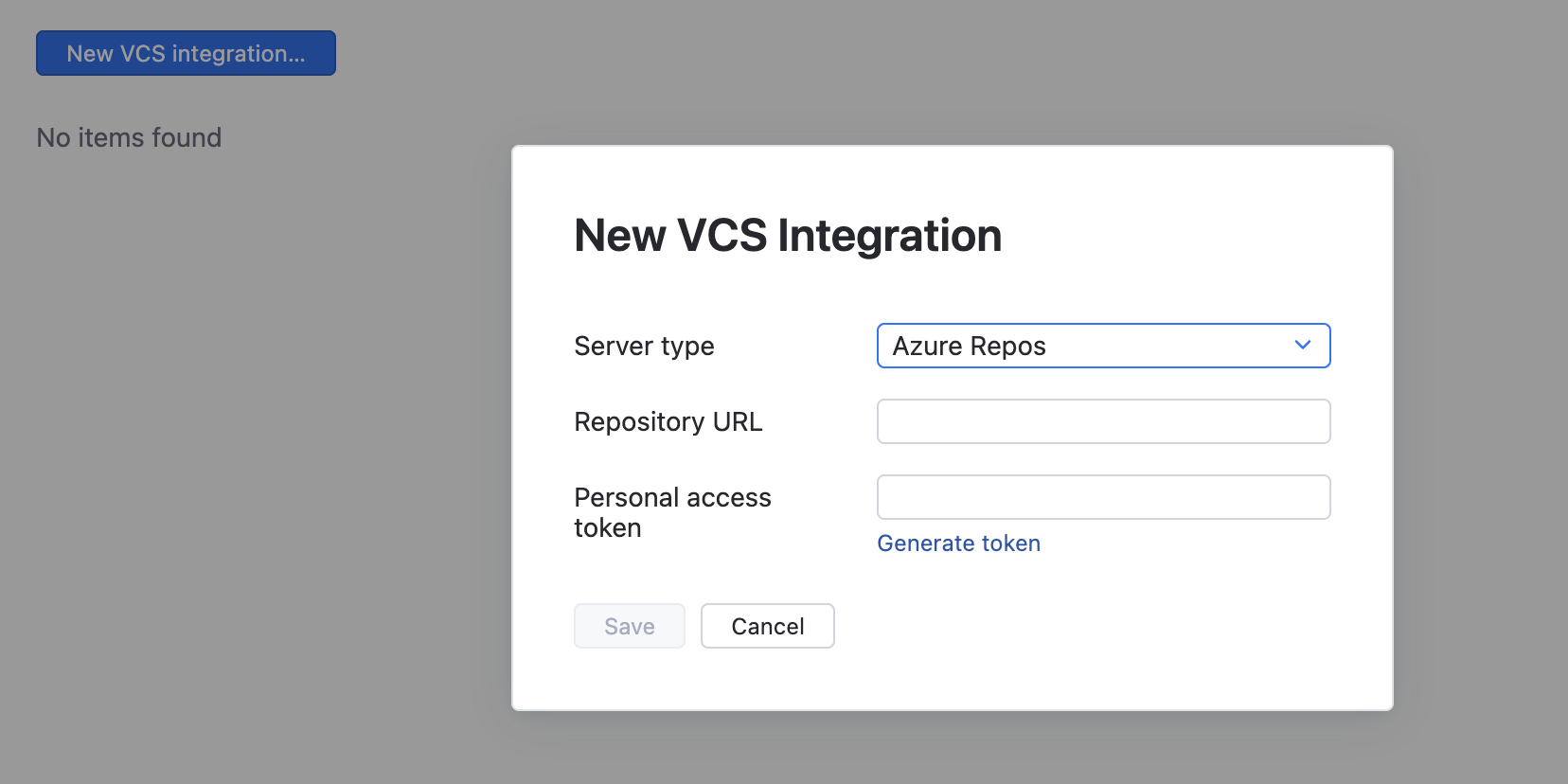
Paste the URL that points to your Azure Repos repository into the Repository URL input field using the following format:
https://dev.azure.com/organization_name/repository_namePaste the access token that you have generated into the Personal access token field.
Click the Save button.
Your YouTrack project is integrated with the selected repository in Azure Repos.
Commits from the Azure Repos repository that reference an issue in the project are displayed in the activity stream of the referenced issue.
The sidebar displays additional settings for configuring the VCS integration.
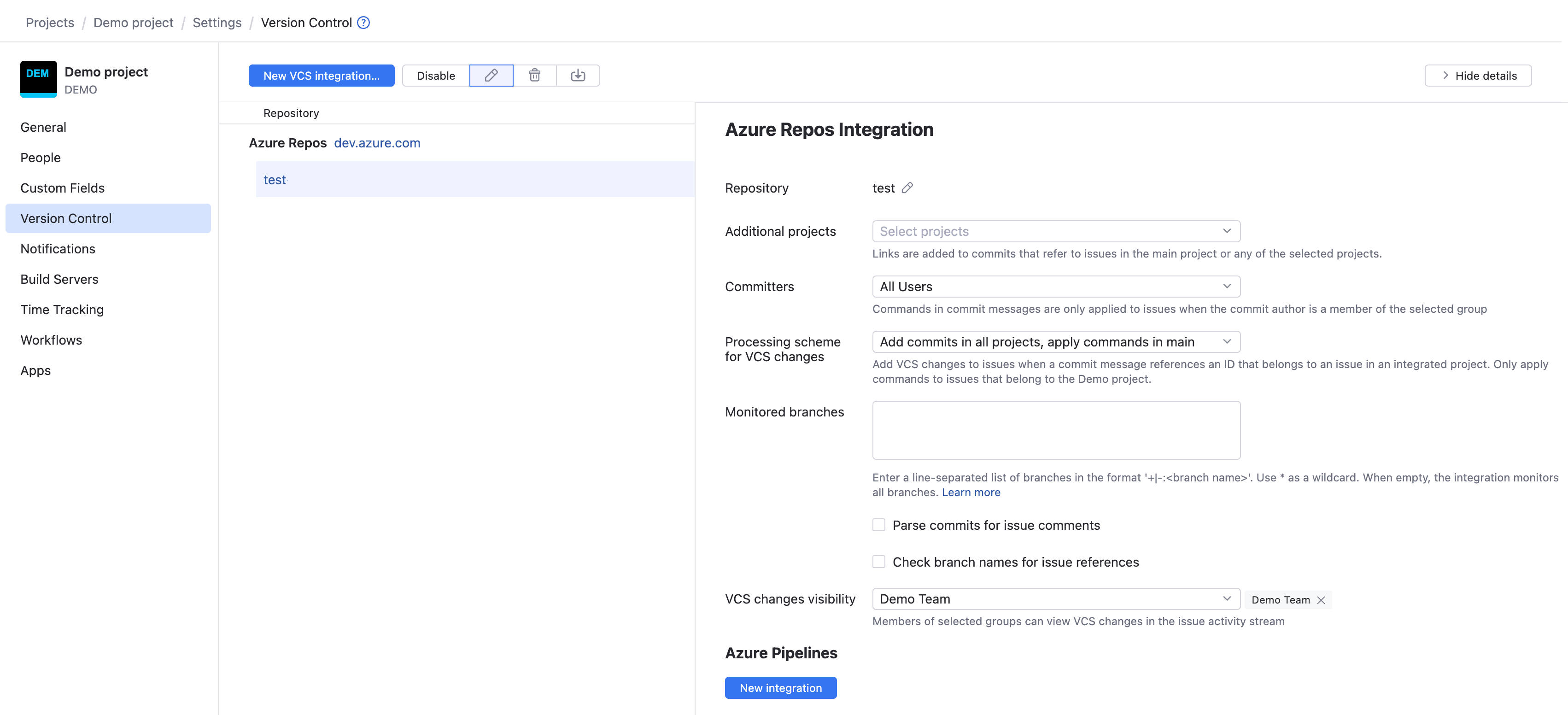
To learn more about these settings, see Integration Settings.
Integration Settings
By default, the VCS integration processes changes that are committed to the repository by any user in any branch. Any user who has access to the issue in YouTrack can view these changes in the issue activity stream.
If you only want to process changes by specific users in designated branches or restrict the visibility of VCS changes in YouTrack, you can customize the integration settings. Use the following settings to customize the integration:
Setting | Description |
|---|---|
Repository | Displays the path to the repository in the integrated version control system. If needed, you can edit the location of the repository after you have set up the integration. For instructions, see Edit Repository Settings. |
Additional projects | Integrates the linked repository with one or more additional projects. This setting is only available in projects that are set as the Main YouTrack project for the VCS integration. |
Committers | Restricts the ability to update issues with commands in commit messages to members of the specified group. VCS changes from users who are not members of the selected group are still attached to related issues, but any commands that are specified in their commits are ignored. |
Processing scheme for VCS changes | Choose how to process VCS changes when the commit message references an issue ID. The following options are supported:
|
Monitored branches | Stores the names of the branches that you want to monitor for changes.
If the address that you entered as the Repository URL when you connected to the repository points to a specific branch, this branch is automatically added to the list of monitored branches when you set up the connection. |
Parse commits for issue comments | When enabled, specific lines of text in commit messages are copied to issues as comments. When you copy parts of the commit message to the issue as comments, you can trigger @mention notifications and expose information to users who don't have access to VCS changes. This setting does not affect how commit messages are shown in VCS changes. The entire commit message, including commands and issue comments, is always shown as part of the VCS change record in the activity stream. You should only enable this option when:
To learn more about how YouTrack processes commit messages, see Apply Commands in VCS Commits. |
Check branch names for issue references | When enabled, the integration checks for references to issues in branch names for commits. This option was added for teams that use a branch-per-ticket process, so their developers don't have to mention issue IDs in their commit messages explicitly. |
VCS changes visibility | Restricts the visibility of VCS changes to one or more groups of users in YouTrack. When unrestricted, the list of VCS changes is visible to any user who has permission to read the issue. |
Available Actions
When you select an integrated version control system in the list, the following actions are available in the toolbar:
Action | Description |
|---|---|
Disable | Shuts off the connection between the integrated project and the VCS repository. The configuration is not changed and can be enabled at any time. |
Edit | Opens the integration settings dialog in the sidebar for the selected project and repository. |
Delete | Removes the settings for the integrated project from YouTrack. This action also removes all VCS changes that were added to issues for commits in the linked repository. While the action itself cannot be undone, you can use the Import action to restore VCS changes that were removed accidentally. |
Import commits and open pull requests | Checks the commit history in the linked repository and adds VCS changes to issues that are referenced in commit messages. This option is only available for integrations that are currently enabled. You can use this action to restore VCS changes that were removed when an integration was accidentally deleted or to migrate links to issues in a new project. |