Helpdesk Customer Groups
Customer groups let you organize helpdesk reporters by company, department, team, or any other external audience. When a helpdesk ticket is shared with a customer group, members of the group can view the ticket and add public comments. This helps agents collaborate with multiple people from the same organization without adding every person as an individual CC recipient.
Customer groups are based on the standard group model, but they are scoped to helpdesk use cases. They are marked with a Helpdesk badge in the global groups list and can include reporters, standard users, and agents.
Project Customer Groups
Each helpdesk project has a dedicated Customer Groups page in project settings. Groups added to this page form the catalog of customer groups that can be used for ticket sharing in the project.
Agents can manually share tickets with groups from this catalog.
Groups with Auto-share enabled are added automatically to new tickets when the reporter belongs to the group.
Removing a group from the project removes it from the auto-share list, but doesn't delete the group itself.
To add a customer group to a helpdesk project:
From the main navigation menu, select
 Projects.
Click the name of the helpdesk project you want to configure.
From the project navigation menu, select Settings.
From the project settings menu, select Customer Groups.
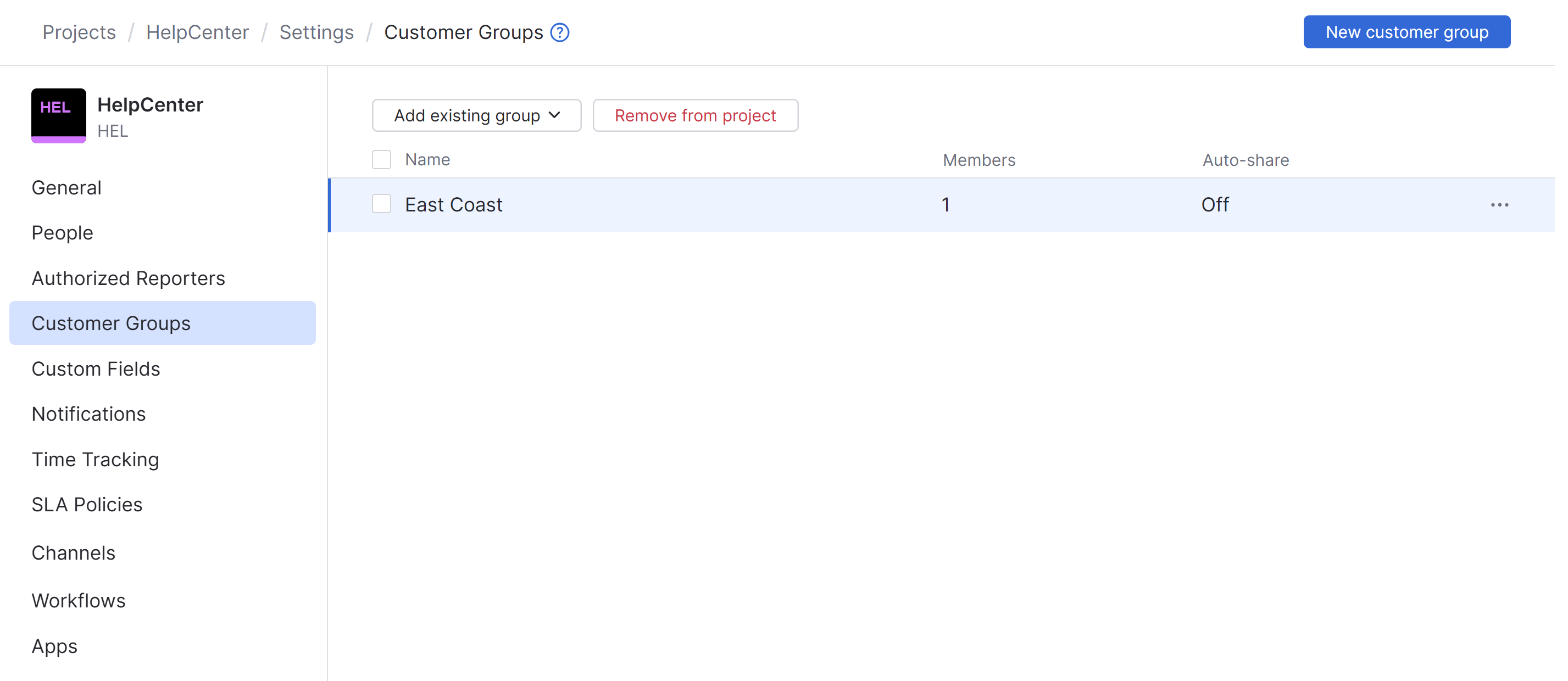
Add a customer group to the project.
To create a new customer group and add it to the project, click the Add customer group button, Select the New customer group option.
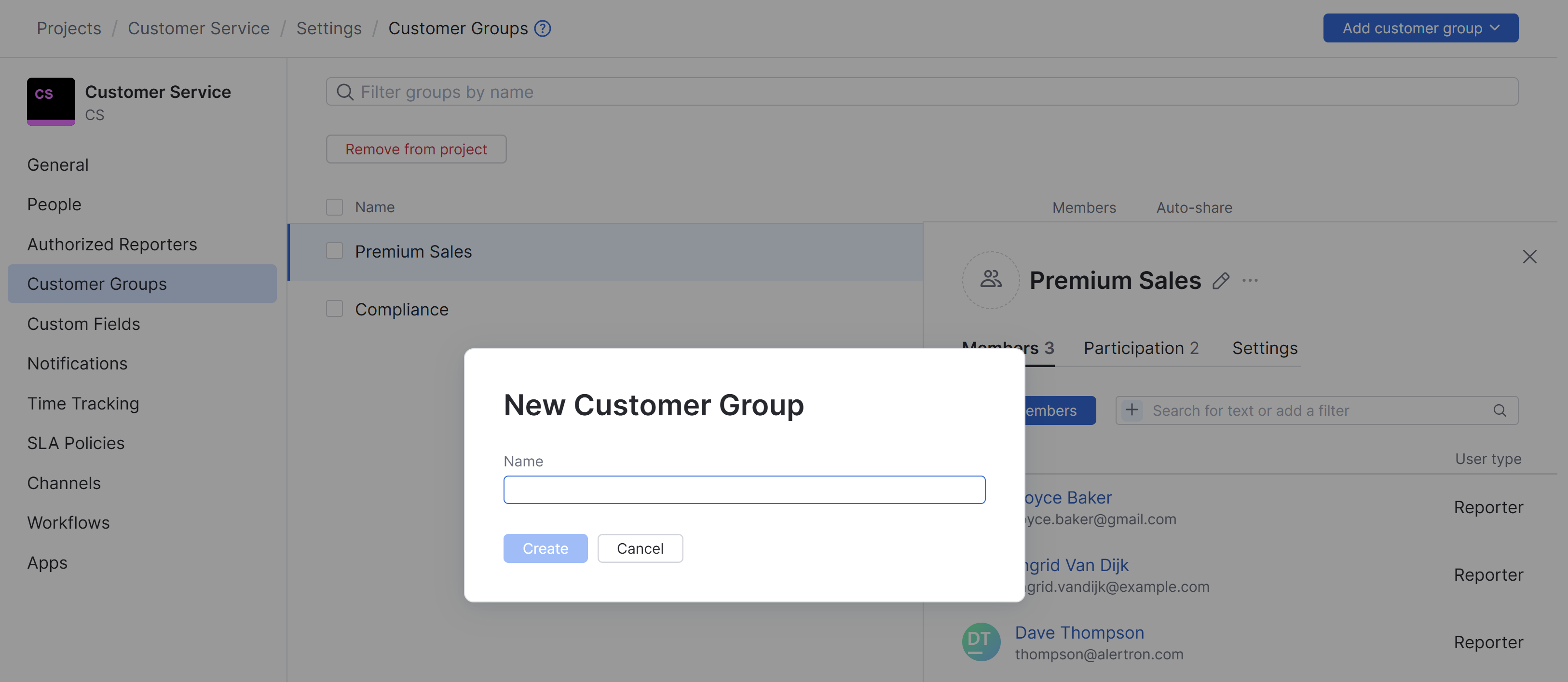
In the New Customer Group dialog, enter a name, then click Create.
To add an existing customer group, click Add existing group and select a group from the list.
To enable automatic ticket sharing for a customer group:
Open the Customer Groups page in the helpdesk project settings.
Select a customer group from the list.
In the sidebar, open the Settings tab.
Under Project-specific, set Auto-share to On.
When Auto-share is on, new tickets from group members are automatically shared with the group. When it is off, agents can still share individual tickets with the group manually.
Members and Group Settings
From the Customer Groups page, selecting a group opens a sidebar.
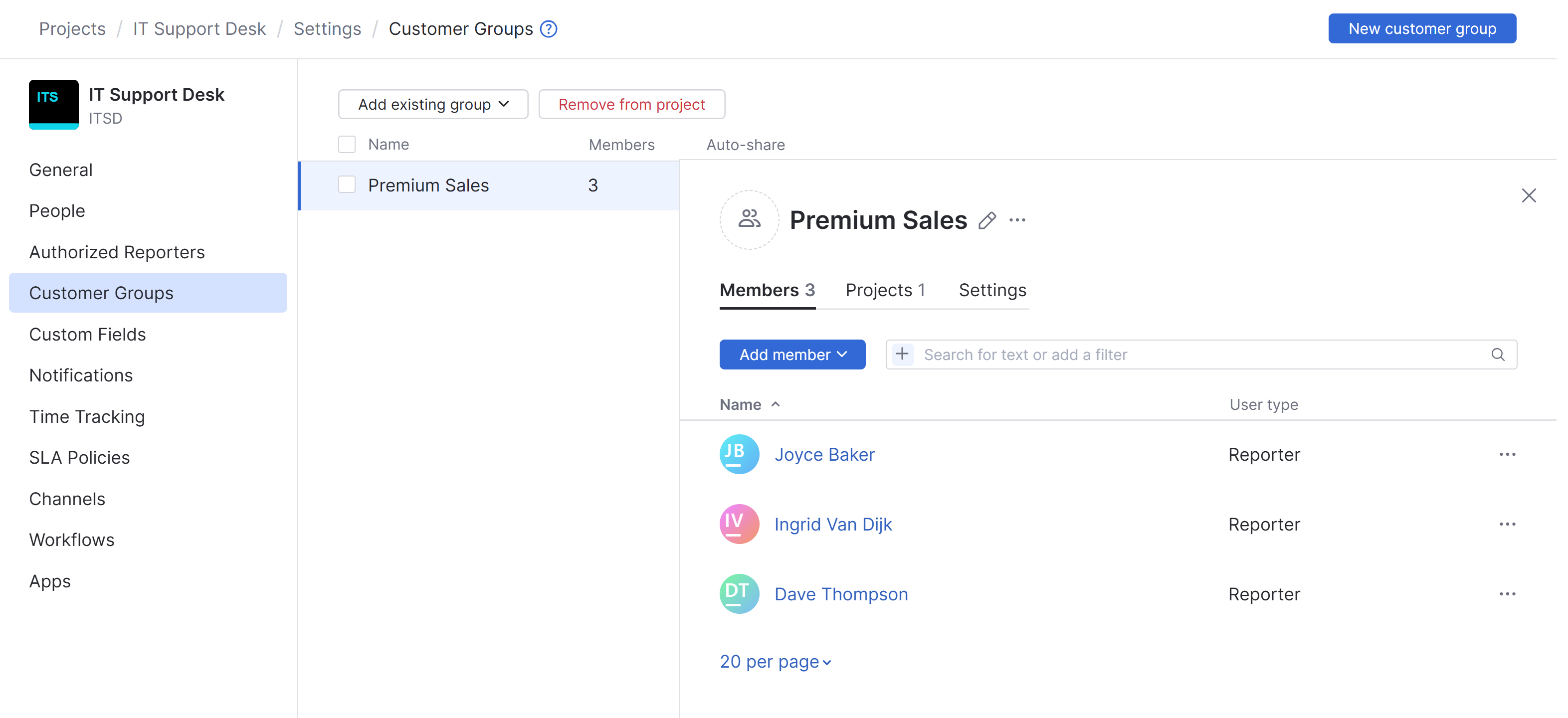
The sidebar contains settings for the customer group, organized into the following tabs:
Tab | Description |
|---|---|
Members | Shows the users who belong to the customer group. Users with permission to update the group can add and remove members. Reporter accounts can also be upgraded to standard user accounts from this tab. |
Projects | Shows the helpdesk projects where the customer group is used. |
Settings | Stores project-specific auto-share settings and global group settings such as auto-join, two-factor authentication, and who can view or update the group. |
Global customer group settings are shared across all helpdesk projects where the group is used.
Add Users to a Customer Group
You can add one or more user accounts to a customer group. Members of the group are able to interact with tickets that are shared with the group.
To add users to a customer group:
Open the Customer Groups page in the helpdesk project settings.
Select a customer group from the list.
On the Members tab of the sidebar, click the Add members button.
In the Add Members dialog, select one or more user accounts to add to the group. To narrow down the list, start typing a username or apply a filter.
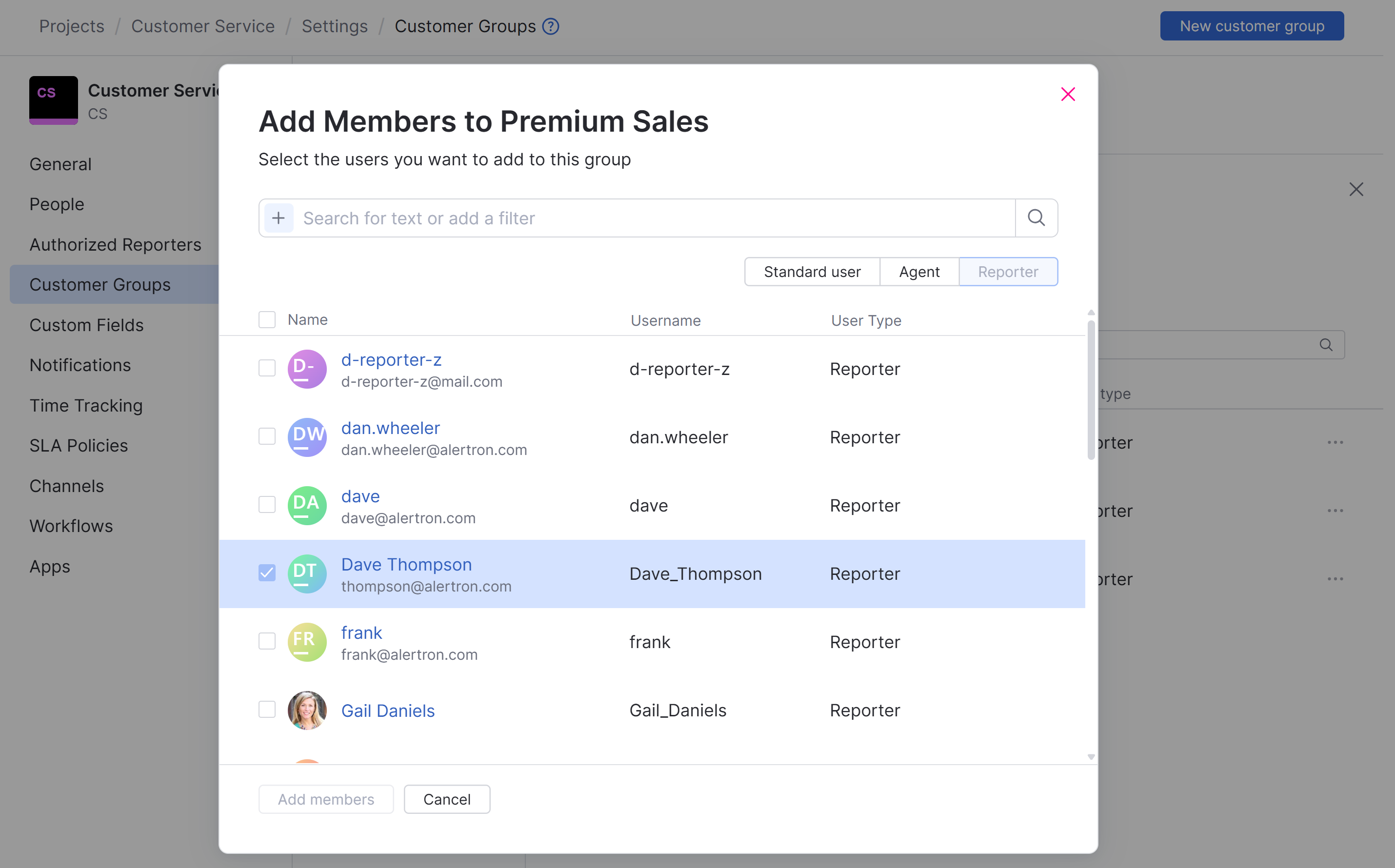
Click the Add members button.
The selected user accounts are added to the group and inherit access to tickets shared with this group.
Restricted Helpdesk Projects
In restricted helpdesk projects, customer groups can be added to the Authorized Reporters page. Members of authorized customer groups can create tickets in the restricted project without being added individually.
The list of authorized customer groups is independent from the project customer group catalog. Adding a group to Authorized Reporters lets its members create tickets in the restricted project. Adding a group to Customer Groups lets agents share tickets with the group.
For details, see Restricted Helpdesk Projects.
Ticket Sharing
Agents can share a helpdesk ticket with any customer group that has been added to the project customer group catalog. Members of selected groups can view the ticket and add public comments.
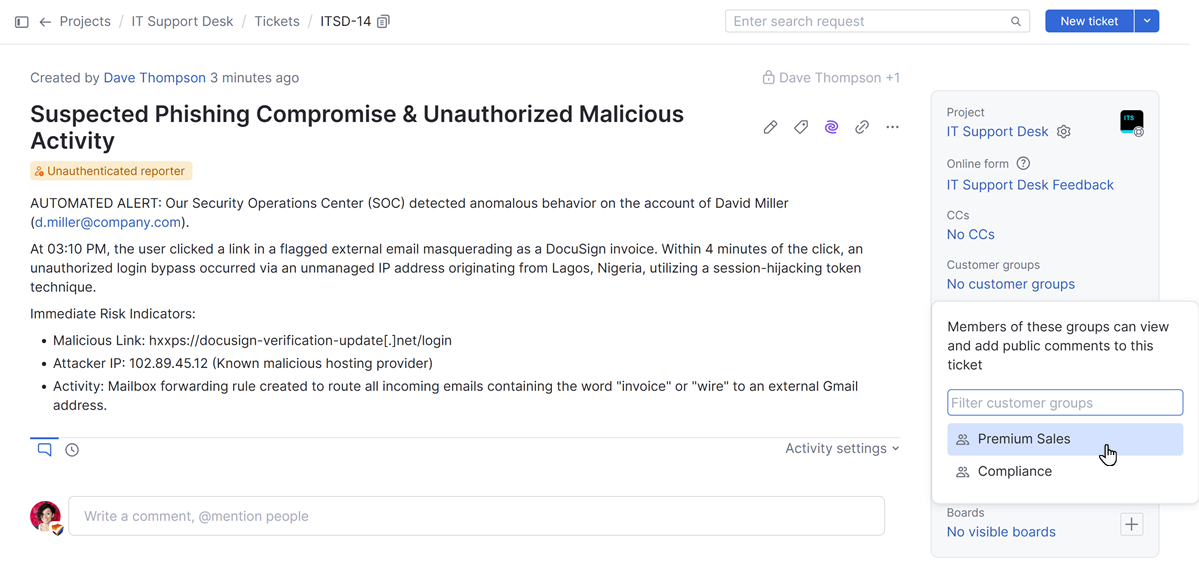
If a reporter is removed from a customer group, the group is removed from tickets where this user is the reporter. This prevents former group members from continuing to share tickets with an organization they no longer belong to.
For instructions, see Add Customer Groups to a Ticket.
Online Forms
Online forms in helpdesk projects can include a Customer Group building block. This lets reporters select one or more customer groups when they submit a request. The selected groups are added to the ticket as customer groups.
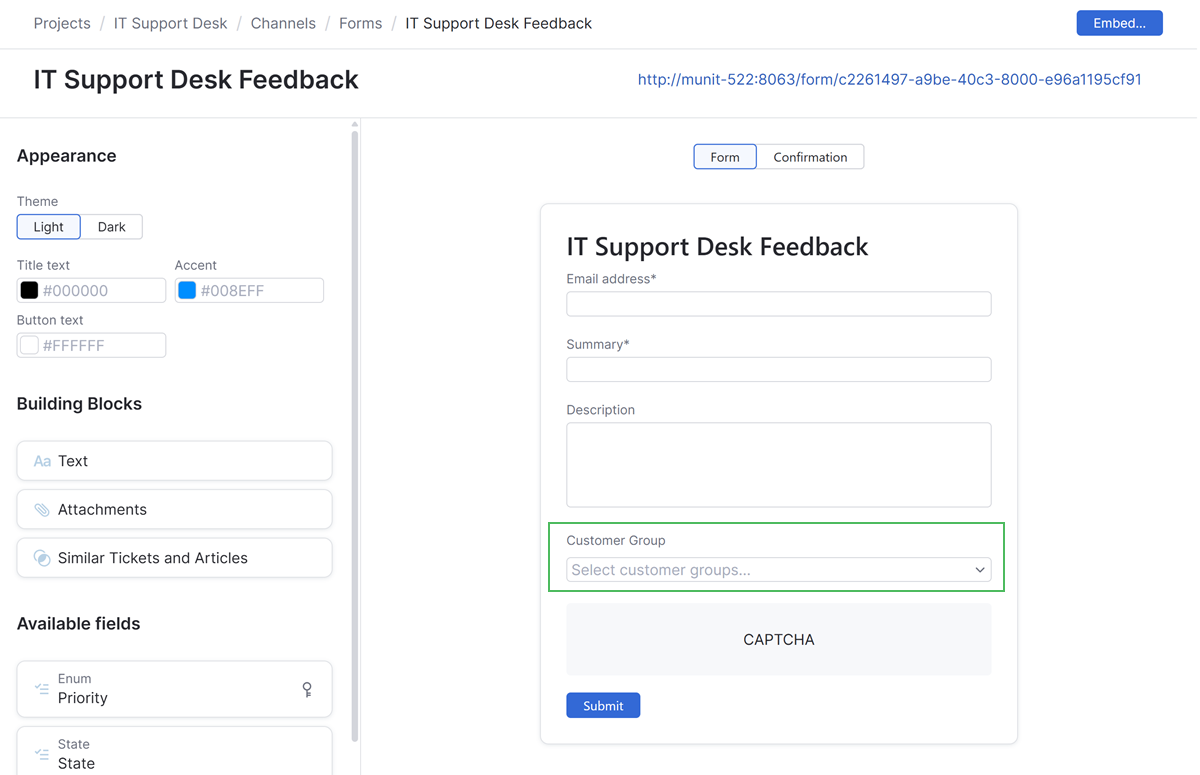
For details about online form building blocks, see Building Blocks.
Notifications
Standard users and agents who belong to customer groups can manage notifications for tickets shared with their customer groups from their notification settings. The subscription is shown as Shared with my customer groups.
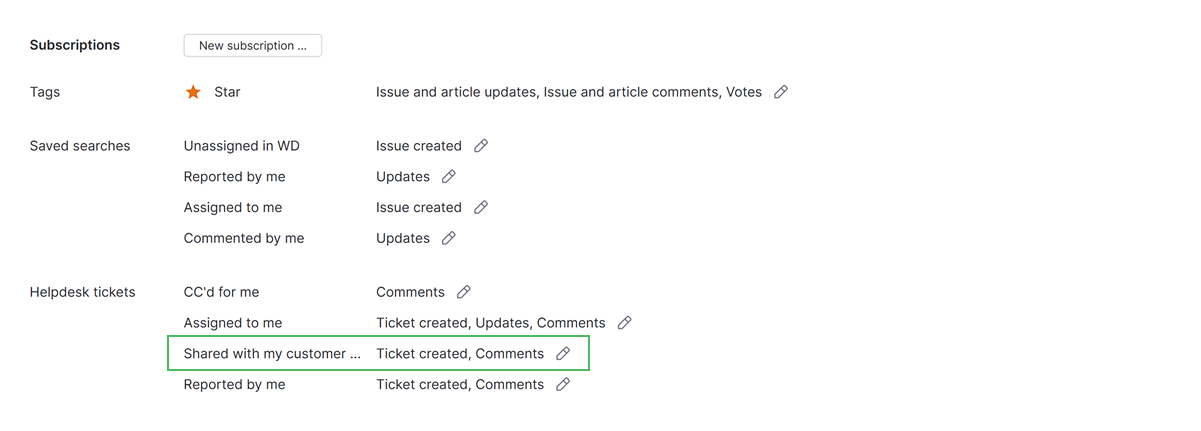
Reporter accounts don't receive notifications for tickets shared with their customer groups. A reporter can receive additional notifications when added to a ticket as a CC recipient. However, these notifications are controlled by the CC'd for me subscription.