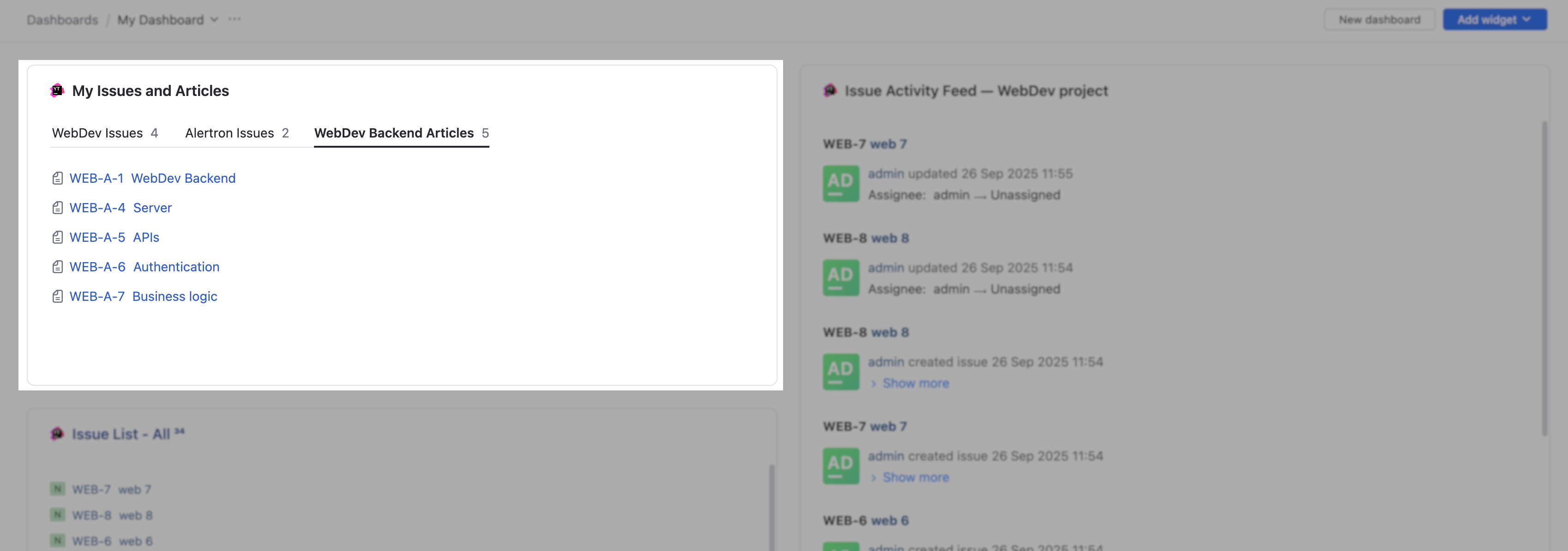
Document List Widgets
A Document List widget displays issues and articles that match a search query, organized into customizable tabs.
To add a Document List widget to a dashboard:
From the main navigation menu, select
 Dashboards.
Select a dashboard for the widget.
Click the Add widget button on the dashboard.
From the drop-down list, select Document List Widget.
The configuration dialog for the new widget opens.
Enter a custom title for the widget. A custom title for the widget is optional. The default name for the widget is Document List.
Enter a descriptive name for the selected tab.
Select a Document type from the drop-down menu.
Select Issue for the query to return matching issues.
Select Article for the query to return matching articles.
Enter a search query in the input field.
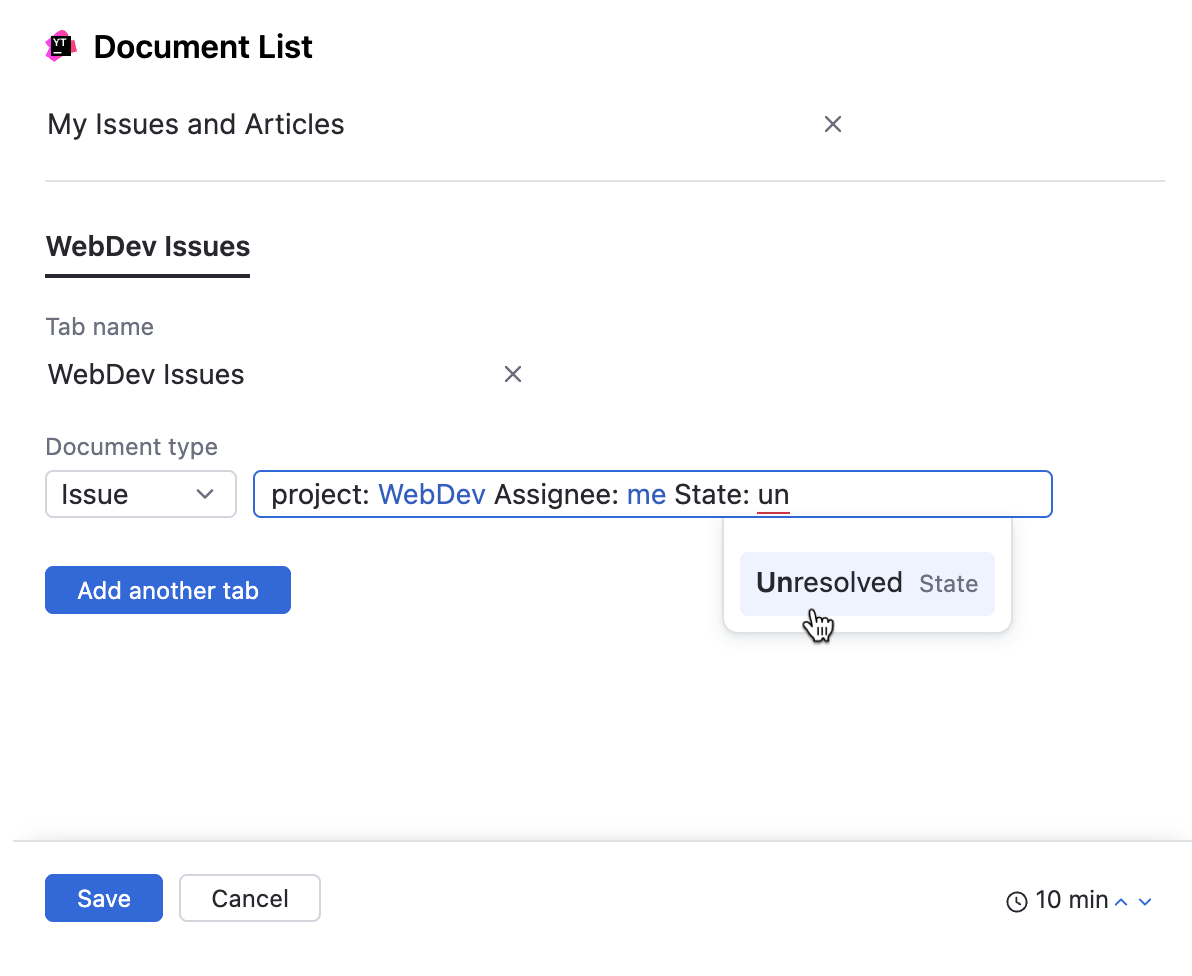
Click Add another tab to add additional tabs to the widget.
Click the Save button.
The Document List widget is added to the Dashboard.
Working with a Document List Widget
When you add a Document List widget to your dashboard, you can interact with it in the following ways:
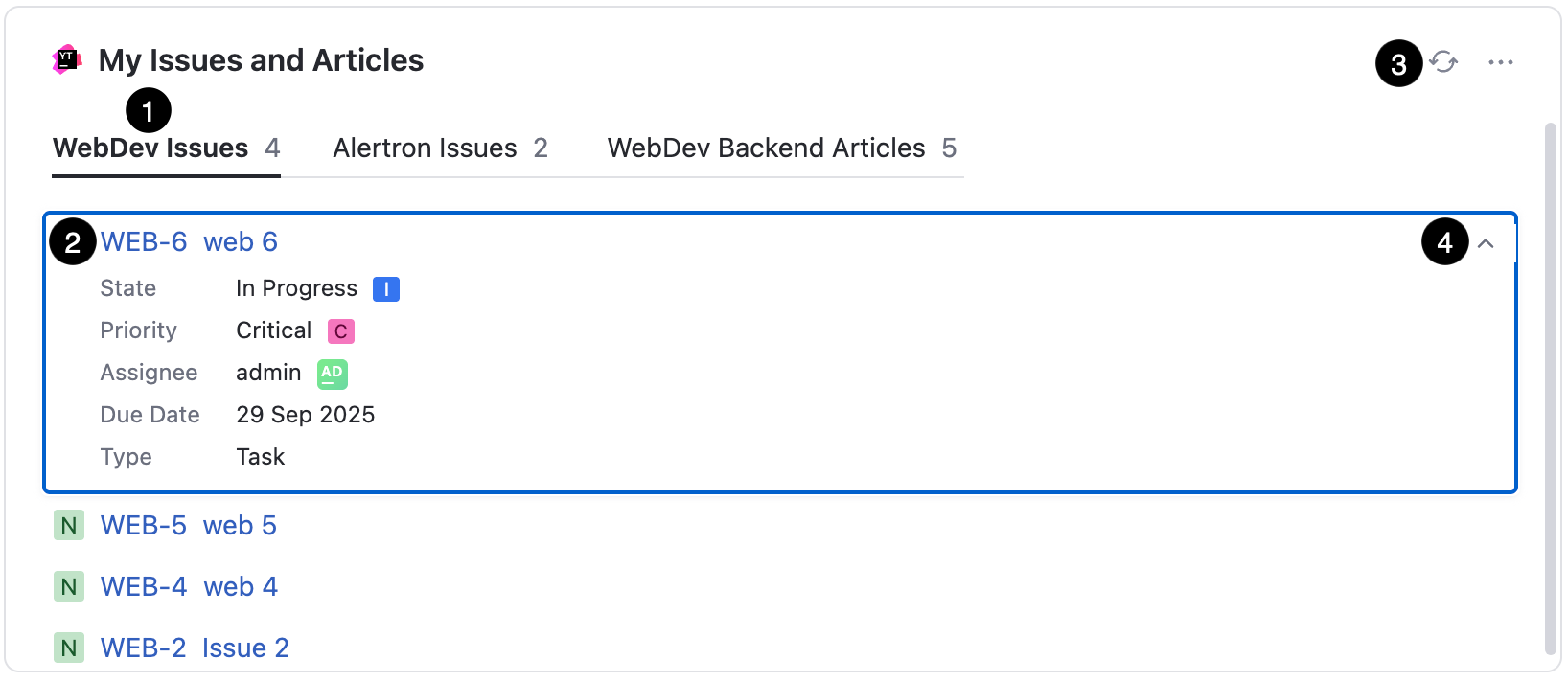
Click a widget tab to display the issues or articles matching the search query.
Click a summary to open the corresponding issue or article.
Click to refresh the widget.
Click to expand and view the values for custom fields in the corresponding issue. Only values for custom fields are shown in this view. Standard fields like Project and Boards aren't visible. Additional information like tags, descriptions, and comments aren't visible.
This feature is only available for a list of Issues.
Click the  More menu in the corner of the widget to expand a list of available actions.
Action | Description |
|---|---|
Share link | Opens a dialog with a link that can be copied and shared with teammates.
|
Clone widget | Creates a duplicate of the widget on your dashboard. |
Move to another dashboard... | Opens a dialog with a drop-down menu of available dashboards. Select a new dashboard for the widget and click Move. The widget is removed from the current dashboard and moves to the selected dashboard. |
Edit... | Modify the settings of the widget. |
Remove | Opens a dialog. Click Delete to permanently remove the widget. |
About | Opens a new YouTrack page in the web browser to the details section of the widget in Apps. |
Refreshing Widgets Data
The widget content is refreshed every 10 minutes by default. To manually refresh an issue widget, click the  refresh icon in the title bar.
Learn more about setting up refresh rates for individual widgets.
Document List Widget Use Case
Multiple Tabs with Relevant Information
You work on issues across multiple projects in YouTrack, and you want a quick overview of the ones assigned to you that are still #Unresolved. You’d also like easy access to knowledge base articles related to your projects. The Document List widget lets you display both types of information side by side on your dashboard.
To set it up, add a tab for each of your projects as well as a tab for your articles . Give each tab a clear name. For the project issue tabs, select Issue as the Document type and enter this query in the search box: project: <your project name> Assignee: me State: Unresolved
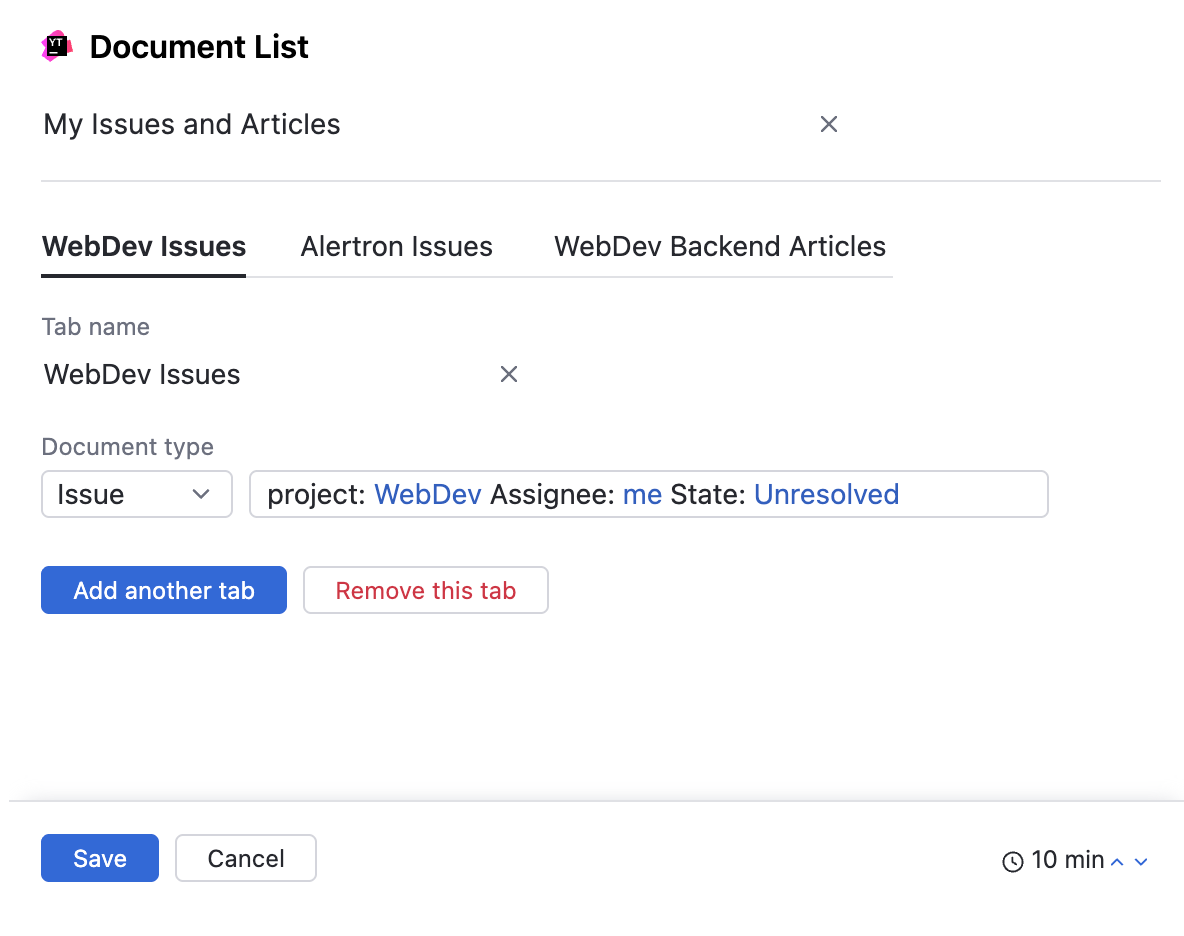
To display a relevant list of articles, select Article as your Document type. In this example, you want to have a list of all the articles relating to the backend in the WebDev project. Enter the query project: webdev Backend sort by: created asc
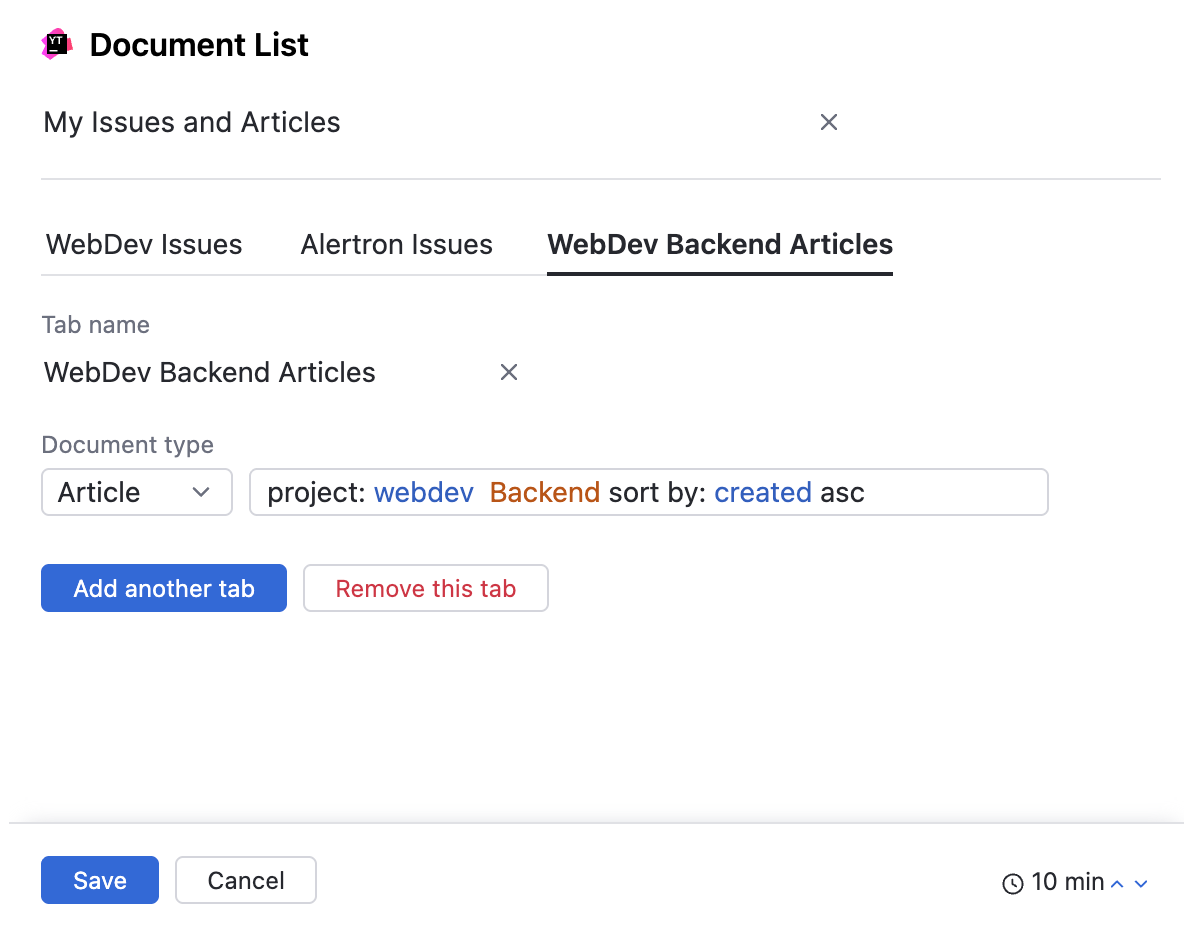
The result is a single widget on your dashboard with multiple tabs containing lists of relevant issues and articles that help improve your work.