Prefill Embedded Online Forms
The YouTrack Form API lets you prefill fields in a Helpdesk online form that is embedded in a website. For example, when a customer opens a support form from a product page, you can use the product name from the page to fill the corresponding field in the form.
Prefilling fields reduces the amount of information that customers need to enter manually. Customers can review and change the suggested values before they submit the form.
This page explains how to connect to an embedded form, identify its fields, and set their values with JavaScript. For information about creating and configuring forms, see Online Forms. For a general introduction to Helpdesk projects, see Helpdesk.
Before You Start
The Form API works with the JavaScript embed code generated by YouTrack.
Working with the Form API requires basic knowledge of JavaScript. The code that connects to the form and sets field values runs on the web page where the form is embedded.
Before you use it:
Create and configure the online form that you want to use. For details about the elements that you can add, see Building Blocks and Available Fields.
Embed the form in your website and keep the generated embed code available.
Decide which values the surrounding page can provide and which form fields should receive them.
After these preparations are complete, prefilling an embedded form involves the following:
Connect to the embedded form using its form ID.
Identify the form fields by their block IDs or titles.
Use the Form API methods to inspect field values and set the values you want to prefill.
The sample script in the next section shows the complete flow. The sections that follow explain each part in detail.
Sample Script
The sample below demonstrates how to prefill an embedded form with JavaScript. It connects to a form, sets values for the Email, Summary, and Description fields, and sets values for custom fields named Due date and Priority. The form ID, field names, and values in the code are examples.
The example checks that the Priority block and at least one selectable value are available before it sets the field. This prevents the custom-field part of the script from failing when the form configuration is different.
Connect to the Embedded Form
Each embedded form has a unique form ID. You can find this ID in the embed code generated by YouTrack.
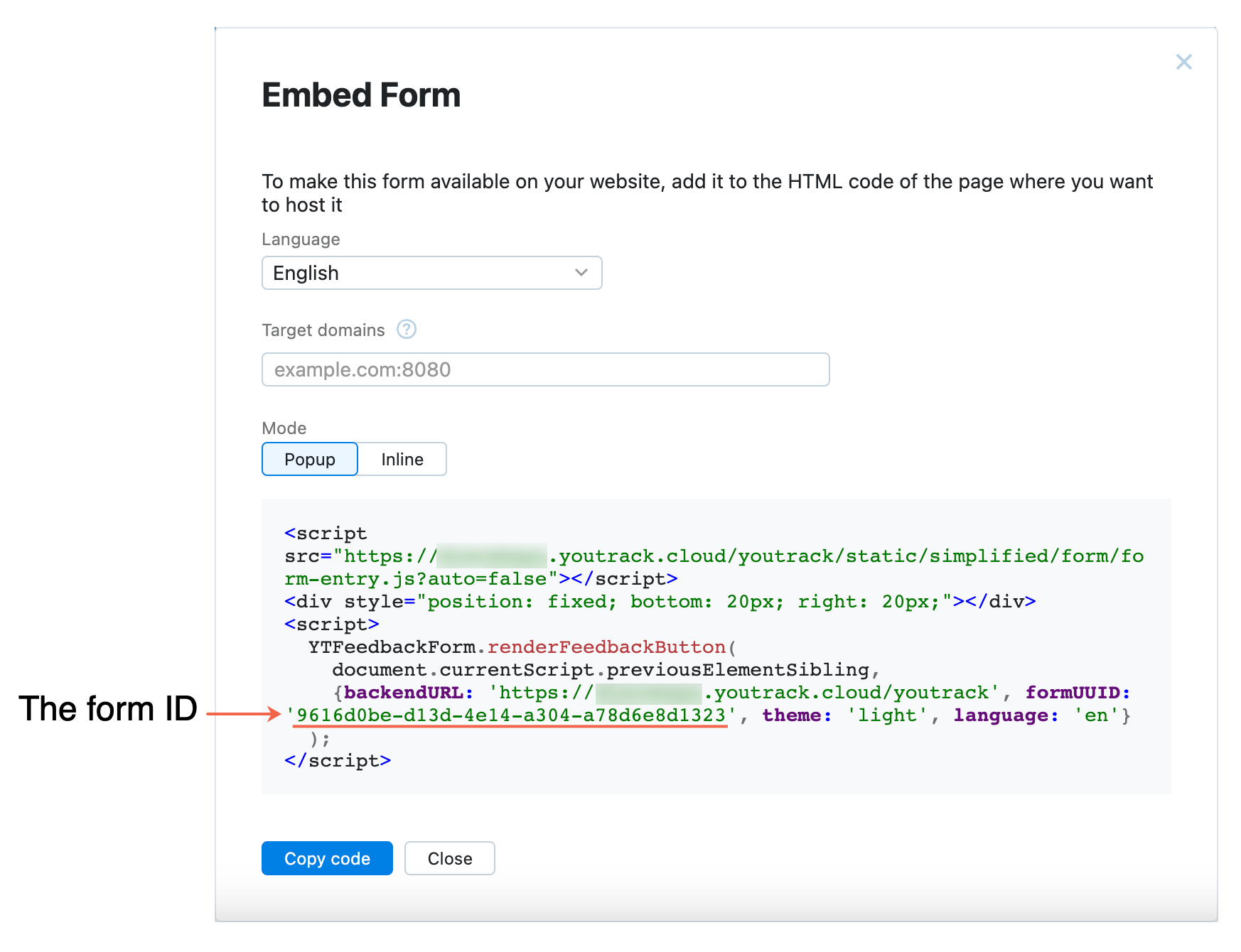
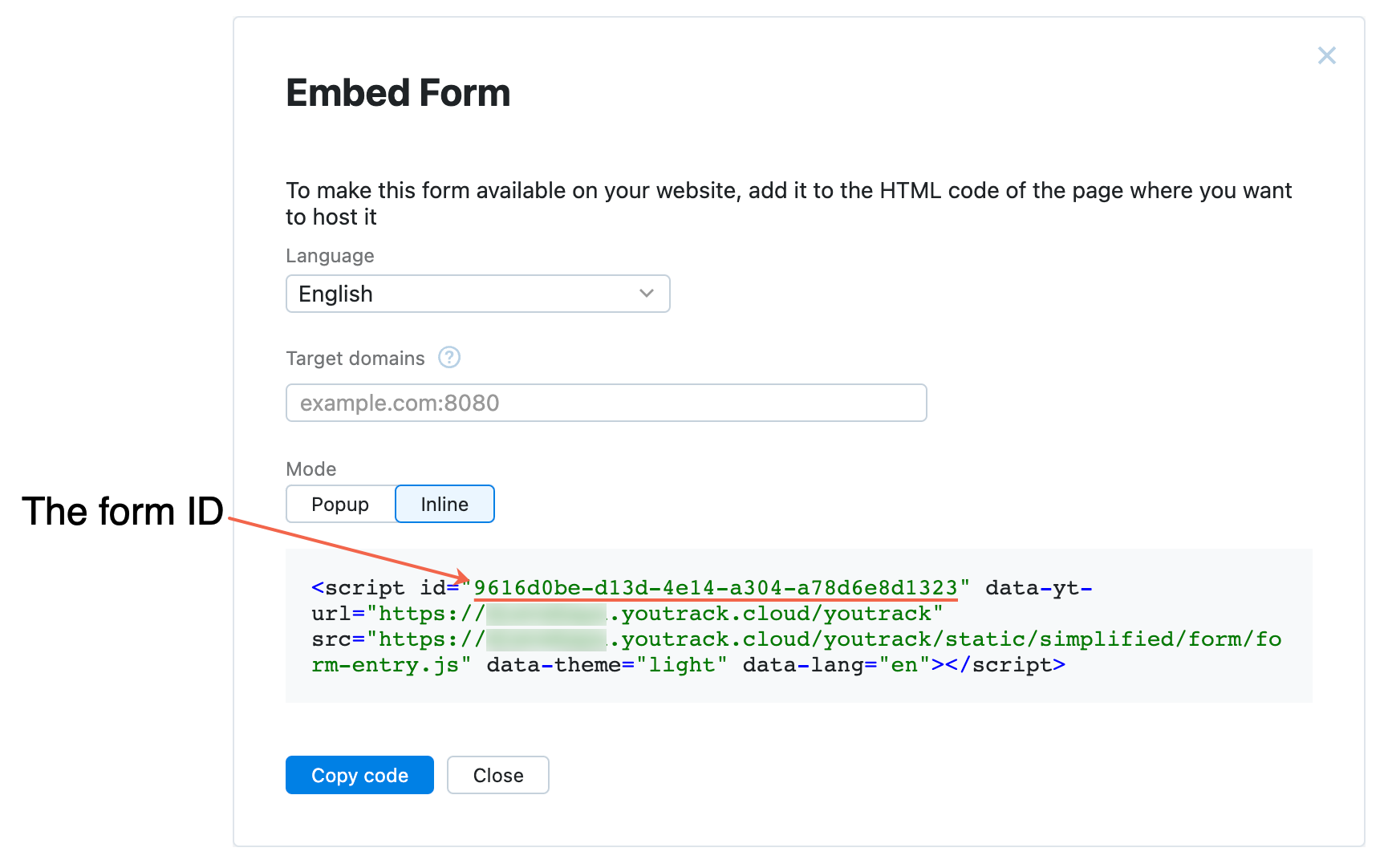
Pass the form ID to the getClientJSApi method to establish a connection:
The method returns a promise that resolves when the form is ready. The form parameter inside the callback gives you access to the Form API methods described below. Replace the example ID with the ID from your embed code.
Refer to Form Fields
The Form API calls the input fields in a form blocks. Methods that read or update a block use the blockReference parameter to identify it.
You can use either of the following values as a block reference:
The block ID returned by the
getBlocksmethod.The block title shown in the form. Title matching is not case-sensitive.
If a title can change or more than one block has the same title, use the block ID to avoid ambiguity.
Predefined Fields
You can refer to the following predefined fields by name without first looking up their block IDs:
emailsummarydescription
The following statements set values for these fields:
Form API Methods
In the return types below, Value represents a form value object. Its properties depend on the field type. For fields with a list of selectable values, use the objects returned by getBlockValues when you call setBlockValue.
getBlocks
Returns the blocks in the form that are available through the Form API. Use this method to inspect block IDs, titles, types, and default values.
Syntax: getBlocks()
Returned Value
Type | Description |
|---|---|
| An array of blocks available through the Form API. |
Block Object
Property | Type | Description |
|---|---|---|
|
| The block ID. |
|
| The block type. |
|
| The block title. For a block without a custom title, this property contains the block type. |
|
| Indicates whether the block provides a list of selectable values. |
|
| The default value configured for the block. |
getBlockValue
Returns the current value of a block. Use this method when the value for one block depends on information entered in another block.
Syntax: getBlockValue(blockReference)
Parameters
Name | Type | Description |
|---|---|---|
|
| Required. The block ID or title. |
Returned Value
Type | Description |
|---|---|
| The current value or values of the block. |
getBlockValues
Loads the values that can be selected for a block, such as an enumerated custom field. You can filter the returned values and skip values that were returned by an earlier request.
Syntax: getBlockValues(blockReference, query, skip)
Parameters
Name | Type | Description |
|---|---|---|
|
| Required. The block ID or title. |
|
| Required. The text used to filter the available values. Pass an empty string to return values without a text filter. |
|
| The number of matching values to skip. This parameter is optional. The default value is |
Returned Value
Type | Description |
|---|---|
| A promise that resolves to an array of available values. |
setBlockValue
Sets the value of a block. If no block matches the supplied reference, the method leaves the form unchanged.
Syntax: setBlockValue(blockReference, value)
Parameters
Name | Type | Description |
|---|---|---|
|
| Required. The block ID or title. |
|
| Required. The value to set.
|