Whiteboard Interface
You can use the whiteboard interface to access all the tools needed to manage your visual workspace in YouTrack. This guide introduces the main elements of the interface and explains how to use them to customize and navigate your whiteboards effectively.
Header
The header displays the current whiteboard name and allows you to navigate to other accessible whiteboards.
You can find additional actions in the  More menu.
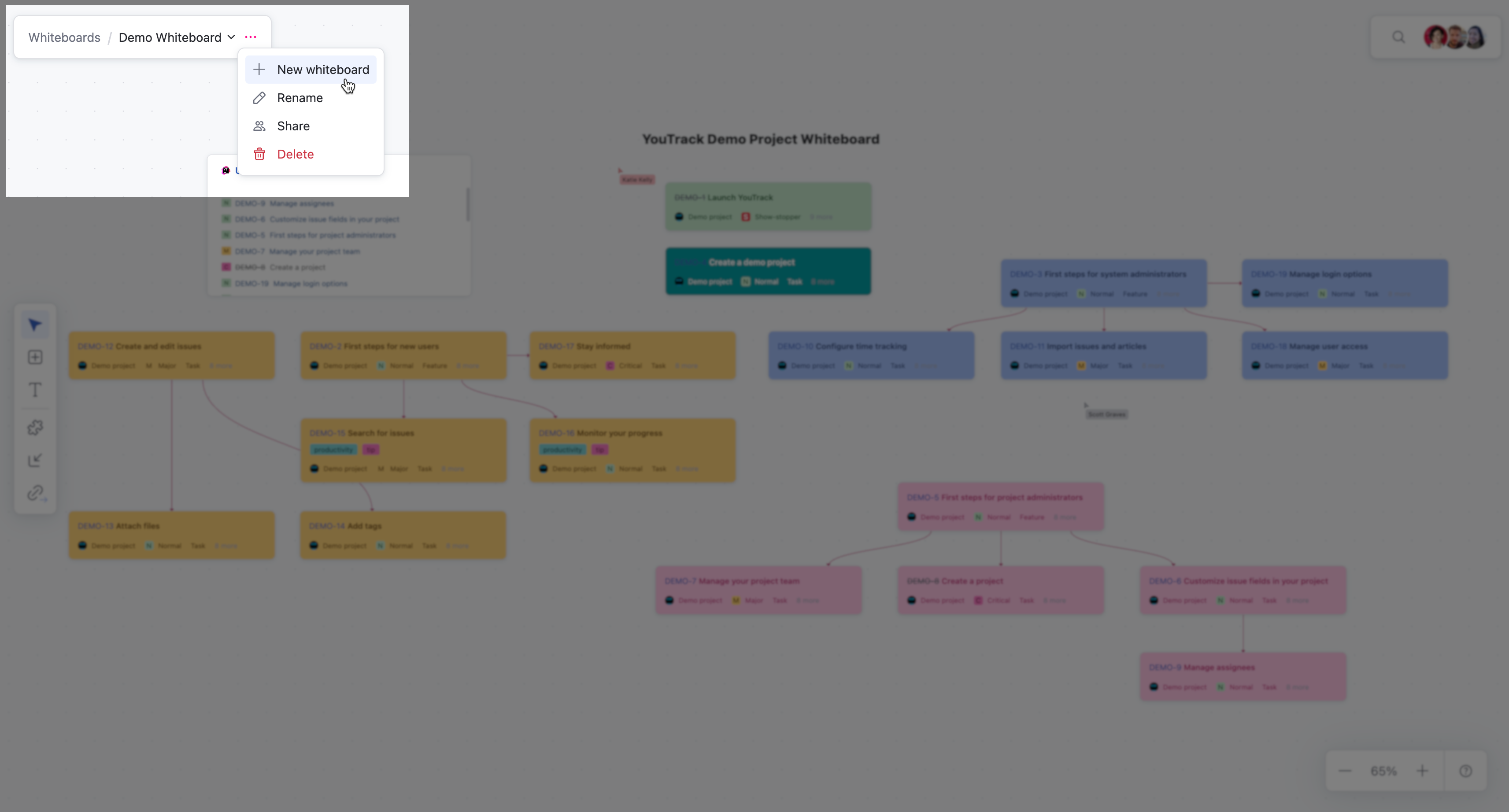
Action | Description |
|---|---|
New whiteboard | Select |
Rename | Select |
Share | Select |
Delete | Select |


Workspace area
The whiteboard area is the central workspace, providing a flexible, infinite space to visually organize your projects and ideas. Here, you can add and arrange elements such as cards, text blocks, widgets, and links to create workflows, map dependencies, or brainstorm solutions. The whiteboard supports drag-and-drop functionality for easy rearrangement, along with tools such as alignment guides and snapping for precise positioning. Its infinite design allows you to expand your workspace as needed, making it easy to adapt to projects of any size or complexity. Whether you’re planning a sprint, creating a roadmap, or collaborating with your team, the workspace area serves as the foundation for turning your concepts into actionable tasks.
Toolbar
The toolbar is on the left side of the whiteboard interface and contains actions managing your workspace.

Action | Description |
|---|---|
Select | Use the |
New card | Use the |
New text block | Use the |
Add widget | Use the |
Add existing items | Use the |
Link | Use the |


Search Bar and Presence Indicator
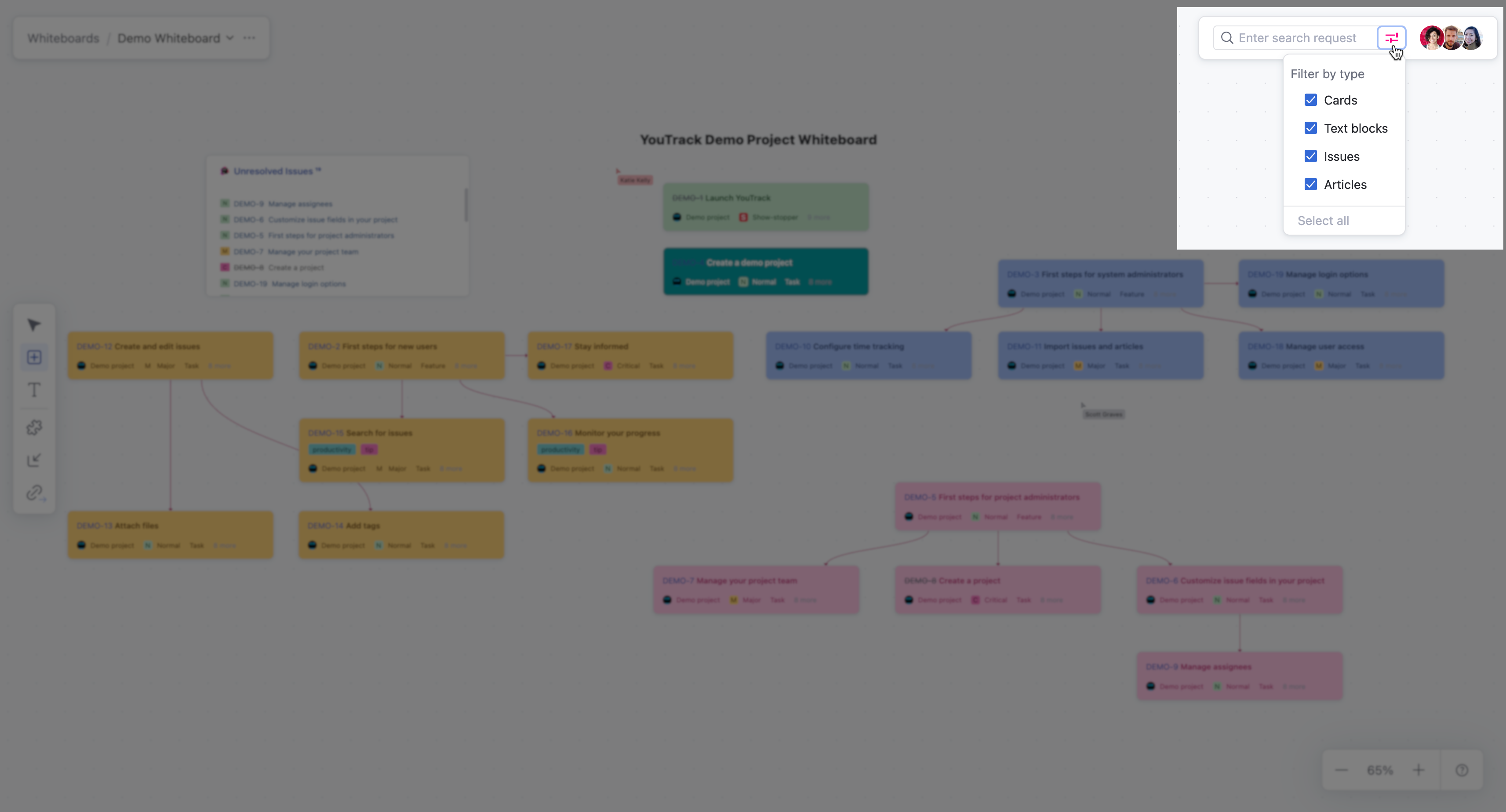
The search box on the whiteboard lets you quickly locate text across all elements, including cards, text blocks, issues, and articles. Type a keyword or phrase into the search box, select an element from the results list, and the whiteboard will highlight the matching elements on the workspace. You can also use  Filter items to filter by type to narrow down results to specific element types, such as cards, text blocks, issues, or articles. This tool makes it easy to find specific items or information, even on large and complex whiteboards.
The presence indicator, to the right of the search box, shows a real-time view of collaborators who are currently active on the whiteboard. A profile picture or initials represent each user, making it easy to see who is working with you. This feature helps teams collaborate more effectively by providing visibility into active participants and their contributions on the whiteboard.
View Controls
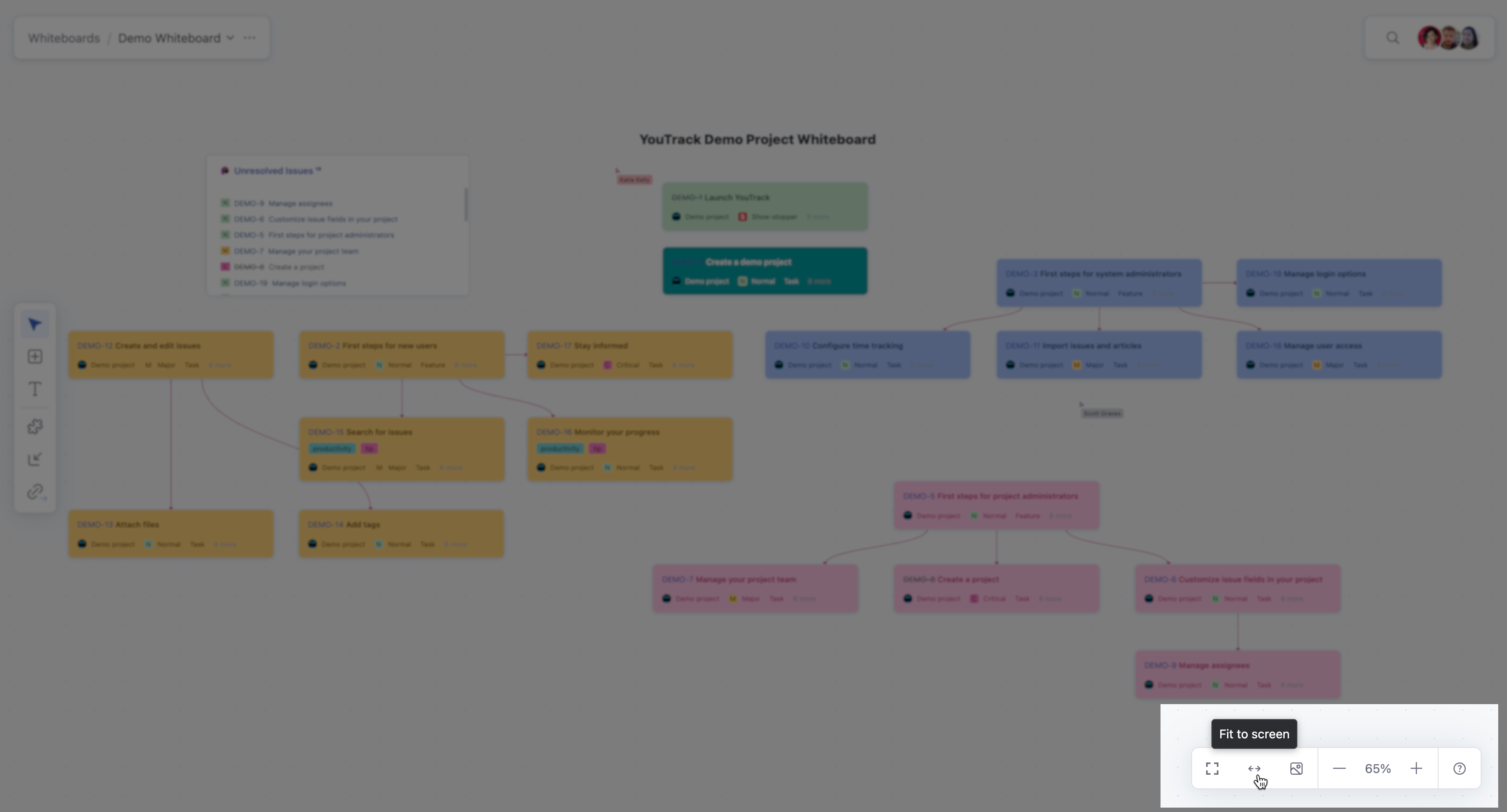
The view controls provide tools to customize your experience when navigating the whiteboard. You can enter full-screen mode for an immersive view, fit the whiteboard to your screen to see all elements at once, and pin or unpin the mini-map for quick navigation. The zoom controls allow you to adjust the whiteboard size, and the interface always displays the current zoom percentage. You can access additional options, such as zoom presets, by hovering over the zoom percentage box, giving you precise control over how you view and interact with the whiteboard.
Action | Description |
|---|---|
Full screen | Select |
Fit to screen | Select |
Pin/Unpin map | Select |
Zoom indicator | The zoom indicator displays the current zoom level as a percentage, showing the current magnification or reduction level. Click the zoom indicator to bring the zoom percentage back to 100%. |
Zoom out/in | Select |
Help | Select |


