Sample Search Queries
This page provides examples and descriptions of search queries that cover a range of common use cases. Use these samples as a model and adapt them to find issues that are relevant to your situation.
YouTrack has two search modes, Simple Search and Advanced Search. Simple search uses natural language from a drop-down menu to suggest relevant attributes and values. Advanced search uses query syntax for precise and complex filtering. Both search methods help you find the issues you are looking for, but some of the examples on this page have parameters that are only available in advanced search.
Default Saved Searches
The Issues drop-down list shows all the saved searches and tags that you have created or are shared with you.
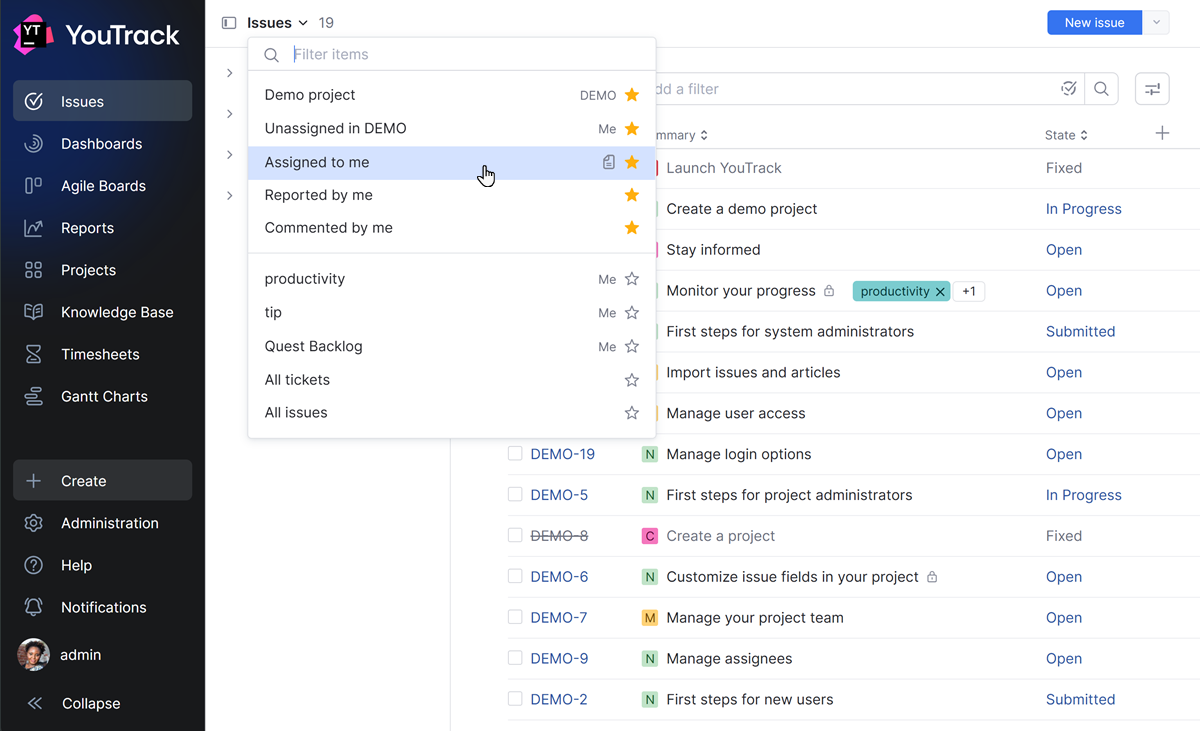
These include the following default saved searches:
Assigned to me
Commented by me
Reported by me
When you select a saved search from the Issues drop-down list, the actual query is displayed in the search box. Here are the search queries that are used for each default saved search:
Saved Search | Query |
|---|---|
Assigned to me |
|
Commented by me |
|
Reported by me |
|
Saved searches are a great tool for learning more about search query syntax. When you're having difficulty writing your own search queries, check the list of saved searches to see if another user has written a query that you can use as an example.
Aliases and Keywords
The search query language includes several aliases and keywords. These are used as shorthand replacements for different attributes and values.
The following queries return exactly the same set of issues as the for: me search query:
AssigneeismeAssigneeis<current username>
These substitutions work for the following reasons:
The keyword
mereferences the current user.
assigned to: meassignee: meassigned to: <current username>assignee: <current username>
These substitutions work for the following reasons:
The search terms
forandassigned toare both aliases for the Assignee field.The keyword
mereferences the current user.
To learn more about keywords in search queries, see Keywords.
Attribute-based Search
Here at JetBrains, we build a lot of tools for software developers. Our customers report many of the problems they encounter with our products as bugs.
We commonly use the Type field to classify issues. If you want to find all the bugs that have been reported in all of our products, the following queries produce the desired result:
Type is Bug
Type: Bug#Bug
Here's the difference between these two queries:
The first query uses an attribute-value pair to find all issues that store the value Bug in the Type.
In the second query, we search for Bug as a single value using the
#character.
If you just enter bug in the search box, you still find all the issues that are classified as bugs by type. However, this search string does not reference an issue attribute and is parsed as a text search. Your search results include any issue that contains the word "bug" in the issue summary, description, or a comment — regardless of issue type.
Searching for Multiple Attributes
Let's assume that you want to locate all the issues that are assigned to a specific user that are classified as either a bug or task.
If you want to find a list of bugs and tasks that are assigned to the user with the username nadia, any one of these queries produces the desired result:
AssigneeisnadiaTypeany ofTask, BugAssigneeisnadiaTypeisTaskTypeisBug
In simple search mode, when you are selecting an attribute, you can select multiple attributes at a time. When you select multiple attributes, the is operator automatically changes to the any of operator.
for: nadia Type: Bug, Taskorfor: nadia #Bug #Taskassigned to: nadia Type: Bug, Taskorassigned to: nadia #Bug #Taskassignee: nadia Type: Bug, Taskorassignee: nadia #Bug #Task
If you tried to search for for: nadia Type: Bug and Task, you probably wouldn't get any matches. That's because the query syntax doesn't recognize Bug and Task as separate values for the Type field. Instead, this query would only return bugs assigned to nadia that also contain matches for the word Task.
And even though you want to find a list of bugs and tasks, you would never search for for: nadia Type: Bug and Type: Task. That's because the query syntax treats search arguments joined with an AND operator as conjunctive. This means that the query would only return issues that are both bugs and tasks. Given that the Type field is usually configured to store single values, you will rarely ever see an issue that is classified as a bug and a task at the same time.
By default, searches that include multiple values for a single attribute are treated as disjunctive. This means that the values are handled as if joined by an OR operator.
In this case, you were looking for multiple vales in the Type field.
If you reference the attribute first, you can list the values separated by commas.
If you substitute the attribute with the
#sign, you can specify the values without a separator.
Whichever format you use, the search parser recognizes that you are looking for multiple values for the same attribute and returns issues that contain either one of these values.
Find Unresolved vs Resolved Issues
When you're just getting started working with the search engine in YouTrack, you may feel like your queries return too many issues. It's usually easier to find exactly the issue you're searching for when you have fewer results.
For a lot of people, that means excluding resolved issue from the search results.
If you wanted to modify the queries from the previous section to return only issues that are unresolved, just add State is Unresolved to the query like this:
Assignee is nadia Type any of Task, Bug State is Unresolved
The keywords Resolved and Unresolved reference a property that is assigned to values in custom fields that store a state type.
In the default State field, the Resolved property is enabled for the values Fixed, Won't fix, Duplicate, Incomplete, Obsolete, and Can't reproduce.
In the default State field, the Resolved property is disabled for the values Submitted, Open, In Progress, Reopened, and To be discussed.
This property can be set independently for each value on a per-project basis.
If you wanted to modify the queries from the previous section to return only issues that are unresolved, just add State: Unresolved or #Unresolved to the query, like this:
for: nadia Type: Bug, Task State: Unresolvedorfor: nadia #Bug #Task #Unresolvedassigned to: nadia Type: Bug, Task State: Unresolvedorassigned to: nadia #Bug #Task #Unresolvedassignee: nadia Type: Bug, Task State: Unresolvedorassignee: nadia #Bug #Task #Unresolved
The keywords Resolved and Unresolved reference a property that is assigned to values in custom fields that store a state type.
In the default State field, the Resolved property is enabled for the values Fixed, Won't fix, Duplicate, Incomplete, Obsolete, and Can't reproduce.
In the default State field, the Resolved property is disabled for the values Submitted, Open, In Progress, Reopened, and To be discussed.
This property can be set independently for each value on a per-project basis. Projects can also be configured to use multiple state-type fields. In this case, issues will only match the #Resolved query when all the state-type fields are assigned values that are considered to be resolved.
Search for Specific States
The search results from the previous example will contain a collection of unresolved issues in a range of issue states. You can also search for specific state values.
If you want to return only issues that are assigned to a specific state, for example, To be discussed, replace State is Unresolved with State is To be discussed, like this:
Assignee is nadia Type any of Task, Bug State is To be discussed
If you add To be discussed to the query without removing Unresolved, you end up with exactly the same number of issues as were returned by the previous query. That's because you're searching for multiple values for a single attribute. As you learned in a previous example, the values are handled as if joined by an OR operator. You won't find issues that are just assigned the state To be discussed as long as your search query returns these issues as well as any other issue that is assigned an unresolved state.
If you want to return only issues that are assigned to a specific state, for example, To be discussed, replace State: Unresolved with State: {To be discussed} or #Unresolved with #{To be discussed}, like this:
for: nadia Type: Bug, Task State: {To be discussed}orfor: nadia #Bug #Task #{To be discussed}assigned to: nadia Type: Bug, Task State: {To be discussed}orassigned to: nadia #Bug #Task #{To be discussed}assignee: nadia Type: Bug, Task State: {To be discussed}orassignee: nadia #Bug #Task #{To be discussed}
If you add #{To be discussed} to the query without removing #Unresolved, you end up with exactly the same number of issues as were returned by the previous query. That's because you're searching for multiple values for a single attribute. As you learned in a previous example, the values are handled as if joined by an OR operator. You won't find issues that are just assigned the state To be discussed as long as your search query returns these issues as well as any other issue that is assigned an unresolved state.
Single Values
In previous examples, you've seen how the # sign is used as a replacement for attribute references as in this query:
The # signs in this query correspond with the following custom fields:
Value | Custom Field |
|---|---|
Open | State |
Unassigned | Assignee |
Feature | Type |
Major | Priority |
You can use the # sign to search for unambiguous values directly. You may encounter situations where a value is used in different fields for different projects. To improve your search results in these cases, use an attribute-value pair instead of searching for the single value.
Relative Date Ranges
To refine your search results, you can use relative date ranges.
If you wanted to find a list of critical issues for which the most recent update was applied sometime during the last week, enter the following query:
Priority is Critical Updated is This week
If you wanted to find a list of critical issues for which the most recent update was applied sometime during the last week, either one of these queries produces the desired result:
Priority: Critical updated: {This week}#Critical updated: {This week}
YouTrack supports pre-defined date and period values like Today, Yesterday, This week, and Last week. For the full list of supported period values, see Predefined Relative Date Parameters.
If you are uncertain of the dates that are represented by a relative date parameter, check the value shown in the autocompletion drop-down.
Searching for Text
Any value in a search query that is not recognized as part of an attribute-value pair is parsed as a text search.
If you were to enter the following search query, the words "in" and "progress" are parsed as text:
Priority is Major Type is Bug in progress
As written, this query returns major-priority bugs that contain the word "progress" in the issue summary, description, or comment as well as issues that are assigned the In Progress state. The word "in" is also parsed as text, but common words (aka stop words are filtered out before the search query is processed.
For these terms to be recognized as a value for the custom field state, the query should be written as
StateisIn Progress. Update the query to reference this issue attribute correctly and see how it affects the query results.
priority: Major Type: Bug in progress
As written, this query returns major-priority bugs that contain the word "progress" in the issue summary, description, or comment as well as issues that are assigned the In Progress state. The word "in" is also parsed as text, but common words (aka stop words are filtered out before the search query is processed.
For these terms to be recognized as a value for the custom field state, the query should be written as either
State: {In Progress}or#{In Progress}. Update the query to reference this issue attribute correctly and see how it affects the query results.
When you reference values that contain multiple words, set them in braces to ensure that they are handled correctly. This includes values for custom fields like {In Progress} or {Won't fix}, relative date parameters like {Last month} or {Three weeks ago}, and even tags.
Searching for Special Characters
The syntax that lets you find exact matches for specific strings of text can be used to find issues that contain one or more special characters. For example:
Searching for
'[i]++'returns any issue that contains a string of characters [i]++ in any issue attribute (probably in a code snippet or stack trace).Searching for
'['returns any issue that contains an opening square bracket character.
To learn more, see Exact Match Search.
Finding Issues Based on Their Descriptions
Finding pages based on the content they contain is one of the most essential features of any search engine. In Youtrack, key information about an issue is usually stored in its description.
There are various strategies for searching issues based on the description text that you can use to find a broad range of possible matches or the exact issue that you want to find.
Consider the different approaches supported by each of the following queries:
Query | Description |
|---|---|
| This query returns issues that contain word forms that match either |
| This query returns issues that contain word forms that match |
| This query returns issues that contain exact matches for the string |
The first example should return a much longer list of issues than the last.
If you're looking to browse a collection of issues that are related to a specific topic, enter a query that contains related keywords as single terms or as a phrase. Wrap the phrases in quotation marks.
If you're trying to find a very precise set of issues that contain a specific string of text, wrap the phrase in single quotes.
If you're certain that the issue you're looking for contains a specific word or phrase in the issue description, you can exclude matches that contain this text in other issue attributes. This is done by using a direct reference to the description attribute. For example:
Description is "export configuration"
description: "export configuration"
Unfortunately, using single quotation marks in the syntax above to filter text in a description isn't supported for exact match search. The search results for exact match queries always include issues that contain the matching string in any issue attribute that stores values as text.
Using Multiple Words in Text Search
Text search is a great tool for finding issues when you're not sure which attributes you should search for. To use text search effectively, you need to understand the mechanics behind it.
This is especially important when your search query contains more than one search term.
For example, if you enter the following search query, it returns issues that contain matching forms for both "context" and "usage".
State is Open context usage
Unlike searches that include multiple values for a single attribute, searches that include multiple words are treated as conjunctive. This means that the words are handled as if joined by an AND operator.
If you wanted to find issues containing either word, you need to add an explicit OR operator. For example:
State is Open context OR usage
To experiment with this syntax, try searching your own YouTrack installation for issues that contain different combinations of words, with and without an OR operator.
State: Open context usage
Unlike searches that include multiple values for a single attribute, searches that include multiple words are treated as conjunctive. This means that the words are handled as if joined by an AND operator.
If you wanted to find issues containing either word, you need to add an explicit OR operator. For example:
State: Open context OR usage
To experiment with this syntax, try searching your own YouTrack installation for issues that contain different combinations of words, with and without an OR operator.
Searching with Phrases
Another approach for finding issues with text search is to search for issues that contain a phrase.
If you wanted to find all the issues in the YouTrack project that contain the phrase "customer support", any one of these queries would produce the desired result:
ProjectisYouTrack"customer support"ProjectisJT"customer support"
in: YouTrack "customer support"project: YouTrack "customer support"in: JT "customer support"project: JT "customer support"
Words that are set in quotation marks are parsed as a phrase. A phrase is defined as a consecutive grouping of word forms that match the text in the search query and appear in the same order.
Sorting Search Results
Sorting is an important factor for processing issues. By putting the most relevant issue at the top of the list, it helps you decide which issue to address first.
YouTrack applies a default sort order to search queries as follows:
For attribute-based search queries, the results are sorted by last update.
For text search, the results are sorted by relevance.
You can override the default sort option by clicking the links under the search box or by specifying a sort attribute in the query itself.
If you wanted to find all the unresolved usability problems reported in the YouTrack project and sort the results from highest to lowest priority, you could write a query that is similar to one of these:
project: YouTrack Type: {Usability Problem} #Unresolved sort by: Priority ascin: YouTrack #{Usability Problem} #Unresolved sort by: Priority asc
If you enter sort by: Priority desc, you see issues with Minor priority at the top of the list. That's because for many custom fields like Priority, the sort order is determined by the ordinal position of each value for the custom field in the project.
The highest value in the list (Show-stopper) has an ordinal value of
1.The lowest value in the list (Minor) has an ordinal value of
5.
When the list is sorted by priority in descending order, issues with Minor priority have the highest ordinal value and appear at the top of the list.
Finding Issues with Attributes that are Not Empty
The search query language has a special has attribute that you can use to find issues for which a specific attribute is not empty.
If you want to find all the issues in the YouTrack project that have votes and are currently in an #Unresolved state, either one of these queries produces the desired results:
ProjectisYouTrackStateisUnresolvedHasisvotesProjectisJTStateisUnresolvedHasisvotes
You can use the has attribute to find issues that have comments, attachments, and work items. Conversely, this search term also helps you exclude issues that have an empty value for a particular attribute.
The following queries return issues in the YouTrack project that have no votes:
ProjectisYouTrackHasis notvotesProjectisJTHasis notvotes
If you want to find all the issues in the YouTrack project that have votes and sort the results by the number of votes, either one of these queries produces the desired results:
in: YouTrack has: votes sort by: votesin: JT has: votes sort by: votes
You can use the has attribute to find issues that have comments, attachments, and work items. Conversely, this search term also helps you exclude issues that have an empty value for a particular attribute.
The following queries return issues in the YouTrack project that have no votes:
in: YouTrack has: -votesin: JT has: -votes
Excluding Issues with Specific Attributes
Excluding issues with specific attributes is a handy way to refine your search results.
For example, if you wanted to close a bunch of issues that nobody seems to care about, you could look for issues that have no votes and no comments. Either one of these queries would produce the desired results:
ProjectisYouTrackHasis notvotesHasis notcommentsProjectisJTHasis notvotesHasis notcomments
Excluding values for the has attribute is a powerful way to find a specific set of issues. For example, you can find all issues that do not have a parent issue with the query Has is not Subtask of.
You can exclude any value from the search results, not just for the has attribute. Just change the operator is to is not in front of the value that you want to exclude. For example:
Priority is not Minor Type is not Usability Problem Fix versions is not Unscheduled.
in: YouTrack has: -votes has: -commentsin: JT has: -votes has: -comments
Excluding values for the has attribute is a powerful way to find a specific set of issues. For example, you can find all issues that do not have a parent issue with the query has -{Subtask of}.
You can exclude any value from the search results, not just for the has attribute. Just add a minus sign in front of the value that you want to exclude. For example, Priority: -Minor Type: -{Usability Problem} Fix versions -{Unscheduled}.
Operators
By default, queries that specify values for multiple attributes are treated as conjunctive. This means that the values are handled as if joined by an AND operator.
Simple search mode doesn't support operators overriding multiple field attributes in a search. All attributes in simple search mode are connected with an AND operator. Switch to Advanced Search for more controlled searches using operators to define multiple attribute-based search results.
Simple search mode does support the OR operator in multiple word text searches. See an example, Simple Search - Multiple Word Text Search.
Sometimes, you might want to override the default and find issues that have any one of the specified attributes, not all of them combined.
Assume you want to find all the issues that a specific user has interacted with in any way. For example, issues that were reported by, have comments from, or were voted for by the user with the username nadine.
Either one of these queries produces the desired results:
reported by: nadine OR commented by: nadine OR voted by: nadinereporter: nadine OR commenter: nadine OR voter: nadine
Without the explicit OR operators, these search attributes are treated as conjunctive. If you were to search for issues using reporter: nadine commenter: nadine voter: nadine, the query won't return any issues — with good reason. It's not just that there aren't any issues that were reported by, have comments from, and were voted by nadine. YouTrack doesn't let you vote for your own issues, so it's impossible for a single user to both report and vote for an issue.
Let's say you're trying to get an overview of all the UI-related tasks that are pending in various projects. You have two projects (Design and Web UI that contain relevant issues, and a third project Docs where a developer with the username raul is responsible for the UI. You want to review a list of unresolved issues in the first two projects alongside the issues that are assigned to raul in the Docs project, either of the following queries would produce the desired results:
((project: Design, {Web UI}) or (project: Docs Assignee: raul)) and (#Unresolved)((in: Design, {Web UI}) or (in: Docs for: raul)) and (State: Unresolved)
Grouping
Using parentheses ( and ) combines various search arguments to change the order in which the attributes and operators are processed. The part of a search query inside the parentheses has priority and is always processed as a single unit.
If you wanted to find a list of issues that are assigned to you and are currently in progress or have been waiting for a reply since last week, you could write a query like this:
The innermost argument (
state: {wait for reply} updated: * .. {last week}) finds issues that are assigned the Wait for reply state and haven't been updated since the end of last week.The results are then broadened to include any issue that is currently in progress by joining (
state: {in progress}) to the first set of results.This collection of issues is further restricted to show only issues assigned to you by combining the argument
for: meusing anoroperator.
Our DataGrip team is responsible not only for the issues in their project but also for issues that are reported in the project for IntelliJ IDEA project that are assigned to the Database subsystem. If you want to find a list of issues that this team is responsible for, any one of these queries produces the desired results:
in: DataGrip or (in: {IntelliJ IDEA} Subsystem: Database)project: DataGrip or (project: {IntelliJ IDEA} Subsystem: Database)