Groups
The Groups page in YouTrack displays a list of groups.
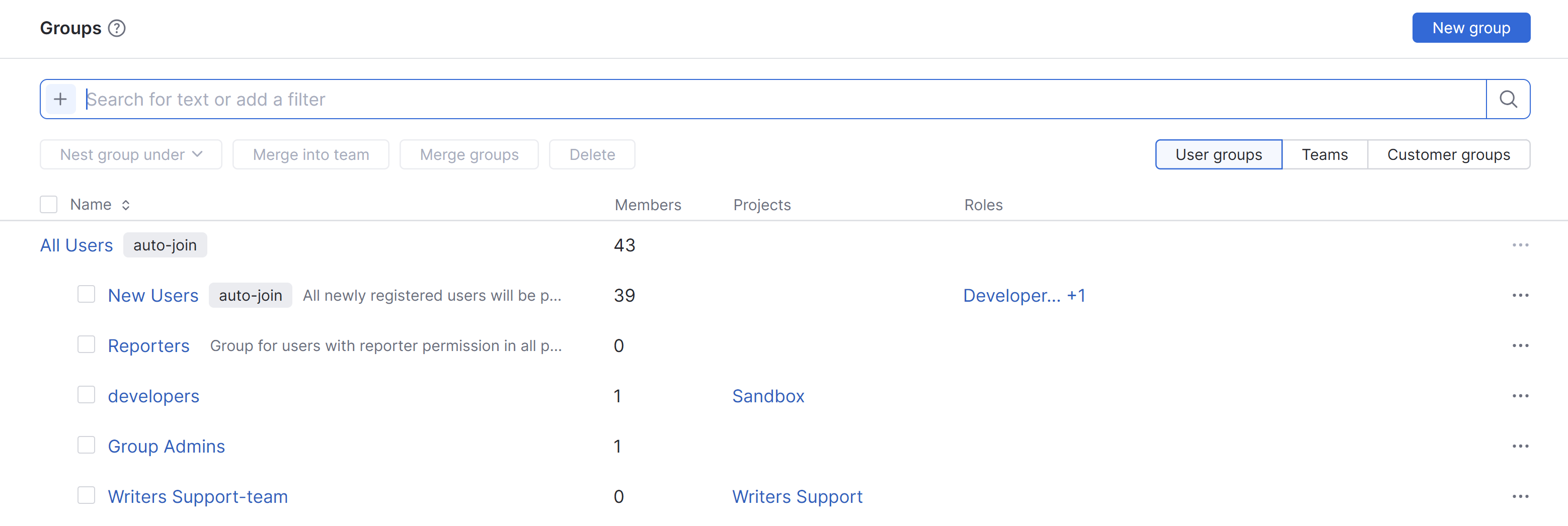
A group is a collection of user accounts. Groups let you manage multiple accounts more efficiently. You can grant and restrict access to specific features in YouTrack for all group members at once.
Groups or Project Teams?
Use a project team when users need the same role in a single project. Each project has one project team, and its role assignments apply only to that project.
Create a user group when you want to manage the same collection of users across multiple projects or other resources. You can assign different roles to the group in different projects or add the group to project teams. Updating the group membership then updates access for its members wherever the group is used.
The following operations are available on this page:
Select a group in the list to open the Details sidebar. The sidebar displays all the roles that are assigned to the group and the project in which each role is applied.
The group also inherits roles that are assigned to a parent group. For example, roles that are assigned to the All Users group are available to all the groups that are nested under this group. Roles that are assigned to parent groups are not shown in the sidebar.
The sidebar contains tabs where you can perform the following operations for the selected group:
For details about customer groups in helpdesk projects, see Helpdesk Customer Groups.
Teams
The Groups page also contains a list of all the project teams in YouTrack. As you have exactly one project team for every YouTrack project, this is basically an overview that shows you how many members are assigned to each project team and which roles are assigned to the team in each project.
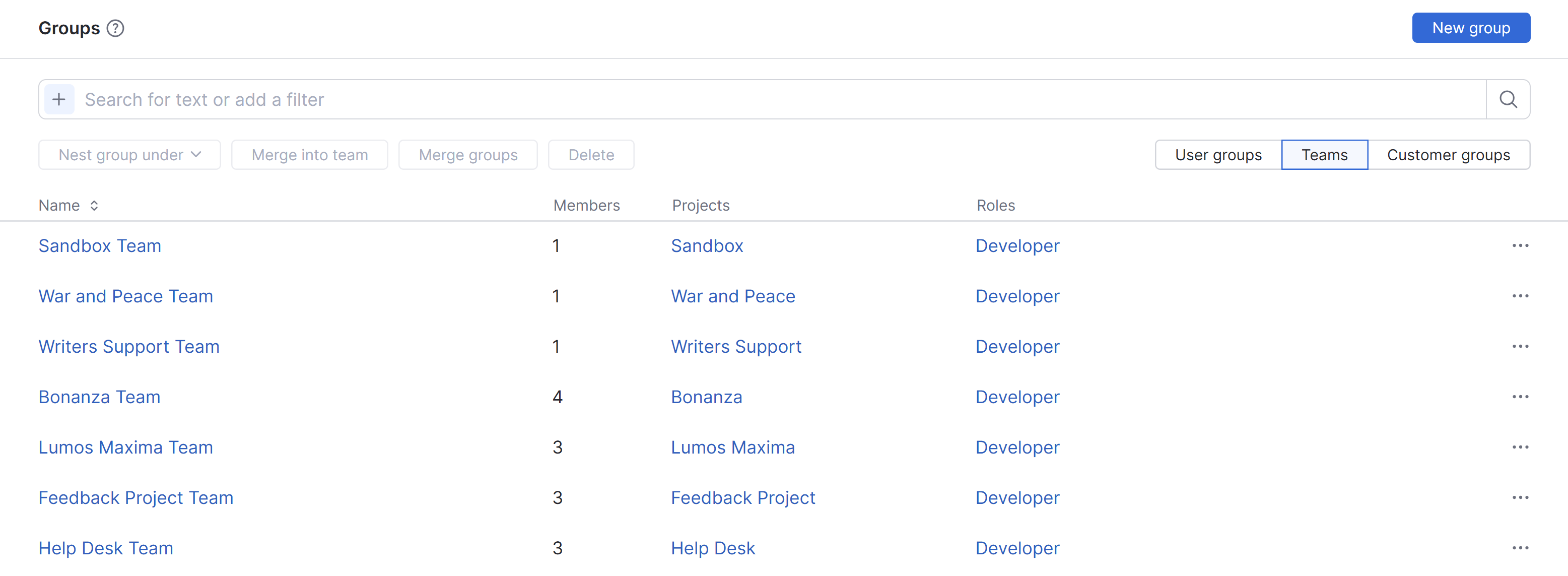
The following actions are available in this view:
Select a project team in the list to display additional information in the Details sidebar.
Click the name of a project team to open the People page in the project settings. From here, you can add members to and remove members from the project team. For more information, see Project Team.
Groups and Teams
When the filters for Groups and Teams are both active, you have access to a mixed mode that shows both groups and project teams in a single list. In this view, project teams are shown with -team appended to the project name.
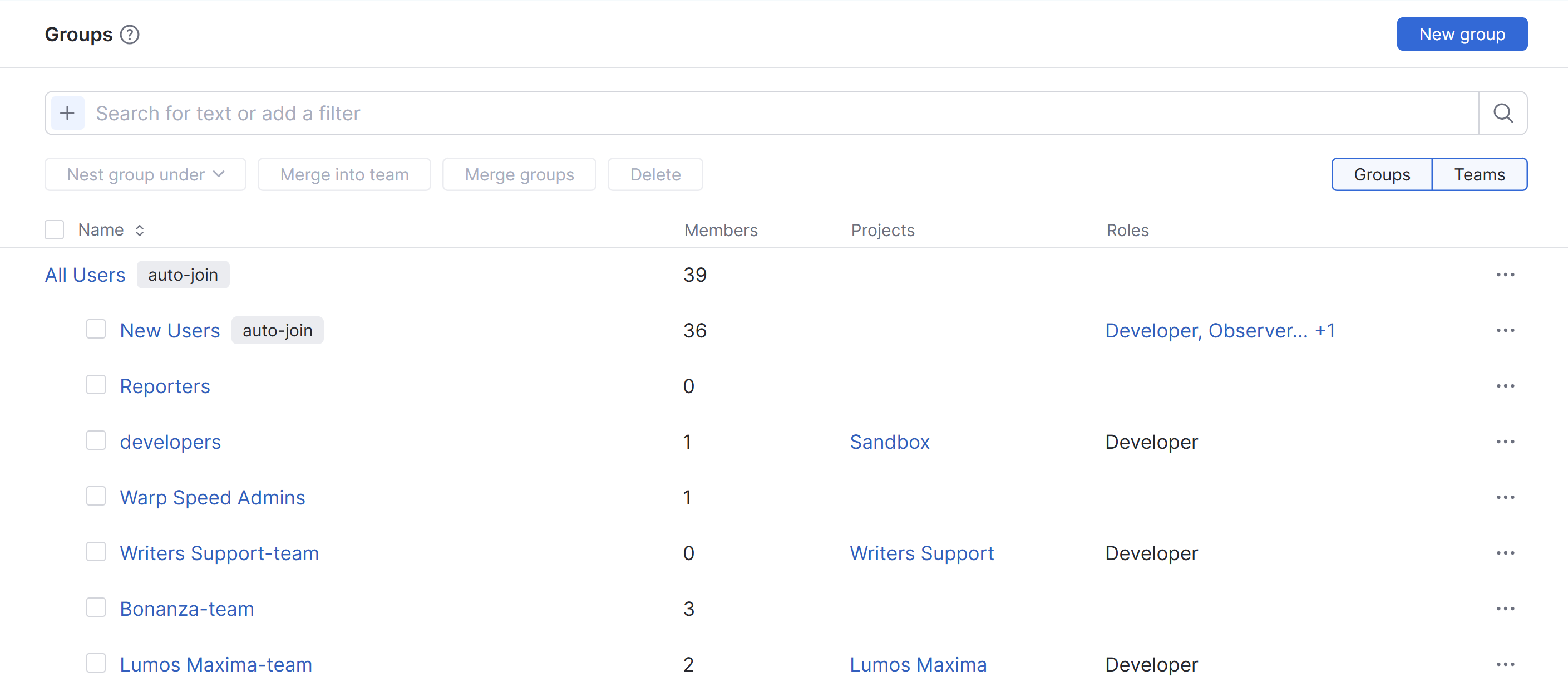
The information in this view helps you identify groups that duplicate the memberships and role assignments that are available to users as members of a project team. If you find a group that can be safely merged into a project team without affecting access rights in other projects, you can merge it into a project team from the Groups tab. For more information, see Merge a Group into a Project Team.
Customer Groups
Groups marked with the Helpdesk badge are customer groups. Customer groups are used in helpdesk projects to share tickets with members of the same company, department, or team. They don't receive roles or permissions and can't be nested under other groups.
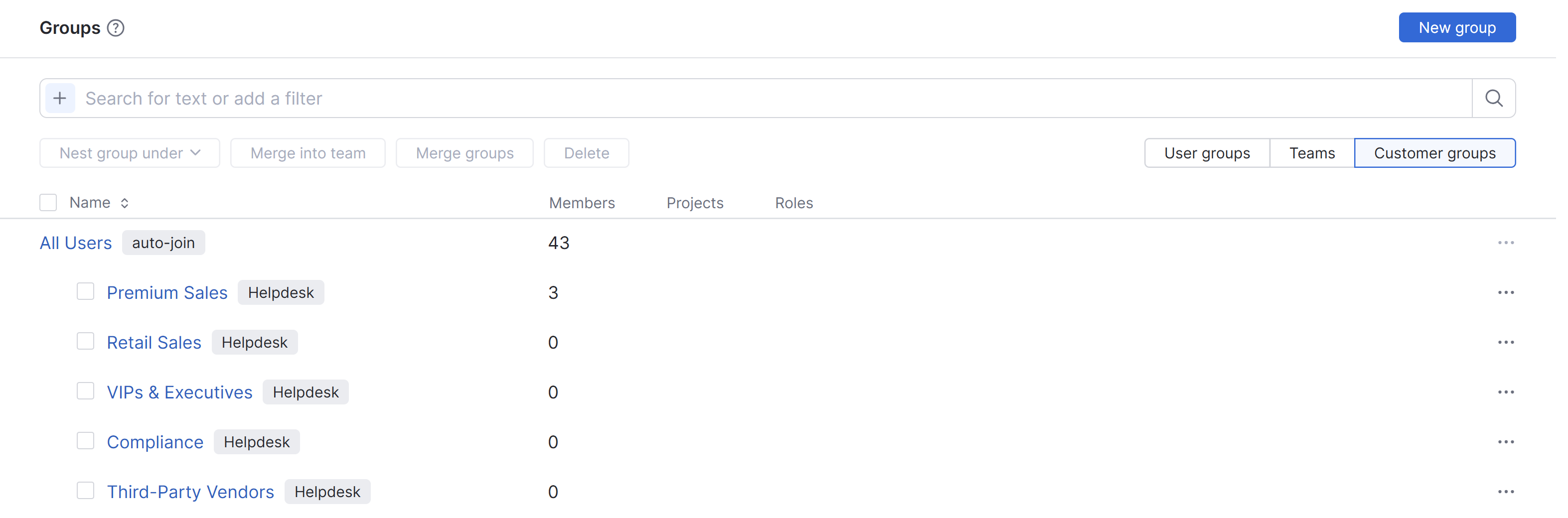
To learn more about this feature, see Helpdesk Customer Groups.