AI-Powered Writing Assistance
YouTrack provides built-in AI-powered writing assistant tools. These writing assistant tools can improve the clarity and quality of your writing by detecting spelling and grammar mistakes and suggesting ways to rephrase your text. It can also predict what words, phrases, or sentences that you are most likely to use next based on the context.
The writing assistant is powered by JetBrains Grazie. Grazie is a platform for interacting with generative AI, machine learning, and other advanced productivity tools.
For an overview of this feature, watch this short video.
Availability
Writing assistance is available for any field that stores formatted text. For issues and tickets, this includes:
Descriptions
Text fields (extended descriptions)
Comments
Descriptions in work items
Writing assistance is not available for issue and ticket summaries or fields that store unformatted strings of text.
For articles in the knowledge base, this includes:
Article content
Comments
Writing assistance is not available for article titles and inline comments.
Accept and Reject Suggestions
The AI writing assistant scans your text as you type. When the Grammar and spelling correction feature is enabled, spelling errors and other problems with grammar or style are underlined. Available suggestion types include:
Correctness: Suggestions related to general grammatical and spelling correctness. For example, replacing "tools that works in your browser" with "tools that work in your browser" for a correct subject-verb agreement.
These suggestions are underlined in red.
Readability: Suggestions that improve readability or clarity. For example, replacing "very big" with "huge" to use shorter and more specific wording.
These suggestions are underlined in purple.
Tone: Suggestions for adjusting tone based on context. For example, removing "just" from instructions as it is redundant and implies a level of difficulty that may not be true for everyone.
These suggestions are underlined in teal blue.
Hover your pointer over the underlined word to see possible fixes for the problem.
Select a suggestion to update the underlined text.
To ignore the suggestion, select Dismiss for now.
Dismissed suggestions are ignored until you reload the page.
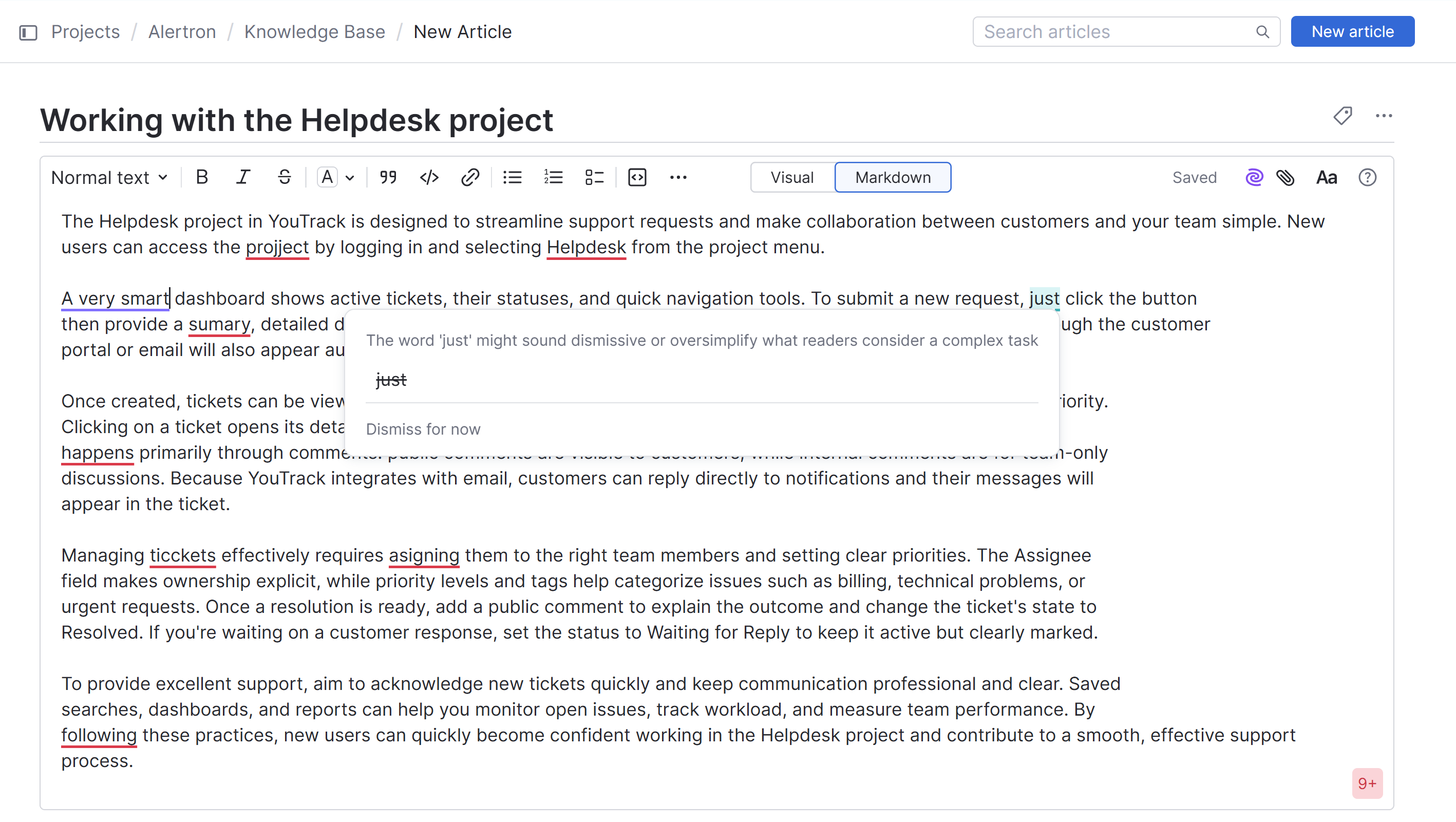
A counter in the lower-right corner of the input field indicates how many suggestions are available for the current block of text. Click the counter to open the list and review each suggestion.
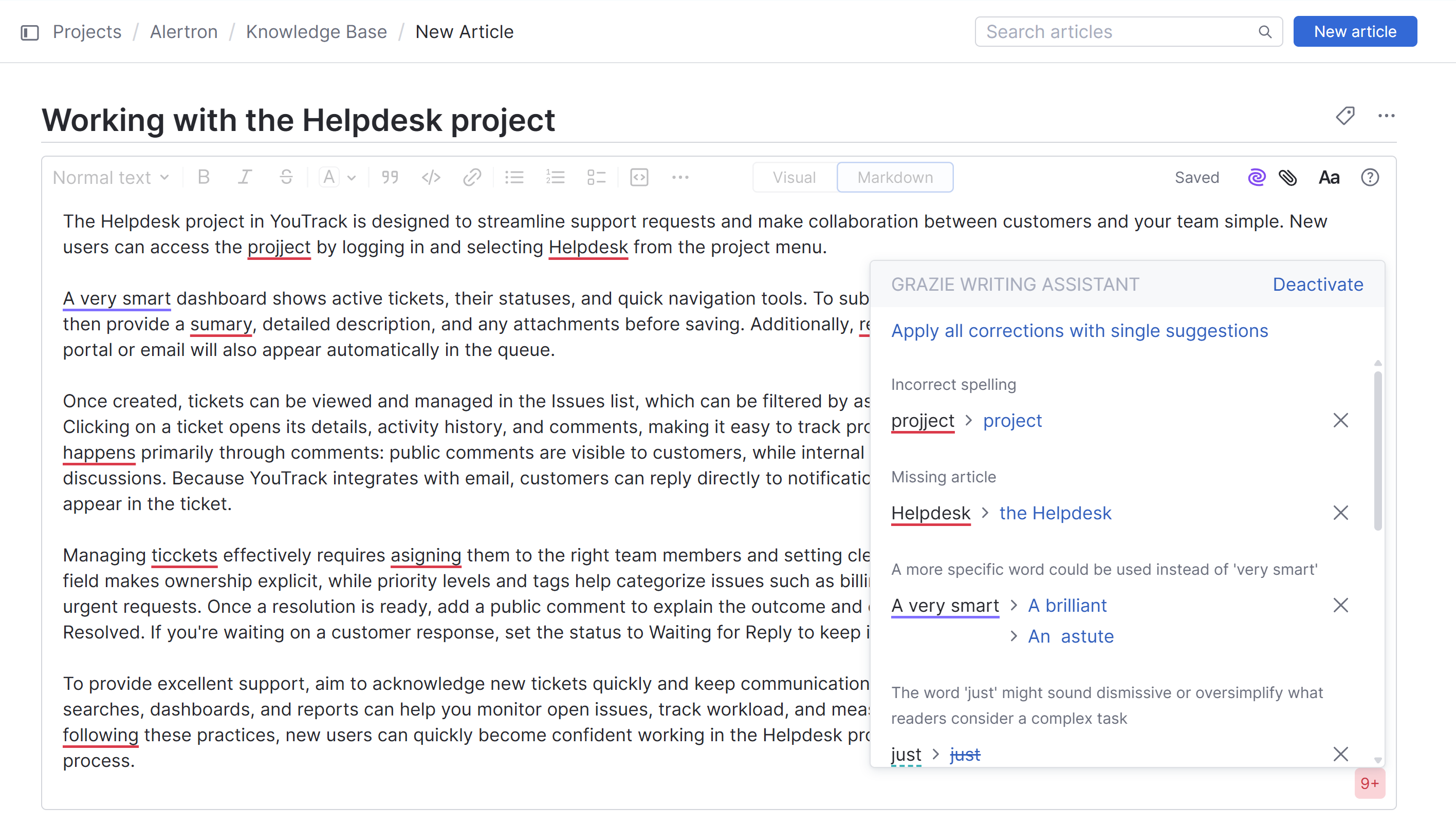
The Apply all corrections with single suggestions option does exactly that. When you click this option, single suggestions are applied to underlined text, leaving only problems where there are multiple possible solutions.
Click the
 icon to ignore a suggestion.
Click the Deactivate link to switch off the writing assistant and close the list of suggestions.
You can switch grammar and spelling correction on or off at any time. For instructions, see Toggle Writing Assistance Features On and Off.
Text Completion
The text completion feature suggests contextually relevant words and phrases as you type to help you write faster and stay focused. When Text completion is enabled, YouTrack automatically predicts how you might want to continue a sentence and offers completions you can accept with a keystroke.
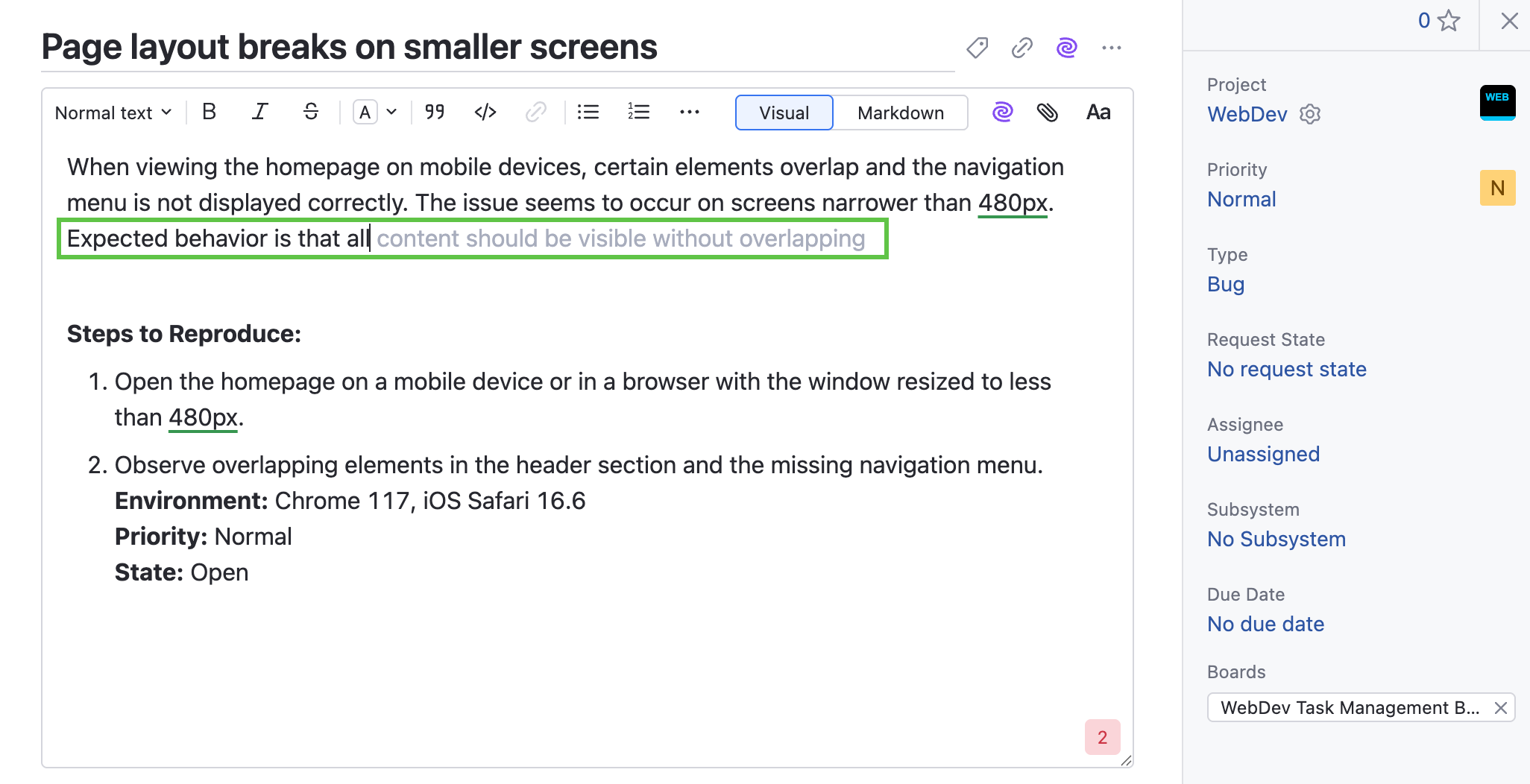
Keyboard shortcuts are available for the following actions.
Action | Shortcut |
|---|---|
Use the next suggested word |
|
Use all the suggested text |
|
You can switch text completion on or off at any time. For instructions, see Toggle Writing Assistance Features On and Off.
Toggle Writing Assistance Features On and Off
YouTrack's built-in writing assistant features are always there whenever you need them, but can be easily switched off when you don't. The option to toggle the writing assistant features is available from the  AI Assistant menu in the text formatting toolbar.
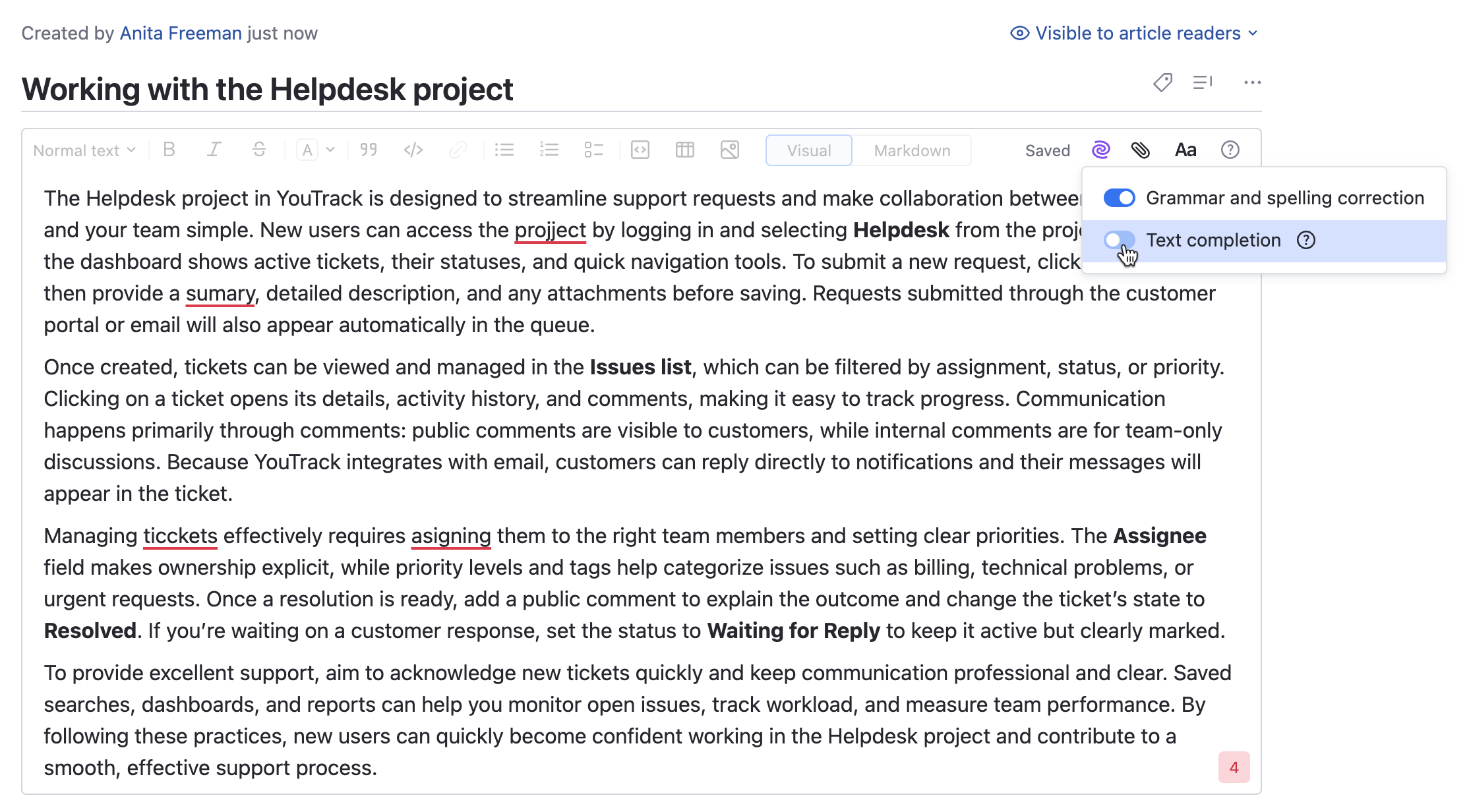
The popup window for reviewing bulk suggestions also contains a link that lets you deactivate the writing assistant. Once switched off, you can only reactivate the writing assistant from the AI Assistant menu.
You can also enable or disable your writing assistant features from your user profile. See AI Features.
How We Handle Your Data
Grazie adheres to strict measures to protect the privacy and security of user data:
JetBrains doesn't use any text you type for training our language models.
We ensure that none of your texts are retained in the memory or logs of our servers.
For more information, please refer to the JetBrains Grazie Terms of Service and the JetBrains Privacy Policy.