Clone a Dashboard
YouTrack gives you the flexibility to manage your workspace efficiently by allowing you to clone dashboards. This feature is especially useful when you want to reuse an existing dashboard layout, widgets, and settings without starting from scratch. Whether you're setting up dashboards for different teams or testing layout variations, cloning saves time and ensures consistency.
The clone operation creates an exact copy of the original dashboard, including its widgets and sharing settings. The only setting that isn't copied is the dashboard Owner. If the user who clones a dashboard isn't set as the owner of the original, ownership of the cloned dashboard is transferred to the user who created the clone.
The option to clone a dashboard is available to anyone who has been given access to view it.
Consider cloning a dashboard when:
You need a similar layout for a new project or team.
You want to experiment with changes without modifying the original dashboard.
You're sharing dashboard templates across departments.
You're transitioning from a personal dashboard to a shared workspace.
To clone a dashboard:
From the main navigation menu, select
 Dashboards.
Select the board you want to clone from the drop-down list in the header.
From the
 More menu, select the Clone option.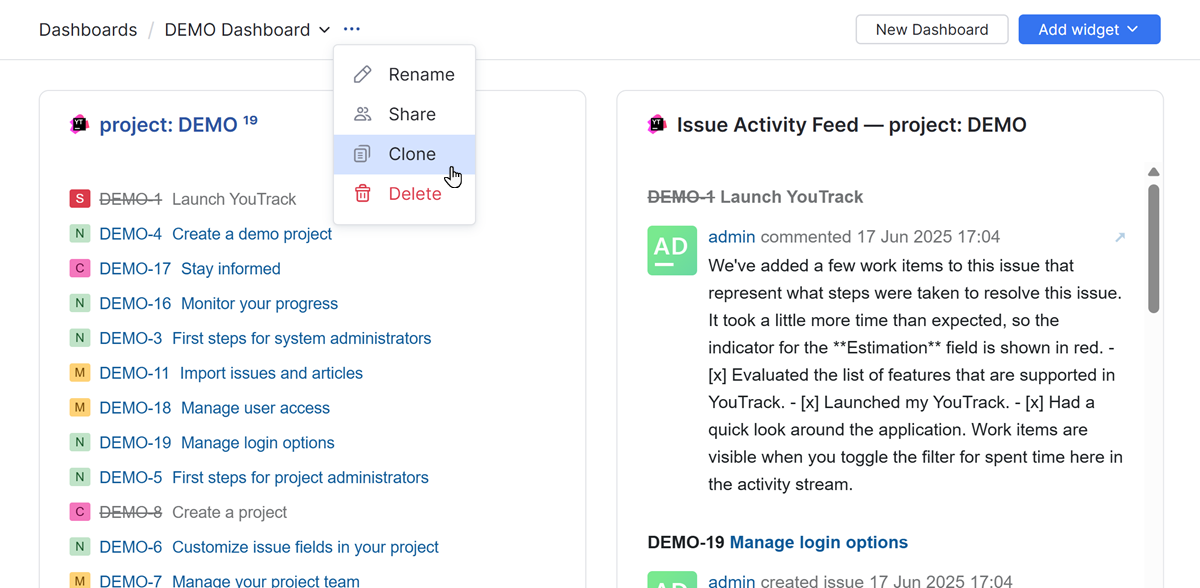
A copy of the original dashboard is created with the name Copy of <original dashboard name>.
From here, you can perform the following actions:
Rename the dashboard.
Share the dashboard with different users and groups. For details, see Share a Dashboard.
Resize and drag widgets around the dashboard to organize existing content For more information, see Organize a Dashboard.
Add widgets that display content that is relevant to your project or team. You can choose widgets that are built into YouTrack by default or install widgets supported by apps from the JetBrains Marketplace. For more information, see Manage Dashboard Widgets.
Resize and drag widgets around the dashboard to organize existing content For more information, see Organize a Dashboard.
Update the content displayed in specific widgets. To learn how to reconfigure a widget, refer to the documentation topic specific to the widget you want to update.