Prisma
WebStorm integrates with Prisma ORM, providing support for Prisma Schema Language grammar.
Prisma ORM support in WebStorm is backed by the Prisma Language Server. WebStorm is shipped with a bundled Prisma Language Server. However, it is recommended that you keep the Language Server up to date by downloading the latest server version and specifying the path to it on the page as described in Configure the Prisma Language Server.
Before you start
Make sure you have Node.js on your computer. Configure a Node.js runtime in your project as described in Configuring a local Node.js interpreter, in Using Node.js on Windows Subsystem for Linux, or in Configuring remote Node.js runtimes.
Find detailed information about the required Node.js versions on the Prisma ORM official website.
Install and enable the Prisma ORM plugin on the Settings | Plugins page, tab Marketplace, as described in Installing plugins from JetBrains Marketplace.
Configure the Prisma Language Server
Prisma ORM support in WebStorm is backed by the Prisma Language Server. WebStorm is shipped with a bundled Prisma Language Server. However, it is recommended that you keep the Language Server up to date
Install the latest version of the @prisma/language-server globally. To do that, open your command-line shell or the embedded Terminal (Alt+F12) and type:
npm install -g @prisma/language-serverOpen the Settings dialog (Ctrl+Alt+S) and go to .
In the Language Server package field, specify the path to the
@prisma/language-serverpackage.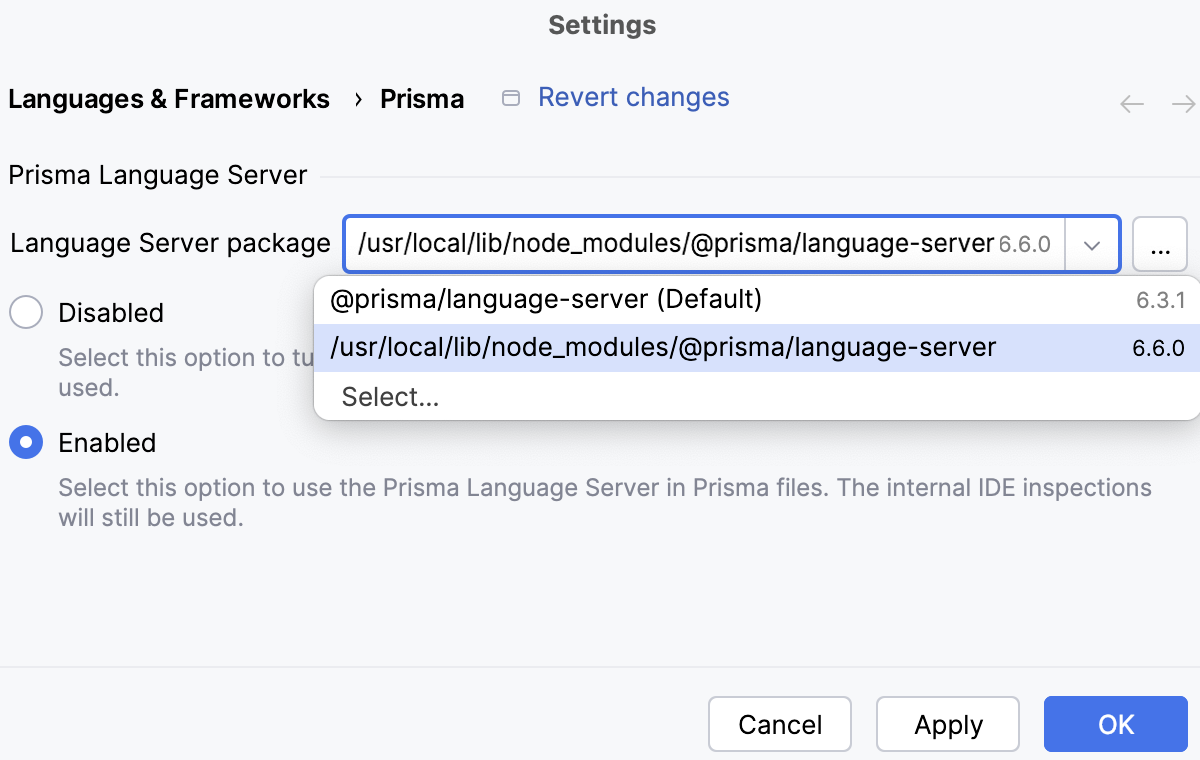
Make sure the Enabled option is selected.
Select the Disabled option to turn off the Prisma Language Server and use only internal WebStorm coding assistance and inspections.
Prisma configuration files
WebStorm provides support for prisma.config.js and prisma.config.ts configuration files that are newly introduced in Prisma 7.0.
From a configuration file, WebStorm retrieves the schema key and uses it to find a schema directory that will be used as a root to resolve definitions and providing completions when the schema is defined in multiple files.
To load configurations, you need the tsx package installed. If the package is missing, WebStorm shows a notification and suggests installing it:

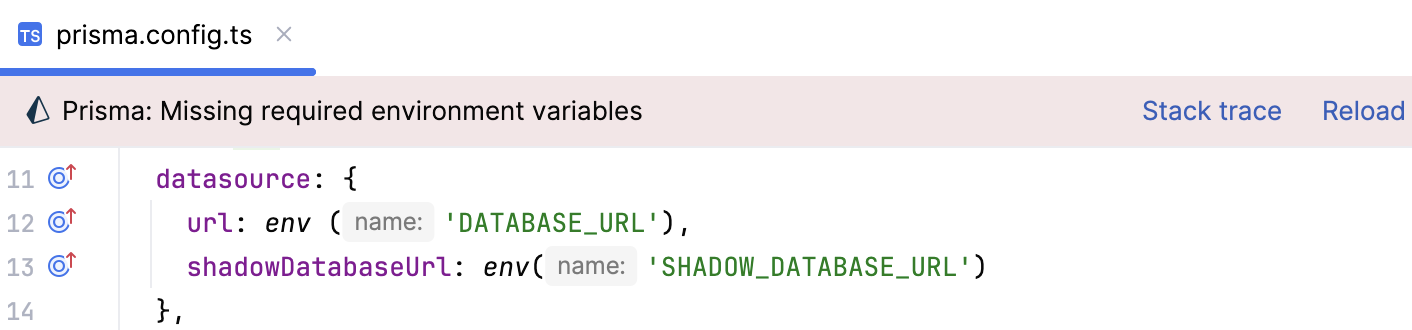
A notification is also shown if environment variables are not defined:
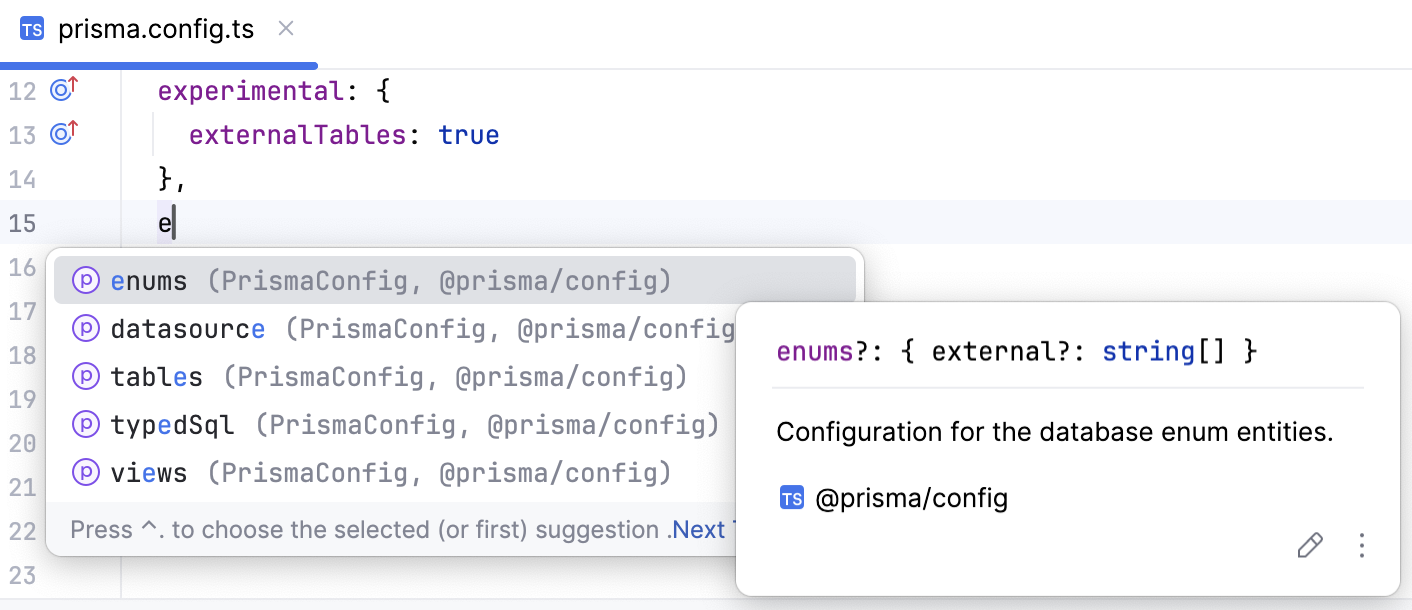
When you edit a Prisma configuration file, WebStorm shows completion suggestions:
Code completion
WebStorm provides Prisma Schema Language-aware code completion in schema files including documentation for selected completion suggestions.
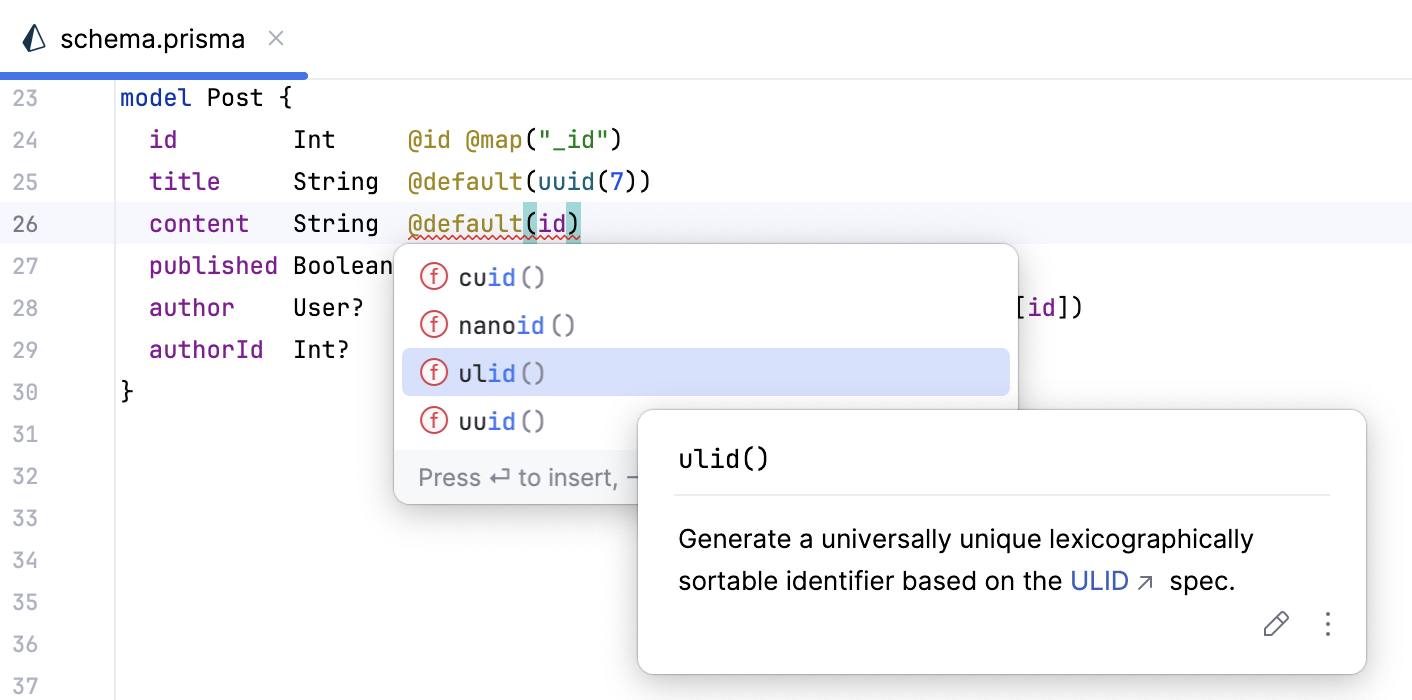
By default, completion suggestions are shown as you type. To turn this behavior off, press Ctrl+Alt+S to open settings and select Settings | Editor | General | Code Completion | Popup, then clear the Show suggestions as you type checkbox.
To invoke completion manually, press Ctrl+Space.
Code inspection
You can view Prisma LSP diagnostics right in the editor on hovering over a highlighted code element where a problem is detected.
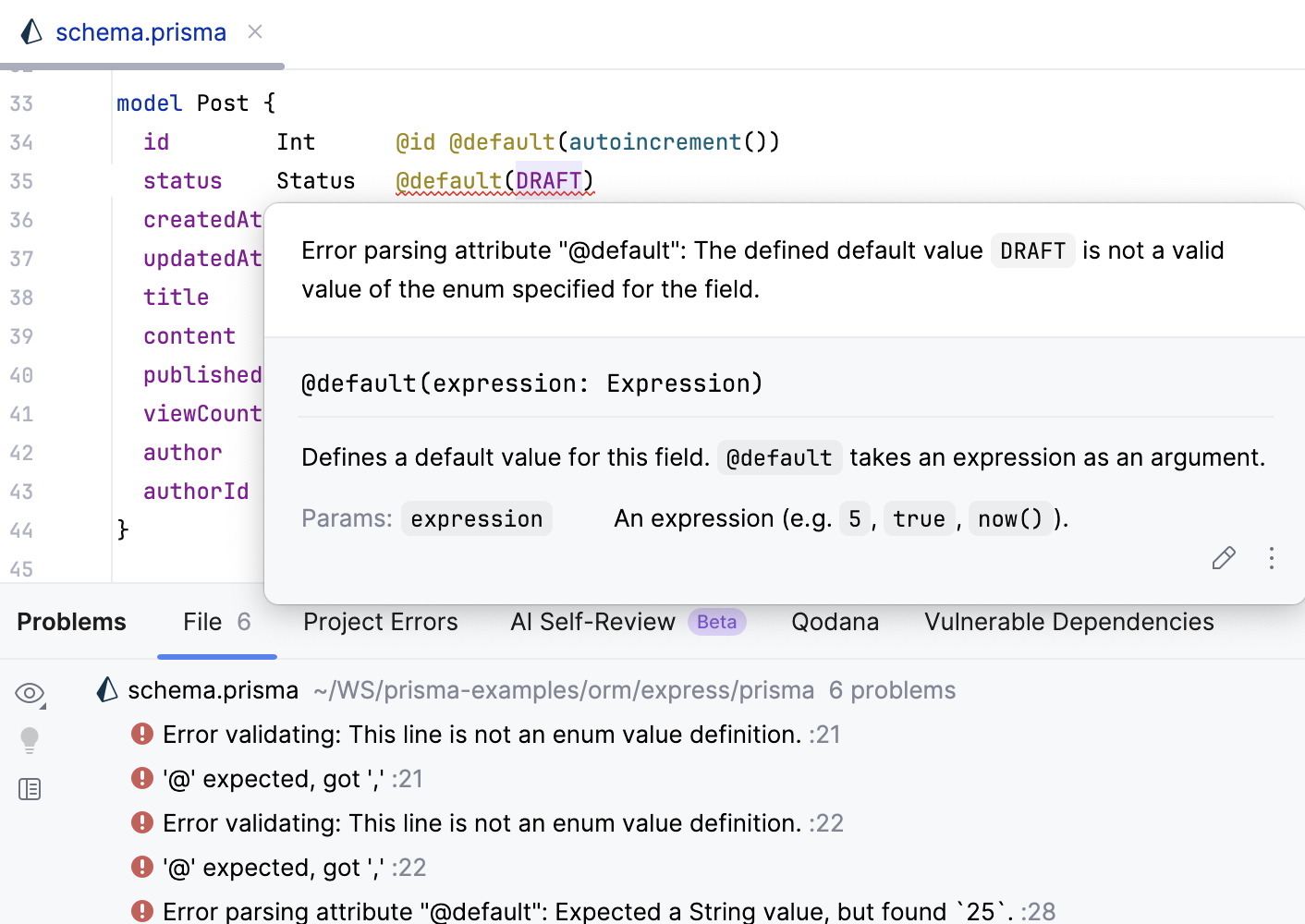
Detected errors are shown in the Problems tool window and in a popup right in the editor on hover.
Missing mandatory attributes
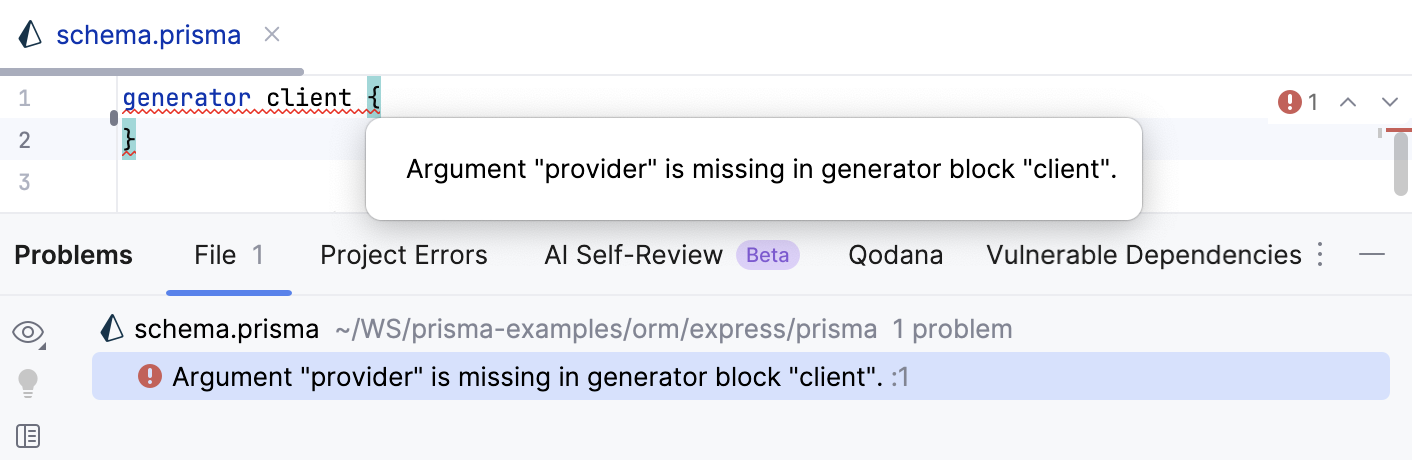
Missing binary targets
Missing
@@schemaattributes are detected and a quick-fix is suggested.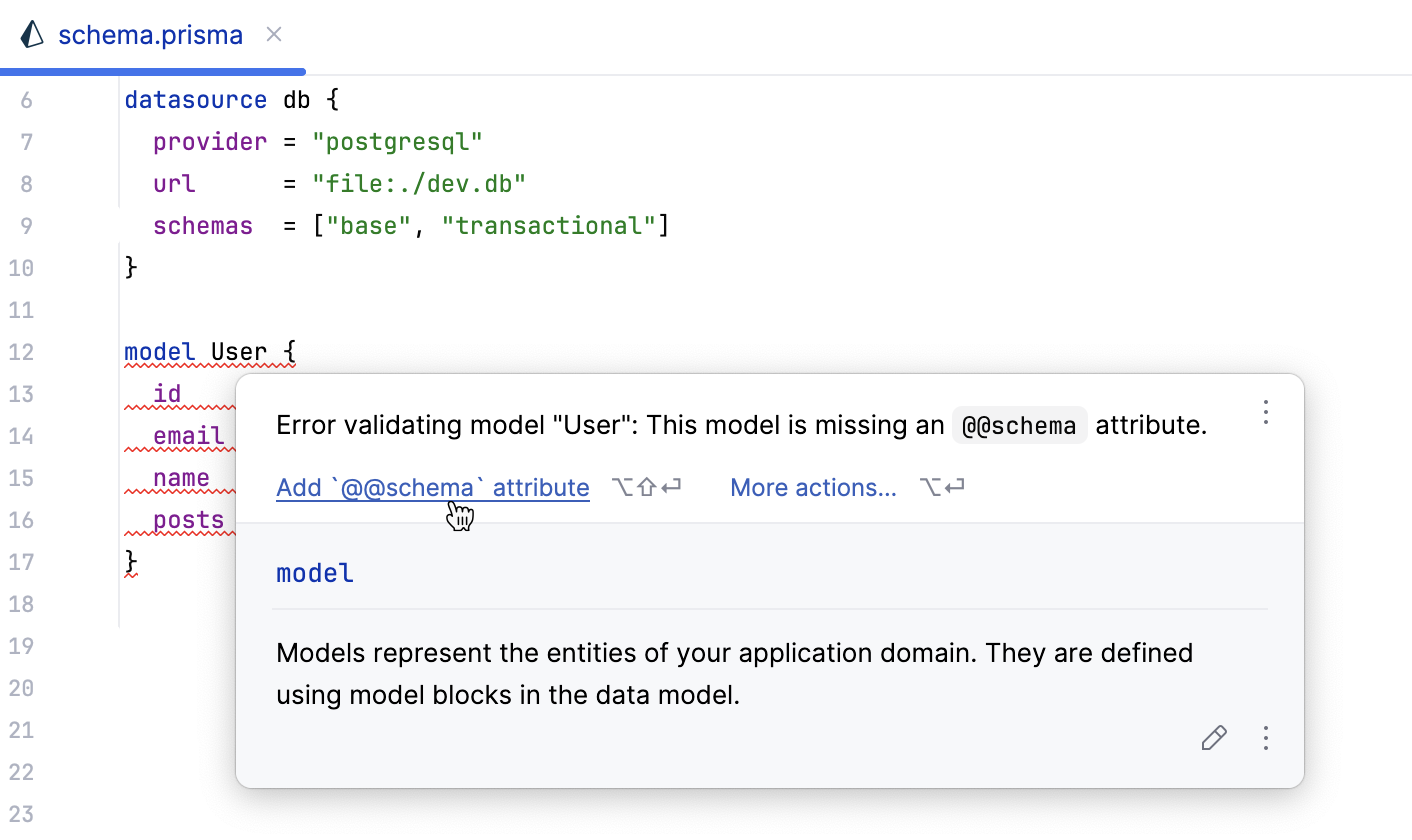
Documentation look-up
WebStorm shows documentation for various Prisma-specific symbols, including datasource and generator blocks.
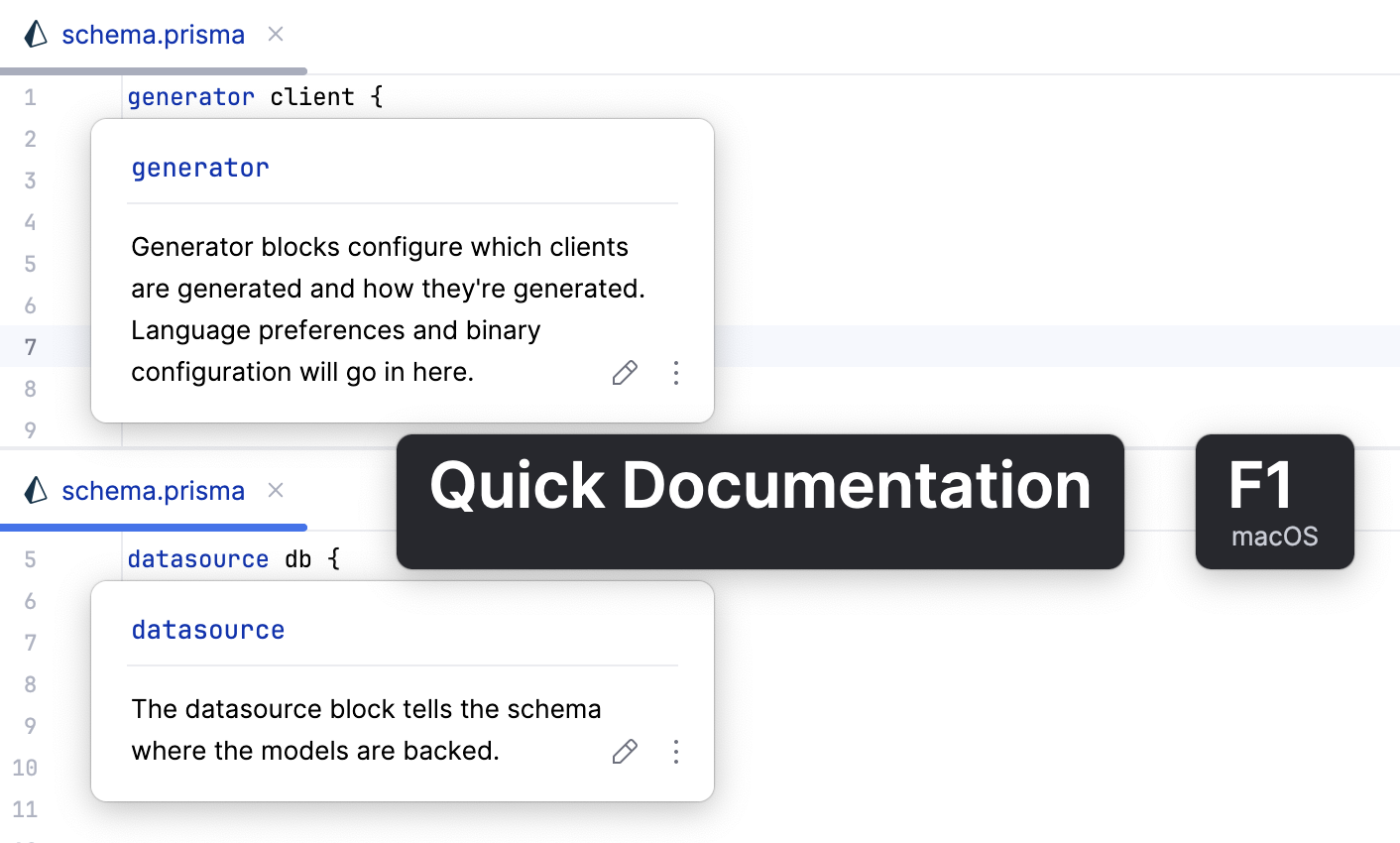
The Documentation popup is displayed when you hover over a symbol in the editor or press Ctrl+Q, as well as on code completion.
To view documentation for a symbol in the Structure tool window, select the symbol and press Ctrl+Q.
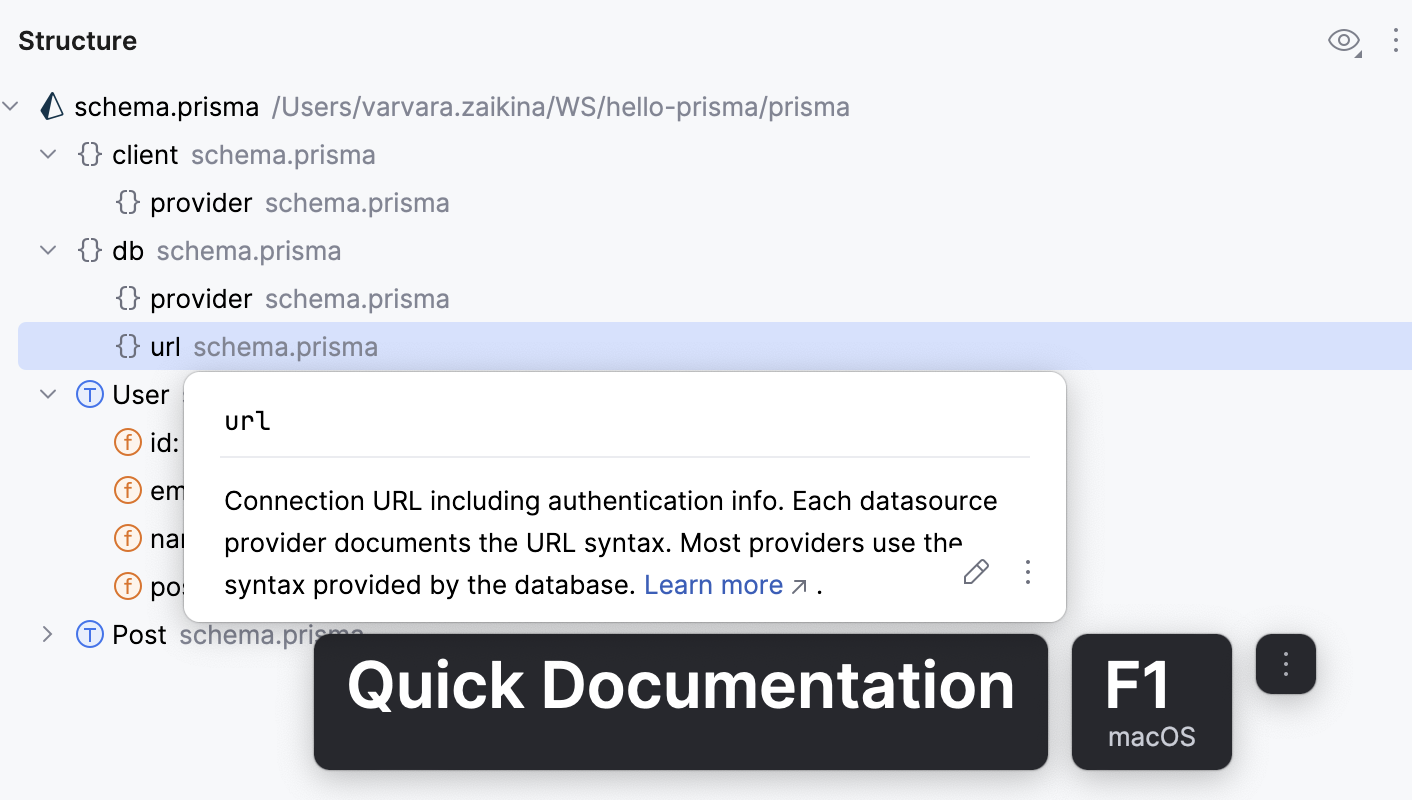
Learn more from Code reference information.
Comments
You can add comments above, below, and inside data models. Multiline comments are welcome.
To add a comment, start typing /** and press Enter. WebStorm adds the closing */ and * at the beginning of each line.
Hovering over a symbol shows the comment in the Documentation popup with proper formatting.
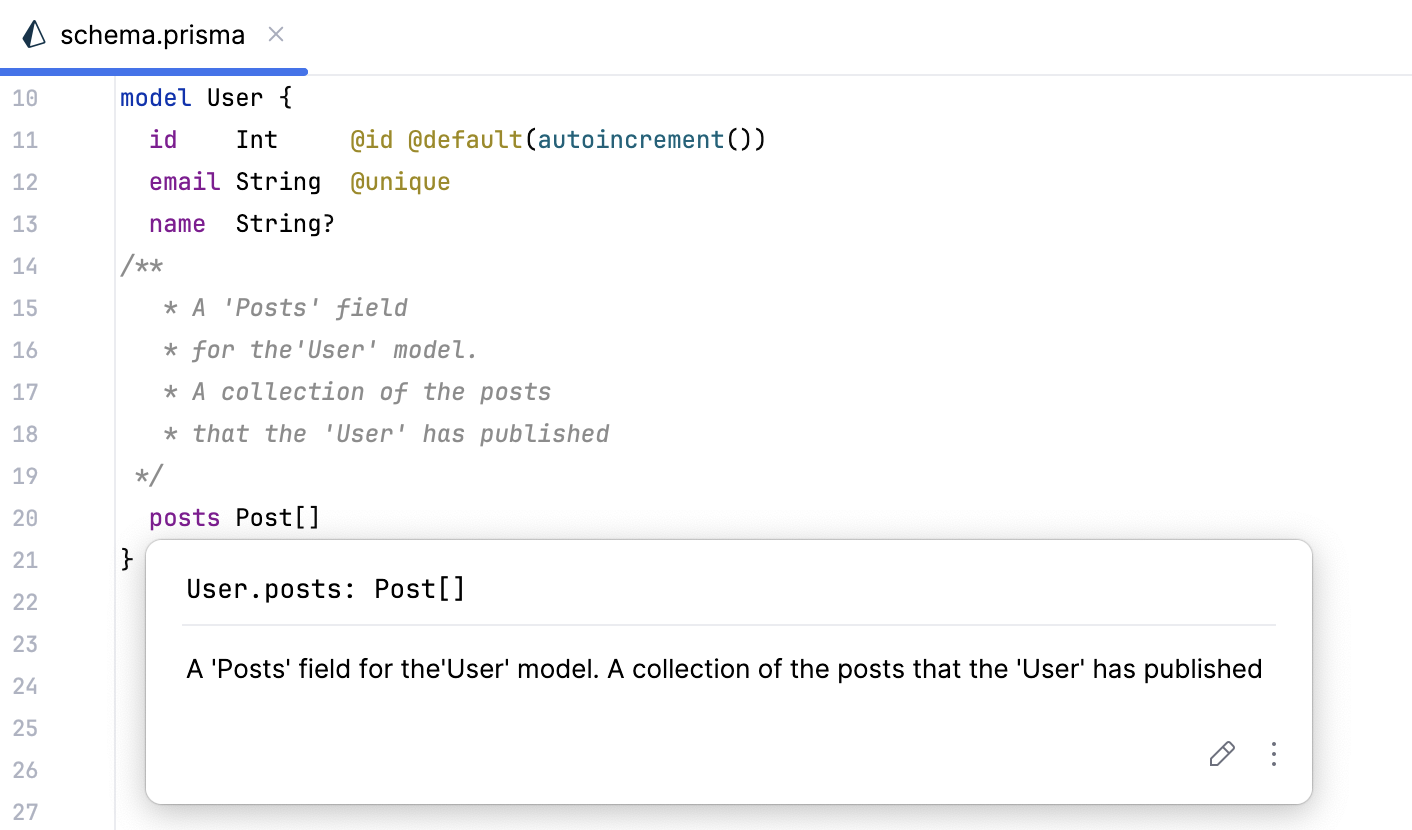
Alternatively, examine comments in the Rendered View mode. For that, click  in the gutter next to a comment or press Ctrl+Alt+Q.
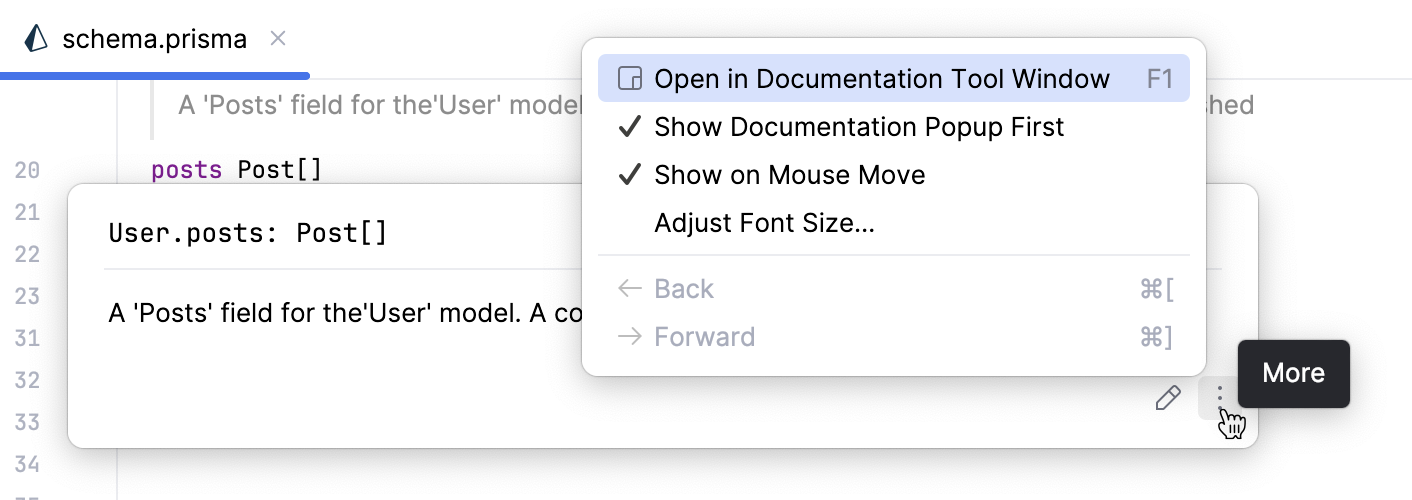
To view the comment in the Documentation tool window, hover over a symbol, click  in the Documentation popup, and then select Open in Documentation Tool Window.
Structure view
With WebStorm, you can view and navigate the structure of schema files in the Structure tool window (Alt+7). The tool window is synchronized with the currently open Prisma Schema, so when you select an item in the tool window, it is automatically selected in the schema file.
Block-specific coding assistance
Generator blocks
WebStorm suggests code completion in
generatorblocks on the fly, providing quick documentation for selected items.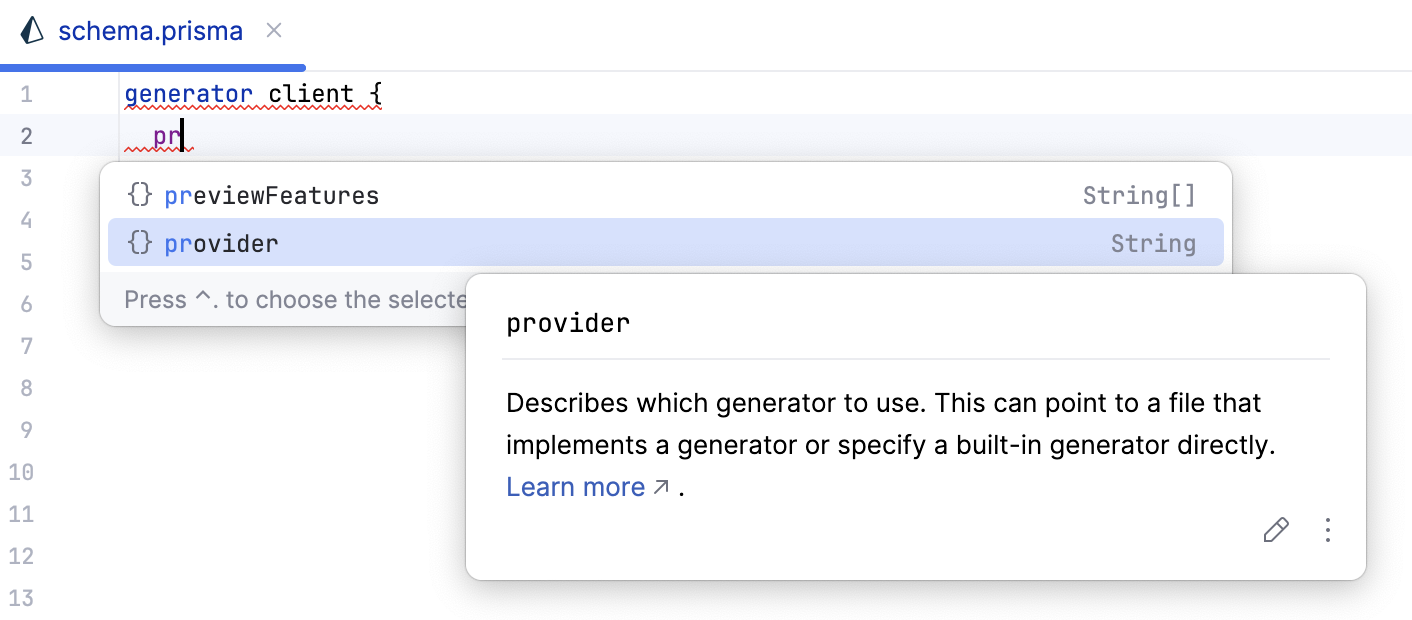
WebStorm recognizes binary targets, providing syntax highlighting, code completion, and quick documentation.
In addition to the
prisma-client-jsgenerator, which generates a Prisma Client in the node_modules folder, WebStorm recognizes and provides code completion and quick documentation for theprisma-clientgenerator, which outputs plain TypeScript code.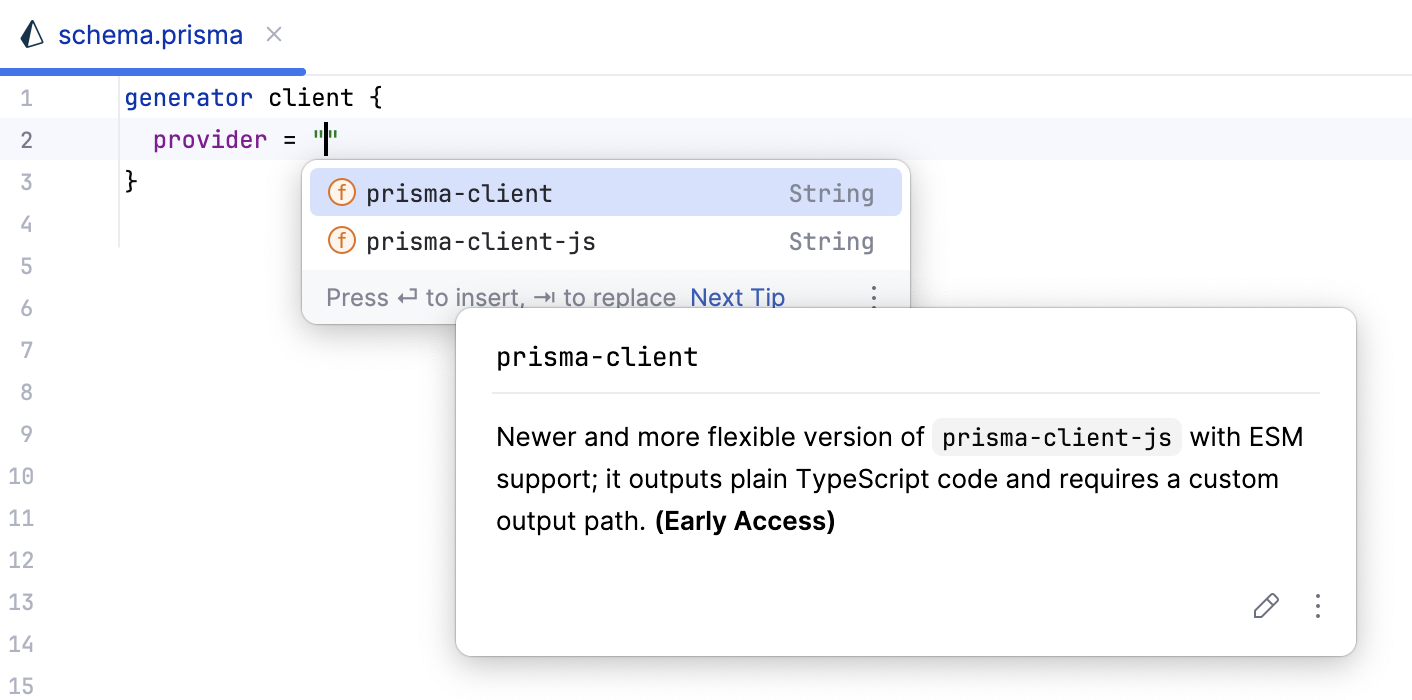
Learn more from the Prisma official website.
Datasource blocks
WebStorm suggests code completion in datasource blocks on the fly, providing quick documentation for selected items.
Support for multiple database schemas
WebStorm recognizes the
schemaskey insidedatasourceblocks, providing highlighting, code completion, and quick documentation.WebStorm supports
@@schemareference via a block attribute, including completion and show usages (Ctrl+F7.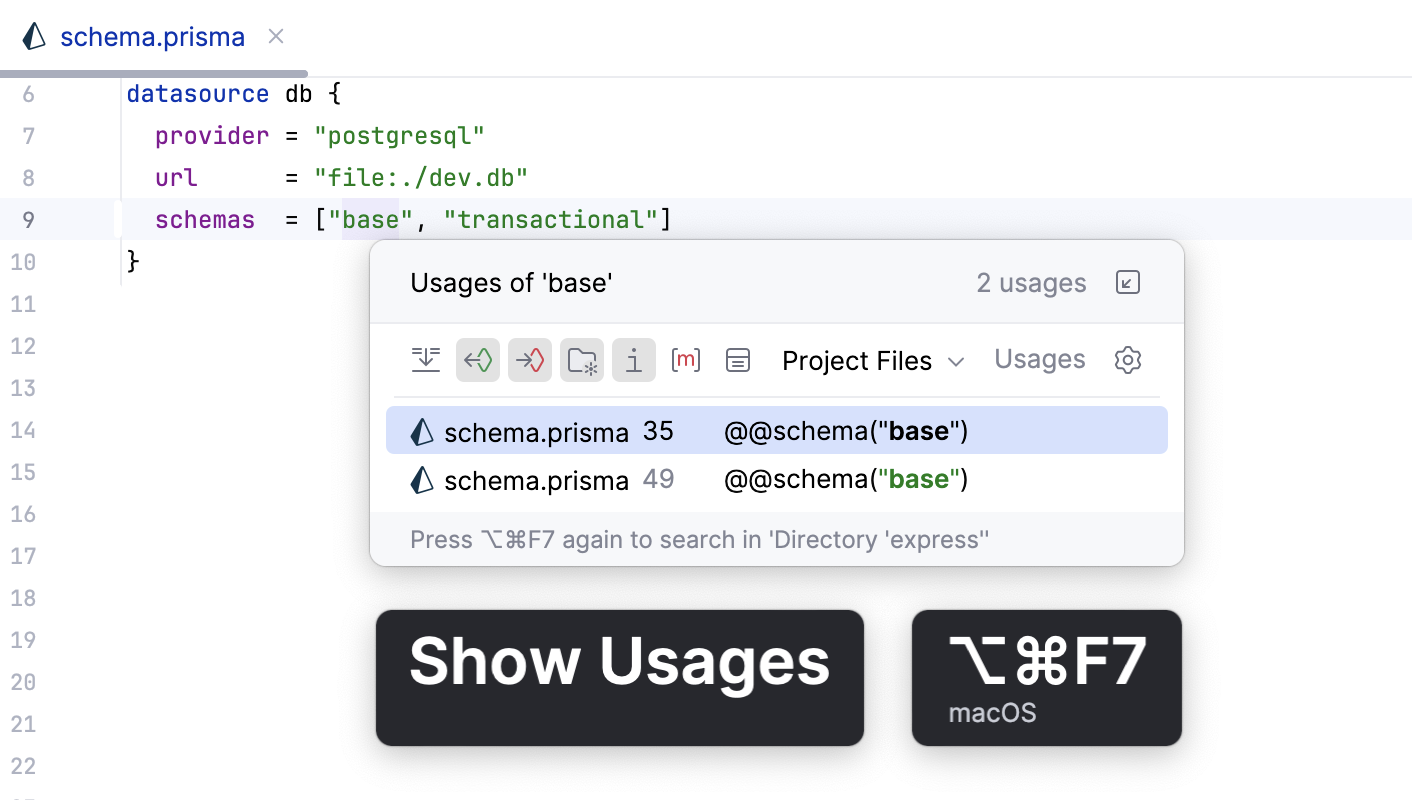
A dedicated inspection detects missing
@@schemaattributes and suggests a quick-fix to add them.For defined schemas, the Rename refactoring is available.
Learn more from the Prisma official website.
Multi-file Prisma schemas
In WebStorm, you can work with Prisma schemas that are split across multiple files, providing completion, documentation, navigation, search, and more.
WebStorm supports connection via
@relationacross files located in the same directory, or in its subdirectories, or in different directories. Newly added relations are reformatted automatically.Multifile schemas located in subdirectories are recognized by
npx prisma generate.Code completion and quick documentation is provided for relations and types.
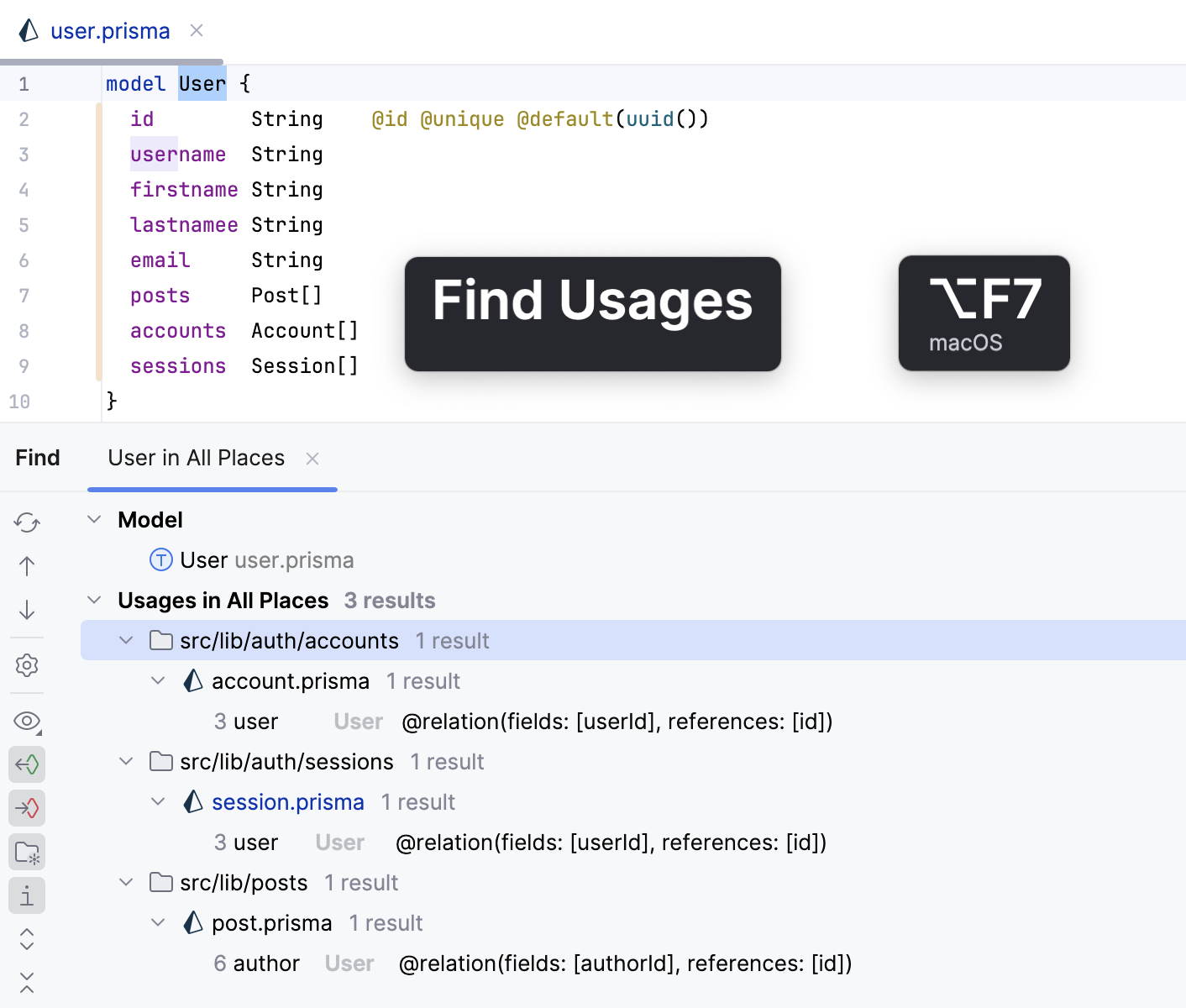
To jump to the declaration of a symbol, press Ctrl+B.
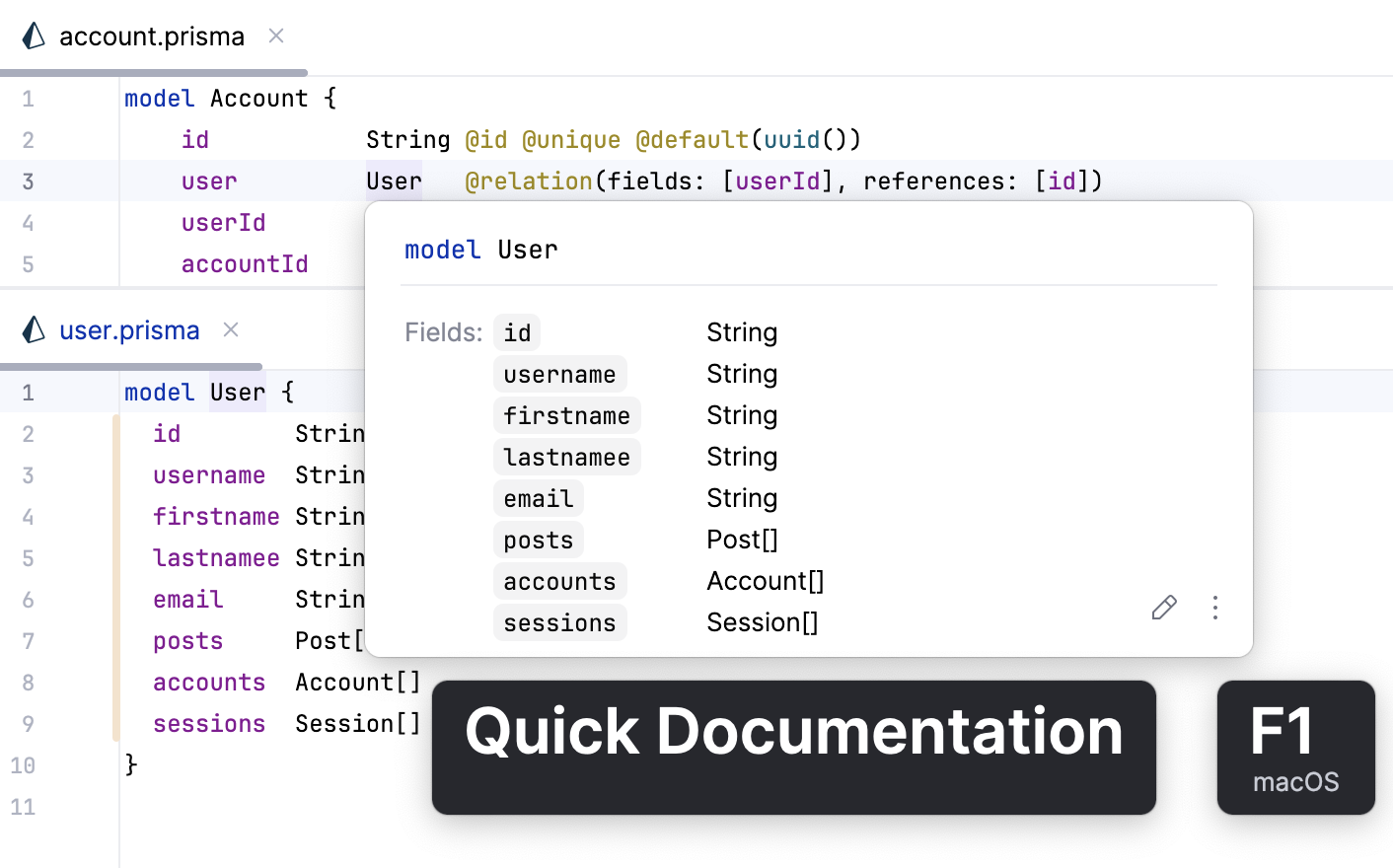
You can view quick documentation for models specified in other .prisma files.
A dedicated inspection detects duplicates of
generatoranddatasourceblocks and shows an error in the Problems tool window and in a popup right in the editor on hover.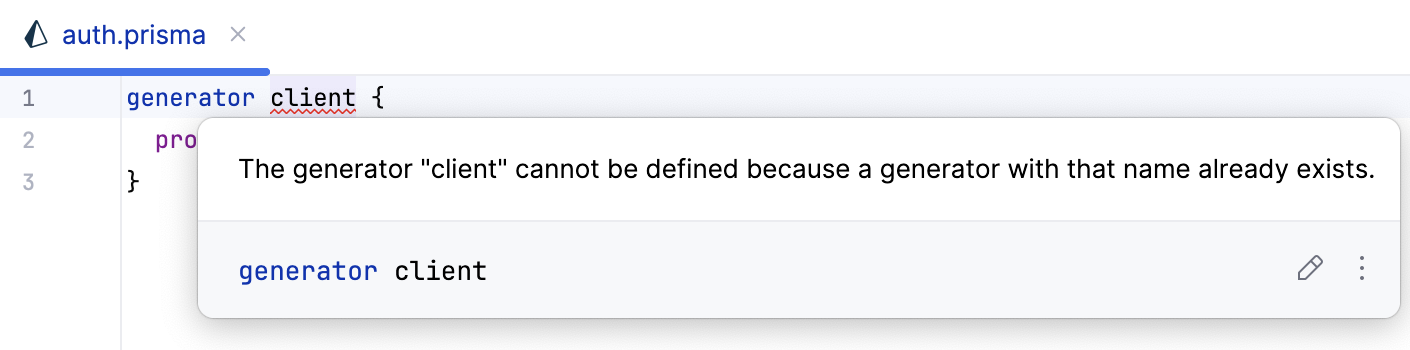
Sharding
For Prisma ORM 6.10 and later, WebStorm supports sharding via the @shardKey and @@shardKey attributes, so you can easier scale up when your database load grows.
To work with sharding, make sure to add previewFeatures = ["shardKeys"] to the generator block.
Code completion and quick documentation lookup for
@shardKeyand@@shardKey.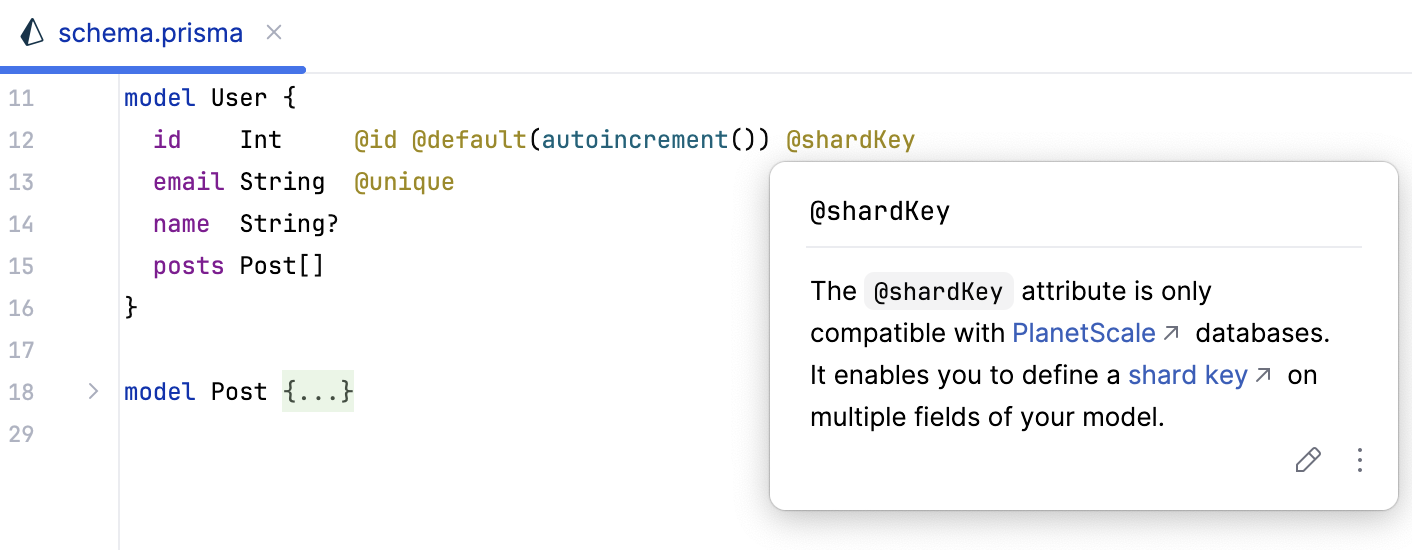
Completion for fields within the block attribute
@@shardKey. Completion list only includes scalar non-nullable fields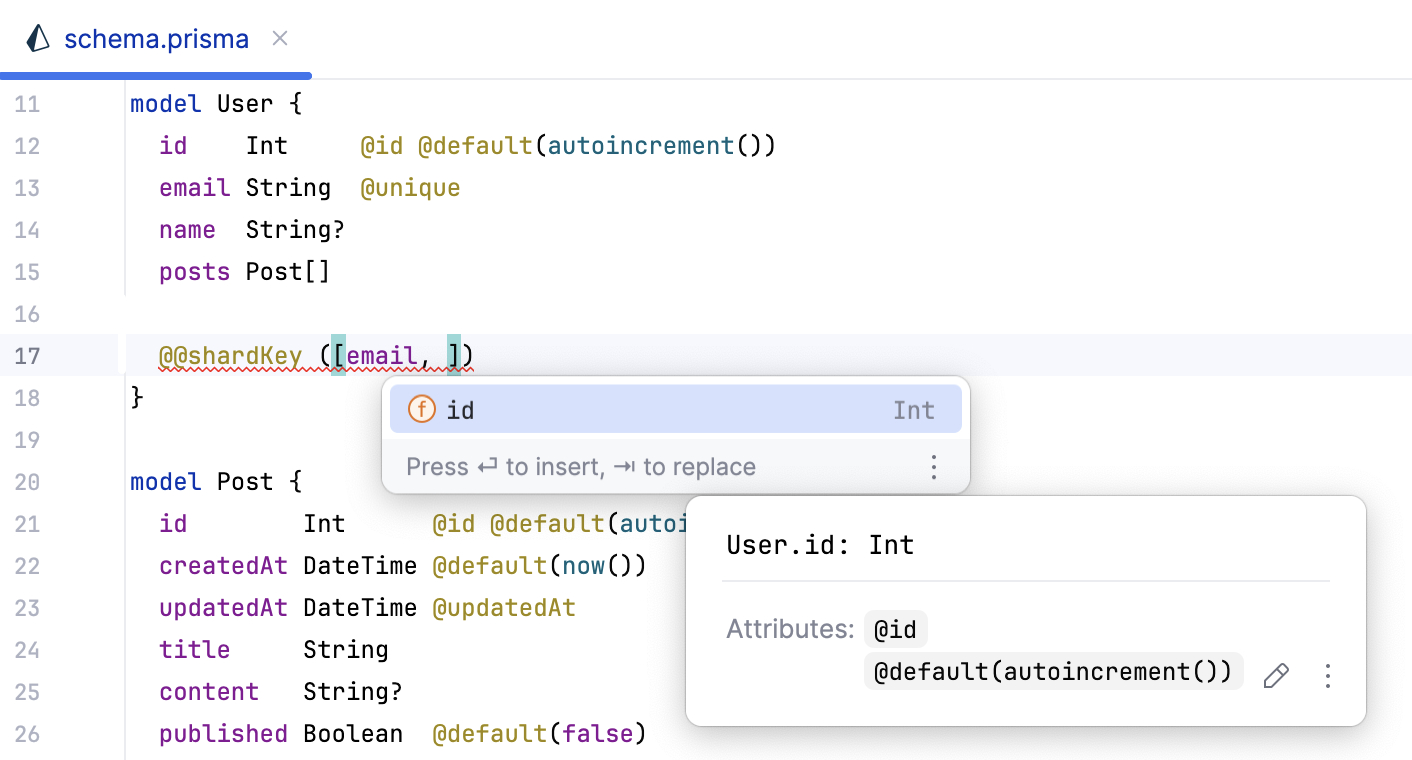
You can search for usages of fields within
@@shardKeyblock attributes with Alt+F7.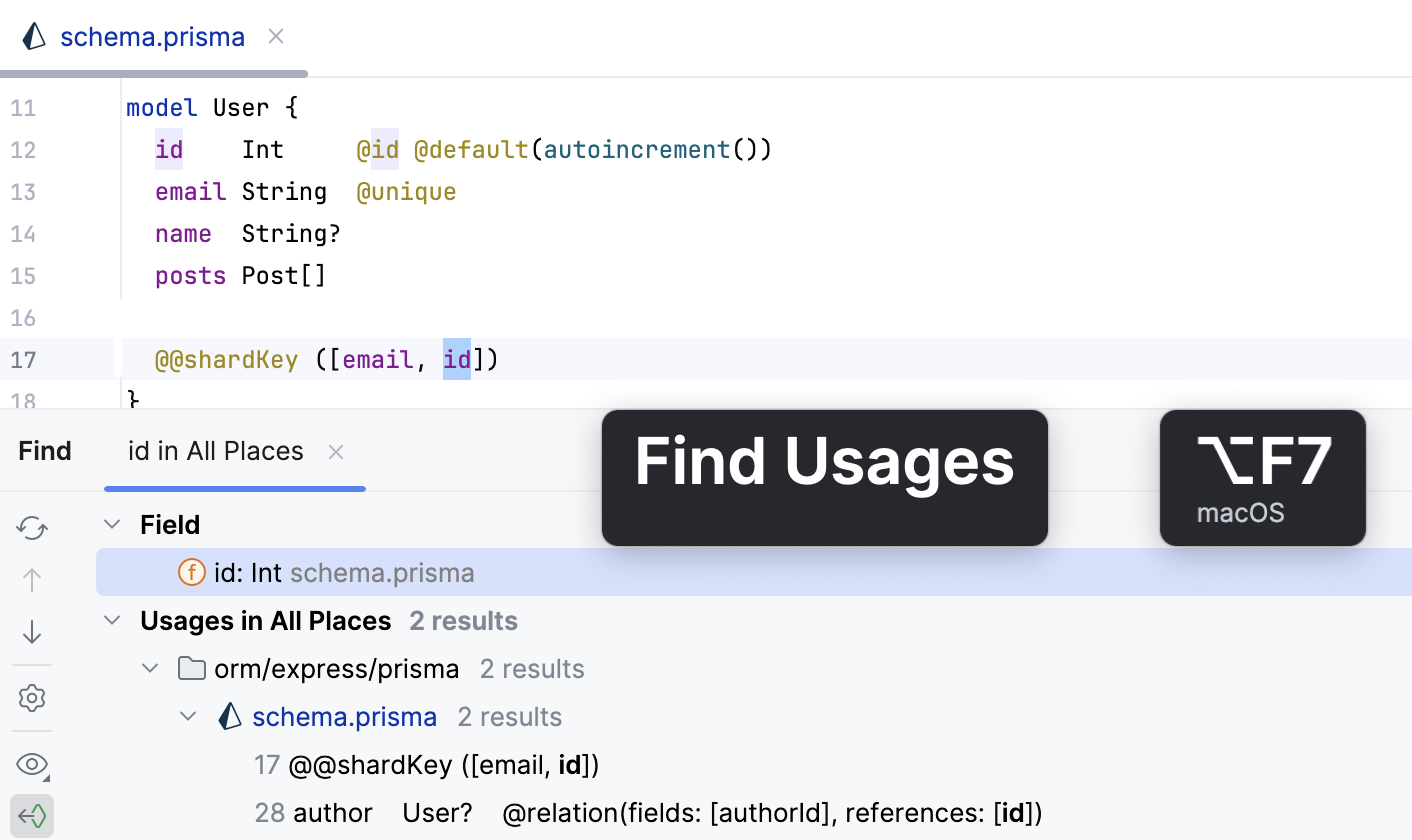
You can apply the Rename refactoring to fields within
@@shardKeyblock attributes.