Run anything
Run Anything is a quick way to launch run/debug configurations, applications, npm, pnpm, Bun, or yarn scripts, tasks or targets, and various commands, as well as open recent projects. It also helps you use proper command syntax by generating suggestions as you type. When you call a command, Run Anything delegates the further work to the appropriate tools.
Open the Run Anything popup
Press Ctrl twice.
You can also add the Run Anything  icon to the toolbar. For that, open the Settings dialog (Ctrl+Alt+S) , go to , expand the Main Toolbar node, and add the Run Anything action, for example, below Search Everywhere.
Alternatively, select Customize Toolbar from the context menu of the main toolbar and then add the Run Anything action, for example, below Search Everywhere.
For more information, refer to Menus and toolbars.
Launch a run/debug configuration
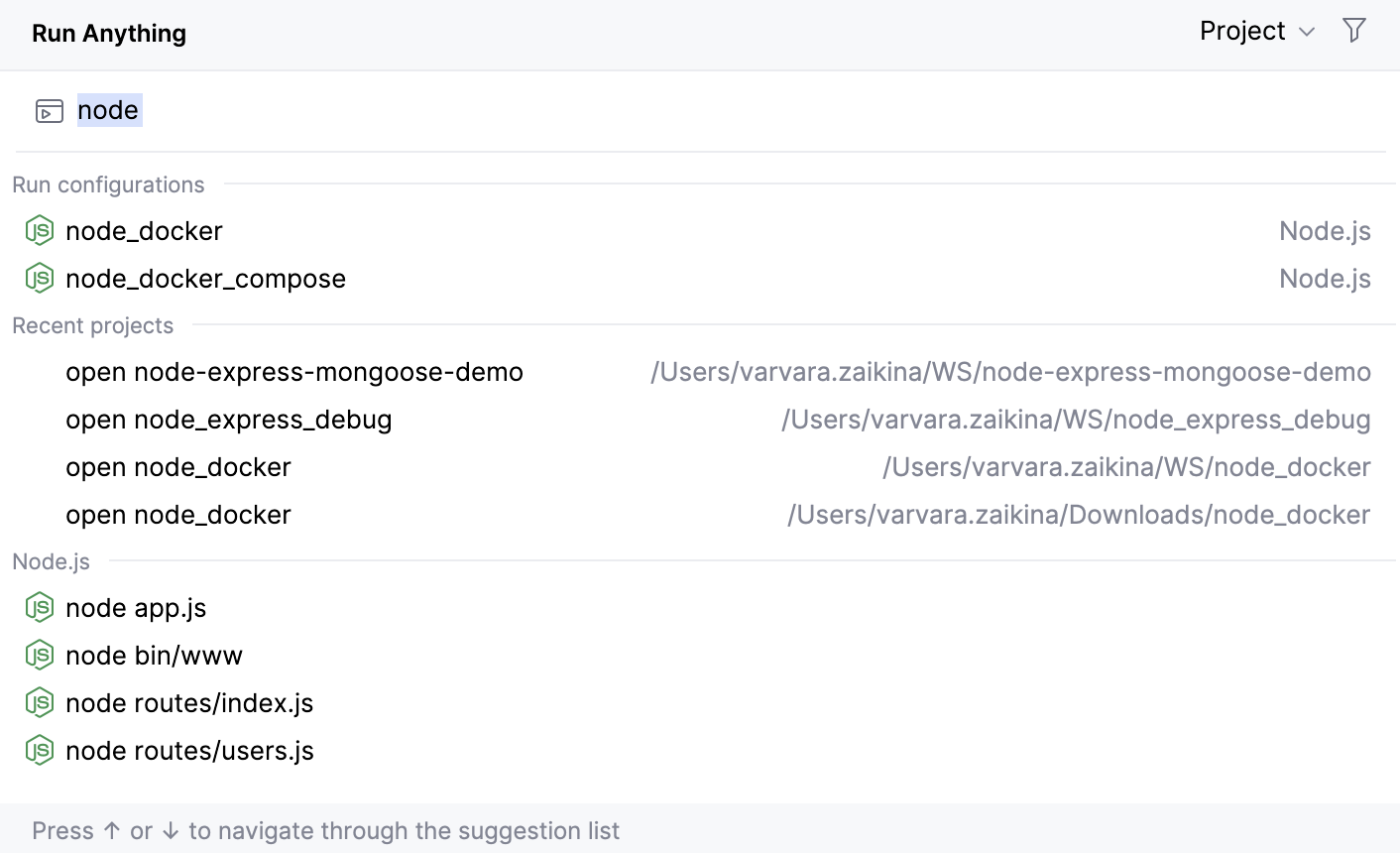
Start typing the run/debug configuration name and select it from the list of suggestions:
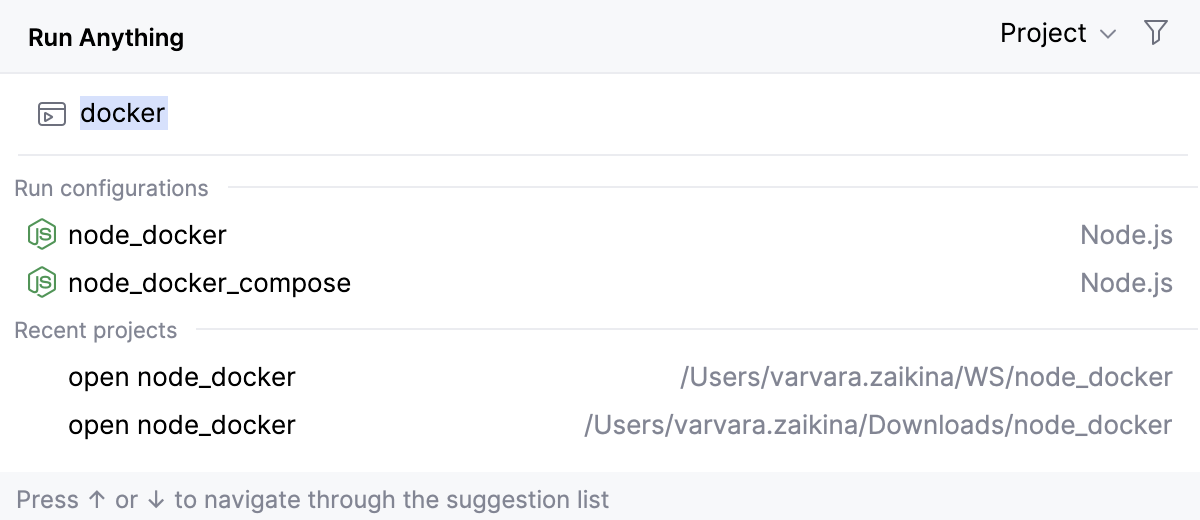
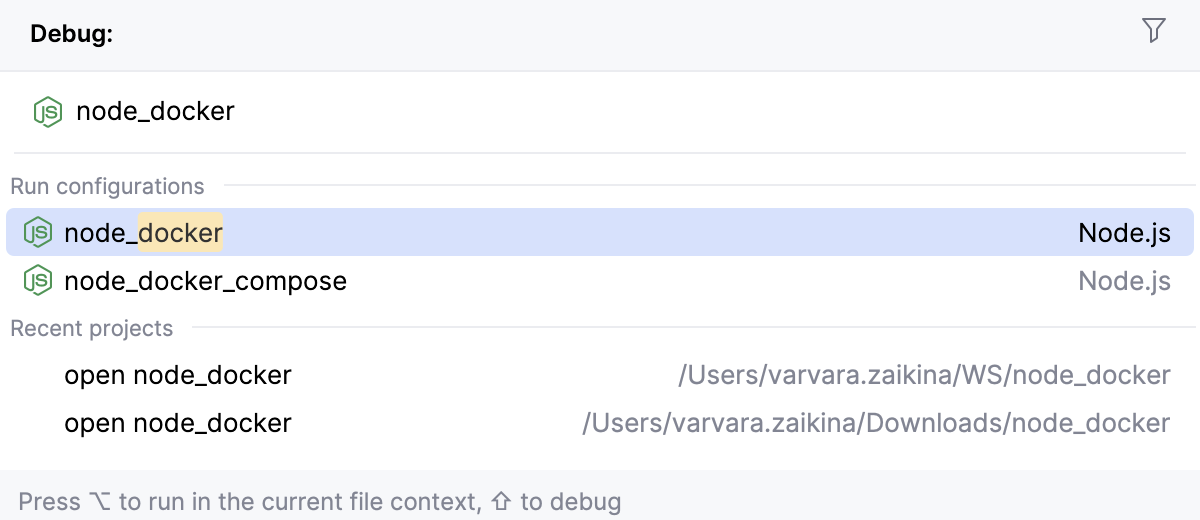
To debug a run configuration, hold Shift while selecting the run/debug configuration
Run commands
Type the name of a package manager or a task runner in the search field. As you type, WebStorm shows the matching commands.
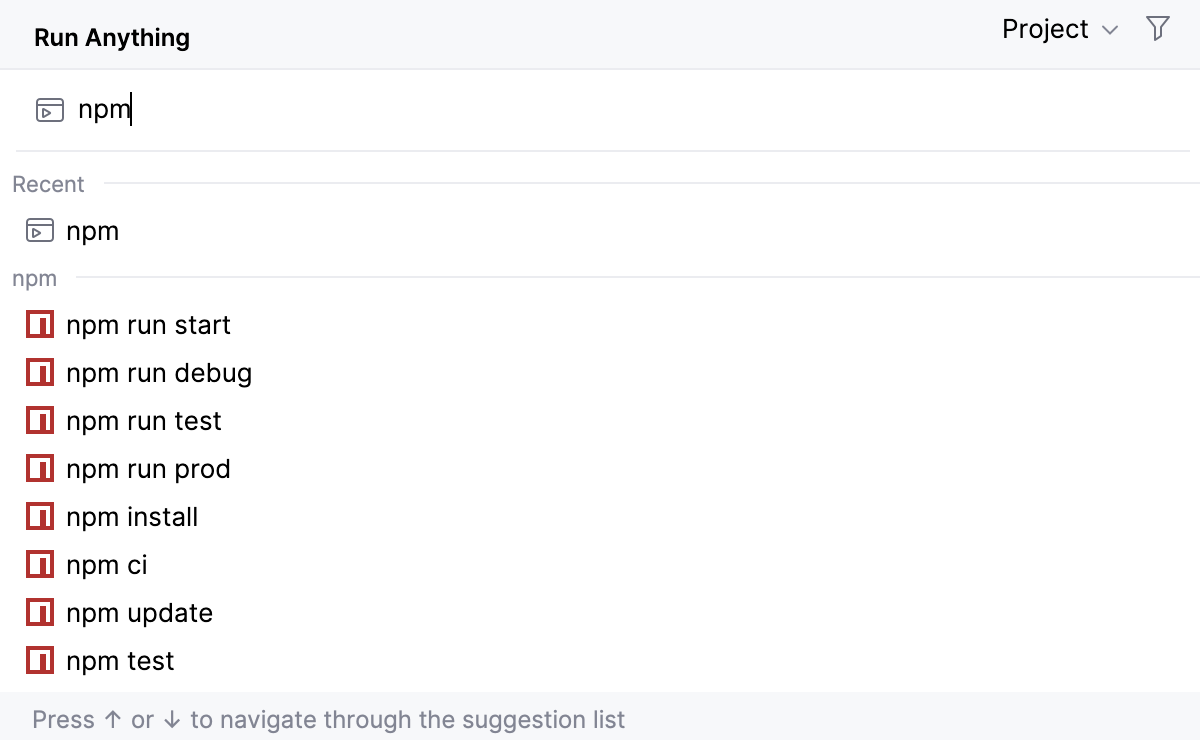
Alternatively, type the name of a script, a task, or a target.

Finally, you can type
?to get a list of command hints.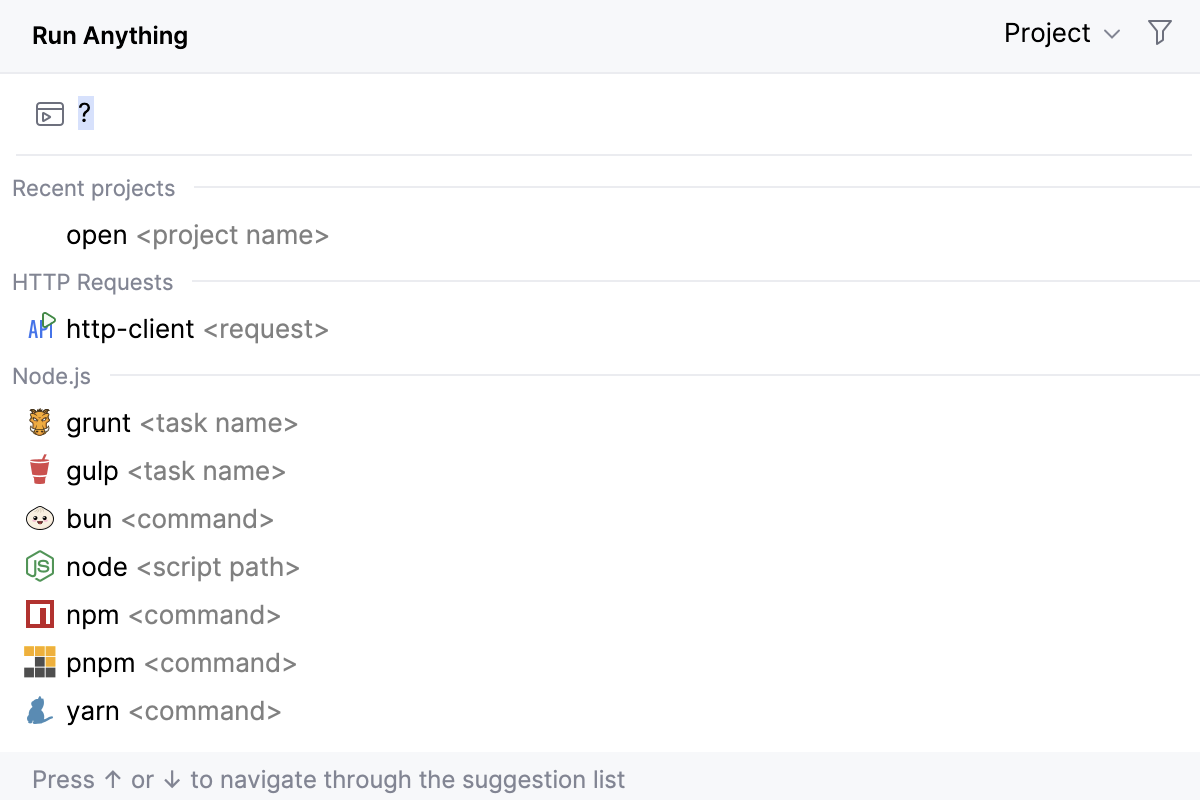
Navigate to the relevant hint and press Space to get a list of available commands, select the required command from the list, and press Enter.
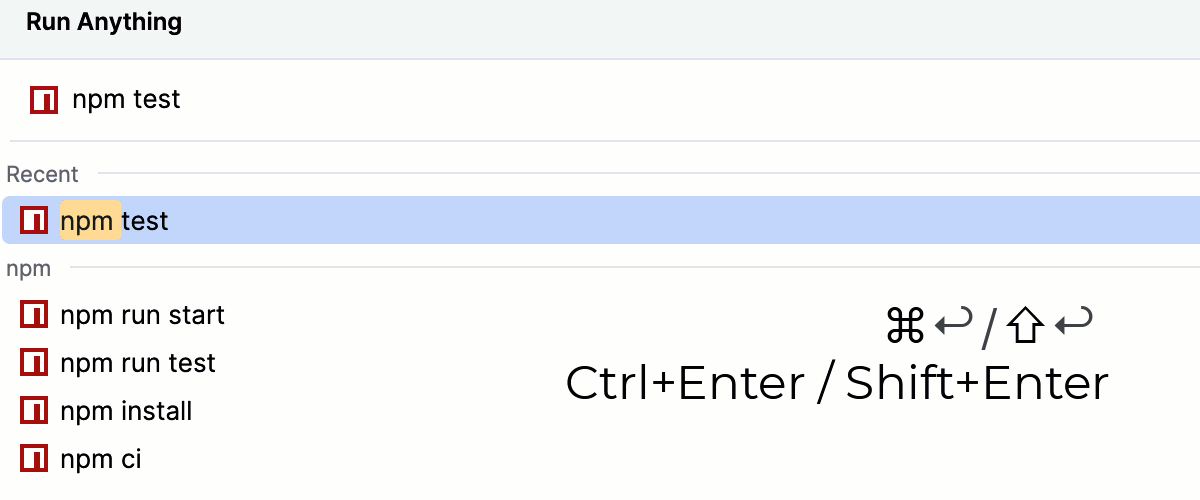
To view the command output in the Run tool window, press Ctrl+Enter, to show the output in the Debug tool window, press Shift+Enter.
Open a recent project
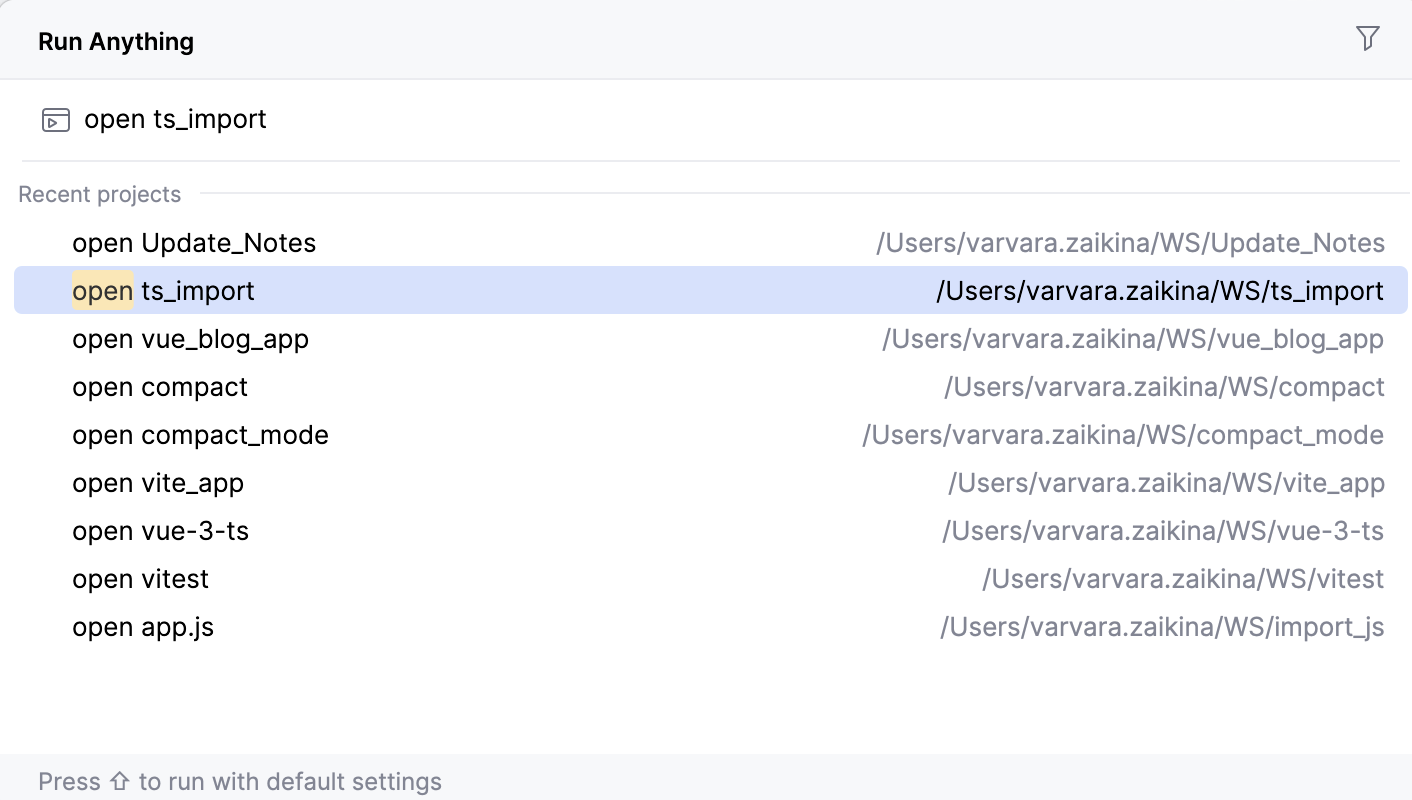
You can also quickly reopen a recent project from the Run Anything popup. Search for the project by the name or type open to shorten the list of suggestions, then select the required project from the list, and press Enter:
Send HTTP requests
If, while composing an HTTP request, you specified its name, you can find and send this HTTP request from the Run Anything popup.
Start typing the name of an HTTP request and select it from the suggestion list:
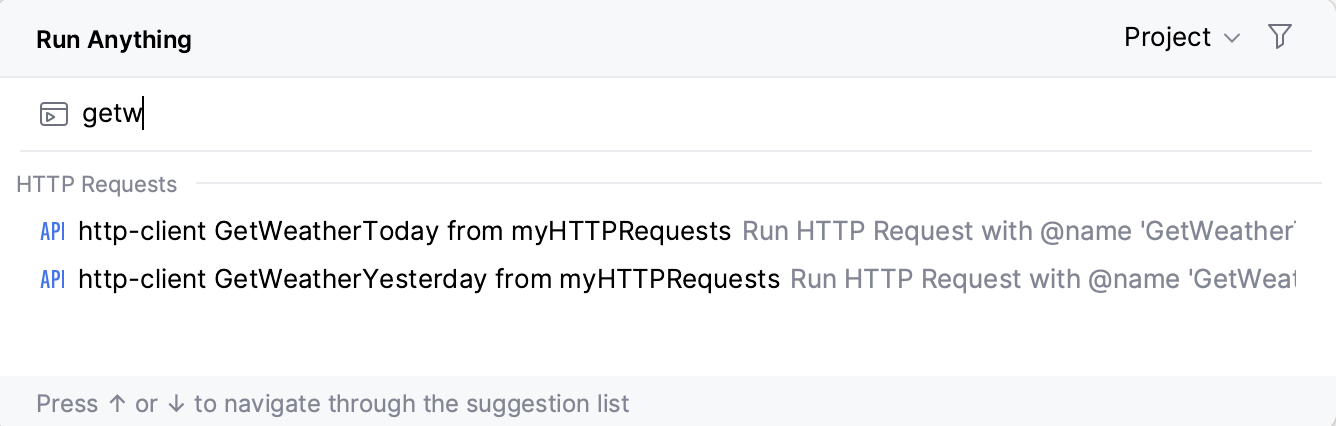
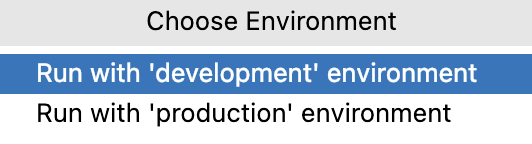
If your request contains environment variables, press Shift while selecting a request. This will open the popup menu where you can select the environment to be used for the request.