Manage plugins
The Toolbox App lets you manage dev environments using various plugins such as Coder, and Ona.
Connect to a provider
Open the Toolbox App.
From the switcher drop-down, select Manage plugins.
In the Plugins window, under the Available node, locate the plugin and click Install.
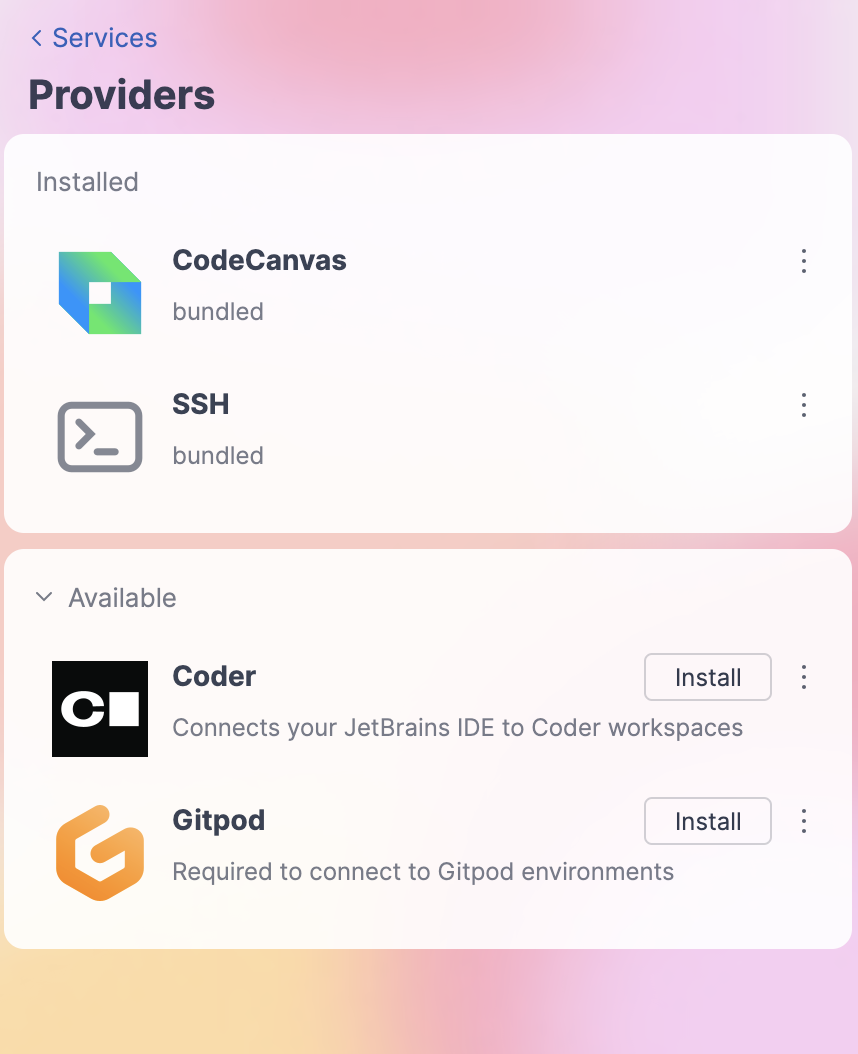
Depending on the selected plugin, follow the steps on setting up the development environment:
You can connect to Coder with the Toolbox App to work on your remote project.
Coder is available in the Toolbox App through the Coder plugin that you can use to connect to the existing environment or create the new one and work with it in the IDE.
Connect to Coder
Ensure you have the workspace configured in Coder and copy the access URL.
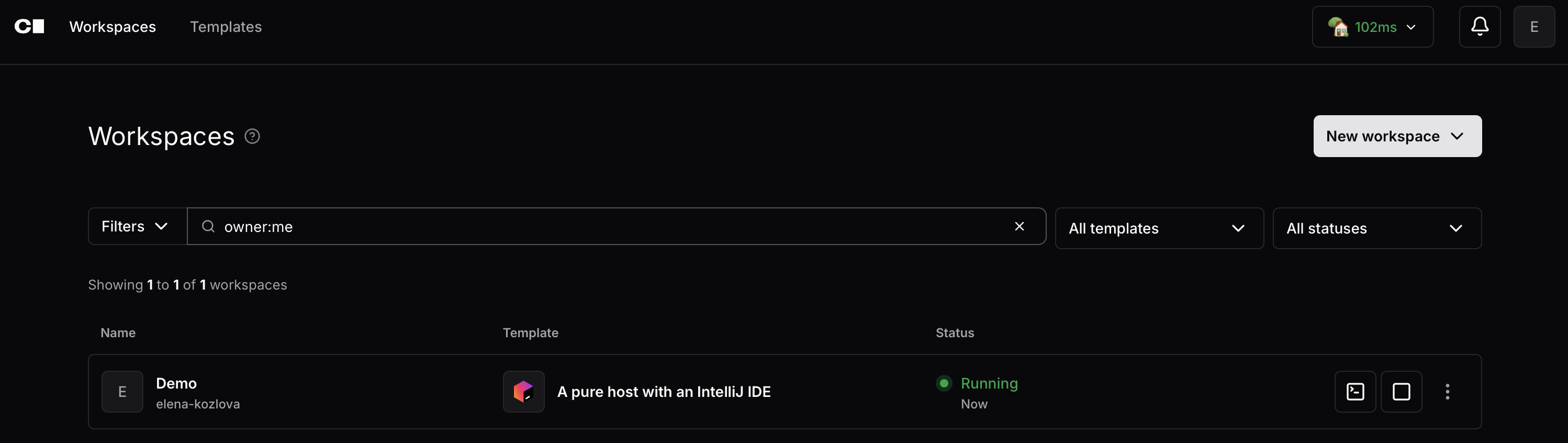
In the Toolbox App, click Coder.
If the workspace is up and running, the URL address is automatically added to the Toolbox App.
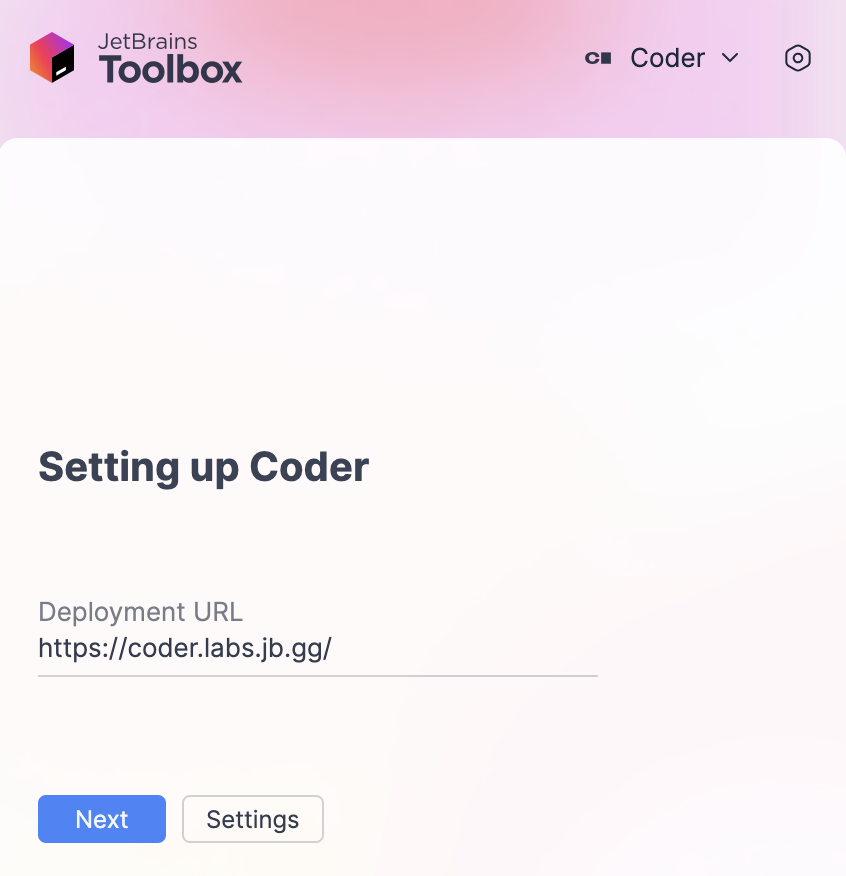
Click Next.
Authenticate to Coder adding a token for the session and click Connect.
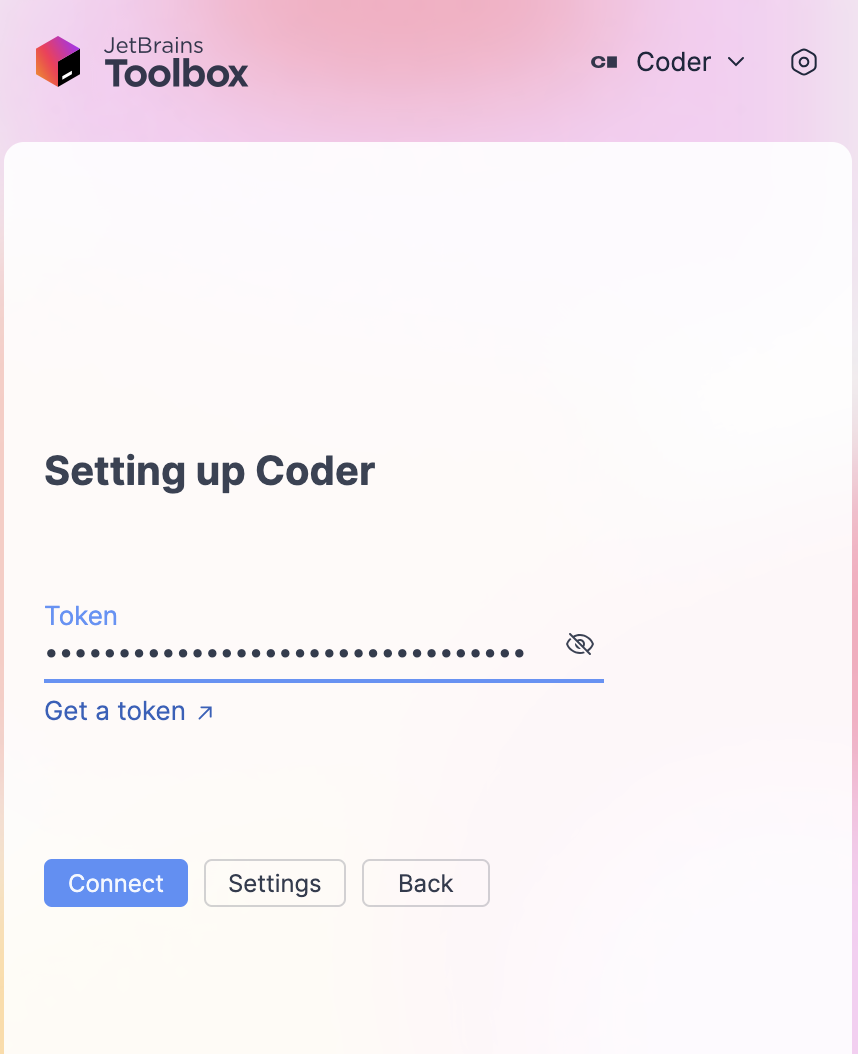
After the authentication is completed, you are connected to your development environment and can open and work on projects.
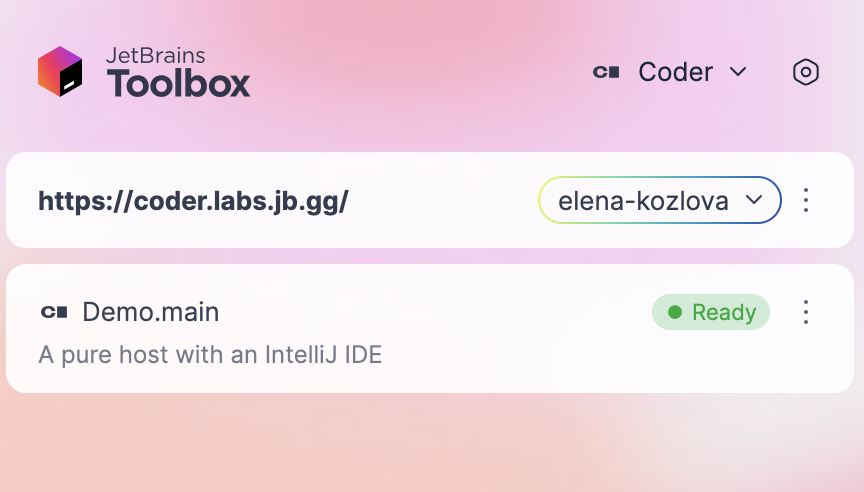
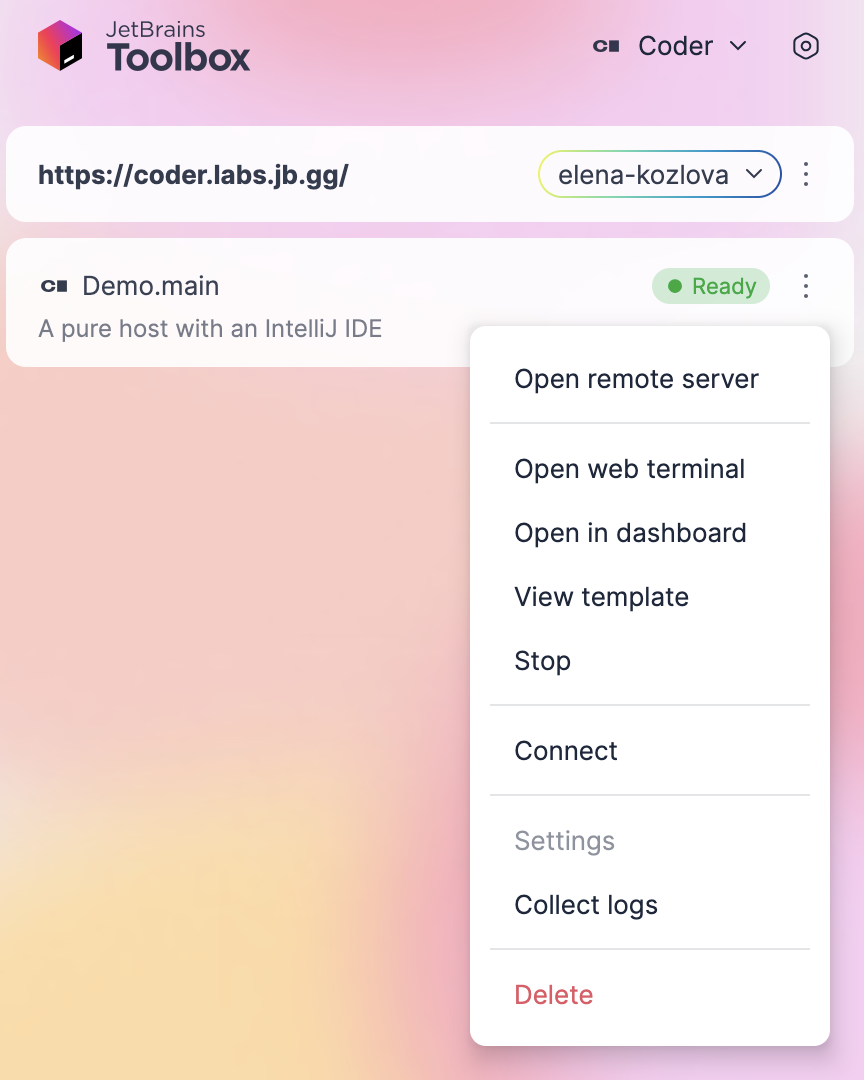
To manage the environment, use the context menu with various options.
The Toolbox App supports integration with Ona, an open-source orchestration and provisioning platform for automated developer environments.
Gitpod is available in the Toolbox App through the Ona plugin that you can use to connect to the existing environment or create the new one and work with it in the IDE.
Connect to Ona
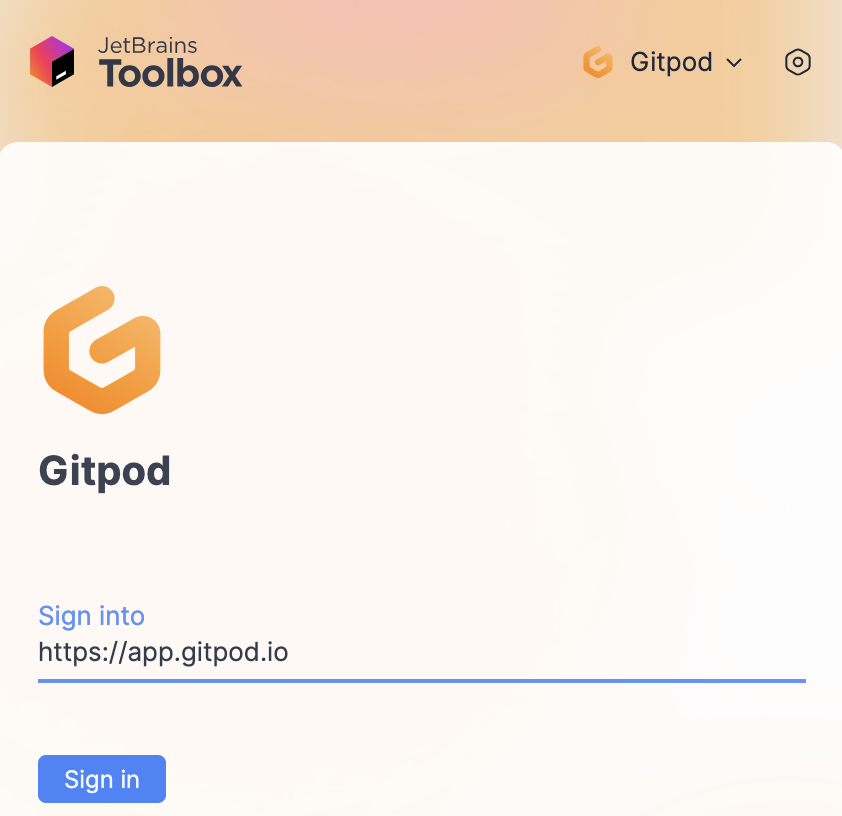
Click Ona, enter the sign-in link and click Sign In.
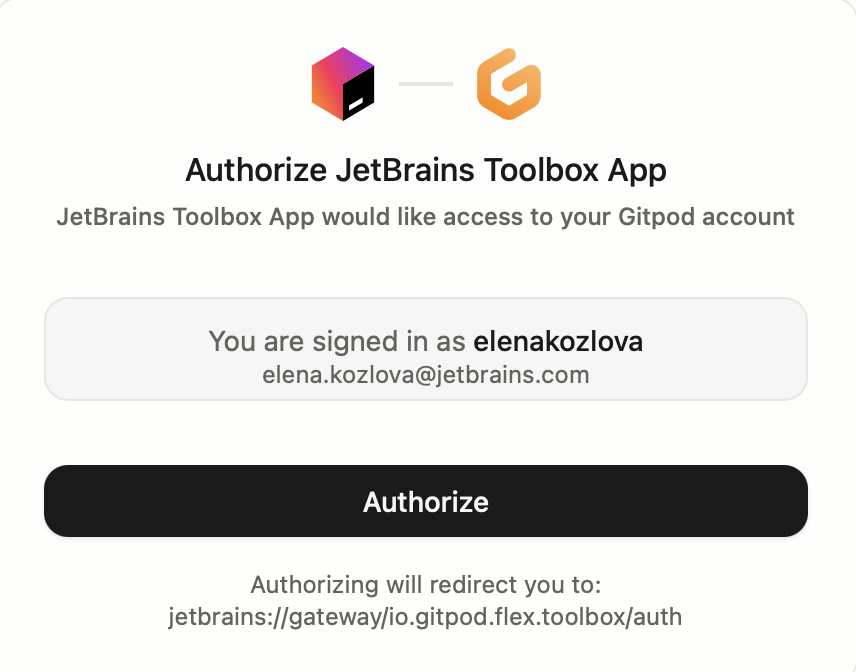
On the authorization page that opens in a browser, click Authorize to authorize the connection to the Ona development environment.
Click the Manage environments on the dashboard link to start or manage your environment in Ona.
When the environment is configured, click the drop-down in the right upper corner and select the IDE.
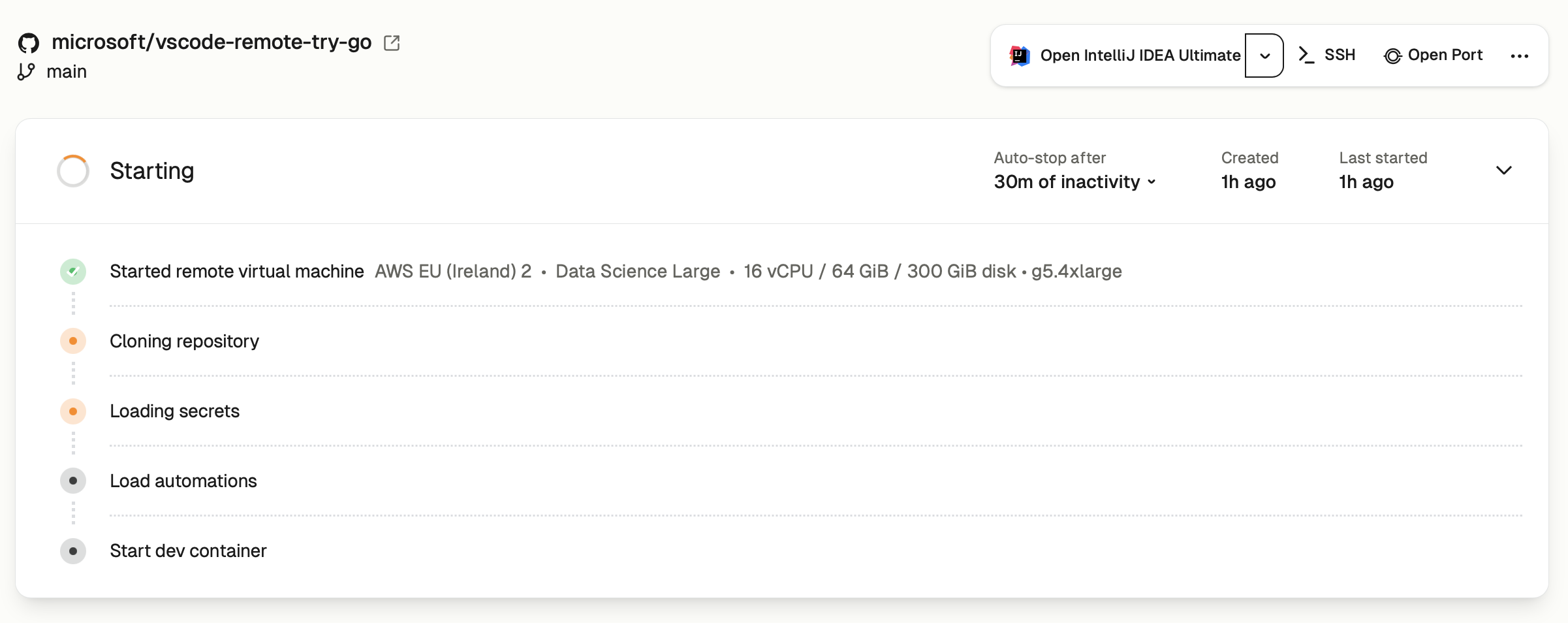
Click Allow to open the environment in the Toolbox App.
Once you are connected to your development environment, you can open and work on projects. To manage the environment, use the context menu with various options.