Support and Troubleshooting
When a problem occurs with TeamCity, we recommend first checking the Common Problems and Known Issues pages to see if there is existing guidance for the issue you are experiencing.
If you need additional help, we offer several convenient options:
Issue tracker (public, with an option for private): Log bugs or feature requests.
Support ticket (private): Available only for customers with active Enterprise server licenses to receive direct assistance from our support team.
Community forum (public): Engage in discussions with the wider user community.
These options are described in more detail below.
Issue Tracker
Our public issue tracker allows you to check if somebody has already reported your problem. If the same issue exists, please vote for it.
Although issues in our issue tracker are public by default, you do have an option to create a private issue, or add private comments/attachments to public issues. You can do this by setting the visibility only to the teamcity-developers group.
If you are certain you have encountered a bug, collect the relevant data about the problem and post a new issue in the issue tracker.
Feature requests can also be logged through our issue tracker.
Support Ticket
Customers who own a TeamCity Enterprise server license with active maintenance can submit a ticket directly to our support team. We use Zendesk for our ticketing system, and tickets can be submitted through the online support form or by email.
For additional details, such as our support team’s availability, optional support plans with defined SLAs, and handling of production outage situations, please refer to the Ticket-Based Support page.
Submit a Request with Diagnostic Data
You can start a support request without leaving TeamCity, and without digging up logs and thread dumps yourself. Describe the problem, and TeamCity gathers the diagnostic data, uploads it to the JetBrains Upload Service, and hands you a prefilled Zendesk form carrying an Upload ID that ties your ticket to the data. Our support team can start digging in right away.
Required permissions
To see the Submit support request icon in the navigation sidebar, you need the global Submit support requests with diagnostic data to JetBrains Support permission. System Administrators have it by default. To let anyone else submit requests, add this permission to one of their roles, as described in Managing Roles.
Submitting from a project, build configuration, or build page requires one more thing: you have to be able to view that page's data in the first place. System Administrators already can, everywhere. Everyone else needs these permissions in the project concerned:
View project and View build configuration settings — to submit a request from a project or build configuration page.
View build runtime data — additionally, to submit a request from a build results page.
Miss any of them and TeamCity stops with an error before collecting anything. Either ask an administrator for the missing permission, or submit from a page that is not tied to a project — the Agents page, for instance.
Collected data
What gets collected depends on where you open the form. With the Collect session logs checkbox enabled, you always get:
teamcity-*server log files. See General Logging Description for details.A series of server thread dumps.
Server environment details: operating system and architecture, Java/JVM details, database type and driver, licensing, and multinode setup details.
The page you start from adds the rest:
Page | Additional data |
|---|---|
Project | Settings of the project |
Build configuration | Settings of the build configuration and its parent project |
Build results | Settings of the build configuration and its parent project, the full build log, and the build's hidden artifacts (internal logs, properties, and settings) |
So if one particular build is misbehaving, open that build's results page before you submit — that way its log travels with the ticket. The form spells out what it will take from the current page, right under the Collect session logs checkbox.
Submit the request
If the issue concerns a specific project, build configuration, or build, open its page in TeamCity.
Click Submit support request in the navigation sidebar.
Fill in the Title and Issue description, and explain when you first noticed the problem.
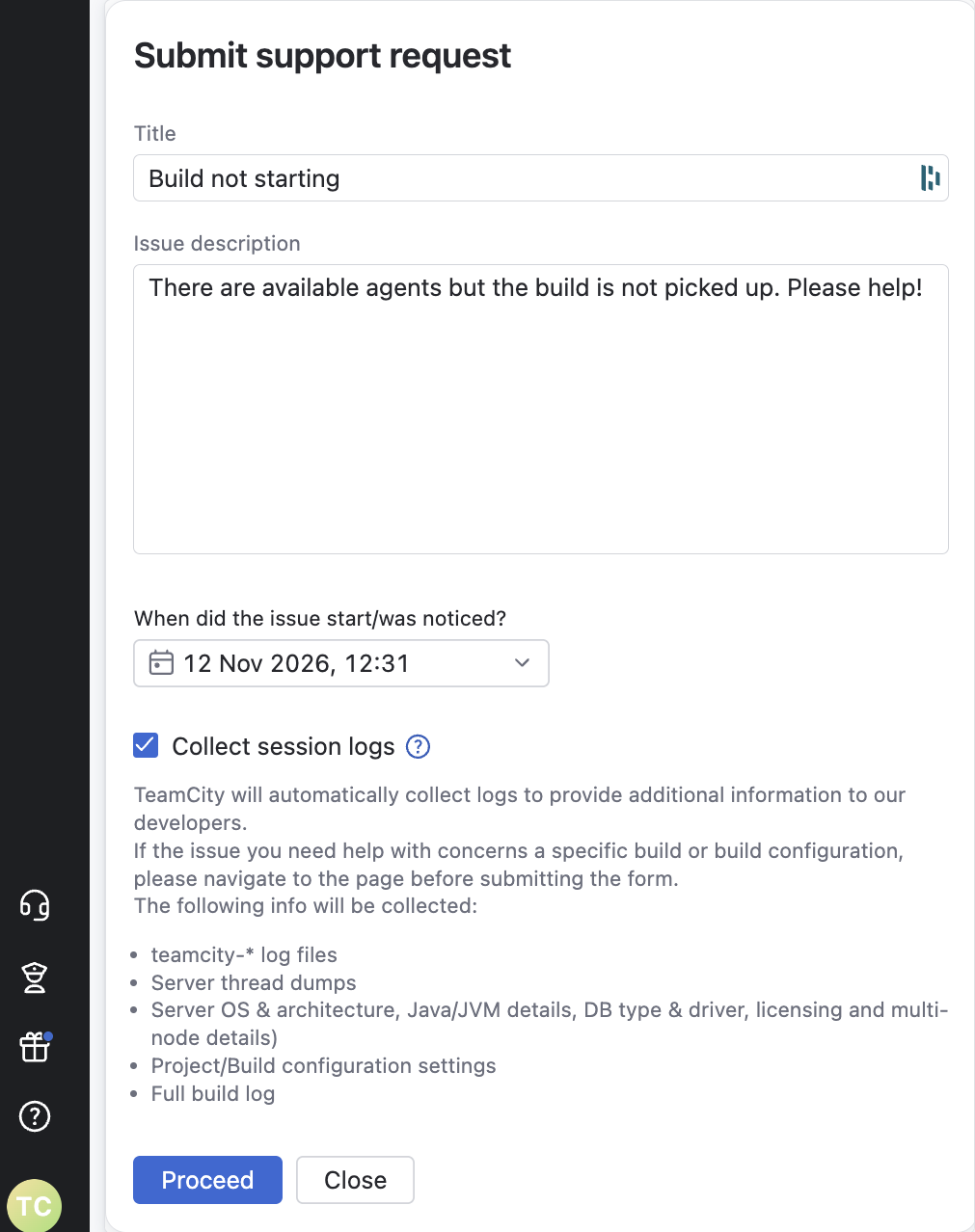
Leave Collect session logs selected to attach the diagnostic data. Clear it and TeamCity skips collection entirely, taking you straight to the Zendesk form with your text.
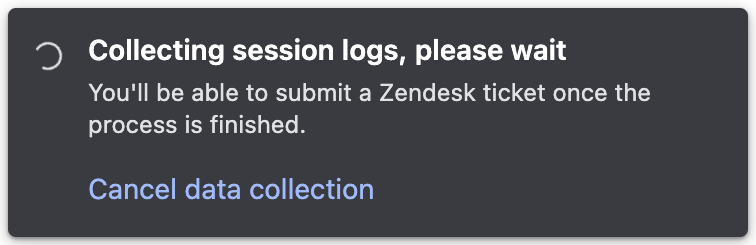
Click Proceed. Collecting and uploading the data takes a few minutes, so keep the page open until it finishes. To stop it, click Cancel data collection in the notification.
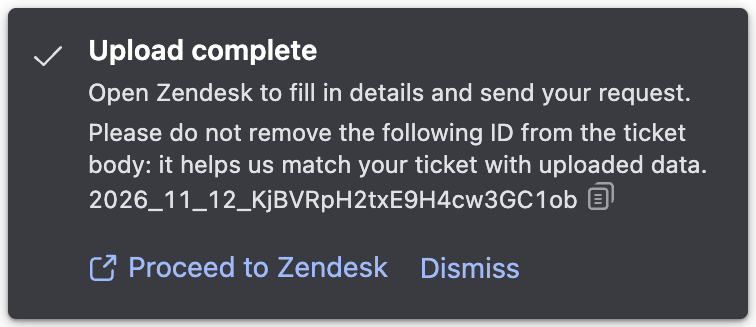
When Upload complete appears, click Proceed to Zendesk. The form opens with your title and description, and the Upload ID already in place. Do not edit or remove this ID, it is how support matches your ticket to the data. You can also copy it from the notification if you need it.
Add anything else worth mentioning, and submit the ticket.
Two hosts have to be reachable: the server uploads to uploads.jetbrains.com, and your browser opens the form at teamcity-support.jetbrains.com. Behind a restrictive firewall or proxy, allow both before you try to submit.
You can search the TeamCity community forum to see if anyone else has experienced your problem. Our forum's user base is quite active and is a good place to find support or start threads.
General Guidance
When reporting an issue through one of the systems mentioned above, make sure to:
Provide all necessary information by reviewing the guidelines on reporting issues.
Use a recent TeamCity version. Please note that we generally do not provide regular support for major versions that are more than one year old (refer to the Release Cycle page for more details).
Data Security
We encourage making your posts publicly available so that other users can contribute based on their experience and benefit from the answers.
All data in the JetBrains community forum is public. Issues in the JetBrains issue tracker are public by default; however, there is an option to create issues visible only to the JetBrains team. Additionally, private comments and attachments can be added to public issues.
If you need to share information that is not intended for public access, you can use the following methods:
Submit a support request from the TeamCity UI. TeamCity collects the diagnostic data, uploads it to the JetBrains Upload Service, and links it to your ticket — nothing is posted publicly.
Post a comment or attach files to the issue in the JetBrains issue tracker, making them visible only to the
teamcity-developersgroup.Attach the data to a support ticket. View the Ticket-Based Support page for contact details.
For files exceeding 10MB, upload them to the JetBrains Upload Service and share the Upload ID in the related support case.
All data marked as non-public is used solely for investigating the related issue and is discarded afterward.
During transfer and storage, the data may reside on third-party servers, such as mail servers, Amazon AWS servers, Zendesk, and others.
For more details, please refer to the JetBrains Privacy Policy.