Start TeamCity Server
Start Server
If TeamCity is installed using the .exe or .tar.gz distributions, it can be started and stopped by the teamcity-server scripts located in the <TeamCity Home>/bin directory. The scripts accept run (run in the same console), start (start a new detached process and exit from the script), and stop commands. To restart TeamCity, send stop and then, after it stops, send start.
(evaluation only) To start/stop the TeamCity server and one default agent at the same time, use the runAll script, for example:
Use
runAll.bat startto start the server and default agent.Use
runAll.bat stopto stop the server and default agent.
To start/stop the TeamCity server only, use the teamcity-server scripts and pass the required parameters. Start the script without parameters to see the usage instructions. The teamcity-server scripts support the following options for the stop command:
stop n— sends the stop command to the TeamCity server and waits up tonseconds for the process to end.stop n -force— sends the stop command to the TeamCity server, waits up tonseconds for the process to end, and terminates the server process if it did not stop.
If a TeamCity server is installed as a Windows service, follow the usual procedure of starting and stopping services.
If you need to pass special properties to the server, refer to this article.
You can configure autostart of TeamCity on your machine by the means of the operating systems (see the example for macOS).
Automatic Server Startup
This section covers configuring your system to launch the TeamCity server automatically at startup.
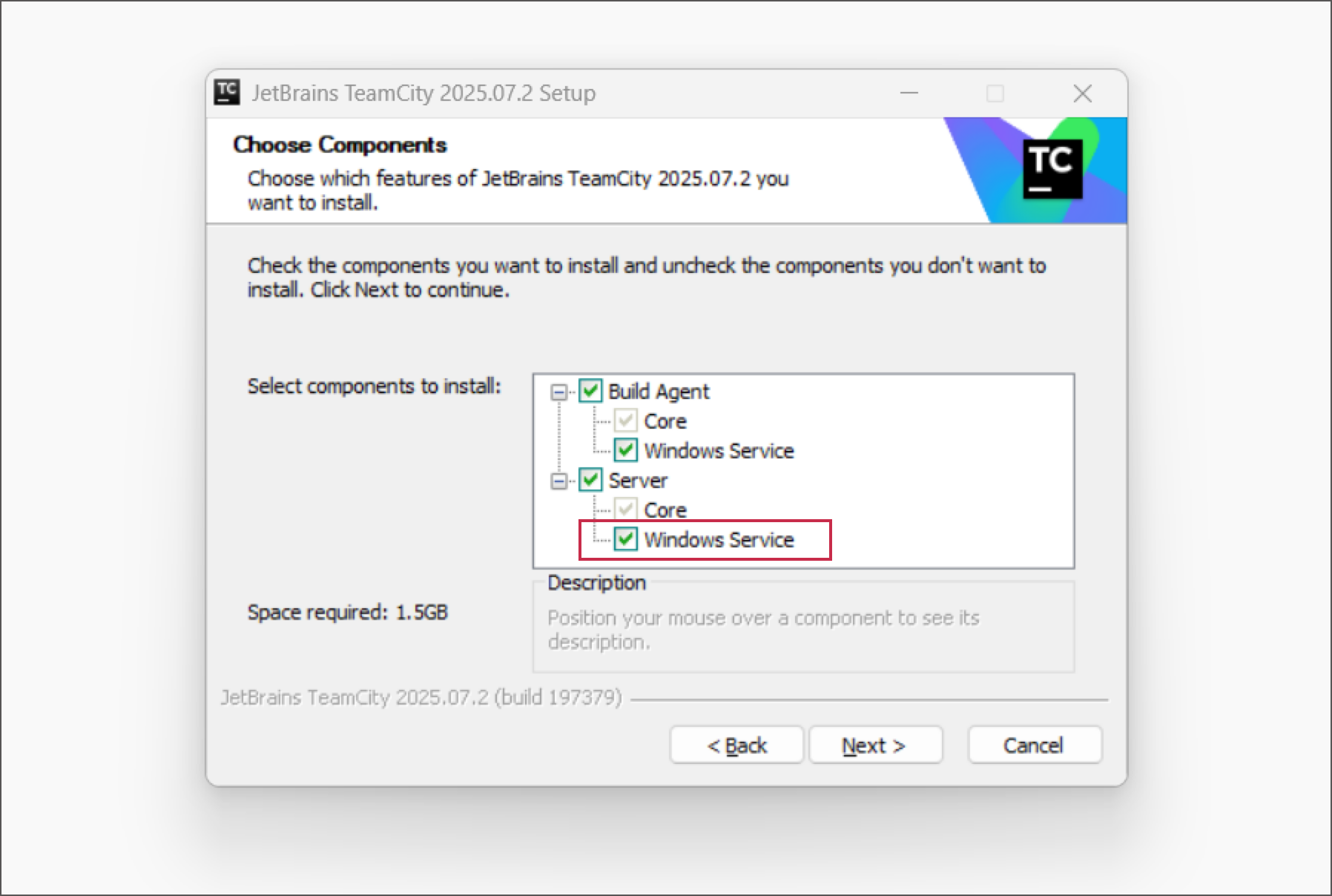
When installing TeamCity from an .exe installation, make sure the "Server > Windows Service" option is on.
Open the Windows Services window via the control panel or run the
services.msccommand.Set the startup type of the TeamCity Server service to "Automatic".
See this Microsoft article for more information: Automatically Starting Services.
Install TeamCity and make sure it works if started from the command line with
bin/teamcity-server.sh start.Create a systemd service configuration file.
TEAMCITY_HOME="/opt/teamcity" # Replace with the actual TeamCity Server installation directory LINUX_USERNAME="my_username" # Replace with the Linux user account that should run the service LINUX_USERGROUP="my_groupname" # Replace with the primary group of that user sudo tee /etc/systemd/system/teamcity-server.service > /dev/null <<EOF [Unit] Description=TeamCity Server After=network.target [Service] Type=forking PIDFile=$TEAMCITY_HOME/logs/teamcity.pid ExecStart=$TEAMCITY_HOME/bin/teamcity-server.sh start ExecStop=$TEAMCITY_HOME/bin/teamcity-server.sh stop User=$LINUX_USERNAME Group=$LINUX_USERGROUP EnvironmentFile=/etc/environment [Install] WantedBy=multi-user.target EOFEnable service startup on reboot and start the service.
sudo systemctl enable teamcity-server.service sudo systemctl start teamcity-server.service
Install TeamCity and make sure it works if started from the command line with
bin/teamcity-server.sh start. This instruction assumes that TeamCity is installed to/Library/TeamCity.Create the
/Library/LaunchDaemons/jetbrains.teamcity.server.plistfile with the following content:<?xml version="1.0" encoding="UTF-8"?> <!DOCTYPE plist PUBLIC "-//Apple//DTD PLIST 1.0//EN" "https://www.apple.com/DTDs/PropertyList-1.0.dtd"> <plist version="1.0"> <dict> <key>WorkingDirectory</key> <string>/Library/TeamCity</string> <key>Debug</key> <false/> <key>Label</key> <string>jetbrains.teamcity.server</string> <key>OnDemand</key> <false/> <key>KeepAlive</key> <true/> <key>ProgramArguments</key> <array> <string>/bin/bash</string> <string>--login</string> <string>-c</string> <string>bin/teamcity-server.sh run</string> </array> <key>RunAtLoad</key> <true/> <key>StandardErrorPath</key> <string>logs/launchd.err.log</string> <key>StandardOutPath</key> <string>logs/launchd.out.log</string> </dict> </plist>Test your file by running:
launchctl load /Library/LaunchDaemons/jetbrains.teamcity.server.plistThis command should start the TeamCity server (you can see this from
logs/teamcity-server.logand in your browser).If you don't want TeamCity to start under the root permissions, specify the
UserNamekey in the.plistfile, for example:<key>UserName</key> <string>teamcity_user</string>
The TeamCity server will now start automatically when the machine starts. To configure automatic start of a TeamCity build agent, see the dedicated section.
Launch TeamCity UI
The TeamCity UI can be accessed via a web browser. The default addresses are http://localhost/ for the exe distribution and http://localhost:8111/ for the tar.gz distribution. See how to change the server port, if necessary.
If you cannot access the TeamCity UI after a successful installation, please refer to the troubleshooting section.
Troubleshoot TeamCity Installation
If the TeamCity UI cannot be accessed, check the following:
The TeamCity Server service is running (if you installed TeamCity as a Windows service).
The TeamCity server process (Tomcat) is running (a Java process run in the
<TeamCity Home>/bindirectory).Any warnings in the console output if you run the server from a console.
The
teamcity-server.logfile and other files in the<TeamCity Home>\logsdirectory for error messages.
One of the most common issues with the server installation is using a port that is already used by another program. See how to change the default port.