Gradle
This build step is tailored to build Gradle projects and supports all Gradle build configurations, including build.gradle and build.gradle.kts.
Prerequisites
To run builds with Gradle, Gradle 0.9-rc-1 or later must be installed on all the agent machines. Alternatively, if you use the Gradle wrapper, you need to have properly configured Gradle Wrapper scripts checked in to your Version Control.
Step Settings
The list of Gradle step settings and their corresponding UI labels slightly differ depending on whether you configure a build configuration or a pipeline.
Main Settings
- Tasks
The list of space-separated Gradle tasks this step should perform. For example,
:myproject:clean :myproject:buildorclean build. If this field is left blank, thedefaulttask is used. Note that TeamCity currently supports building Java projects with Gradle. Building Groovy, Scala, and other projects has not been tested.Additional task options should also be entered in this field. For example,
:myproject:run --args="foo --bar"orclean test --tests MyTestClass.myTestMethod.- Working directory
The directory where the build step starts. By default, this is the same root directory where the agent checks out remote sources. See this topic for more information: Build Working Directory.
- Use Gradle wrapper
If enabled, TeamCity will look for Gradle Wrapper scripts in the checkout directory, and launch the appropriate script with Gradle tasks and additional command line parameters specified in corresponding step settings. In this case, Gradle specified in Gradle home path and Gradle installed on the agent are ignored.
Additional Settings
- Gradle home
The path to the Gradle home directory (the parent of the
bindirectory). If not specified, TeamCity will use Gradle specified in the agent'sGRADLE_HOMEenvironment variable. If you don't have Gradle installed on agents, you can use a Gradle wrapper instead.- Build file
A path to the directory that contains Gradle build file, relative to the working directory. If empty (default), Gradle uses own settings to determine it.
- Additional Gradle command line parameters
The optional space-separated list of Gradle properties. For example,
-x test(or--exclude-task test),--configuration-cache, or-PmyProjectProperty=foo.- Gradle wrapper path
Optional path to the Gradle wrapper script relative to the working directory.
- Incremental building
TeamCity can make use of the Gradle
:buildDependentsfeature. If the Incremental building option is enabled, TeamCity will detect Gradle modules affected by changes in the build and start the:buildDependentscommand for them only. This will cause Gradle to fully build and test only the modules affected by changes.
Run Parameters
- Debug
Adds the
-dGradle command-line parameter.- Stacktrace
Adds the
-sGradle command-line parameter.
Container Settings
This build step can run inside a container deployed by Docker or Podman.
Classic build configuration steps display a set of properties that allow you to specify the image name, platform, and additional run arguments. The Pull image explicitly ensures TeamCity pulls an image from the target container every time this step runs.
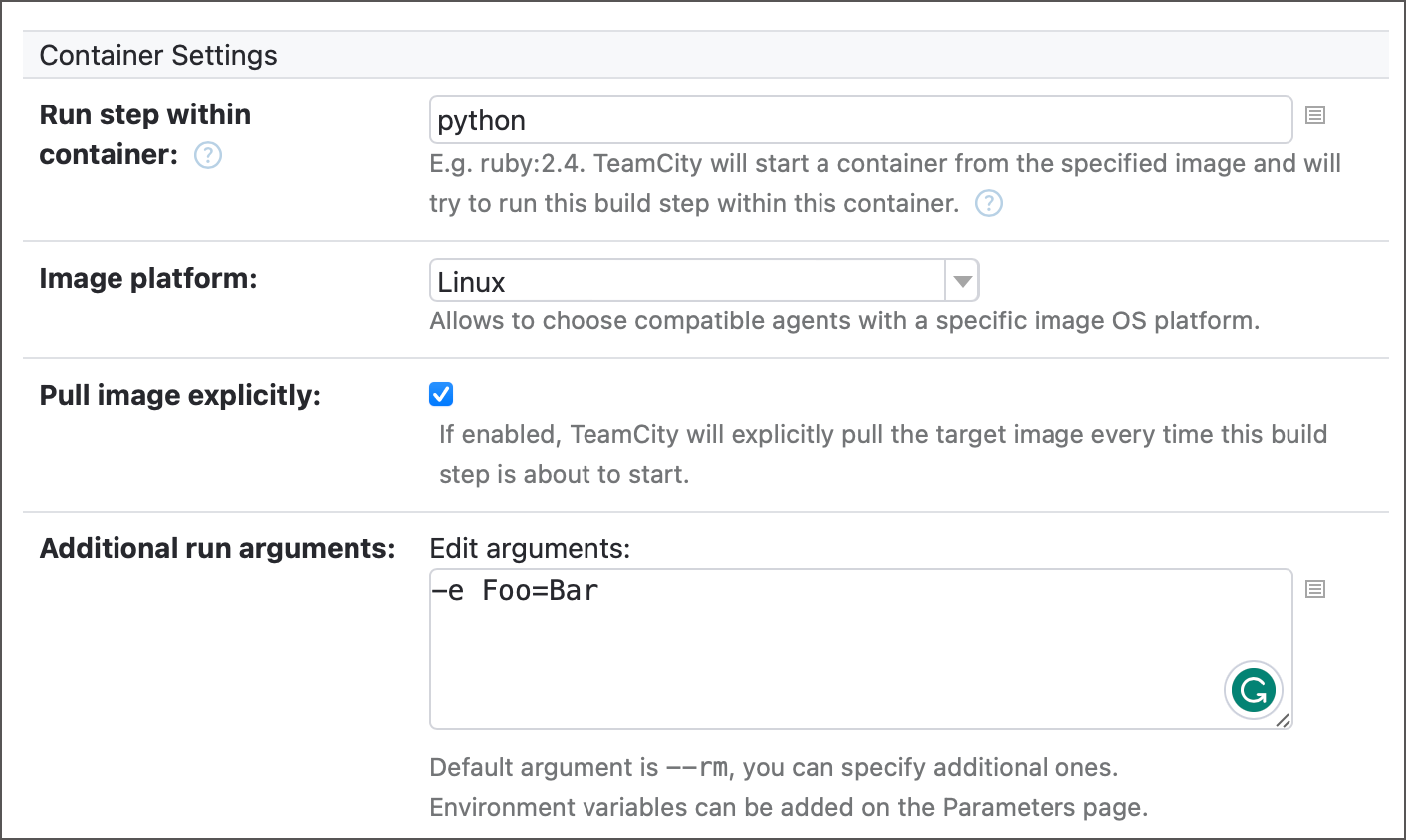
To point TeamCity to a registry where it should look for the specified image, add Docker/Podman connection to your project. By default, this connection allows TeamCity to pull images from Docker Hub in anonymous mode, but you can set it up for any container registry.
See the following article for more information: Container Wrapper.
Toggle Run in Docker on to run a step inside a container. When enabled, this element displays two options.
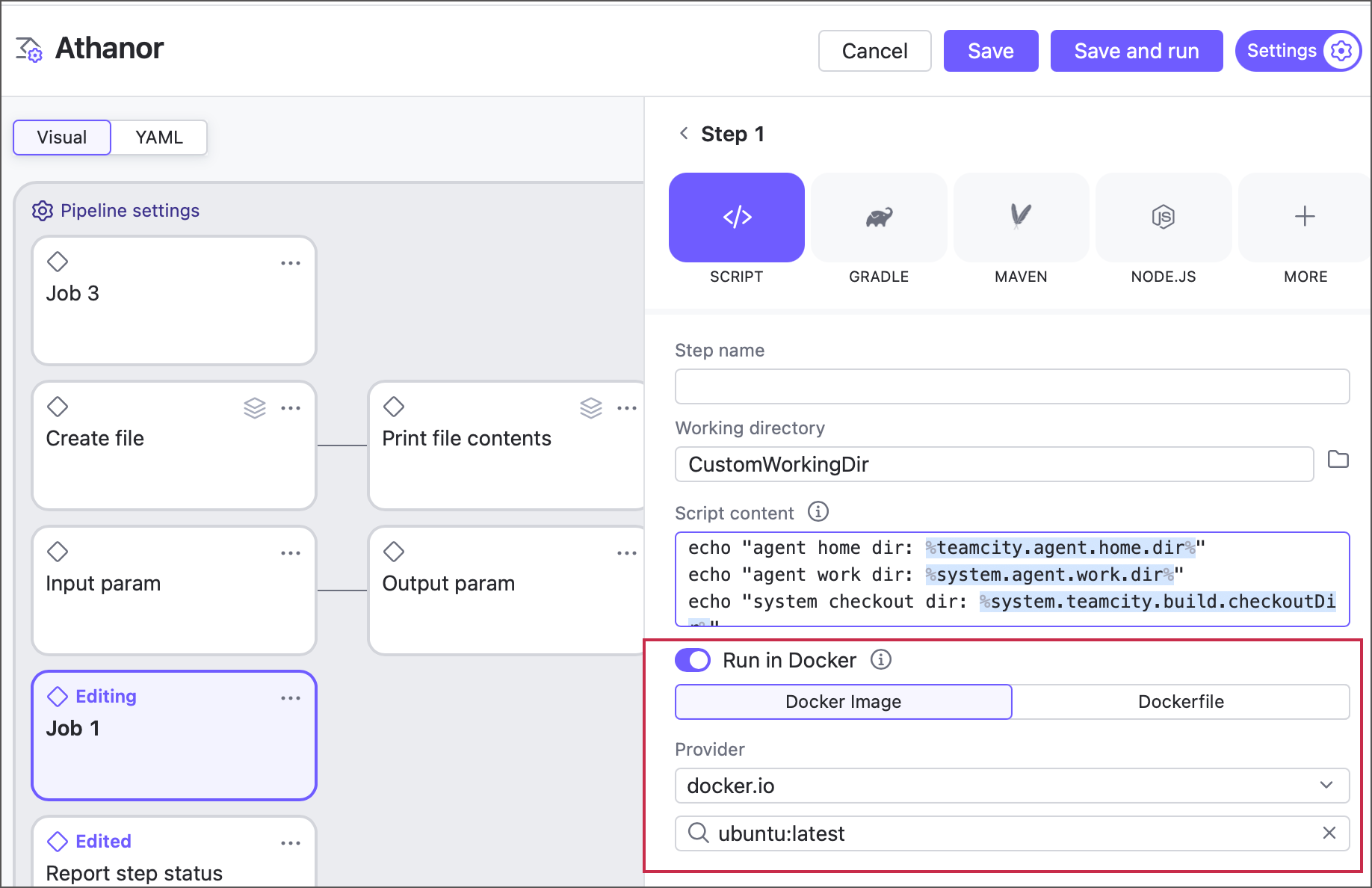
Docker image — allows you to pull an image from a Docker or Podman registry. By default, TeamCity can pull Docker Hub images in anonymous mode. For other cases (private images, custom image registries, non-anonymous mode that ensures you do not violate Docker Hub rate limits), configure a Docker integration on a pipeline or job level.
Dockerfile — allows you to build a custom image from a Dockerfile.
Code Coverage
The Gradle build runner supports code coverage with based on the IDEA code coverage engine and JaCoCo.
Java Parameters
- JDK
Select a JDK. This section details the available options. The default is
JAVA_HOMEenvironment variable or the agent's own Java.- JDK home path
The option is available when <Custom> is selected above. Use this field to specify the path to your custom JDK used to run the build. If the field is left blank, the path to JDK Home is read either from the
JAVA_HOMEenvironment variable on the agent machine, or from theenv.JAVA_HOMEproperty specified in the build agent configuration file (buildAgent.properties). If these values are not specified, TeamCity uses the Java home of the build agent process itself.- JVM command line parameters
Additional JVM command line parameters allow you to set initial and maximum heap sizes, enable additional logging, select the required bytecode verifier mode, and more.
You can specify both standard (begin with
-, for instance-verbose:[class|module|gc|jni]or--dry-run) and non-standard (begin with-X, for instance-Xmx<size>or-XstartOnFirstThread) JVM options.To specify multiple command line parameters, use space as a separator. For example:
-verbose:gc -Xdiag -Xcomp -Xmx512m -Xms256m
Build properties
In Gradle builds, TeamCity system properties are different from Java system properties.
Regular Java system properties can be accessed globally. Use the
System.getProperty("my.property")orproviders.systemProperty("my.property").get()methods to obtain these properties' values.TeamCity system properties are written to the Project object when a build initializes. Therefore, TeamCity system properties can be accessed anywhere the
Projectis available (useproject.hasProperty("property.name")to check whether the required property is available).
The recommended way to reference TeamCity system properties is as follows:
or if the system property's name is a legal name identifier (for example, system.myPropertyName = myPropertyValue):
Configuration Cache
Starting with version 2024.03, TeamCity Gradle runner supports configuration cache. This feature significantly improves build performance by caching the result of the configuration phase and reusing this cache in subsequent builds.
Configuration cache is enabled if either of the following is true:
The
--configuration-cacheparameter was added to the runner's Additional Gradle command line parameters field.A
gradle.propertiesfile includes theorg.gradle.configuration-cache=true(for Gradle 8.1+) ororg.gradle.unsafe.configuration-cache=true(for older Gradle versions) line. This applies to both the project'sgradle.propertiesfile and the one in theGRADLE_USER_HOMEdirectory.
Current Limitations and Known Issues
Gradle configuration caches may not work as expected in the following cases:
if virtual builds (those spawned during parallel testing or Matrix Build runs) run in a different order from when the caches were created. See this YouTrack ticket for more information: TW-86556.
if the Clean Checkout is enabled;
if a build step runs within a Docker or Podman container;
if Gradle ignores configuration cache problems.
if the list of additional command line arguments includes those unsupported by Gradle Tooling API (
--daemon,--stop, and others). This restriction does not apply in the advanced integration mode, which does not use the Tooling API.
Build parameters whose values always change from build to build (for example, build.id or build.number) will be loaded only on demand. You can still obtain values of these properties using direct references (for example, project.teamcity["build.number"]), but the findProperty() method (project.findProperty("build.number")) yields no results. If you need to call this method in your Gradle script, use the following workaround:
Create a new configuration parameter and map it to the affected parameter:
MyBuildNumber=%build.number%.Create a new system property and map it to your new configuration parameter:
system.buildNumber = %MyBuildNumber%.Use the
${findProperty}("buildNumber")}syntax to obtain a required value in your Gradle script.
Note that this workaround prevents your build configuration from reusing the configuration cache, so you may also want to disable it.
Gradle Integration Mode
Starting with version 2026.2, you can choose between the legacy and advanced Gradle integration modes. Builds use the legacy mode by default. The advanced mode is available for projects using Gradle 8.1 or newer, and offers the following benefits:
Supports Gradle Isolated Projects.
Allows using all Gradle command-line options (
--daemon,--no-daemon,--stop, and other options incompatible with the legacy mode).Does not use the Gradle Tooling API, so builds behave as if you ran Gradle directly from the command line, outside TeamCity.
To enable the advanced mode, add the teamcity.internal.gradle.runner.launch.mode=gradle_v2 property to a project, build configuration, or a pipeline. You can also add this property to internal server properties to enable the advanced mode globally.
We expect to make the advanced mode the default one in future TeamCity releases. See the following ticket for more information: TW-103406.
Configuration as Code
The following snippets illustrate a customized build step in both YAML (only pipelines) and Kotlin DSL formats.
See also: GradleBuildStep Kotlin DSL documentation