Solana (Experimental)
Solana (Experimental) is a RustRover plugin for developing and exploring Anchor-based Solana projects. It reads project configuration from Anchor.toml, provides program and wallet actions, integrates with a local Surfpool network, and includes an explorer for transactions and accounts.
Install the Solana (Experimental) plugin
This functionality requires the Solana (Experimental) plugin, which you need to install and enable.
Open the IDE settings and select Plugins.
Open the Marketplace tab.
Search for Solana (Experimental) and click Install.
Restart RustRover if prompted.
After installation, open an Anchor project containing an Anchor.toml file. The plugin detects the project and its configured programs automatically.
Configure the plugin
Configure the Solana toolchain
Open to review the command-line tools used by the plugin.
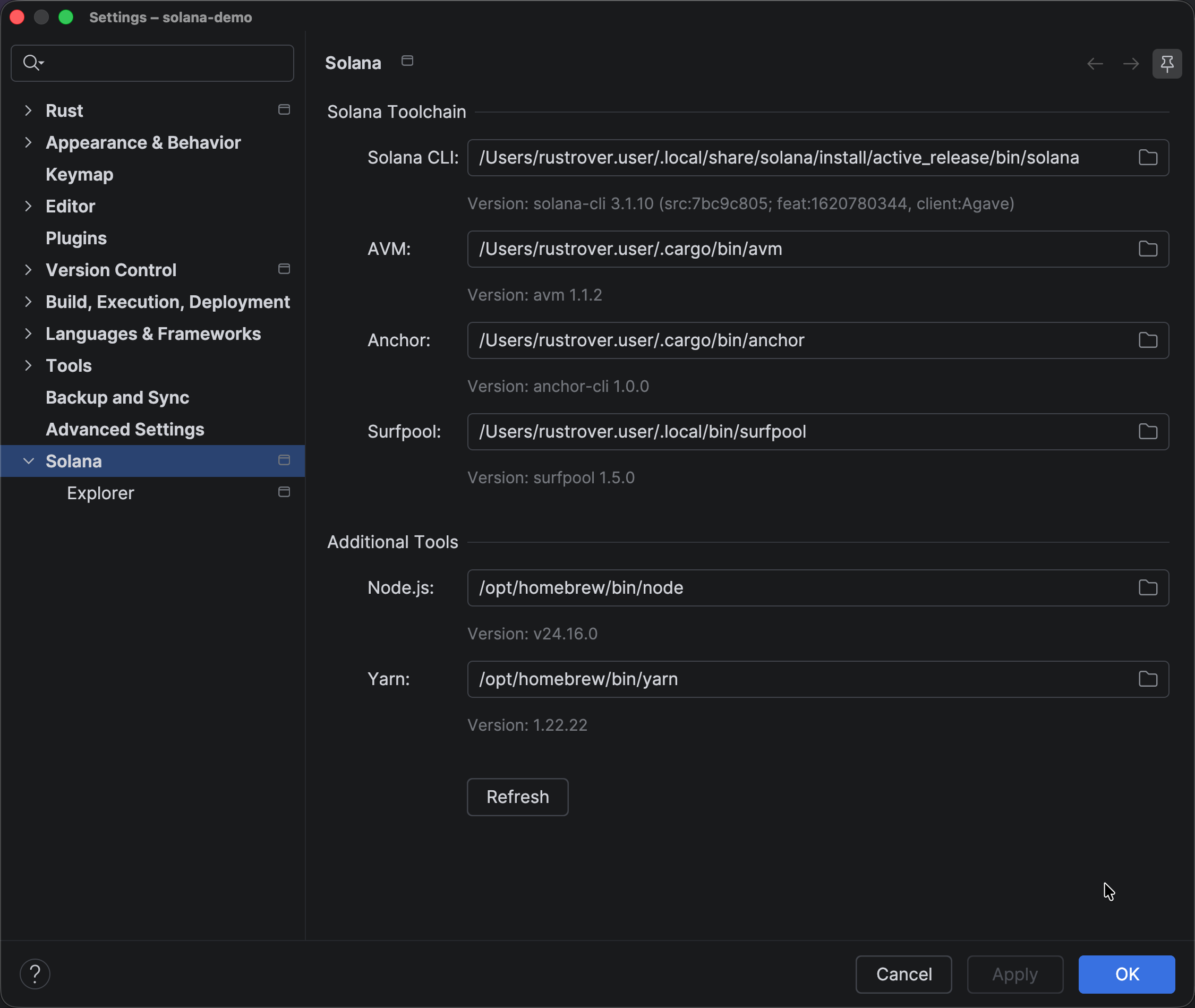
The settings page groups tools into two categories:
Solana Toolchain — Solana CLI, Anchor Version Manager (AVM), Anchor CLI, and Surfpool.
Additional Tools — Node.js and Yarn.
For each tool, the plugin displays the configured executable path and its detected version. Use the folder button next to a field to select a different executable. Click Refresh after installing a tool or changing a path to detect the tools and versions again.
If required tools are not installed, the plugin displays an Install missing tools link. Follow this link to install the missing dependencies, then return to the settings page and click Refresh to verify that they are available.
You can also open the plugin configuration from the Solana tool window while required tools are missing. In this setup state, the tool window provides an action that opens the relevant settings instead of displaying the normal project and Explorer content.
Configure Explorer networks
Open to manage the networks available in the Explorer.
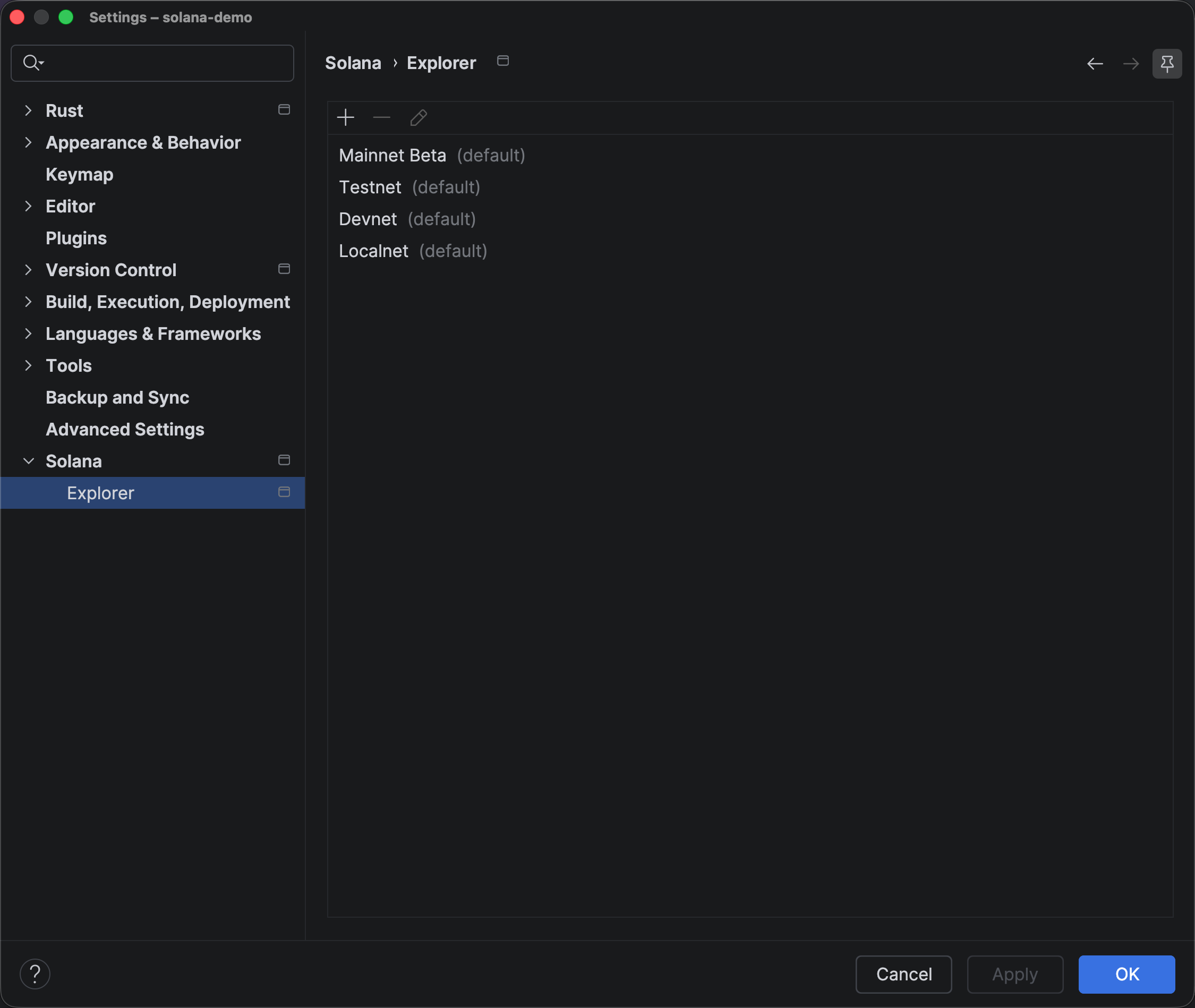
The plugin provides the following networks by default:
Mainnet Beta.
Testnet.
Devnet.
Localnet.
Use the toolbar above the network list to add, remove, or edit network configurations.
Add a custom network
Click Add.
In the Add Custom Network dialog, configure:
Name — the label shown in the Explorer's network selector.
HTTP URL — the network's JSON-RPC endpoint.
WS URL — the WebSocket endpoint used for subscriptions and live updates.
Port — the RPC port used by the network.
Click OK to save the network.
To change an existing configuration, select it and click Edit. To delete a custom configuration, select it and click Remove. Configured networks become available in the Explorer tab's network selector.
Anchor project integration
The plugin recognizes Anchor projects by reading their Anchor.toml files. It discovers:
The Anchor project location.
The configured wallet.
Configured clusters, such as Localnet.
Programs declared for each cluster, such as programs under
[programs.localnet].
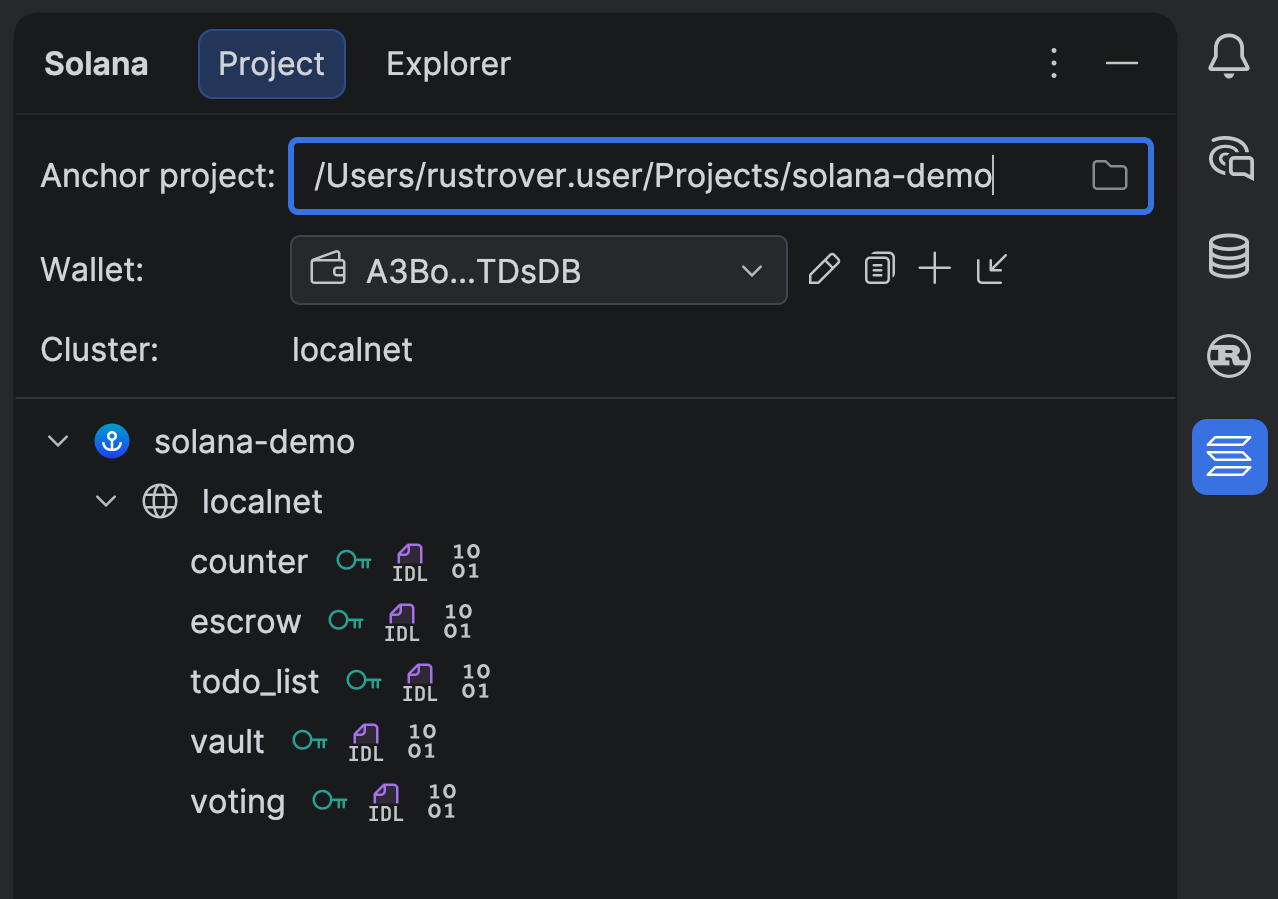
The Project tab presents this information as a tree organized by project, cluster, and program. This lets you work with the project without copying configuration values out of Anchor.toml manually.
Edit Anchor.toml
The plugin provides Anchor-aware editing assistance for Anchor.toml, including:
Syntax highlighting for sections, properties, and values.
Validation and editor inspections for the Anchor configuration.
Context-aware completion for section properties.
Completion for supported property values, with descriptions where available.
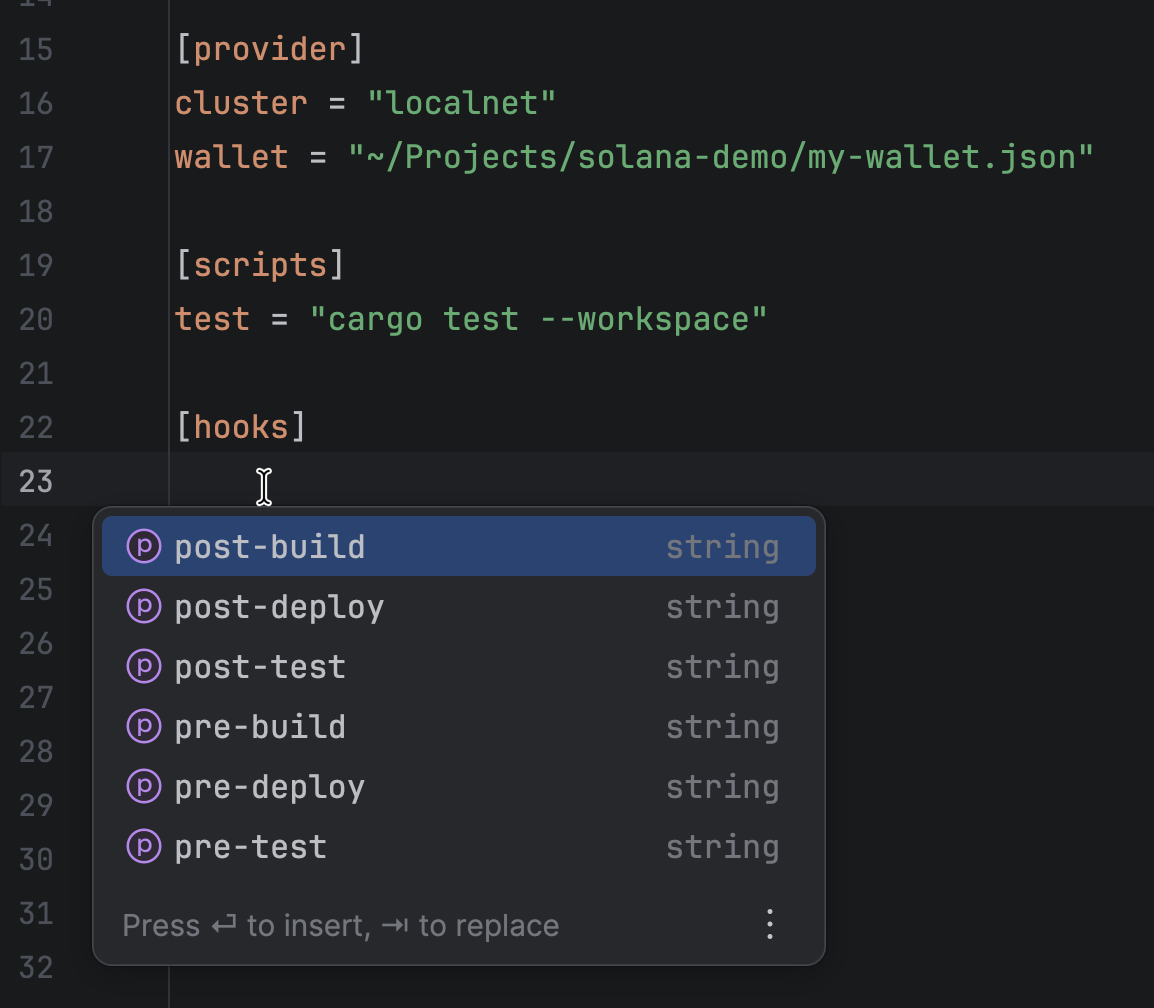
For example, inside the [hooks] section, completion suggests supported hook names such as pre-build, post-build, pre-deploy, post-deploy, pre-test, and post-test.
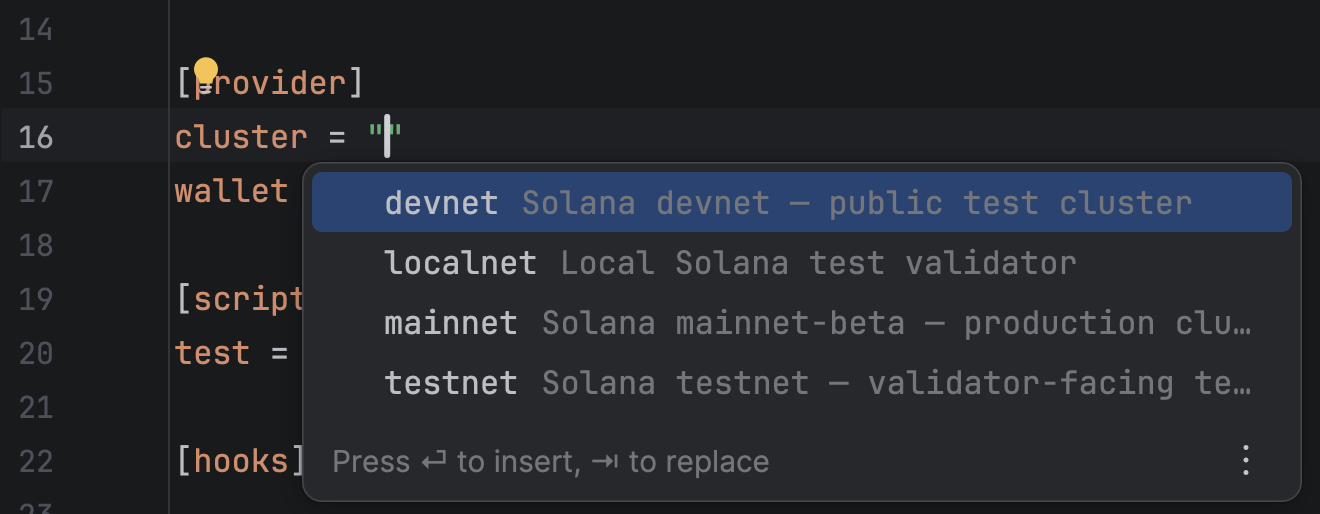
For cluster properties, completion provides the standard Solana cluster values and explains their purpose:
devnet— the public Solana development cluster.localnet— a local Solana test validator.mainnet— the Solana mainnet-beta production cluster.testnet— the validator-facing Solana test cluster.
Synchronize Anchor program IDs
The editor displays the Sync Anchor Keys notification action when it detects that an Anchor program's ID declarations are out of sync with the program's generated keypair.
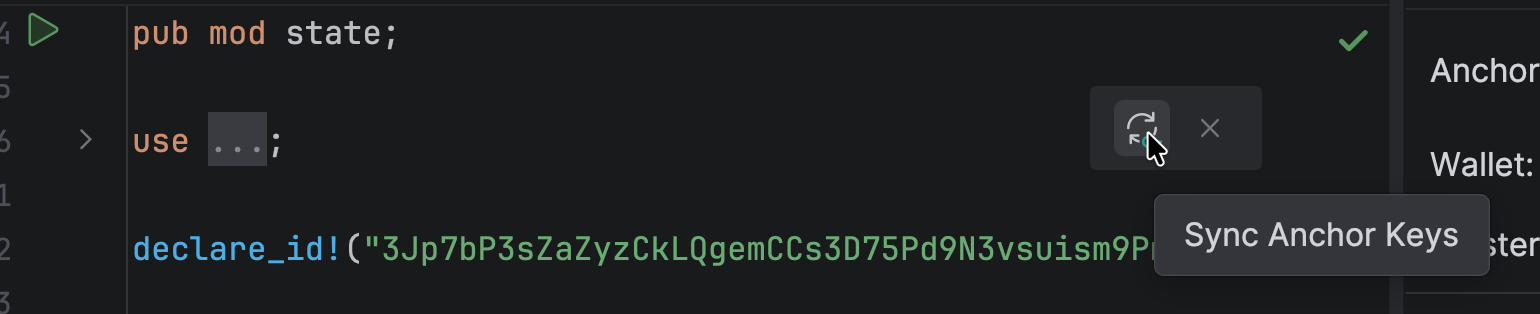
This commonly occurs after:
Cloning a project without its generated deployment keypairs.
Running an initial build that generates a new keypair.
Replacing or regenerating a program keypair.
Manually changing a program ID in the source code or Anchor.toml.
Click Sync Anchor Keys to run the equivalent of anchor keys sync. The generated keypair in target/deploy/<program>-keypair.json is treated as the source of truth. The action updates:
The public key in the program's
declare_id!macro.The corresponding program ID declaration in Anchor.toml.
After synchronization, the program source and Anchor configuration use the public key of the actual deployment keypair. Because the action edits project files, review the resulting changes before committing them.
Custom run configurations
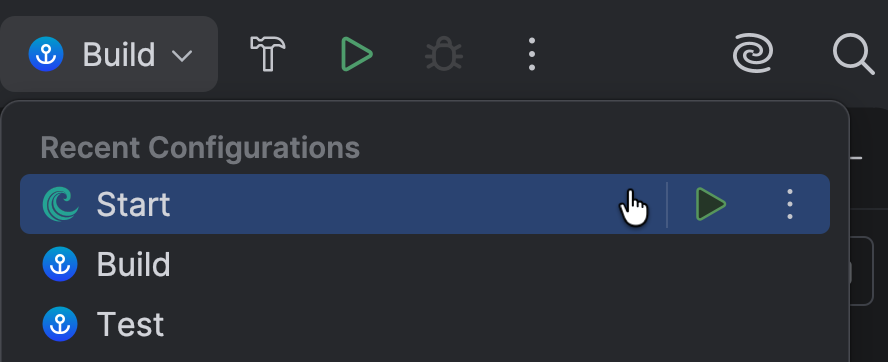
Build and test Anchor projects
The plugin provides preconfigured run configurations for common Anchor development tasks:
Anchor Build — builds the programs in the Anchor project.
Anchor Test — runs the Anchor project's test suite.
Select either configuration from RustRover's run-configuration selector and run it using the standard IDE controls. Command output and errors appear in the Run tool window, allowing you to build and test the project without invoking the corresponding Anchor commands manually in a terminal.
Run a local network with Surfpool
The plugin provides a Surfpool: Start run configuration. Run it from RustRover's run-configuration selector to execute:
Surfpool output appears in the Run tool window and can include:
Current slot and epoch information.
Network and deployment logs.
A transaction counter.
A link to the Surfpool Studio interface.
After Surfpool starts, programs can be deployed to the local network from the Project tab.
Solana tool window
Open an Anchor project in RustRover, then open the Solana tool window.
After toolchain discovery succeeds, the window contains two main tabs:
Project — project, wallet, cluster, and program management.
Explorer — transaction monitoring and account inspection.
Manage the wallet
The Wallet selector shows the wallet connected to the Anchor project. The adjacent toolbar provides the following actions, from left to right:
Action | Description |
|---|---|
Open Wallet File | Opens the selected wallet's keypair file in the editor. |
Copy Public Key | Copies the selected wallet's public key to the clipboard. |
Create New Wallet | Creates a new wallet and adds it to the available wallet configurations. |
Import Wallet | Imports an existing wallet for use by the project. |
The selected wallet is used by operations that require a signer, such as deploying a program.
Import a wallet
Select Import Wallet to open the Import Solana Keypair dialog.
In Solana keypair, paste the existing secret key in either of the supported formats:
A Base58-encoded string.
A JSON byte array, such as the contents of a Solana keypair JSON file.
In Save to, enter the path where the wallet file should be created, or use the folder button to choose a location.
Click OK to save and import the wallet.
The imported wallet becomes available in the Wallet selector.
Manage programs
Programs declared for the selected cluster appear in the project tree.
Program artifact icons
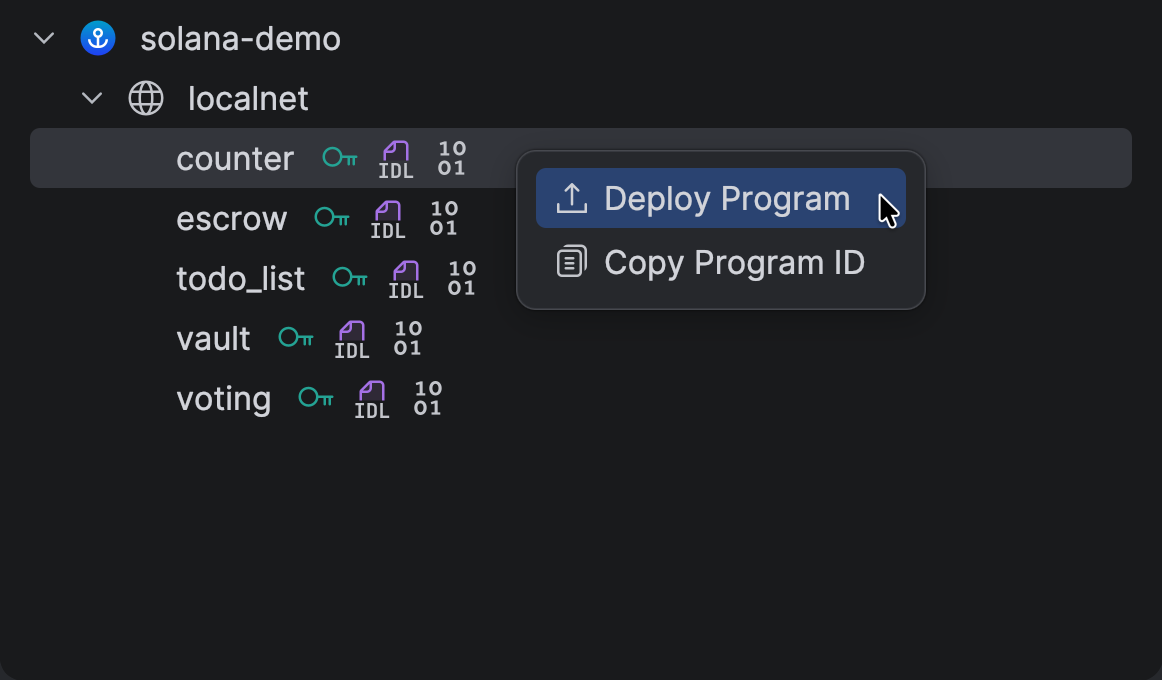
Icons next to each program name show which generated Anchor artifacts are available for that program:
Icon | Meaning |
|---|---|
Key | A program keypair is available. The keypair determines the program ID used for deployment and lets the plugin provide actions such as Copy Program ID. |
IDL document | The program's Anchor IDL is available. The plugin can use it to interpret program instructions and decode account data into named fields. |
| A compiled program binary is available for deployment. |
These icons are availability indicators. If an icon is missing, generate the corresponding artifact — for example, by running Anchor Build — and refresh or reopen the project as needed.
Open a program's context menu to access the following actions:
Deploy Program
Deploy the selected Anchor program to the active cluster. For a Localnet deployment, start the local network first and verify that its RPC endpoint is available.
Copy Program ID
Copy the selected program's public key to the clipboard. This is useful when configuring clients, tests, scripts, or other programs that need to reference the deployed program.
Explore transactions
Select a cluster, such as Localnet.
Open the program selector and choose the programs to monitor.
Click Launch Explorer.
Run the application or test that submits transactions.
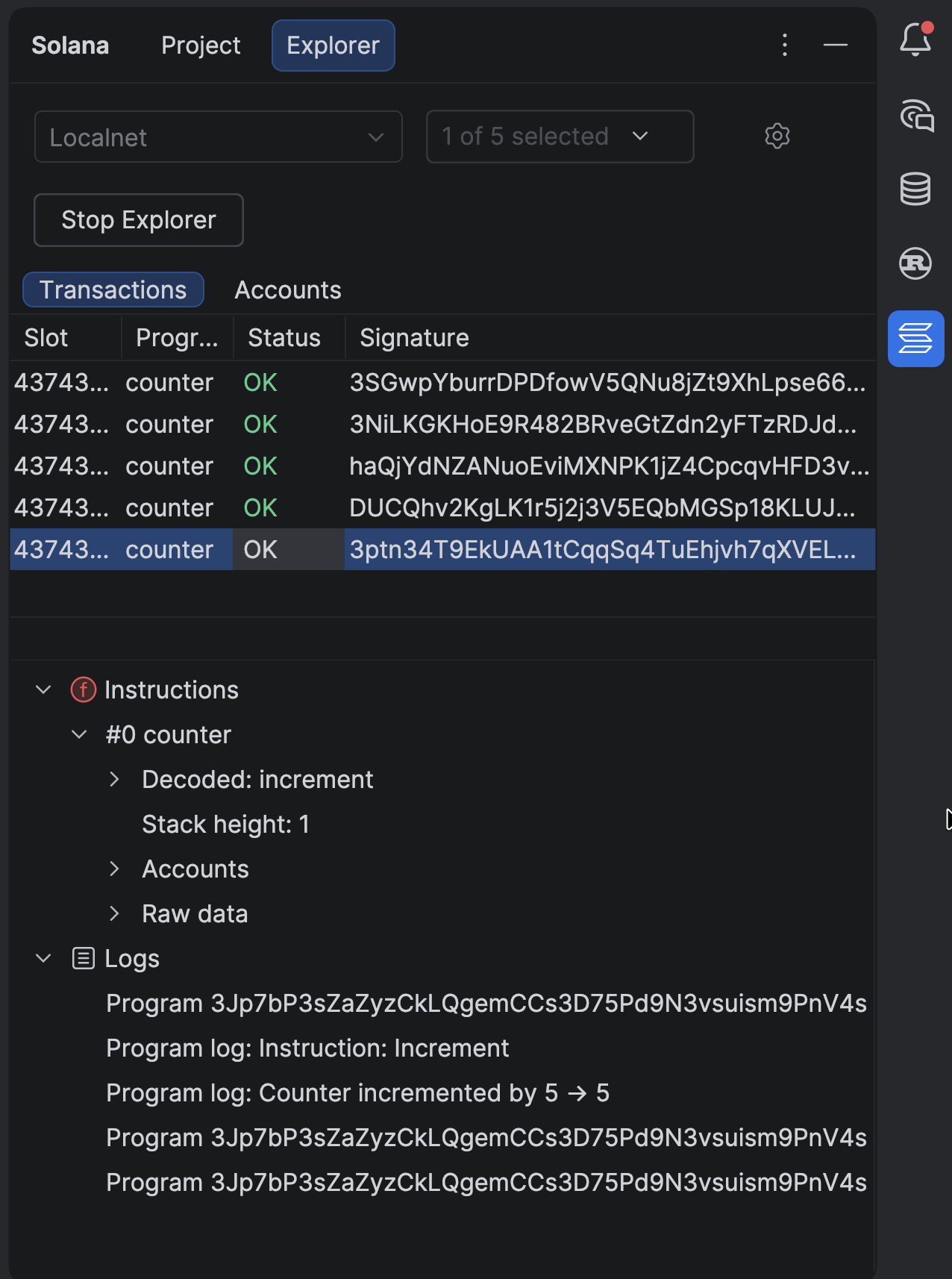
While the explorer is running, matching transactions appear in a live table with the following information:
Slot — the slot in which the transaction was processed.
Program — the selected program associated with the transaction.
Status — the transaction result, such as
OKfor a successful transaction.Signature — the transaction signature.
Select a transaction to inspect its Instructions and Logs.
For every instruction, the Instructions section can show:
The instruction index and program name.
The decoded instruction name and argument values when the program's Anchor IDL is available.
The instruction's stack height.
The ordered list of account addresses supplied to the instruction.
The raw instruction data in both Base58 and hexadecimal formats.
The Logs section shows runtime messages emitted during transaction execution, including:
Program invocation and invocation depth.
The executed instruction name.
Messages emitted by the program.
Compute units consumed and the compute-unit limit.
Program success or failure.
Click Stop Explorer when transaction streaming is no longer needed.
Explore accounts
The Accounts view loads accounts owned by the selected programs.
Launch the explorer and select the programs of interest.
Open the Accounts tab.
Click Get Program Accounts.
Select an account from the results table.
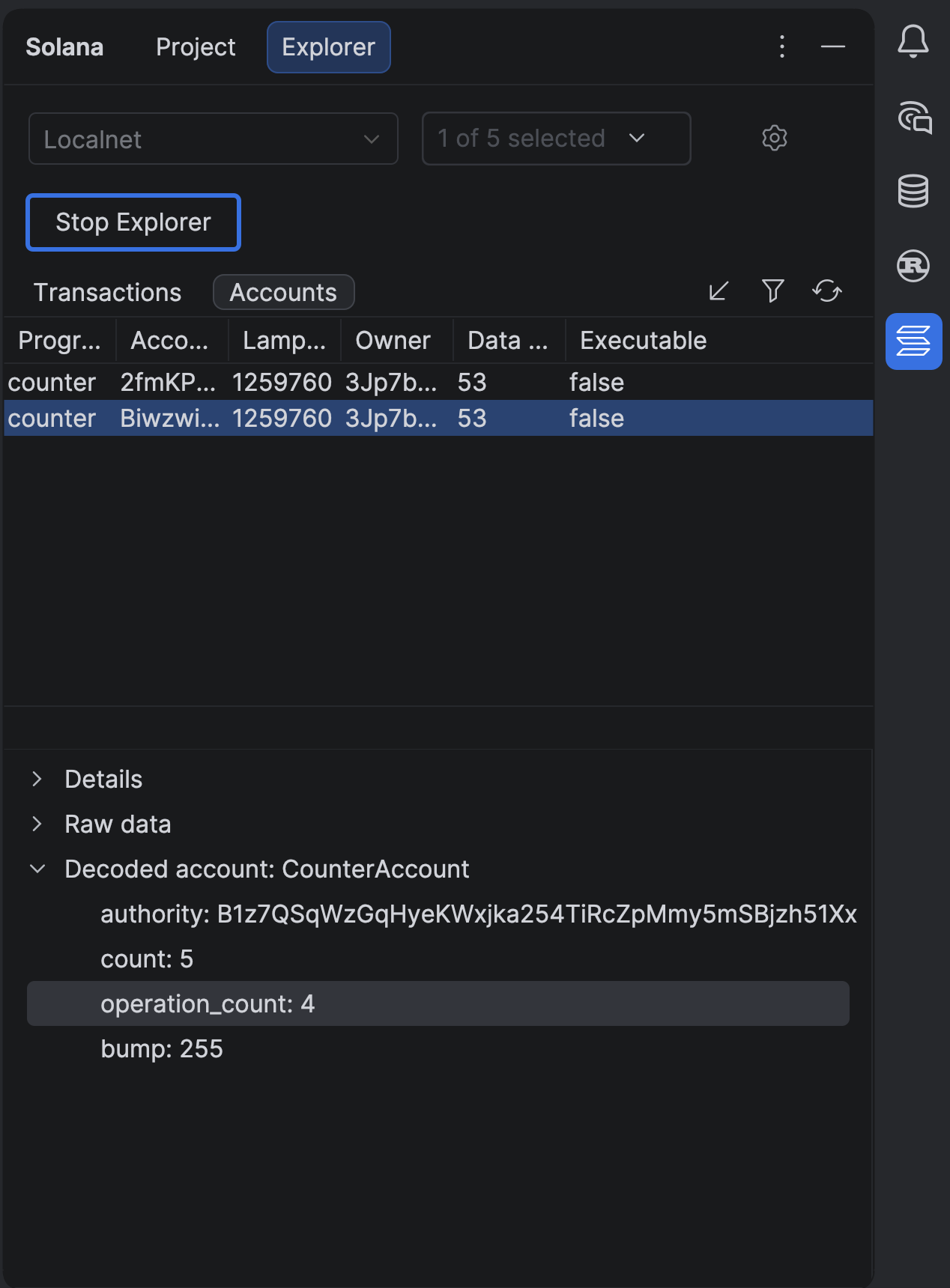
The account table includes:
Program — the selected program associated with the account.
Account — the account's public key.
Lamports — the account balance in lamports.
Owner — the public key of the program that owns the account.
Data size — the size of the account data in bytes.
Executable — whether the account contains an executable program.
Use the Accounts toolbar to load program accounts, filter the results, or refresh the current data.
Select an account to open its details. The Details section shows:
The account public key.
The associated program name.
The owner program's public key.
The lamport balance.
The executable status.
The rent epoch.
The Raw data section shows:
The account data size in bytes.
The account data encoded as Base64.
The account data encoded as hexadecimal.
When the program's Anchor IDL is available, the plugin adds a Decoded account section. It identifies the Anchor account type and presents its data as named, typed fields. For example, a decoded counter account can expose:
This makes it possible to inspect and verify application state directly in the IDE without manually decoding the account's binary data.
Troubleshooting
Localnet RPC is unavailable
Program deployment requires a reachable RPC service for the selected cluster. If the Localnet endpoint cannot be reached, the plugin reports an error similar to:
If this occurs:
Confirm that the Surfpool: Start run configuration is still running.
Wait until the local network has finished starting.
Verify that the selected cluster is Localnet.
Confirm that the configured Localnet RPC URL matches the endpoint exposed by the running network.
Retry Deploy Program.
No transactions appear
Check that:
The explorer is running; the button should read Stop Explorer.
The correct cluster is selected.
At least one program is selected in the program filter.
The application is submitting transactions to the same network monitored by the explorer.
No accounts appear
Select the relevant program and click Get Program Accounts to load the Accounts view. If the table remains empty, confirm that the program has created accounts on the selected cluster.
Feature summary
Area | Functionality |
|---|---|
Anchor integration | Detects an Anchor project and reads its configuration from Anchor.toml. |
Anchor.toml editing | Provides syntax highlighting, validation, and context-aware completion for Anchor configuration keys and values. |
Program ID synchronization | Detects mismatched Anchor keys and synchronizes |
Toolchain configuration | Detects tool paths and versions, supports custom executable paths, and links to installation instructions for missing tools. |
Project view | Displays clusters, programs, the configured wallet, and the availability of program keypairs, IDLs, and compiled binaries. |
Build and test | Provides preconfigured Anchor Build and Anchor Test run configurations. |
Program actions | Deploys a program and copies its program ID. |
Local development | Starts Surfpool from an IDE run configuration and displays its output. |
Network configuration | Provides default Solana networks and supports custom Explorer endpoints with HTTP RPC and WebSocket URLs. |
Transaction explorer | Streams transactions for selected programs and shows status, signatures, instructions, raw data, and logs. |
Account explorer | Loads program-owned accounts and shows metadata and raw data. |
Anchor decoding | Decodes account data into named, typed fields when an IDL is available. |