Project templates
RustRover streamlines new project creation with a selection of Cargo project templates. These templates pre-define your project's initial structure, so you don't have to set everything up from scratch.
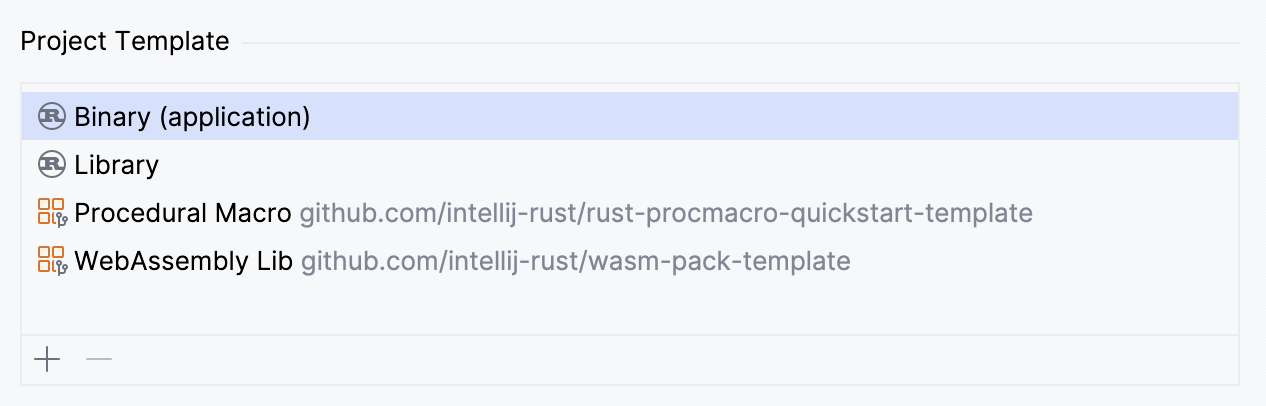
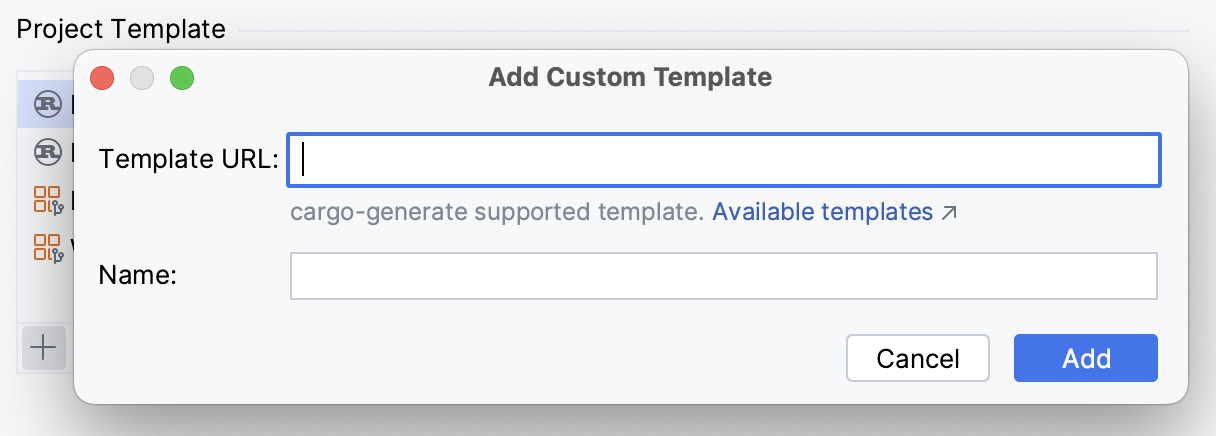
Apart from the predefined options, you can easily create a custom template based on any Git repository. In fact, this is how WebAssembly Lib and Procedural Macro are obtained. For more information, refer to Cargo-generate templates.
Binary application template
When you need to create an executable program (a binary target), select the Binary template. RustRover will then generate a simple project consisting of Cargo.toml and a src folder containing main.rs:
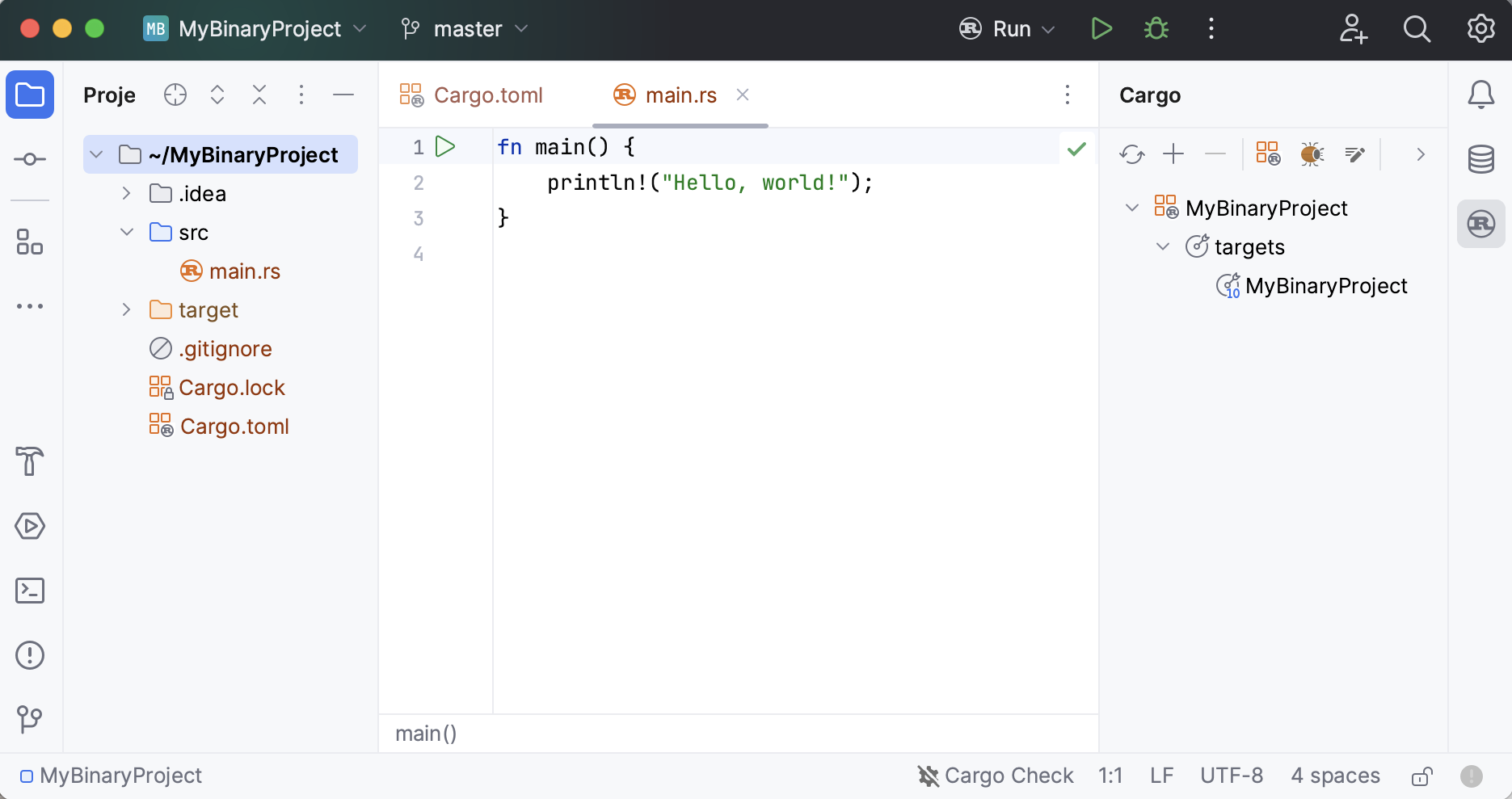
The IDE automatically creates a Run Cargo configuration that runs the following Cargo command:
Library template
When you need to create a library that can be reused by other Rust projects (a library target), select the Library template. RustRover will generate a project consisting of Cargo.toml and a src folder containing lib.rs:
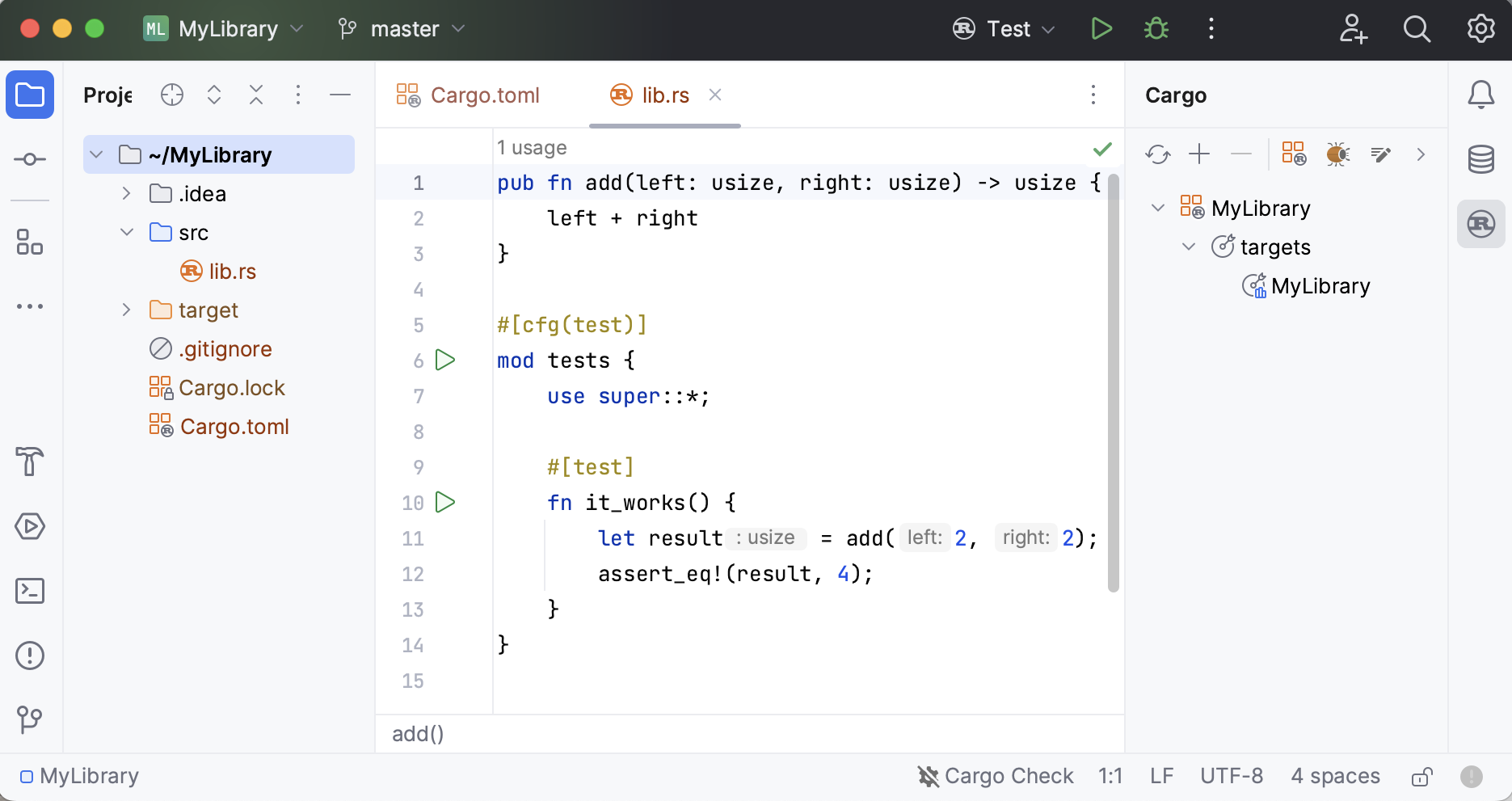
For library projects, the IDE creates a Test Cargo configuration that runs the following Cargo command:
WASM template for new projects
RustRover integrates with cargo-generate to help you use Git repositories as project templates.
The WebAssembly Lib template is based on wasm-pack-template.
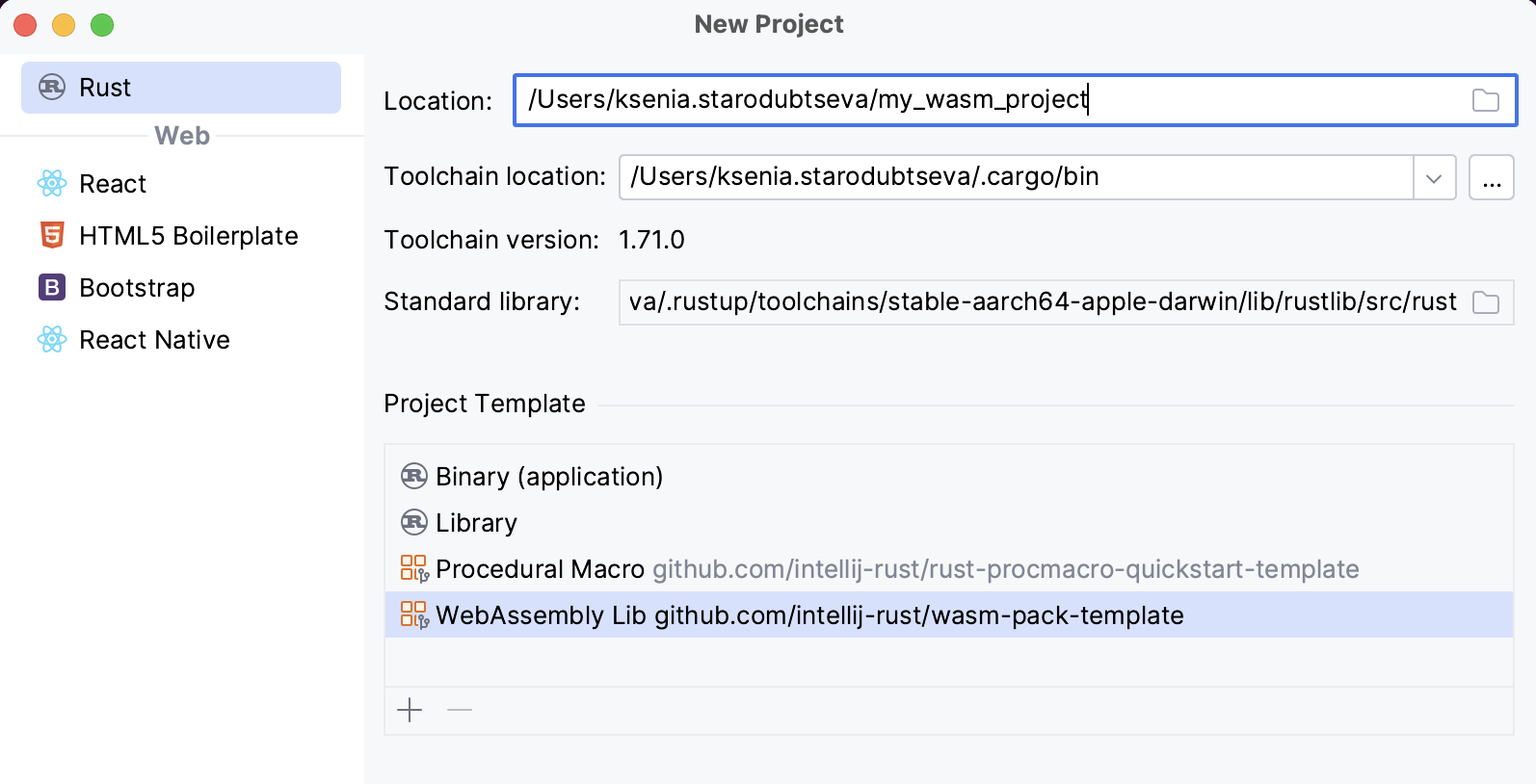
When you create a project using this template, the IDE generates a sample structure and automatically adds a Build configuration of the wasm-pack type.
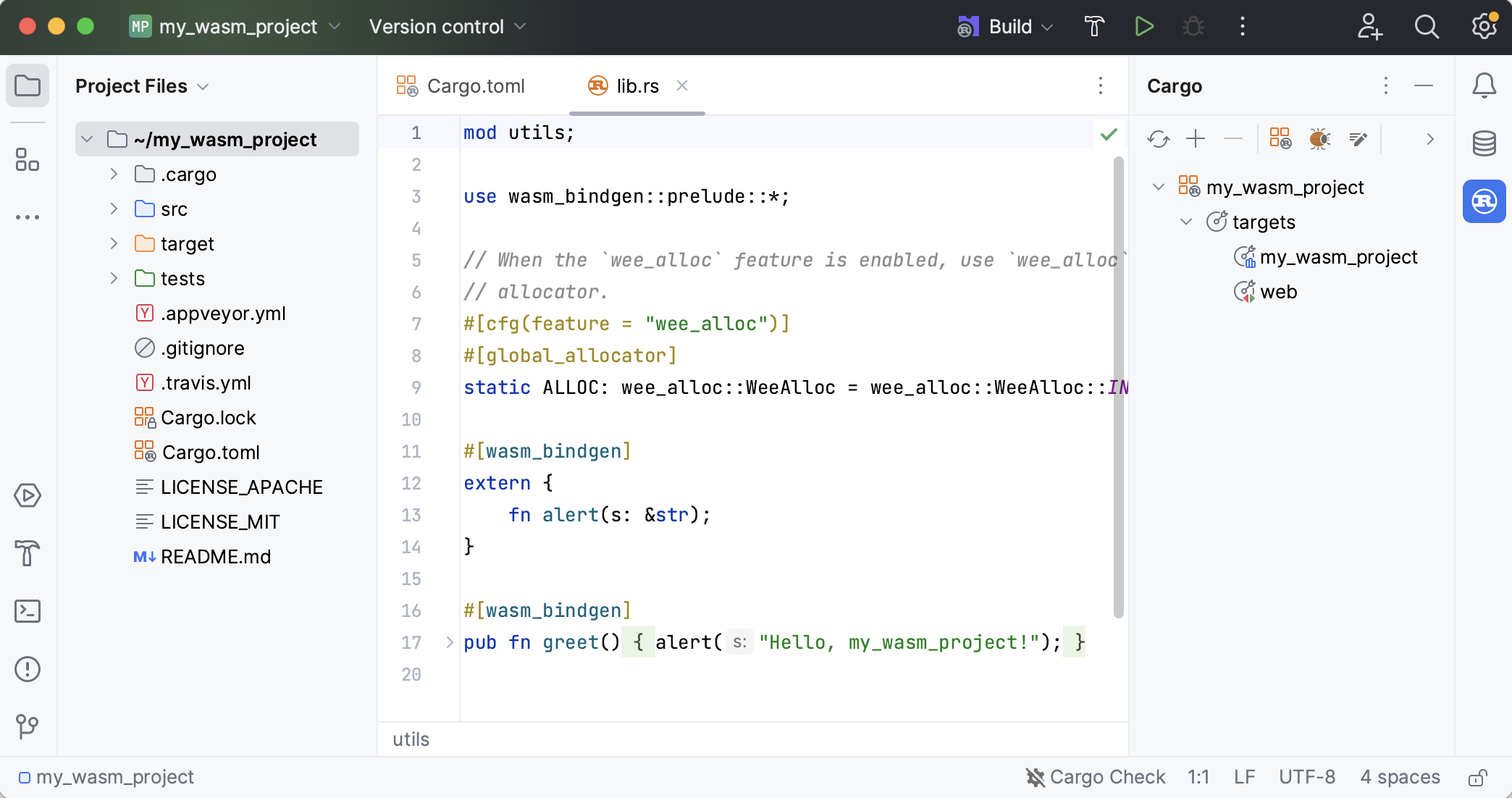
Cargo-generate templates
RustRover integrates with cargo-generate which allows you to reuse and share Git repositories as project templates. If you don’t have cargo-generate installed, you can do it from the New Project dialog.
Create a custom template
To create a template based on a Git repo, do the following:
On the Welcome screen, click the
 icon.
icon.In the Add Custom Template dialog, specify the URL of the Git repo and the template name.
Click Add