Tutorial: Use AI Assistant for common Rails tasks
RubyMine provides built-in AI Assistant that can help you with everyday Rails development tasks. Instead of writing repetitive code manually, you can use AI to enhance existing code, generate tests, and implement small features faster directly in the IDE.
In this tutorial, you will use AI Assistant to perform a number of basic Rails development tasks to improve a simple application with a Post resource.
The procedures in the tutorial include:
Before you begin
Start with a simple application that includes a Post resource. This provides a working baseline that we will extend and refine using AI in the following steps.
Create a simple Rails application
Press Ctrl twice and enter
bin/rails generate scaffold Post title:string body:text.Press Enter to run the generator. RubyMine creates the model, controller, views, routes, and test files. You can review the generated output in the Run tool window.
Press Ctrl twice and type
db:migrate. Select rake db:migrate in the dropdown and press Enter. Press Ctrl twice, typedb :migrate, and press Enter.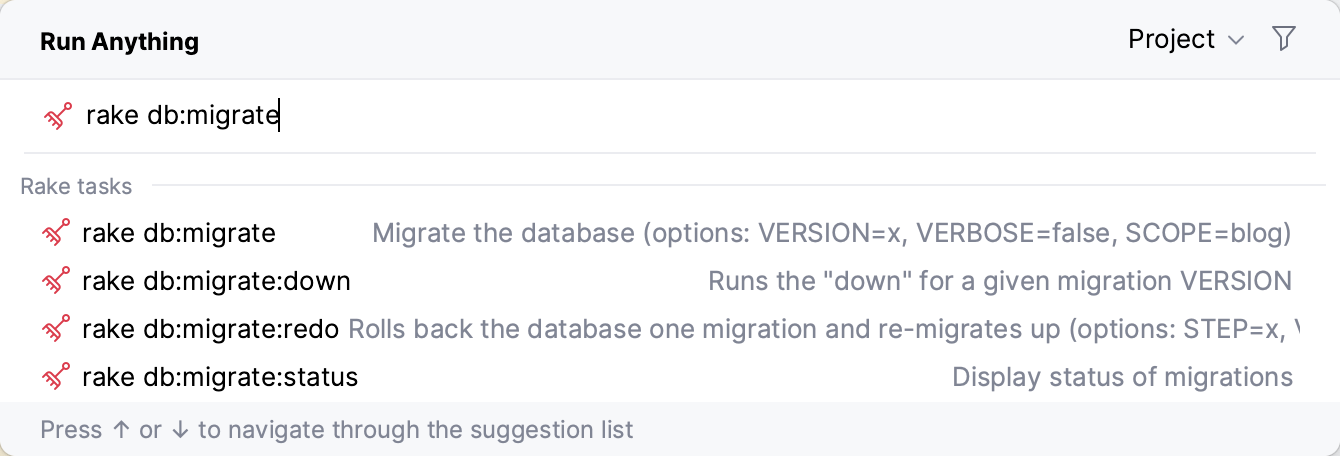
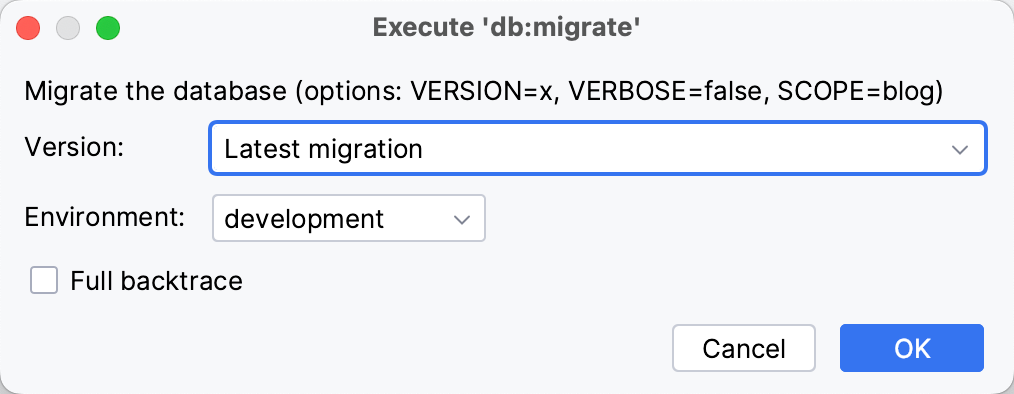
Leave the default settings in the invoked Execute ‘db:migrate’ dialog and click OK.
This creates the development.sqlite3 database in the db folder.
Now that the database is set up, you can run the application.
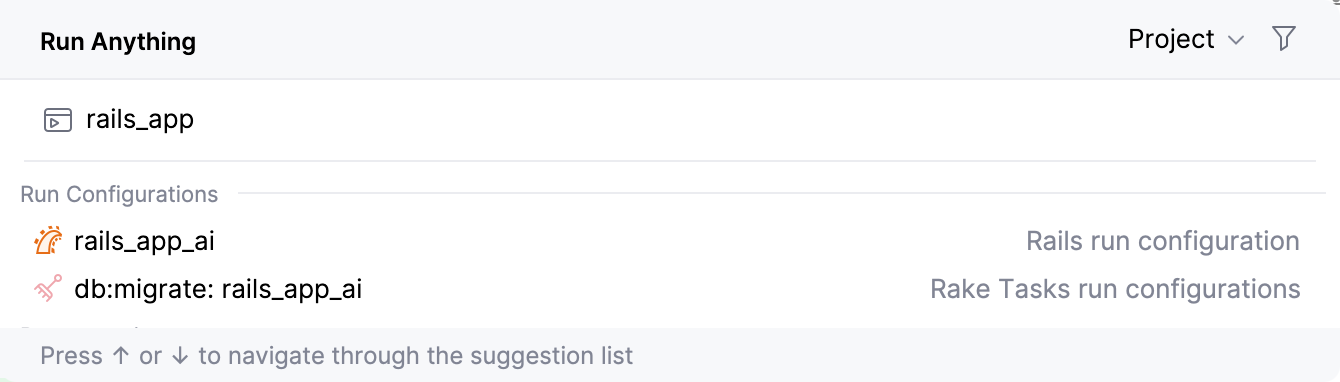
Press Ctrl twice and start typing the name of your application. From the list of the suggestions, select the run configuration option.
Open http://127.0.0.1:3000/posts in your browser to verify that the generated posts page is available.
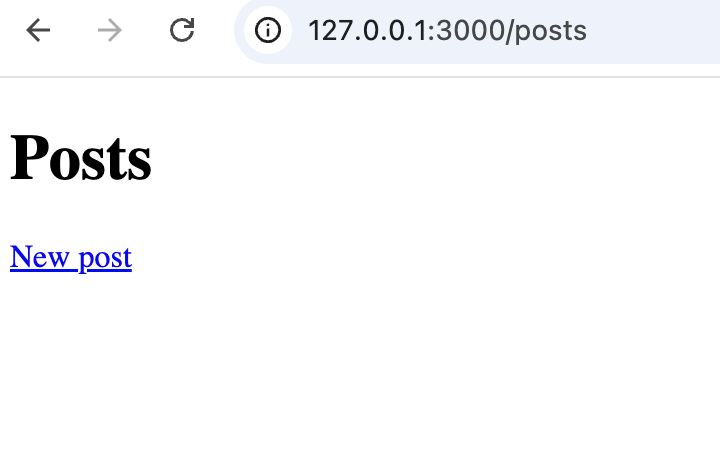
Improve your Rails application using AI
Now, let's work on this application and expand its functionality using AI Assistant.
Add validations
The generated Post model does not contain any custom logic yet. Let's add validations and improve the behavior of the application.
Use AI Assistant directly in the file
In the Project view (Alt+1), open the app/models/post.rb file in the editor.
Place the caret inside the class and invoke AI Assistant.
Ask AI to add validations. You can use the prompt from the example below:
Add validations for title and body. Body should have a minimum length of 10.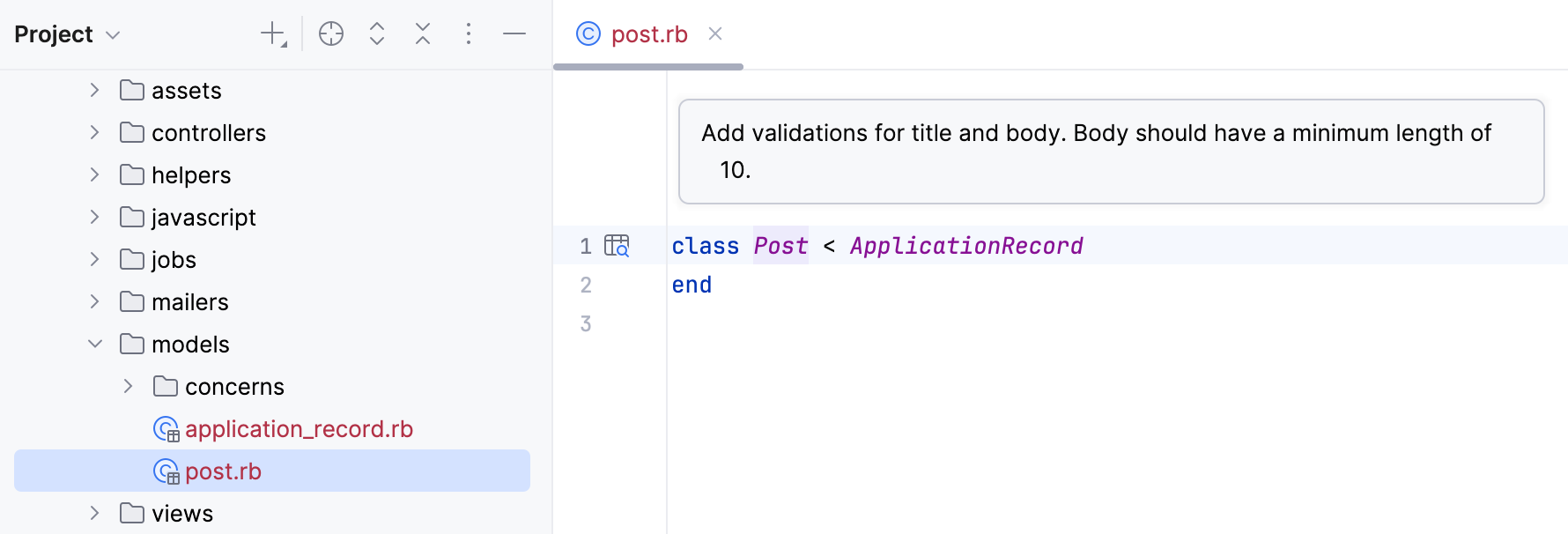
Press Enter and wait until the code change suggestion is generated.
Review the suggested changes. The updated model should look similar to:
class Post < ApplicationRecord validates :title, presence: true validates :body, presence: true, length: { minimum: 10 } endClick Accept All to implement the changes and update the file.
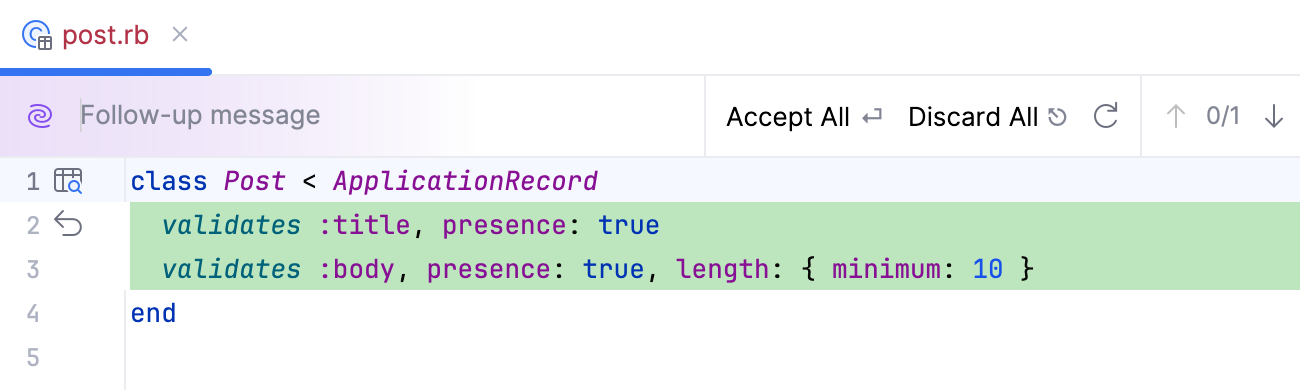
Now the application validates user input before saving posts.
Verify validations in the browser
Start the Rails application using the run configuration for your project, or run
bin/rails server.Open http://127.0.0.1:3000/posts/new in your browser.
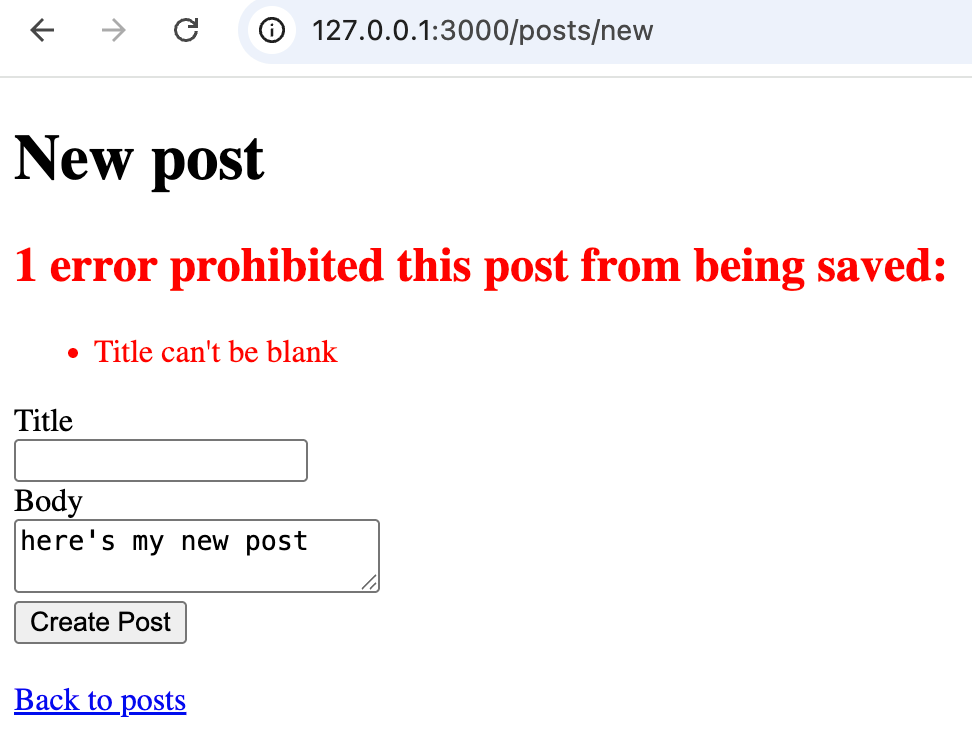
In the Title and Body fields, enter invalid data. For example, leave one of the fields empty.
Click Create Post.
The application displays validation errors and does not save the post until the entered data is valid.
Generate tests using AI
After adding validations to the Post model, you can use AI Assistant to create tests for them. This time, try AI Chat instead of invoking AI Assistant directly in the file.
Generate tests in AI Chat
Click the AI Chat icon on the right-hand toolbar.
Ask AI to generate Minitest tests for the model validations. For example:
Write Minitest tests for the Post model validations using ActiveSupport::TestCase. Cover the presence of title and body, and the minimum length of body.Click the Send icon or press Enter.
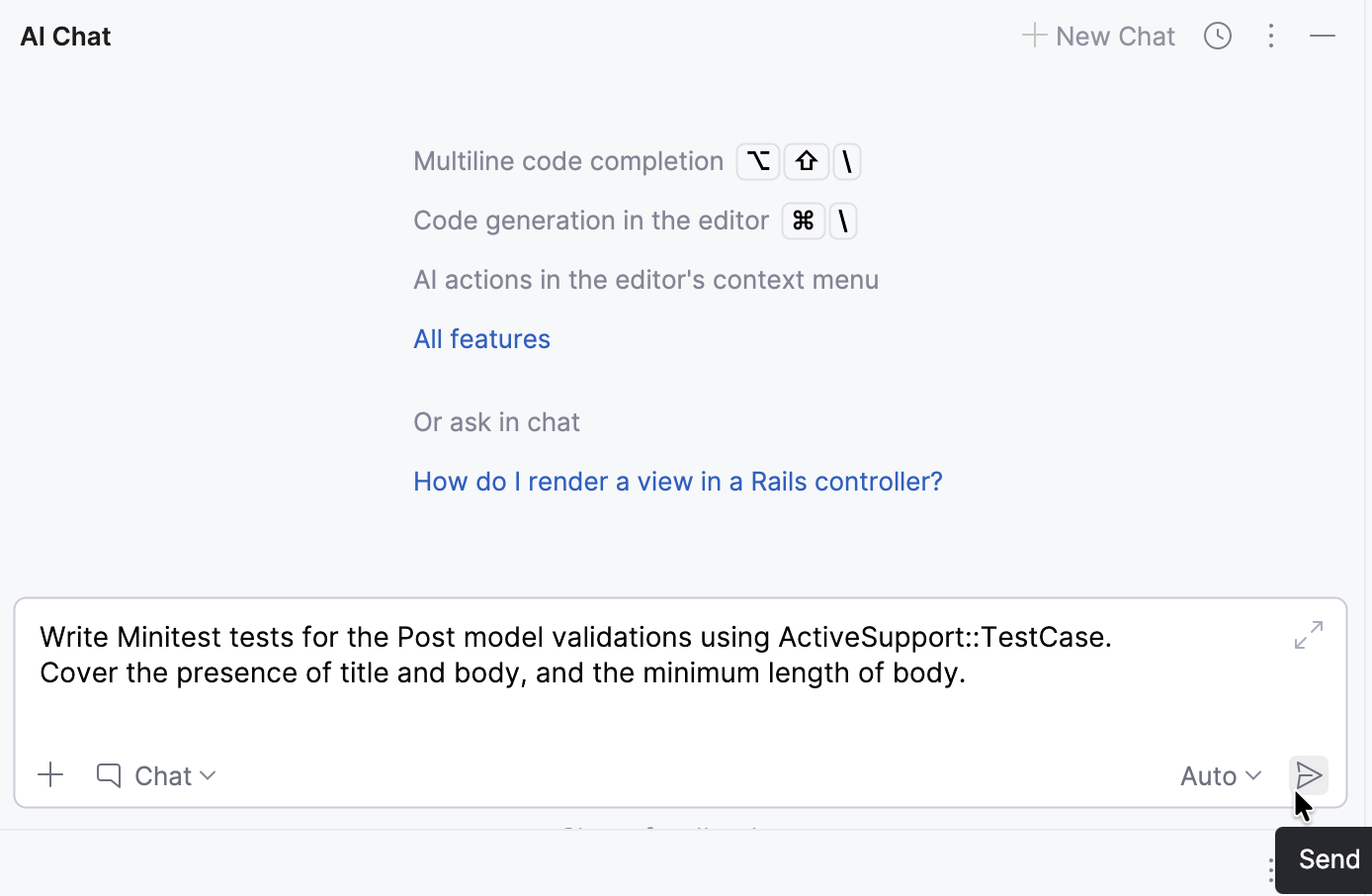
Review the generated test code and copy it.
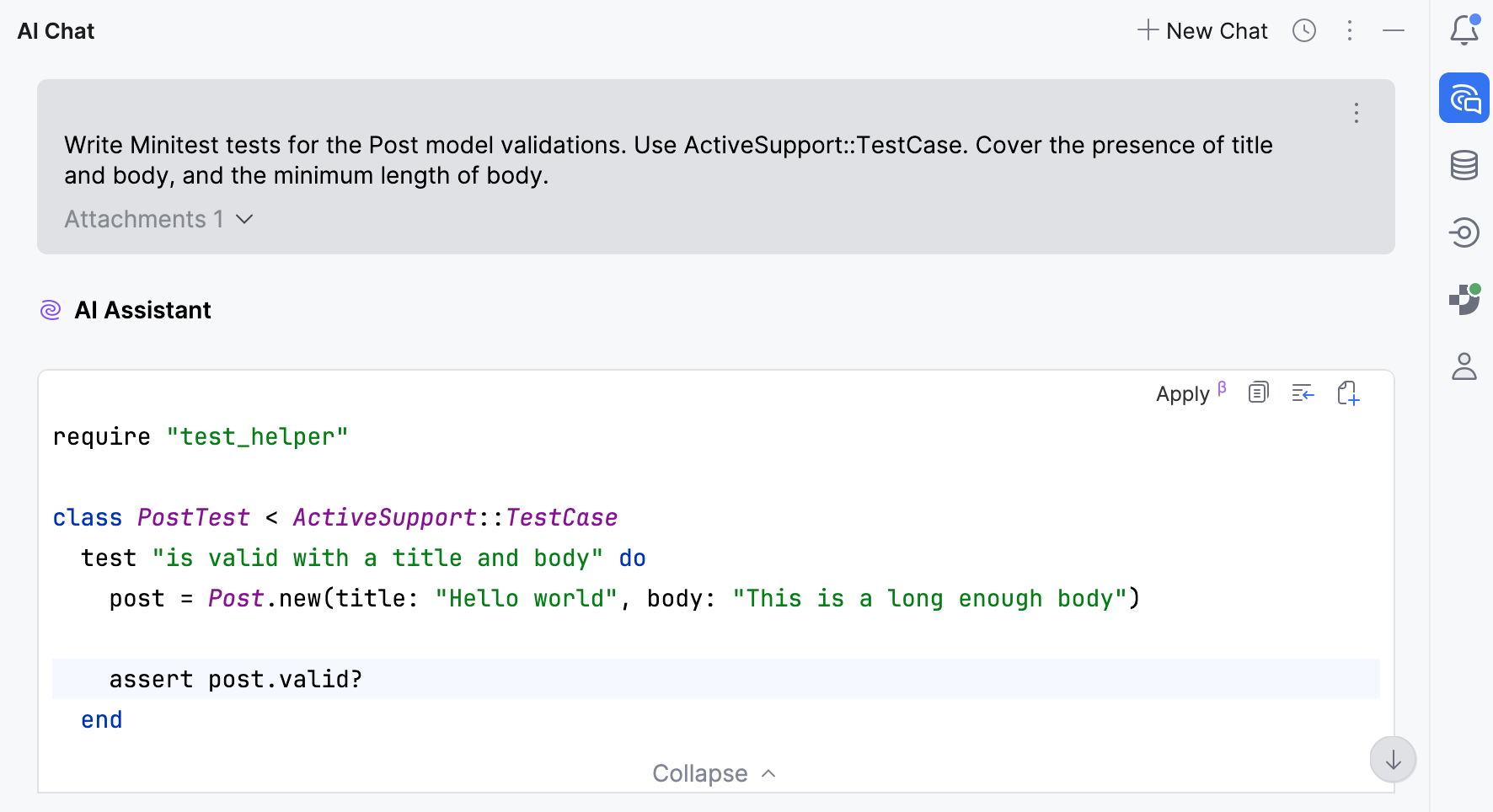
Open the test/models/post_test.rb file created by Rails and replace its contents with the generated code.
The result may look similar to this:
require "test_helper" class PostTest < ActiveSupport::TestCase test "is valid with a title and body" do post = Post.new(title: "Hello world", body: "This is a long enough body") assert post.valid? end test "is invalid without a title" do post = Post.new(title: nil, body: "This is a long enough body") assert_not post.valid? assert_includes post.errors[:title], "can't be blank" end test "is invalid without a body" do post = Post.new(title: "Hello world", body: nil) assert_not post.valid? assert_includes post.errors[:body], "can't be blank" end test "is invalid when body is too short" do post = Post.new(title: "Hello world", body: "too short") assert_not post.valid? assert_includes post.errors[:body], "is too short (minimum is 10 characters)" end end
Run the generated tests
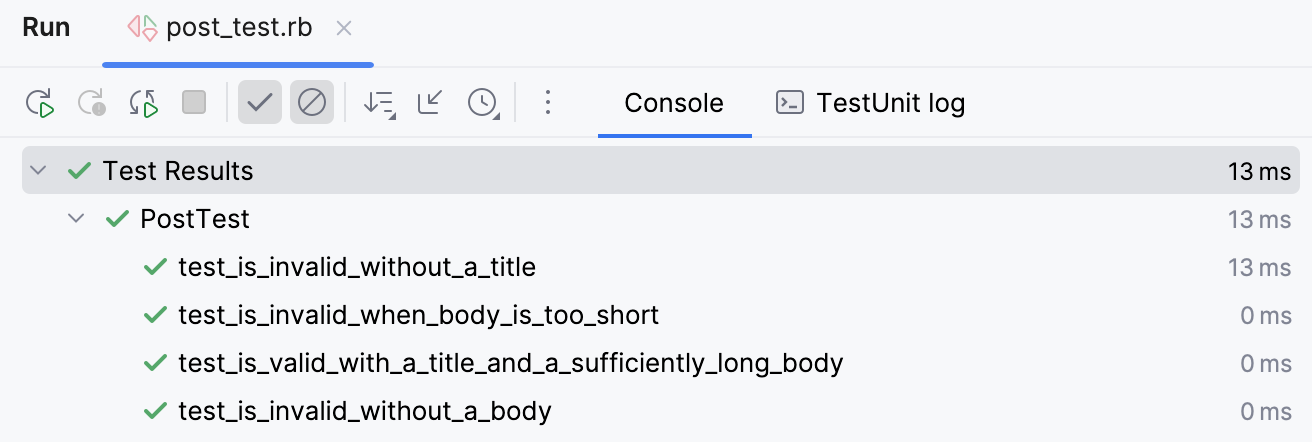
Right-click the test/models/post_test.rb file in the editor or in the Project tool window and select Run 'Minitest: post_test.rb'.
RubyMine runs the tests and shows the results in the Run tool window.
Extend application functionality
Now, let's extend the application functionality with the help of AI Assistant. In this example, you will add search by title to the created posts index page.
Add search functionality to your page
Open the app/controllers/posts_controller.rb file in the editor.
Open AI Chat. Make sure the app/controllers/posts_controller .rb file is attached to the chat. This will help the AI Assistant generate code more accurately.
Provide a prompt to add search by title to the page. Make sure to specify that both the controller and the view should be updated. For example:
Add search by title to the posts index page. Update: - the index action in the controller to filter posts by title using a query parameter - the index.html.erb view to include a search form with a text field and submit button Keep it simple and idiomatic Rails.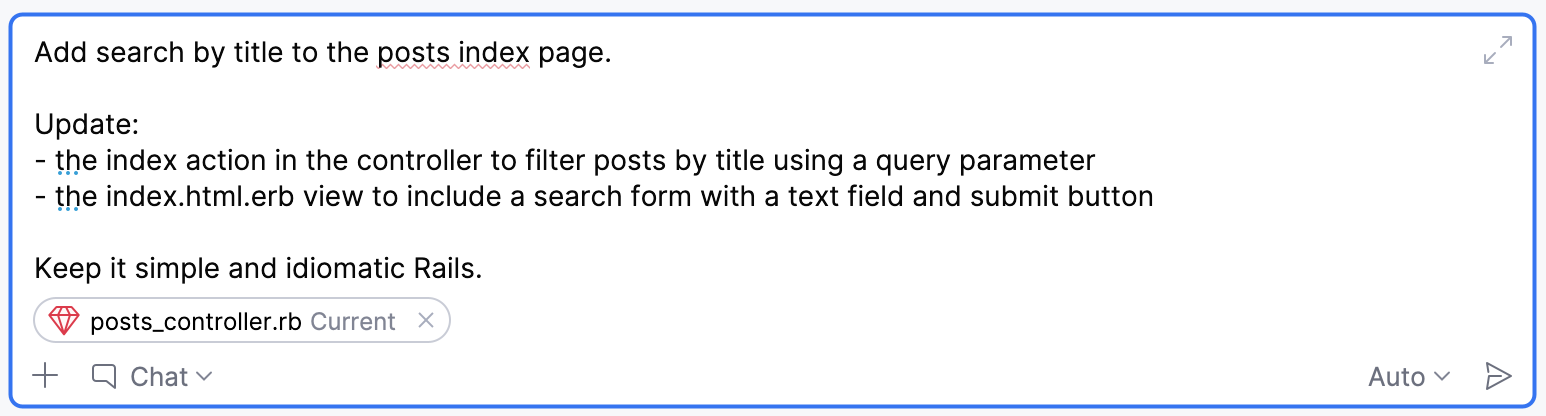
Click the Send icon or press Enter.
Review the generated code.
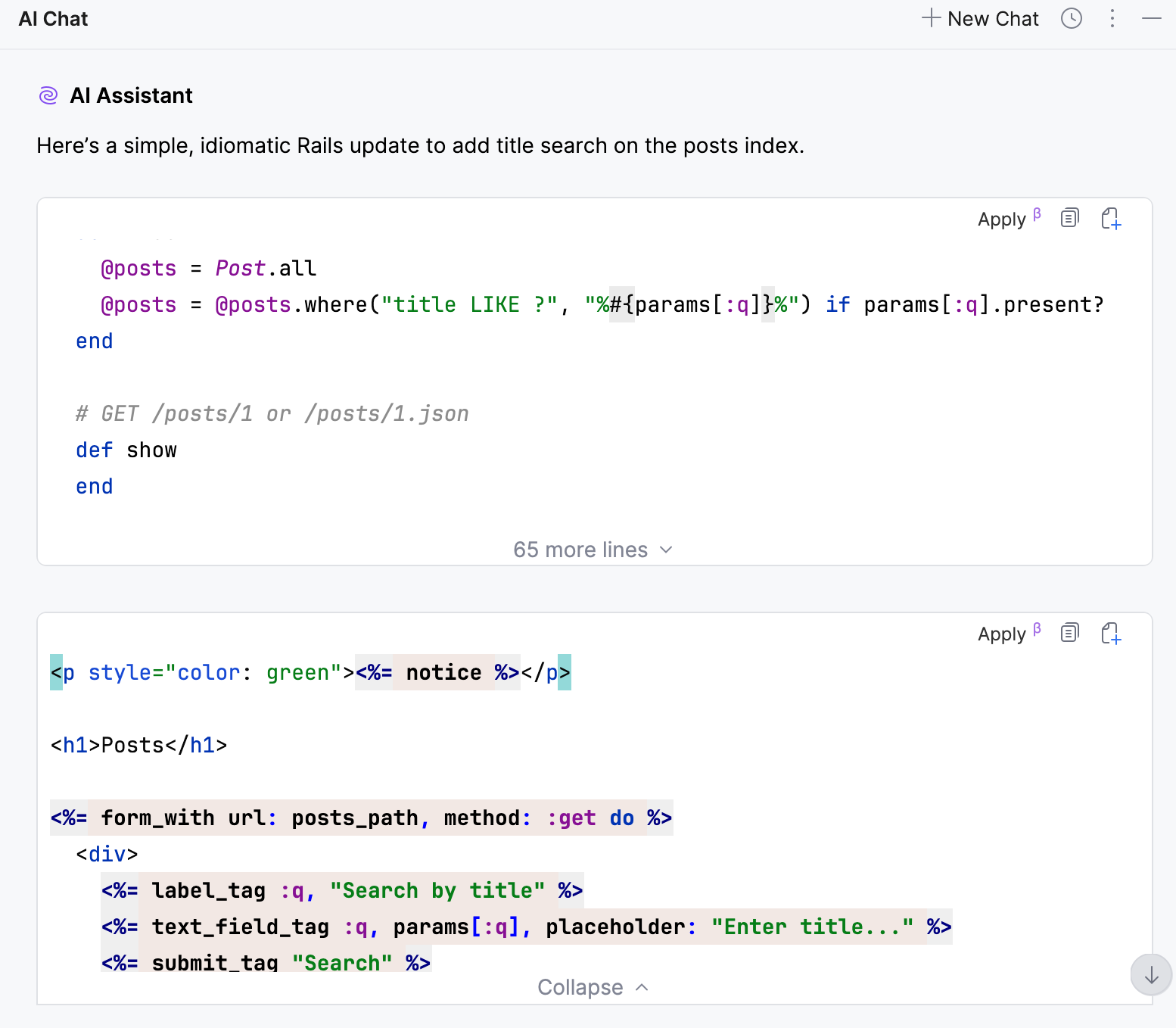
Then, open the corresponding files in the editor and apply the suggested changes manually.
In app/controllers/posts_controller.rb, update the
indexaction. It should look similar to this:class PostsController < ApplicationController before_action :set_post, only: %i[ show edit update destroy ] # GET /posts or /posts.json def index @posts = Post.all if params[:q].present? query = "%#{params[:q].downcase}%" @posts = @posts.where("LOWER(title) LIKE ?", query) end endIn app/views/posts/index.html.erb, add the generated search form. It should look similar to this:
<%= form_with url: posts_path, method: :get do %> <%= label_tag :q, "Search by title" %> <%= text_field_tag :q, params[:q] %> <%= submit_tag "Search" %> <% end %>
Verify the result
Run the application.
Open http://127.0.0.1:3000/posts in your browser.
Create several posts with different titles if needed.
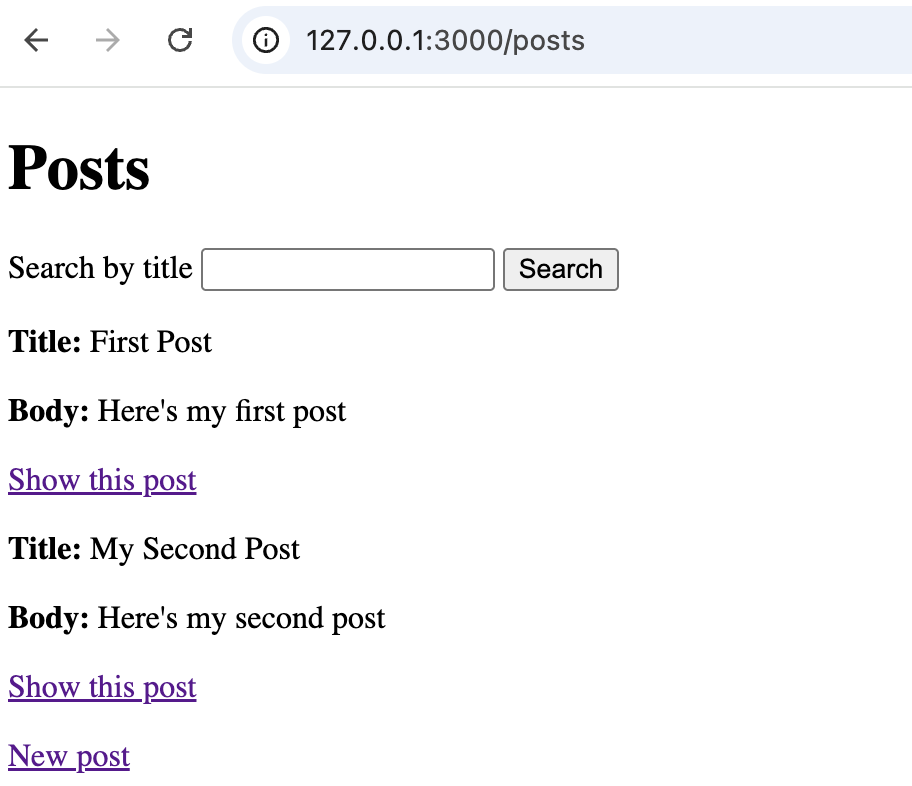
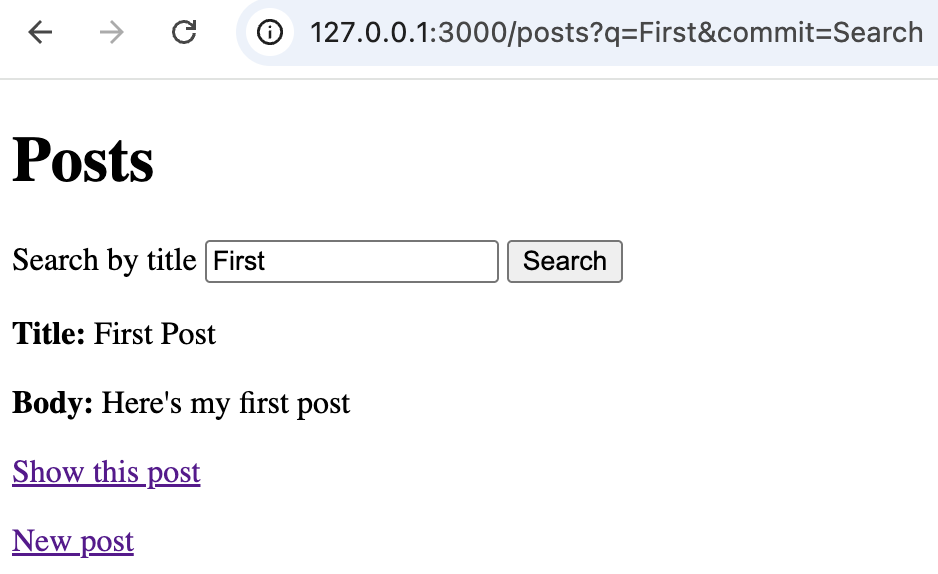
Enter a search query and submit the form. The page should display only posts whose titles match the query.
Navigate the codebase using AI
AI Assistant can also help you quickly navigate and explore your project. This is especially useful when working with unfamiliar code or large codebases.
Find related code using AI Chat
Open the app/models/post.rb file.
Open AI Chat and click the New Chat icon. Make sure the current file is attached to the chat.
Ask the chat to find where this model is used. For example:
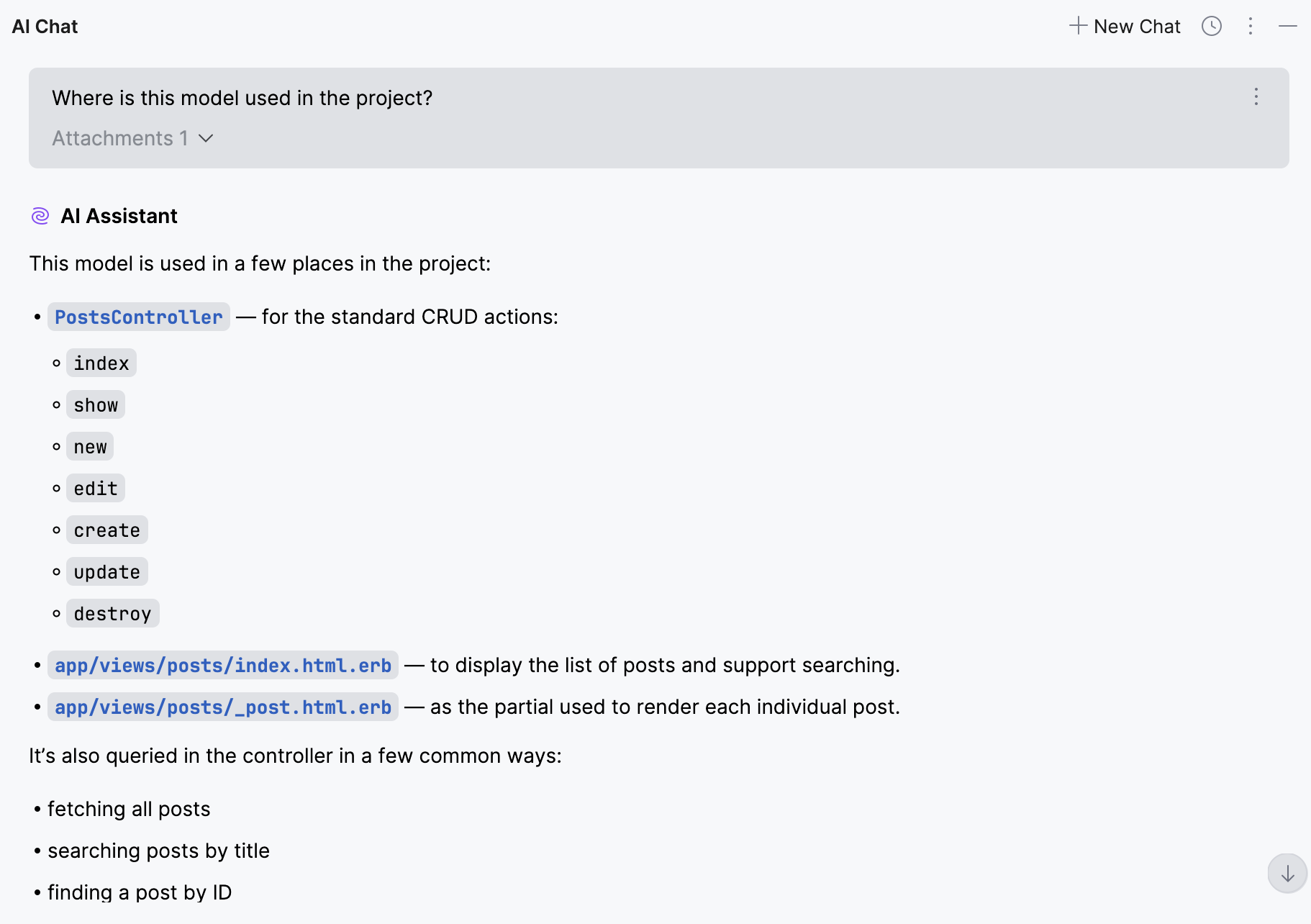
Where is this model used in the project?Click the Send icon or press Enter.
Review the response. AI may point you to the controller, views, and routes that interact with the
Postmodel.You can click the files listed in the response to open them in the editor.