Run Rake tasks
Rake is a popular task runner for Ruby and Rails applications. Rails provides a number of predefined tasks, such as tasks for database migrations and tests. You can also create custom tasks to automate specific actions: run code analysis tools, back up databases, and so on.
RubyMine provides a convenient way to run, debug, and reload Rake tasks. You can also use run/debug configurations to run tasks with specific parameters: pass task arguments, specify environment variables, select a Ruby interpreter, and so on.
Before running a Rake task
Make sure the
rakegem is installed to the project interpreter.Check that the Rakefile is located in the project's root.
Run a task
RubyMine allows you to run an arbitrary Rake task. For example, let’s see how to run the db:migrate task required for migrating a database in a Rails application.
Run a task using Run Anything or the Rake Tasks popup
Do one of the following:
Press Ctrl twice and start typing db:migrate in the invoked popup. Select rake db:migrate from the list and press Enter.
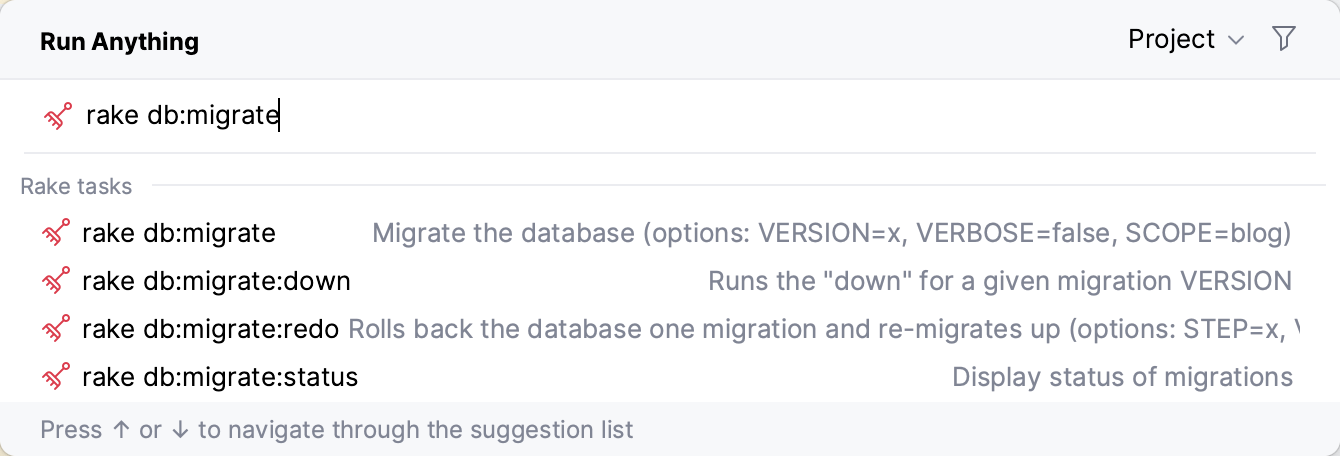
Go to . In the invoked popup, start typing db:migrate, select db:migrate, and press Enter.
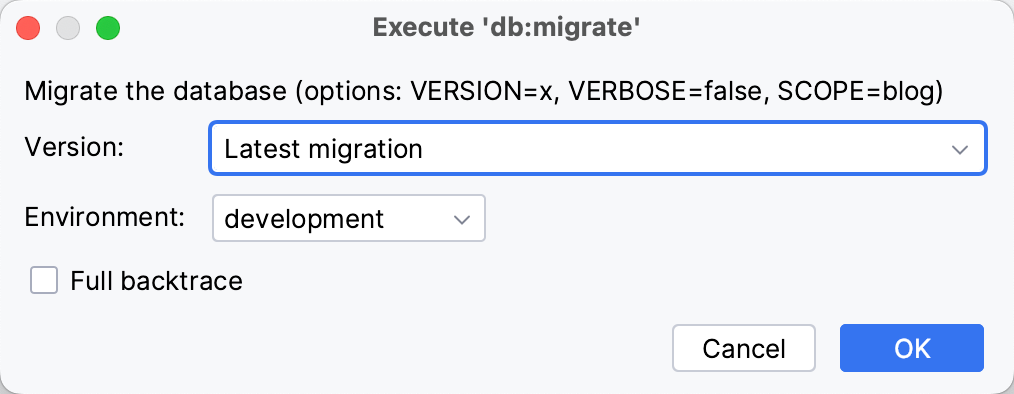
In the invoked Execute 'db:migrate' dialog, select the required migration version and environment. Click OK.
Run a task from the editor
In a *.rake file, do one of the following:
Click the Run Rake Task button in the gutter next to the required task.
Place the caret at the required task name and press Alt+Enter.
Depending on whether you want to run or debug a task, select or . Press Enter.
After you've run a Rake task, RubyMine automatically creates a temporary run/debug configuration. You can customize this configuration to control how the task is executed: pass task arguments, specify environment variables, select a working directory, and so on. Then, you can save the customized configuration to quickly run it in the future.
Run a task using a run/debug configuration
RubyMine automatically creates Rake run configurations for running the Minitest and RSpec tests in Rails applications: test and spec. You can run these tasks or any other task with the existing run/debug configurations in one of the following ways:
Press Ctrl twice to invoke the Run Anything popup. Start typing the required configuration name, select it from the list, and press Enter.
Select the desired configuration on the toolbar and click
 Shift+F10.
Go to Alt+Shift+F10 and select the desired configuration from the list and press Enter.
Reload Rake tasks
Sometimes it is necessary to reload Rake tasks. For example, this can be useful if you created a custom task and need to run it. To reload Rake tasks, do one of the following:
Press Ctrl+Shift+A and start typing Reload Rake Tasks. Select this item from the list and press Enter.
Go to . In the invoked popup, select
rake --tasksand press Enter.
Configure parameters for running a task
When you run a Rake task for the first time, RubyMine automatically creates a corresponding Rake temporary configuration, which can be saved. If necessary, you can create the Rake run/debug configuration manually from the predefined template.
These settings do not modify the Rake task itself. They only define how RubyMine runs the task.
To customize the run/debug configuration, do the following:
Open the Run/Debug Configuration dialog in one of the following ways:
Select from the main menu.
With the Navigation bar visible (), choose from the run/debug configuration selector.
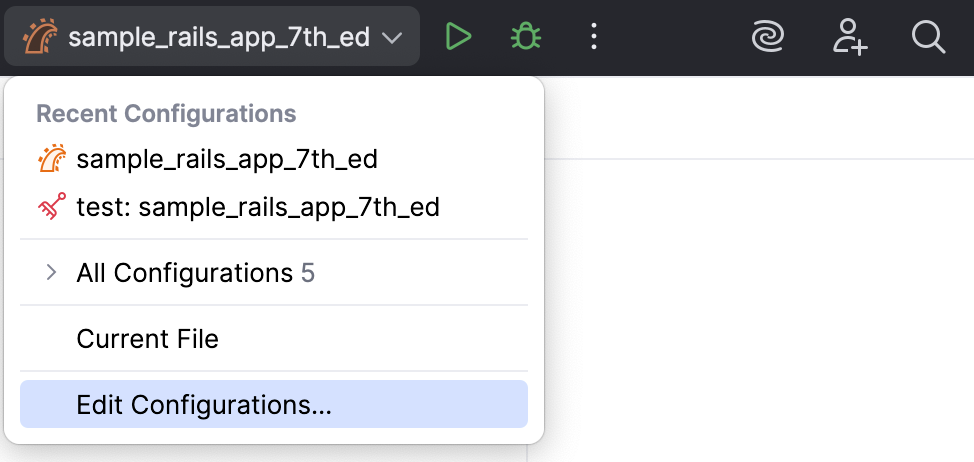
Press Alt+Shift+F10 and then press 0.
In the opened Run/Debug Configurations dialog, select the required configuration in the Rake group, and specify its settings.
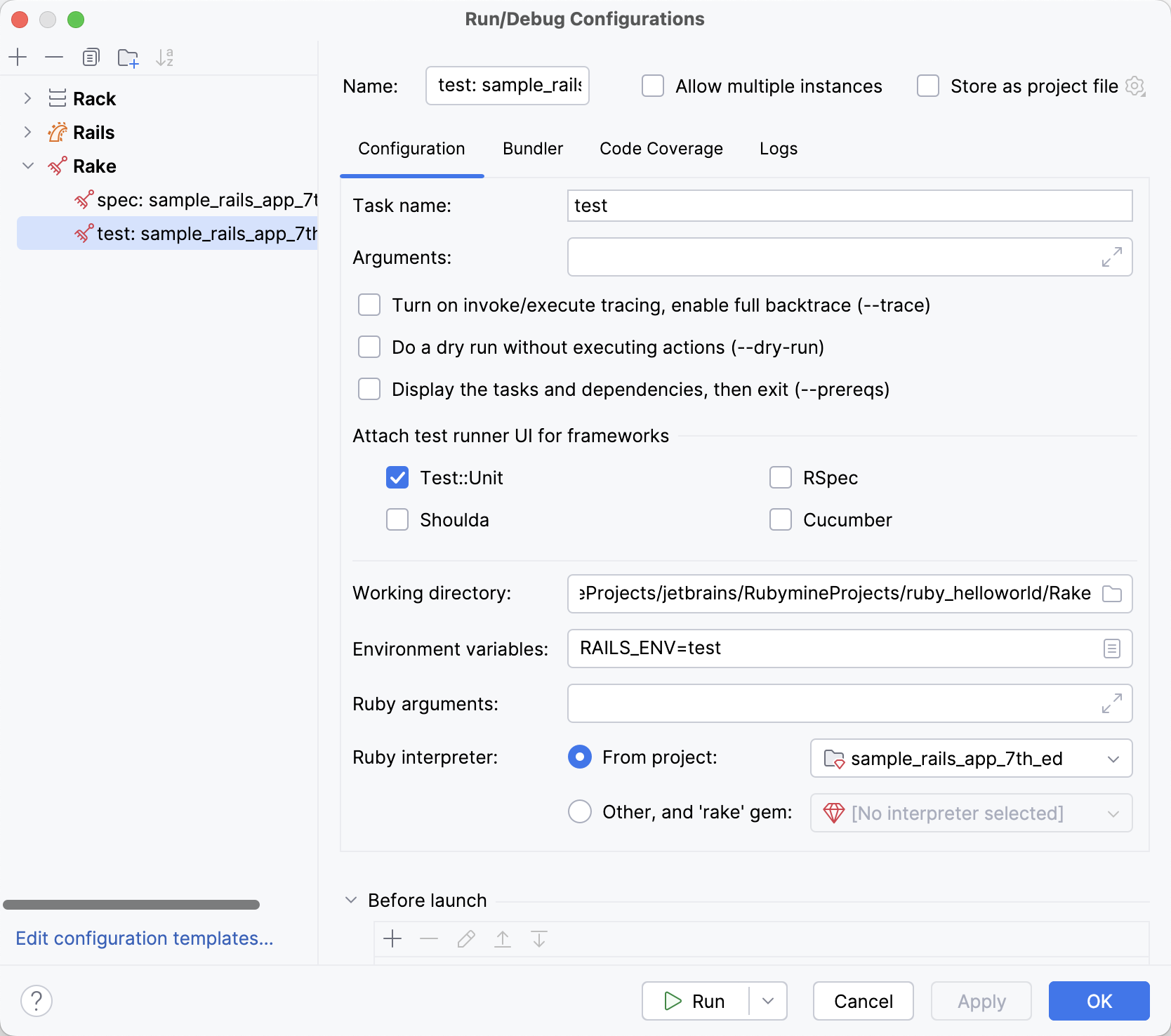
Run/debug configuration: Rake
Configuration tab
Item | Description |
|---|---|
Name | In this field, specify the name of the current run/debug configuration. |
Task name | Specify the name of the Rake task to be executed. Note that you can use autocompletion (Ctrl+Space) to see the available tasks. |
Arguments | Specify arguments to be passed to the Rake task. These arguments should be separated with commas. For example:
|
Turn on invoke/execute tracing, enable full backtrace | Enable the |
Do a dry run without executing actions | Enable the |
Display the tasks and dependencies, then exit | Enable the |
Attach test runner UI for frameworks | Depending on the used testing framework, enable the required test runner UI for performing tests. |
Working directory | Specify the working directory used by the running task. For example, this option is in effect when the running script loads other scripts by relative paths. |
Environment variables | Specify the list of environment variables as the name-value pairs, separated with semi-colons. Alternatively, click |
Ruby arguments | Specify the command-line arguments to be passed to the Ruby interpreter. |
Ruby interpreter | Specify the desired Ruby interpreter. You can choose the project default Ruby interpreter, or select a different one from the list of configured Ruby interpreters. |
 to create variables and specify their values in the