Create files and directories
RubyMine enables you to create arbitrary files or language-specific files. You can create Ruby files, classes or modules, tests, HTML files, stylesheets, JavaScript/TypeScript files, and so on. Such language-specific files can be created with initial content using templates. For example, the RSpec test created from a template contains a skeleton for an example group. If necessary, you can customize these templates or add new ones.
In this topic, we'll show you how to create files and directories, and how to use templates.
Create a Ruby file, class, or module
RubyMine enables you to create Ruby files or generate classes and modules. To create a new Ruby file, class, or module, do the following:
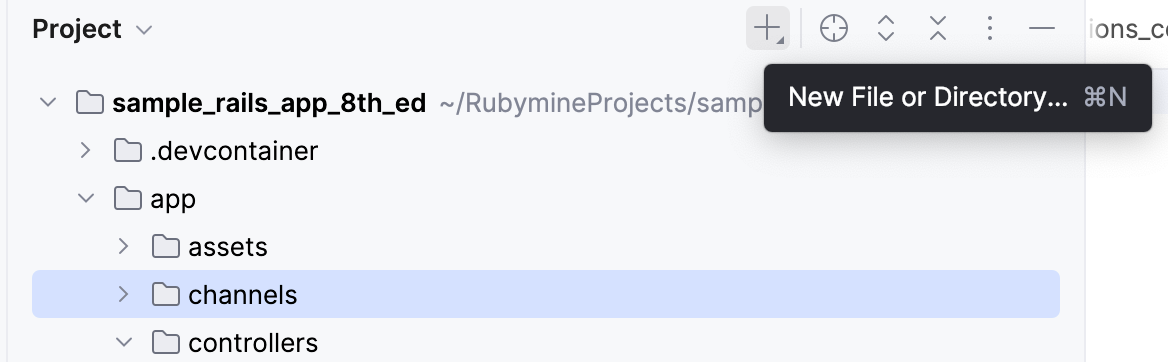
In the Project view Alt+1, select the directory where you want a class to be created, and press Alt+Insert or click the New File or Directory.
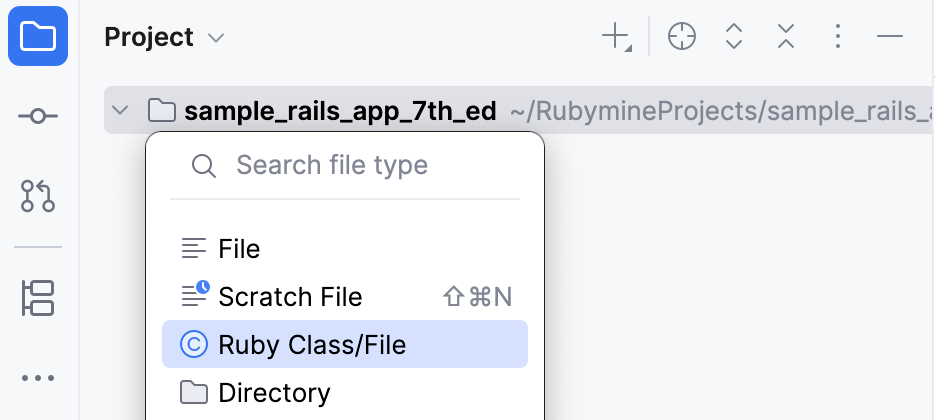
From the popup menu, select Ruby Class/File.
In the New Ruby Class/File popup, do one of the following:
To create a new Ruby file, enter its name and make sure that File is selected.
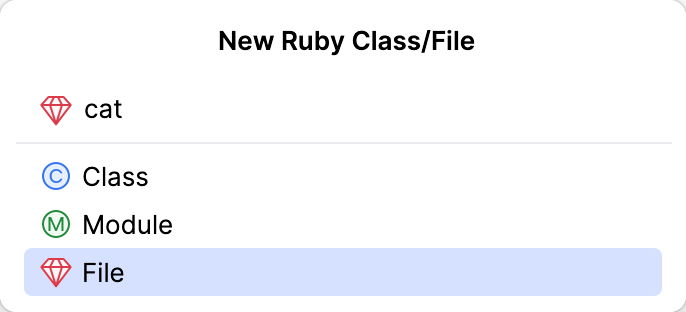
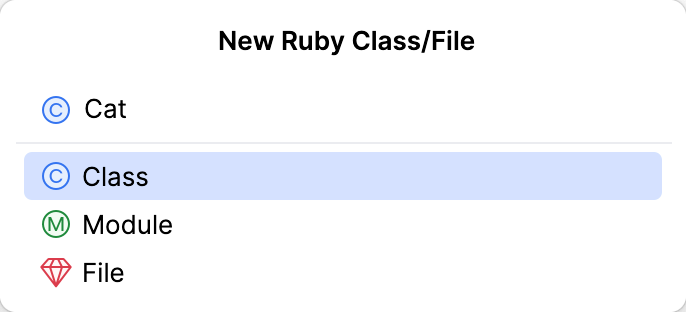
To create a Ruby class, switch to Class and specify the class name.
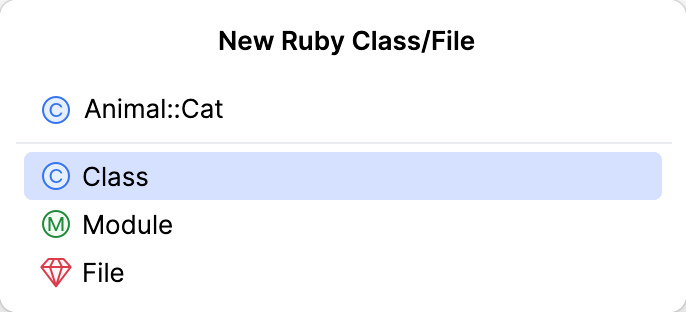
RubyMine allows you to create classes prepended by modules. If required, prepend the class name with the module name:
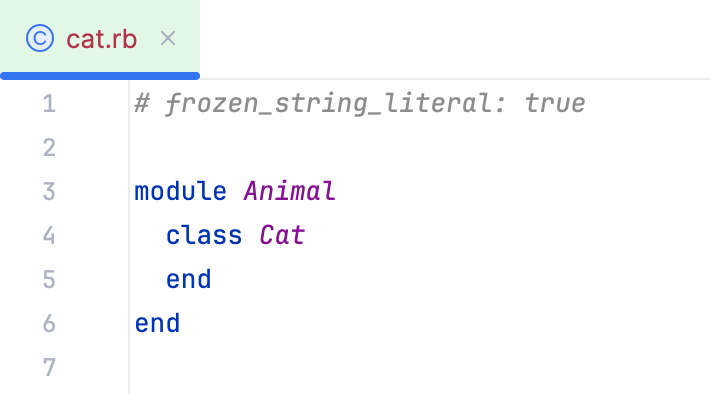
In this case, the created file will look as follows:
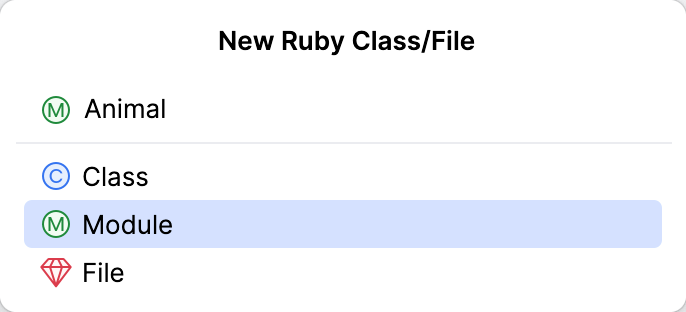
To create a Ruby module, switch to Module and specify the module name.
Press Enter.
Create a directory
To create a directory:
In the Project view Alt+1, select the directory where you want a class to be created, and press Alt+Insert or click the New File or Directory.
Select Directory from the list.
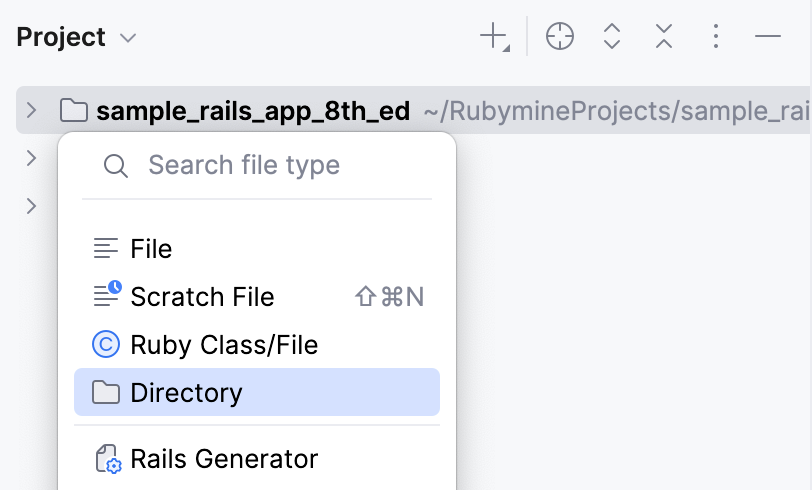
In the popup that opens, specify the directory name. To create several nested directories, use slashes as separators, for example, views/shared.
Create an empty file
To create an empty file with an arbitrary extension:
In the Project view Alt+1, select the directory where you want to create a file, press Alt+Insert, and then select from the list.
In the New File dialog that opens, type the filename and extension. You can type the whole directory structure before the new filename. If the nested directories do not yet exist, they will be created.
If the specified extension is not associated with any file type recognized in RubyMine, the Register New File Type Association dialog opens where you can associate the extension with one of the recognized file types. For more information, refer to File type associations.
Customize the New File or Directory menu
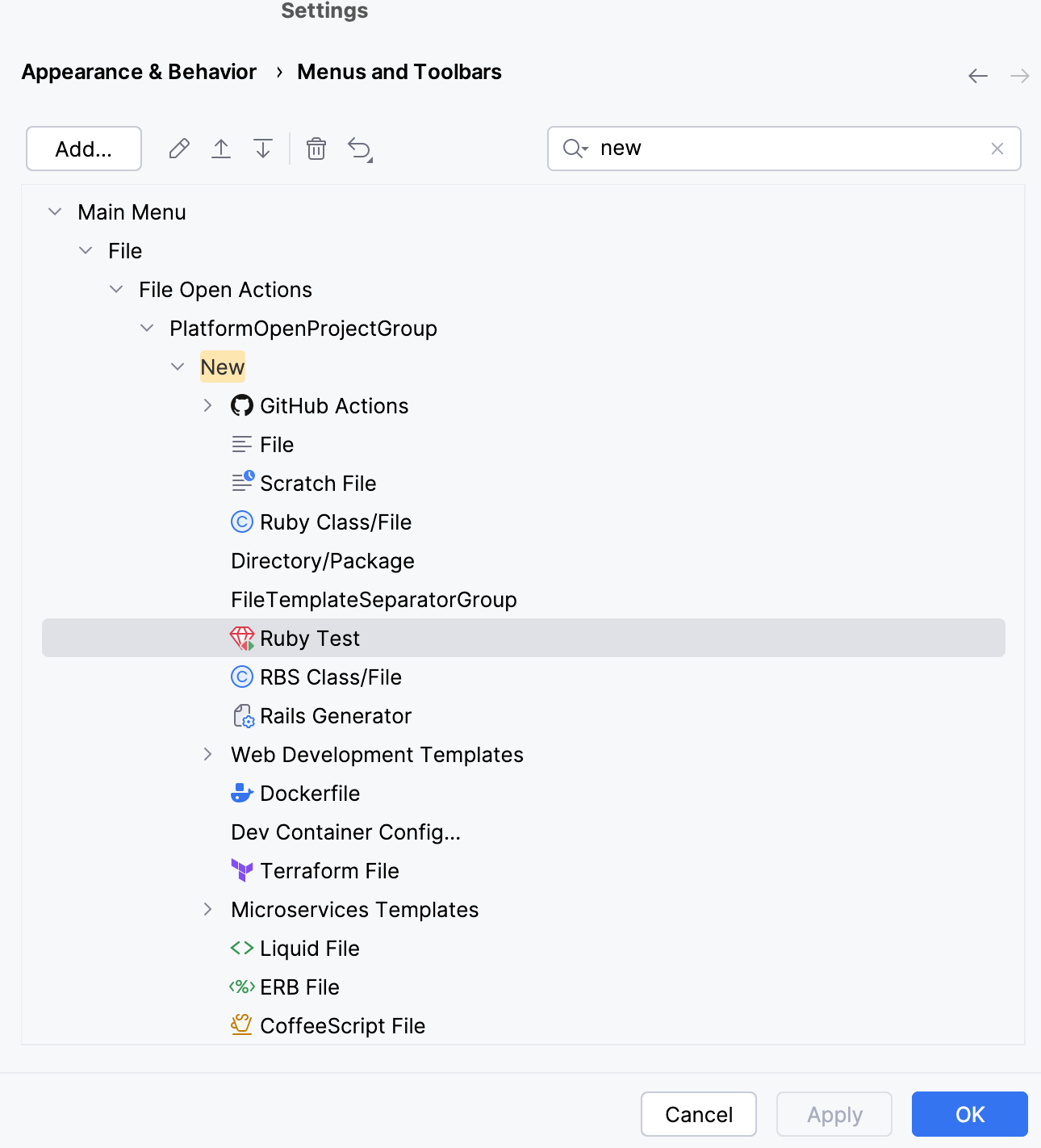
Press Ctrl+Alt+S to open settings and then select .
Start typing
newin the right search bar.Reorder or remove items as you want them to appear in the New File or Directory menu and confirm the changes.