Review incoming GitLab merge requests
GitLab merge requests are used in open-source projects or in some corporate workflows to manage changes from contributors and to initiate code review before such changes are merged.
You can receive a request to review code changes from your colleague or a fellow contributor. As a merge request reviewer, you can give your feedback directly in JetBrains Rider:
Select a pending review request in the Merge Requests tool window.
Manage incoming merge requests
If you are a project maintainer, and you have a GitLab remote configured for your project, you can view and manage incoming merge requests directly from JetBrains Rider.
To open the Merge Requests tool window, click  in the tool window bar on the left.
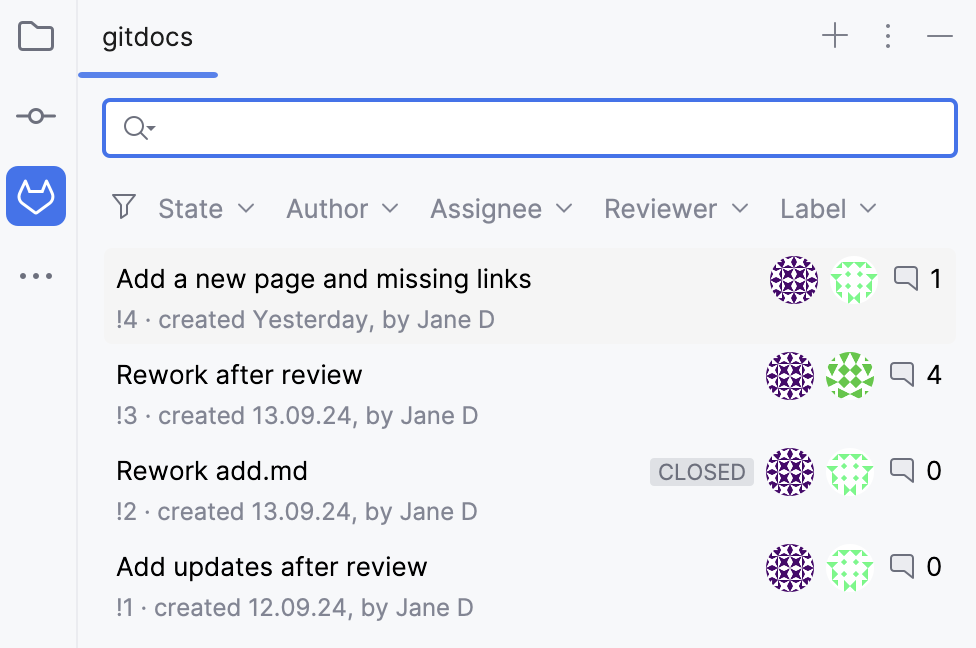
Alternatively, go to in the main menu.
Use the Merge Requests tool window to:
Filter requests by state, author, assignee, reviewer, and label.
Jump to a merge request on GitLab: right-click a merge request and choose Open Merge Request on GitLab from the context menu.
When you double-click a merge request from the list, you can see the overview and timeline tabs.
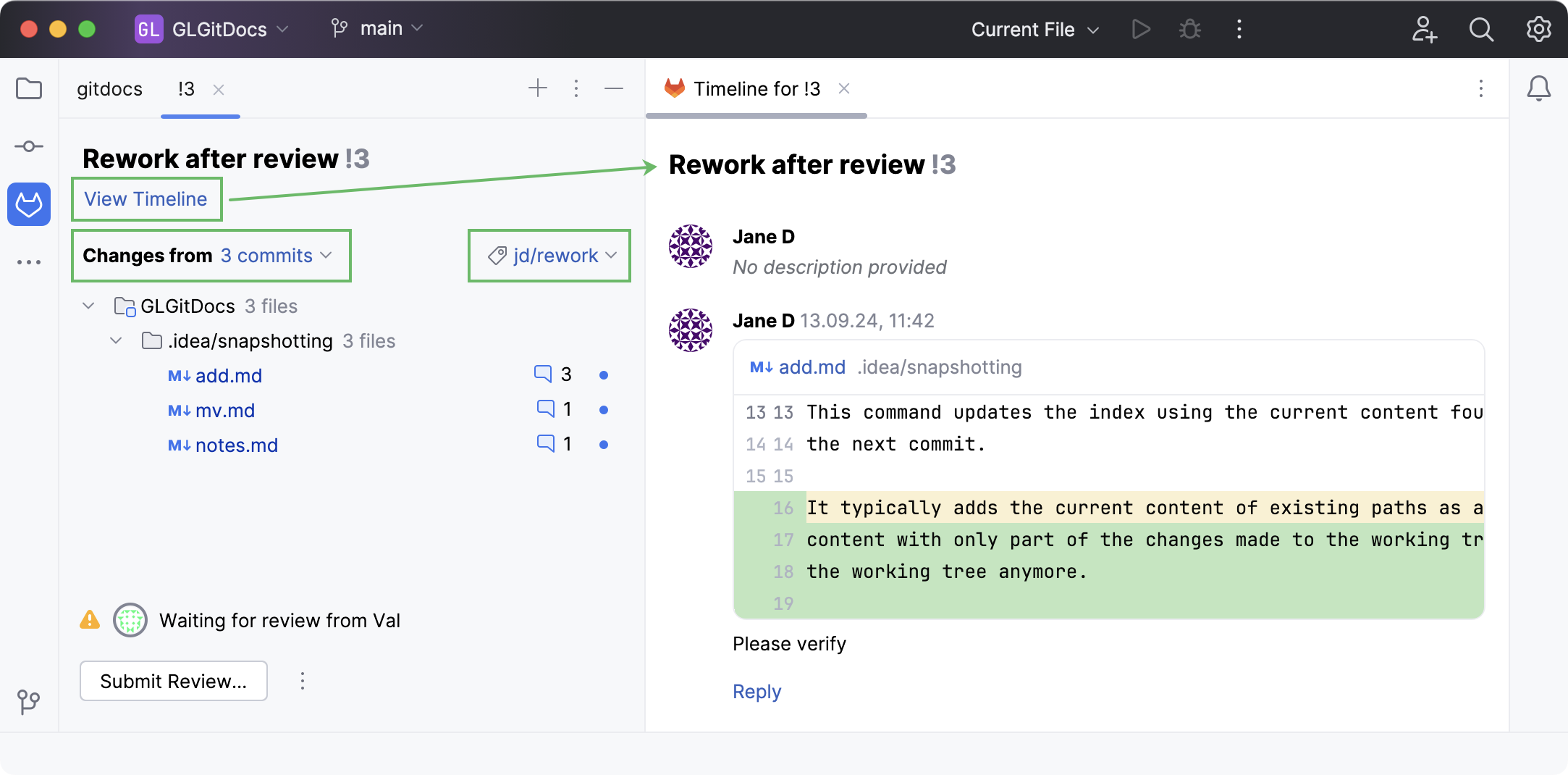
In this view, you can:
View the timeline of a selected merge request to track its progression and leave comments for the whole merge request.
Select a particular commit to filter the list of changes.
Create a local branch based on incoming changes: open a merge request, click the branch with incoming changes, and choose Checkout 'branch name' in the context menu.
Investigate branch-related changes in the Log tab of the Git tool window: open a merge request, click the branch with incoming changes, and choose Show 'branch name' in Git Log in the context menu.
This will help you navigate the code related to this merge request, make sure the project builds and the tests pass.
To learn about more options, refer to Give feedback to a merge request.
Give feedback to a merge request
When there are changes that require your attention, a white dot marks the GitLab tool window and the unseen merge requests are marked with blue dots.
In the main menu, go to .
In the list of merge requests, select the one you want to work with and double-click it.
JetBrains Rider opens an overview of the selected merge request.
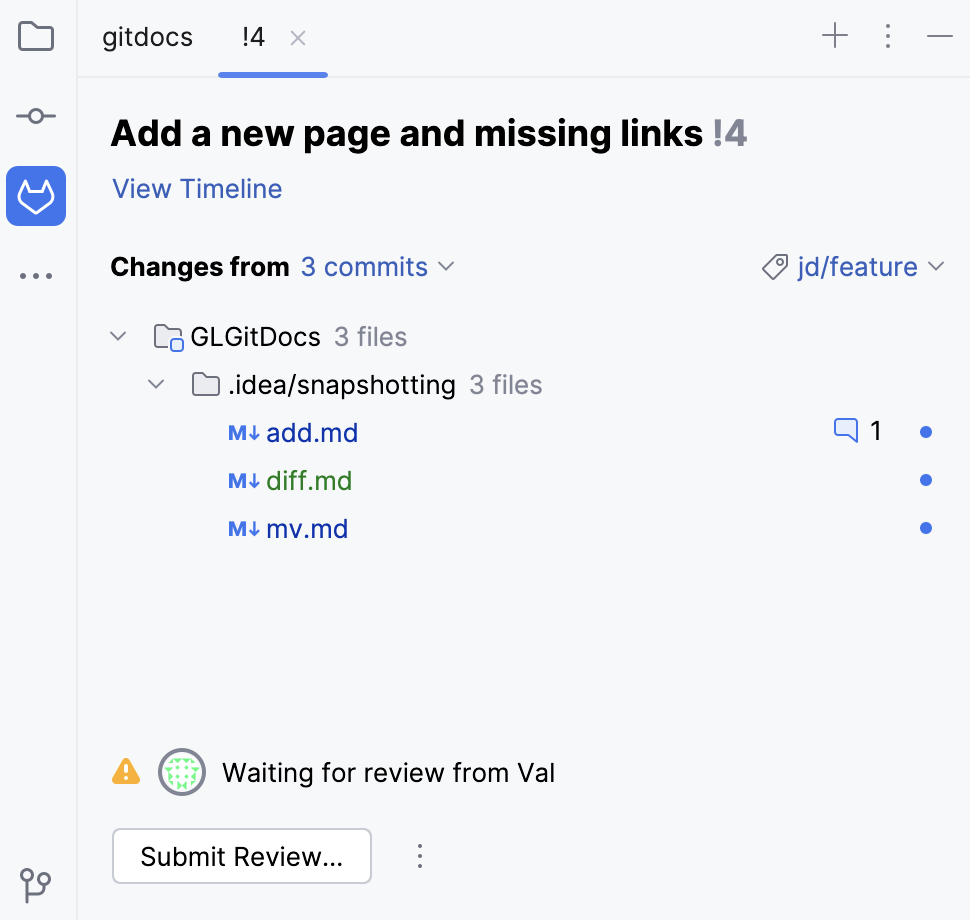
Next to the title, there is a merge request number. Click it if you want to open the merge request on GitLab.
Click the View Timeline button to open the timeline and leave comments for the whole merge request.
If a merge request consists of several commits, focus on a specific one by selecting it in the Changes from drop-down menu. Navigate between commits by pressing the up and down buttons.
Right-click any file to open the context menu for this file.
In case a reviewer has left any comments or suggestions, there is a counter with the number of comments in the list of files.
To start your review, сlick the branch with incoming changes and choose Checkout 'branch name' in the context menu.
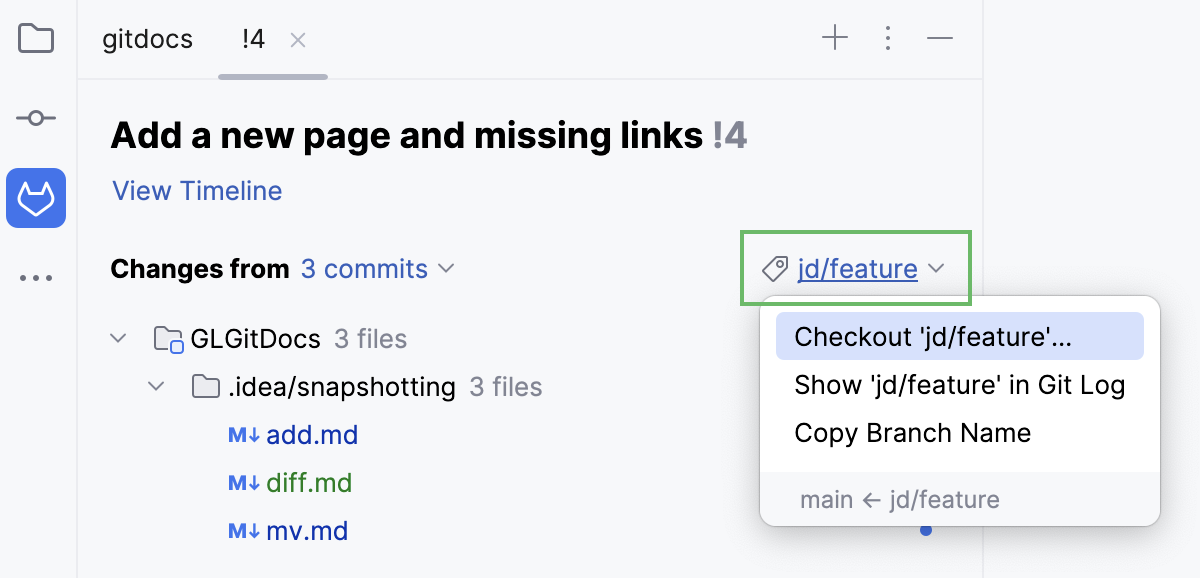
By checking out the branch, you get the full context to test the incoming changes and check how they work.
After the successful checkout, JetBrains Rider starts the Review mode. That means you can see the highlighted changes and comments not only in the Diff tab (Ctrl+D), but right in the editor (F4).
Select the file you want to investigate, right-click it and select Jump to Source F4 from the context menu.
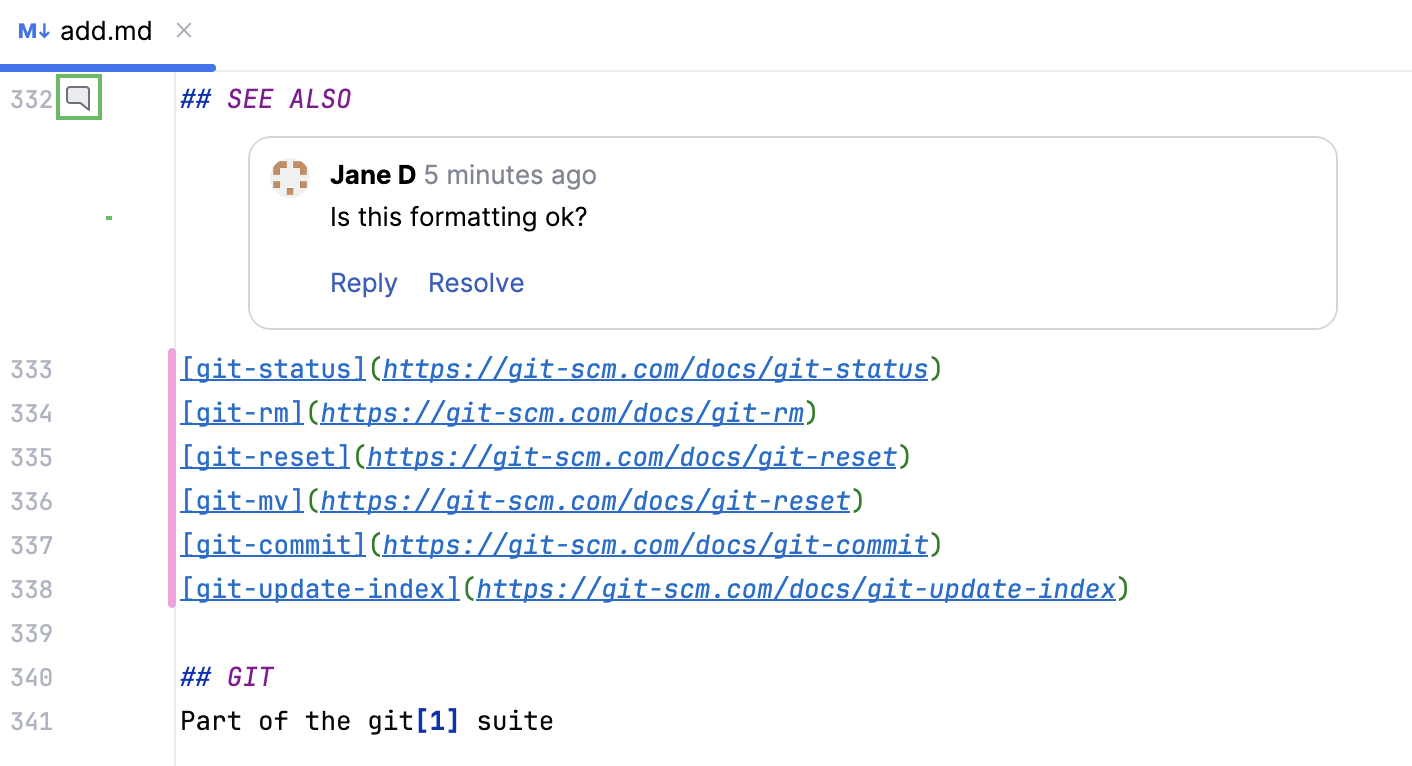
In the file that opens, pink markers in the gutter indicate the changes and the comments that are available for review.
Clicking the comment icons in the gutter will hide and open the comments.
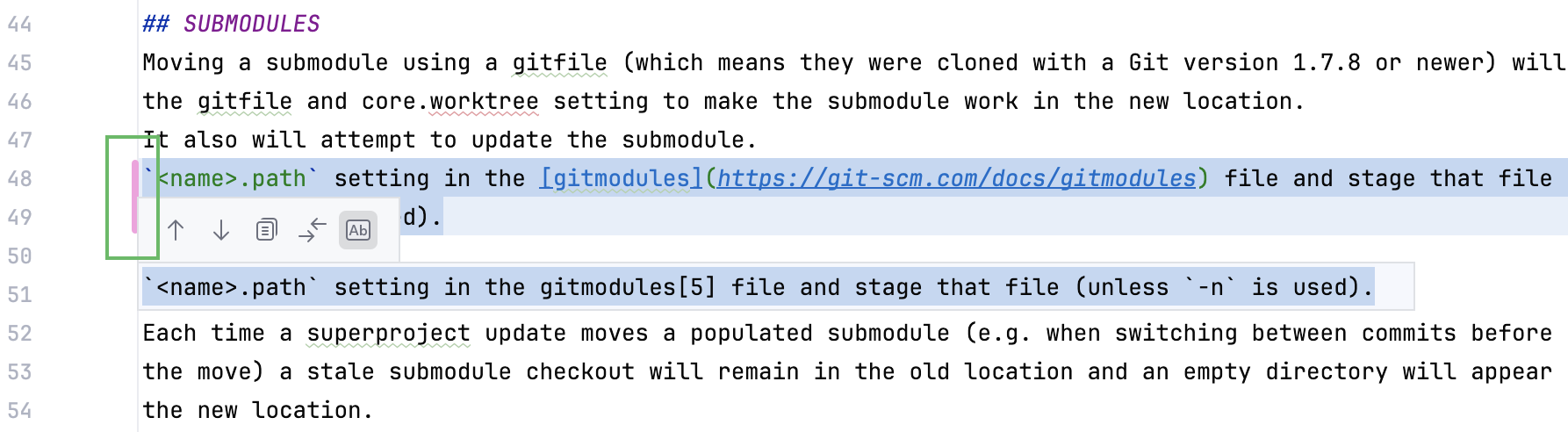
Clicking the pink markers reveals a popup displaying the original code.
Hover over the gutter and click
 to leave a comment.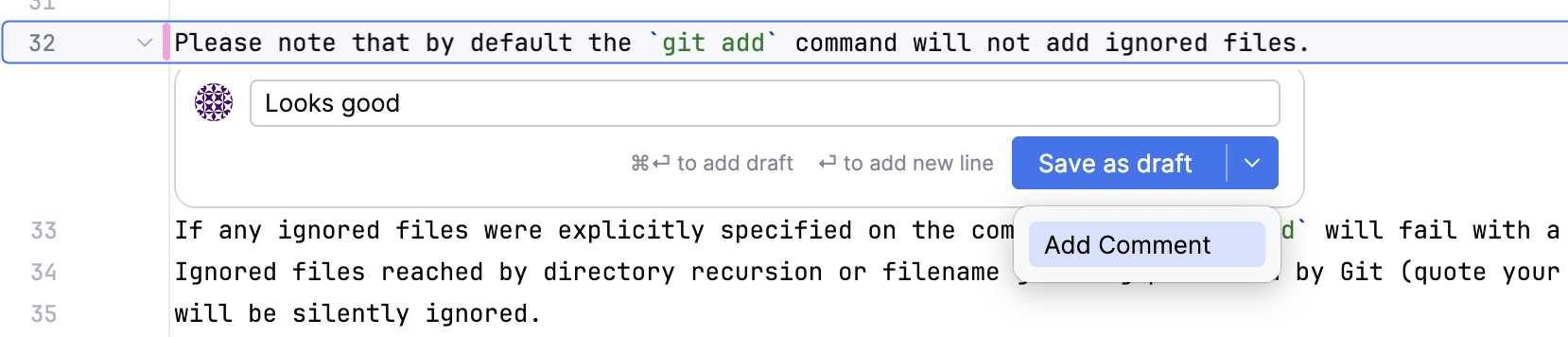
Select Add Comment to post a comment immediately and get other reviewers notified.
Select Save as draft to add multiple comments.
Before you submit your review, your comments are marked as Pending, and you can edit or delete them.
To comment on multiple lines, either click
and drag the blue borders to cover the desired range, or highlight the text first and then click .To mention a user, type
@and select the required username from the suggestion popup. After the mention is added, you can click it to open the user's profile in the browser.To include attachments in your comments, drag a file directly into the comment box or right-click within the box and select
 Upload File. If you have a file already copied to your clipboard, you can also select Paste in the context menu. Depending on how the GitLab API processes the file, it will be displayed as either an inline image or a hyperlink.
Navigate between the comments by using
 /
/ in the upper toolbar or pressing Ctrl+Alt+Up/Ctrl+Alt+Down.
To place a high-level comment on a merge request as a whole, open the timeline view of this merge request.
Click Submit Review in the merge request details tab to submit the review or approve the merge request.
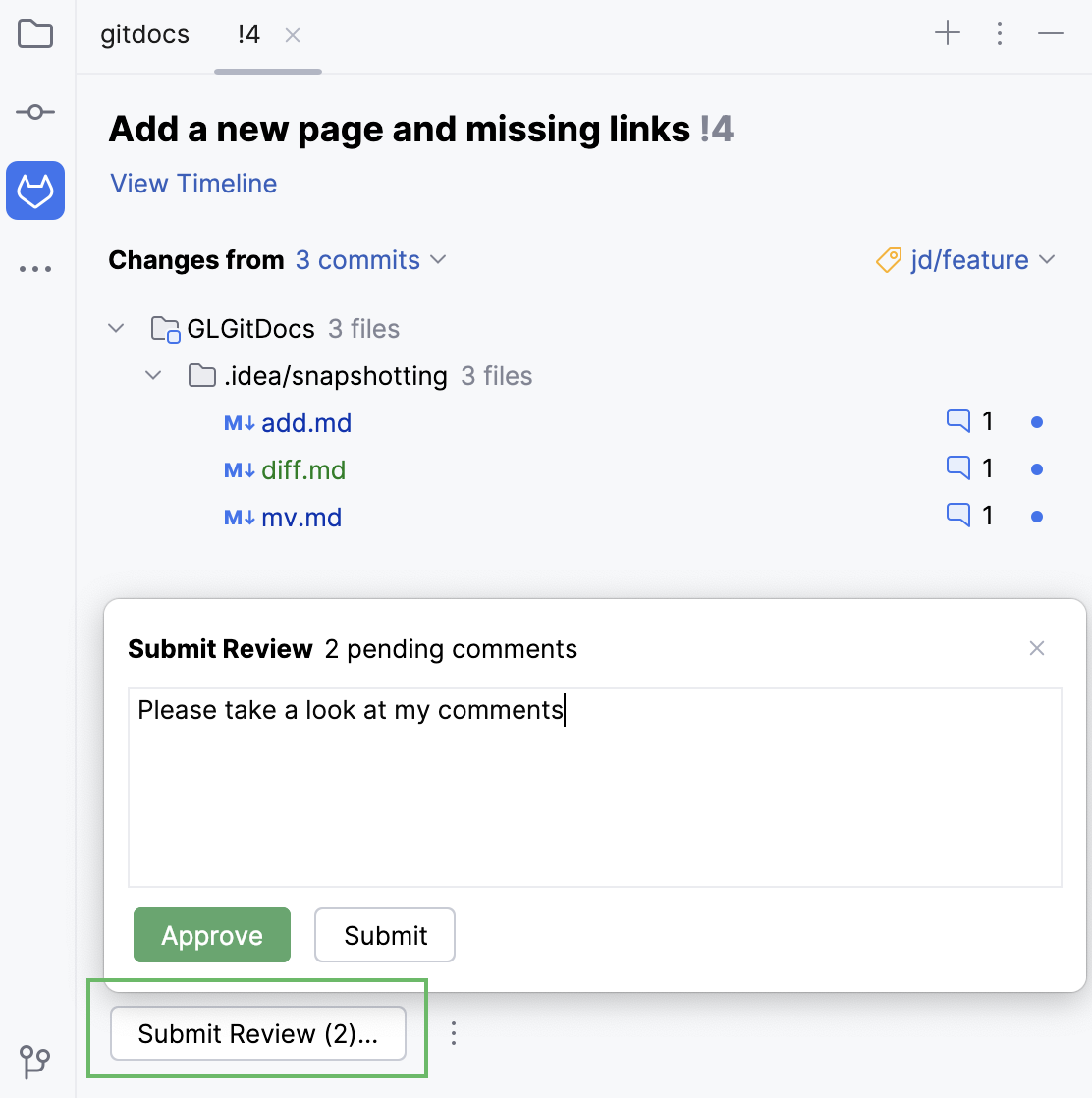
Select one of the possible outcomes:
Approve: to approve merging changes.
Submit: to submit your feedback without an approval.
If you change your mind, you can later click the Revoke Approval button.
If the work with the merge request is done, you can merge or close it in the same merge request details tab.
Merge or close an incoming merge request
If you have the necessary permissions assigned by the repository owner, after submitting your review and solving all the issues, you can merge or close the merge request.
In the main menu, go to .
In the list of merge requests, select the one you want to work with and double-click it.
At the bottom of the overview, there is a button with merge options that differ depending on the stage of the review process and your permissions.
If you have approved the updates after the review, you can merge the merge request by clicking Merge.
For more merge options, click
 and select Squash and Merge to squash the commits with your changes into one before merging them.
Click
 More and select Request Review if you need another opinion on this merge request or Close Merge Request if you do not want to merge it.