Set up a GitHub account
Add your GitHub account
To be able to retrieve data from a repository hosted on GitHub, or share your projects, you need to log in to your GitHub account in JetBrains Rider.
Add an existing account by signing in to GitHub
Press Ctrl+Alt+S to open settings and then select .
Click
 Add and select Log In via GitHub.
Enter your GitHub credentials in the browser window that opens. If you have two-factor authentication enabled, you will be asked to enter a code that will be sent to you by SMS or through the mobile application.
The authorization is done using the OAuth 2.0.
Add an existing account with a token
Press Ctrl+Alt+S to open settings and then select .
Click
Add and select Log In with Token.Do one of the following:
If you already have a token, insert it in the Add GitHub Account dialog window:
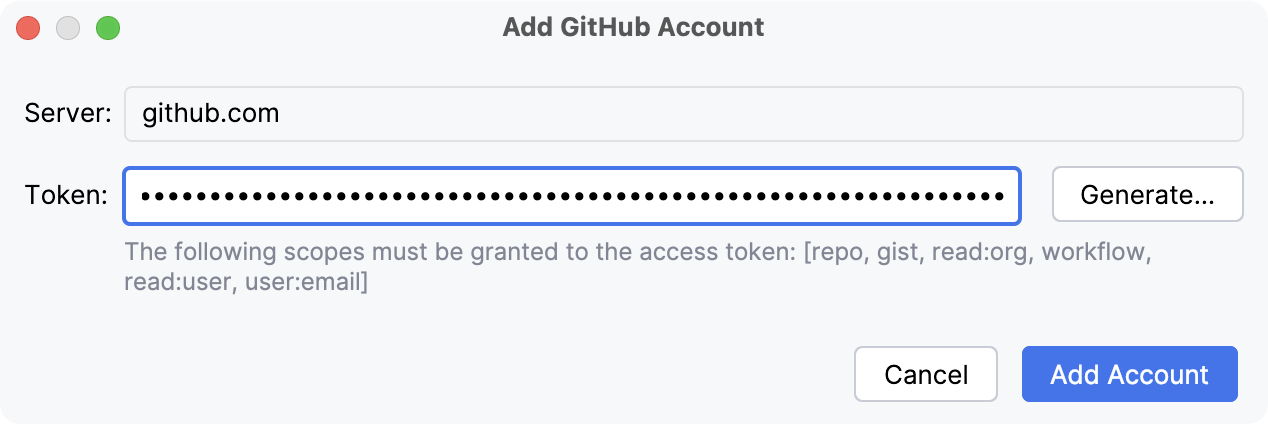
If you want to obtain a new token, click Generate.
Enter your GitHub credentials in the browser window that opens. If you have two-factor authentication enabled, you will be asked to enter a code that will be sent to you by SMS or through the mobile application.
In the token generation page, make sure that the following scopes are enabled: repo, gist, read:org, workflow, read:user, user:email (refer to Understanding scopes).
Click Generate token, copy the token, and paste it into the Add GitHub Account dialog window.
Click Add Account.
See Creating a personal access token for more details on GitHub tokens.
Log in to a GitHub Enterprise account
Press Ctrl+Alt+S to open settings and then select .
Click
Add and select Log In to GitHub Enterprise.In the Server field, enter the URL of your GitHub Enterprise server. For example,
github.comfor GitHub Enterprise Cloud,example.ghe.comfor GitHub Enterprise Cloud (with Data Residency), or the URL of the self-hosting server that your company uses.Do one of the following:
If you already have a token, insert it in the Add GitHub Account dialog window:
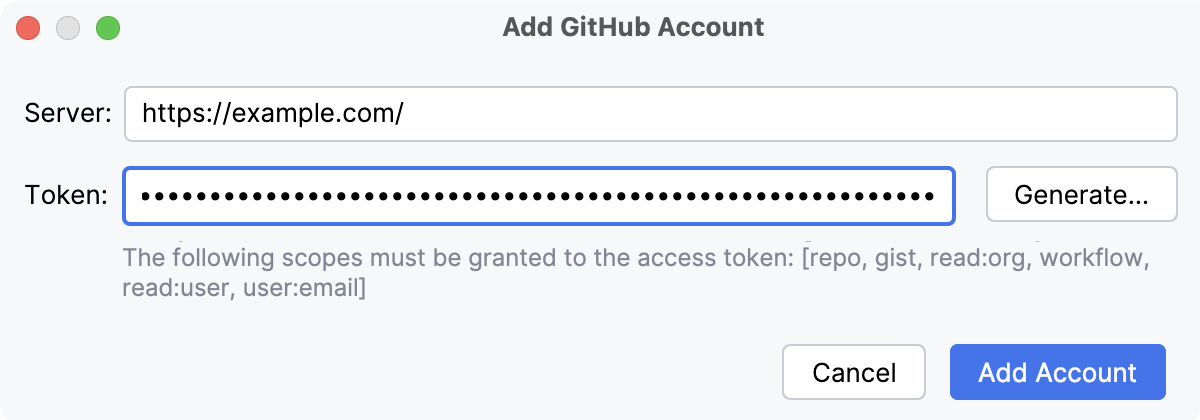
If you want to obtain a new token, click Generate.
Enter your GitHub credentials in the browser window that opens. If you have two-factor authentication enabled, you will be asked to enter a code that will be sent to you by SMS or through the mobile application.
In the token generation page, make sure that the following scopes are enabled: repo, gist, read:org, workflow, read:user, user:email (refer to Understanding scopes).
Click Generate token, copy the token, and paste it into the Add GitHub Account dialog window.
Click Add Account.
Update an expired token
When your token expires, you see the following warning when trying to push changes to the GitHub repository:
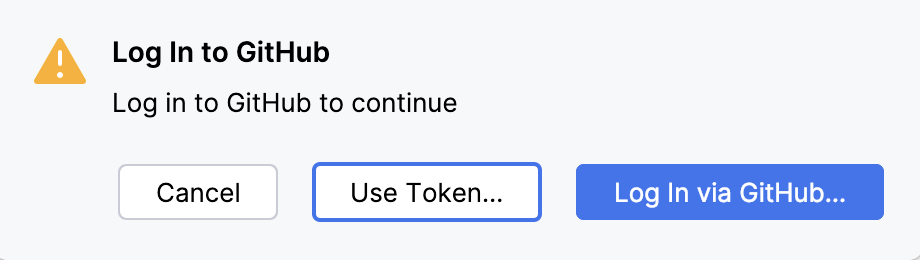
Click Use Token.
Do one of the following:
If you already have a token, insert it in the Log In to GitHub dialog window:
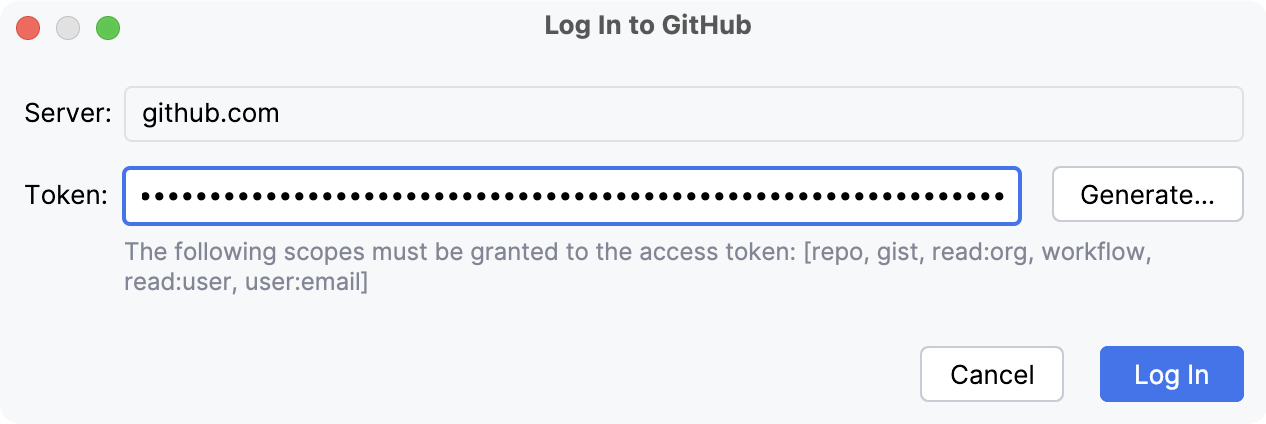
If you want to obtain a new token, click Generate.
Enter your GitHub credentials in the browser window that opens. If you have two-factor authentication enabled, you will be asked to enter a code that will be sent to you by SMS or through the mobile application.
In the token generation page, make sure that the following scopes are enabled: repo, gist, read:org, workflow, read:user, user:email (refer to Understanding scopes).
Click Generate token, copy the token, and paste it into the Log In to GitHub dialog window.
Click Log In
Create a new GitHub account
Press Ctrl+Alt+S to open settings and then select .
Click
Add and select Log In via GitHub.In the browser window that opens, click Create an account and complete the registration process on GitHub.
Return to the JetBrains Rider settings, click Cancel, and then repeat steps 2 and 3.
Click Authorize JetBrains in your browser.
Manage multiple GitHub accounts
You can use multiple GitHub accounts in JetBrains Rider: for example, a personal account to work on an open-source project, and a corporate account for your main job.
Press Ctrl+Alt+S to open settings and then select .
Use
Add to add as many accounts as you need.(Optional) To set an account as a default one for the current project, select it and click
 Set as Default. If a default account is set, JetBrains Rider will not ask you to select an account you want to use when you share your project on GitHub, rebase a fork, create a pull request, or create a gist.