.NET watch
dotnet watch is a CLI tool that ships with the .NET SDK. It watches for file changes in your project — including .cs, .csproj, .resx, and static content files — and automatically restarts or hot-reloads the target application. JetBrains Rider provides a dedicated run configuration that lets you use dotnet watch directly from the IDE.
Enable the .NET Watch Run Configuration plugin
This functionality relies on the .NET Watch Run Configuration plugin, which is bundled and enabled in JetBrains Rider by default. If the relevant features are not available, make sure that you did not disable the plugin.
Press Ctrl+Alt+S to open settings and then select .
Open the Installed tab, find the .NET Watch Run Configuration plugin, and select the checkbox next to the plugin name.
dotnet watch vs. hot reload
JetBrains Rider has built-in support for hot reload, which lets you apply code changes to a running application on demand. dotnet watch offers a more hands-off alternative: it monitors file changes and automatically applies hot reload or restarts the application when needed.
Hot reload preserves the application state by swapping updated method bodies without restarting the process. However, certain changes are considered rude edits and cannot be hot-reloaded:
Adding, updating, or removing
awaitexpressionsAdding, updating, or removing
yieldexpressionsChanges to top-level statements, lambda expressions, or query expressions
Modifying type signatures, inheritance, or generic constraints
When a rude edit occurs, dotnet watch can either prompt you to restart or restart automatically if the DOTNET_WATCH_RESTART_ON_RUDE_EDIT environment variable is set to true.
Use dotnet watch without hot reload when your application relies heavily on one-time registrations (for example, ASP.NET Core Minimal API endpoint configuration) and benefits from a full restart on every change.
Create a .NET Watch run configuration
Go to .
Click + and select dotnet-watch.
Configure the run configuration options:
Project: select the project to run.
Target framework: choose the target framework if the project has multiple targets.
Watch arguments: additional arguments passed to
dotnet watch(for example,--no-hot-reloadto disable hot reload).Program arguments: arguments passed to your application.
Working directory: the working directory for the process.
Environment variables: environment variables for the process. For example, set
DOTNET_WATCH_RESTART_ON_RUDE_EDITtotrueto automatically restart on rude edits.Verbosity: set the output verbosity to
--quiet, default, or--verbose.Suppress hot reload: toggle hot reload on or off.
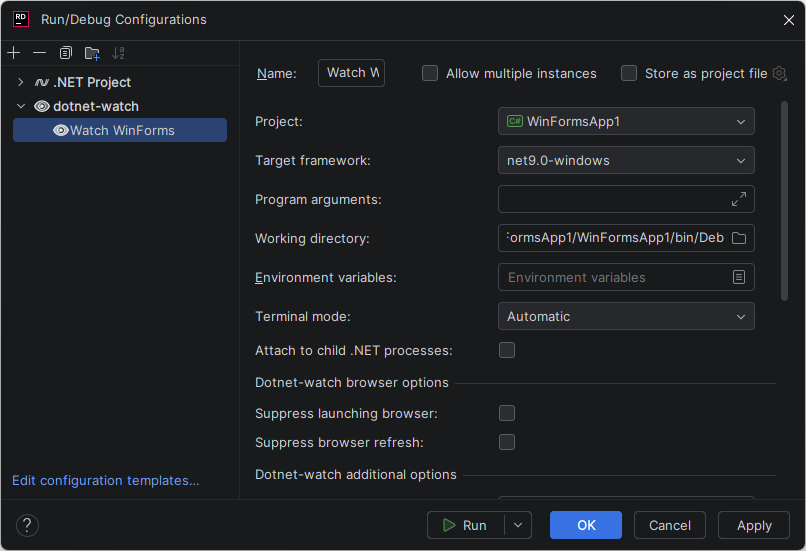
Click OK to save the configuration.
Run with dotnet watch
Select the .NET Watch run configuration in the toolbar and click Run. The dotnet watch process starts in the Run tool window, where you can see the application output and watch status messages.
Once the application is running, edit any watched file and save it. Depending on your configuration, dotnet watch will either hot-reload the changes or restart the application.