WSL
WSL (WSL 2) – Windows Subsystem for Linux – is a compatibility layer for running Linux binary executables natively on Windows 10 and later. Currently, it supports several Linux distributions, such as Ubuntu, OpenSUSE, and SLES.
With WSL toolchain set up for your project, you can build using a toolchain from Linux, and run/debug on WSL, without leaving JetBrains Rider running on your Windows machine.
Configure WSL
Download and install a WSL distribution (for instance, Ubuntu) from Microsoft Store on your Windows machine.
For this step, be sure to use at least Windows 10 or later with the latest “Fall Creators Update” (minimum version 1709, build 16299.15). See the official guide Install the Windows Subsystem for Linux for instructions.
To work with WSL 2, your Windows version should be 10 build 18917 or later. Follow these instructions to switch the distributive.
Note that JetBrains Rider does not support legacy WSL, which you may have installed before upgrading your system to the build 16299.15 or later of Windows 10. In this case, you need to update your WSL distribution.
Run the Linux distribution.
Upon the first launch, the system may prompt you to enable the Windows optional feature. In this case, you need to do the following:
Open Windows PowerShell as Administrator and run
Enable-WindowsOptionalFeature -Online -FeatureName Microsoft-Windows-Subsystem-LinuxRestart your computer.
Set up the Linux distribution environment:
Install cmake, gcc, or/and clang (and optionally build-essentials package), as follows:
sudo apt-get update sudo apt-get install cmake gcc clang gdb build-essentialConfigure and run open ssh-server.
You can set the configuration manually or by using our script (note that if your Linux distribution is different from Ubuntu, the script might need adjustments). To download and run the script, use the following command line:
wget https://raw.githubusercontent.com/JetBrains/clion-wsl/master/ubuntu_setup_env.sh && bash ubuntu_setup_env.sh
Next, check the ssh connection:
ssh username@localhost -p2222Port number 2222 is valid for our configuration script. If you are not using our script, the port number can be different.
Configure a WSL toolchain for your project
In JetBrains Rider, go to .
Click
 to create a new toolchain and select WSL.
In the Environment field, select one of the available WSL distributions. The list includes the distributions detected by
wsl.exe --list, which includes the imported ones.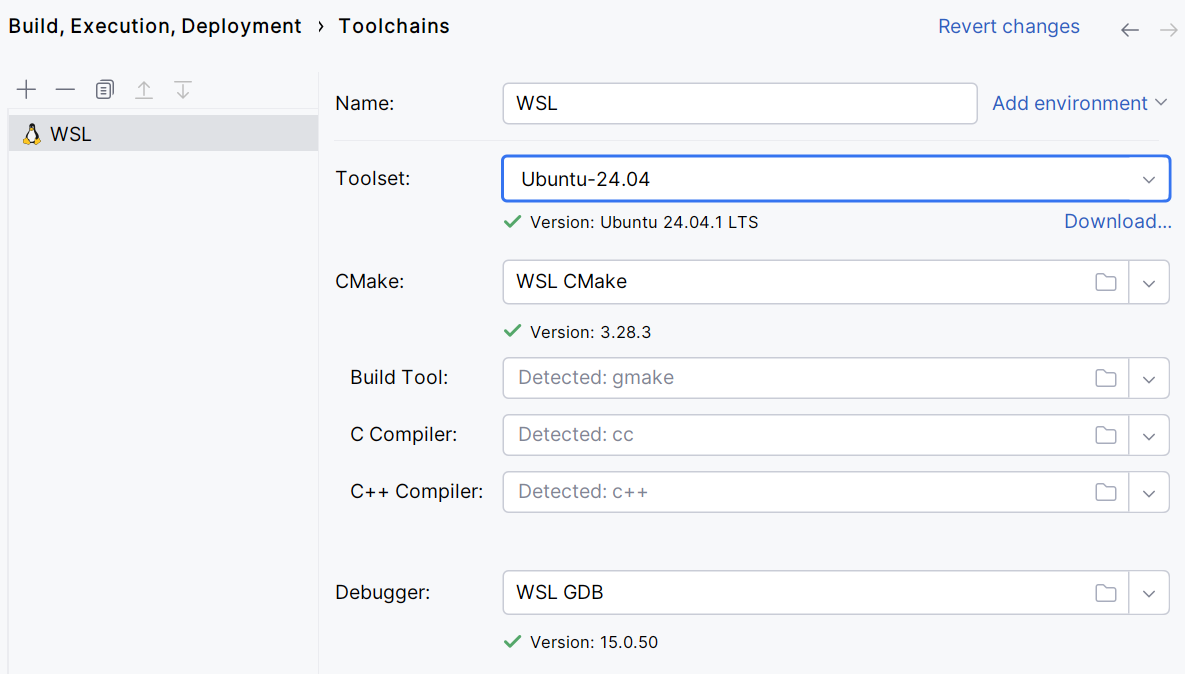
Wait for all the tools to be detected and save the settings.
Now to start using the toolchain, do the following:
Switch to the WSL toolchain in .
Call .
In the Native Application configuration, point Executable to the binary using the \mnt\.. notation (for example, \mnt\c\Users\jetbrains\CLionProjects\SimpleMakefile\runme).
Troubleshooting
Due to the IntelliJ platform issue, there are problems with using WSL file-system which is case-sensitive and Windows file system which is not. As a workaround, you can do the following:
Go to menu option and specify
idea.case.sensitive.fs=trueInvalidate caches and restart the IDE using menu option.
Configure the project location
You can ensure that any project you create or open uses the appropriate WSL location.
Press Ctrl+Alt+S to open settings and then select .
Under the Project section, in the Default project directory field, specify the appropriate WSL directory and click OK to save the changes.
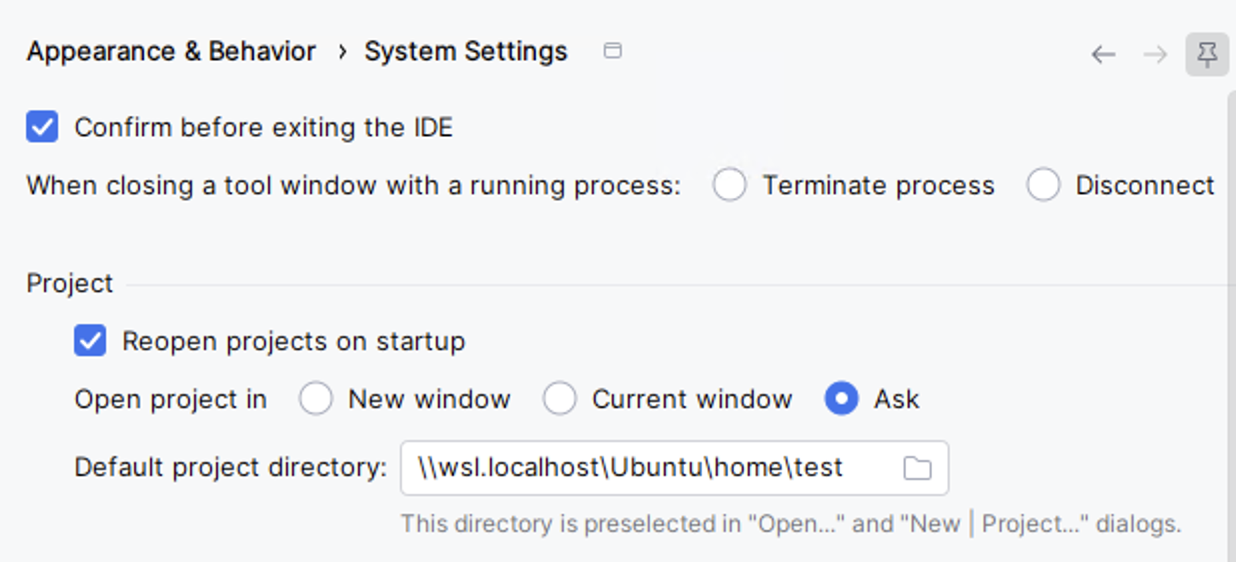
From now on, whenever you create, open, or clone a project, the specified directory is selected by default.
WSLg
WSLg lets you run Linux GUI applications and shows their output on the Windows desktop.
We do not recommend running JetBrains Rider through WSLg. JetBrains Rider already provides native WSL integration, which is the preferred approach.
Keep in mind the following:
WSLg has limitations related to rendering, popups, window management, input methods, and desktop integration.
We do not provide dedicated support, installation guidance, onboarding, or product-specific fixes for running JetBrains Rider through WSLg.