Customizing various Dev Container settings
Customizing devcontainer.json file
You can customize devcontainer.json file by adding the required settings, plugins, and so on.
Add modified settings
Open the
devcontainer.jsonfile in the editor.In the left gutter, click
 , select Add Modified Settings from IDE.
 The settings are added as a
customizationssection. It might be useful if you want to synchronize both settings or choose some other customization option.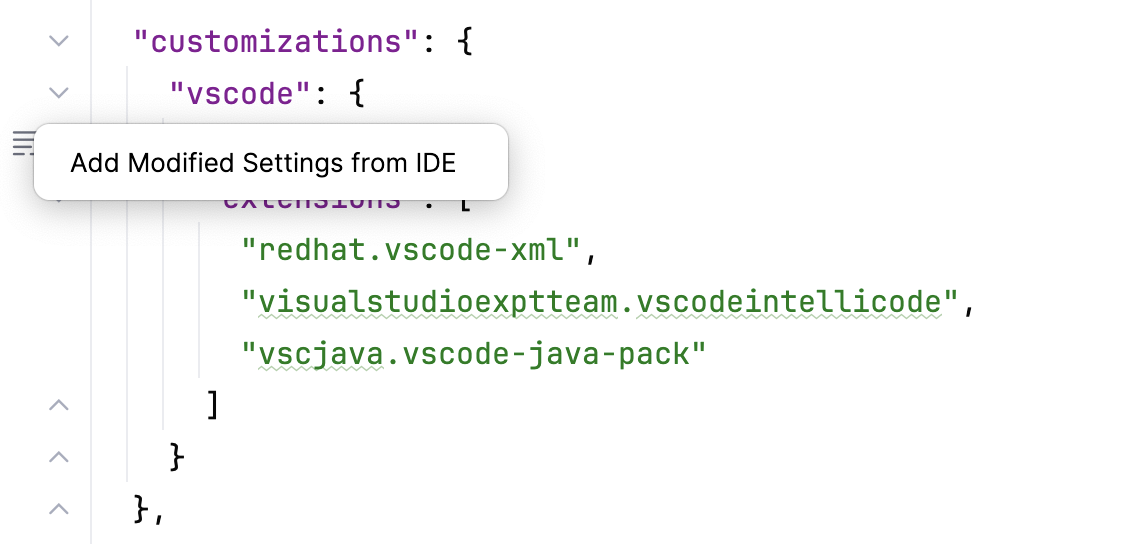
You can also add the non-default application-level settings, modify the added settings options, sort them, or add properties from the JSON schema. Press Alt+Enter in the
settingssection of thedevcontainer.jsonfile and select the appropriate option.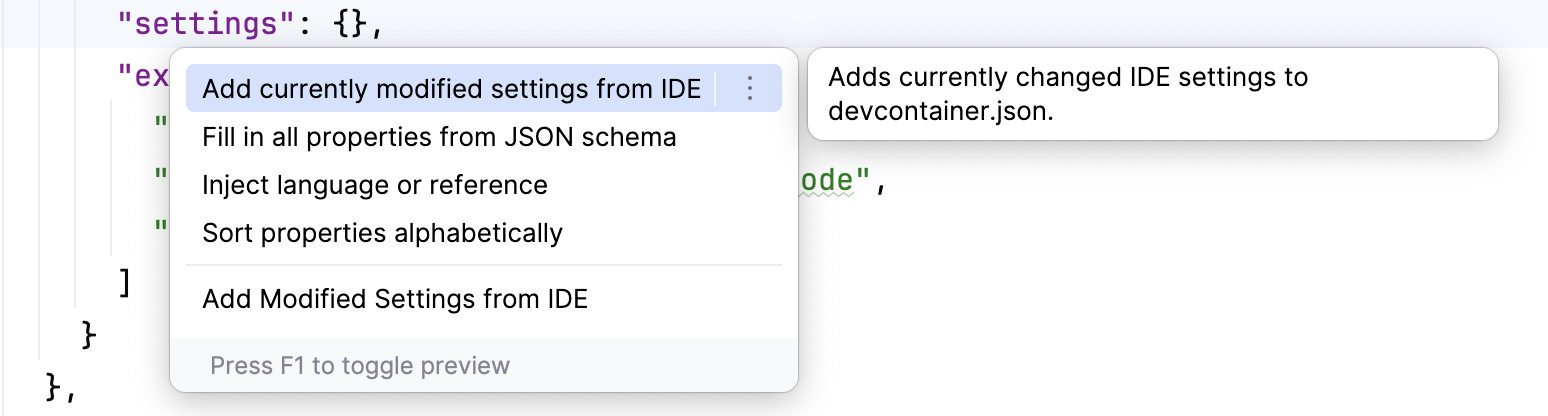
You can also install plugins from the JetBrains marketplace to a Dev Container.
Add plugins
Open JetBrains marketplace in the browser.
Locate the required plugin and open the plugin page.
On the plugin page, scroll down to the Additional information section and copy plugin ID.
Open the
devcontainer.jsonfile in the editor.Inside the
customizationssection, add the following code:{ "customizations": { "jetbrains": { "plugins": [ "org.intellij.plugins.hcl" ] } } }The
pluginIDis the ID of the required plugin from JetBrains marketplace, for example,org.intellij.plugins.hcl.
Copy local Git settings
You do not need to additionally configure Git settings inside a Dev Container. The Git settings are automatically added to a Dev Container from your local global .gitconfig file.
To check the settings inside the Dev Container, do the following
In the Services tool window, select Docker | Dev Containers and the necessary container.
Start the container by clicking the Start button.
Click
 and select Show Files.
Select .gitconfig in the list of the files.
The following settings are copied if available:
user.email, user.name, pull.rebase, alias.*The
alias.*option means all the alias settings.
Add a specific IDE backend
You can specify a name of the IDE in your container.json so that specific backend IDE will be launched automatically every time you start your Dev Container for a remote project.
Open the
devcontainer.jsonfile in the editor.Inside the
customizationssection, add the following code:{ "customizations": { "jetbrains": { "backend": "<IDE-name>" } } }<IDE-name>is the name of the IDE that you want to use. For example,IntelliJ.
Add and reference local Feature
You can define a custom configuration (local Feature) and reference it from the devcontainer.json file using code completion.
For more detailed information, refer to the Development Containers documentation.
Configure local Feature
In the IDE, in the Project tool window, right-click the
.devcontainerfolder and select .In the window that opens, add the name of your feature that would equal the feature ID.
Right-click the created feature folder and select .
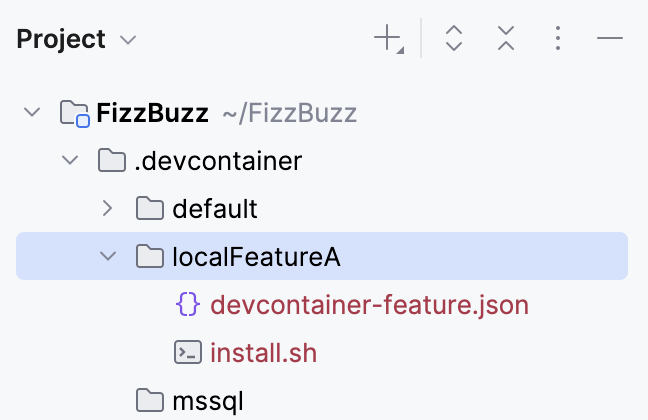
First, create the
devcontainer-feature.jsonfile and then create theinstall.shfile.As a result, both files should be inside the created feature folder.
Open the
devcontainer-feature.jsonfile and add your feature configuration. For the information on related properties, refer to Development Containers documentation.Open the
install.shfile and add a script that installs or configures your feature.Now you can reference your feature inside the
devcontainer.jsonfile.Open the
devcontainer.jsonfile and inside thefeaturessection, add the reference to the local Feature using auto-completion.