Code hierarchies and class layout
In addition to code analysis, JetBrains Rider's code analysis allows you to investigate members by building call chains and value chains, and to visualize the memory layout of a class.
Class layout
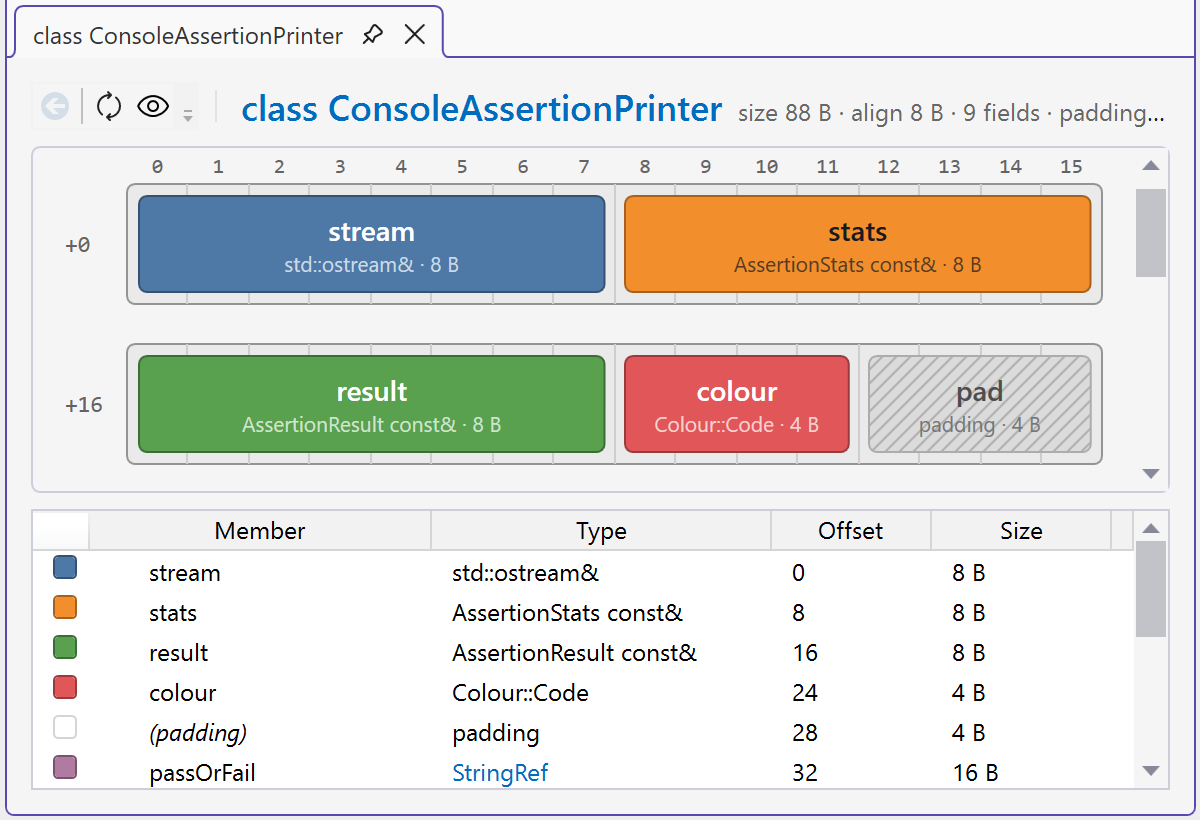
The Class Layout tool window visualizes the memory layout of a class, struct, or union, including the offset and size of every field and bit-field, base class subobjects, virtual table pointers, and the padding between them. It helps you find padding you can eliminate, check the effect of alignas or #pragma pack, and understand the layout of classes in a complex hierarchy.
To open the tool window, place the caret on a class name or any reference to a class type. Press Ctrl+Alt+Shift+A and choose Class Layout in the Inspect This list. Alternatively, select Class Layout from the Alt+Enter menu.
Call hierarchy
Call hierarchy shows callers (supertypes) or callees (subtypes) of a function.
To explore incoming calls, place the caret at any function. Press Ctrl+Alt+Shift+A and choose Incoming Calls in the Inspect This list.
To explore outgoing calls, place the caret at any function. Press Ctrl+Alt+Shift+A and choose Outgoing Calls in the Inspect This list.
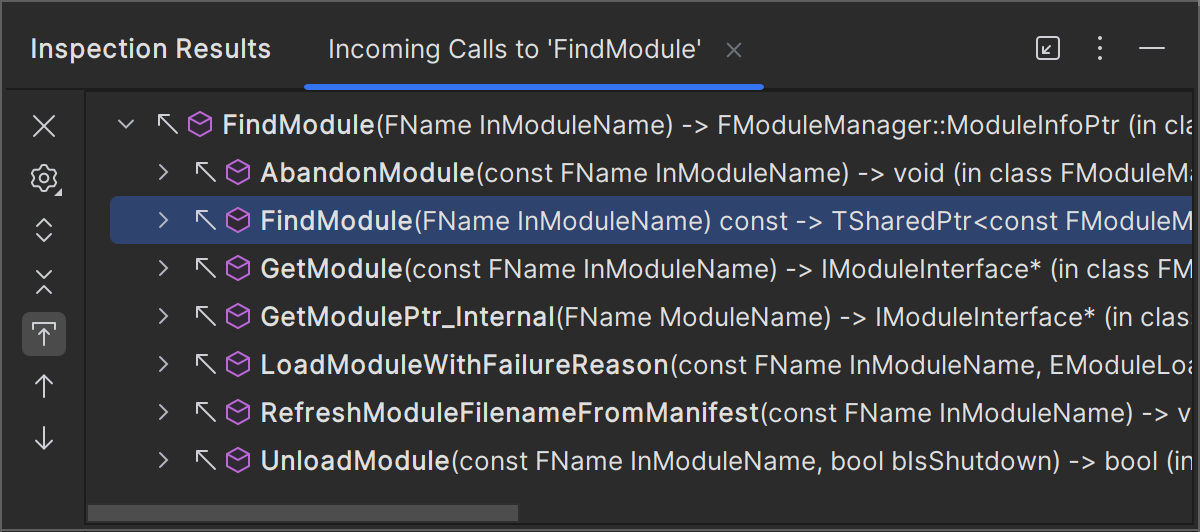
In the call hierarchy results window, you can double-click the hierarchy entry to navigate to the corresponding call in the editor or expand any node to check out their incoming/outgoing calls.
Type hierarchy
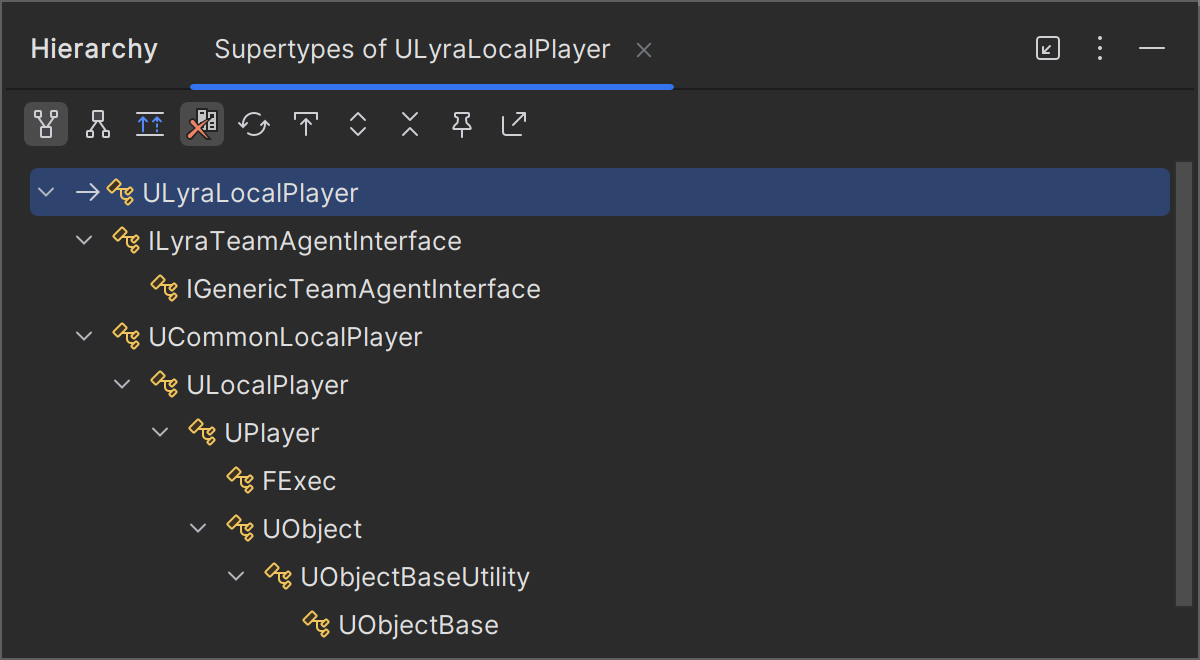
With JetBrains Rider, you can investigate the inheritance hierarchy of types from your solution and from referenced libraries. You can see both base types and inheritors of the selected type and navigate to any of them with a mouse click. For more information, refer to Explore type hierarchy.
Hierarchy of includes
JetBrains Rider allows you to visually analyze the hierarchy of includes for a single include directive or for a file.
To build the hierarchy of includes, place the caret to an #include directive in a file or select a file in the Solution Explorer, and then press Ctrl+H or choose from the menu.
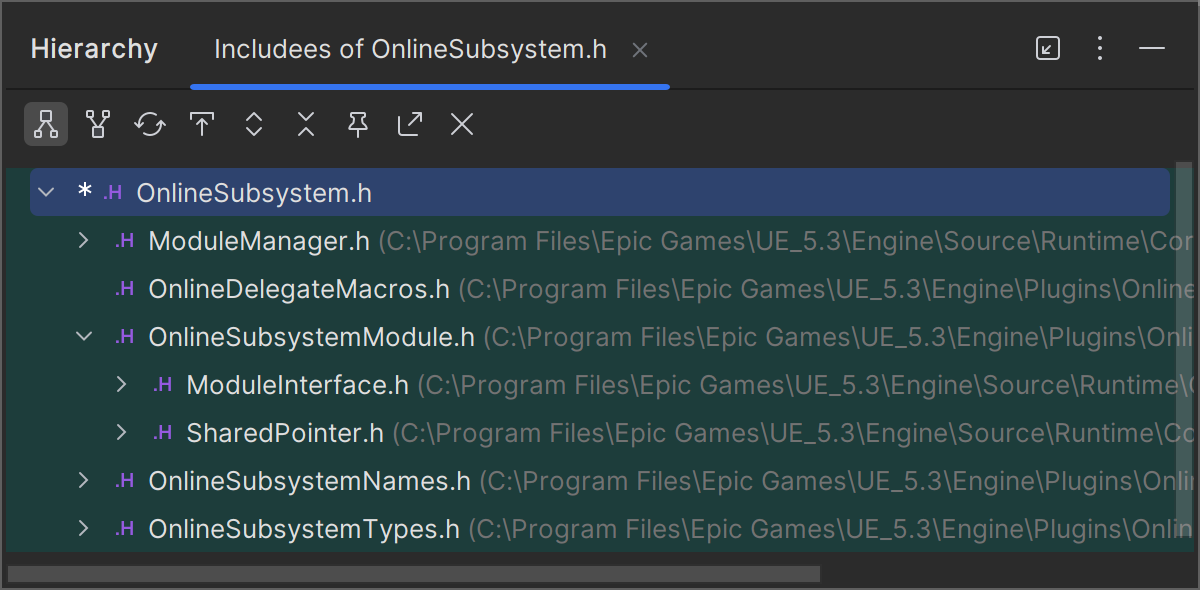
You can double-click any file in the hierarchy to open it in the editor.
By default, child nodes of each file represent files included in this file, which corresponds to the Includee  mode on the toolbar. You can switch to the Includers
 mode. In this mode, child nodes of a file represent files in the current scope that include this file.