Google Cloud
Enable the Database Tools and SQL plugin
This functionality relies on the Database Tools and SQL plugin, which is bundled and enabled in JetBrains Rider by default. If the relevant features are not available, make sure that you did not disable the plugin.
Press Ctrl+Alt+S to open settings and then select .
Open the Installed tab, find the Database Tools and SQL plugin, and select the checkbox next to the plugin name.
Step 1. Install a cloud provider plugin
In the Database tool window, click
 New on the toolbar and navigate to .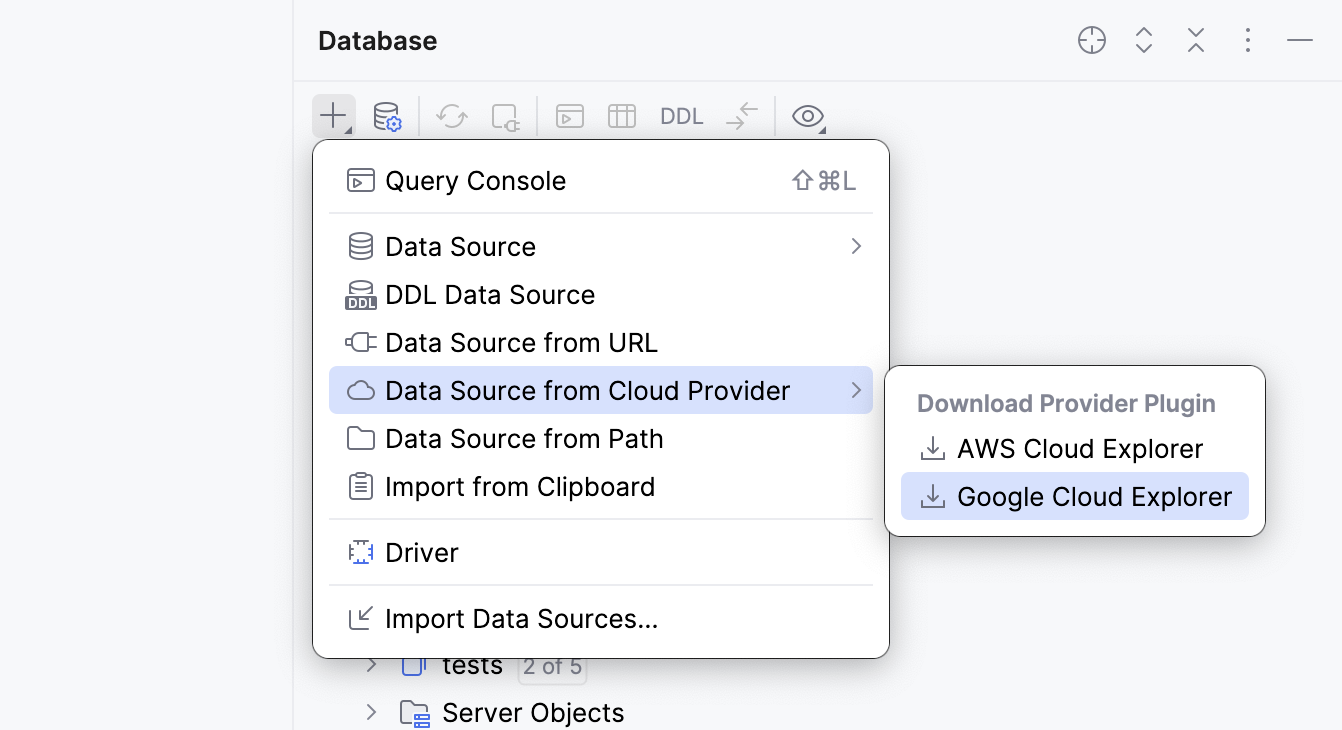
In the Choose Plugins to Install or Enable dialog, make sure that the plugin for your cloud provider is selected. Click OK to confirm.
JetBrains Rider downloads the plugin.
Once the cloud provider plugin is downloaded, the provider is available in the same submenu under .
Step 2. Configure a Google Cloud cloud provider connection
In the Database tool window, click
New on the toolbar. Navigate to Data Source from Cloud Provider and select Google Cloud.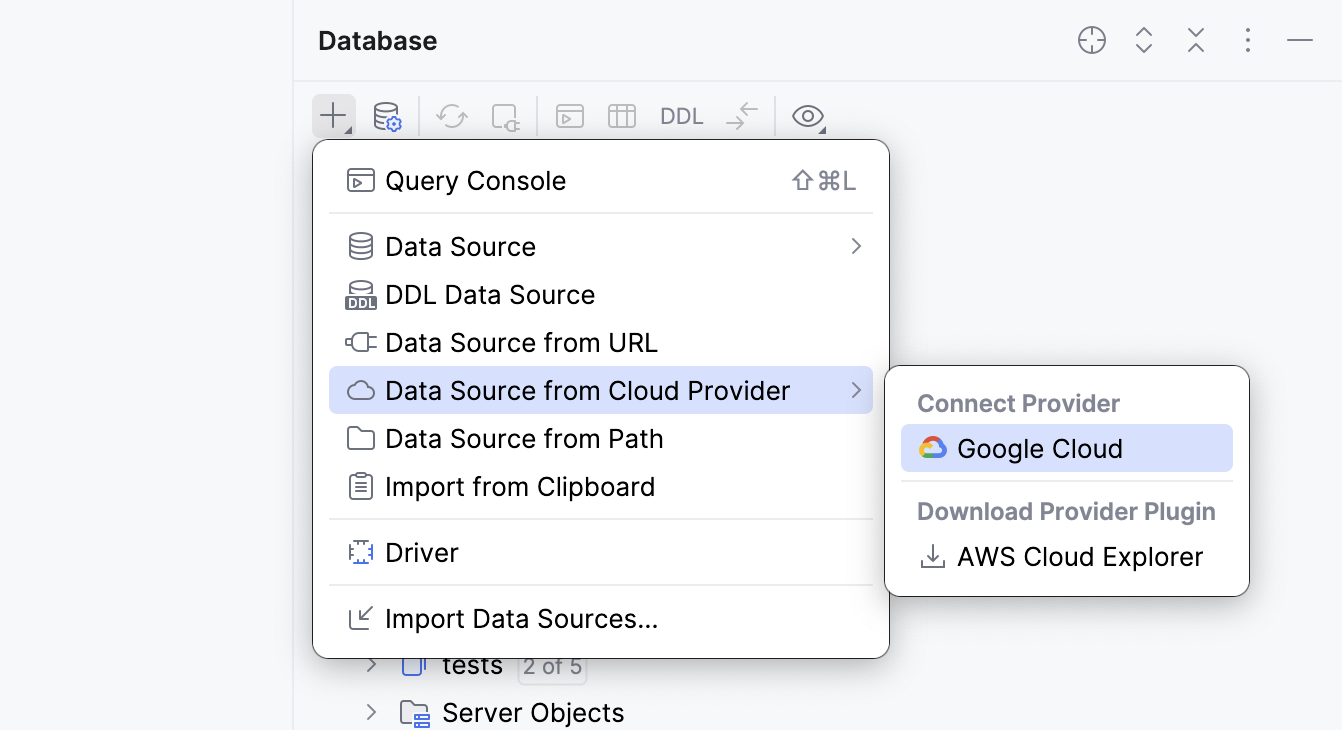
JetBrains Rider opens the Clouds section on the left-hand side of Data Sources and Drivers dialog. Iin this section, enter your cloud provider account connection details on the Configuration tab of the settings area.
From the Authentication type dropdown, select the authentication method you want to use.
GCloud Account: this will open your browser where you can sign in to your Google account. Once authenticated, select the Project ID.
Credential File: enter a path to the credential JSON file.
You can also set up Extended Connection Settings:
Proxy: select if you want to use IDE proxy settings or if you want to specify custom proxy settings.
Custom host: enter your custom endpoint URL, for example, if you want to use it to mock a Google Cloud server.
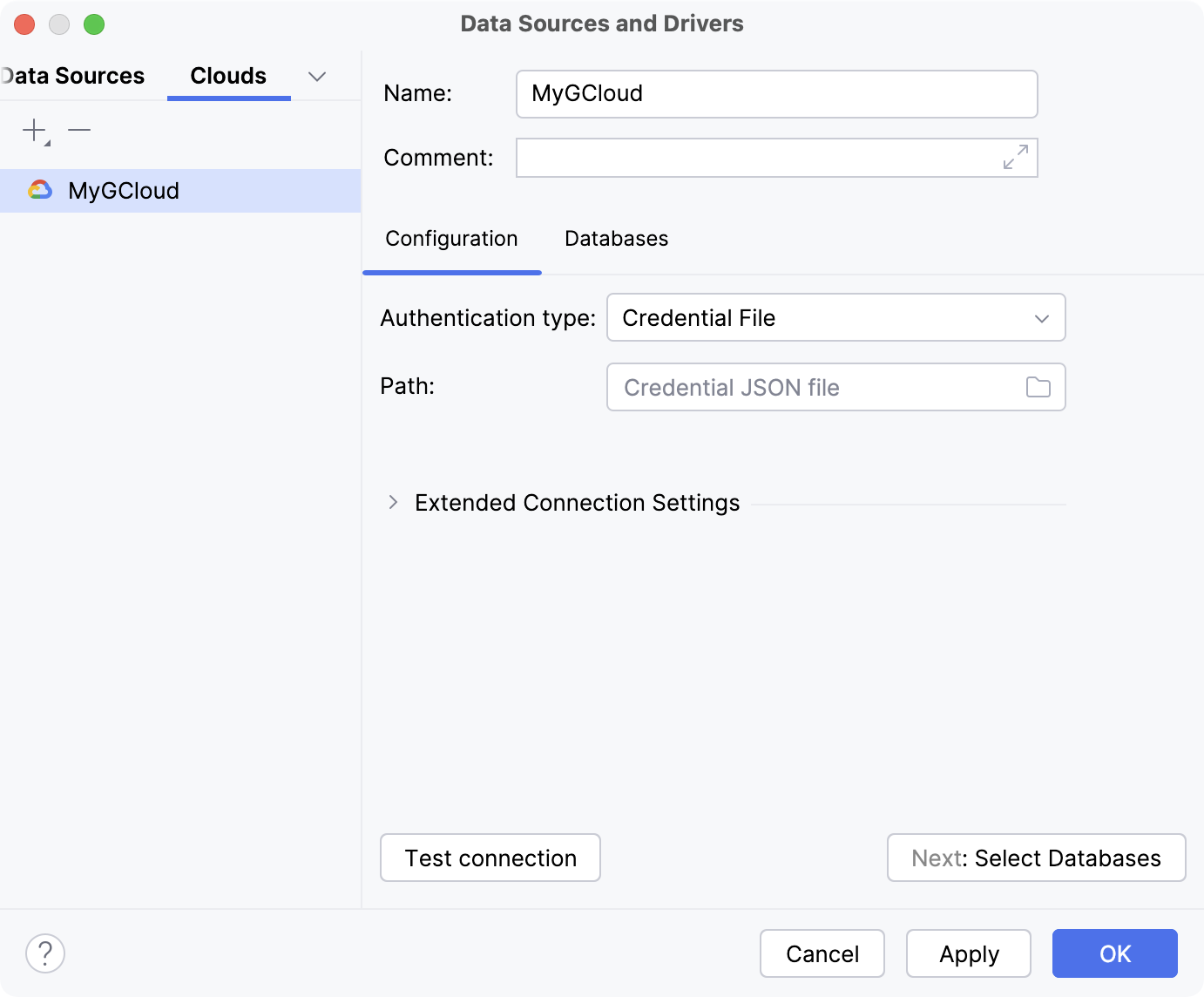
Run a test connection by clicking Test connection at the bottom of the connection details area.
Click Apply to save the connection configuration.
Step 2. Create a data source
To create a data source for a database stored in the cloud provider, do the following.
In the Clouds section on the left-hand side of the dialog of Data Sources and Drivers dialog, open the Databases tab of the settings area.
On the Databases tab, JetBrains Rider displays the list of databases available in the account. Select the databases you want to connect to. To select multiple databases, click them holding Shift.
To create a data source for the selected database, click Create data source.
JetBrains Rider saves the cloud provider connection configuration and opens the Data Sources section on the left-hand side of the dialog. The IDE also automatically fills the database connection details in the corresponding fields of the General tab of the settings area.
Type your user credentials.
Ensure that the database connection can be established using the provided details. To do this, click the Test Connection link at the bottom of the connection details section.

If you encounter any connection issues, refer to the Cannot connect to a database page.
(Optional) By default, only the default schema is introspected and available to work with. If you also want to work with other schemas, in the Schemas tab, select them for the introspection.
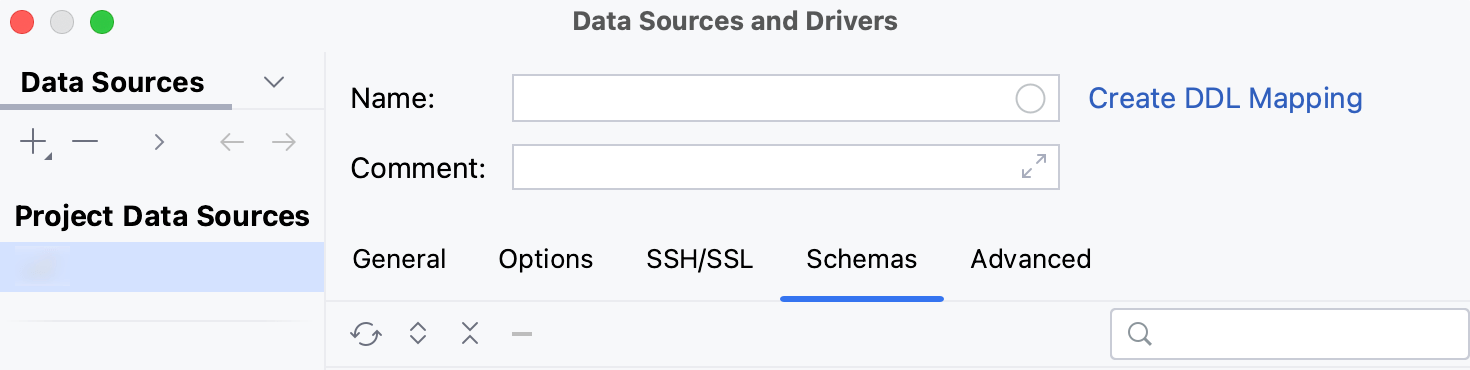
Click OK to create the data source.
Find your new data source in the Database tool window.
For more information about the Database tool window, see the corresponding reference topic.
For more information about working with database objects in JetBrains Rider, refer to Database objects.
To write and run queries, open the default query console by clicking the data source and pressing F4.
To view and edit data of a database object, open Data editor and viewer by double-clicking the object.