Manage .NET solutions and projects
As VS Code supports a wide range of languages and technologies, it does not use a universal concept of a project. Instead, it operates with workspaces, where a workspace is a directory (or a set of directories) that contains everything related to your current development task.
C# code, on the other hand, is typically organized into projects and solutions, with corresponding configuration files such as .csproj and .sln. If your workspace contains .csproj or .sln, .slnx, or .slnf files, ReSharper for Visual Studio Code will help you open the associated projects and solutions in the dedicated ReSharper Solution Explorer node of the Explorer view.
Manage .NET projects and solutions
To bridge the gap between a workspace and a project or solution in VS Code, you can use the directory where the .csproj or .sln, .slnx, or .slnf file resides as the workspace.
In the current version, ReSharper for Visual Studio Code provides a user interface for creating projects, but it does not yet support creating solutions through the UI. However, you can always use the .NET command-line interface (CLI) to create both projects and solutions. The .NET CLI is included in the .NET SDK, which you should already have installed as described in Prerequisites.
Open an existing solution
Select from the menu.
Select the directory that contains the .csproj file for the target project or the .sln, .slnx, or .slnf file for the target solution, and click Open Folder.
Expand the ReSharper Solution Explorer node of the Explorer view to browse the solution.
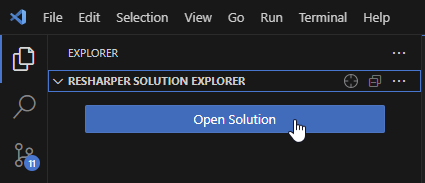
If there are multiple .sln, .slnx, or .slnf files in the directory you open, ReSharper for Visual Studio Code will help you choose the solution you want to work with. In the ReSharper Solution Explorer node of the Explorer view, click Open Solution and choose the solution from the list.
When you open the same directory with the several solutions for the second time, ReSharper for Visual Studio Code will automatically load the previously selected solution. To disable this behavior, disable the Solution: Auto Open Last Solution preference.
Create a new project and solution
Select from the menu.
In the file browser, navigate to an empty folder where you want to store your code, then click Open Folder.
This opens the selected folder as a workspace in the Explorer view.
Select from the main menu or press Ctrl+Shift+` to open the Terminal view.
Make sure the command line is at the root of the workspace, and create a new project using a .NET project template. For example, to create a new console application named
MyConsoleApp, run:dotnet new console -o MyConsoleAppThis command creates a new MyConsoleApp directory containing the project configuration file MyConsoleApp.csproj and the initial source file Program.cs.
Use the dotnet sln command to add projects to a solution. To create a solution, use the
dotnet new slncommand. For example, to create a solution namedTestSolution, run:dotnet new sln --name TestSolutionThen add the project to the solution:
dotnet sln add MyConsoleAppIn the Explorer view, expand the ReSharper Solution Explorer node of the Explorer view and click Open Solution.
Manage projects and files in your solution
Add a new project from the Solution Explorer
Expand the ReSharper Solution Explorer node of the Explorer view.
Right-click the solution node and select Add Project.
In the popup that opens, select a project type. You can use the search field to find the desired project type:
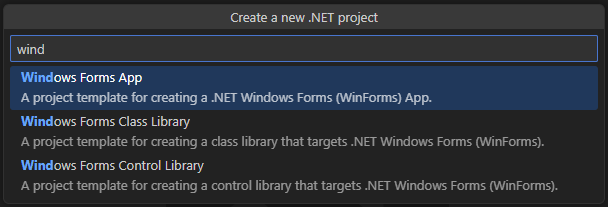
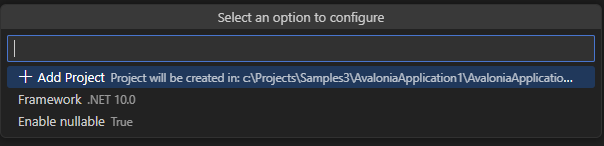
Follow the prompts in the popup to specify the project name, directory, and other options.
Finally, select Add Project. The new project will be added to the solution.
Add a new project via the command line
Select from the main menu or press Ctrl+Shift+` to open the Terminal view.
Make sure the command line is in the root of the workspace, where the solution's .sln, .slnx, or .slnf file is located.
Use dotnet project templates to create a project of the required type.
For example, to create a class library named
TestLib, run:dotnet new classlib -o TestLibTo add the new project to the solution, use the
dotnet sln addcommand:dotnet sln add TestLib
Add files to the project
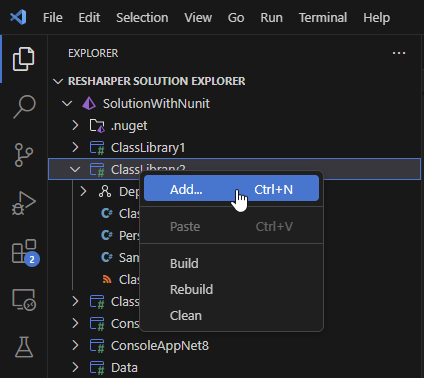
To create a new file in a specific project or folder, select this project or folder in the ReSharper Solution Explorer node of the Explorer view and press Ctrl+N or right-click and select Add....
In the popup that opens, select a template and press Enter. If none of the templates match your needs, select File.
Type a filename and press Enter.
Install NuGet packages
Select from the main menu or press Ctrl+Shift+` to open the Terminal view.
In the command line, switch to the directory that contains the .csproj file of the target project.
Type the following command:
dotnet add package <package.name>For example, to install the
JetBrains.Annotationspackage, version 2025.1.0, type the following command:dotnet add package JetBrains.Annotations --version 2025.1.0For more information about the dotnet CLI, refer to Microsoft Docs.
Reduce the number of loaded projects
For large solutions, ReSharper for Visual Studio Code provides several ways to reduce the number of loaded projects and thus improve overall performance and specifically the solution loading time.
Unload projects
To unload one or more projects, select them in the Solution Explorer, right-click the selection and choose Unload Project(s). If the projects that you are unloading have references in other projects that stay loaded, build the solution before unloading projects, and ReSharper for Visual Studio Code will be able to resolve references from the binaries.
Load unloaded projects
To load an unloaded project, you can right-click and choose Reload Project.
The state of unloaded projects is preserved after reopening a solution by the code editor .