Language and reference injections
Language injections let you work with pieces of code in a programming language different from the main language of your file.
When you inject a language (such as HTML, CSS, XML, RegExp, and so on) into a string literal, you get comprehensive coding assistance for the injected code even though it is not the main language of your project.
In addition to language injections, the IDE also supports reference injections, which treat string literals as references to other entities, such as classes or files.
Add language injections
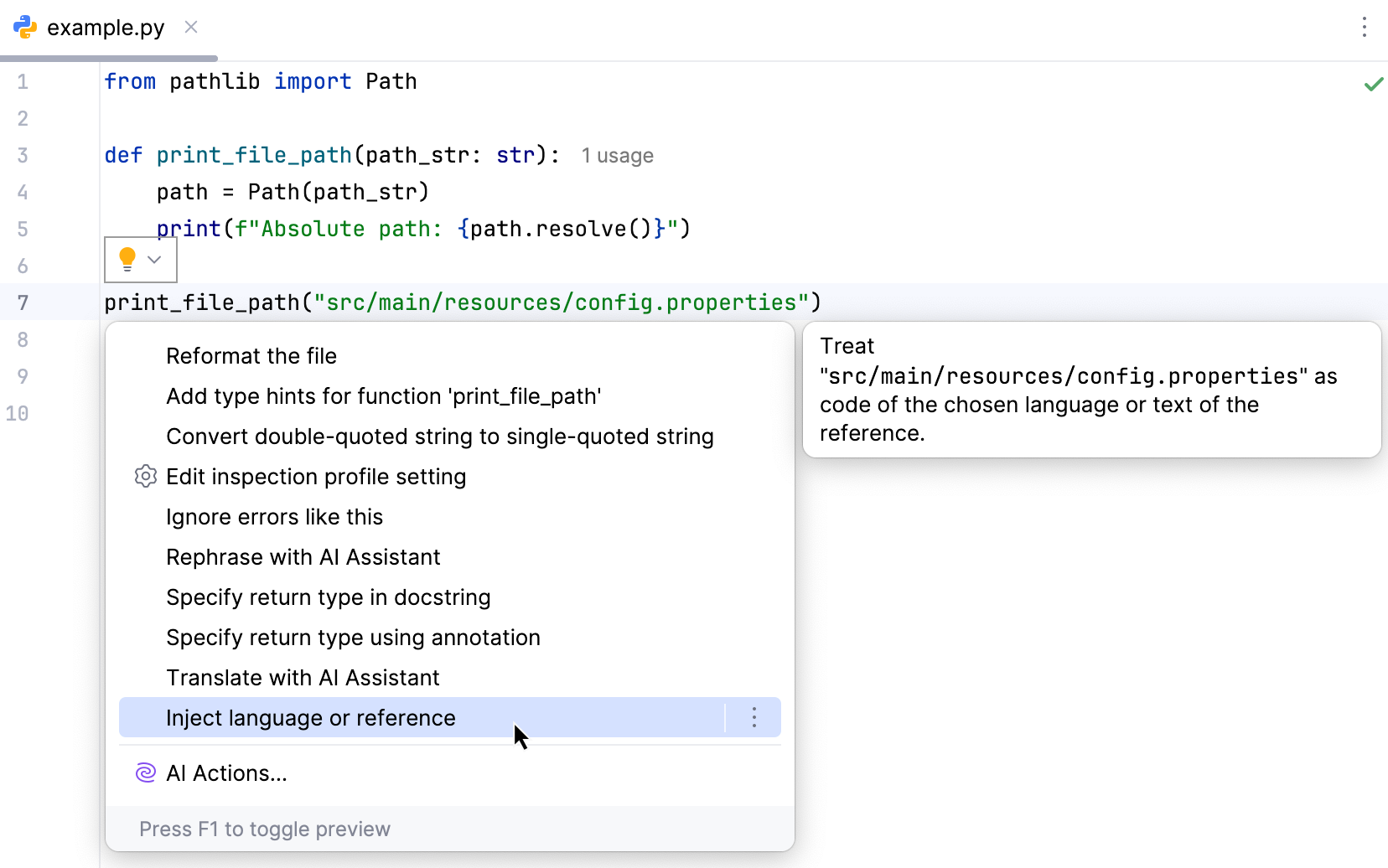
Add a temporary language injection
Place the caret inside the string literal, tag, or attribute, in which you want to inject a language and press Alt+Enter (or use the intention action icon
 ).
).Select Inject language or reference and choose the language you want to inject.
Add a persistent language injection
Use language injection comments (annotations) to add persistent fragments of injected languages.
Add a blank line before the target string literal, and type the following comment:
# language=<language_ID>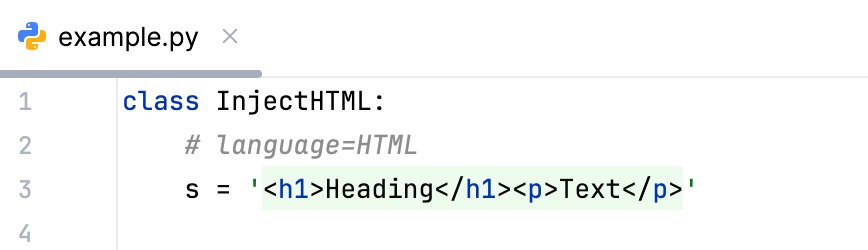
For comments, use the syntax of the language you want to inject. Language IDs are generally intuitive, for example, SQL, RegExp, XML, HTML.
You can also learn language IDs in settings. Press Ctrl+Alt+S to open settings and then select . Double-click an injection rule for a language; the language ID is specified in the ID field.
(Optional) Include a prefix or a suffix in your comment.
# language=<language_ID> prefix=<prefix> suffix=<suffix>This is required if:
The string is an incomplete/partial SQL statement
The string is not used directly in one of our supported calls (such as
select /where)
Edit injected language fragments
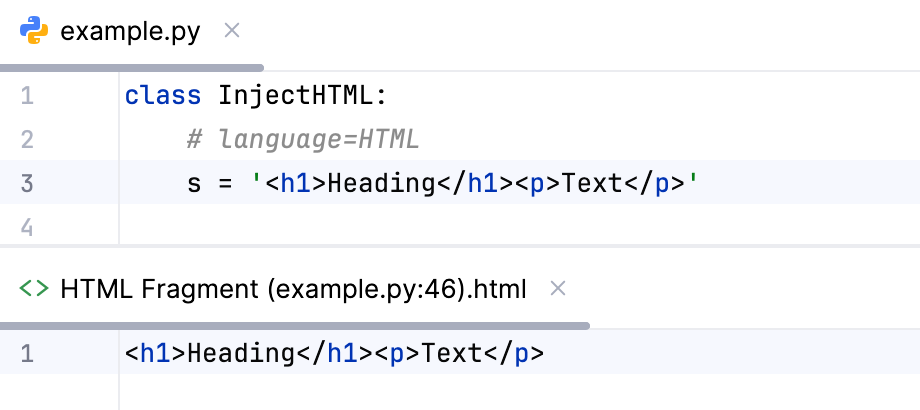
PyCharm allows you to edit injected language fragment in a dedicated editor.
Open the fragment editor
Place the caret within the injected code piece and press Alt+Enter (or use the intention action icon
).Select Edit <language ID> Fragment.
PyCharm will open a dedicated editor section for editing the code with the injected language. This editor provides full coding assistance, including code completion, inspections, intention actions, and code style actions.
Inject a reference
Reference injections interpret string literals as links to other entities, such as files.
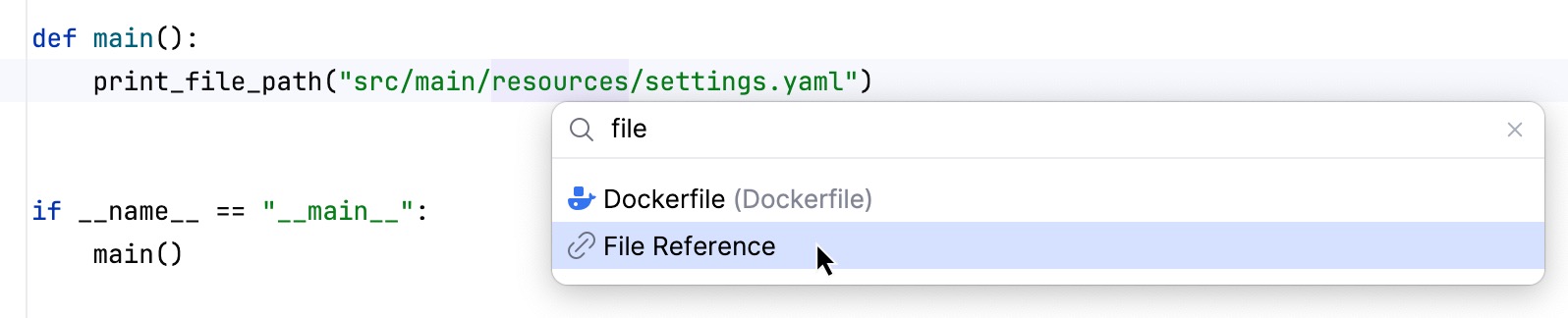
For example, resources/settings.yaml can be treated as a reference to a file.
Add a temporary reference injection
Place the caret inside the string literal in which you want to inject a reference and press Alt+Enter (or use the intention action icon
).Select Inject language or reference and select an option. For example, File Reference adds a link to the specified file.
Depending on the plugins you have installed, other reference options might be available.
Add a persistent reference injection
Use comments to add persistent reference injections.
Add a blank line before the target string literal and type the # language= comment with the necessary value.
For example, # language=file-reference adds a reference to a file:
Cancel injections
Cancel a persistent language injection
To cancel a language injection, delete the comment (annotation) you used to introduce it.
Cancel a temporary language injection
Place the caret at the code fragment and press Alt+Enter (or use the intention action icon
).Select Uninject language or reference.
Disable the intention action bulb icon
Do the following to hide the intention action icon in the editor:
Press Ctrl+Alt+S to open settings and then select .
Clear the Show intention bulb checkbox.
Apply the changes and close the dialog.
Configure rules for automatic injections
In PyCharm, there is a set of predefined rules according to which the IDE automatically injects languages in certain places in your code.
You can configure language injection rules on the Editor | Language Injections settings page Ctrl+Alt+S.
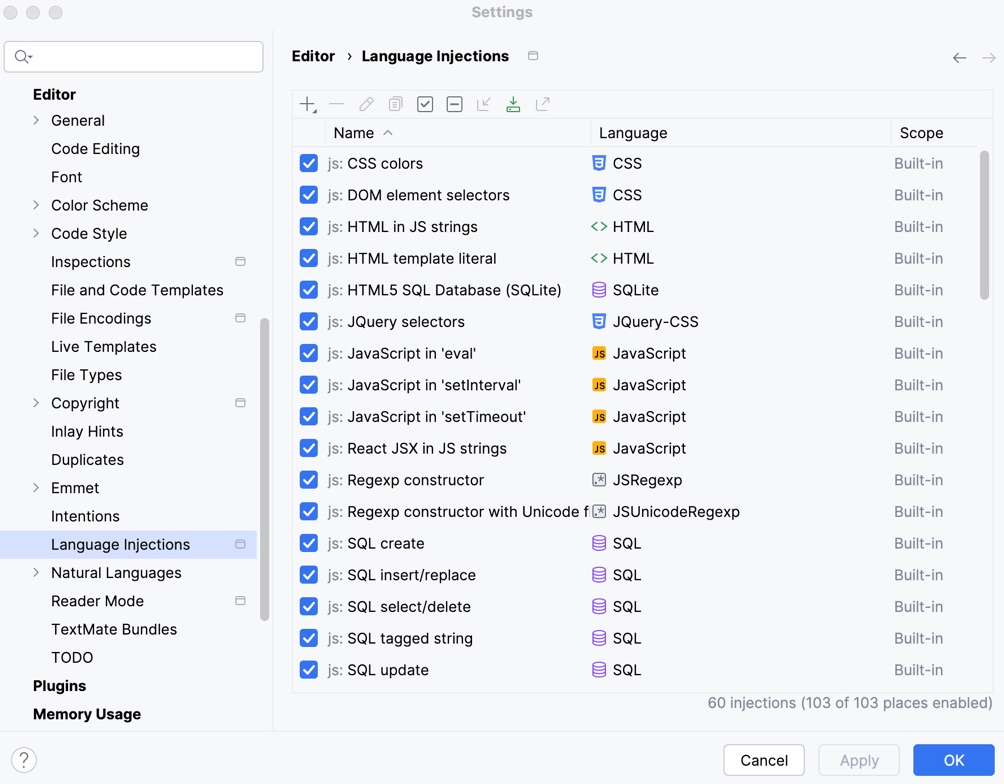
All pre-defined injection rules are configured for the Built-in scope. In other words, they are global (and therefore available in all PyCharm projects). Custom rules can be configured for the IDE or for one project only. To change the scope of custom injections, use the  .
.
To share a custom rule through VCS, move it to the Project scope using the corresponding option on the toolbar. By doing so, you will create a new file in the .idea directory named IntelliLang.xml with your custom rules that you can place under version control.
If you don’t use a VCS, you can share your rules by exporting them to XML files (click  on the toolbar) and then importing them to another project.
To configure custom injection rules, click  to add a new rule, or copy a predefined rule and change its settings.
Configure custom injection rules
Do one of the following:
To create a new rule, click
on the toolbar and select the context to apply the rule in.To edit an existing rule, select it and click
 on the toolbar.
To create a rule based on an existing one, select the base rule, click
 on the toolbar, select the copy and click on the toolbar.
The Language Injection Settings dialog opens. The controls in the dialog depend on the selected injection type.
Specify the ID or the name of the language to be injected.
Optionally, specify the prefix and the suffix, that is, the sequences of characters to be added before and after the injection. You may need it to wrap incomplete fragments. Suppose you have the following code fragment:
const query = "SELECT * FROM users WHERE id = ?";You can inject
SELECTas prefix and;as suffix. Alternatively, if you selectJSONas injected language, you can specify a pair of curly braces{}as prefix and suffix.In the Places Patterns or Template Tag field, depending on the rule type, type the rules that define the context where you want PyCharm recognize literals as injections. The rules may target function arguments, variable initializers, object properties, JSX attributes, etc.
Example 1 - Any JavaScript string argument
psiParameter().withName("query")Example 2 - Tagged template
psiElement(JSStringTemplateExpression)The rules are built from Program Structure Interface Patterns and are actually chained calls of methods of an internal PyCharm language. The Program Structure Interface shows the structure of a file as PyCharm treats it.
If you are editing a predefined injection rule, the patterns are already specified. They ensure productivity and ease of use. We recommend that you rely on these configurations rather than create new ones.
Optionally:
In the Advanced area, specify additional settings to narrow the context where the injection rule is applicable and thus to enable more fine-grained control over the injection process.
In the Value pattern field, type a regular expression that determines the context to inject the language into. By using the first capturing group of the patterns as the target for injection, you can configure the procedure to have the language injected only into values that match a certain pattern or into multiple parts that match the pattern.
For example,
^javascript:(.*)matches thejavascriptprotocol that can be used in hyperlink-hrefs to execute JavaScript code.Single file - If the option is off, the fragments that match the value pattern are treated separately, as different "files" - for example from the fragment editor's viewpoint.
If the option is on, the corresponding fragments are all merged together to form a single unit, or "file".
Given the value pattern
xxx (.+) yyy (.+) zzzand the fragment
xxx select * yyy from family zzz,select *andfrom familyare treated as two independent fragments (or "files") if the option is off. If the option is on,select * from familyis treated as a single unit or "file".
For XML Tag and XML Attribute injection rules, see Language Injection Settings dialog: XML Tag Injection and Language Injection Settings dialog: XML Attribute Injection.