Recent files and changes
When working on a project, you often need to switch between files and locations you've recently viewed or edited. PyCharm provides quick navigation features that help you find and reopen recent files or revisit edited code fragments.
Find recent files
You can search for recently opened or edited files using the Recent Files popup.
To open the Recent Files popup, press Ctrl+E.
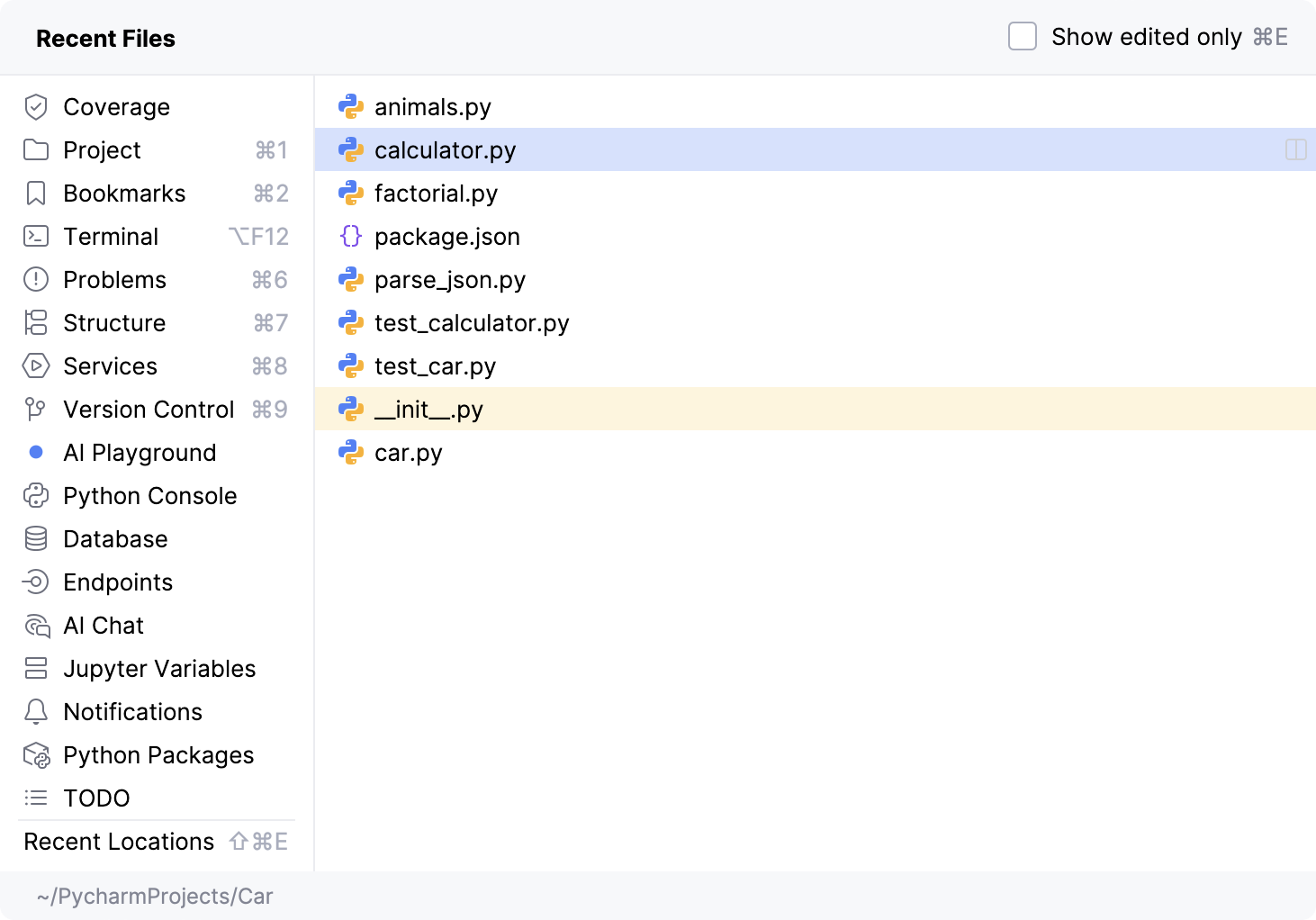
To show only recently edited files, press Ctrl+E again or select the Show edited only option.
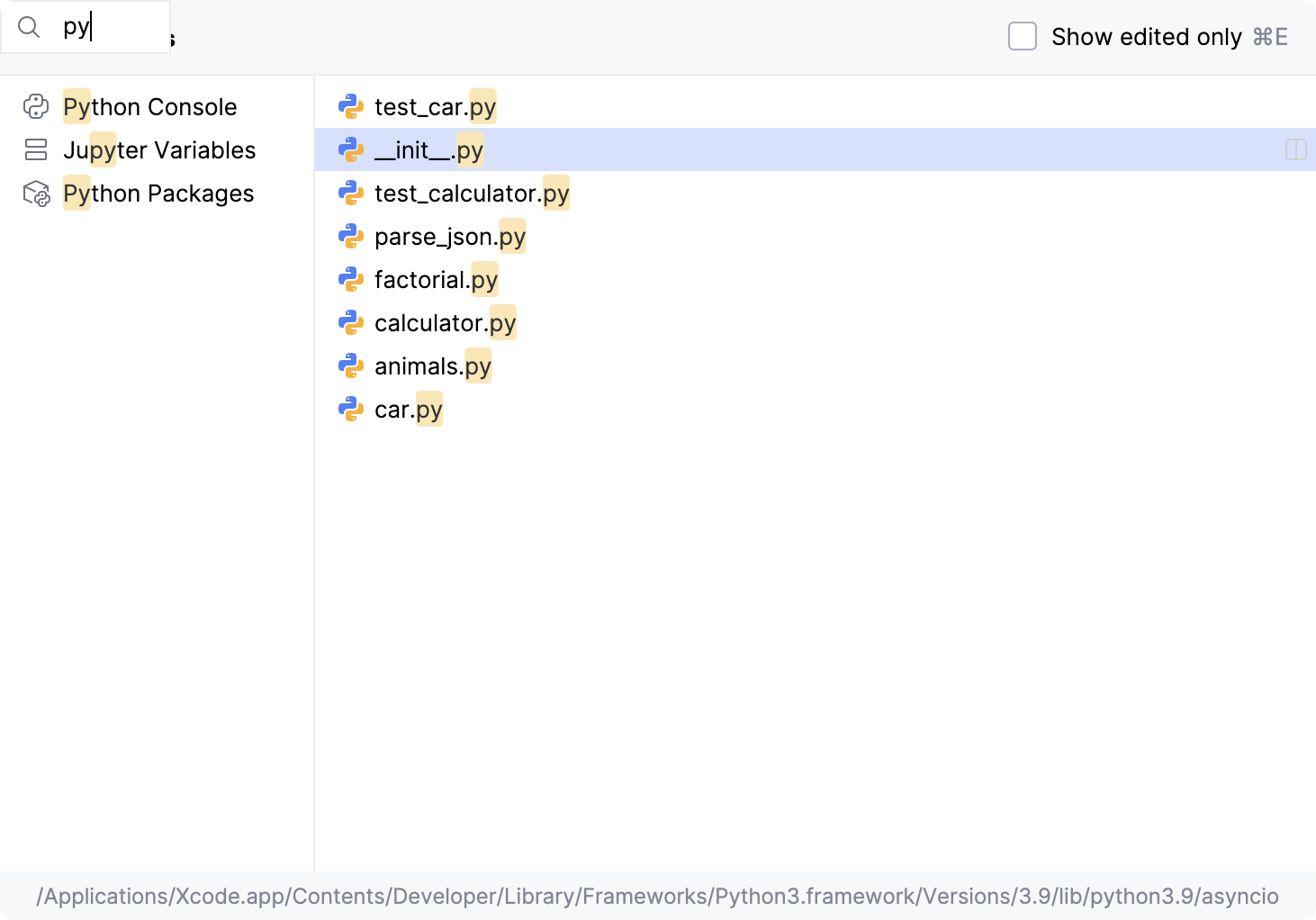
To search for items within the popup, start typing your search query. PyCharm filters the results dynamically as you type, showing only the matching items.
Find recent locations
You can check your recently viewed or changed code using the Recent Locations popup.
To open the Recent Locations popup, press Ctrl+Shift+E. The list starts with the latest visited location at the top and contains code snippets.
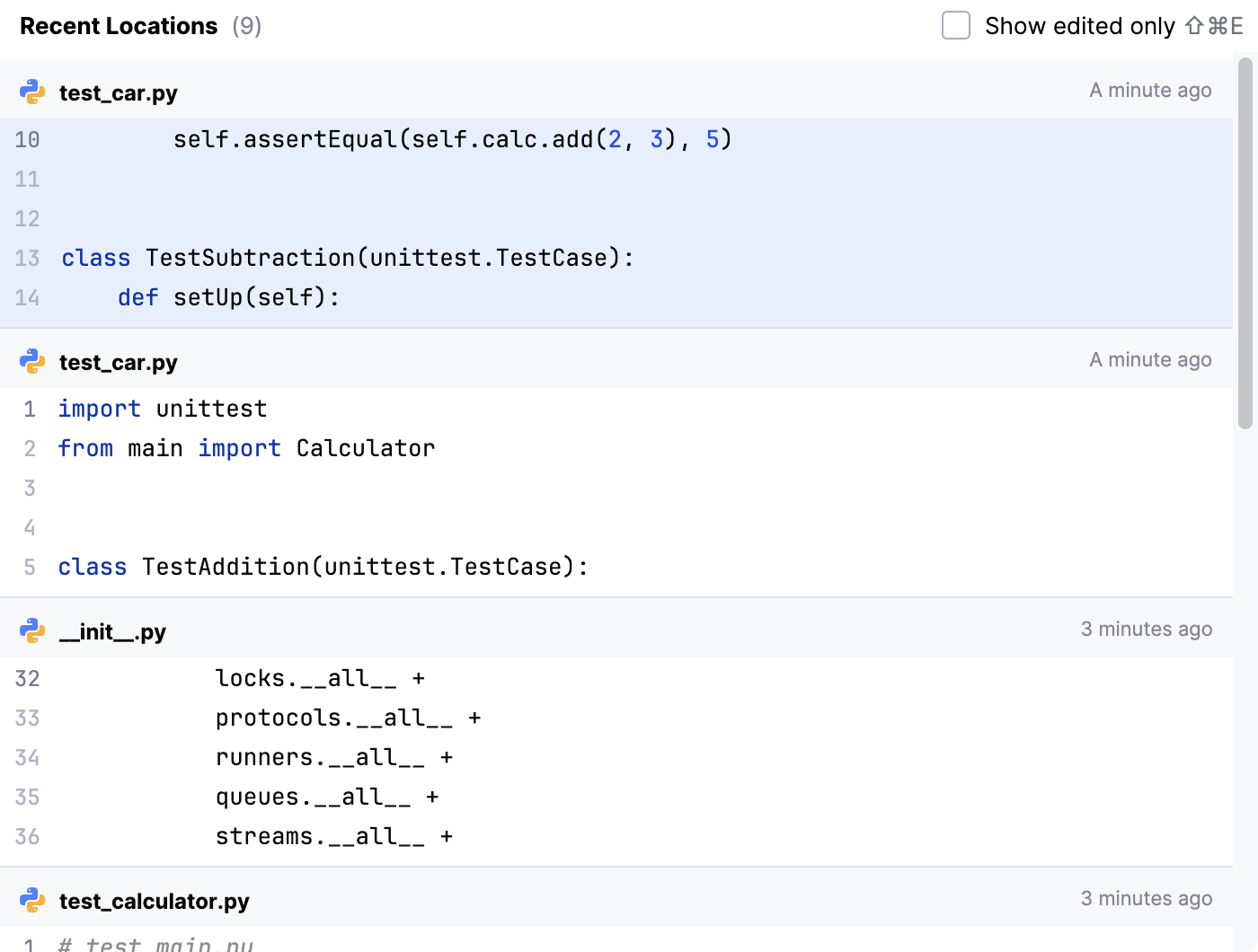
To show only the locations with changed code, while in the popup, use the Ctrl+Shift+E shortcut again or select the Show edited only option.
To search for a code snippet, in the Recent Locations popup, start typing your search query. You can search by the code text, file name, or breadcrumbs.
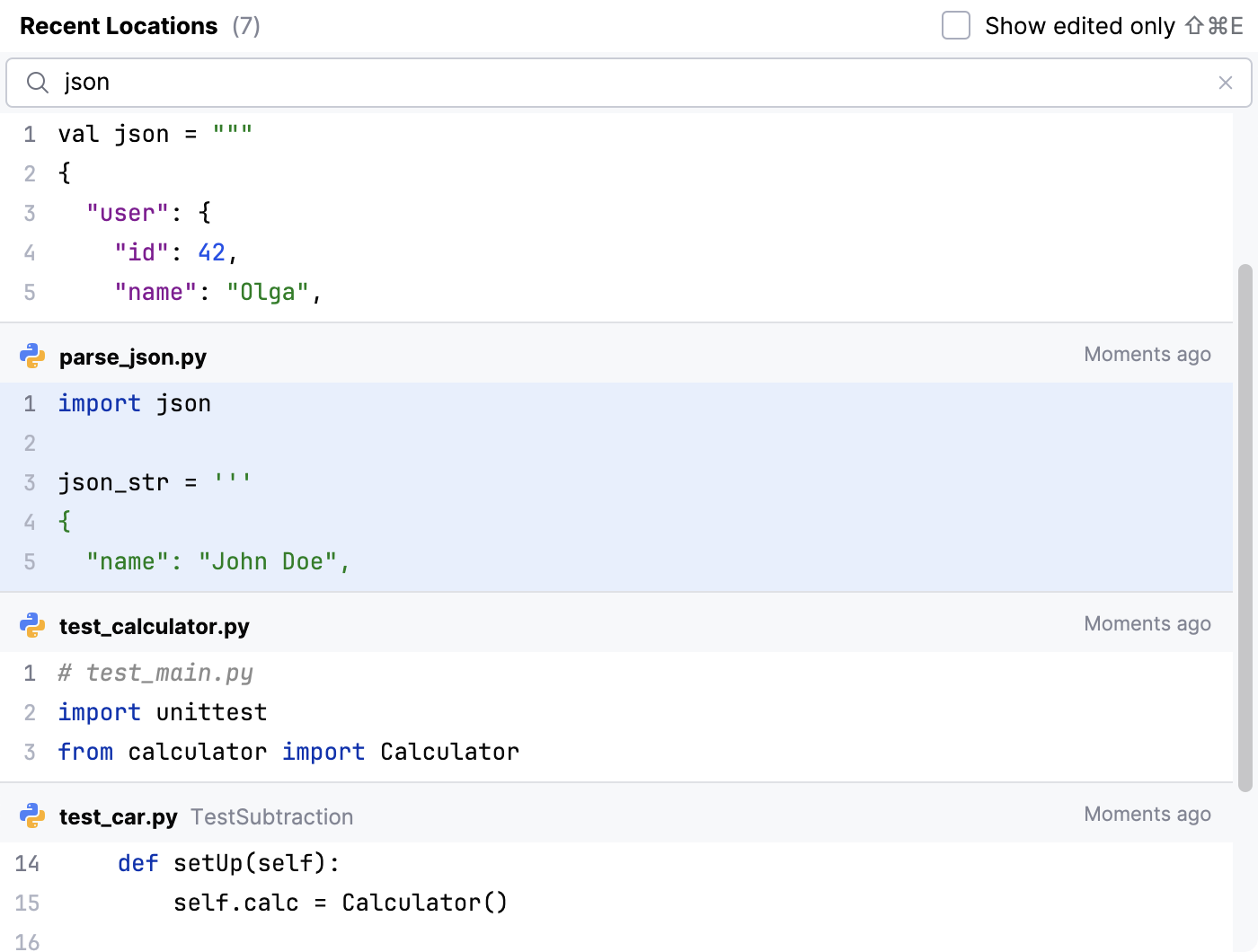
To delete a location entry from the search results, press either Delete or Backspace.
Find recent changes
You can use the Recent Changes list to get a list of recent changes made locally or externally in your project. If necessary, you can revert those changes.
In the main menu, go to Alt+Shift+C.
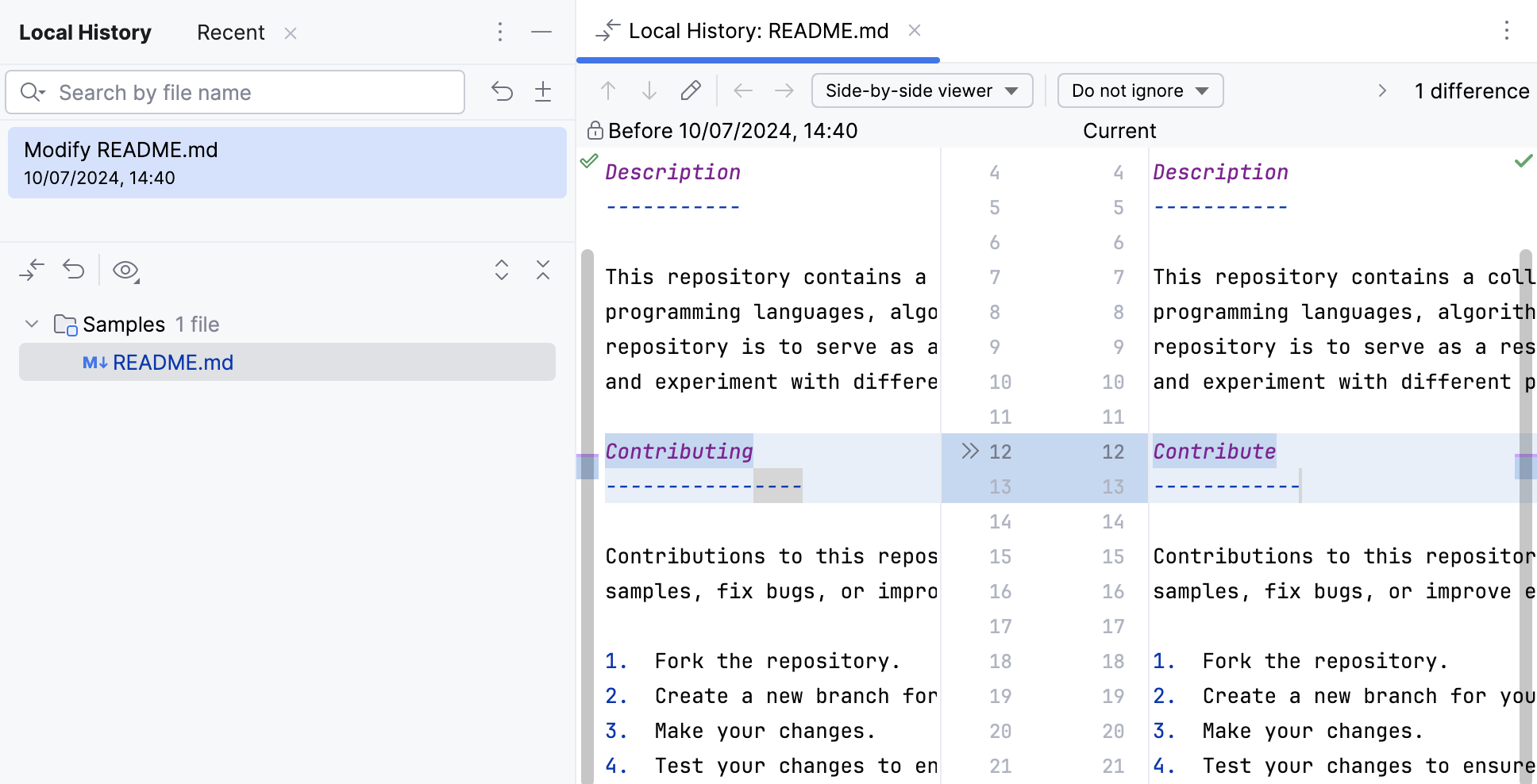
In the Recent Changes tab of the Local History tool window, select a change.
The IDE shows you a list of files modified with this change in the panel below.
Press Enter or double-click the file to open the diff viewer where you can check what was changed and revert those changes if necessary.